
Microsoft Defender Antivirus Defender is intended to operate silently in the background, without requiring any active attention from the user. Because Defender is included for free as a component of Windows, it doesn’t need to nag or otherwise bother the user for attention in an attempt to “prove its value”, unlike some antivirus products that require subscription fees.
The default mode for Defender is called “Real-time Protection” (RTP) and in that mode, Defender will automatically scan files for malicious content as they are opened and closed. This means that, even if you did have a malicious file on your PC, the instant it tries to load, the threat is blocked.
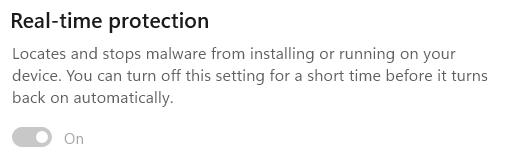
If you use the Windows Security App’s toggle to turn RTP off, it will turn itself back on whenever you reboot, or after a variable interval (controlled by various factors including management policies and signature updates).
Given the default real-time scanning behavior, you may wonder why the File Explorer’s legacy context menu offers a “Scan with Microsoft Defender…” menu item. Note that this is the Legacy Context menu, shown when Shift+RightClicking on a file. The Default context menu shown by a regular right-click does not offer the Scan command.
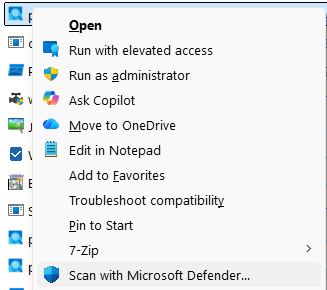
Confusion around this command is especially common because, in most cases, the item doesn’t seem to do anything: the Windows Security app just opens to the “Virus & threat protection” page:
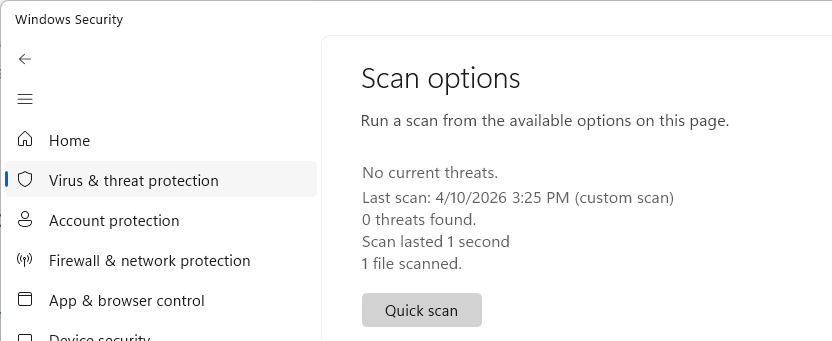
The scan you’ve asked for typically executes so quickly, that you have to look closely to realize that your requested scan actually completed– see the text “1 file scanned” at the bottom.
🤔 So, in a world of Real-time Protection, why does this command exist at all? Is there ever a need to use it?
The one scenario where the “Scan” menu item does more than nothing is the case of archive files (Zip, 7z, CAB, etc). Defender doesn’t scan these files on open/close for a few reasons (performance: decompressing data can take a long time, functionality: a password may be needed to decompress).
However, if a user actually tries to use a file from within an archive, that file is extracted and scanned at that time:
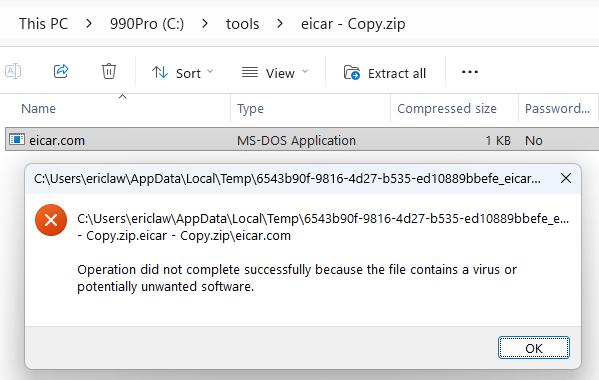
If you wanted to scan the contents of an unencrypted archive without actually extracting it, the Scan with Microsoft Defender… menu item will do just that and recognize the threat inside the archive:
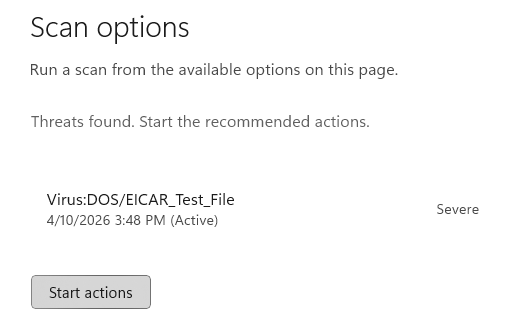
Therefore, the only meaningful use of the “Scan” option in Defender is to scan an archive file that you plan to give someone else to open on a different computer, although it’s extremely likely that their device would also be running Defender and would also scan any files extracted from the archive.
Unfortunately, there’s lots of bad/outdated advice out there about the need for manual AV scanning, but I’m happy to see that both Microsoft Copilot and Google Gemini understand the very limited usefulness of this command. I was also happy to see Gemini offered the following:
Pro Tip: If you ever suspect a file is malicious but Defender insists that it’s clean, try uploading it to VirusTotal (an awesome service I’ve blogged about before). VirusTotal will scan the file using over 70 different antivirus engines simultaneously to give you a second (and 3rd,4th,5th,6th,7th…) opinion.
Other Scans
You may’ve noticed other options on the Scan options page, including “Quick scan”, “Full scan”, “Custom scan”, and “offline scan”.
- Quick Scan scans a small set of locations where malware commonly tries to hide, including startup locations.
- Full scan is self-explanatory: it scans all of your files on your disks.
- Custom scan is self-explanatory: it scans the location you choose. The menu item discussed above kicks off a custom-scan for a single file or folder.
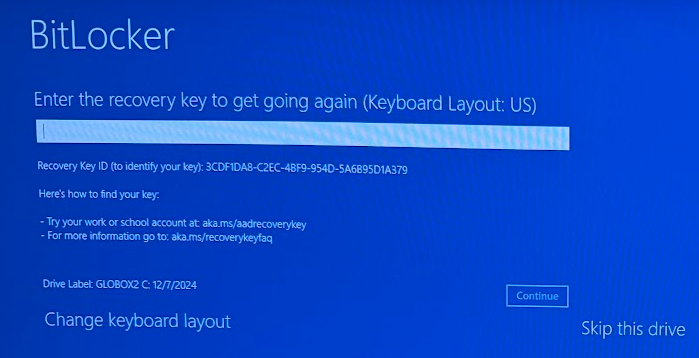
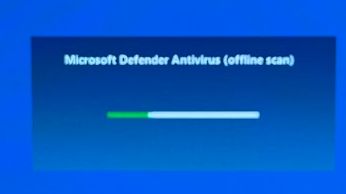
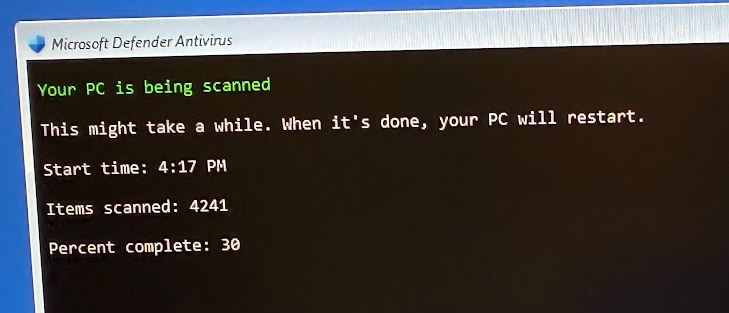
All of these scans are basically redundant in a world of RTP: files are scanned on access, so manual scans are not required for protection. The final option, Microsoft Defender Antivirus (offline scan) is different than the others. This scan is a special one that reboots your system and begins a scan before Windows boots. This scan type can find certain types of malware that might otherwise try to hide from Defender. Note that you may be prompted for your BitLocker recovery key:
tl;dr: Don’t worry, we’ve got your back.
-Eric
 text/plain