An important concept in Usable Security is whether a given UI represents a “security surface.” Formally, a security surface is a User Interface component in which the user is presented with information they rely upon to make a security decision. For example, in the browser, the URL in the address bar is a security surface. Importantly, a spoofing issue in a security surfaceusually represents a security vulnerability.
Just as importantly, not all UI surfaces are security surfaces. There are always many other UI surfaces in which similar information may be presented that are not (and cannot be) security surfaces.
Unfortunately, knowing which surfaces are security surfaces and which are not is simultaneously
Critically important – If you think an untrustworthy surface is trustworthy, you might get burned.
Unintuitive – There’s usually no indication that a surface is untrustworthy.
Perhaps the most famous non-security surface is the “status bubble” shown at the bottom left of the browser window that’s designed to show the user where a given link will go:
The Chromium “Status Bubble”
There are many reasons why this UI cannot be a security surface.
The primary issue is that it’s below the line-of-death, in a visual area of the page that an attacker can control to paint anything they like. The line-of-death is a major reason why many UIs cannot be considered security surfaces — if an attacker has control over what the user sees, a UI cannot be “secure.”
But even without that line-of-death problem, there are other vulnerabilities: most obviously, JavaScript can cancel a navigation when it begins, or it can rewrite the target of a link as the user clicks on it. Or the link could point to a redirector site (e.g. bit.ly) rather than the ultimate destination. etc.
Challenging Security Surfaces: The “URL Bar”
Perhaps the most complicated security surface in existence is the browser’s address bar, known in Chromium-based browsers as the “Omnibox”.
The “omnibox” in modern Edge
That omnibox naming reflects why this is such a tricky security surface: Because it tries to do multiple things: It tries to be a security surface which shows the current security context of the currently-loaded page (e.g. https://example.com), but it also tries to be a information surface which shows the full URL of the page (e.g. https://example.com/folder/page.html?query=a#fragment), and it tries to be an input surface that allows the user to input a new URL or search query. Only certain portions of the URL information are security-relevant, and the remainder of the URL could be used to confuse the user about the security-relevant parts.
Making matters even more complicated, the omnibox also has to deal with asynchronicity — what should be shown in the box when the user is in the middle of a navigation, where the user’s entered URL isn’t yet loaded and the current URL isn’t yet unloaded?
Windows LNK Inspection
Earlier this year, a security vulnerability report was filed complaining that Windows File Explorer would not show the full target of a .lnk file if the target was longer than 260 characters.
Windows File Explorer’s .lnk Properties Dialog
The reporter complained that without accurate information in the UI, a user couldn’t know whether a LNK file was safe.
This is true, but it’s also the case that the user isn’t being asked to make a security decision in this dialog; the UI where the user is asked to make a security decision doesn’t even show the target at all:
Windows Security Warning prompt when opening a LNK file from the Internet Zone
Even in the exceptionally unlikely event that a user uses Explorer’s LNK inspection UI, very few users could actually make a safe determination based on the information within. Ultimately the guidance in the Security Warning prompt is the right advice: “If you do not trust the source, do not open.”
Update: Adam complains that the Security Warning prompt doesn’t really provide the user with the information needed to decide whether the link’s source is trustworthy. He’s not wrong.
In a prior installment we looked at Controlled Folder Access, a Windows feature designed to hamper ransomware attacks by preventing untrusted processes from modifying files in certain user folders. In today’s post, we look at the other feature on the Ransomware protection page of the Windows Security Center App — Ransomware data recovery.
User-Interface
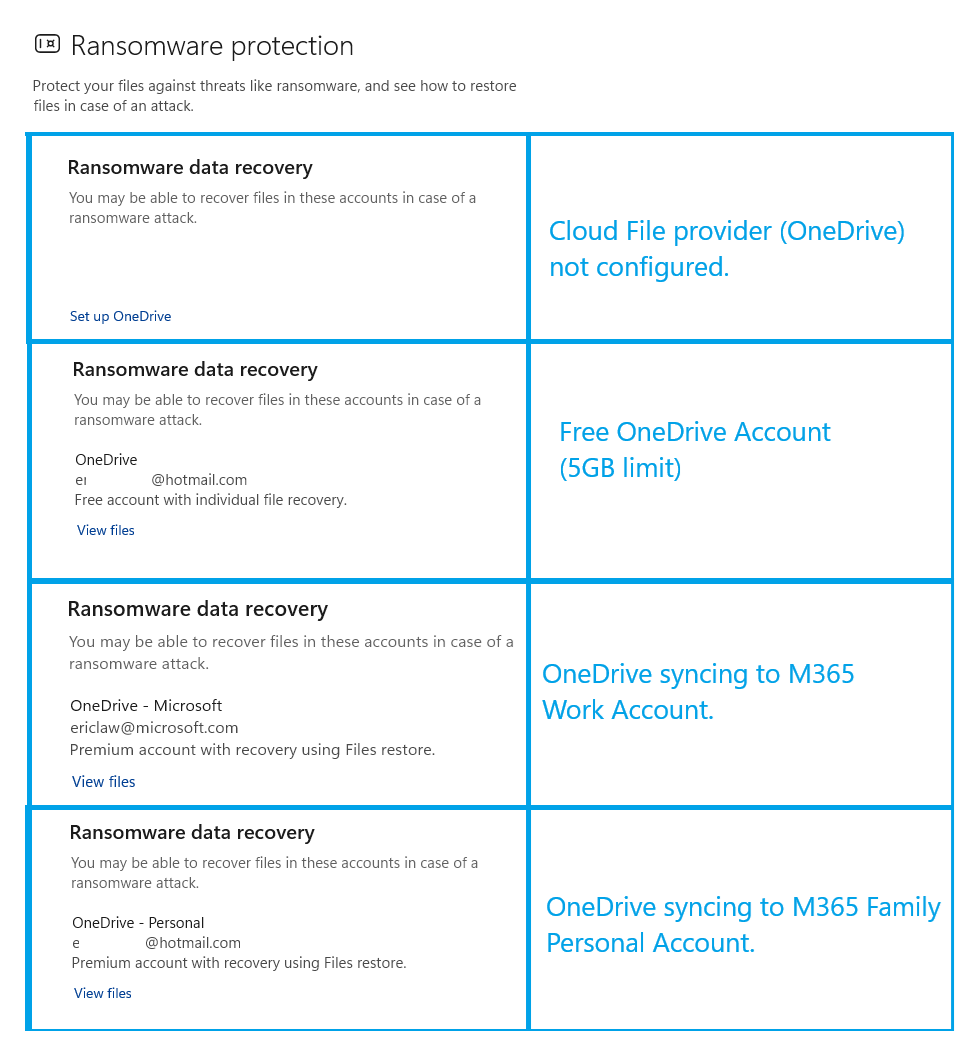
The UI of the feature is simple and reflects the state of your cloud file provider (if any) which for most folks will be OneDrive. Depending on whether OneDrive is enabled, and what kind of account you have, you’ll see one of the following four sets of details:
Windows 11 Ransomware data recovery feature status
What’s it do?
Conceptually, this whole feature is super-simple.
Ransomware works by encrypting your files with a secret key and holding that key for ransom. If you have a backup of your files, you can simply restore the files without paying the bad guys.
However, for backup to work well as a ransomware recovery method, you need
to ensure that your backup processes don’t overwrite the legitimate files with the encrypted versions, and
to easily recognize which files were modified by ransomware to replace them with their latest uncorrupted version.
The mechanism of this feature is quite simple: If Defender recognizes a ransomware attack is underway, it battles the ransomware (killing its processes, etc) and also notifies your cloud file provider of the timestamp of the detected infection. Internally, we’ve called this a shoulder tap, as if we tapped the backup software on the shoulder and said “Uh, hang on, this device is infected right now.“
This notice serves two purposes:
To allow the file backup provider to pause backups until given an “all clear” (remediation complete) notification, and
To allow the file backup provider to determine which files may have been corrupted from the start of the infection so that it can restore their backups.
Simple, right?
-Eric
Appendix: Extensibility
As far as I can tell, this feature represents semi-public interface that allows 3P security software and cloud backup software to integrate with the Windows Security Center. OnDataCorruptionMalwareFoundNotification and OnRemediationNotification. Unfortunately, the documentation isn’t public — I suspect it’s only available to members of the Microsoft Virus Initiative program for AV partners.
Windows users who installed the October 2025 Security Updates may have noticed an unexpected change if they use the Windows Explorer preview pane. When previewing many downloaded files, the preview is now replaced with the following text:
Explorer PDF Preview: “The file you are attempting to preview could harm your computer.”
While it also occurs when viewing files on remote Internet Zone file shares, the problem doesn’t occur for other files on your local disk, for remote shares in your Trusted or Intranet zone, or if you manually remove the Mark-of-the-Web from the file. Notably, Explorer seems to cache it and as of October 2025 there is bug that deleting the MotW stream doesn’t clear the Zone cache entry, so users must restart Explorer to see the change 😬.
What happened?
The change in Windows was a trivial one: the value for URLACTION_SHELL_PREVIEW(0x180f) in the Internet Zone (3) was changed from Enable (0) to Disable (3):
Before Windows Explorer asks the registered previewer to show the preview for a file, it consults the SHELL_PREVIEW URLAction to see whether the file’s location allows previews. With this settings change, the permission to show previews is now denied for files that originate from the Internet Zone.
Why?
The reason is a simple one that we’ve covered before: the risk of leaking NTLM credential hashes to the Internet when retrieving resources via SMB via the file: protocol. Leaked hashes could allow an attacker to breach your account.
As we discussed in the post on File Restrictions, browsers restrict use of the file protocol to files that are opened by the file protocol. When you preview a downloaded file in Explorer, the URL to that download uses file: and thus the previewer is allowed to request file: URLs, potentially leaking hashes when the file is previewed. With this change, the threat is blunted because with the previews disabled, you’d have to actually open the downloaded file to leak a hash.
Unfortunately, this fix is a blunt instrument: while HTML files can trivially reference remote subresources, other file types like PDF files typically cannot (we disable PDF scripting in Explorer previews) but are blocked anyway.
If you like, you can revert this change on your own PC by resetting the registry key (or by adding download shares you trust to your Trusted Sites Zone). However, keep in mind that doing so reenables the threat vector, so you’ll want to make sure you have another compensating control in place: for example, disabling NTLM over SMB (more info), and/or configuring your gateway/firewall to block SMB traffic.
Way back on May 11th of 2022, I was visiting my team (Edge browser) for the week in Redmond, Washington. On Wednesday night, I left my ThinkPad X1 Extreme laptop in a work area on the 4th floor of the office when I went out for drinks with friends.
After dinner, I decided not to head back to the office to grab my laptop and bag to bring them back to the hotel. When I arrived at the office the next morning, my backpack (containing $80 in cash) and charger were still there, but my laptop was nowhere to be found. An exterior door in a nearby stairwell had been failing to latch but hadn’t been reported to the maintenance team.
I muddled through the rest of the week before heading home to Austin. Losing my X1 was a huge loss for me, because a bunch of irreplaceable files on it were not backed up to the cloud, including tax return data files and a birthday video some friends had arranged from Cameo. Some code updates to my tools hadn’t yet been uploaded to GitHub, and I lost access to a variety of notes and other information that wasn’t copied elsewhere. One consolation was that I knew that I’d enabled BitLocker Drive Encryption on the main disk, so the company’s data was safe.
For decades I’ve been worried about losing files through human error. Unfortunately, I only backed up to external drives every month or two, instead relying on more frequent backups by copying to dated folders to a second SSD on the same machine. Because COVID WFH meant that my laptop rarely left my home office, my entire machine getting stolen just wasn’t a significant part of my threat model. Oops.
I held out some hope that Microsoft Campus Security had video of the thief, and indeed they did. They supplied it to the Redmond Police department. Apparently, the thief was a “known transient in the area” and for a few weeks I held out hope that might mean I would see my laptop again. As the months went by, I lost hope. Because the laptop was my personal machine in BYOD mode (I’ve long used exclusively my own hardware for work) Microsoft wasn’t going to buy me a new one. Depression and frustration about the situation doubtless contributed in part to my leaving the Edge team later that summer.
The next time I gave my missing ThinkPad any real thought was the following April, when I was doing my taxes and had to painstakingly reenter data and make my best guesses based on my recollections of the past year’s now-missing data. It was very frustrating, and I’m sure I paid a few hundred dollars more than I needed to, having lost carryover deductions.
The last time I really thought about my lost ThinkPad was two years ago, when someone stole my son’s iPad out of my car parked in front of my house. I immediately assumed it was gone forever, and rolled my eyes that Apple’s “Find My” was so dumb that it still showed the tablet outside my house. And not even directly in the driveway of my house, but like 300 feet away. And that location never updated in the following days. Annoyed, I finally grudgingly decided to meander down the block to the tiny grove of trees marked by the blue dot and … sure enough, the iPad was sitting there in the grass under a tree. The thieves were smart enough to realize that they weren’t going to be able to use or sell the iPad without its passcode. Amazing.
Years passed.
And then…
Improbably, two weeks ago I received the following email:
I clicked the link, and sure enough, there it was, my laptop with my name still on the screen:
The listing was posted 60 miles away from Redmond. I contacted the seller and in chats over the following week, more of the story came out. Alexandra bids on abandoned storage units, and a recent acquisition had a pile of laptops in it, including mine. She mentioned that the container also had another ThinkPad, which unlike mine, bore a “Microsoft Asset” sticker on it. (I grabbed that Asset number and told her that our Corporate Security team would be in touch.)
She shipped my laptop back to me (somewhat tenuously packed in just an envelope full of bubble-wrap) and it arrived this afternoon. The fun stickers that once adorned the face are gone without a trace, but it’s unquestionably my device.
I’m a little afraid to turn it on — I’m pretty sure when I do, it’s going to auto-connect to my WiFi, realize that it’s been marked stolen, and get automatically wiped. Still, even in the unfortunate event that such a wipe happens, I might still end up formatting and reinstalling Windows 11 on it — the X1 Extreme Gen1 was the last ThinkPad that I really liked (my more recent buys have been “meh“), and it probably has at least a bit of useful life left in it.
And there’s something kinda magical in having my long wandering machine finally, improbably, find its way home, one thousand two hundred sixteen days later….
Lessons
If you see something, say something. I never would’ve gotten this laptop back if Howard didn’t reach out. It never would’ve been stolen to start with had the defective door been reported. (This advice goes for software bugs too!)
Encrypt your disk. I would’ve been very very uncomfortable with my tax returns and other personal data floating around in the wide world.
Regularly back up your data. Cloud backups are convenient, local offline backups provide additional assurance. Don’t forget your BitLocker keys!
-Eric
PostScript
Postscript: It looks like Microsoft Corp got rid of my device’s BitLocker disk encryption recovery key years ago, and I couldn’t find a copy of the recovery key file anywhere on my many external devices. (Consider backing yours up right now!)
But I randomly searched my other machines for text files containing the word “BitLocker” and found the X1’s key in an old SlickRun Jot file backed up from another laptop in 2022. I turned off WIFI in the X1 BIOS and successfully booted to my Windows desktop. It was a bit disorienting at first because the colors were all nuts — apparently, the last thing I was working on that fateful night in 2022 was a high-contrast bug. :)
omg omg omg I’m in!
Unfortunately, it looks like one component didn’t survive over the years — my beloved TrackPoint (the little red eraser-looking input device) only moves the cursor side-to-side, so I have to rely on the touch pad. But still, not bad at all.
A hot infosec topic these days is “How can we prevent abuse of AI agents?”
While AI introduces awesome new capabilities, it also entails an enormous set of risks from the obvious and mundane to the esoteric and elaborate.
As a browser security person, I’m most often asked about indirect prompt injection attacks, whereby a client’s AI (e.g. in-browser or on device) is tasked with interacting with content from the Internet. The threat here is that the AI Agent might mistakenly treat the web content it interacts with as instructions from the Agent’s user, and so hypnotized, fall under the control of the author of that web content. Malicious web content could then direct the Agent (now a confused deputy) to undertake unsafe actions like sharing private data about the user, performing transactions using that user’s wallet, etc.
Nothing New Under the Sun
Injection attacks can be found all over the cybersecurity landscape.
The most obvious example is found in memory safety vulnerabilities, whereby an attacker overflows a content data buffer and that data is incorrectly treated as code. That vulnerability roots back to a fundamental design choice in common computing architectures: the “Von Neumann Architecture,” whereby code and data are comingled in the memory of the system. While convenient for many reasons, it gave rise to an entire class of attacks that would’ve been prevented by the “Harvard Architecture” whereby the data and instructions would be plainly distinct. One of the major developments of 20 years ago– Data Execution Prevention / No eXecute (DEP/NX) was a processor feature that would more clearly delineate data and code in an attempt to prevent this mistake. And the list of “alphabet soup” mitigations has only grown over the years.
Injection attacks go far beyond low-level CPU architecture and are found all over, including in the Web Platform, which adopted a Von Neumann-style design in which the static text of web pages is comingled with inline scripting code, giving rise to the ever-present threat of Cross-Site Scripting. And here again, we ended up with protection features like the XSS Filter (IE), XSS Auditor (Chrome) and opt-in features to put the genie back in the bottle (e.g. Content Security Policy) by preventing content and script from mingling in dangerous ways.
I’ll confess that I don’t understand nearly enough about how LLM AIs operate to understand whether the “Harvard Architecture” is even possible for an LLM, but from the questions I’m getting, it clearly is not the common architecture.
What Can Be Done?
In a world where AI is subject to injection attacks, what can we do about it?
One approach would be to ensure that the Agent cannot load “unsafe” web content. Since I work on SmartScreen, a reputation service for blocking access to known-unsafe sites, I’m often asked whether we could just block Agent from accessing bad sites just as we would for a regular human browser user. And yes, we should and do, but this is wildly insufficient: SmartScreen blocks sites found to be phishing, distributing malware, or conducting tech scams, but the set of bad sites grows by the second, and it’s very unlikely that a site conducting a prompt injection attack would even be recognized today.
If blocking bad sites doesn’t work, maybe we could allow only “known good” sites? This too is problematic. There’s no concept of a “trustworthy sites list” per-se. The closest SmartScreen has is a “Top traffic” list, but that just reflects a list of high-traffic sites that are considered to be unlikely sources of the specific types of malicious threats SmartScreen addresses (e.g. phishing, malware, tech scams). And it’s worse than that — many “known good” sites contain untrusted content like user-generated comments/posts, ads, snippets of text from other websites, etc. A “known good” site that allows untrusted 3rd-party content would represent a potential source of a prompt injection attack.
Finally, another risk-limiting design might be to limit the Agent’s capabilities, either requiring constant approval from a supervising human, or by employing heavy sandboxing whereby the Agent operates from an isolated VM that does not have access to any user-information or ambient authority. So neutered, a hypnotised Agent could not cause much damage.
Unfortunately, any Agent that’s running in a sandbox doesn’t have access to resources (e.g. the user’s data or credentials) that are critical for achieving compelling scenarios (“Book a table for two at a nice restaurant, order flowers, and email an calendar reminder to my wife“), such that a sandboxed Agent may be much less compelling to an everyday human.
Aside: Game Theory
Despite the many security risks introduced by Agentic AI, product teams are racing ahead to integrate more and more capable Agent functionality into their products, (including completing purchase transactions).
AI companies are racing toward ever-more-empowered Agents because everyone is scared that one of the other AI companies is gonna come out with some less cautious product and that more powerful, less restricted product is gonna win the market. So we end up in the situation with the US at the end of the 1950s, whereby the Russians had 4 working ICBMs but the United States had convinced ourselves they had 1000. In response to this fear, the US itself built a thousand ICBMs, so the Russians then built a thousand ICBMs, and so on, until we both basically bankrupted the world over the next few decades.
The boys and I went to Maryland for the first half of August to visit family and check out some roller coasters. They hit Kings Dominion, Busch Gardens, Six Flags America (final season), and Hershey Park. We also hiked up Old Rag mountain, visited Tree Trekkers, and rafted the lower-Yough in Ohiopyle State Park.
We also caught the movie Sketch, which I enjoyed more than most of us; it dared to boldly answer the question “What if we made a horror movie for pre-teens”?
A friend we met on the ground at Old Rag. The kids assumed it was a lost Croc JibbitzNate and I waited 2.5 hours for Fahrenheit 451. His verdict? Not even close to being worth it.
Tree Trekkers is always a hit. Nate and I maximized our time on the zip lines.
Of all of our adventures, the rafting trip was the most fun. After a boring Middle-Yough experience last year, this year the boys and I were thrown from the raft shortly after the trip started, and this was followed by an intense storm that dumped on us, with lightning and trees coming down. Around halfway through, the weather cleared up. While the remainder of the expedition was still fun, Noah mused “It was more fun in the storm.”
Beyond the adventures, we played games, ate Grandma’s spaghetti, and Grandpa’s cinnamon rolls and omelets.
I’ve written about security products previously, laying out the framing that security products combine sensors and throttles with threat intelligence to provide protection against threats.
As a product engineer, I spend most of my time thinking about how to improve sensors and throttles to enhance protection, but those components only provide value if the threat intelligence can effectively recognize data from the sensors and tell the throttles to block dangerous actions.
A common goal for the threat intelligence team is to measure the quality of their intel because understanding the current quality is critical to improving it.
Efficacy is the measure of the false negatives (how many threats were missed) and false positives (how many innocuous files or behaviors were incorrectly blocked). Any security product can trivially have a 0% false negative rate (by blocking everything) or a 0% false positive rate (by blocking nothing). The challenge of the threat intelligence is in minimizing both false negatives and false positives.
Unfortunately, if you think about it for a moment the big problem in measuring efficacy leaps to mind: It’s kinda impossible.
Why?
Think about it: It’s like having a kid take a math test, and then asking that kid to immediately go back and grade his own test without first giving him an answer key or teaching him more math. When he wrote down his answers, he did his best to provide the answer he thought was correct. If you immediately ask him again, nothing has changed — he doesn’t have any more information than he had before, so he still thinks all of his answers are correct.
And the true situation is actually much more difficult than that analogy — arithmetic problems don’t try to hide their answers (cloaking), and their answers stay constant over time, whereas many kinds of threat are only “active” for brief slices of time (e.g. a compromised domain serving a phishing attack until it’s cleaned up).
There’s no such thing as an answer key for threat recognition, so what are we to do? Well, there are some obvious approaches for grading TI for false negatives:
Wisdom of the Crowd – Evaluate the entity through all available TI products (e.g. on VirusTotal) and use that to benchmark against the community consensus.
Look back later – Oftentimes threats are not detected immediately, but become are discovered later after broader exposure in the ecosystem. If we keep copies of the evaluated artifacts and evaluate them days or weeks later, we may get a better understanding of false negatives.
Sampling – Laboriously evaluating a small sample of specimens by an expert human grader who, for example, detonates the file, disassembles the code and audits every line to come up with an accurate verdict.
Corpus Analysis – Feed a collection of known-bad files into the engine and see how many it detects.
Each of these strategies is inherently imperfect:
the “Wisdom of the Crowd” only works for threats known to your competitors
“look back later” only works when the threat was ever recognized by anyone and remains active
sampling is extremely expensive, and fails when a threat is inactive (e.g. a command-and-control channel no longer exists)
Corpus analysis only evaluates “known bad” files and often contains files that have been rendered harmless by the passage of time (e.g. attempting to exploit vulnerabilities in software that was patched decades ago).
Even after you pick a strategy, or combination of strategies for grading, you’re still not done. Are you counting false positives/negatives by unique artifacts (e.g. the number of files that are incorrectly blocked or allowed), or by individual encounters (the number of times an incorrect outcome occurs)?
Incorrectly blocking a thousand unique files once each isn’t usually as impactful to the ecosystem as blocking a single file incorrectly a million times.
This matters because of the base rate: the vast majority of files (and behaviors) are non-malicious, while malicious files and behaviors are rare. The base rate means that a FN rate of 1% would be reasonably good for security software, while a FP rate of 1% would be disastrously undeployable.
Finally, it’s important to recognize that false positives and false negatives differ in terms of impact. For example:
A false negative might allow an attacker to take over a device, losing it forever.
A false positive might prevent a user from accomplishing an crucial task, making their device useless to them.
Customers acquire security software with the expectation that it will prevent bad things from happening; blocking a legitimate file or action is “a bad thing.” If the TI false positive rate is significant, users will lose trust in the protection and disable security features or override blocks. It’s very hard to keep selling fire extinguishers when they periodically burst into flame and burn down the building where they’re deployed.
Microsoft Family Safety is a feature of Windows that allows parents to control their children’s access to apps and content in Windows. The feature is tied to the user accounts of the parent(s) and child(ren).
When I visit https://family.microsoft.com and log in with my personal Microsoft Account, I’m presented with the following view:
The “Nate” account is my 9yo’s account. Clicking it reviews a set of tabs which contain options about what parental controls to enable.
Within the Settings link, there’s a simple dialog of options:
Within the tabs of the main page, parents can set an overall screen time limit:
Parents can configure which apps the child may use, how long they may use them:
…and so on. Parents can also lock out a device for the remainder of the day:
On the Edge tab, parents can enable Filter inappropriate websites to apply parental filtering inside the Edge browser.
(Unlike Microsoft Defender for Endpoint’s Web Content Filtering, there are no individual categories to choose from– it’s all-or-nothing).
As with SmartScreen protection, Family Safety filtering is integrated directly into the Microsoft Edge browser. If the user visits a prohibited site, the navigation is blocked and a permission screen is shown instead:
If the parent responds to the request by allowing the site:
…the child may revisit that site in the future.
Blocking Third-Party Browsers
Importantly, Family Safety offers no filtering in third-party browsers (mostly because doing so is very difficult), so enabling Web Filtering will block third party browsers by default.
The blocking of third-party browsers is done in a somewhat unusual way. The Parental Controls Windows service watches as new browser windows appear:
…and if the process backing a window is that of a known browser (e.g. chrome.exe) the process is killed within a few hundred milliseconds (causing its windows to vanish).
After blocking, the child is then (intended to be) presented with the following dialog:
If the child presses “Ask to use”, a request is sent to the Family Safety portal, and the child is shown the same dialog they would see if they tried to use an application longer than a time limit set by the parent:
The parent(s) will receive an email:
…and the portal gives the parent simple options to allow access:
Some Bugs
For a rather long time, there was a bug where Family Safety failed to correctly enforce the block on third party browsers. That bug was fixed in early June and blocking of third party browsers was restored. This led to some panicked posts in forums like Microsoft Support and Reddit complaining that something weird had happened.
In many cases, the problem was relatively mild (“Hey, I didn’t change anything, but now I’m seeing this new permission prompt. What??”) and could be easily fixed by the parent by either turning off Web Filtering or by allowing Chrome to run:
· Disable “Filter inappropriate websites” under the Edge tab, or
· Go to Windows tab → Apps & Games → unblock Chrome.
Note that settings changes will take a minute or so to propagate to the client.
Pretty straightforward.
What’s less straightforward, however, is that there currently exists a second bug: If Activity reporting is disabled on the Windows tab for the child account:
…then the browser window is blown away without showing the permission request prompt:
This is obviously not good, especially in situations where users had been successfully using Chrome for months without any problem.
This issue has been acknowledged by the Family Safety team who will build the fix. For now, parents can workaround the issue by either opting out of web filtering or helping their children use the supported browser instead.
At WWDC 2025, Apple introduced an interesting new API, NEURLFilter, to respond to a key challenge we’ve talked about previously: the inherent conflict between privacy and security when trying to protect users against web threats. That conflict means that security filtering code usually cannot see a browser’s (app’s) fetched URLs to compare them against available threat intelligence and block malicious fetches. By supplying URLs directly to security software (a great idea!), the conflict between security and privacy need not be so stark.
Their presentation about the tech provides a nice explanation of how the API is designed to ensure that the filter can block malicious URLs without visibility into either the URL or where (e.g. IP) the client is coming from.
At a high-level, the design is generally similar to that of Google SafeBrowsing or Defender’s Network Protection — a clientside bloom filter of “known bad” URLs is consulted to see whether the URL being loaded is known bad. If the filter misses, then the fetch is immediately allowed (bloom filters never false positive). If the bloom filter indicates a hit, then a request to an online reputation service is made to get a final verdict.
Privacy Rules
Now, here’s where the details start to vary from other implementations: Apple’s API sends the reputation request to an Oblivious HTTP relay to “hide” the client’s network location from the filtering vendor. Homomorphic encryption is used to perform a “Private Information Retrieval” to determine whether the URL is in the service-side block database without the service actually being able to “see” that URL.
Filtering requests are sent automatically by WebKit and Apple’s native URLSession API. Browsers that are not built on Apple’s HTTPS fetchers can participate by calling an explicit API:
Neat, right? Well, yes, it’s very cool.
Is it perfect for use in every product? No.
Limitations
Inherent in the system design is the fact that Apple has baked its security/privacy tradeoffs into the design without allowing overrides. Here are some limitations that may cause filtering vendors trouble:
Reputation checks can no longer discover new URLs that might represent unblocked threats, or use lookups to prioritize security rescans for high-volume URLs.
There does not seem to be any mechanism to control which components of a URL are evaluated, such that things like rollups can be controlled.
Reputation services cannot have rules that evaluate only certain portions of a URL (e.g. if an campaign is run across many domains with a specific pattern in the path or query).
There does not appear to be any mechanism to submit additional contextual information (e.g. redirect URLs, IP addresses) nor any way to programmatically weight it on the service side (to provide resiliency against cloaking).
There does not appear to be any mechanism which would allow for non-Internet operation (e.g. within a sovereign cloud), or to ensure that reputation traffic flows through only a specific geography.
There’s no mechanism for the service to return a non-binary verdict (e.g. “Warn and allow override” or “Run aggressive client heuristics”).
When a block occurs in an Apple client, there is no mechanism to allow the extension to participate in a feedback experience (e.g. “Report false positive to service”).
There’s no apparent mechanism to determine which client device has performed a reputation check (allowing a Security Operations Center to investigate any potential compromise).
The fastest-allowed Bloom filter update latency is 45 minutes.
Apple’s position is that “Privacy is a fundamental human right” which is an absolutely noble position to hold. However, the counterpoint is that the most fundamental violation of a computer user’s privacy occurs upon phishing theft of their passwords or deployment of malware that steals their local files. Engineering is all about tradeoffs, and in this API, Apple controls the tradeoffs.
Verdict?
Do the limitations above mean that Apple’s API is “bad”? Absolutely not. It’s a brilliantly-designed, powerful privacy-preserving API for a great many use-cases. If I were installing, say, Parental Controls software on my child’s Mac, it’s absolutely the API that I would want to see used by the vendor.
Since the first days of the web, users and administrators have sought to control the flow of information from the Internet to the local device. There are many different ways to implement internet filters, and numerous goals that organizations may want to achieve:
blocking responses based on the category of content a site serves.
Today’s post explores the last of these: blocking content based on category.
The Customer Goal
The customer goal is generally a straightforward one: Put the administrator in control of what sorts of content may be downloaded and viewed on a device. This is often intended as an enforcement mechanism for an organization’s Acceptable Use Policy (AUP).
An AUP often defines what sorts of content a user is permitted to interact with. For example, a school may forbid students from viewing pornography and any sites related to alcohol, tobacco, gambling, firearms, hacking, or other criminal activity. Similarly, a company may want to forbid their employees from spending time on data and social media sites, or from using legitimate-but-unsanctioned tools for sharing files, conducting meetings, or interacting with artificial intelligence.
Mundane Impossibility
The simplicity of the goal belies the impossibility of achieving it. On today’s web, category filtering is inherently impossible to perfect for several reasons:
There are an infinite number of categories for content (and no true standard taxonomy).
Decisions of a site’s category are inherently subjective.
Many sites host content across multiple categories, and some sites host content from almost every category.
Self-labelling schemes like ICRA and PICS (Platform for Internet Content Selection), whereby a site can declare its own category, have all failed to be adopted.
As an engineer, while it would be nice to work on only tractable problems, in life there are many intractable problems for which customers are willing to buy imperfect best-effort solutions.
Web content categorization is one of these, and because sites and categories change constantly, it’s typically the case that content filtering is sold on a subscription basis rather than as a one-time charge. Most of today’s companies love recurring revenue streams.
So, given that customers have a need, and software can help, how do we achieve that?
Filtering Approaches
The first challenge is figuring out how and where to block content. There are many approaches; Microsoft’s various Web Content Filtering products and features demonstrate three of them:
Each implementation approach has its plusses and minuses, from:
Supported browsers: does it work in any browser? Only a small list? Only a specific one?
Performance: Does it slow down browsing? Because the product may categorize billions of URLs, it’s usually not possible to store the map on the client device.
User-experience: What kind of block notice can be shown? Does it appear in context?
Capabilities: Does it block only on navigating a frame (e.g. HTML), or can it block any sub-resources (images, videos, downloads, etc)? Are blocks targeted to the current user, or to the entire device?
Categorization
After choosing a filtering approach, the developer must then choose a source of categorization information. Companies that are already constantly crawling and monitoring the web (e.g. to build search engines like Bing or Google) might perform categorization themselves, but most vendors acquire data from a classification vendor like NetStar or Cyren that specializes in categorization.
Exposing the classification vendor’s entire taxonomy might be problematic though– if you bind your product offering too tightly to a 3rd-party classification, any taxonomy changes made by the classification vendor could become a breaking change for your product and its customers. So, it’s tempting to go the other way, and ask your customers what categories they expect, then map any of the classification vendor’s taxonomy onto the customer-visible categories.
This is the approach taken by Microsoft Defender WCF, for example, but it can lead to surprises. For example, Defender WCF classifies archive.org in the Illegal Software category, because that’s where our data vendor’s Remote Proxies category is mapped. But to the browser user, that opaque choice might be very confusing — while archive.org almost certainly contains illegal content (it’s effectively a time-delayed proxy for the entire web), that is not the category a normal person would first think of when asked about the site.
Ultimately, an enterprise that implements Web Content Filtering must expect that there will be categorizations with which they disagree, or sites whose categories they agree with but wish to allow anyway (e.g. because they run ads on a particular social networking site, for instance). Administrators should define a process by which users can request exemptions or reclassifications, and then the admins evaluate whether the request is reasonable. Within Defender, an ALLOW Custom Network indicator will override any WCF category blocks of a site.
Aside: Performance
If your categorization approach requires making a web-service request to look up a content category, you typically want to do so in parallel with the request for the content to improve performance. However, what happens if the resource comes back before the category information?
Showing the to-be-blocked content (e.g. a pornographic website) for even a few seconds might be unacceptable. To address that concern for Defender’s WCF, Edge currently offers the following flag on the about:flags page:
Aside: Sub-resources
It’s natural to assume that checking the category of all sub-resources would be superior to only checking the category of page/frame navigations: after all, it’s easy to imagine circumventing, say, an adult content filter by putting up a simple webpage at some innocuous location with a ton of <video> elements that point directly to pornographic video content. A filter that blocks only top-level navigations will not block the videos.
However, the opposite problem can also occur. For example, an IT department recently tried to block a wide swath of Generative AI sites to ensure that company data was not shared with an unapproved vendor. However, the company also outsourced fulfillment of its benefits program to an approved 3rd party vendor. That Benefits website relied upon a Help Chat Bot powered by a company that had recently pivoted into generative AI. Employees visiting the Benefits website were now seeing block notifications from Web Content Filtering due to the .js file backing the Help Chat Bot. Employees were naturally confused — they were using the site that HR told them to use, and got block notifications suggesting that they shouldn’t be using AI. Oops.
Aside: New Sites
Generally, web content filtering is not considered a security feature, even if it potentially reduces an organization’s attack surface by reducing the number of sites a user may visit. Of particular interest is a New Sites category — if an organization blocks users from accessing all sites that are newer than, say, 30 days, and which have not yet been categorized into another category, not only do they reduce the chance of a new site evading a block policy (e.g. a new pornographic site that hasn’t yet been classified by the vendor), this also provides a form of protection from a spear-phishing attack.
Unfortunately, providing a robust implementation of a New Sites category isn’t as easy as it sounds: for a data vendor to classify a site, they have to know its domain name exists. Depending upon the vendors data collection practices, that discovery might take quite a bit of time. That’s because of how the Internet is designed: there’s no “announcement” when a new domain goes online. Instead, a DNS server simply gets a new record binding the site’s hostname to its hosting IP address, and that new record is returned only if a client asks for it.
Simply treating all unclassified sites as “new” has its own problems (what if the site is on a company’s intranet and the data vendor will never be able to access it?). Instead, vendors might learn about new sites by monitoring Certificate Transparency logs, crawling web content that links to the new domain, watching DNS resolutions from broadly deployed client monitoring software (“Passive DNS”), or by integrating with browsers (e.g. as a browser extension) to discover new sites as users navigate to them. After a domain is discovered, the vendor can attempt to load it and use its classification engine to determine the categories to which the site should belong.
-Eric
PS: Over on BlueSky, Nathan McNulty compares Defender WCF’s list of categories with GSA’s list.