Unsecure Content

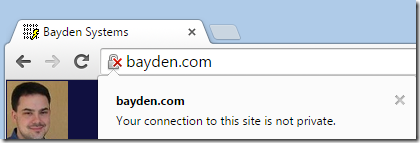
Chrome has landed their change that allows you to mark unsecure (HTTP) content as insecure or dubious. Visit chrome://flags/#mark-non-secure-as to set the toggle. You can choose to mark as Dubious:

image

…or as Non-Secure:

image

The expectation is that eventually one of these modes will be the default for sites that are transferred over insecure protocols like HTTP.

Personally, I’m not really a fan of either piece of iconography; to me, showing the lock at all implies that the site has some amount of security and maybe it’s just not perfect.

I’m hoping that after some transition period, we’ll end up with a more prominent notification that explains what the issue is and why humans might care.

In December of last year, I made the following proposal with tongue only slightly in cheek:

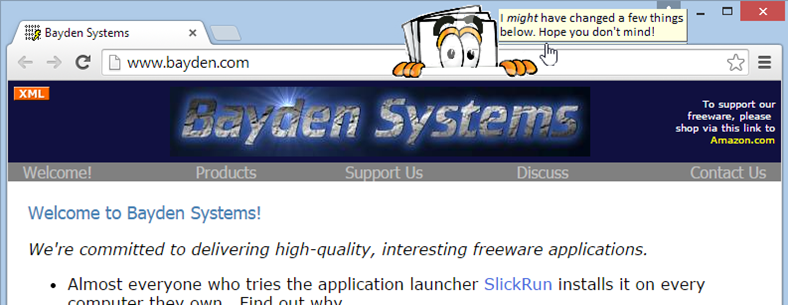
Meet “Nosy”, your HTTP-content indicator:

Of course, Nosy’s got a lot of things to say:

nosy2

Sites and services need to use secure protocols like HTTPS because users expect it. No, not all users will expect to see the letters HTTPS and probably don’t understand hashes, ciphers, and public key encryption. But they expect that when they visit your site, it was delivered to them unmolested, privately, and as you original designed it. And the only way to realistically ensure that these expectations are met is to use HTTPS.

Update: While the mock screenshot above was never built, Chrome Security’s Lucas Garron wrote the awesome Ugly HTTP Chrome extension, a very simple extension that helps make it much more obvious when you’re on a non-secure site by color-shifting the content of the page itself.

-Eric Lawrence

HTTP Caching Public Service Announcement

There are many interesting thing to say about HTTP caching. I’ve blogged about them a lot in the past.

Today’s public service announcement to clear up two extremely common misconceptions:

1. The no-cache directive does not mean “do not cache” (even though IE versions prior to IE10 implemented it that way).

What it really means is do not reuse this item from the cache without first validating with the server that it is fresh.

If the no-cache directive does not specify a field-name, then 
a cache MUST NOT use the response to satisfy a subsequent request
without successful revalidation with the origin server.

2. The must-revalidate directive does not mean “you must revalidate this resource with the server before using it.”

What it really means is do not reuse this item from the cache after it expires without first validating with the server that it is fresh. It’s basically saying: “Don’t ignore the Expires and max-age directives.” Which a client absolutely shouldn’t be doing anyway.

If the response includes the "must-revalidate" cache-control
directive, the cache MAY use that response in replying to a
subsequent request. But if the response is stale, all caches
MUST first revalidate it with the origin server.

-Eric

Browser Benchmarks

Back in December, I predicted that Microsoft wouldn’t release the Project Spartan beta until it bested all of its competitors on the major benchmarks: SunSpider, Kraken, and Octane. I was wrong—the first beta was released with only minor script performance improvements. That changed with build 10061 of Windows 10, and Spartan now does beat everyone else on their own benchmarks.

Running Windows 10 on my new 2015 Dell XPS13 i5-5200U, I get the following scores:

Browser SunSpider Kraken Octane
Spartan/IE 10061 122.7ms 1444.44ms 23652
Chrome 43
beta 2357.37
255.5ms 1557.7ms 22656
Firefox 37.0.2 204.2ms 1498.4ms 21762

Now, some of these “victories” are within the margin of error, and it’s very possible that upcoming versions of Chrome and Firefox will improve their performance on slow outliers (e.g. Chrome’s score on Octane’s MandreelLatency is just 22% as fast as Spartan’s). But anyone surprised at Microsoft’s great results is overlooking the fact that some of the world’s best compiler developers and architects work for Microsoft and their attention has increasingly been turned toward JavaScript.

Of course, script performance is important, but it’s far from the only way to measure a browser. Standards-compliance, network performance, ease-of-use, security, end-user features and many other aspects determine your experience with a browser. There are many different tests (subjective and less-subjective) for these aspects, although each has its own biases. But just to give one example, with all its feature flags turned on, Spartan ekes out a score of 402/555 on the (questionable, but easily run) HTML5Test.com while Firefox and Chrome score 449 and 526 respectively.

Hamstringing JavaScript

Of course, your numbers might be wildly different than those above, for one major reason: security software.

Every year for Microsoft’s annual AV summit, the IE Team puts together a chart of the impact of AV on browser performance, showing the variation across the top 20 AV products (the variation is huge). They don’t want to publish this data, but the impact ranges from “bad” to “absurdly unbelievably bad.” The best products impact performance by ~15%, the worst slow the browser by 400% or more. Several of the products crash the browser entirely and can’t be benchmarked fully. Conducting these benchmarks correctly is difficult—you need to account for every piece of software running on the machine and ensure that the test conditions are entirely fair (hardware, software, updates, etc); as a consequence, many of the “public” benchmarks are rather inaccurate.

Why hasn’t the IE team released their numbers? My guess is that it’s to try not to anger the AV companies, all of whom have been muttering “antitrust antitrust antitrust” under their collective breath ever since Microsoft integrated an entirely decent antivirus package into Windows 8.

Personal anecdote: I have Symantec Endpoint Protection running on a machine with a high-end i7-4771 CPU; even after unticking all of the “optional” protection features I can find in the Symantec control panel, the Octane score in Chrome 43 is 11659. On the same hardware in the same browser version without Symantec installed, the Octane score is 32555, 279% of the original score.

The devastating impact of antivirus on browsing performance is one reason why your portable devices feel magically fast—on a AV-unhindered i7, IE11 runs SunSpider in 70ms. Add AV and it runs in 350ms. The IPad Air, running with Safari’s slower script engine, runs it in 380ms. Mobile devices offer “Desktop Class” performance only because your desktop has been wrecked.

Antivirus software is too often a cure that’s as bad as the disease. The business model of AV rewards noisy products, and the desire for “checkbox parity” leads to a race to shove its tentacles in all sorts of places they don’t belong (e.g. the internal data structures of the browser). Unfortunately, even beyond antitrust concerns, Microsoft is very limited in its ability to deal with horrible AV products due to court precedents that say that AV can pretty much get away with doing anything it wants in the name of “protecting the user.”

You might ask: “Without my security software, aren’t I at risk?”

Yes, you are. But security software provides surprisingly little protection, as this delightful photo of a colleague’s laptop shows. In the foreground, the AV software promising that the user is protected. In the background, the ransom UI demanding payment to decrypt the documents that have just been mangled.
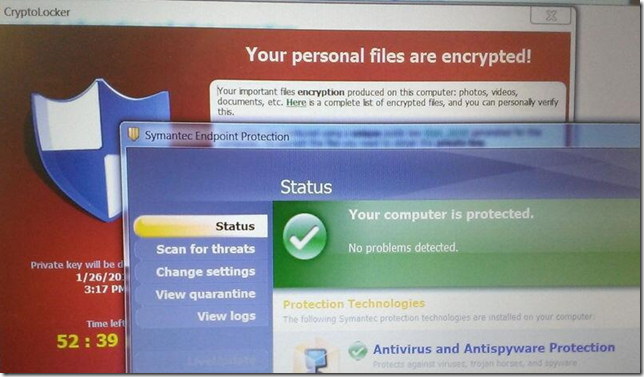
Awkward screenshot

Even worse, “security” software itself often introduces vulnerabilities into otherwise secure systems.

Advice

Want to be protected and stay fast?

  • Upgrade to Windows 8.1 or later.
  • Leave SmartScreen Application Reputation enabled.
  • Leave the built-in antivirus enabled.

Or get a Chromebook.

– Eric Lawrence

Velocity Conference – 2015 Santa Clara

I’ll be speaking at my third (or fourth?) Velocity Conference in Santa Clara California one month from now. I’m always excited to go to Velocity; it’s a conference full of great talks, and more importantly, smart people working on important problems.

image

My talk, HTTPS in 2015, delivers a whirlwind overview of HTTPS, from how it works to why you need to use it to secure your sites and services.

Anyone watching the news knows that securing your websites and services using HTTPS has never been more important.  In this talk, a former browser security program manager covers the best practices for using HTTPS today. Topics covered in this session include ciphers and hash algorithms, forward secrecy, handshakes and protocols, and new browser features like HSTS and PKP. We’ll talk about exciting developments in 2015 that will make securing your site simpler than ever before, even as attackers get ever more sophisticated.  Explore how attackers circumvent HTTPS, and what you can do to help protect your visitors and keep customers safe from snoops and bad guys.  Secure all the things!

Leading up to the conference, the fine folks from O’Reilly conducted a little mini-interview with me you can read here HTTPS – The S stands for User Experience.

I hope to meet some of you at the conference! If you haven’t registered yet, you can use code ericl20 to save 20%, but hurry—prices go up May 1st.

-Eric

PS: O’Reilly has got you covered if you need to convince your boss.

Security UI

Over a decade ago, Windows started checking the signature of downloaded executables. When invoked, Attachment Execute Services’ (AES) UI displays the publisher’s information for signed executables; unsigned executables instead show a security prompt with a red shield and a bolded warning that the publisher of the file is unknown:

image

In contrast, signed executables show a yellow shield and the name of the publisher and the publisher’s declared name of the application.

When Windows Vista released in late 2006, an “elevation dialog” was introduced to prompt the user for permission to run an executable with elevated (administrator) rights. The new prompt’s design somewhat mirrored that of the earlier AES prompt, where unsigned executables are scary:

image

… and signed executables are less so:

image

As you can see, the prompt’s icon, program name, and publisher name are all pulled from the downloaded file.

To avoid double-prompting the user, the system detects whether a given executable will be elevated, and if so the AES dialog is suppressed and only the elevation prompt is shown.

As a consequence, the security UI in modern Windows is a bit backwards… the lower-risk “run as user” dialog seems complex and scary, while the higher-risk “run as administrator” dialog seems simpler and more trustworthy:

BadDesign

From a security design point-of-view, this seems unfortunate. Application designers should never be in the position of choosing higher-permission requests to get friendlier prompt behavior.

-Eric Lawrence