Last update: Sept 20, 2023
Chromium-based browsers offer a number of accessibility-related features. When you visit about:accessibility, you can see more about the state of these features (similarly, you can find the states in about:histograms/Accessibility.ModeFlag). You can enable features via the Accessibility page, or pass the command line argument --force-renderer-accessibility into the browser.
In some cases, you may be surprised to find some of the accessibility features enabled even when you have not manually enabled them:

This can happen when the browser detects interactions from a UI Automation tool; such API calls are mostly from accessibility tools like screen-readers. However, some features like Windows 10’s Text Cursor Indicator:

…are implemented using UIA, and when this feature is enabled, the browser enables the corresponding accessibility features.
Back in the spring of 2021, some improvements to the Accessibility code caused a series of regressions that would result in crashes, hangs, and memory exhaustion when a loading many pages, including YouTube:
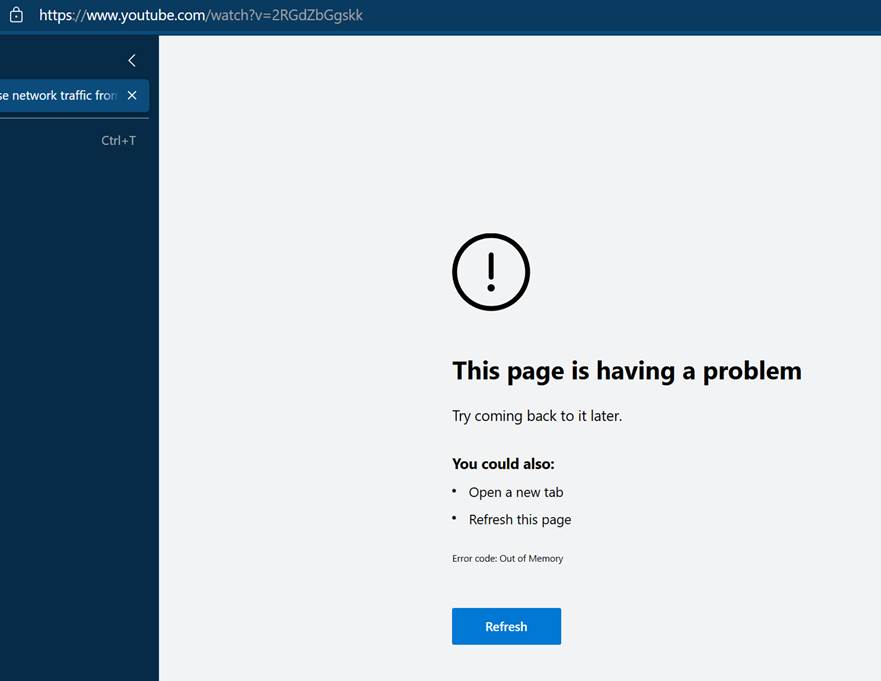
These regressions were impactful for many customers who didn’t expect to be running the impacted code. Fortunately, the problems were quickly fixed.
Update: A similar regression shipped in Edge 97.1069 and should be fixed in Edge 97.1073; in the case of the new crash, the entire browser crashes and disappears. :(
Update: A regression where the browser tabs crash when Accessibility is enabled (STATUS_ACCESS_VIOLATION) slipped into Chrome/Edge 117, 118, and 119. A fix was authored on Sept 20, 2023.
For end-users, tracking down how Accessibility features got enabled on their browsers used to be non-trivial. In Edge 93+, the edge://accessibility page includes a simple “Show Client Info” button. Easy peasy.
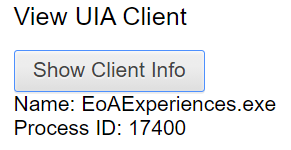
In this case, we see the Text Cursor Indicator feature implemented inside EoAExperiences.exe has enabled accessibility for Edge.

-Eric
Historical Appendix
Prior to Edge 93, figuring out which process turned on accessibility required a geeky scavenger hunt.
For Microsoft Edge users running Windows 10 version 20H1 or later, visiting about:histograms/UIA would show a truncated hash of the process name of the UIA client:

The value shown is the Integer representation of the first four bytes of the SHA-1 Hash of the process name. Some common values include:
| Truncated Hash | Process Name |
612857738 | EoAExperiences.exe (Win10 Text Cursor Indicator feature) |
1759000766 | TextExpander.exe |
319076627 | Narrator.exe |
427450884 | Snagit32.exe |
592588840 | Magnify.exe |
3897604127 | magnify.exe |
494880639 | nvda.exe |
Unfortunately, there’s no easy way to go from a truncated hash back to the original string; hashes are one-way. (The only way to do it is brute force — start with a list of possible strings and hash them all to find a match).
A simple PowerShell script mostly written by Artem Pronichkin allows you to get the hashes of all of your running processes, which you can then compare to the reported value:

 text/plain