Last Update: June 24, 2024
From the mailbag:
Q: How long does Chromium cache hostnames? I know a user can clear the hostname cache using the Clear host cache button on about://net-internals/#dns, but how long it will take for the cache to be removed if no manual action is taken? After changing DNS records on my server, nslookup from a client reflects the new IP address, but Edge is still using the old address?
A: At least one minute.
Host resolution is surprisingly complicated.
DNS caching is intended to be controlled via a “time-to-live” value on DNS responses—each DNS lookup response is allowed to be cached for a time period it itself defines, and after that time period expires, the entry is meant to be deemed “stale”, and a new lookup undertaken.
DNS records get cached in myriad places (inside the browser, both literally—via the Host Resolver Cache, and implicitly– in the form of already-connected keep-alive sockets), in the operating system, in your home router, in the upstream ISP, and so forth. Using nslookup to look up an address is a reasonable approach to check whether a fresh result is being returned from the OS’ DNS cache (or the upstream network), but it is worth mentioning that Chromium can be configured not to use the OS DNS resolver (e.g. instead using DNS-over-HTTPS or another DNS configuration).
Within the browser, which resolver is used can be controlled by policy (Chrome, Edge).
If Chromium is using the System DNS resolver, the cache entry should be fresh for 60 seconds— Chromium doesn’t know the DNS server’s desired TTL because the OS’ function getaddrinfo() does not return it.
// Default TTL for successful resolutions with ProcTask.
const unsigned kCacheEntryTTLSeconds = 60;
If Chromium performs the resolution itself (via DoH, or via its built-in resolver), the Host Resolver Entry should respect the DNS response’s TTL, with a minimum of 60 seconds.
Beyond treating entries older than their TTL as stale, Chromium also monitors “network change” events (e.g. connecting/disconnecting from WiFi or a VPN) and when those occur, the Host Resolver Cache will treat all previously-resolved entries as stale.
A Chromium net-export will contain details of the browser’s DNS configuration, and the contents of the browser’s DNS cache, including the TTL/expiration for each entry.
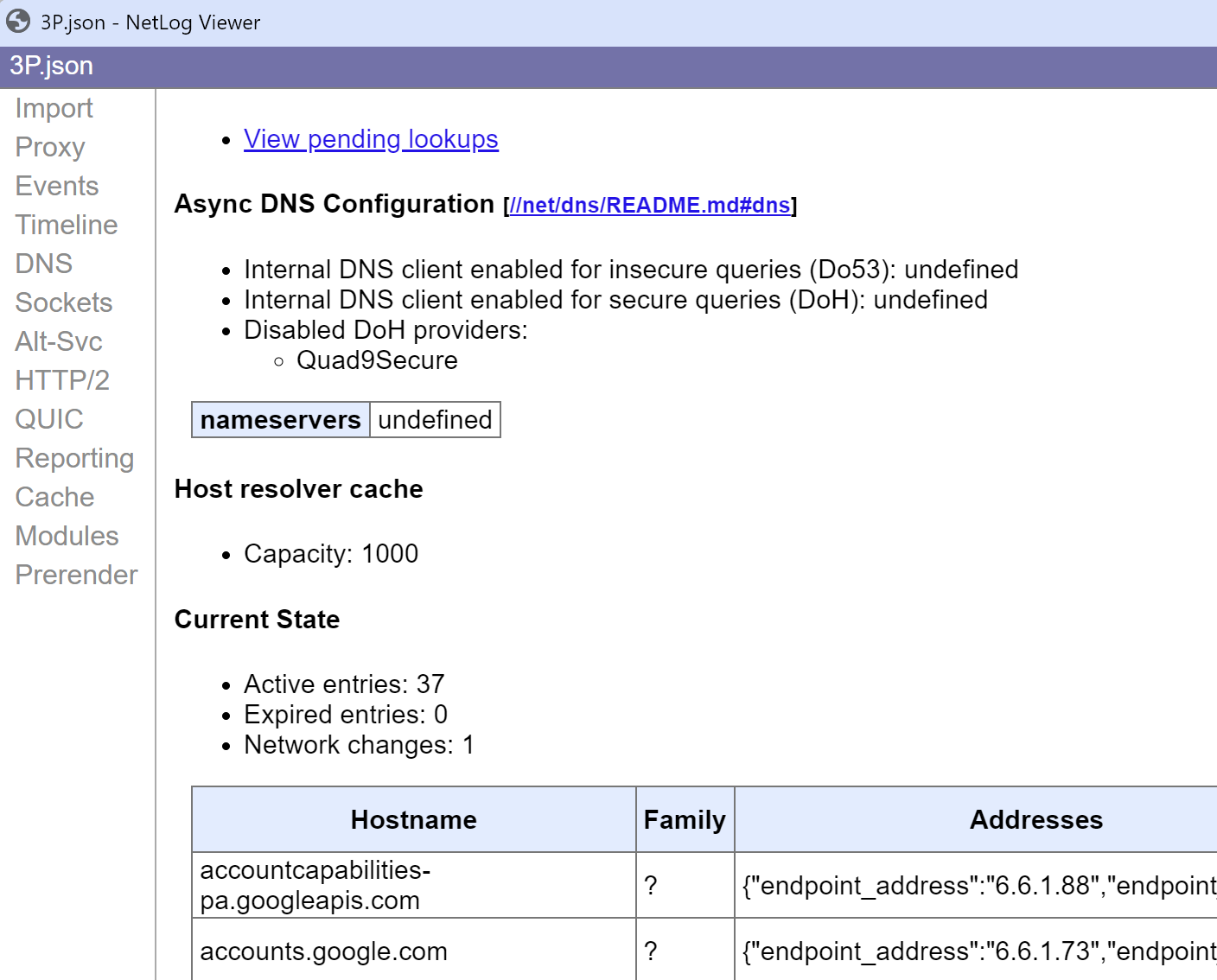
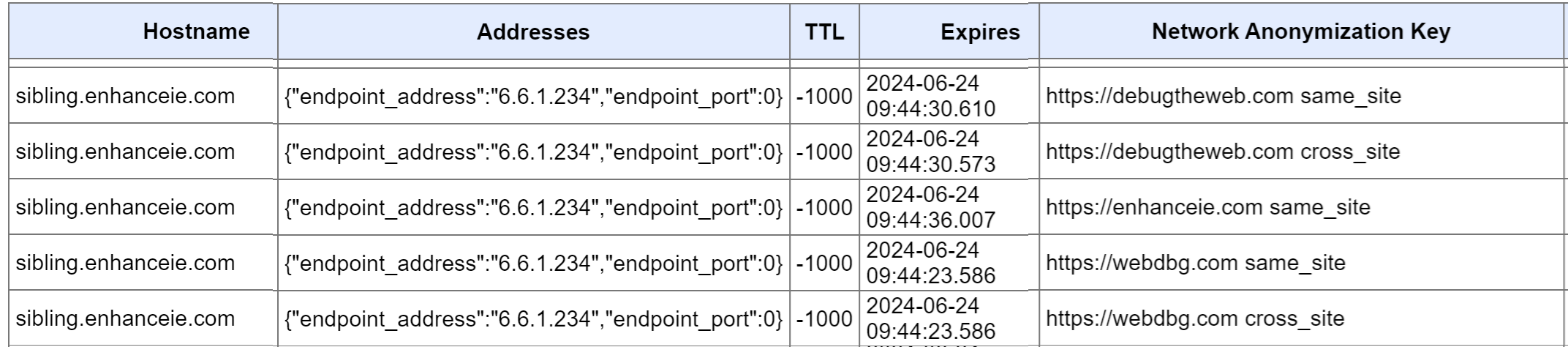
Note: For a single hostname, you may see multiple resolutions and the DNS tab may show multiple results, each with a different Network Anonymization Key. Years ago, Chromium began a project to further improve user privacy by partitioning various caches, including the DNS cache, based on the context in which a given request was made. In October 2022, the DNS cache was so partitioned. When Chromium looks up a hostname the cache will be bypassed, and a new DNS lookup issued, if the Network Anonymization key is not matched against the previously-cached result.
For example, here’s the DNS cache view when visiting pages on debugtheweb.com, enhanceie.com, and webdbg.com, each of which loads an image resource from sibling.enhanceie.com:
Beyond caching behavior, you may see other side effects when switching between the built-in DNS resolver and the system DNS resolver. The built-in resolver has more flexibility and supports requesting additional record types for HTTPS Upgrades, Encrypted Client Hello, etc.
-Eric
Tip: You can use Chromium’s --host-rules or --host-resolver-rules command line arguments to the browser to override DNS lookups:

… but note that these two commands are not exactly the same.
 text/plain