Most client software’s threat models (e.g. Edge, Chrome) explicitly exclude threats where the local computer was compromised by malware. That’s because, without a trusted computing base, it’s basically impossible to be secure against attackers. This concept was immortalized decades ago in the Ten Immutable Laws of Security:

In the intervening years, new technologies (like Secure Enclaves) have been launched in an attempt to provide some defenses even when a PC has been compromised, but they remain very limited in their capabilities. In my view, preventing initial access represents the most important security investment we can make.
Protecting Files
Nevertheless, there’s value in defense-in-depth and making life harder for attackers even after they get access to a PC.
In that vein, Windows 10 has a feature called Controlled Folder Access (CFA) which aims to help protect against ransomware. In the common ransomware attack, malicious native code running on the user’s machine begins encrypting their files with a randomly-generated key that is sent to the attacker. After files have been encrypted, a ransom note is shown demanding that the user pay money to get the decryption key.
CFA impedes this attack by preventing applications with “unknown” reputation from touching files in sensitive/protected folders, including the user’s Documents, Pictures, and Favorites folders, as well as any folders selected by the user. You can enable CFA using the Ransomware protection section of the Windows Security app:

Rather than moving sensitive files to a protected vault, it’s more like you’ve hired a bouncer to keep questionable apps out. If you want to protect more folders, click the Protected Folders link and choose the folders you’d like protected. If you need to allow an unknown app to access protected files, you can do so using the Allow an app link.
When Defender blocks access, you’ll see a small toast notification:

You can see blocked actions in both the Protection history section of the Windows Security app:

…as well as the Windows Defender node of the Windows Event Viewer:

If you’re managing devices with Intune or Group Policy, you can also enable CFA in “Audit Mode“, which will log untrusted accesses without blocking them.
How?
This feature depends upon the Windows Defender filesystem filter driver (WDFilter). From kernel mode, the filter watches for access to protected folders. If access is requested by an untrusted process, any Write permission bit is stripped from the request.
Non-Obvious Bits
While CFA is conceptually pretty simple, under the covers there’s a fair bit of complexity.
For one thing, various well-known and legitimate applications (like Microsoft Office) offer extensibility models that could be used to load malicious modules. Similarly, well-known applications (e.g. Notepad) could have malicious code injected into them. So, Defender has to watch what’s loaded into each process and may consider an otherwise “friendly” process tainted for the purposes of CFA.
Additionally CFA could be circumvented if a process directly accesses a disk volume using low-level APIs. If CFA blocks an unknown app from accessing a disk in this way, there’s no folder path to show, so the toast (perhaps confusingly) claims that CFA blocked the app from “making changes to memory.”

Finally, CFA must carefully handle all of the myriad equivalent ways in which a file’s path can be represented, for example:

Debugging
In some cases, understanding why a process has triggered CFA could be difficult. For example, several engineers at Microsoft recently found that running most command-line tools (like ping.exe) in the SYSTEM32 folder was triggering the making changes to memory toast. This seems very strange — a network tool like ping isn’t expected to be touching the local disk at all!
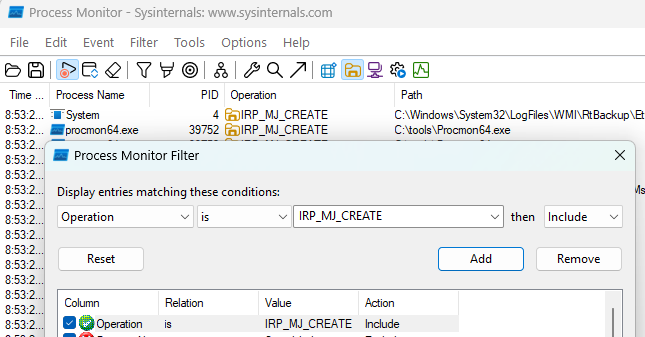
Using SysInternals’ Process Monitor to log the process behavior can reveal the root cause. Click Filter > Enable Advanced Output. Use the toolbar toggle button to filter to FileSystem events, and create a filter for Operation is IRP_MJ_CREATE:
Look through the IRP_MJ_CREATE events to find those for the C: volume:
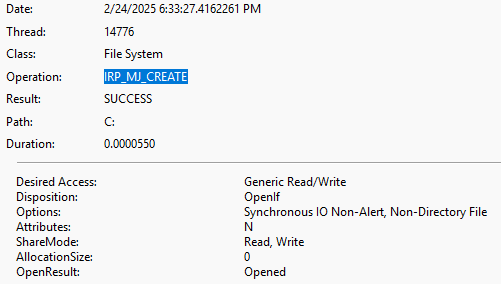
In this case, we see that an AMD GPU driver amdkmdag.sys is opening the C: volume for Write Access as in the context of ping.exe as it shuts down, leading to the toast:

To discover whether a process is being treated as tainted by the engine, see the MPLog-##### file inside C:\ProgramData\Microsoft\Windows Defender\Support. For example, a value of TaintType:0x1 indicates that an untrusted module was loaded into the process.
Online Backup
Beyond Controlled Folder Access, Windows’ other built-in anti-ransomware approach is to enable online backup to a cloud file provider like OneDrive. The recovery experience offered by OneDrive depends on which level of account you have:


If Microsoft Defender detects a ransomware attack, it can send a signal to the cloud file provider, indicating the time of compromise, to stop syncing now-encrypted files to the cloud, and to subsequently ease the process of recovering pre-encryption files from the cloud. You can see the flow from OneDrive’s documentation:

Stay safe out there!
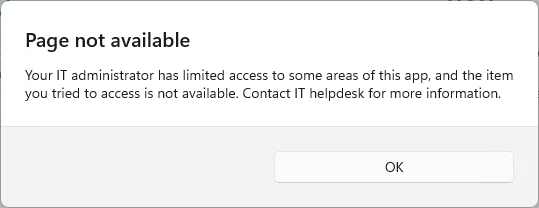
When a 3rd party antivirus application is installed and Microsoft Defender is disabled, attempting to open “Controlled Folder Access” from the Windows Start menu shows the following end message:
 text/plain