Last Updated: September 24, 2026
Last year, I wrote about how Windows integrates SmartScreen Application Reputation to help ensure users have a secure and smooth experience when running downloaded software.
tl;dr: When a user runs a downloaded program, Windows/Edge call SmartScreen web-based reputation service. There are four possible outcomes:
- “Known Good” SmartScreen’s Web Service indicates that the file is “Known safe”, and the program runs without security prompts.
- “Known Bad” SmartScreen’s Web Service indicates that the file is “Known malicious”, and the user is blocked from running the software via a red dialog box.
- “Unknown” SmartScreen’s Web Service indicates that the file is “Unknown,” and the user is interrupted from running the software via a confirmation dialog. The dialog’s background color is the current user’s Windows Accent Color value, which defaults to blue.
- “Offline”: SmartScreen’s Web Service is offline or unreachable and the user sees a notice that SmartScreen cannot help decide whether the software is safe to run. The user sees a confirmation dialog. The dialog’s background color is the current user’s Windows Accent Color value, which defaults to blue.
As a software developer, it’s natural that you’ll want to have your apps classified as “Known Good” to streamline the installation of your software.
This post explores how to achieve that. You may wish to read Microsoft’s official documentation on this topic as well.
Building Positive Reputation
The Application Reputation service builds reputation based on individual file hashes (SHA256) and/or the certificates used to sign those files. The following are best practices we recommend:
Sign Your Files
Because changing even a single bit in a file changes its hash, this means that new files that are unsigned have no reputation by default. To avoid triggering warnings after every update, be sure to sign your software using an Authenticode certificate. Signing helps protect the integrity of your software, and helps users and automated systems identify the software’s provenance.

Signing Best Practices: Algorithms
You should sign your code using strong algorithms (e.g. SHA256+); avoiding ECC signing. For best results, use a certificate that chains to a root in Microsoft’s Trusted Root program. (More details)
Signing Best Practices: Sign with a Consistent Certificate
To help ensure that all of your good reputation accrues in one place, sign everything with a single certificate. Avoid using a different certificate for each product, or a different certificate for each of your company’s divisions, etc.
Because code-signing certificates typically can be used to sign files for years, the certificate will accumulate reputation that will accrue to files you sign in the future. To maximize reputation data, you should aim to use the same certificate for as long as possible. Certificates periodically expire, however, and you may find that when you begin using a new certificate, it must build reputation.
To accelerate that reputation accrual when you renew an expiring certificate, ensure that the replacement certificate has the same Subject information as the certificate it replaced. For example, when I renew my personal code-signing certificate, I want the same CN/O/L/S/C fields from the original certificate’s Subject:
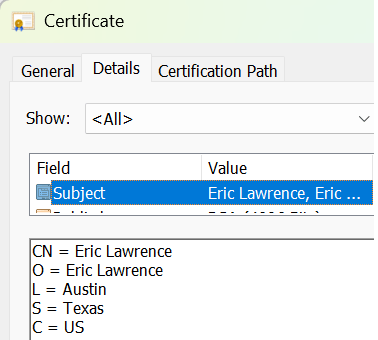
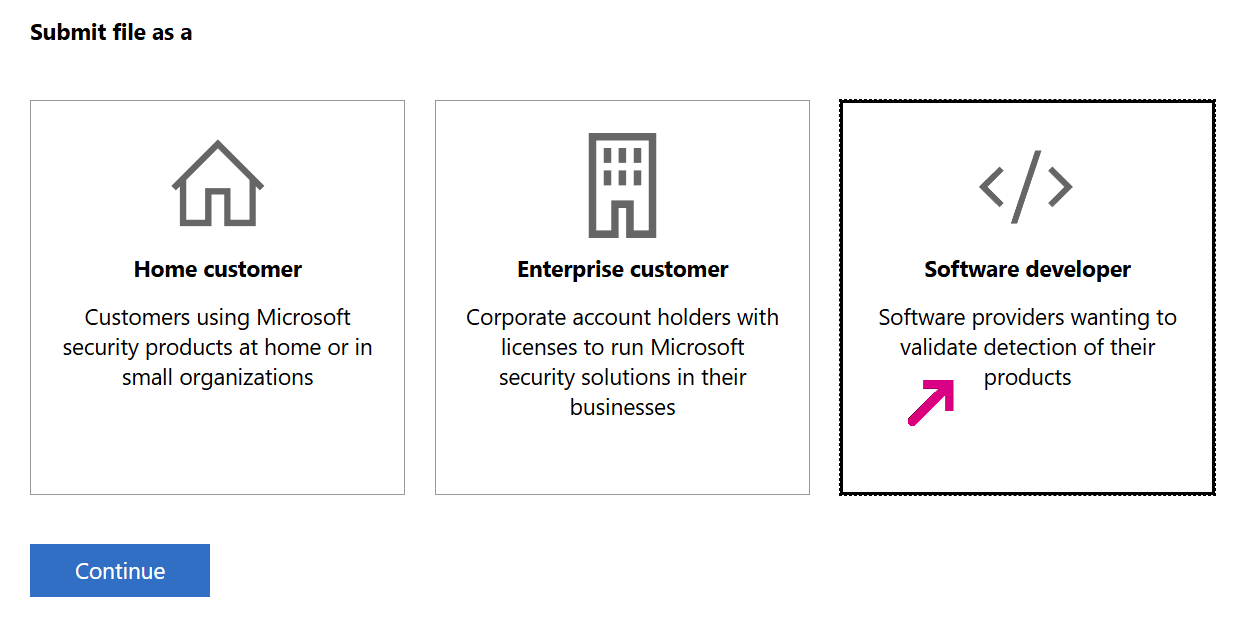
Even before you start using your new certificate publicly, you can sign your binaries with the new certificate and use the “Software Developer” flow on the Defender submission portal to make the Defender Cloud aware of your new certificate.
Choose the “Software Developer” option:
Update/Mythbusting: From ~2013 to ~2019, all files signed by an Extended Validation Authenticode Certificate were given a “positive” reputation by default, but EV certificates are no longer treated specially by AppRep — every certificate must build reputation individually.
Signing Best Practices: Sign All Files
Beyond .exe and .dll files, you can also sign .msi Installers, script files (PowerShell, VBScript, JavaScript), and .cab Archives.
While SmartScreen only checks the reputation of the main file that the user executes (aka its “entry point”), you should sign all files to help protect them from tampering, and to ensure your app works correctly when Windows 11’s Smart App Control feature is enabled. The Windows 11 Smart App Control feature goes further than SmartScreen and evaluates trust/signatures of all code that is loaded by the Windows OS Loader and script engines.
Signing Best Practices: Do Not “Cheat” Authenticode
As I’ve explained in the past, it’s possible to shove additional data inside an signed file without Windows considering its signature broken. This technique is commonly used by installers to include additional metadata on every download. However, it’s also possible for users to set a EnableCertPaddingCheck registry key that rejects any additional data inside the certificate padding.

When the EnableCertPaddingCheck key is set, any signed file with invalid padding is considered unsigned.
We recently encountered this issue on Microsoft’s corporate network, when an employee downloaded the Acrobat installer from Adobe. They were worried to see that AppRep said the file had an unknown publisher and was not common:


If you look at the raw bytes of the file, you can see Adobe has injected a base64-encoded blob in the signature padding:

If you compare the underlying network traffic between the working and Unknown Rep cases, you can easily see the problem. On a clean machine where the EnableCertPaddingCheck registry key is not set, the call to AppRep indicates that the file is signed and includes information about the signer:

However, on a machine with EnableCertPaddingCheck set to 1, the call indicates that the file is unsigned, and the “flat file hash” (SHA256) of the file is passed in the hash field:

Because the whole point of putting metadata in the padding is to put different data there for each download, the flat file hash for every download is different, preventing the SmartScreen AppRep cloud service from recognizing that this file is almost entirely the same as the files other users have downloaded.
Always Follow the Objective Criteria
Ensure that everything you install follows Microsoft’s Objective Criteria for well-behaved software. Adherence to the criteria ensures that users will not be surprised or upset about the behavior of your software and reduce the risk that your files or certificate will acquire a negative reputation.
Violations of the objective criteria can cause SmartScreen, Microsoft Defender, and 3rd-party security products to treat your app as Malware or Potentially Unwanted Software. Beyond treating that individual app as Malware or Potentially Unwanted, the certificate used to sign the offending app will lose any positive reputation it had built.
Prevent Misuse of Your Signing Certificate
Bad actors are eager to abuse legitimate certificates to sign their malware, so you must ensure that your certificate is properly protected from misuse.
An attacker who gains access to your internal environment may attempt to abuse any CI/CD flow that automatically signs code to get their malicious binaries signed. If an attacker is successful in generating malicious binaries signed by your signing certificate, their abuse could subsequently result in distrust of legitimate files signed by your certificate.
Escalations
If your software is blocked by the red “known bad” dialog box:

… you should investigate to determine whether anything unexpected is included. For instance, was malware injected into your product by a supply-chain attack?
You should upload your files to VirusTotal.com and what, if any, detections occur across the universe of security products. If you cannot find any indications of compromise, report the potential false-positive to Microsoft Security Intelligence by uploading your files to the WDSI portal.
In contrast, if running your software is interrupted by the blue “unknown” dialog box:

… don’t despair. Ensure that you’ve followed the best practice of signing your software with a certificate, and then just wait. As your software gets downloaded by more users around the world (“increasing prevalence”), its honorable behavior will be noted and eventually its reputation will move into the “Known good” category.
Bypass for Enterprises
Some enterprises build and distribute their own software internally and wish to avoid SmartScreen prompts for their applications. For security reasons, you can and should still sign internally-developed software. However, internally-developed software might never be used broadly enough to organically build a positive reputation within the SmartScreen Service.
Note: Microsoft Defender for Endpoint customers might reasonably expect that creating an Allow Indicator for a certificate would allow files signed by that certificate to bypass SmartScreen AppRep. This is a reasonable expectation, but unfortunately does not presently work (still true as of September 2026).
Enterprises are in control of how their users get software, and most internal software deployment systems do not result in SmartScreen checks. Only software downloaded by web browsers or copied from network shares using Windows Explorer is likely to get a Mark-of-the-Web that results in consulting SmartScreen’s reputation service.
If using Explorer or a web browser to obtain software is a core scenario for your enterprise, you can avoid SmartScreen checks by correctly configuring your Windows Security Zone settings. Using the Site to Zone Assignment List group policy (or the Internet Control panel), place your trusted software distribution sources into the Local Intranet security zone:

After doing so, files downloaded from the listed locations will no longer be tagged with the Mark-of-the-Web, and executing them will no longer perform reputation checks against SmartScreen.
If you use the Microsoft Edge web browser, you should also use Group Policy to set the SmartScreenForTrustedDownloadsEnabled setting to 0 (Disabled) to prevent the browser from itself performing reputation checks while downloading files from your trusted locations.
A Note on Stub Installers
Many common software products, including those for Chrome, Firefox, Edge, Adobe Reader, etc, are most commonly installed using a stub installer. These small (a few hundred KB) installer executables have a number of advantages over full/offline installers (that contain all of the code of the app). For example, running the stub installer will always grab the latest version of the app from the Internet, such that running an old installer won’t put an outdated version of the app on the user’s device.
Another advantage (directly relevant to this post) is that stub installers rarely need to be updated. That means that a positive reputation on the Installer executable will persist for a long time (potentially years) even as you release new versions of the app being installed.
If you go this route, you must take great care to ensure that you build your stub installer securely (e.g. use HTTPS to fetch the packages that make up the app, ensure that those packages are properly code-signed and your stub validates their signatures, etc). Vulnerable stub installers and updaters have historically been a source of significant breaches.
Alternative: Windows Store Distribution
Distributing your app from the Windows Store is a great way to avoid SmartScreen warnings. When you distribute your application using the Windows Store, SmartScreen does not evaluate the installer because the Store app itself handles the installation.
Stay safe out there!
-Eric
Appendix: Under the Hood
The following are considered internal implementation details, subject to change.
SmartScreen Application Reputation is powered by Defender Cloud Protection‘s “File Metadata” and “Certificate Reputation” services. FMS is a service which tracks many billions of files seen by Defender across the ecosystem. The FMS can answer questions like “When did we see this file first? How prevalent is this file? Is there any data to suggest that this file is malicious? Have we previously determined that this file is non-malicious?” Similarly, the Certificate Reputation Service can answer questions like “Should we treat things signed with this certificate as trustworthy by default? Should we treat things signed with this certificate as malicious?“
When a reputation call comes into SmartScreen AppRep, the service evaluates the information provided from the client (e.g. the file’s hash, the certificates used in a valid signature) to determine a verdict, one of KnownBad, KnownGood, or Unknown. The response determines how the client behaves: blocking with a dialog, warning with a dialog, or allowing execution without any prompts.
The Application Reputation service builds reputation based on file hashes and the certificates used to sign those files. Because every update to a file changes its hash, this means that new files that are unsigned have no reputation by default. As a consequence, to avoid unexpected security warnings, a best practice for software developers is to sign your software using an Authenticode certificate. Because your certificate can be used to sign files for years, it will accumulate reputation that will accrue to files you sign in the future. Note that, from ~2013 to ~2019, all files signed by an Extended Validation Authenticode Certificate were given a “positive” reputation by default, but that is no longer the case — each certificate must build reputation itself.
While SmartScreen only checks the reputation of the main file that the user executes (aka its “entry point”), you should sign all files to help protect them from tampering, and to ensure your app works correctly when Windows 11’s Smart App Control feature is enabled. The Windows 11 Smart App Control feature goes further than SmartScreen and evaluates trust/signatures of all code (DLLs, scripts, etc) that is loaded by the Windows OS Loader and script engines.
FAQ
Q1: What downloader apps will subsequently trigger SmartScreen reputation checks?
A1: SmartScreen is invoked for any Internet-downloaded executable run from the Windows Shell, if the file is marked as originating from the Internet. All popular browsers (Edge, Chrome, Chromium-derivatives, etc) and some messaging and email clients mark Internet-downloaded files, leading to SmartScreen checks prior to execution. AppRep calls are also made directly during file download in the Edge browser.
Q2: Can I “dual-sign” a binary with two certificates during a migration period so the new certificate will gain trust without showing an “Unknown” warning?
A2: Unfortunately, no, today dual-signing is not generally useful for the reputation-checking process because the SmartScreen client sends only one signature chain to the service when performing reputation evaluation, and which chain is sent is not under the control of the signer, meaning that a not-yet trusted certificate could be used leading to a spurious warning.
However, as noted above: Even before you start using your new certificate publicly, you can sign your binaries with the new certificate and use the “Software Developer” flow on the Defender submission portal to make the Defender Cloud aware of your new certificate.
Q3: Is there some API or portal I can use to check the SmartScreen reputation of a file?
A3: Unfortunately, not presently. Microsoft does not offer a mechanism that allows a direct reputation check of the file; ISVs can simply try executing the file after download and observe its behavior. While not formally supported, ISVs can test by setting an Internet-Zone Zone.Identifier stream directly and can observe the response from the reputation services call using a HTTPS network monitor (e.g. Fiddler).
Q4: How many downloads / executions are needed before a file gains a positive reputation?
A4: Microsoft has not documented any thresholds for adoption that will result in positive reputation for a file or a signing certificate.
Q5: What about Windows Server or unattended scenarios where there’s no user to interact with a SmartScreen warning dialog?
A5: SmartScreen AppRep is on-by-default on all versions of Windows, including Windows Server (non-Core). Because SmartScreen is primarily designed to streamline security prompting for “Known Good” files, and Windows Servers are typically tightly-managed assets, some administrators will disable SmartScreen AppRep on their servers.
However, if SmartScreen is disabled, or a file is executed from the Shell with the SEE_MASK_FLAG_NO_UI flag set, the SmartScreen flow is suppressed and instead the legacy Windows Security warning is shown. The legacy Security Warning UI does not respect NO_UI flags and will show a blocking modal dialog even when the caller requested no UI.
For enterprise and unattended scenarios, the most common approach to avoid SmartScreen prompts is to distribute software in such a way as to avoid the file being marked as having an untrusted origin as discussed above.