Modern versions of Windows offer a setting named “Choose where to get apps” which can reduce attack surface by limiting the locations from which applications can be installed. Internally, we’ve called this feature “Smart Install”.
By default, this option is set to “Anywhere“, which means that Windows will allow an executable downloaded from the Internet to run.

Beyond the default, there are three other options.
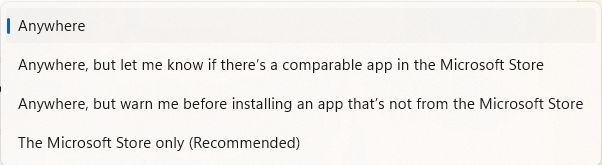
Option: Let me know or Warn
The verbosely-named options:
- Anywhere, but let me know if there’s a comparable app in the Microsoft Store
- Anywhere, but warn me before installing an app that’s not from the Microsoft Store
…mean the SmartScreen Application Reputation call is sent specifying either appControl/level=preferStore (Warn) or appControl/level=recommendations (LMK) values:
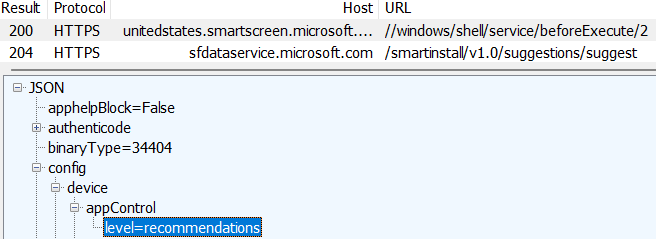

After the AppRep call, a followup query is sent to a webservice (at sfdataservice.microsoft.com/smartinstall) to determine whether there’s a Store app available that might satisfy the user’s needs.

If the Warn option is selected, the user is shown a prompt regardless of whether a Store-hosted equivalent of the app is available:
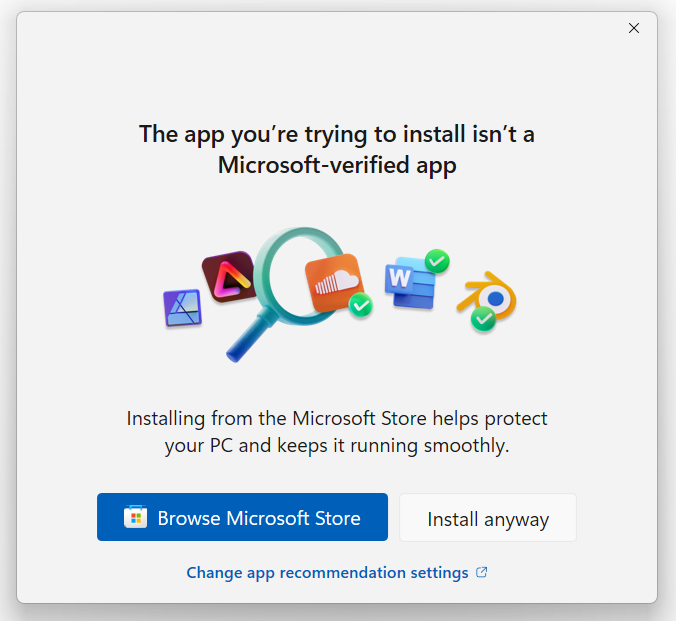
If the Let me know option is selected, a notice is shown only if a Store app is available. Note: I don’t know how well this option works. The Microsoft Store is lacks the majority of apps. The only app I know that’s available via the Store and a traditional EXE download (Paint.NET) does not result in Windows showing the Store suggestion.
Option: The Microsoft Store only
The simplest option is the “The Microsoft Store only” option. It means that after attempting to launch a downloaded app from Explorer, following the web service calls, Windows will show the following prompt:
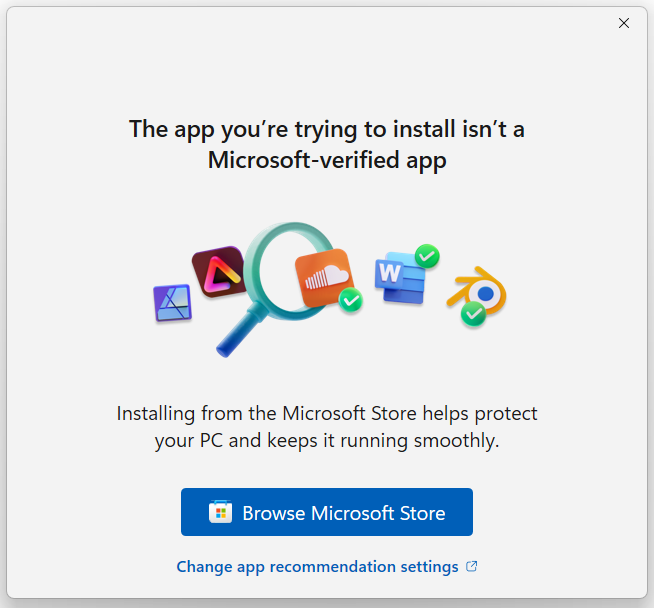
Attempting to run such a file by calling ShellExecute with SEE_MASK_FLAG_NO_UI results in a silent failure (no prompt); the function will return an error code of ACCESS_DENIED.
Surprise #1 – Plumbed into extra surfaces!
One truly wild aspect of this is that it means it behaves differently than most features powered by the Mark of the Web.
When any option other than Anywhere is enabled, the SmartScreen Application Reputation service can1 be consulted even when running a binary from the Command Prompt:
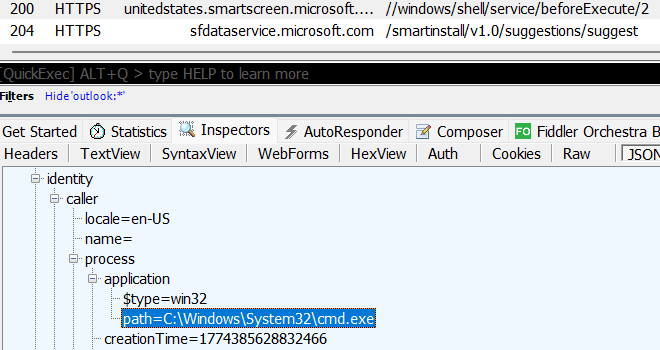
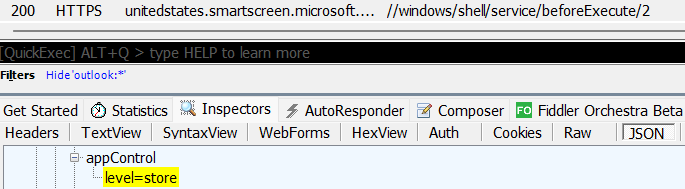
…and if the execution is disallowed by the setting, execution can be blocked:
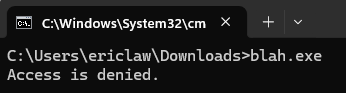
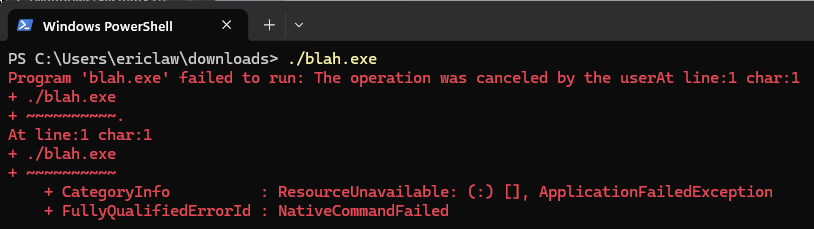
When run from PowerShell, no UI is shown but the execution is blocked:
Surprise #2 – Blocking Dangerous File types!
Another interesting surprise is the behavior in Windows when the filetype is a “Dangerous” one but not an “App.” Those dangerous file types may be specified in the registry by an application’s developer, or manually using the HighRiskFileTypes registry key:
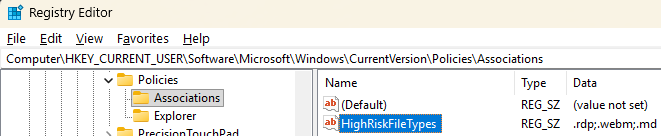
Normally, attempting to use Explorer to open a downloaded file of a dangerous extension would result in a legacy Attachment Execution Services prompt like this:
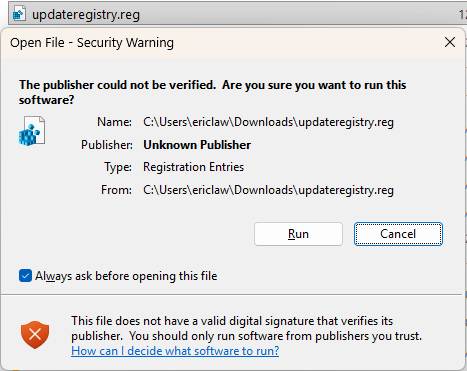
However, if Windows is configured to Get Apps from Store Only, the opening of an Internet Zone MotW-bearing file is blocked silently, providing a kludgy version of one of the most exciting aspects of the Smart App Control feature.
Troubleshooting Smart Install UI
In some cases, users complain that this feature isn’t working as described above.
This can happen if the Microsoft.StorePurchaseApp is not installed, because that package contains the warning prompts.
Normally, running Get-AppxPackage *purchase* from PowerShell should show this:
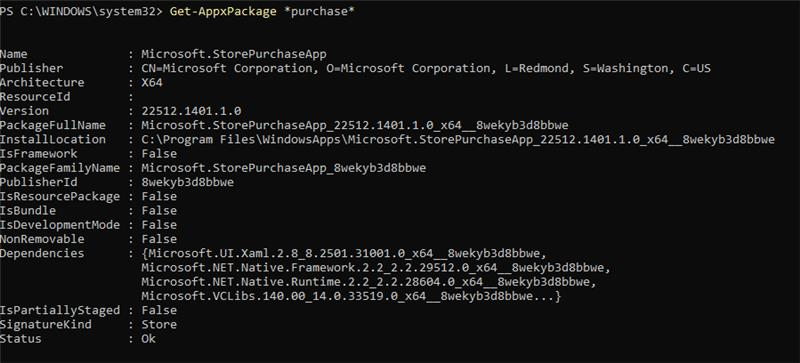
…but when the package isn’t installed, the command will return no packages.

When the UI application is not installed, Windows falls back to showing the legacy (XP-era) Attachment Execution Services security prompts.
-Eric
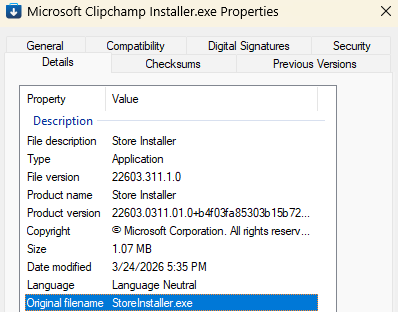
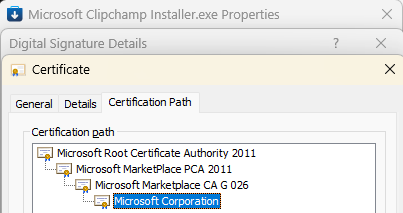
PS: On subtle behavior is that the Microsoft offers “Portable Store Installer” executables to allow apps to “download” from websites (e.g. this one for ClipChamp). Such PSI installers have an Original filename of StoreInstaller.exe and they are signed with a specific Microsoft certificate chain. The “Choose Where to Get Apps” feature recognizes these installers and allow-lists them as if they came from the store (because, logically, they do).
1 The decision of whether the SmartInstall restrictions are enforced in the command prompt is an subtle one. If you download a simple executable and run it from the Command Prompt (cmd.exe) there’s no block or prompt. But if you rename that executable to setup.exe, then the prompt and block appear. Windows has a variety of code that attempts to recognize installers, and I’m guessing that code is responsible for the difference.
 text/plain