Last update: September 1, 2026
tl;dr: Downloaders can taint a file originating from the web so that file-handling apps will handle the file more cautiously.
Background
To help protect the user and their device, Windows and its applications will often treat files originating from the Internet more cautiously than files generated locally. The Windows Security Zones determination process is most directly implemented by the MapURLToZone API; that API accepts a URL or a file path and returns the correct Zone for the file.
An obvious problem arises, however– content downloaded from web browsers or email programs resides on the local disk, but originated from the Internet.
Windows uses a simple technique to keep track of where downloaded files originated. Each downloaded file is is tagged with a hidden NTFS Alternate Data Stream file named Zone.Identifier. You can check for the presence of this “Mark of the Web” (MotW) using dir /r or programmatically, and you can view the contents of the MotW stream using Notepad:

Within the file, the ZoneTransfer element contains a ZoneId element with the ordinal value of the URLMon Zone from which the file came1. The value 3 indicates that the file is from the Internet Zone2.
Aside: One common question is “Why does the file contain a Zone Id rather than the original URL? There’s a lot of cool things that we could do if a URL was preserved!” The answer is mostly related to privacy—storing a URL within a hidden data stream is a foot gun that would likely lead to accidental disclosure of private URLs. This problem isn’t just theoretical—the Alternate Data Stream is only one mechanism used for MotW. Another mechanism involves writing a <!--saved from url=(0018)http://example.com --> comment to HTML markup; that form does include a raw URL. A few years ago, attackers noticed that they could use Google to search for files containing a MOTW of the form <!--saved from url(0042)ftp://username:secretpassword@host.com –> and collect credentials. Oops. Update: Microsoft later decided the tradeoff was worth it. Windows 10+ includes the referrer URL, source URL and other information in the Zone.Identifier stream.
Browsers and other internet clients (e.g. email and chat programs) can participate in the MOTW-marking system by using the IAttachmentExecute interface’s methods (preferred) or by writing the Alternate Data Stream directly. Chrome uses IAttachmentExecute and thus includes the URL information on Windows 10. Firefox writes the Alternate Data Stream directly (and as of February 2021, it too includes the URL information).
Handling Marked Files
The Windows Shell and some applications treat Internet Zone files differently. For instance, examining a downloaded executable file’s properties shows the following notice:

More importantly, attempting to run the executable using Windows Explorer or ShellExecute() will first trigger evaluation using SmartScreen Application Reputation (Win8+) and any registered anti-virus scanners. The file’s digital signature will be checked, and execution will be confirmed with the user, either using the older Attachment Execution Services prompt, or the newer UAC elevation prompt:


Notably, MotW files invoked by non-shell means (e.g. cmd.exe or PowerShell) do not trigger security checks or prompts.
Smart App Control
While SmartScreen only checks the reputation of the entry point program, Windows 11’s Smart App Control goes further than SmartScreen and evaluates trust/signatures of all code (DLLs, scripts, etc) that is loaded by the Windows OS Loader and script engines.
Beyond signature evaluation, when Smart App Control is enabled, many dangerous file types are blocked from ShellExecute() entirely if a MotW is present on the file:

The current list of SAC-blocked-if-MotW extensions is .appref-ms, .appx, .appxbundle, .bat, .chm, .cmd, .com, .cpl, .dll, .drv, .gadget, .hta, .iso, .js, .jse, .lnk, .msc, .msp, .ocx, .pif, .ppkg, .printerexport, .ps1, .rdp, .reg, .scf, .scr, .settingcontent-ms, .sys, .url, .vb, .vbe, .vbs, .vhd, .vhdx, .vxd, .wcx, .website, .wsf, .wsh.
Office
Microsoft Office documents bearing a MotW open in Protected View, a security sandbox that attempts to block many forms of malicious content, and starting in 2022, macros are disabled in Internet-sourced documents.
Other Apps
As of October 2024, the Microsoft Management Console will refuse to load a .msc file from the Internet Zone (with a slightly misformatted prompt):

Some other applications inherit protections against files bearing a MotW, but don’t have any user-interface that explains what is going on. For instance, if you download a CHM with a MotW, its HTML content will not render until you unblock it using the “Always ask before opening this file” or the “Unblock” button:

What Could Go Wrong?
With such a simple scheme, what could go wrong? Unfortunately, quite a lot.
Internet Clients must participate
The first hurdle is that Internet clients must explicitly mark their downloads using the Mark-of-the-Web, either by calling IAttachmentExecute or by writing the Alternate Data Stream directly. Most popular end-user download clients will do so, but support is neither universal nor comprehensive.
For instance, for a few years, Firefox failed to mark downloads if the user used the Open command instead of Save. Similarly, in the past, browser plugins might have allowed attackers to save files to disk and bypass MotW tagging.
Microsoft Outlook (tested v2010) and Microsoft Windows Live Mail Desktop (tested v2012 16.4.3563.0918) both tag message attachments with a MotW you double-click on an attachment or right-click and choose Save As. Unfortunately, however, both clients fail to tag attachments if the user uses drag-and-drop to copy the attachment to somewhere in their filesystem. This oversight is likely to be seen in many different clients, owing to the complexity in determining the drop destination.
There are many ways to download files to a Windows system that do not result in writing a MotW to the file. For example, you can use the copy of CURL that ships in Windows, bitsadmin, a script that calls into WinINET or WinHTTP or System.NET objects (including from PowerShell), or you can use any of various binaries that offer downloads as a side-effect. The fact that these tools do not apply MotW is by-design — these are not common vectors for distribution of socially-engineered malware, and other security checks (e.g. Defender AV) still run.
Update: In the summer of 2024, a security update to File Explorer in Windows began adding a MotW to files copied to the local computer from untrusted network shares. When performing a file copy, File Explorer checks if the source file’s zone is Internet or Untrusted and, if so, it then evaluates URLACTION_SHELL_EXECUTE_HIGHRISK for the source file’s Zone. If that URLAction’s result is not set to URLPOLICY_ALLOW, then the destination file has a MotW added to it. A Group Policy was added to turn off the new behavior if desired.
Target file system must be NTFS
The Zone.Identifier stream can only be saved in an NTFS stream. These streams are not available on FAT32-formatted devices (e.g. some USB Flash drives), CD/DVDs, or the ReFS file system in Windows 8 / Server 2012 (support was later added to ReFS in Windows 8.1).
If you copy a file tagged with a MotW to a non-NTFS filesystem (or try to save it to such a file system to start with), the Mark of the Web is omitted and the protection is lost.
Originating location must be Internet or Restricted Zone
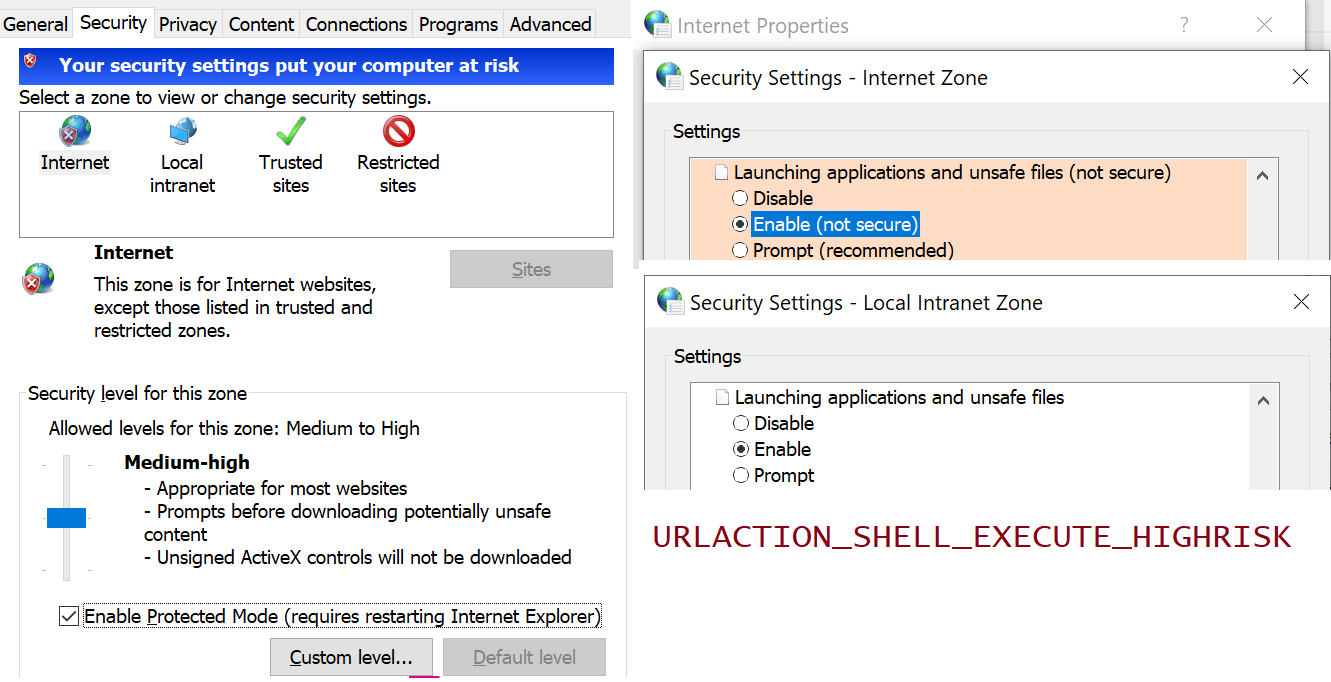
The IAttachmentExecute:Save API will not write the MotW unless the URL provided in the SetSource method is in a zone configured to write it (because that Zone’s setting for Launching applications and unsafe files is set to Enable):

Thus, by default, a MoTW can be written for Trusted, Internet or Restricted Sites zones. However, things get pretty weird for the Trusted Zone; a MotW is written only for a download from the Trusted Zone if there’s a Referrer and that Referrer is not Local Machine Zone1.
On some systems, code may have added domains to the user’s Trusted Sites zone without their knowledge. On other systems, a proxy configuration script may cause Internet sites to be treated as belonging to the Intranet zone.
Normally, Windows will howl if an unsafe “Enable” configuration is set for the Internet Zone, but there’s a registry key that turns off the “Your security settings are unsafe” warning bar shown:
Policy must not disable the feature
Writing of the MoTW can be suppressed in the AttachmentExecuteServices API via Group Policy. In GPEdit.msc, see Administrative Templates > Windows Components > Attachment Manager > Do not preserve zone information in file attachments.

In the registry, the REG_DWORD SaveZoneInformation controls the behavior.
[HKEY_CURRENT_USER\Software\Microsoft\Windows\CurrentVersion\Policies\Attachments]SaveZoneInformation
A value of 1 will prevent the MoTW from being written to files. (No, this isn’t an intuitive constant. For this policy, 1 means disabled, while 2 means enabled.)
Source scheme must be HTTP/HTTPS/FILE/FTP-like
Some sites use scripts to generate file downloads that don’t have a traditional source URL.
For example, if the source of the download is a data: URI the browser has no great way to know what marking to put on the file. For data URIs or other anonymous sources, writing a default of about:internet is a common conservative choice to ensure that the file was treated as if it came from the Internet Zone. In Chrome v130, Chrome changed to begin storing the request_initiator for data: URL downloads.
Chromium stores about:internet rather than the real urls when saving downloaded files in Private Mode instances:

A url of about:untrusted would cause the file to be treated as originating from the Restricted Sites Zone.
blob: scheme URIs have a similar issue, but because blob URIs only exist within a security context (https://example/download/file.aspx can create blob:https://example/guid) the client can write that security context’s origin as a URL (e.g. https://example/ in this case) into the MoTW to help ensure proper handling.

Origin-Laundering via Archives
One simple trick that attackers use to try to circumvent MotW protections is to enclose their data within an archive like a .ZIP, .7z, or .RAR file, or a virtual disk like a .iso file. Attackers may go further and add a password to block virus scanners; the password is provided to the victim in the attacking webpage or email.
In order to remain secure, archive extractors must correctly propagate the MotW from the archive file itself to each file extracted from the archive.
Despite being one of the worst ZIP clients available, Windows Explorer gets this right:

In contrast, 7-zip does not reliably get this right. Malware within a 7-zip archive can be extracted without propagation of the MotW. 7-zip v15.14 will add a MotW if you double-click an exe within an archive, but not if you extract it first. The older 7-zip v9.2 did not tag with MotW either way.

A quick look at popular archive extractors shows:
- Windows Explorer – Not vulnerable
- WinRar 5.31 – Not vulnerable
- WinZip 20.0.11649 – Not vulnerable
- 7-Zip 15.14 – Vulnerable (bug); 7-Zip 22.0 – Optional
- IZArc 4.2 – Vulnerable (Developer says: “Will be fixed in next version“)
Update: A researcher has surveyed the current MoTW-propagation landscape as of May 2022.
Note that many command-line extractors don’t propagate MotW to extracted files: this isn’t generally considered a security issue because at the point where an attacker can coax a user to enter the command line, they’ve already managed to get to a surface unprotected by most MotW-checks.
Loss via Transfers
A file’s Zone.Identifier stream can be lost if the file is copied to a drive that does not support alternate streams (e.g. a FAT32-formatted USB key), or if it is copied via a tool that does not copy alternate streams (e.g. Remote Desktop, various cloud file-synchronization utilities).
SmartScreen & the User may unmark
Finally, users may unmark files using the Unblock button on the file’s Properties dialog in Windows Explorer, or by unticking the “Always ask before opening this file” checkbox on the pre-launch security prompt. The HideZoneInfoOnProperties policy can be used to hide these UIs from the user.

Similarly, on systems with Microsoft SmartScreen, Edge’s SmartScreen AppRep itself may unmark the file during download for improved performance and user-experience (avoiding duplicate SmartScreen web service checks).
Originally, SmartScreen would update the Zone.Identifier stream by replacing the ZoneId with an (undocumented) field of AppZoneId=4, but this changed in March 2022.
Update March 2022: SmartScreen changed to write a separate SmartScreen alternate stream from Edge, rather than modifying the Zone.Identifier stream.
When handling a file marked with a Zone.Identifier (MotW), the SmartScreen client checks for a trivial :SmartScreen alternate data stream containing the text Anaheim. If present, the client concludes that Edge (codename Anaheim) already performed the AppRep call and allowed the file3.
Update Feb 2023: When executing a program from the Windows Shell in Win11, the Zone.Identifier stream is removed from the file after the successful AppRep check.

File Opener/Launcher must participate
In order for a MotW to have an impact, the application that opens the file must check the zone of the file.
- When launching a file, to have the MotW consulted, use
ShellExecuteEx. TheCreateProcessAPI does not care about the MotW. ShellExecuteEx()callers may ignore the mark by passingSEE_MASK_NOZONECHECKS.- An environment variable named
SEE_MASK_NOZONECHECKSwith value1will disable the Zone checking insideShellExecute(). - If checking the zone of a file yourself, you should call
MapURLToZonerather than checking for a MotW yourself. Developers should read the additional guidance for implementers using MoTW.
Mark-of-the-Web is valuable, but fragile.
-Eric Lawrence
Appendix: Useful Scripts
It is sometimes nice to be able to set and view the Mark-of-the-Web data streams from the command line. Create three text files in C:\tools like so:
motw.cmd@dir /r "%1"@echo.@echo == Alternate Data Stream ==@echo.@more < "%1:Zone.Identifier"MOTWTag.cmd@type C:\tools\InternetZoneADS.txt > "%1:Zone.Identifier"InternetZoneADS.txt[ZoneTransfer]ZoneId=3
1 This is an oversimplification. The ZoneId value written is the least-privileged zone of the calculated zones for the caller-supplied Source URL and the Referrer URL. Interestingly, this means that if you download a Trusted Zone file from a link on an Internet Zone webpage, it will be treated as if it had originated from the Internet Zone.
There are other (surprising) nuances as well.
First, if either the Source or Referrer is not supplied, it is treated as “Local Machine Zone”; a caller can pass about:internet as a generic “Internet Zone” URL, or about:untrusted as a generic “Restricted Sites” URL. Using a generic URL can be necessary if the file is sourced from a non-basic URL like blob: or one that is over 2083 characters (INTERNET_MAX_URL_LENGTH).
Second, the determination of what zone is “least-privileged” diverges from the standard order for Windows Security Zones. The MoTW code orders the Zones as Untrusted < Internet < Intranet < Local Machine < Trusted. The standard ordering in URLMon is Untrusted < Internet < Trusted < Intranet < Local Machine
Third, the Zone Marking code is hard-coded to avoid writing a MoTW to a file whose “least-privileged” zone is Local Machine. This seems reasonable (otherwise copying a file from the local computer to the local computer could add a MoTW), but, coupled with the non-standard ordering of Zones, results in a surprising outcome. To wit, if you call the API with a Source URL in the Trusted Zone, but do not supply a Referrer URL (say, because the user entered the URL in the address bar, or the download link has a rel=noreferrer attribute), no MoTW is written to the file (test case).
2 The Windows Zone identifier constants are Restricted Zone=4, Internet=3, Trusted Zone=2, Intranet=1. The Local Machine Zone is 0, but the API will not write a Zone.Identifier stream for a file whose ZoneId is 0.
3 Security-conscious readers might be alarmed: Could an attacker just create a :SmartScreen stream containing the text Anaheim to bypass AppRep checks? Maybe. It’s important to understand that in the vast majority of cases, an attacker with the ability to create the :SmartScreen stream could also simply delete the Zone.Identifier stream, resulting in the same impact.
It’s easy to imagine designs that try to do something more clever (e.g. put a signed token into the :SmartScreen stream instead) but these entail significant complexity and provide little protection because, again, the typical usage of MotW is to mark files fetched by browsers and other internet clients, which do not offer mechanisms to write or manipulate NTFS alternate streams.
Interesting! Thanks for sharing. Did you happen to file bugs against 7-Zip and IZArc?
7-Zip’s bug is now linked. I used IZArc’s “Contact Us” link, but I didn’t see a public bug tracker.
Is the UAC prompt only triggered in place of the AES prompt whenever the executable needs to elevate or are there other variables? Another neat security-related thing that Microsoft could do is updated and include the File Checksum Integrity Verifier tool with Windows.
https://support.microsoft.com/en-us/kb/841290
https://www.microsoft.com/en-us/download/details.aspx?id=11533
I know there are FOSS tools like the *sum set (md5sum, sha1sum, etc.) and HashCheck but a native OS tool with both console and graphical UIs benefits everyone.
UAC replaces the Attachment Execution Services prompt only when elevating.
Windows can natively calculate file hashes via
certutil.exe -hashfile c:\Windows\system32\notepad.exe [MD2 MD4 MD5 SHA1 SHA256 SHA384 SHA512]but this is only useful if the expected hash is securely communicated (and you are able to validate the sender). Authenticode helps resolve both of those challenges.I tested it with the venerable Info-Zip unzip program (from cygwin) and it doesn’t propagate the MotW.
Writing of the MoTW can be suppressed in the AttachmentExecuteServices API via
GPEdit.msc > Administrative Templates > Windows Components > Attachment Manager > “Do not preserve zone information in file attachments”
[HKEY_CURRENT_USER \Software \Microsoft \Windows \CurrentVersion\Policies \Attachments]
SaveZoneInformation = 1 (On = 1, Off = 2)
Hi, ReFS does support MOTW or zone.identifiers. files downloaded and copied to volumes with ReFS filesystem retain those information. I just tested it on the latest version of Windows 11.
`Get-Content -stream zone.identifier`
They do get lost when copied to FAT32 formatted filesystems though.
Thanks, I’ve updated the post.
Thanks, btw sorry about posting the comment 3 times, couldn’t see if my comment was successfully posting probably bcz of 3rd party cookie blocking :)
also there is a fork of 7zip called Nanazip that supports MOTW and is digitally signed https://www.microsoft.com/store/productId/9N8G7TSCL18R
Does MotW get removed on exFAT partitions or just FAT32? exFAT is quite common for external drives and USB keys, especially if moving data between multiple OSes.Does MotW get removed on exFAT partitions or just FAT32? exFAT is quite common for external drives and USB keys, especially if moving data between multiple OSes.
Like fat32, Exfat does not support alternative streams.
Eric, I love (and just discovered the fact) that you are updating these posts on MOTW and SmartSrceen with new info as the way Windows handles things evolves. There are important implementation details here that I literally haven’t found anywhere else.
Also, I do feel obligated to say that it is absolutely crazypants that it is impossible to turn on the feature that blocks execution of shortcut and scripting fille types when they have MOTW separately from turning on SAC as a whole. (That even leads to the absurd situation where SAC is more secure against lnk and batch file attacks than you can achieve even by using a strict custom WDAC allowlisting policy of your own, as WDAC itself doesn’t cover those file types.)
Regardless, thanks.
It’s funny, because I was trying to find the blog post where I made exactly the same note about SAC’s file type restrictions (and I use the word crazypants often) but it looks like maybe we’ve independently made the same argument. I’ve been pushing on this internally for a year now.
It’s the weirdest thing: an important security feature in Windows that only home users are supposed to have access to and enterprises can’t get no matter how much they pay or what they are willing to do configuration wise. It’s the exact opposite of the way things usually go where a security capability is limited by SKU. (Not that I’m in favor of the opposite either.)
A question, BTW, if I set SmartScreen to “block” does that give me reliable blocking of all unknown LNK files with MOTW? I trying to ponder whether I can use that for lnks, use Applocker to control batch/and files, and use WDAC for everything else if I want maximum protection against allowing unknown risky/executables to execute, one way or another.
If you’re asking “Does turning SmartAppControl to “On” block all LNK files with MotW” I believe the answer is “yes” modulo it’s possible that we’ll reputation check them and if they have a good reputation they’d still be allowed. (That’s what happens for e.g. unsigned EXEs, for example). With that said, enabling SAC would also impose restrictions on all of the other relevant file types: .appref-ms, .appx, .appxbundle, .bat, .chm, .cmd, .com, .cpl, .dll, .drv, .gadget, .hta, .iso, .js, .jse, .lnk, .msc, .msp, .ocx, .pif, .ppkg, .printerexport, .ps1, .rdp, .reg, .scf, .scr, .settingcontent-ms, .sys, .url, .vb, .vbe, .vbs, .vhd, .vhdx, .vxd, .wcx, .website, .wsf, .wsh.
Yeah. At least however SmartScreen in Block mode can then do something to block LNK files. Right now there’s absolutely no other way–that I’m aware of– to plausibly block LNK attack attempts that aren’t caught by AV or by the users security awareness on Windows. Neither WDAC nor AppLocker restricts LNKs, and you can’t even feasibly change the default handler to notepad or something. (The best you can do is use WDAC to block explorer.exe from starting certain frequently abused processes like powershell, cmd, etc.) It’s perhaps the single executable file type on Windows that is totally uncontrollable without SmartScreen Block mode.
That said, how would SmartScreen allowing reputable LNKs work? Does SmartScreen check to ensure both the reputation of the SmartSvreen file and what it actually points to on a disk pass checks?
I want to be crisp in noting that when you’re saying “SmartScreen” what we’re actually talking about is “Smart App Control” which a different feature with no real overlap with SmartScreen. SAC reputation checks are based on asking Microsoft Defender about individual files, which may result in calls to the File Metadata Service in Cloud Protection. Such checks would be against the literal bytes of the LNK file itself.
(To be clear, I don’t recall for sure whether these checks are even in place for MotW-marked files of sensitive types)