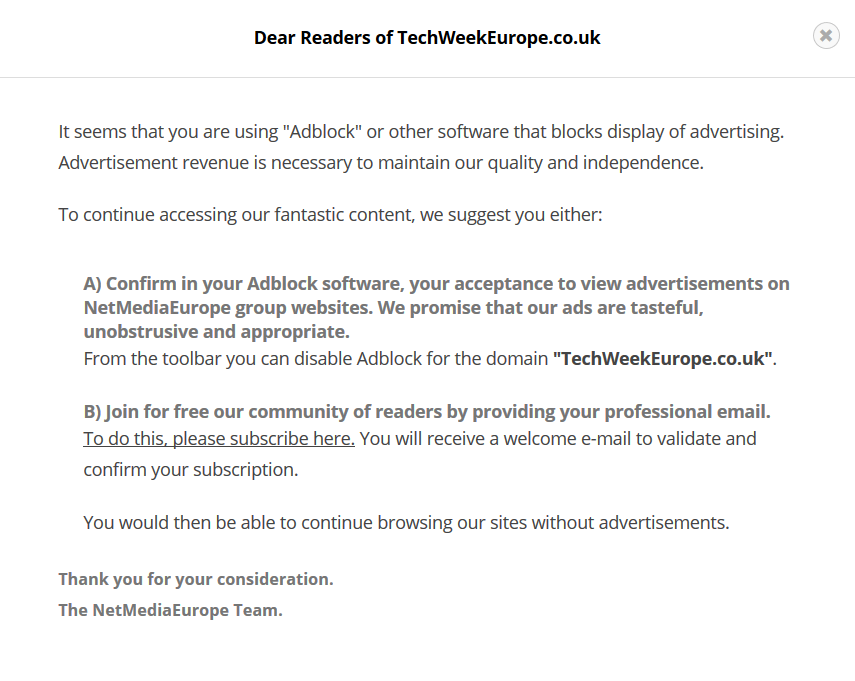
As expected, sites are ramping up their responses to ad-blocking:
ericlaw talks about security, the web, and software in general
As expected, sites are ramping up their responses to ad-blocking:
This is a list of books I’ve read recently, with a Twitter-fitting review for each. I’ll update it periodically.
The Martian – I greatly enjoyed this book; I was planning to try to get it some attention, but just before I tweeted, I learned it’s about to be a major motion picture. Oops. :-)
Wool – Great dystopian sci-fi. The writer is the closest thing the self-publishing industry has to an evangelist, and he’s awesome at it.
Ready Player One: A Novel – a light, fun read; I loved it.
Mr. Penumbra’s 24-Hour Bookstore – Fun and odd.
Seveneves: A Novel – I love Stephenson’s earlier work, and some of his later work (e.g. Reamde). This one was a mixed bag—it managed to reduce the magic of spaceflight to a boring set of “delta-v”s. On the other hand, every time I considered putting it down, there was a twist that pulled me back in.
Bulletproof SSL and TLS: Understanding and Deploying SSL/TLS and PKI to Secure Servers and Web Applications – If you want an accurate, up-to-date book on TLS, this is the one to buy.
Command and Control: Nuclear Weapons, the Damascus Accident, and the Illusion of Safety – A terrifying and great book; if you don’t know why you should still be afraid of nuclear weapons, you need to read this book.
Countdown to Zero Day: Stuxnet and the Launch of the World’s First Digital Weapon – A great book; reads like a techno-thriller… but it’s non-fiction.
An Astronaut’s Guide to Life on Earth: What Going to Space Taught Me About Ingenuity, Determination, and Being Prepared for Anything – Canadian astronaut Chris Hadfield’s memoir. I wanted to be an astronaut as a kid and this reawoke that interest to a surprising degree. But it also clearly pointed out the trade-offs (37 out of 52 weeks a year on the road) that I couldn’t imagine making with a family.
How to Fail at Almost Everything and Still Win Big: Kind of the Story of My Life – Cartoonist Scott Adams’ memoir and suggestions for success in life; it’s similar in ways to Hadfield’s memoir in being a mix of stories and advice. There were parts of this I really disliked, but there were some great parts too. The best was the repeated advice that goals are for suckers, systems are for winners — similar to Hadfield’s advice, this points out that life is more about the journey than the destination, and if you ever make it about the destination, you’re going to be in very bad shape after you realize you’ve reached it and can’t imagine what to do next.
On Writing Stephen King writes about writing — how he does it and how to do it well. It’s awesome.
Stories I Only Tell My Friends – Rob Lowe’s memoir; I had low expectations, but this book crushed them– it was funny, surprisingly interesting and very well-written.
It should be obvious, but everyone seems to be making the same mistake.
HTTPS only works if you use it. Everywhere.
If you don’t use HTTPS everywhere, a bad guy can intercept an insecure request and prevent the user from reaching your secure site. HSTS is a good start to mitigating the threat of accidentally using an insecure link, but it only helps if you have an HSTS policy set for every domain you will be using.
There’s a big collection of failures to use HTTPS here, but the following are ongoing problems that I’ve been complaining about for a long time now…
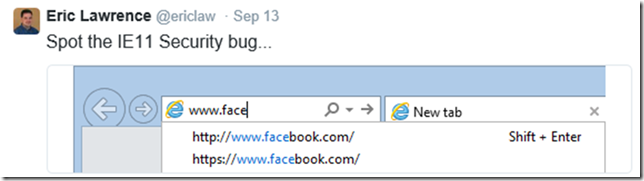
IE’s “Domain Suggestions” feature can prioritize insecure suggestions over secure suggestions:
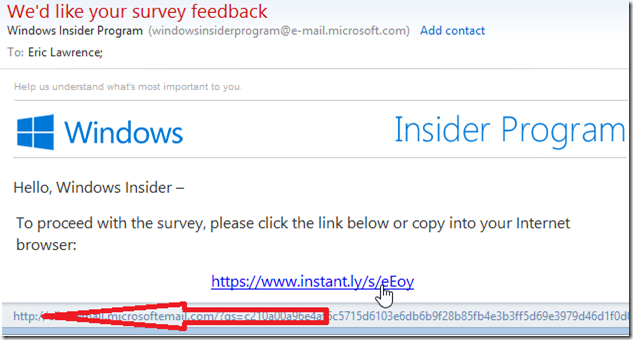
Many major companies (including OS vendors, investment firms, etc) offer HTTPS links in their email… Except they’re not really HTTPS; they’re HTTP links to a “click counter” that is meant to redirect to the secure link. These redirects can be intercepted:
Microsoft OneDrive’s Sharing experience generates secure links by default:
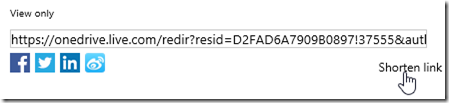
…but the link is made insecure if you click the “Shorten link” button:

The IE Team still hasn’t changed the default Bing search provider to use HTTPS:
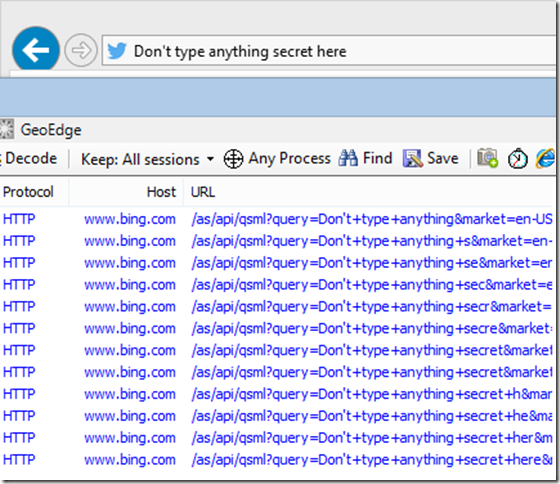
Surprisingly, both the Google and Yahoo providers offered are secure, and the Bing provider is secure in Firefox and Chrome. Only IE+Bing is insecure.
The list, sadly, goes on and on.
One of the more esoteric problems I’ve seen is on a site that generally does security quite well: Twitter.
Consider what happens if a user posts a tweet: “I invest with wealthfront.com.” Now I, as a normal human, didn’t spell out https:// in front of that link and Twitter sees it as http://wealthfront.com. This, in itself, might be okay, because WealthFront.com sends a 24 month HSTS policy with the preload attribute, meaning that many browsers will automatically upgrade any http:// reference to https://. That’s great.
Except.
Twitter has some interesting logic in their site. They use a redirector (t.co) to rewrite all hyperlinks, presumably so they can track clicks and block spam or dangerous URLs. When you paste a link into Twitter, it looks to see if the link is to a HTTP target or to a HTTPS target. If it’s to a HTTP target, they use http://t.co and if it’s to a HTTPS target, they use https://t.co.
And here we find the problem. My innocent wealthfront.com reference, which should have been protected by HSTS, has been made insecure because the Twitter folks decided not to use HTTPS everywhere.

Update: They fixed this, now all t.co links are HTTPS.
If you think you’re smart enough not to use HTTPS everywhere, you’re probably wrong.
-Eric
Over on Twitter, Paul asks how to verify that a native application is using TLS.
For a PC, it’s pretty simple, just run Fiddler and watch the traffic. If you see any HTTP requests (other than those labeled “Tunnel to”, indicating a HTTP tunnel used for HTTPS traffic) from the Process of interest, that traffic is insecure and could be intercepted.
For Mac, iOS, Android, Windows Phone, Windows RT or other devices, the first step is to install Fiddler on a Windows or Linux PC (or Virtual Machine) and configure its proxy to point at the Fiddler instance (e.g. that machine’s IP address, port 8888). For now, don’t add the Fiddler root certificate to the device. Launch the application in question and see whether you see insecure HTTP requests. If not, then look to see whether you see any HTTPS requests. If you see only Tunnel to requests but no HTTPS requests, then the app is using HTTPS securely and isn’t willing to accept just any old certificate (like some insecure apps), only a trusted certificate will be accepted. (If you don’t see any traffic at all, try the default browser to make sure you’ve set up the proxy settings properly).
Using Fiddler’s TextView inspector at the top-right of the debugger, you can examine the CONNECT request (“Tunnel to”) Fiddler captured to see which TLS version the client offered, as well as the list of ciphers and extensions the client supports.
If you’d like to see the plaintext of the HTTPS requests, then install the Fiddler root certificate on the device. If you can now see the decrypted requests, the device has a reasonable HTTPS configuration where HTTPS traffic must be signed by a trusted root certificate.
However, if after trusting the root certificate, you can see HTTPS traffic from the device’s primary browser but not the application in question (you still only see only Tunnel to requests) that implies that the app is using Certificate Pinning, whereby only specific certificates (or certificates that have a specific ancestor certificate in their chain) are accepted. To debug the HTTPS traffic from such an application, you’ll need to jailbreak the device and use a tool like the iOS SSL Kill Switch to thunk the HTTPS APIs to allow any certificate. Certificate Pinning is a good security technique, but it can make your application unusable in certain environments.
The one exception to this heuristic for detecting certificate pinning logic is Chrome on iOS; that app ignores the iOS trusted root store due to limitations in the platform APIs. Update: In Chrome 48, Chrome for iOS stopped using its own network stack and began using the WkWebView component, which means it uses the iOS native network stack and HTML renderer.
Beyond the scenarios described above, you should test your browsers’ and servers’ TLS support using the great tools at SSLLabs.com.
You can more exhaustively test a client (by installing a local agent) using this Linux application, and you can read about why validation of HTTPS certificates in non-browser software is considered “the most dangerous code in the world.”
-Eric
Adobe recently announced that “Save for Web” in Photoshop is a “legacy feature” which won’t be improved. I decided to have a look at Adobe Photoshop CC (2015.0.0 Release 20150529.r88 x64) to see the impact of its many different “save” commands on the resulting file size.
First, I created a trivial 20×20 image and drew a red dot in the middle of it.
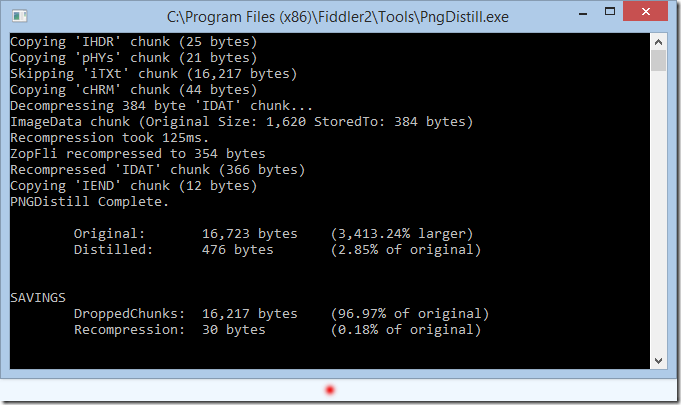
Next, I performed the naïve File > Save As > PNG operation. The output is a 16,723 byte PNG file, 97% of which is Adobe metadata:
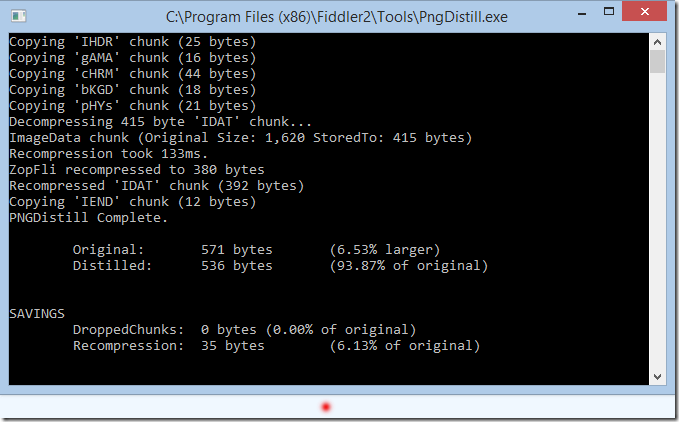
If I instead use File > Export > Quick Export as PNG, the result is a 571 byte PNG that can be shrunk by 35 bytes to 536 using the Zopfli compressor:
If I instead click File > Export > Export As > PNG, the default size is 608 bytes:
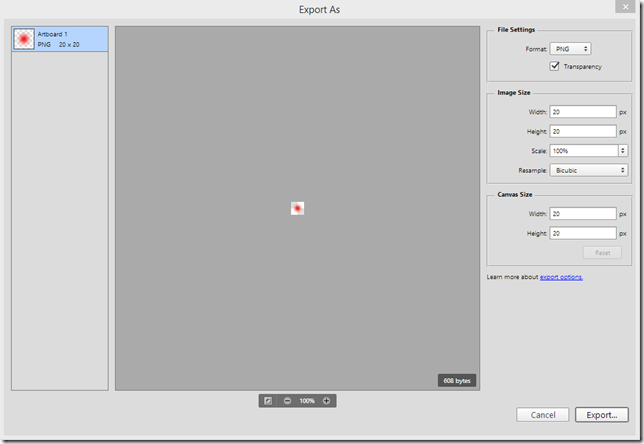
If I untick the “Transparency” checkbox:
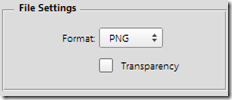
…the file grows to 662 bytes. Interestingly, however, when I retick that same box, the file now shrinks down to 571 bytes. A quick investigation shows that unticking and reticking the box silently changes the PNG from a 48 color palette to a RGB/A image, which is smaller in the case of this small image.
If I use the new File > Generate Assets checkbox and name my layer “reddot.png” the automatically-saved PNG file in the PSD’s subfolder is the 608 byte version.
If I choose File > Export > Save for Web (Legacy) and choose to save a PNG-24 file:
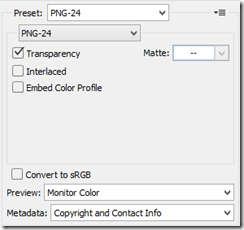
… Photoshop reassures me that I’ve made good choices:

… But it’s lying. The information at the bottom left doesn’t account for the 935 bytes of useless metadata embedded in the image:
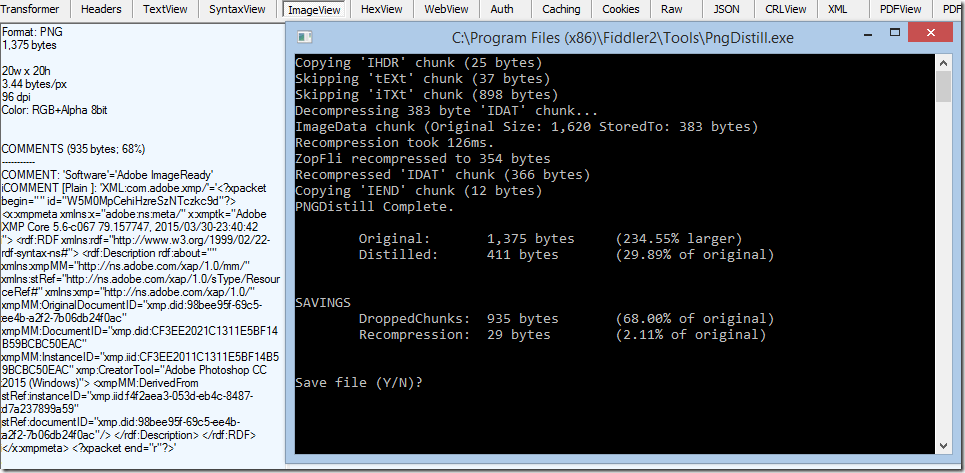
I need to change the Metadata dropdown to None:
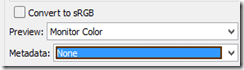
…to get Adobe to omit most of the metadata, although it still wastes 37 bytes of your file advertising Adobe’s product. If you now distill the file, you can save those 37 bytes and pick up a 29 byte improvement in compression for a final file size of 411 bytes.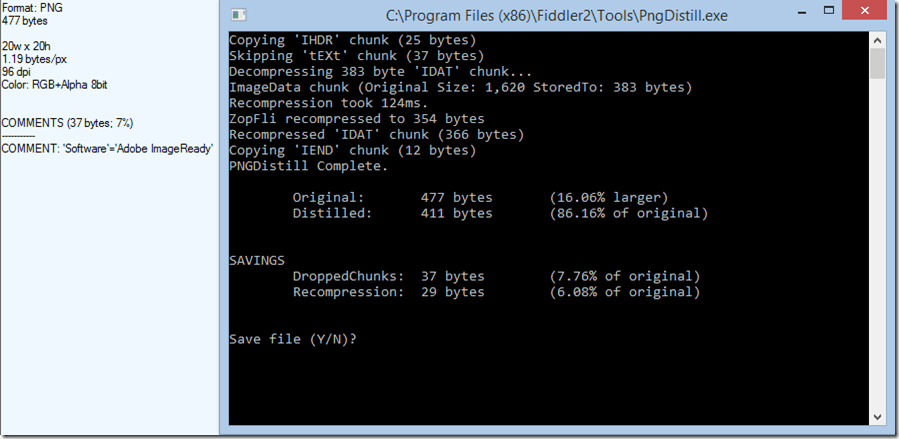
So, as you can see, Adobe Photoshop can save this simple 477 byte image in sizes ranging from 477 bytes to a whopping 16723 bytes. The Adobe overhead isn’t “fixed”—it can be much larger: a 207K PNG file on Adobe’s website has 132K of metadata in it, while a 49.1K PNG file on Microsoft’s website contains 48.9K of Adobe metadata.
Lessons Learned:
-Eric
 text/plain