A colleague recently saw the following popups when using their computer:
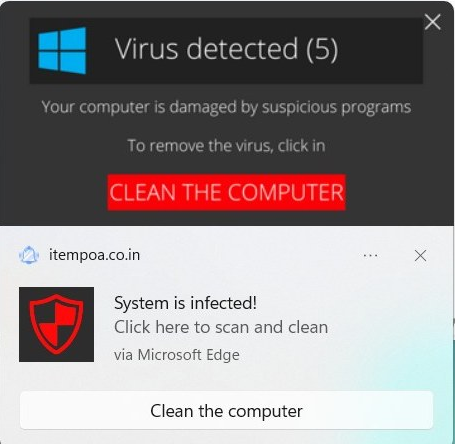

Because they seemed to come from nowhere in particular, they seemed credible– either Windows itself had detected a virus, or perhaps their computer was infected with malware and it caused the popups?
The reality is more mundane and more much more common. These are notifications sent by a website (itempoa.co.in) that Windows dutifully displays as a part of the browser’s HTML5 Notifications API feature.
Permissions Abuse
Now, websites need permission to subscribe you to notifications, but this permission is often gained as a result of trickery — for instance, a page that claims you need to push a button to prove you’re a human.
For example, I tried visiting an old colleague’s long-expired blog just to see what would happen. I was immediately redirected here:
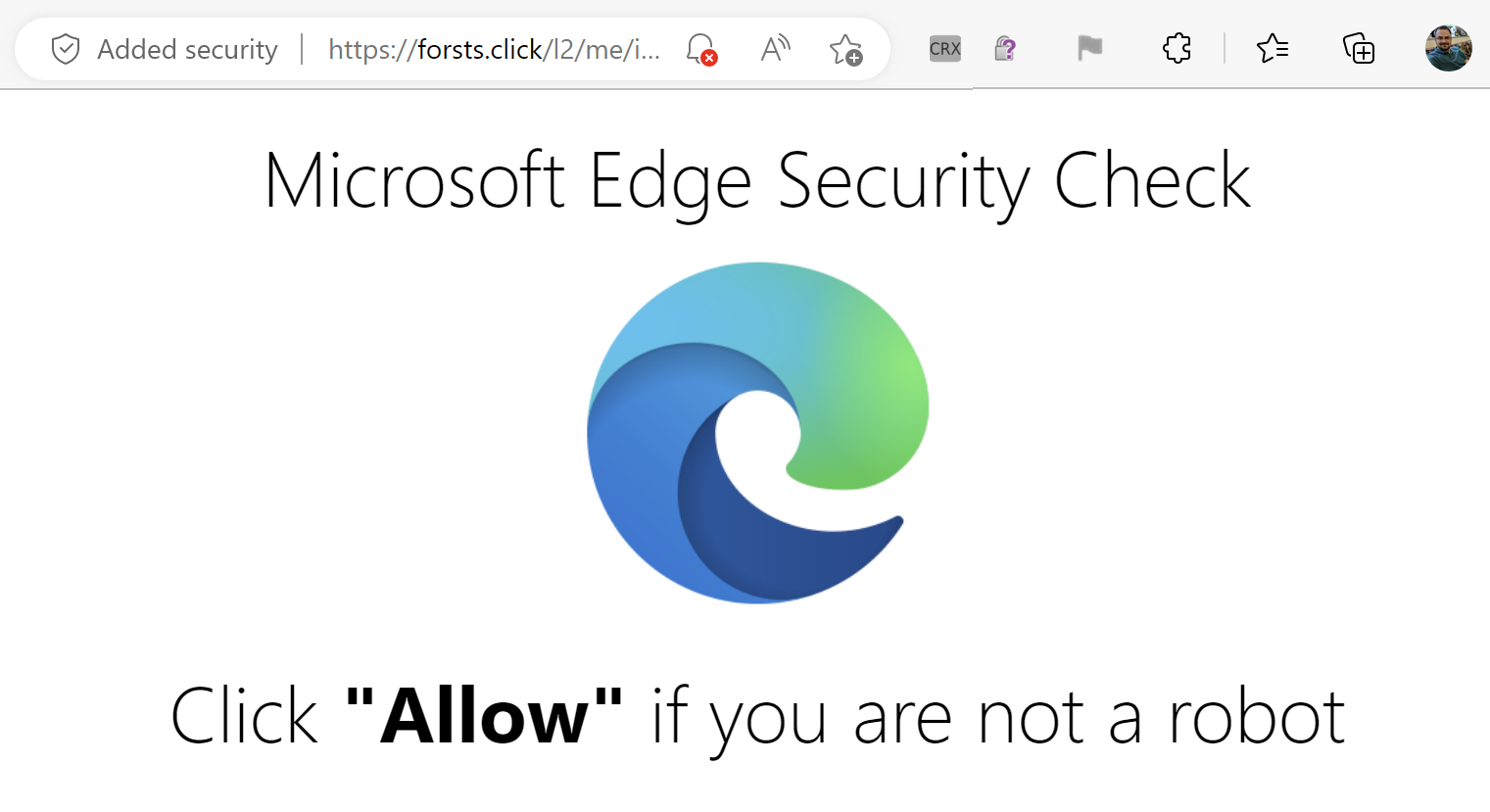
Wat? What is this even talking about? There’s no “Allow” link or button anywhere.
The clue is that tiny bell with a red X in the omnibox– This site tried to ask for permission to spam me with notifications forevermore. The site hopes that I don’t understand the permission prompt, I will assume this is one of the billions of CAPTCHAs on today’s web, and that I will simply click “Allow”.
However, in this case, Edge said “Naw, we’re not even going to bother showing the prompt for this site” and suppressed it by default.
The resulting user experience isn’t an awesome one for the user, but there’s not a ton the browser can do about that in general– websites can always lie to visitors, and the browser’s ability to do anything reasonable in response is limited. The truly bad outcome (a continuous flood of spam notifications appearing inside the OS, leading the user to wonder whether they’ve been hacked for weeks afterward) has been averted because the user never sees the “Shoot self in foot” option.
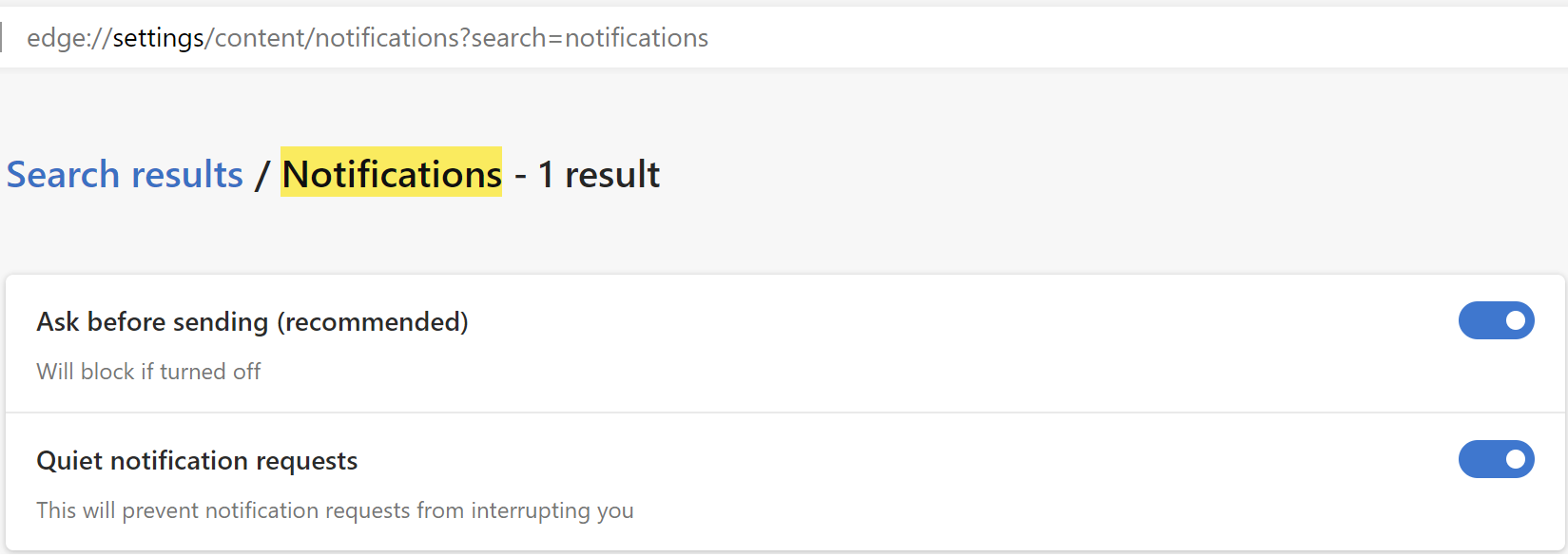
This “Quieter Notifications” behavior can be found in Edge Settings; you can use the other toggle to turn off Notification permission requests entirely:
Today, there’s no “Report this site is trying to trick users” feature. The current menu command ... > Help and Feedback > Report Unsafe Site is today only used to report sites that distribute malware or conduct phishing attacks for blocking with SmartScreen.
Here’s a similar attack site loaded in Chrome, which is showing the prompt. (Chrome does have a similar anti-abuse effort).
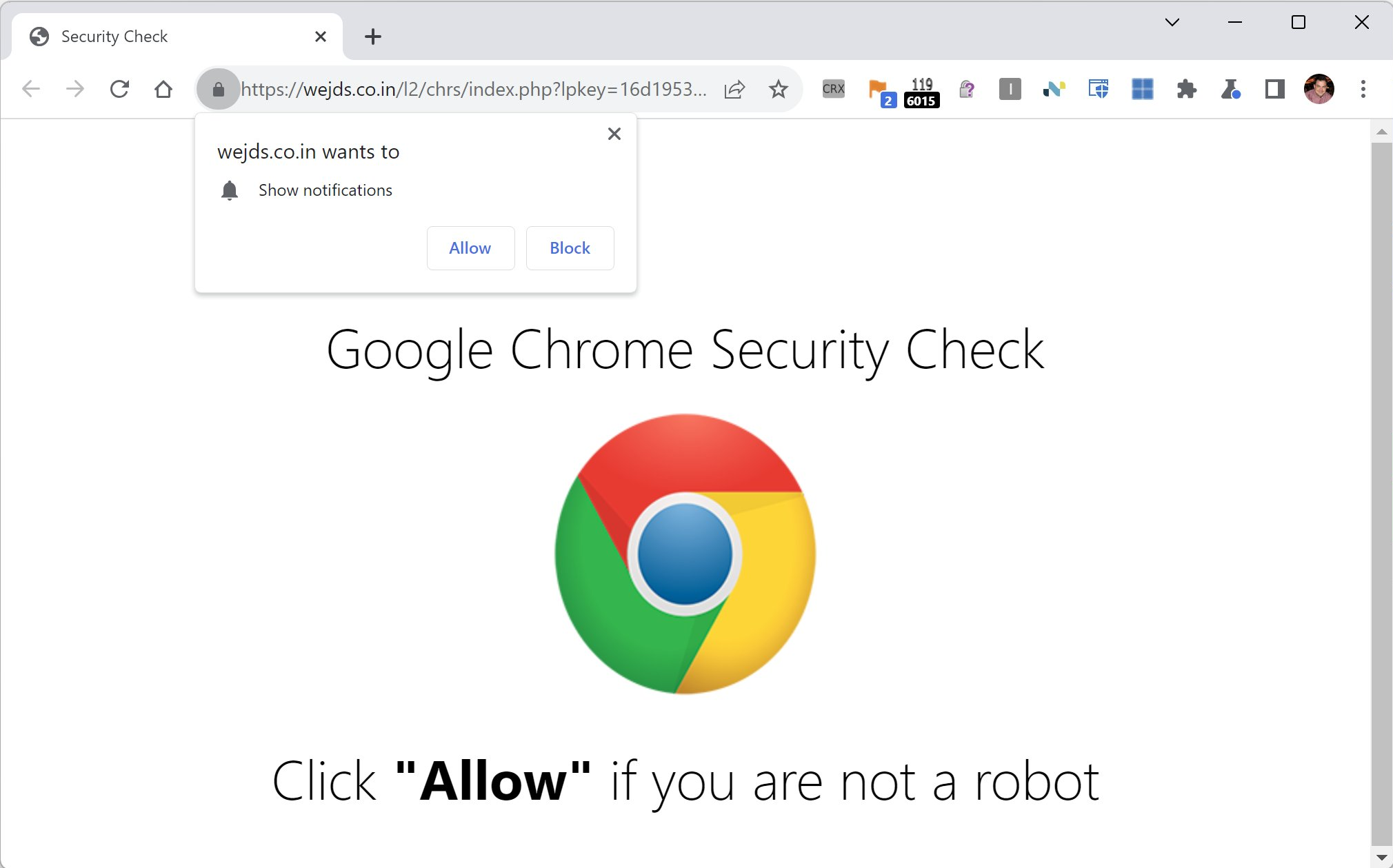
After the user is suckered into granting the Notifications permission, hours, days, or weeks later they’ll be subjected to the sorts of spam notifications seen at the top of this post.
Cleanup and Prevention
You can stop getting notifications from spammy sites by adjusting permissions in Edge Settings. If you don’t think Web Notifications are useful in general, you can visit edge://settings/content/notifications and set the toggle like so:

 text/plain