Microsoft Defender SmartScreen provides protection against the most common forms of attack: phishing and malware. SmartScreen support is built-in to Microsoft Edge and the Windows 8+ shell. The SmartScreen web service also powers the Microsoft Defender Browser Protection extension for Chromium-derived browsers.
While SmartScreen provides powerful controls to block attacks, the user remains in full control. SmartScreen will block Edge browsers from visiting a known-phishing site, but there’s a “Continue to this unsafe site (not recommended)” link available to override the decision:

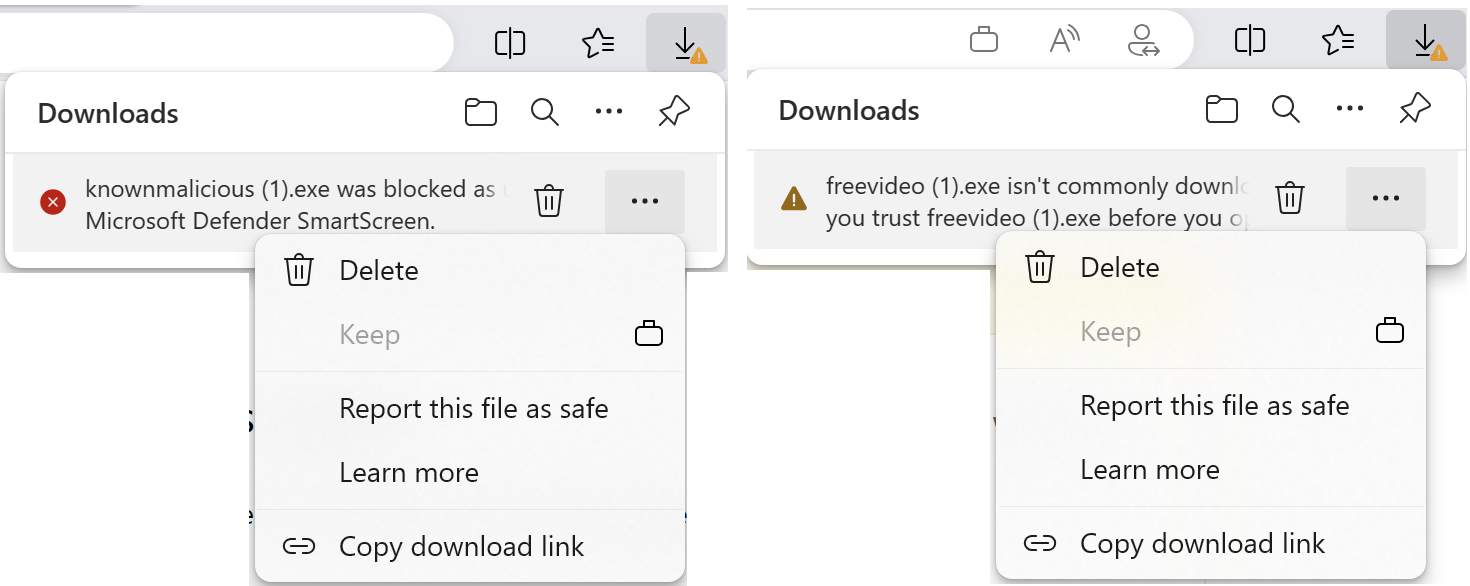
Similarly, if a known malicious file is blocked from download in Edge, the user may use the Keep menu command to override the blocking decision:

When a known bad file is downloaded using another browser without SmartScreen built-in (e.g. Chrome), attempting to run the file via Windows Explorer will trigger a SmartScreen AppRep prompt that also includes a hidden-by-default option to run anyway:
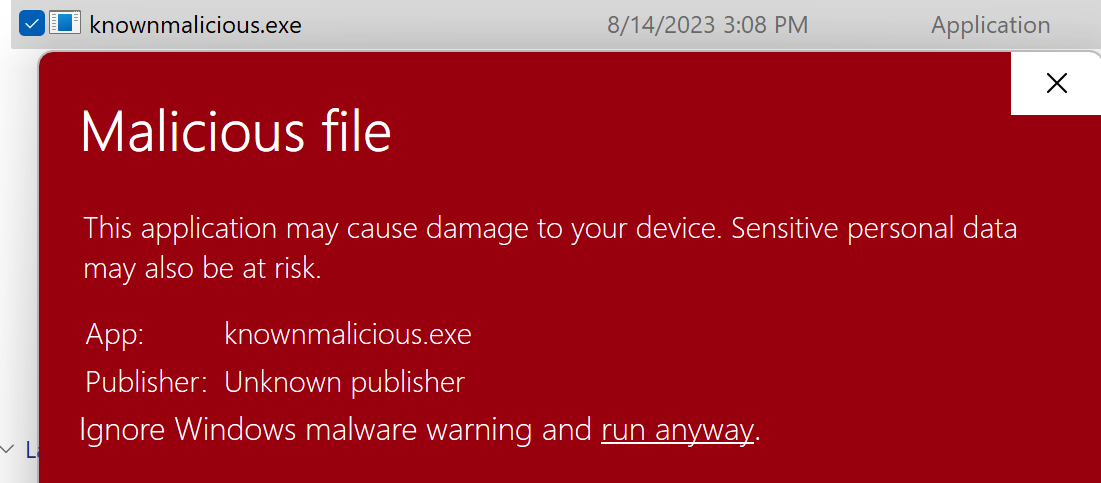
Why Allow Overrides at all?
Digital security is an adversarial threat environment where the threats evolve rapidly in response to protection.
Threat Intelligence inherently will always include both false positives and false negatives – they will never go to zero for any real threat intelligence source.
As a consequence, products that utilize threat intelligence typically offer a mechanism for an override, either from an expert (e.g. an analyst in a Security Operations Center) or an end-user (e.g. a Windows Home user).
Most product features default to allowing an end-user override (with varying levels of advice about danger) blocks while providing IT Administrators the option to disable that user override.
Controls
But what if you’re a tech-savvy parent, child, or IT administrator who doesn’t want a less-savvy user you’re responsible for protecting to override the security protections of SmartScreen?
Here’s where Group Policy comes in. SmartScreen allows you remove these dangerous override options.
Policies can be set using various administrative tools, but these ultimately flow through to a handful of registry settings:
Windows Registry Editor Version 5.00

[HKEY_LOCAL_MACHINE\SOFTWARE\Policies\Microsoft\Windows\System]
"EnableSmartScreen"=dword:00000001
"ShellSmartScreenLevel"="Block"

[HKEY_LOCAL_MACHINE\SOFTWARE\Policies\Microsoft\Edge]
"SmartScreenPuaEnabled"=dword:00000001
"SmartScreenEnabled"=dword:00000001
"PreventSmartScreenPromptOverrideForFiles"=dword:00000001
"PreventSmartScreenPromptOverride"=dword:00000001
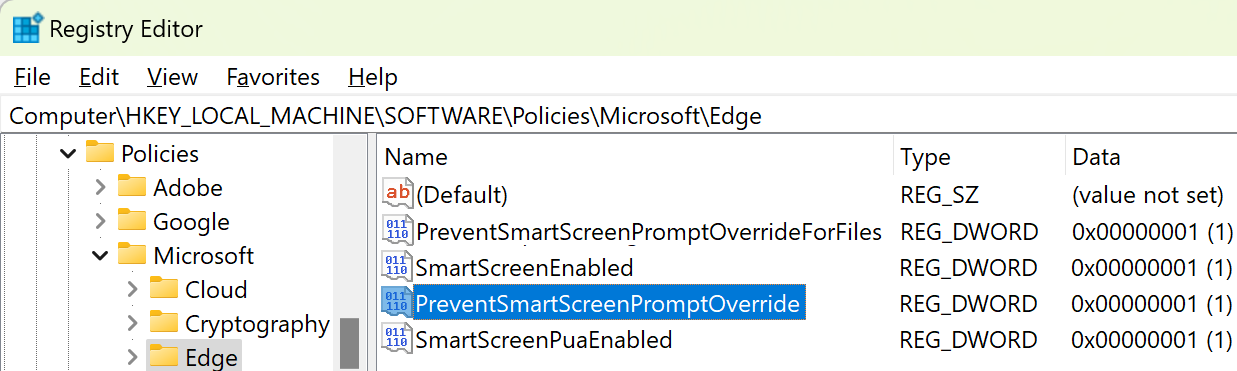

After these policies are set, the software’s dangerous “do it anyway” commands are removed entirely.
The Edge block page loses the “Continue” link:

When downloading malicious or unrecognized programs, the “Keep” command is disabled:
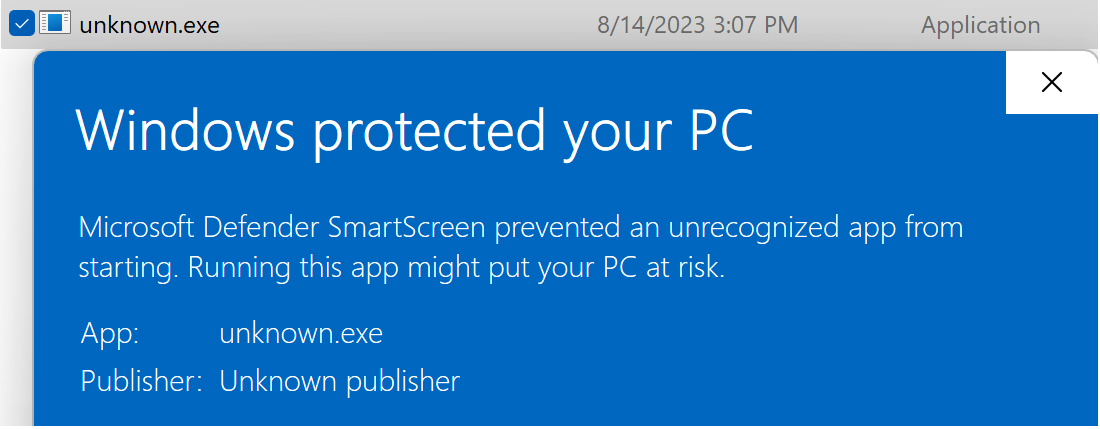
Within the Windows Shell, the “Run anyway” link or button is removed from the dialog when invoking malicious or unrecognized files downloaded via other browsers:
Pairing the powerful protections of SmartScreen with policies that ensure that only experts are in control helps you keep everyone safe.
-Eric
Note: The Chrome extension unfortunately cannot read Windows policies, so if you want to enforce its protections, you’ll need to set other registry keys.
Note: If you’re using Windows Defender Network Protection, you must use a different policy set via InTune or Set-MpPreference EnableConvertWarnToBlock to disallow users of Chrome/Firefox users from bypassing phish/malware warnings.
Note: Perhaps surprisingly, if you have Windows Defender Application Control enabled and set to use the “Signed and Reputable mode”, the Intelligent Security Graph (ISG) clause means that SmartScreen AppRep is consulted.

Critically, however, if AppRep returns “Unknown”, the user will be prompted via the blue “Windows Protected your PC” dialog. If the user chooses to “Run anyway”, the “unknown” file is treated as trusted. This may not be what you want; if you don’t, you can either choose a different configuration, or use the SmartScreen policies to remove the “Run anyway” options.
Note: Apps built atop the WebView2 control (a hosted Microsoft Edge) have an additional option to disable SmartScreen via the IsReputationCheckingRequired property; setting that property to false will bypass reputation checks even if SmartScreen is otherwise set to enabled for Edge/Store apps.
 text/plain