Leading and trailing whitespace are generally invisible. Humans are bad at dealing with things they can’t see.
If your system accepts textual codes, or any other human-generated or human-mediated input, you should trim whitespace, whether it’s leading, trailing, or inline (if not meaningful).
// Trim leading and trailing whitespace $('inputCode').value = $('inputCode').value.trim();
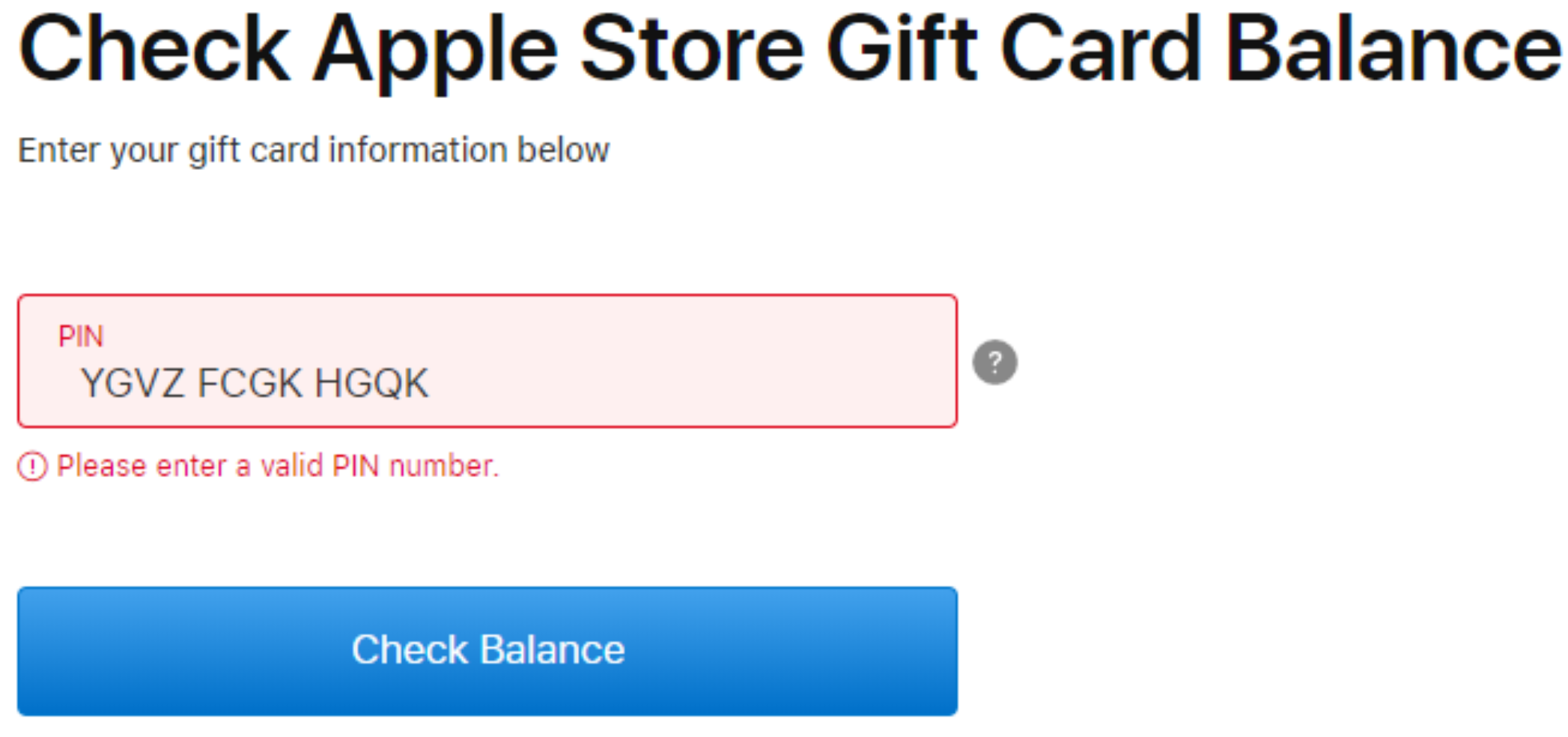
It’s downright silly that web-first companies with market capitalizations in the $Billions have not yet figured out this simple trick for improving their applications. Instead, we end up with garbage error messages like this one:
Or this one, from the most valuable company in history:
Related: Browsers can do better here too. On paste into a length-limited control, we should probably trim leading whitespace first if needed to respect the limit.
Last month, an Enterprise customer reached out to report that a 3rd-party browser extension they use wasn’t working properly. Investigation of the extension revealed that the browser extension relied upon a NativeMessaging Host (NMH) companion that runs outside of the browser’s sandbox. In reviewing a Process Monitor log provided by the customer, the Support Engineer and I observed that the Native Host executable was unexpectedly exiting tens of minutes after it started. After that unexpected exit, the next time the in-browser extension tried to call it, the browser-to-native call failed, and the browser extension was unable to provide its intended functionality.
Unfortunately, I don’t have either the source (or even the binary) for the NMH executable, and there are no obvious clues in the Process Monitor log (e.g. a failed registry read or write) that reveal the underlying problem. I lamented to the Support Engineer that I really wished we could see the JSON messages being exchanged between the browser extension and the NMH to see if they might reveal the root cause.
“We need, like, Fiddler, but for NMH messages instead of HTTPS messages.”
How Hard Could It Be?
Technically, I don’t really own anything related to browser extensions, so after ruling out what few possible problems I could imagine as root causes, I moved on to other tasks.
But that vision stuck with me throughout the day and the evening that followed: Fiddler, but for Native Messaging.
How hard could it be to build that? How useful would it be?
I haven’t written much C# code since leaving Fiddler and Telerik at the end of 2015, and the few exceptions (e.g. the NetLog Importer) have mostly been plugins to Fiddler rather than standalone applications. Still, Native Messaging is far less complicated than HTTPS, so it shouldn’t be too hard, right?
We want the following features in a debugger:
Show messages from any Browser Extension to any Native Host
Enable logging these messages to a file
Allow injecting arbitrary messages in either direction
(Stretch goal) Allow modification of messages
Over the following few evenings, I dusted off my Visual Studio IDE and struggled to remember how C# async programming works in modern times (Fiddler’s implementation was heavily threaded and mostly predated more modern alternatives).
Introducing the NativeMessaging Meddler
The source and compiled code for the NativeMessaging Meddler can be downloaded from GitHub.
The NativeMessaging Meddler (NMM) is a Windows application that requires .NET 4.8. A line of tabs across the bottom enables you to switch between tabs; by default, running the .exe directly just shows help text:
The NMM tool can respond to NativeMessages from a browser extension itself, or it can proxy messages between an existing extension and an existing NMH executable.
Configure the Demo
To test the basic functionality of the tool, you can install the Demo Extension.
Visit about://extensions in Chrome or Edge
Enable the Developer Mode toggle
Push the Load Unpacked button
Select the sample-ext folder
A new “N” icon appears in the toolbar
After the demo extension is installed, you must now register the demo Native Host app. To do so, update its manifest to reflect where you placed it:
Open the manifest.json file using Notepad or a similar editor
Set the path field to the full path to the .exe. Be sure that every backslash is doubled up.
Set the allowed_origins field to contain the ID value of the extension from the about:extensions page.
Next, update the registry so that the browser can find your Host:
Edit the InstallRegKeys.reg file in Notepad, updating the file path to point to the location of the manifest.json file. Be sure that each backslash is doubled up.
Double-click the InstallRegKeys.reg file to import it to the registry.
Run the Demo
With both the host and extension installed, you can now test out the tool. Click the “N” icon from the extension in the toolbar to navigate to its demo page. An instance of the NMM should automatically open.
Type Hello world! in the Outgoing Messages box and click Post Message to port. The message should appear on the Monitor tab inside the NMM app:
If you tick the Reflect to extension option at the top right and then send the message again, you should see the NMM tool receive the message and then send it back to the extension page, where it’s shown in the Incoming Messages section:
“Reflect to extension” copies inbound messages back to the sender
What if we want to inject a new message of our choosing from NMM?
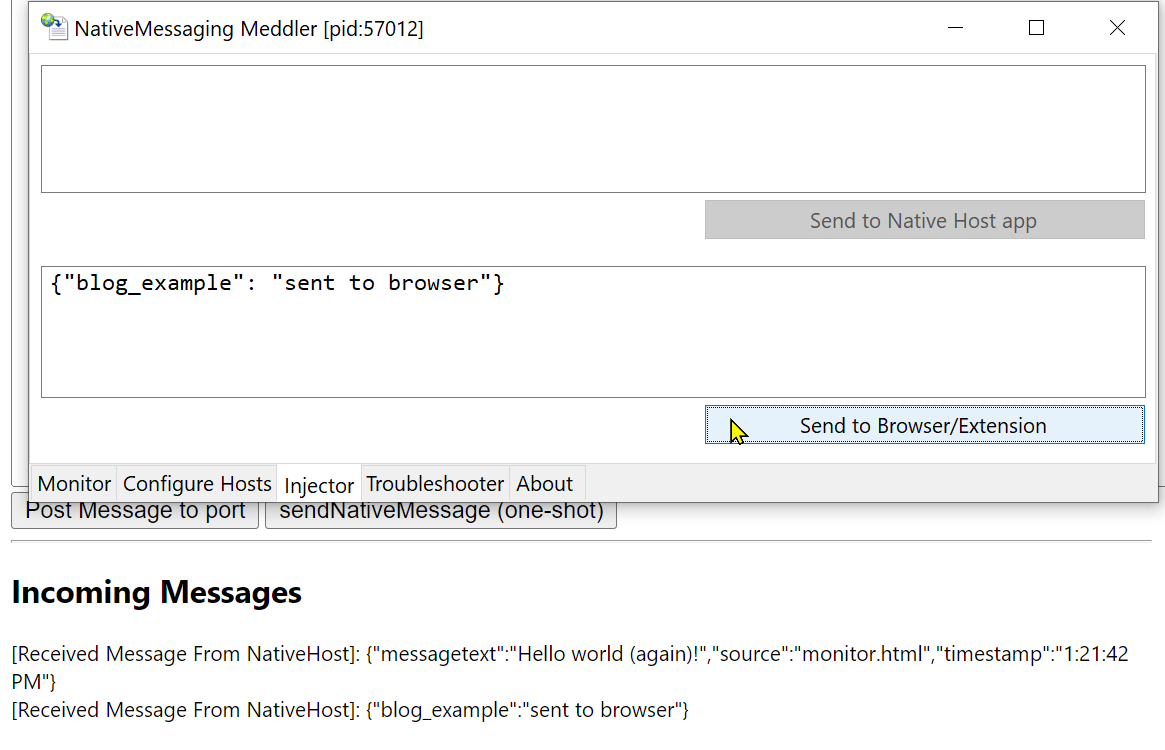
Go to the Injector tab in NMM and type a simple JSON message in the bottom box. Then click the Send to Browser/Extension button. You’ll see the message appear inside the browser in the Incoming Messages section:
Note: Your message must be well-formed JSON, or it will never arrive.
At this point, we’ve now successfully used the NMM tool to receive and send messages from our Demo extension.
Proxying Messages
While our demo is nice for testing out Native Messaging, and it might help as a mock if we’re developing a new extension that uses Native Messaging, the point of this exercise is to spy on communications with an existing extension and host.
Let’s do that.
First, go to the Configure Hosts tab, which grovels the registry to find all of the currently-registered Native Hosts on your PC:
The plan is to eventually make intercepting any Native Host a point-and-click experience, but for now, we’re just using this tab to find the filesystem location of the Native Host we wish to intercept. If an entry appears multiple times, pick the instance with the earliest Priority score.
For example, say we’re interested in the BrowserCore Host which is used in some Windows-to-Web authentication scenarios in Chrome. We see the location of the manifest file, as well as the name of the EXE extracted from the manifest file:
In some cases, you might find that the Exe field shows ??? as in the vidyo entry above. This happens if the manifest file fails to parse as legal JSON. Chromium uses a bespoke JSON parser in lax modefor parsing manifests, and it permits JavaScript-style comments. The NMM tool uses a strict JSON parser and fails to parse those comments. It doesn’t really matter for our purposes.
Note the location of the manifest file and open it in your editor of choice. Note: If the file is in a privileged location, you may need to open your editor elevated (as Administrator).
Tip: You can Alt+DblClick an item or hit Alt+Enter with it selected to open Windows Explorer to the manifest’s location.
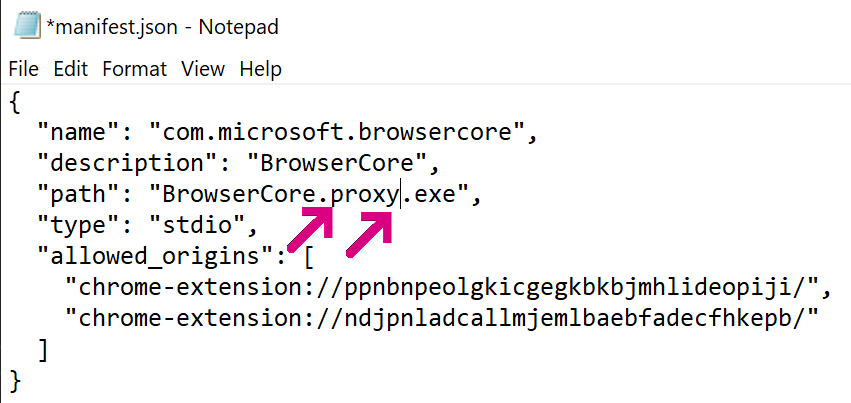
Within the manifest, change the path field by introducing the word .proxy before the .exe at the end of the filename:
Save the file.
Note: In some cases, not even an Administrator will be able to write the file by default. In such cases, you’ll need to use Administrator permissions to take ownership of the file to grant yourself permission to modify it:
There are other approaches that do not require changing filesystem permissions, but we won’t cover those here.
Next, copy the nmf-view.exe file into the folder containing the Native Host and rename it to the filename you wrote to the manifest:
At this point, you’ve successfully installed the NMM proxy. Whenever the browser extension next tries to launch the Native Host, it will instead launch our NMM debugger, which will in turn spawn the original Native Host (in this example, BrowserCore.exe) and proxy all messages between the browser and the original host.
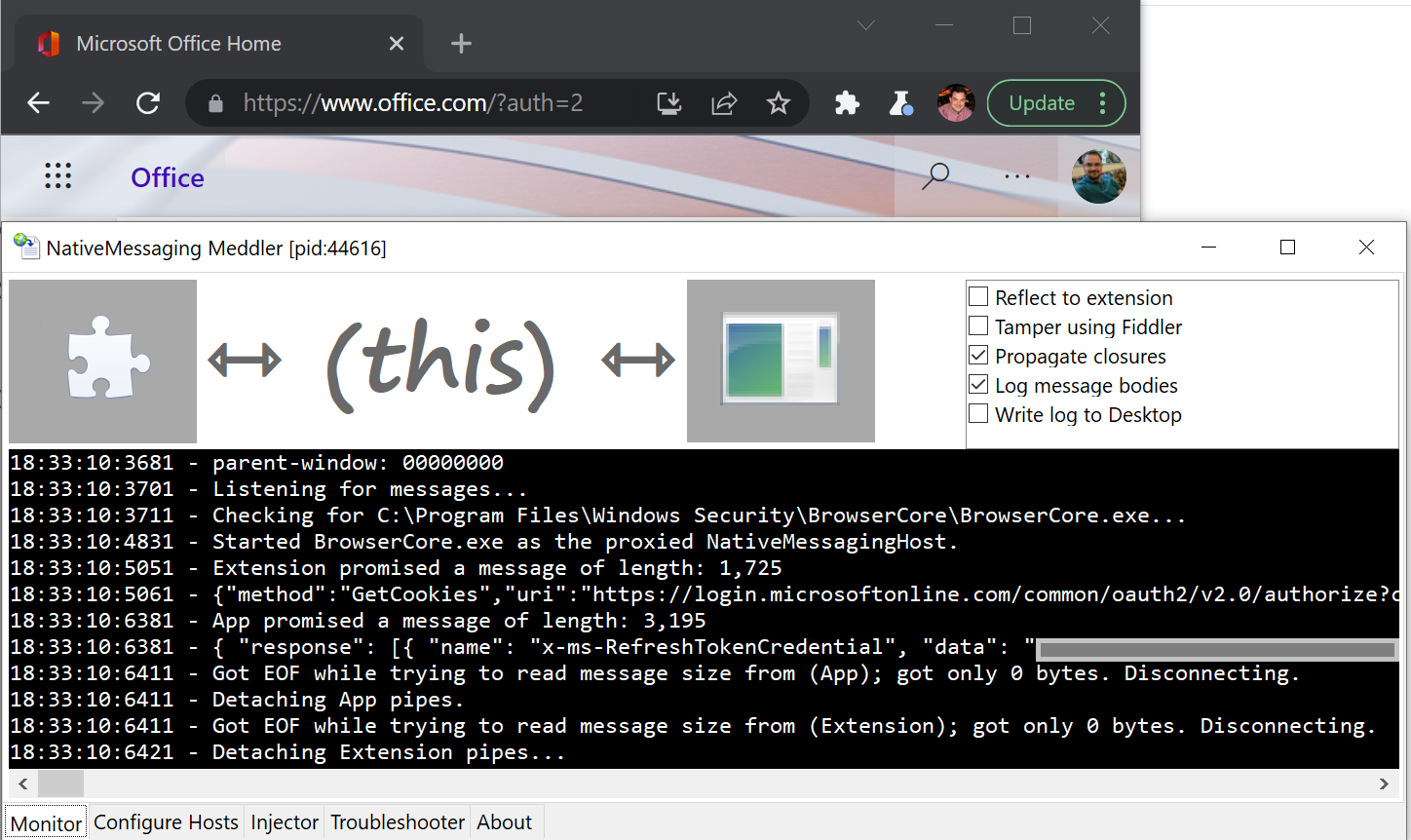
Now, visit a site where you can log in, like https://office.microsoft.com. Click the login button at the top-right and observe that our debugger spawns, collects a request from the Windows 10 Accounts extension, passes it to BrowserCore.exe, reads the Host’s reply, and passes that back to the extension. Our debugger allows us to read the full text of the JSON messages in both directions:
Note: This screenshot is redacted because it contains secret tokens.
Pretty neat, huh?
Tampering with Messages
When I got all of this working, I was excited. But I was also disappointed… plaintext rendering of JSON isn’t super readable, and building a UI to edit messages was going to be a ton of extra work. I lamented sheesh… I already wrote all of the code I want fifteen years ago for Fiddler. It has both JSON rendering and message editing… and I briefly bemoaned the fact that I no longer own Fiddler and can’t just copy the source over.
And then I had the epiphany. I don’t need to reimplement parts of Fiddler in NMM. The tools can simply work together! NMM can pass the messages it receives from the Browser Extension and Native Host up to Fiddler as they’re received, and if Fiddler modifies the message, NMM can substitute the modified message.
Eureka!
Configure Tampering
First, re-edit the manifest.json file to add a .fiddler component to the path, and rename the .proxy.exe file to .proxy.fiddler.exe, like so:
This new text signals that you want NMM to start with the Tamper using Fiddler option set. To debug “single-shot” Native Hosts like BrowserCore.exe, we can’t simply use the checkbox at the top-right of NMM’s Monitor tab, because the debugger and Native Host spawn and complete their transaction much faster than we puny humans can click the mouse. Note: You can also specify the string .log. to enable the option that writes the traffic log to your Desktop.
Now, start Fiddler, perhaps using the -noattach command line argument so that it does not register as the system proxy. Type bpu ToApp in the QuickExec box beneath the Web Sessions list and hit Enter.
This creates a request breakpoint which will fire for all requests whose urls contain the string ToApp, which NMM uses to record requests sent to the original Native Host:
Using Fiddler’s Inspectors, we can examine the JSON of the message using the JSON treeview, or the TextView or SyntaxView Inspectors:
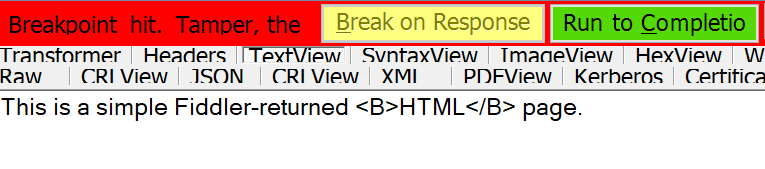
If we are satisfied with the message, click the Run to Completion button, and our NMM app will send the original, unmodified message to the original Native Host. However, if we want to tamper with the message, instead pick a success response like 200_SimpleHTML.dat from the dropdown:
A template response will appear in the Response TextView:
Overwrite that template text with the modified text you’d like to use instead:
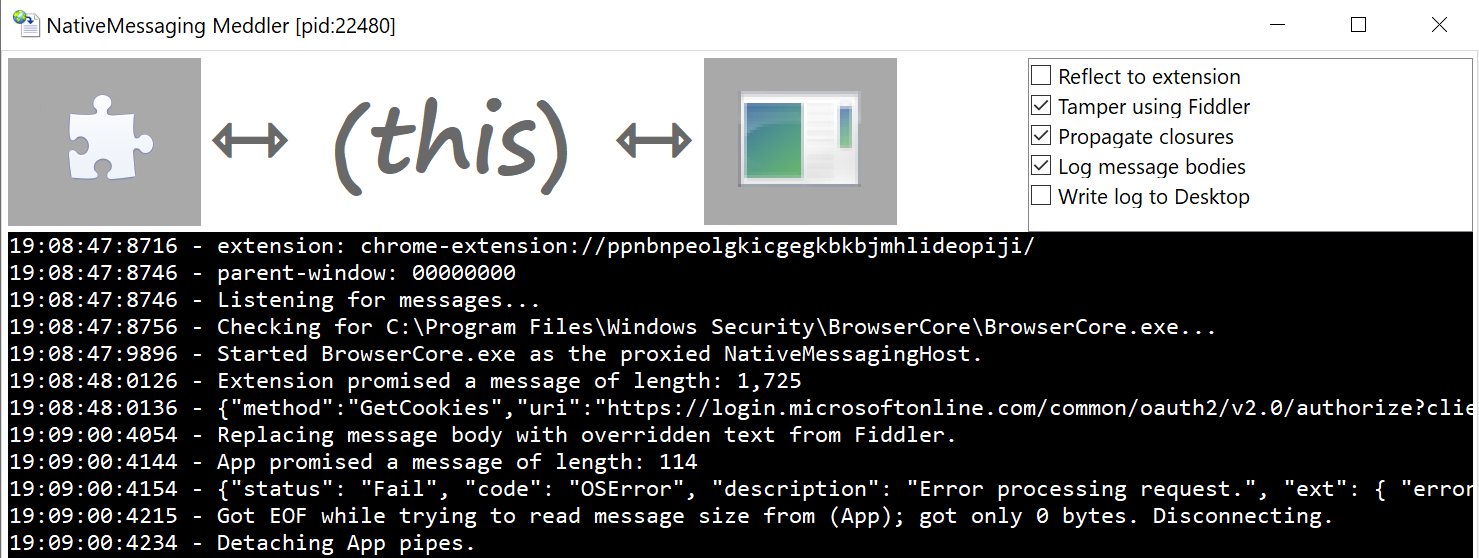
… then push the green Run to Completion button. Fiddler will return the modified text to the NMM proxy, and the NMM proxy will then pass that modified message to the original Native Host:
In this case, the original Native Host doesn’t know what to do with the GetFiddledCookies request and returns an error which is passed back to the browser.
Tip: If your goal is to instead tamper with messages sent from the Native Host to the extension, enter bpu ToExt in Fiddler’s QuickExec box. Alternatively, you can also use any of Fiddler’s richer tampering features, such that it breaks only on messages containing certain text, automatically rewrites certain messages, etc.
Happy Meddling!
-Eric
Gallery of Footguns
There are a lot of rough edges in how Chromium interacts with Native Messaging Hosts.
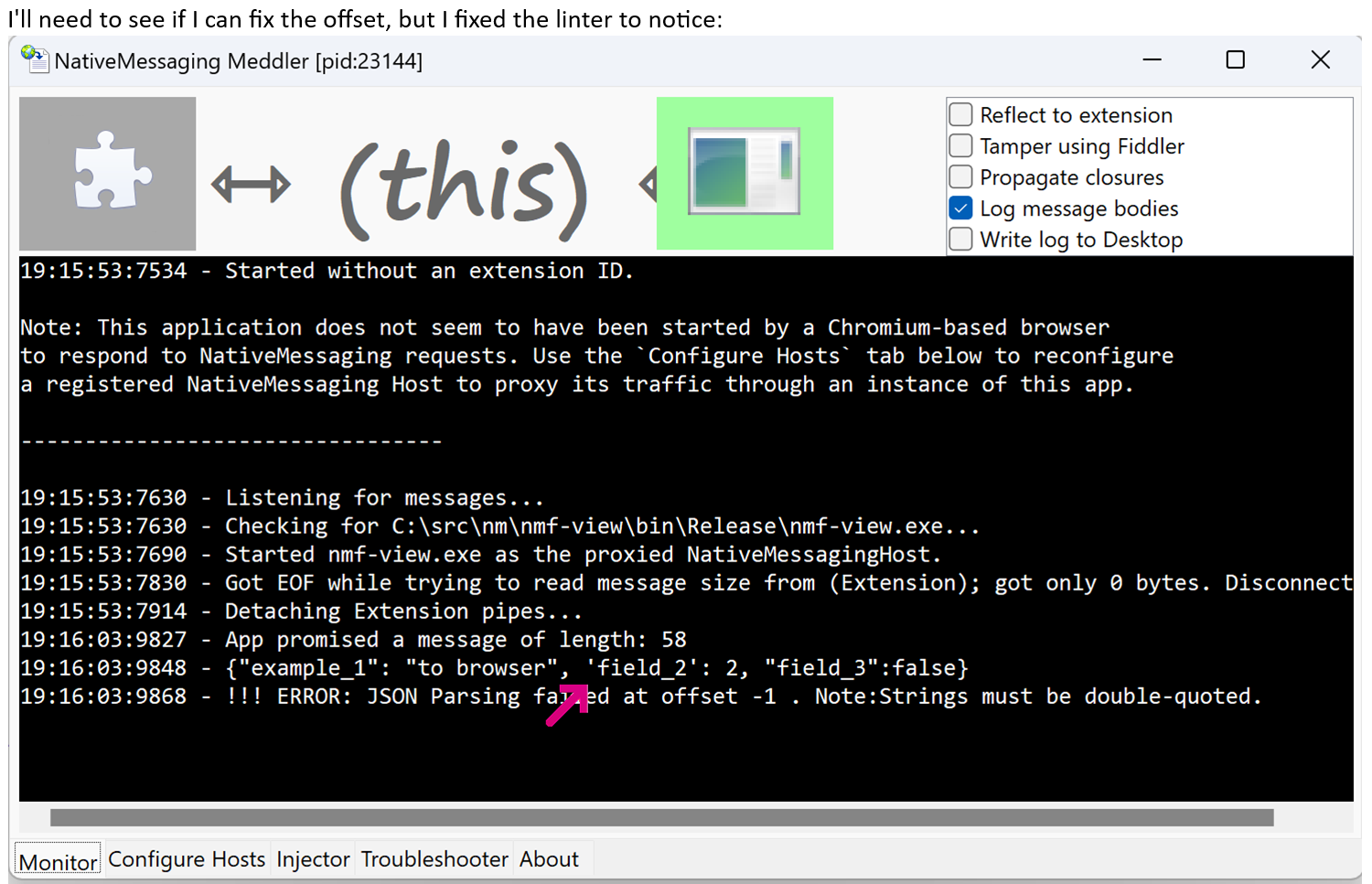
For instance, you can send the message {msg:'This is a message'} from your extension to your host, which will receive a slightly modified version from standard input: {"msg": "This is a message"}.
However, if you try to send that first string the opposite direction, from standard output of your application, your extension will never receive it — the message is silently dropped. That’s because your host must send strictly valid JSON when responding, and JSON demands double-quoting around all strings.
Browsers get used in many different environments. Today, I take a look at scenarios where there’s either no interactive user (digital signage) or a potentially malicious user (internet kiosks).
Digital Signage (fullscreen) Requirements
In the Digital Signage scenario, there’s a full-screen webpage rendering and there are no user-accessible input devices– the canonical example here would be an airport’s signage displaying arriving and departing flights and their associated gates.
Supporting this use-case is relatively easy– the browser must be full-screened, and it must avoid showing any sort of prompt, tip, hint, or feature that requires dismissal because there’s no guarantee that a mouse or keyboard is even plugged into the device.
In this scenario, the browser is typically used to load only a specific website, which itself must be carefully coded not to prompt the user for any input. Additionally, either the webapp must request a wakelock, or the OS must be configured to let the computer sleep or hibernate. Similarly, the OS must be configured not to prompt the user for input or show modal dialogs (OS update prompts, etc).
Kiosk (public-browsing) Requirements
While supporting digital signage is reasonably straightforward, providing a true internet kiosk is considerably harder. The set of potential customer requirements is much broader– some kiosk owners want to allow the user to browse anywhere and download any files, etc, while other kiosk owners want to tightly lock down the experience to a small number of supported web pages. Making matters far more complicated, in some kiosk scenarios we cannot assume that the user is well-intentioned– they might want to abuse their access or even hack the kiosk itself. Computers are relatively less protected against malicious local users.
Generally, an interactive kiosk aims to offer a few capabilities:
Allow the user to load one or more webpages, filling out forms or performing search queries
Offer most of the “digital signage” behaviors (e.g. avoid prompting the user with announcements, requesting that they explore new features, log into the browser itself)
Prevent the user from navigating to arbitrary sites
Prevent the user from tampering with loaded web app(s) using the Developer Tools
Prevent the user from exiting the browser or modifying its persistent state
Prevent the user from gaining access to the underlying OS to run other programs or modify persistent state
Of these, preventing access to underlying OS is the most critical, because if a malicious local user can execute commands in the OS, they can typically defeat all of the other restrictions intended for the kiosk.
Way back in my past life, I was the Security PM for Internet Explorer. At the 2008 Hack-in-the-Box security conference, my session on IE security improvements was preceded by a packed session wherein the presenter walked through two dozen popular “Kiosk browsing” software packages, breaking out of each to get access to the underlying system in under two minutes. Applause ranging from enthusiastic (for clever hacks) to bemused (for silly hacks) followed each attack.
Edge’s Kiosk Mode
NOTE: Kiosk-mode browsing is not considered a security boundary. By default, there are numerous ways for a local user to escape from Kiosk mode; this section discusses some of them.
Microsoft Edge offers a kiosk mode which can be simply activated by starting msedge.exe with the --kioskcommand line argument. By default, this starts Edge with a full-screen InPrivate window with no address bar, no context menus, various hotkeys (like F12) disabled and so on. It’s a fine approach for something as simple as digital signage. But if you want to build a true kiosk, you’ll want to set some more options.
There’s a great documentation page on Configuring Edge Kiosk Mode that explains the various scenarios and configuration options. As explained on that page, one of the key things you’ll want to do is enable the Windows 10 “Assigned Access” feature so that Windows is locked down to limit the user to only the designated scenario.
You’ll likely also want to set a bunch of other Microsoft Edge policies to tighten things down.
Start with the Kiosk Mode Settings policies, then look at more general policies.
For instance, you almost certainly want to pass the --no-first-run command line argument or set the HideFirstRunExperience policy.
You probably want to use the URLBlocklist policy to block all URLs (e.g. a rule of *) and then use the URLAllowlist policy to exempt only those URLs patterns (e.g. https://example.com/app) that you wish to support. This helps prevent users from using the browser to browse the local file system (file:///c:/), from viewing web page source code (e.g. via CTRL+U), and from launching installed applications via App Protocols. Similarly, you may wish to restrict what a user can download, or configure downloaded files to be deleted on exit.
One very common vector for abusing kiosks is to use the File Picker dialog shown when the user hits Ctrl+O or pushes the Choose file button on a file upload control. The File Picker dialog is provided by Windows and by default exposes the ability to download URLs, navigate the local file system, and even launch files. This dialog can be blocked by disabling the AllowFileSelectionDialogs policy, with the obvious caveat that doing so will block any web app scenario that requires the user upload a file.
In some cases, you might want to prevent the user from using a Microsoft Edge hotkey that is not otherwise restricted. To implement such a restriction, you can use a Windows Keyboard Filter, with the caveat that the restriction will block the hotkey(s) across all of Windows.
Extreme Lockdown
In extreme cases, you might decide that you don’t want a browser at all. In such cases, building a simple Win32, .NET, or UWP app atop the Microsoft Edge WebView2 control might be your best bet, because you’ll have more complete control of the behavior of the application, with the Edge engine rendering your content under the hood. Even when building your solution atop WebView2, you will still need to account for system access vectors like File Pickers and the like.
Over the years, I usually idly ponder some vague notion (usually “get in better shape“) in late December, and mostly forget about it by the second week of January or so.
This year, I’m taking things a bit more seriously. It’s time to get busy living.
Rather than get hyper-focused on just specifics, I’ve got two themes, and a few targets.
Themes:
Live more intentionally.
Get less comfortable.
Perhaps ironically for someone in my line of work, I’m not a planner. Virtually nothing in my life has gone to plan because virtually nothing in my life was actually planned. I’ve stumbled from one milestone to the next with only the vaguest sense of where I’d like to be, and while this lack-of-strategy strategy has turned out relatively successfully for me, it’s to the point where I reasonably wonder whether setting out a goal and achieving it is really something that I can do. So I’m gonna go do that for a while.
Secondly, I’m going to do more to get out of my comfort zone. After careful reflection, it turns out that it’s not, in fact, very comfortable at all. Boredom is dangerous.
As for near-term targets:
Health and Finance: A dry January. I could count on two hands the number of drinks I had before 27, when I met my ex-wife. I’m curious to see what a month without alcohol is like. So far so good.
Health: Track my weight and other metrics. I feel like I’ve put on a ton of weight in recent years, but looking back, 2020 added about twelve pounds, and 2021 about the same. Definitely heading the wrong direction, but perhaps moving in the right direction won’t be as hard as I’ve made it out to be.
Health: Find sustainable fitness habits. I have not been successful with fitness routines in the past, with one exception– I love to take long walks. That’s not super-pleasant throughout the year in Austin, but in Redmond, I used to do regular hour-long sessions on the treadmill while watching trashy TV (Alias, 24, etc) at the ProClub. I’ve bought a fancy treadmill and the associated subscription content to take “virtual” walks around the world. I’m gonna make this one stick, and springboard off it into other fitness things.
Travel. Beyond my recent cruise, I’ve booked a family cruise with my kids and their cousins for late in this year– they’re all growing up too fast. Post-pandemic, I want to go to Alaska for the first time, and to Hawaii again.My long-term ambition is to get to every continent.
Finance: Spend more intentionally. I’ve lived well below my means for over ten years, and relative frugality has served me well. But it’s also led me to avoid spending money on some things that would’ve been good for me. At the same time, I’ve bled quite a lot of money on things that aren’t good for me (alcohol, food). I’m going to try to pare those back.
Life: Produce more. Whether it’s writing (hi!), a new side-project, or something else entirely, I’m most fulfilled when I’m making things. I want to spend more time doing that. TV is for the treadmill.
.commit()
All of these roll up into prep for a larger, longer-term goal for 2023 that I’m not ready to talk about just yet (Update: Kilimanjaro). If things go well, expect to read plenty more on that topic.
the edge://flags page (mostly experimental options), and finally
via command-line arguments that are passed to the msedge.exe executable
This list of sources is roughly in order of stability and supportability– earlier choices change less often (and with more notice) than options I listed later.
List of all command-line arguments for Edge?
Unfortunately, Edge has not published a list of implemented command line arguments, although in principle we could use the same tool Chromium does to parse our source and generate a listing.
As of January 2023, the list of command-line arguments generated out of the upstream source code is up-to-date: it was last updated this month. The snapshot can be viewed here: Chromium Command line arguments. You can check the Last automated update occurred on text in that page to see whether it has been updated recently.
In general, Edge’s command-line arguments are the same as Chromium‘s, with the exception of marketing names (e.g. Chrome uses --incognito while msedge.exe uses --inprivate) and restricted words (Edge replaces blacklist with denylist and whitelist with allowlist).
Enabling or disabling features?
Many Edge features are controlled by named “features” that can be enabled or disabled using the --enable-features or --disable-features command line argument. Each argument accepts a comma-delimited list of feature names, like so:
Unfortunately, there’s no documented list of feature names, although the features inherited from upstream can be found in the Chromium-source code, often in one of many files named features.cc.
An argument I tried didn’t seem to do anything? Why not?
The most common reason a command line flag does not work is that nearly all command-line flags only take effect if they are passed on the command line when all Edge instances are closed.
Before trying to launch a new instance with a command line, close all Edge browser windows, then check the System’s Task Manager (taskmgr.exe or Control+Shift+Esc in Windows) to kill any background Edge processes you see.
Alternatively, you could hit Windows+R and run:
taskkill /f /im msedge.exe
…to achieve the same thing.
In particular, Edge’s “Startup Boost” feature means that there’s often a hidden msedge.exe instance hanging around in the background even when all browser windows are closed. You can disable Startup Boost if you like using the option in edge://settings:
You can verify that the current Edge instance you’re using has a desired command-line argument by visiting edge://version and looking for the Command-line value in the page:
Can I set the “Default” command-line?
Sometimes, users would like to set a “default” command line for Edge to enable or disable options every time the browser is launched. There is presently no mechanism to do this– you can edit the Edge shortcuts pinned to your desktop or taskbar, and edit launch arguments for file associations inside the Windows Registry, but such changes won’t impact Edge launches for Startup Boost or via other mechanisms.
Instead, you should look for a more supported option for setting the desired behavior (e.g. a Group Policy, or edge://settings or edge://flags entry). If there’s no such item available, you should send us feedback using the Send feedback command found in the … > Help and Feedback menu. If persistence of a command line option is broadly desired, we may promote it to a persistently-configurable location (e.g. we made Edge’s Cipher-suite Deny list settable via a Group Policy).
-Eric
Q: How do I pass command line arguments on Mac OS?
A: Run the following from the Terminal, adjusting the pre-release Channel name as needed (remove the channel entirely if you’re using Edge Stable):













 text/plain