Brotli

2022 Update: Brotli is requested by 94% of browsers, offers great performance, and works amazingly well on Web Assembly code. If you’re still using GZIP today, you should update!

Regular readers of my blog know how much I love Zopfli, Google’s compression engine that often shrinks output by 5% or better when compared to the popular zlib engine. The beauty of Zopfli is that its output is compatible with all of the billions of existing DEFLATE encoders deployed worldwide, making its use an easy choice for any static content.

But imagine for a moment what compression ratios we could achieve if we weren’t limited by compatibility with existing decoders? If we could add a new compression engine to the web, what might it look like?

The Brotli compression engine, co-written by Jyrki Alakuijala (inventor of Zopfli), provides one answer. Brotli combines the LZ77 and Huffman algorithms of DEFLATE with a larger sliding window (up to 16mb1 vs. DEFLATE’s 32kb) and context modeling; the specification also calls for a 122kb static dictionary.

Brotli In Browsers

Today, Brotli is the compression engine behind the newish WOFF2 font format, providing savings of approximately 25% over WOFF 1.0 fonts compressed with Zopfli. Not content to rest on their laurels, Google has announced their Intent to Implement Brotli as a general purpose HTTP Content-Encoding, allowing web developers to use it to compress script, stylesheets, svg, xml, and the like. Firefox beat Google to the finish and shipped Brotli support in the Firefox 44 Dev build.

Probably HTTPS only

Past attempts to add new compression algorithms (bzip2 and SDCH) have demonstrated that a non-trivial number of intermediaries (proxies, gateway scanners) fail when Content-Encodings other than GZIP and DEFLATE are specified, so Brotli will probably only be supported over HTTPS connections, where intermediaries are less likely to interfere.

    Accept-Encoding: br, gzip, deflate, sdch

Results

Facebook investigated Brotli and found it would save about 17% of CSS bytes and 20% of JavaScript bytes (compared with Zopfli). When run on the CSS and JavaScript from the Alexa top-300k, Brotli saved 12% of CSS bytes and 9% of JavaScript bytes when compared to gzip.

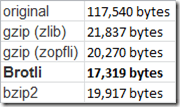
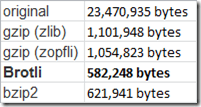
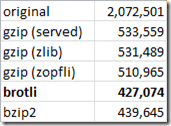
Running a few simple tests with Fiddler, I saw great results with Brotli:

    Content-Encoding: br

jQueryMobileMin.js
image

Microsoft homepage:
image

A random giant XML documentation file:
image

Microsoft Word Online WordEditor.js
image

Microsoft Word Online WordEditor.Wac.TellMeModel.js
image

Cloudflare’s blog post on Brotli includes some benchmarks too.

Brotli is optimized for decompression speed. When compressing, Brotli is slower than zlib’s deflate, but considerably faster than zopfli, lzma and bzip2; given 1gb of extremely compressible content, Brotli finished compressing it to 3339 bytes after 301 seconds of CPU time. After 8040 seconds of CPU time, zopfli.exe crashed when a memory allocation failed.

Running Brotli.exe

To make things simpler for Windows users, I’ve built the latest release (v0.3) from GitHub for Win32 using Visual Studio 2015. You can download the Authenticode-signed Windows Brotli.exe from my site.

To compress a file, specify the input and output filenames:

  • --in filename
  • --out compressed_filename

… and optionally specify any of the following arguments:

  • --quality n
  • --force
  • --verbose

The quality parameter controls the compression-speed vs. compression-ratio tradeoff; the higher the quality, the slower but denser the compression. The supported range is 0 to 11, and 11 is the default.

The force parameter instructs Brotli to overwrite the output file if it already exists.

The verbose parameter instructs Brotli to display its compression speed in megabytes per second upon completion.

To decompress a file, use the --decompress parameter and specify the input and output filenames:

  • --in compressed_filename
  • --out filename

… and optionally specify the --verbose parameter to instruct Brotli to display its decompression speed in megabytes per second upon completion.

If you’d like to expose Brotli inside Fiddler 4.6.0.5+, place brotli.exe inside Fiddler’s \Tools\ subfolder and restart to see it appear on the Transformer tab:

image

Tracking Brotli

If you’d like to follow along:

Alas, the Brotli Discussion forum is currently empty.

Assorted Further Investigations

1. Someone needs to register the brotli token in the IANA registry (although Google’s SDCH and Microsoft’s Xpress aren’t listed there either).

2. Implementers should consider protections against “brotli bombing” DoS attacks. Brotli’s high compression ratio makes attacks even cheaper for the bad guys.  A trivial test of compressing a file containing all 0s shows that Brotli can achieve a compression ratio of at least 386516:1, meaning that 1389 bytes of compressed data can blow up to 512MB when uncompressed. In contrast, DEFLATE has a maximum compression ratio approaching 1032 to 1, so an attacker would need to send 375 times as much data over the network to achieve a similar result. That being said, even DEFLATE can result in a denial-of-service, as with this 5.8mb PNG file that can require allocation of up to 141GB of memory.

3. Brotli’s use in WOFF2 means that browsers have already taken on its attack surface. However, not all attack surface is created equal; WOFF2 fonts can be decoded inside a very restricted sandbox. When Chrome 1.0 released, I was surprised to learn its HTTP decompressors were in a full-trust process; it turns out that is still the case today, which makes fuzzing against decompressors very interesting to an attacker.

4. Brotli’s static dictionary was generated from a broad corpus of content, but considering the most likely use cases (static files), it may not be optimal for this use. At this point, it’s probably too late to change it.

5. When used as a Content-Encoding, will brotli be used “bare” or in some framing format (e.g. with a trailing CRC and size marker)? Will it have magic bytes that will allow sniffing? (Per @mcmanusducksong, Firefox is going with a bare stream and no magics. boo)

6. While not terribly relevant to my scenarios, it turns out Google builds a lot of compression engines I’d never heard of, e.g. Snappy and Gipfeli. When compression speed is more important than ratio, they’re worth a look.

7. Brotli makes the most sense for pre-compression of static content; to that end, someone needs to xcopy the http_gzip_static module for nginx and make a few tweaks to create a new http_brotli_static module. While the nginx team may eventually release one, Google released a brotli module that supports both dynamic and static compression.

1 While Brotli can use a 16mb window, for performance reasons it appears that constraining the window to 4mb is the plan for most scenarios.

Fiddler Certificate Generators

Fiddler and FiddlerCore offer three different choices for generating interception certificates:

  • MakeCert
  • CertEnroll
  • Bouncy Castle

If you’re so inclined, you can even write your own certificate generator (say, by wrapping OpenSSL) and expose it to Fiddler using the ICertificateProvider3 interface.

On Windows, Fiddler includes the MakeCert and CertEnroll certificate generators by default; you can download the Bouncy Castle Certificate Generator if you like. In contrast, when Fiddler is running on Linux and Mac, only the Bouncy Castle certificate generator is available, and it is included by default.

If you’re using Windows, however, you may wonder which Certificate Generator you should use in Fiddler or for your applications based on FiddlerCore.

In general, I recommend the Bouncy Castle generator, as it has better performance than the default MakeCert generator and it offers more configuration choices than the CertEnroll generator. Another advantage of the Bouncy Castle certificate generator is that the only certificate that (typically) goes in the Windows Certificate store is the root certificate. The server (end-entity) certificates generated for each website are kept in memory and discarded when Fiddler exits; because the Bouncy Castle generator reuses a single private key for all certificates by default, the performance impact of this behavior is minimal.

The only downside to the Bouncy Castle generator is its size: it is ~200KB when compressed, which is 25% larger than FiddlerCore itself.

The CertEnroll generator was added to Fiddler relatively recently; it offers better performance and standards-compliance than the legacy MakeCert generator but it is available only on Windows 7 and later. You can easily switch Fiddler to use CertEnroll inside Tools > Fiddler Options > HTTPS.

The MakeCert generator is the original certificate generator used by Fiddler and it remains the default on Windows today (mostly) for legacy compatibility reasons. It suffers from a number of shortcomings, including the fact that the certificates it generates are not compatible with iOS and (some) Android devices. It generates certificates with a 1024 bit RSA key (which may soon trigger warnings in some browsers) and each certificate has a unique key (meaning that each new secure site you visit triggers the somewhat costly key generation code).

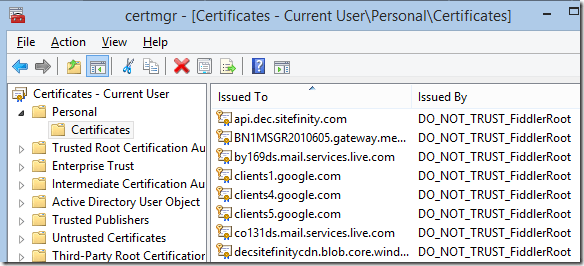
Both the CertEnroll and MakeCert-based certificate generators must store all server certificates in the Windows Certificate store which some users may find confusing:

image

The storage of (potentially thousands of) server certificates in the user profile can also cause some problems for corporate users who have roaming user profiles, as these certificates are roamed to each workstation as the user logs in. To mitigate that, the Clear server certs on exit checkbox can be set inside the Tools > Fiddler Options > HTTPS > Certificate Provider dialog, or via:

    FiddlerApplication.Prefs.SetBoolPref("fiddler.certmaker.CleanupServerCertsOnExit", true);

… however, the downside of doing that is that Fiddler must then re-create the server certificates every time it starts. This performance penalty is smaller when using CertEnroll, which reuses a single 2048-bit RSA key, than for MakeCert, which generates unique 1024-bit RSA keys for each site.

FiddlerCore Considerations

To determine which Certificate Generator is in use, be sure to attach the following event handlers:

Fiddler.FiddlerApplication.OnNotification +=
  delegate(object sender, NotificationEventArgs oNEA) { Console.WriteLine(“** NotifyUser: ” + oNEA.NotifyString); };
Fiddler.FiddlerApplication.Log.OnLogString +=
  delegate(object sender, LogEventArgs oLEA) { Console.WriteLine(“** LogString: ” + oLEA.LogString); };

You can then view information about the Certificate Generator in the console when it loads.

Developers building applications atop FiddlerCore should keep the following in mind when deciding which Certificate Generator to use:

MakeCert

  • MakeCert.exe is a Microsoft Visual Studio 2008 redistributable file, meaning that you’re licensed to redistribute it if you have an appropriate license to that version of Visual Studio. Microsoft may offer MakeCert.exe as a redistributable in other circumstances, but licensing is provided by Microsoft, not Telerik.
  • To use MakeCert.exe, you must include it adjacent to your application’s .exe file.
  • MakeCert-generated certificates are not compatible with iOS and some Android devices.
  • MakeCert-generated certificates “pollute” the user’s Certificate Store and you should consider offering a mechanism to clear them.

CertEnroll

  • The CertEnroll API is available on Windows 7 and later.
  • Use CertEnroll by either omitting makecert.exe from the application’s folder or by explicitly setting the preference:
  •     FiddlerApplication.Prefs.SetBoolPref("fiddler.certmaker.PreferCertEnroll", true);

  • CertEnroll-generated certificates “pollute” the user’s Certificate Store and you should consider offering a mechanism to clear them.

Bouncy Castle

  • Bouncy Castle is an open-source PKI and crypto library distributed under the MIT license.

  • To use Bouncy Castle, you must include CertMaker.dll and BCMakeCert.dll adjacent to your application’s .exe file.
  • Bouncy Castle does not store certificates in the Windows Certificate Store (yay!) but this also means that your application needs to keep track of its root certificate and private key (unless you recreate and retrust it every time the application runs).

    Two preferences are used to hold the key and certificate, fiddler.certmaker.bc.key and fiddler.certmaker.bc.cert. After you first call createRootCert, you should retrieve these preferences using FiddlerApplication.Prefs.GetStringPref and store them somewhere within your application’s settings (registry, XML, etc); the private key should be considered sensitive data and protected as such.  When your application next runs, it should detect whether the key and certificate have already been created, and if so, they should be provided to the certificate generator using FiddlerApplication.Prefs.SetStringPref before any certificates are requested, lest you inadvertently create a new root certificate.

    Rick Strahl wrote a great blog post on this process, including some sample code.


-Eric

What’s New in Fiddler 4.6

Telerik Fiddler version 4.6 (and v2.6 targeting .NET2) is now available for download. The new version includes several new features and dozens of tweaks and bugfixes, described in this article.

View > Tabs Menu

The new View > Tabs menu offers a list of tabs that are hidden by default.

image

The Preferences command displays a tab that allows you to edit Fiddler’s Name/Value preferences.

The new APITest command displays the new Fiddler APITest tab that enables easy testing of web APIs.

The AutoSave command (formerly located in the Tools menu) permits you to automatically save Session Archive Zip files on a regular schedule.

Note: In the future, this submenu will become an extension point to allow developers to easily expose optional UI tabs.

Lint Filters

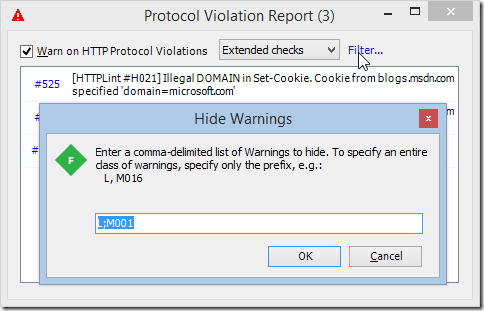
Fiddler’s Lint feature enables you to control how Fiddler reports violations of the HTTP protocol and other errors. Controlled on the Tools > Fiddler Options > General tab, you can leave the If protocol violations are observed setting at the basic “Warn on Critical errors” section or adjust it to “Warn on all errors”; the latter setting performs more tests on traffic to find mistakes that could cause clients or servers to misbehave. However, this setting can get pretty noisy. To allow you to suppress specific warnings, you can now use the Filter link on the Protocol Violation Report dialog.
image

Each Lint warning now has a unique code consisting of a letter and three digits. The letter prefix indicates the severity:

  • L – Common “problem”, low impact, unlikely to break anything.
  • M – Significant problem, likely to break functionality in one client.
  • H – Important problem likely to significantly break functionality in multiple clients

You can exclude an entire class of warnings by simply including the prefix in the list of exclusions.

Single Session Timeline

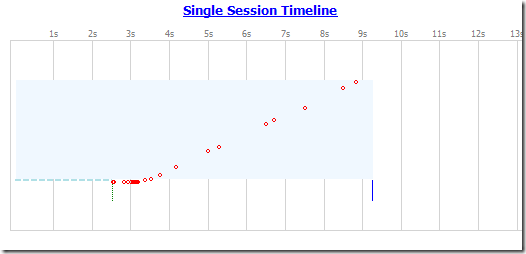
The Timeline tab in Fiddler allows you to visualize the download of multiple Sessions at once to permit you to view parallelism and connection reuse. In Fiddler 4.6, the view of a single Session has been enhanced to permit you to visualize how the content of the Session was downloaded. You can determine, for instance, whether the headers were flushed immediately or the client was forced to wait for headers until the body was ready, and you can determine whether download speed improved or regressed as the download proceeded. For instance, in this chart, the server took 2.5 seconds to return the headers and began to slowly stream the body in small chunks. As the download progressed, the speed improved until completion at just over 9.2 seconds:
image


Interface Tweaks

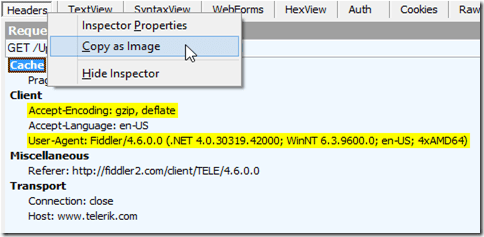
A new Copy as Image command on each Inspector’s tab context menu allows you to copy an image of the tab’s contents to your clipboard for easy pasting in an email or blog post. The Headers, XML, and JSON Inspectors allow you to easily highlight nodes of interest—simply press the spacebar on a node to temporarily render it with a yellow highlight:
image

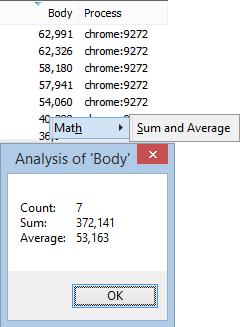
The new Math context menu appears when you right-click on a numeric column in the Web Sessions list; the menu currently offers a single command: Sum and Average, which shows these attributes of the selected Sessions:
image

The Composer tab now offers a splitter between the headers and body boxes so you can adjust their height as desired:

image

Pressing the / key while in the Web Sessions list now enters QuickSearch mode in the QuickExec box, selecting any Sessions whose URL contains the text you type.

Hash Support

Fiddler now offers enhanced support for computing hashes of blocks of bytes or strings.

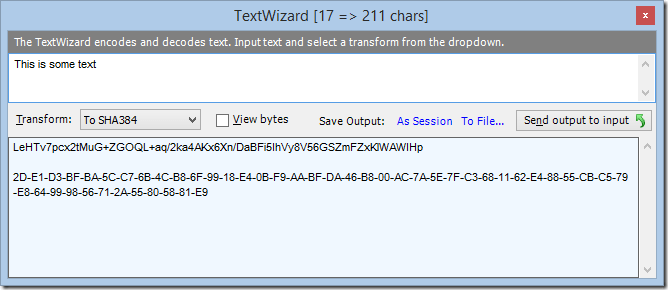
The Tools > TextWizard feature now offers a quick way to get a hash (MD5 to SHA512) of a block text, in either base64 or dashed hexadecimal format:
image

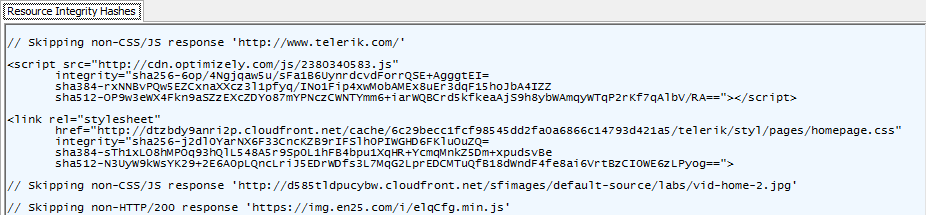
New methods are also available for FiddlerScript to compute hashes. For instance, you can copy the following block to just inside your Rules > Customize Rules > Handlers class:

 
public BindUITab("Resource Integrity Hashes", "<nowrap><nolink>")
static function ShowSRI(arrSess: Session[]):String
{
var oSB: System.Text.StringBuilder = new System.Text.StringBuilder();
for (var i:int = 0; i<arrSess.Length; i++)
{
if (arrSess[i].HTTPMethodIs("CONNECT")) continue;
        if (!arrSess[i].bHasResponse)
{
oSB.AppendFormat("\r\n// Skipping incomplete response '{0}'\r\n",
arrSess[i].fullUrl);
continue;
}
if (arrSess[i].responseCode != 200)
{
oSB.AppendFormat("\r\n// Skipping non-HTTP/200 response '{0}'\r\n",
arrSess[i].fullUrl);
continue;
}
var sType: String = arrSess[i].oResponse.MIMEType.ToLower();
var bIsScript = sType.Contains("script");
var bIsCSS = sType.Contains("css");
if (!bIsScript && !bIsCSS)
{
oSB.AppendFormat("\r\n// Skipping non-CSS/JS response '{0}'\r\n", arrSess[i].fullUrl);
continue;
}
var sIntegrity = "sha256-" + arrSess[i].GetResponseBodyHashAsBase64("sha256").Replace("-", "")
+"\n\tsha384-" + arrSess[i].GetResponseBodyHashAsBase64("sha384").Replace("-", "")
+"\n\tsha512-" + arrSess[i].GetResponseBodyHashAsBase64("sha512").Replace("-", "");
        if (bIsScript)
{
oSB.AppendFormat('\r\n<script src="{0}"\r\n\tintegrity="{1}"></script>\r\n',
arrSess[i].fullUrl, sIntegrity);
}
else
{
oSB.AppendFormat('\r\n<link rel="stylesheet"\r\n\thref="{0}"\r\n\tintegrity="{1}">\r\n',
arrSess[i].fullUrl, sIntegrity);
}
}
return oSB.ToString();
}

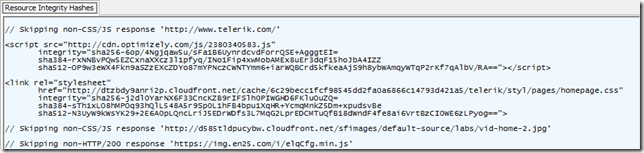
When you save the script, Fiddler adds a new tab to display the Subresource Integrity attributes for the selected response bodies:
image


FiddlerScript Improvements

BindUITab Enhancements

As seen in the Resource Integrity Hashes example above, the BindUITab attribute allows you to create new tabs inside Fiddler that are populated based on the selected Sessions. BindUITab now offers a second parameter that allows you to specify one or more of the following options:

  • <nowrap> – The RichEdit control should not wordwrap lines
  • <nolink> – The RichEdit control should not detect or underline urls
  • <html> – Instead of using a RichEdit control, the function’s response will be rendered as HTML inside a Web Browser Control

BeforeFiddlerShutdown event

Fiddler now exposes a  BeforeFiddlerShutdown event that enables extensions or FiddlerScript to block shutdown of Fiddler; this may be useful if you wish to prompt the user for permission to lose unsaved work, etc.

A Fiddler extension should attach an event handler:

    FiddlerApplication.BeforeFiddlerShutdown += (o, c) =>
{
c.Cancel = (DialogResult.Cancel ==
MessageBox.Show(“Allow Fiddler to close????”,
“Go Bye-bye?”, MessageBoxButtons.OKCancel));
};

Within FiddlerScript, you can add a method to the existing Handlers class:

    static function OnBeforeShutdown(): Boolean {
return ((0 == FiddlerApplication.UI.lvSessions.TotalItemCount()) ||
(DialogResult.Yes == MessageBox.Show(“Allow Fiddler to exit?”,
“Go Bye-bye?”, MessageBoxButtons.YesNo, MessageBoxIcon.Question,
MessageBoxDefaultButton.Button2)));
}

AutoResponder Improvements

The AutoResponder now supports the NOT: operator inside the METHOD:, HEADER:, and FLAG:, operators. For instance, if you’d like the AutoResponder only to impact requests from Google Chrome, add this rule to the top of your list:

image

Microsoft Edge Support

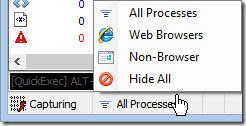
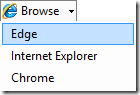
Fiddler has been updated to recognize Microsoft’s new Edge browser as a Web Browser, so features like the Process Filter in the Status Bar:
image

…and in the Browse command in the Fiddler toolbar:
image

work as expected.

Note: You should use the WinConfig button at the left of Fiddler’s toolbar to enable Windows 10 “Store” applications to run Fiddler. By default, you shouldn’t need to use the WinConfig button for Edge, because Edge’s about:flags enables access to loopback by default.


ImageView Enhancements

FavIcon Preview

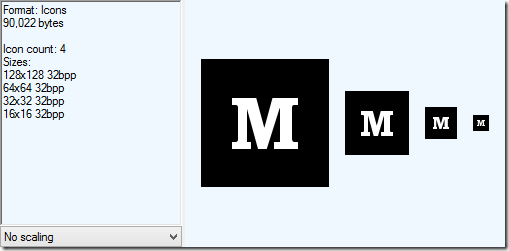
When a site uses an .ICO file as its favicon, the icon may contain multiple different images that are used depending on the user’s device and the context in which the icon is rendered. Fiddler’s ImageView Inspector now renders all of the images contained within the .ICO file like so:
ImageView showing icon


JPEG Thumbnails

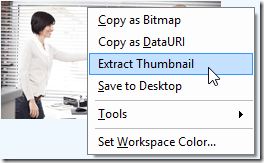
Websites should generally strip embedded thumbnails from JPEG files. Embedded thumbnails are a common source of bloat, wasteful bytes that aren’t used by the client. However, some sites fail to optimize their images by removing thumbnails. In some cases, an image thumbnail may even contain data which was never meant to be made public, if, for instance, the larger image was cropped without regeneration of the thumbnail. The ImageView now allows you to extract the thumbnail image as a new Session that is added to the Web Sessions list:
Extract Thumbnail


AutoSave Enhancements

Fiddler’s AutoSave feature (now found under View > Tabs > AutoSave) now supports several preferences to control its behavior.

Set fiddler.extensions.AutoSave.AlwaysOn to true to have Fiddler automatically activate AutoSave mode when it starts. Set fiddler.extensions.AutoSave.Minutes to the number of minutes to collect traffic between each save operation; the default is 5. Set fiddler.extensions.AutoSave.HeadersOnly to true if you’d like the SAZ file to contain only the request and response headers, omitting the bodies. Set fiddler.extensions.AutoSave.Path to the folder path under which auto-saved SAZ files should be stored.

Additional Upgrade Notifications

By default, Fiddler’s automatic update notifications will only show if a significant change in version number occurs. For instance, say you’re running version 4.6.0.2 and version 4.6.0.3 becomes available. By default, Fiddler will only tell you about this minor update if you manually check for new versions by clicking Help > Check for Updates. When Fiddler 4.6.1.0 becomes available, the updater detects this larger change in version number and prompts you to upgrade.

If you would prefer Fiddler to notify you of every update automatically, use the black QuickExec box below Fiddler’s Web Sessions list to enter the following command:

    prefs set fiddler.updater.BleedingEdge true

With this preference set, you’ll see more frequent notice of upgrades. On one hand, that’s great—you’ll get the latest Fiddler improvements ahead of most other people. On the other hand, as a bleeding edge user, you’re also more likely to uncover any bugs we inadvertently introduce in new versions.

Fiddler Improvement Program

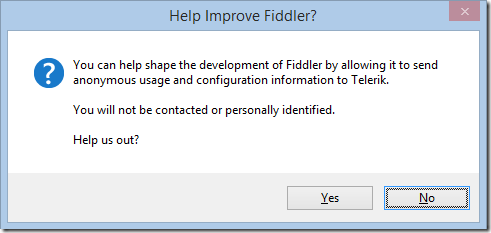
You may now opt-in to sending telemetry information about your PC environment and Fiddler usage. Within your first few boots of Fiddler, you’ll see the following dialog:
image

Telemetry data is reported over HTTPS and its usage is governed by Telerik’s Privacy Policy. If you later change your mind, you can control your participation using the checkbox Participate in the Fiddler Improvement Program on the Tools > Fiddler Options > General tab. Note: If an administrator has set the BlockUpdateCheck registry key in the HKLM registry hive, users cannot opt-in to the Fiddler Improvement Program.

The Telerik Analytics integration into Fiddler has already yielded several bugfixes and has helped us prioritize our investments in performance and feature improvements. We’ll write more about what we’ve learned from Fiddler Telemetry in a future blog post.

Performance Improvements

One early finding from our Fiddler Telemetry is that a surprising number of users are running on 32bit Windows, where the address space limitations mean that they often run into “out of memory” errors.  To help mitigate this, we’ve made some under-the-hood changes to how Fiddler allocates memory, and this is only the beginning of a larger project to improve Fiddler’s overall performance for everyone.

As a part of our performance investigations, two new commands were added to the QuickExec box, !memory and !threads. Invoke these commands to add information to the Log tab for troubleshooting purposes. If you find Fiddler is running more slowly than expected, sending the output of these commands to us will help narrow down the problem.


We hope you enjoy the new version of Fiddler!

-Eric Lawrence

API Testing with Telerik Fiddler

Fiddler has long been the tool of choice for developers and testers who are building and verifying APIs exposed over HTTP(S). In this post, we’ll explore the existing features Fiddler offers for API Testing and announce new capabilities we’ve released in Fiddler 2.6/4.6.

Composing API Calls

The Composer tab enables the authoring of arbitrary HTTP(S) requests using any HTTP method, url, headers, and body, and the many Inspectors permit examination of responses of any type, including XML, JSON, BSON, and myriad other formats. Over the last few years, the power of the Composer has grown, and it now offers many conveniences, including a Request History pane:

image

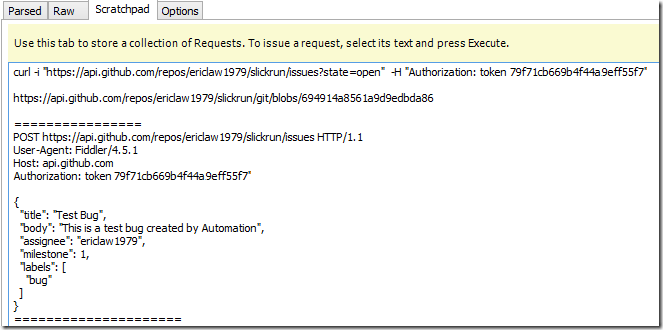
… to allow simple reuse of existing requests. The powerful Scratchpad tab allows you to easily display a list of requests and execute those requests as needed—a great feature for live demonstrations of your API for tech talks and the like:

image

As you can see in the screenshot above, the Scratchpad even supports executing requests expressed curl syntax, so you can easily exercise APIs that are documented in terms of the parameters passed to that popular tool.


Capturing API Calls

Of course, Fiddler is best known as a proxy debugger, and its ability to capture traffic from nearly any source means that the fastest way to generate API tests is to simply capture the API traffic from an existing client and modify and augment those tests as desired. You can start with a baseline of the calls your clients presently send, and add new tests to probe for performance, security, error handling, and other problems.

One of the most powerful capabilities Fiddler offers is capture of traffic from almost any device (iOS, Android, Windows, Mac, etc); you can easily exercise your mobile clients’ API endpoints without adding any new software to the device itself!


Resending Requests from the Web Sessions List

After you’ve collected a set of requests in Fiddler, you can easily save them to a Session Archive Zip (.saz) file for convenient reuse at any time. To resend the traffic, just load the SAZ file, select the desired requests, and use the Replay submenu on the Web Sessions list’s context menu to resend the requests. Common choices include:

  • Reissue Requests – Resend the selected requests as quickly as possible
  • Reissue Sequentially – Resend the selected requests, waiting for a response to each before sending the next
  • Reissue and Verify – Resend the selected requests, verifying each response’s status code and body match the original response

Of these options, the last is perhaps the most interesting—you can very easily regression test an API set by simply collecting “good” traffic in a SAZ file and then using that traffic as a baseline against which later verifications will be conducted. The verification performed is rather crude, which is why we’re excited to announce…

Automated API Testing

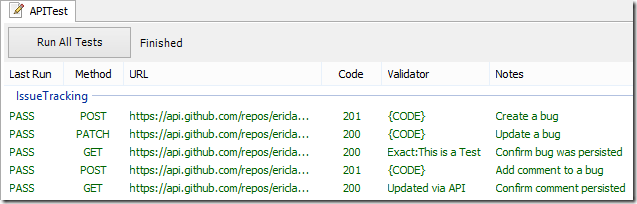
The new APITest extension to Fiddler greatly enhances its power to validate the behavior of web APIs. Click View > Tabs > APITest to show the APITest tab. The bulk of the tab displays a Test List, a list of API requests and Validators.

image

Tests can be added to the list by simply dragging and dropping Sessions from Fiddler’s Web Sessions list. You can then use the context menu to specify a Validator and optionally mark it with a Note (comment) and optionally assign it to a group.

Validators

Validators offer a lightweight way to judge the success or failure of a test, and support many of the same operators used by Fiddler’s AutoResponder feature. As seen in the screenshot above:

  • EXACT:This is a Test – Ensure the status code matches and response body contains (case-sensitively) the text This is a Test 
  • Updated via API – Ensure the status code matches and response body contains (case-insensitively) the text Updated via API
  • {CODE} – Only ensure the response status code matches the original status, e.g. 201 for the first test
  • {BODY} (Not pictured above) Ensure the response status code matches and the response body is identical 

In addition to the EXACT: operator prefix, the REGEX: and NOT: prefixes are also supported for text searches:

image

The HEADER: prefix allows you to ensure that the response bears a specified header containing a given value (e.g. HEADER:Content-Encoding=gzip ensures that the response has a Content-Encoding header showing that the response used GZIP compression).

The SCRIPT: prefix allows you to specify a FiddlerScript function in your CustomRules.js file to use to evaluate the response; the named function is passed both the test Session and the baseline (original) Session and can evaluate any criteria you like to return whether or not the test has passed. Beyond examining the headers and body of the response, you could, for instance, evaluate the values in the Session’s Timers object and fail the test if the response took more than 100 milliseconds.

  // This method is called by "SCRIPT:CheckTest" validators; it
  // returns TRUE if the Test passes, and false otherwise.
  static function CheckTest(oRun: Session, oBase: Session): boolean
  {
    // Simplest possible validator
    if (oBase.responseCode != oRun.responseCode)
    {
        oBase["api-lastfailreason"] = "Mismatched status code...";
        return false;
    }

    var timeTotal = 0;
    timeTotal = (oRun.Timers.ServerDoneResponse - oRun.Timers.ClientDoneRequest).TotalMilliseconds;
    if (timeTotal > 100)
    {
        oBase["api-lastfailreason"] = "Performance Too slow...";
        return false;
    }


    return true;   
  }

Script Events

Before your Test List is run, the BeforeTestList method (if present in your FiddlerScript) is run, permitting you to adjust the requests as needed:

  static function BeforeTestList(arrSess: Session[]): boolean
  {
    // In this method, you can do any setup you need for the test,
    // e.g. adding an Authorization: token OAUTH value that you
    // obtained programmatically...
    var sOAUTHToken = obtainToken();
    if (String.IsNullOrEmpty(sOAUTHToken)) return false;

    for (var i: int=0; i<arrSess.Length; i++)
    {
      arrSess[i].oRequest["Authorization"] =  sOAUTHToken;
    }
   
    MessageBox.Show("Token Set. Running " + arrSess.Length.ToString() +
                    " tests.", "BeforeTestList");

    return true; // Test should proceed; return false to cancel
  }

After all of the individual test cases are executed, the AfterTestList method allows you to validate any post-conditions, log the results of the Test list, or perform other operations. The method is passed a TestListResults object which contains an enumerable list of TestResult objects. Each result contains the baseline (original) Session, the test Session, and an IsPassing boolean indicating whether the test passed. The WriteFailuresToSAZ convenience method will write all failing TestResults to a SAZ file for later analysis.

  static function AfterTestList(listResults: TestListResults)
  {
    for (var oResult in listResults)
    {
      FiddlerApplication.Log.LogString(oResult);
    }

    listResults.WriteFailuresToSAZ("C:\\temp\\lastfailure.saz");
  }


Working with Test Lists

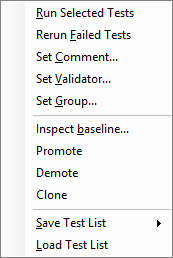
A Test List is simply a set of Sessions each of which contains several custom Session Flags (api-testitem, api-Validator, api-LastResult, and api-LastFailReason). As a consequence, these lists can be saved and loaded as regular SAZ files; their “Test List” functionality only lights up when loaded into the APITest tab using its context menu. The menu commands are largely self-explanatory:

image

  • Run Selected Tests runs only those tests that are currently selected in the UI
  • Rerun Failed Tests runs all tests that are marked as failing
  • Set Comment… sets the Notes column for the selected tests
  • Set Validator… assigns the validation criteria for the selected tests
  • Set Group… assigns the tests to a UI group, useful for organizing your test list
  • Inspect baseline… opens the original Session in Inspectors for viewing or editing
  • Promote moves the selected test earlier in the run order
  • Demote moves the selected test later in the run order
  • Clone creates a copy of the current test, useful when you need to use multiple validators
  • Save Test List saves the test list to a SAZ file
  • Load Test List adds the tests from a SAZ file to the current test list

You can temporarily disable one or more tests from running by pressing the spacebar with the desired tests selected.

FiddlerCore

While the new APITest extension is offers powerful functionality, many larger enterprises instead choose to use the FiddlerCore .NET Class Library to build their API Testing infrastructure. FiddlerCore allows you to fully customize the behavior of your testing logic, driving the test using the .NET Language of your choice (typically C#). Because FiddlerCore does not utilize any of Fiddler’s UI, it can easily be integrated into existing test automation suites and can be used in console and service applications.

Load Testing APIs

The Fiddler-native Session Archive Zip file format is supported by Telerik Test Studio’s Load Testing product, allowing you to simply import a SAZ file that exercises your API set, configure the number of virtual users and run time, and generate load instantly or on the schedule you set. If you’d like to apply validation logic while your server is under load, run the Load Test in Test Studio and in parallel execute your Test List in Fiddler.


We hope you find Fiddler’s API Testing support useful, and we look forward to your feedback as we continue to enhance the tool.


Eric Lawrence
Telerik

Attribution Error

In life, you sometimes encounter people with “high standards”—folks who often find others’ behavior lacking in some way. Such people usually explain: “Sure, I have high standards… but I hold myself to an even higher standard!”

Except… they rarely do.

The problem is that, as humans, we’re subject to both fundamental attribution error and actor-observer bias. These phenomenon mean that we attribute our own good behaviors as intrinsic demonstrations of our good character, and we explain away bad behaviors as a temporary consequence of a given situation. When observing others, however, we tend to do the opposite—good behavior is dismissed as situational and bad behavior is deemed evidence of poor character.

These errors are made every day, at the small scale of our personal relationships to the global stage of policy-making. They’re hard to avoid, especially if you’re not consciously aware of them and don’t actively strive to consider events from different perspective.