TLDR? – Get the newest Fiddler here. We’re performing a staged rollout of this build; it won’t be on autoupdate until next week.
Under the Hood
As mentioned in our notes about the Fiddler 4.6 release, we’ve started taking a very close look at Fiddler’s performance. Fiddler’s use of the CPU, system memory, and the network have gone under the microscope and this new release includes several major changes to how Fiddler uses threads and memory. If you frequently run Fiddler with a large amount of traffic in parallel, or run Fiddler on a slower or heavily-loaded PC, this new version should provide significantly improved performance. We’ve also improved overall performance by using better algorithms in scenarios like the Find Sessions (CTRL+F) experience.
The !threads and !memory QuickExec commands have been enhanced to provide insights into fine-grained performance details about Fiddler’s operation.
The Performance Tab
The new Performance tab in the Fiddler Options dialog offers choices that can significantly change Fiddler’s runtime performance and memory usage.
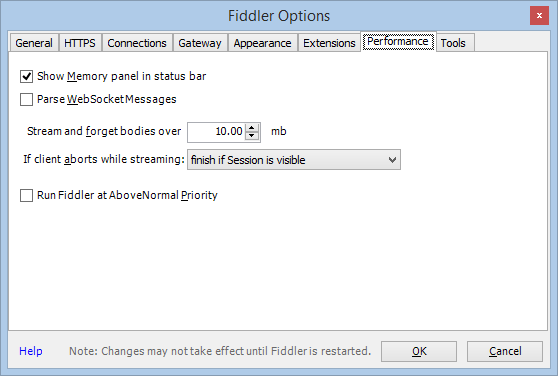
The Show Memory panel in status bar controls whether Fiddler’s status bar shows a panel that indicates the current memory usage tracked by the garbage collector. For example, when Fiddler has 64mb of managed memory allocated, the panel looks like this:

Left-click the memory panel to instruct the .NET Framework to perform an immediate garbage collection. Right-click the panel to launch the Fiddler Options dialog box with the Performance tab activated.
The Parse WebSocket Messages checkbox controls whether Fiddler will parse WebSocket streams into individual messages, allowing display in the WebSocket tab and manipulation using the OnWebSocketMessage event handler. Disabling WebSocket Message parsing will reduce CPU usage and may save a significant amount of memory if high-traffic WebSockets are in use. Even if you disable WebSocketMessage parsing globally using this checkbox, it can be reenabled on a per-Session basis by setting the x-Parse-WebSocketMessages flag on the Session object.
The Stream and forget bodies over box controls the maximum size of a message body that Fiddler will retain. By default, the limit is just under 2 gigabytes for 64bit Fiddler and 16 megabytes for 32bit Fiddler; the much smaller default for 32bit helps avoid problems with “Out of Memory” errors when running Fiddler in a small address space. If, while reading a message body, Fiddler finds that it is larger than the threshold, it will configure the body to stream and will “drop” the bytes of the body to conserve memory. If you attempt to inspect a Session which has been dropped, you will see the following notification bar:
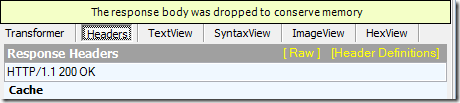
Clicking the bar will open the Fiddler Options dialog to allow you to reconfigure the limit for subsequent Sessions.
The If client aborts while streaming dropdown controls Fiddler’s behavior if a response body is streaming to the client but the client closes the connection. Depending on your choice here, Fiddler can continue to read the body from the server (useful if you’re collecting traffic) or abort the Session (useful to save memory and CPU cycles).
The Run Fiddler at AboveNormal Priority alters Fiddler’s default scheduling priority. If you enable this option, Windows will prioritize activation of Fiddler’s threads when they have work to do (e.g. reading a new request or response from the network). You can easily experiment with this option to see whether it improves the overall throughput of your client (browser) and Fiddler.
New QuickFilters
The Session list’s Filter Now context menu has been enhanced with two new filters:
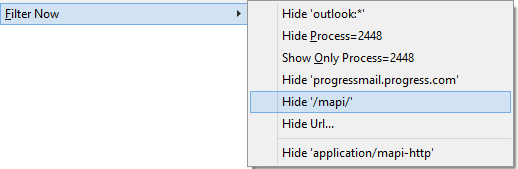
The Hide /1stpath/ filter hides any traffic whose Url path component starts with the specified string.
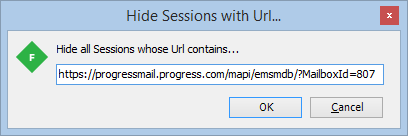
The Hide Url… option uses the current Session’s Url as the default of a Url filter; you can edit the string to apply more broadly by removing text from the start or end of the string:
High DPI Improvements
Today, only a small number of Fiddler users (< 4%) run Fiddler on Windows systems with a non-default screen DPI, but we want Fiddler to work great for those users too. The latest build of Fiddler includes a number of DPI-related fixes. Fiddler is not yet marked DPI aware in its manifest; if you’d like to see Fiddler in its DPI-aware mode, run Fiddler with the -dpiAware command line argument:
fiddler.exe -dpiAware
We will continue to make improvements as problems are discovered or reported and expect to eventually set the dpiAware flag by default.
New HTTPS Cipher Option
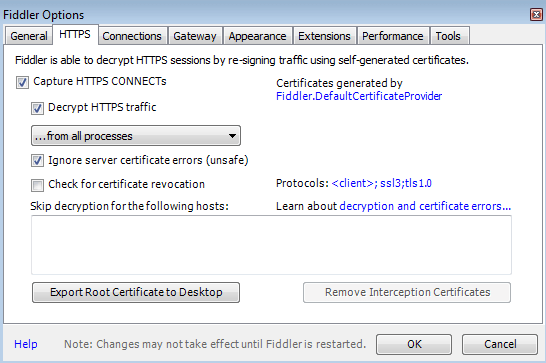
Fiddler 4 on Windows 7 and later supports modern TLS versions (TLS 1.1 and TLS 1.2) and the HTTPS tab on the Fiddler Options dialog enables you to easily enable these protocols. However, TLS 1.1 and 1.2 remain off-by-default for compatibility reasons.
The Enabled Protocols link on the HTTPS dialog now supports a new token <client>; if present, this token adds to the list of versions offered to the server the latest protocol that has been offered by the client. For instance, with these settings:
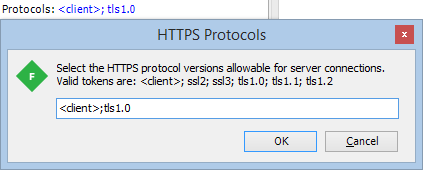
… a request from Internet Explorer offering TLS 1.2 will be presented to the server with TLS 1.2 and TLS 1.0 enabled. The advantage of using the <client> token is that if the request fails, many browser clients are configured to “fall back” and attempt negotiation with an earlier protocol version. In this example, if the TLS 1.2 connection fails, the browser will retry with TLS 1.0 and the connection may succeed.
You must include at least one specific TLS version in the HTTPS Protocols list to handle cases where the request was generated by Fiddler itself (e.g. the Composer tab).
Brotli Compression Support
Researchers at Google have developed a new compression algorithm named Brotli that offers significantly better compression than the DEFLATE algorithm used by Gzip. This new compression algorithm is already in use by many browsers today (inside the WOFF2 font format) and it is expected to appear as a HTTP Content-Encoding in early 2016.
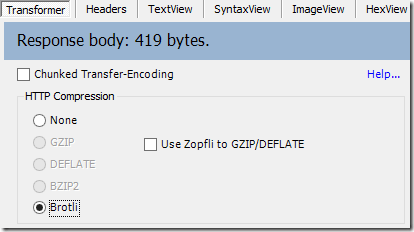
Fiddler now supports Brotli as a Content-Encoding everywhere compression is supported; simply download the Authenticode-signed Windows Brotli.exe and place it in the Fiddler2\Tools\ subfolder in your Program Files folder. After you restart Fiddler, you will find a new Brotli option on the Transformer tab and Fiddler APIs like utilDecodeResponse() will be able to decompress Brotli-encoded content:
The new version of Fiddler also has better handling of unsupported compression schemes like SDCH—if a response with Content-Encoding: sdch,gzip is encountered, for instance, the various decoding APIs will decompress with GZIP and then stop without removing the SDCH token.
Hidden Tabs
FiddlerScript’s BindUITab attribute now supports a <hidden> token:

If this token is present, the tab is not shown until the user manually activates it via the View > Tabs menu:
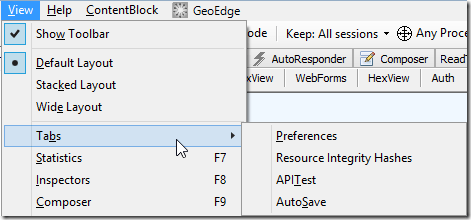
This feature helps you “unclutter” Fiddler by keeping uncommonly-used script tabs hidden.
More Powerful ImageView Extensions
Fiddler’s ImageView Extensions feature allows you to add new commands to the Tools context menu on the ImageView Inspector:
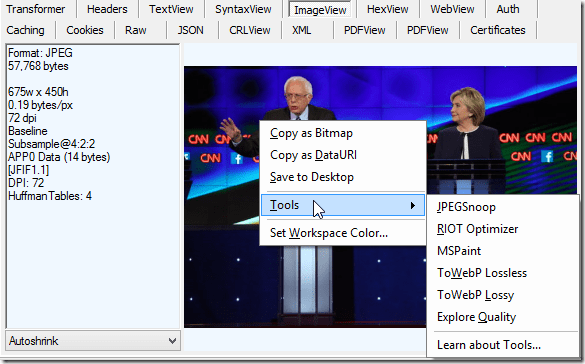
Now you can use a new Options parameter to specify that Fiddler should show the <stdout> or <stderr> results of running the target tool, and a new {out:extension} token enables you to specify that the target tool writes a file that Fiddler should load as a new Session in the Web Sessions list.
For instance, here’s the logic to add a new ToWebP Lossless command to the list:
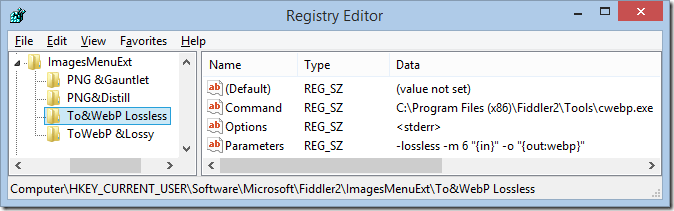
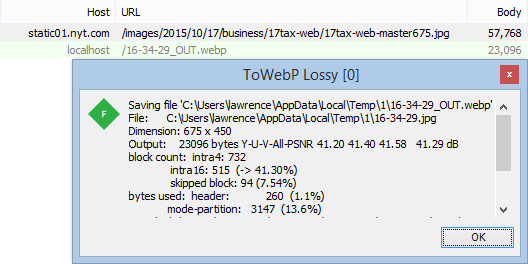
To use it, add the registry entries and place CWebP.exe in Fiddler’s Tools subfolder. When you invoke the command, Fiddler will run the tool, passing an input temporary file containing the JPEG image to the tool in the {in} parameter and specifying an autogenerated filename with a .webp file extension in the {out:webp} parameter. The cwebp.exe tool will be run, any text from Standard Error will be collected and displayed to the user, and the file named by the {out} token will be reloaded as a new Web Session:
Updated – Show Image Bloat
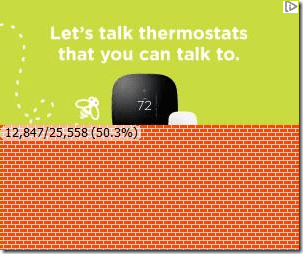
I’ve also updated the Show Image Bloat add-on (described here) with some additional tweaks and features; the add-on has improved bloat detection for JPEG and GIF files and has other minor improvements. Install the latest build of Show Image Bloat (v2.6) and activate it from the Fiddler Rules menu.
I hope you enjoy these new improvements to Fiddler – Keep sending in your feedback to ensure we’re evolving the tool to best meet your needs.
-Eric Lawrence









 text/plain