Going back as far as the 2004 release of Windows XP SP2, Windows has offered various GUIs to help users understand the security state of their PC. In modern Windows 10 (RS2+) and Windows 11, the latest version of this graphical user interface is called the “Windows Security Center/App“.
The Windows Security App (WSA) is a surface upon which Windows exposes various settings and information, including lightweight status for antivirus and firewall products (including those built by third-parties) and entry points to those products’ user-experiences.
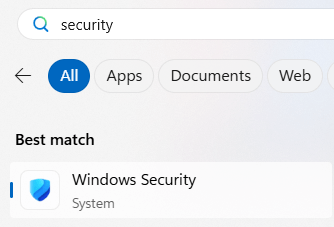
The WSA can be launched via the Start Menu, or by clicking on various toast notifications sent by features within the app.
The default view aims to provide a “single status screen” showing the state of the system’s security components:
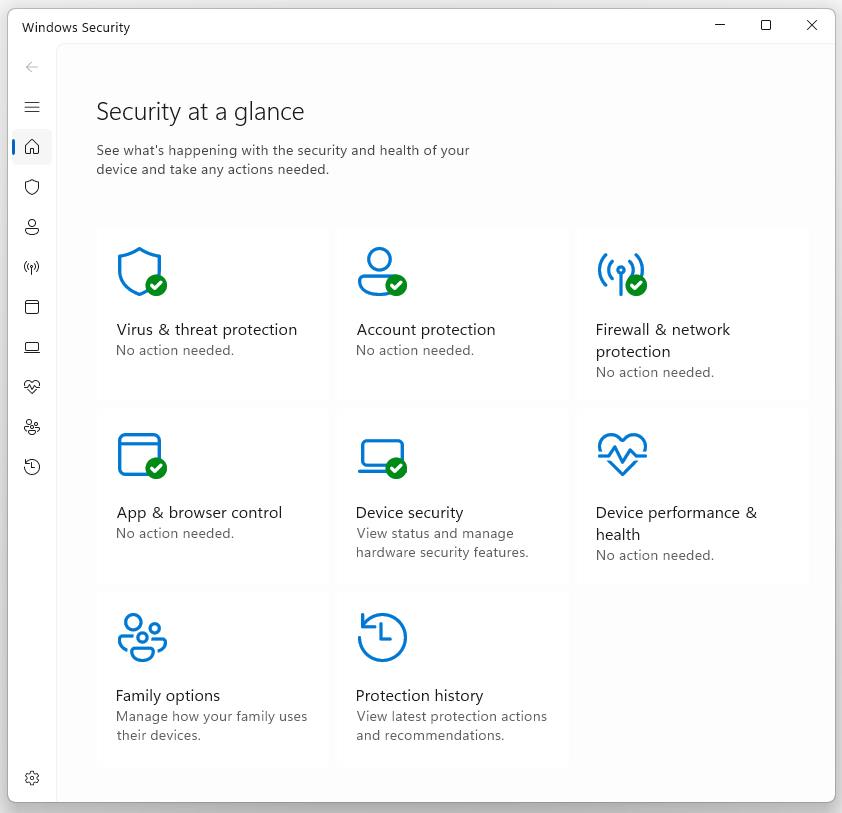
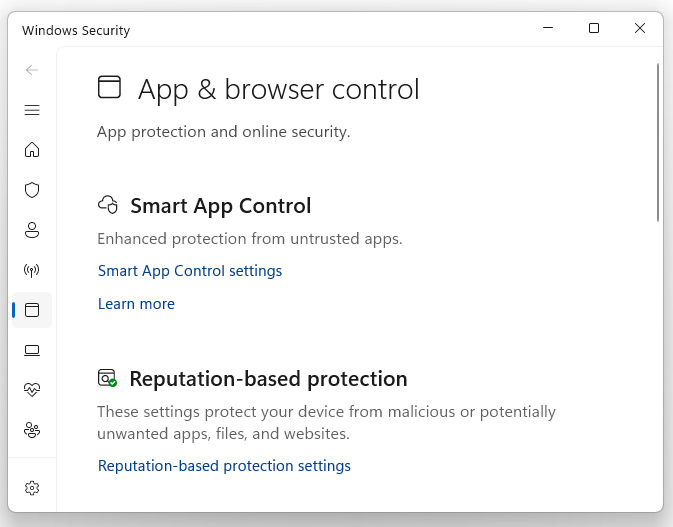
This UI provides entry points into configuring SmartScreen network reputation, SmartScreen Application Reputation, Smart App Control, controlled folder access, ransomware recovery, exploit protection, Windows Firewall, and the device’s hardware security features.
Defender Antivirus
By default, Windows includes Microsoft Defender Antivirus (MDAV) and the “Virus and Threat Protection” section of the WSA shows the state of MDAV, including details about the most recent scan, any previously-allowed threats, and the “Protection history” which outlines any threats previously encountered.
Notably, the WSA is also the only client graphical user-interface for Microsoft Defender Antivirus and Microsoft Defender for Endpoint security products: unlike all third-party security products on Windows there is not today a separate Defender app (except our D4I product; keep reading).
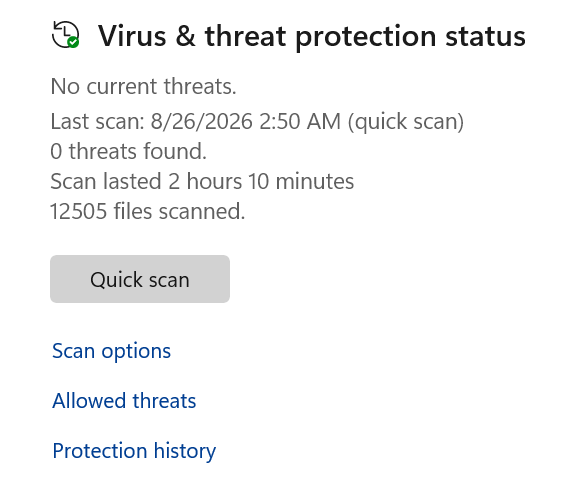
The Quick scan button allows invoking a quick scan of sensitive system locations (primarily, locations used by malware to establish persistence), while the Scan options link allows invoking other types of scans:
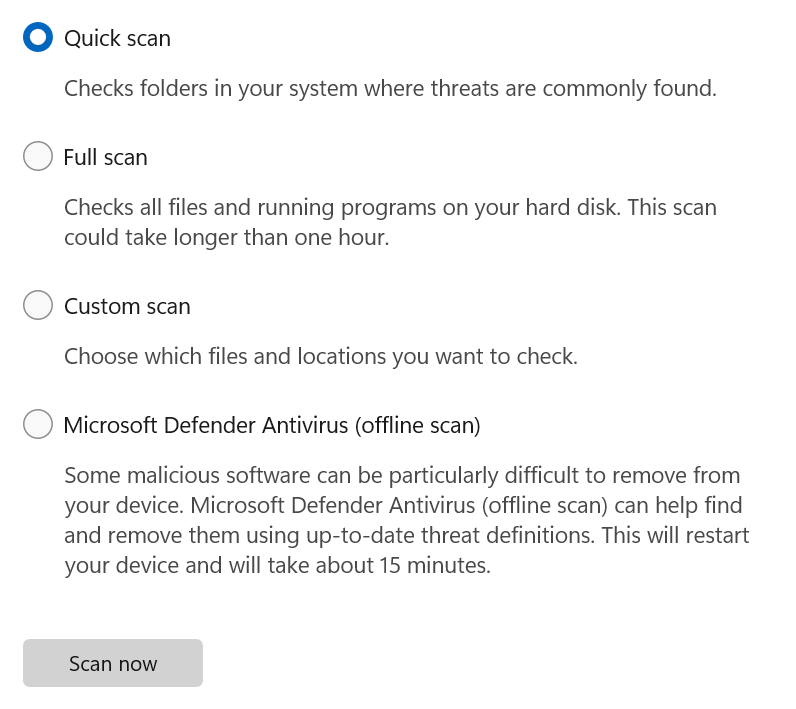
With that said, as outlined previously in my post about Understanding Defender AV Scans, there is rarely any need to manually kick off an AV Scan.
Defender for Endpoint
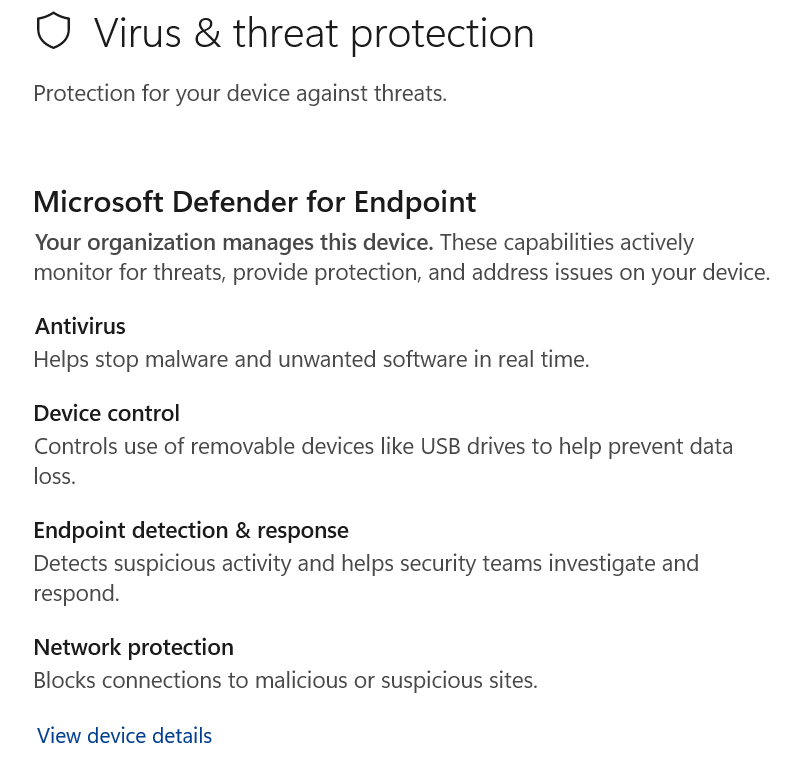
Until recently, the WSA would not show anything special if a device was onboarded to Microsoft Defender for Endpoint (MDE), the corporate version of Defender that adds numerous additional protection features beyond the free MDAV included with Windows. As I explained last month, it was previously non-trivial to determine whether a PC was onboarded to Defender for Endpoint’s XDR and monitored by a Security Operations Center.
Fortunately, this has recently changed, and the WSA now shows specific information when a device is onboarded, including which MDE features are enabled:
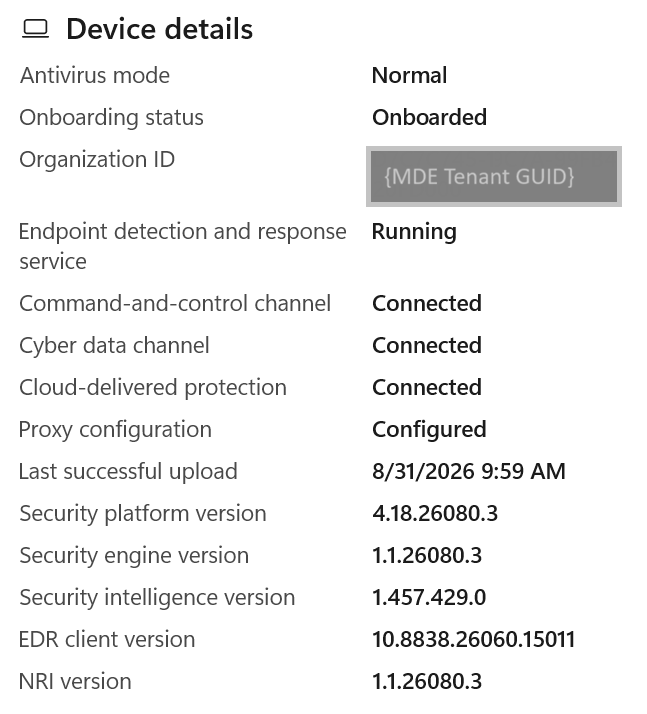
The Device Details link in the footer reveals more information, including status and version numbers of the protection components:
Third Party Antivirus
When a 3rd party security product installs on a client version of Windows, it calls the Windows Security Center API to announce its presence and status. Supported products include Virus and Threat Protection products and Firewall products. WSA previously showed a Web Protection category intended to indicate the status of any Edge Legacy browser protection extensions, but this section was removed in a recent update because Edge Legacy was removed years ago.
Registering a product in the Virus and Threat Protection category causes MDAV to either enter “passive mode”1 (disabling real-time protection and other features) or disable entirely1, allowing the 3rd party product to be the active protection component of the system. The product in question has short window after each system startup to register with the API: if it fails to do so, or if it indicates that it is not working properly, MDAV resumes Active protection. The APIs for registering with the Windows Security Center are not fully public, and only callable by members of the MVI program.
When a 3P security product registers, the UI of the Windows Security Center is updated to show lightweight status information from that product and offer an Open app entry point into the 3P product’s (typically) richer user-interface.
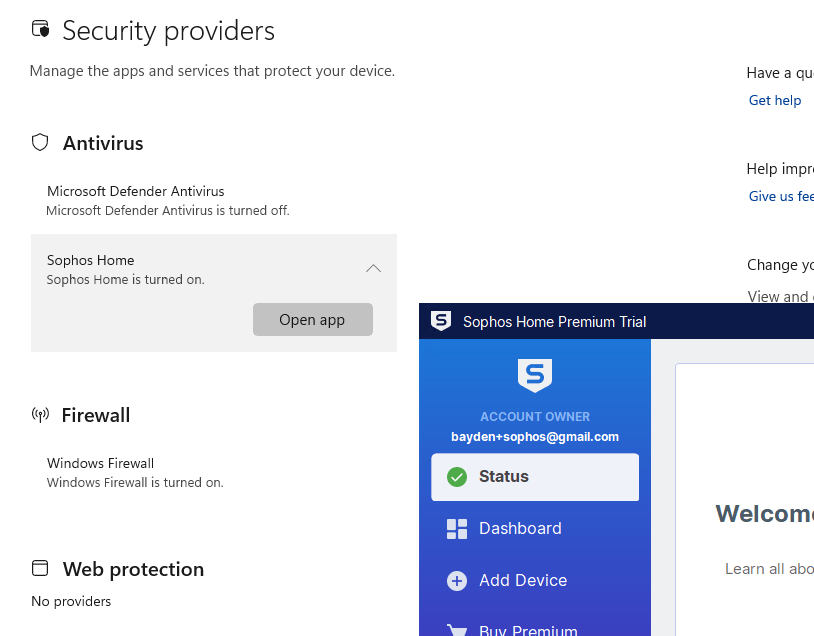
Multiple 3P products (AV and Firewall) may be installed at one time, although it’s generally recommended to only have one product of each time active to avoid conflicts and performance impact.
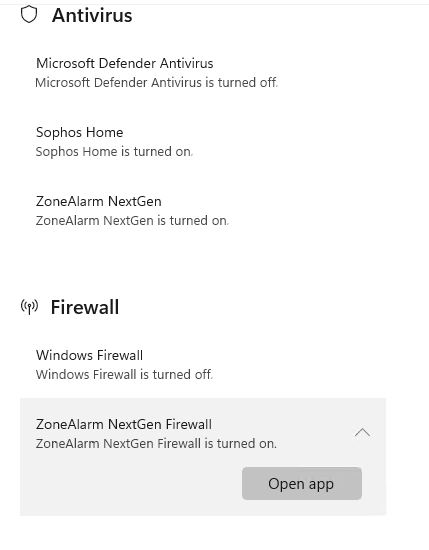
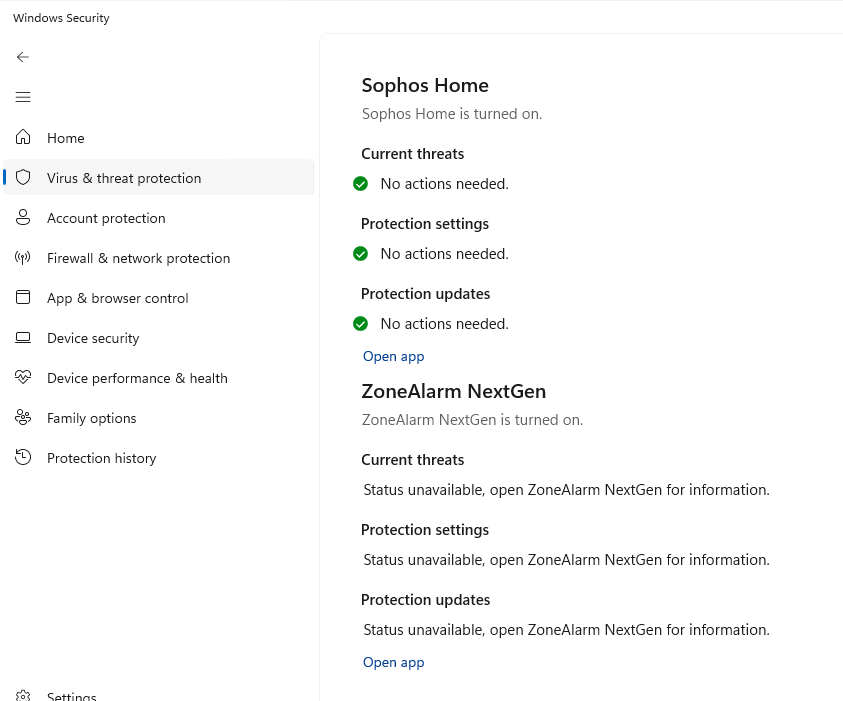
Notably, many consumers who buy PCs from major vendors may find that they have a “time-limited trial” of a 3rd party antivirus product pre-installed on their PC, leaving Defender in passive mode. Antivirus product vendors commonly pay PC vendors for such installations as a way to acquire customers for their security product subscriptions. As mentioned, uninstalling the trial product should automatically move MDAV back into “Active” mode.
Defender Antivirus’ Passive Mode
You may wonder what MDAV’s “Passive Mode” is used for– if MDAV is not providing its normal threat protection (with active filesystem minifilters, network monitoring, AMSI, IOfficeAntivirus, behavior monitoring, etc), then what is it doing?
In Passive Mode, MDAV can evaluate file trust/reputation for Smart App Control, AppControl. For MDE onboarded devices, EDR in Block Mode can use MDAV to block and remediate detected threats. While in Passive mode, MDAV can also provide services to other products, like Purview DLP. Defender’s filter drivers also remain active to prevent tampering.
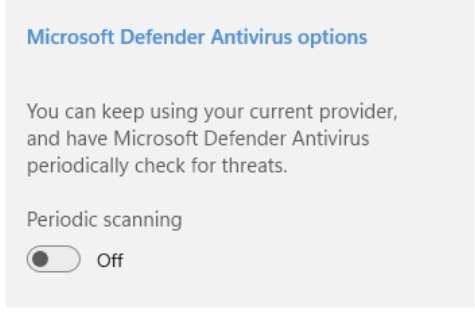
End users can also optionally enable “limited periodic scans” to provide additional protections on top of their third-party product.
Navigating the WSA Programmatically
Individual pages of the WSA can be accessed via commands to the windowsdefender:// App Protocol:
home, threat, quarantinehistory, threatsettings, network,perfhealth, appbrowser, family, fullhistory, history,accountprotection, devicesecurity, updateandquickscan,customscan, samples, settings, protectedfolders, allowedapps,allowappthroughfolder, exploitprotection, ransomwareprotection,coreisolation, securityprocessor, securityprocessortroubleshooting
For example, windowsdefender://appbrowser/ opens the App & Browser control page of the app:
Defender for Individuals app
Above, I mentioned that Defender does not have its own app, relying on WSA for all of its graphical user-interface. That’s generally true with the exception of the Defender for Individuals (D4I) product bundled into Microsoft 365 subscriptions for individuals and families. When installing D4I, you get a new app named “Microsoft Defender” that exposes the additional capabilities provided by your subscription, which include a unified dashboard across multiple devices (e.g. to see your kids’ PC’s status) and other features which vary per-market (e.g. identity protections and dark web scanning services).
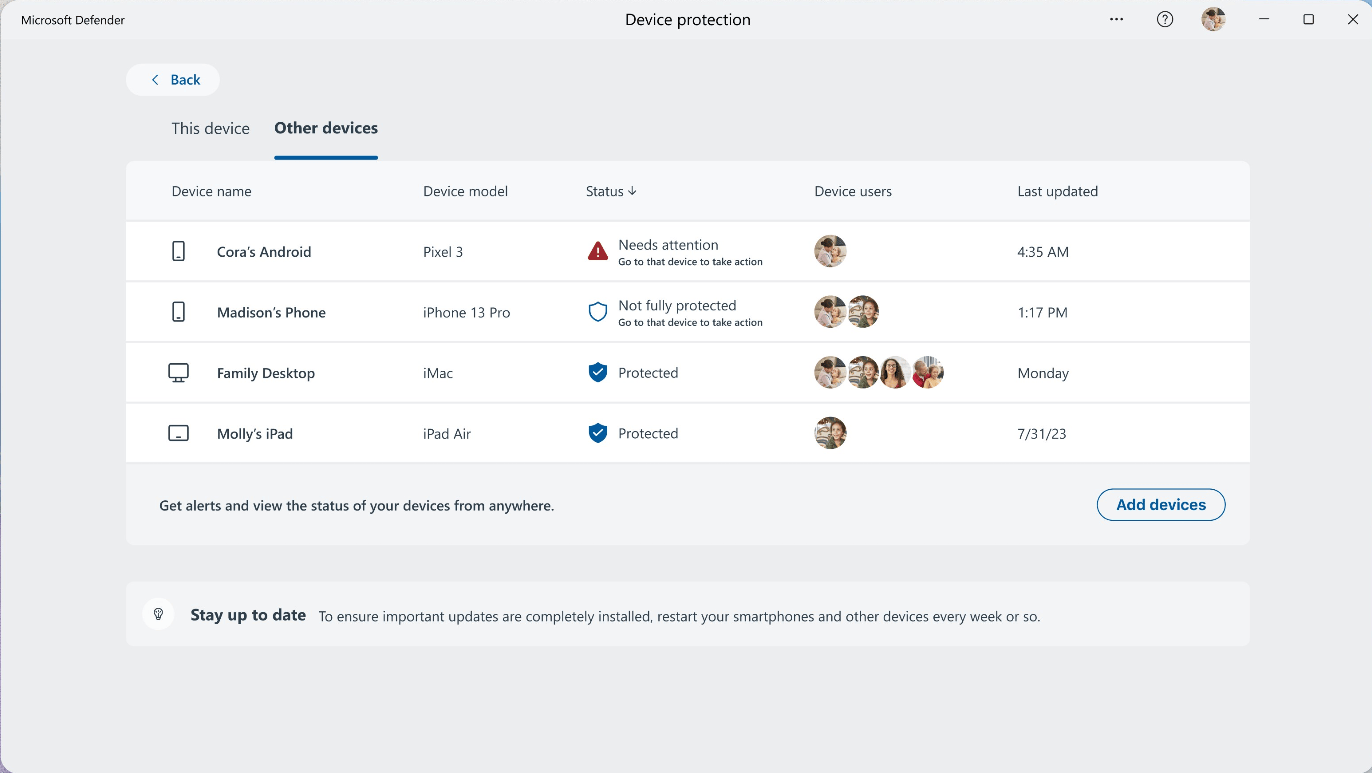
Even when a D4I subscription is active, the underlying Virus and Threat Protections are provided by MDAV included in Windows. Entry points for antivirus-related activities in the D4I Microsoft Defender app ultimately navigate to the appropriate pages in the WSA.
Windows Server
The underlying Windows Security Center APIs that would allow 3P security products to register with Windows are not present on Windows Server. Instead, if a third-party product is installed on a Windows Server being onboarded to Microsoft Defender for Endpoint, the ForceDefenderPassiveMode registry key must be set explicitly to put Defender in passive mode.
On servers, Windows Security features are typically configured via PowerShell, Group Policy, the MDE Security Portal, or similar management mechanisms. For Server 2019 and later, WSA is present when the Desktop Experience Installation option is chosen. For Server 2016, it can be enabled via Install-WindowsFeature -Name Windows-Defender-GUI.
Stay safe out there!
-Eric
1 Technically, if Smart App Control is enabled, Defender’s status will be:
- Active Mode if the Device is MDE-onboarded
- Hybrid mode if not onboarded but MDAV is the primary AV
- Passive mode if not onboarded and a 3P AV has replaced MDAV.
Yes, this stuff is incredibly subtle and intricate.
The registry key “ForceDefenderPassiveMode” doesn’t appear to work on Windows Server 2016. Is a subscription to Microsoft Defender for Endpoint required to switch MDAV to passive mode? The linked article* lists MDE onboarding as required:
Prerequisites
-The device must be onboarded to Microsoft Defender for Endpoint
*https://learn.microsoft.com/en-us/defender-endpoint/microsoft-defender-passive-mode#set-the-registry-key