Scammers often try to convince you that you’ve already been hacked and you must contact them or send them money to prevent something worse from happening. I write about these a bunch:
a tech scammer shows a web page that says your PC has a virus and you need to call them or download their program to “fix” it.
A notification spammer shows fake alerts pretending like they’re from your local security software.
An invoice scammer claims they’ve withdrawn money from your account and you need to call them to cancel the transaction.
Another common “Bad thing already happened” scam is to send the user an email telling them that their devices were hacked some time ago and the attacker has recorded videos of the victim engaged in embarrassing activities.
The attacker usually includes some “phony evidence” to try to make their claims seem more credible. In some such scam emails, they’ll include a password previously associated with the email address, gleaned from a dump from an earlier data breach. For example, I got multiple scam emails citing my account’s password from the 2012 breach of LinkedIn:
In today’s attack, the bad guy simply forges the return address to my own email address, hoping I’ll believe this means that they already have access to my account:
Under the hood, Hotmail knows that this return address was forged:
Authentication-Results: spf=fail (sender IP is 195.225.99.200) smtp.mailfrom=hotmail.com; dkim=none (message not signed) header.d=none;dmarc=fail action=none header.from=hotmail.com; Received-SPF: Fail (protection.outlook.com: domain of hotmail.com does not designate 195.225.99.200 as permitted sender) receiver=protection.outlook.com; client-ip=195.225.99.200; helo=willishenryx.com; Received: from willishenryx.com (195.225.99.200) by BL6PEPF00022575.mail.protection.outlook.com (10.167.249.43)
The attacker typically promises the victim that they’ll delete the incriminating videos if the victim pays a ransom in cryptocurrency:
There are various tools that can be used to look up traffic to crypto-currency addresses, and while the address in today’s scam is idle, I’ve previously encountered scams where the attackers had been sent thousands of dollars by several victims. :(
Tragically, it seems entirely plausible that this scheme has killed panicked teens (similar sextortion schemesdefinitely have) who thought something bad had already happened without recognizing that it was all a lie.
Stay safe out there, and make sure your loved ones know that everyone on the Internet is a liar.
On January 19th, I ran the newly-renamed “Austin International Half Marathon” (formerly 3M). The night before I had spaghetti and meat sauce with the kids, and the morning of, I woke at 5:15 and had a cup of coffee and my usual banana. My trip to the bathroom was not very productive which worried me a bit, but my belly felt okay so I didn’t worry too much.
I left the house around 6:35 and parked in my usual spot around 6:50, early enough to get to a Porta-Potty without a line. It was bitterly cold that morning, with a stiff wind blowing southward, making for a rough start to the first northbound leg of the race. But since most of the race was southbound, we had a tailwind for most of it (not that I noticed).
I wore my trusty tights from last year, a $2 pair of disposable gloves I bought at the expo, and (luckily for me), my hoodie from the 2014 CodeMash conference. I assumed I would discard the hoodie and gloves along the way, but it was cold enough that I kept both for the entire race.
Just before starting, instead of my now-customary stroopwaffel, I had a “Salted Watermelon” gel pack (the first time I’ve tried them). One of my two earbuds failed with a low battery (it’s always something) but the other stayed alive for the whole race.
I kept a solid pace for the first three miles, right around 9 minute miles. Alas, as I expected, I couldn’t keep it up and slowed down; last year, I’d managed to keep that pace for the first 10K.
Still, by mile 7 rather than feeling depressed and dying, I was actually enjoying myself a bit. My body felt good overall, my plantar fasciitis was quiet, my legs felt okay, and my greatest annoyance was a slight chafing I felt on my inner thigh (as I forgot to apply Body Glide as I usually do). A cold orange wedge offered by a kind spectator around mile 11 seemed like the most refreshing thing I’ve ever eaten. I particularly enjoyed jogging through the UT Campus on the tree-lined brick path around mile 12.
A big upside to my third run is that the course felt more familiar, and I was no longer surprised/dismayed by the two short uphills in the city blocks at the end (although I didn’t even try to run them). I didn’t go all out at the end like I usually try to do, figuring that shaving tens of seconds wasn’t worth the risk that I’d hurl at the end (my near-miss in 2023’s Turkey Trot top of mind).
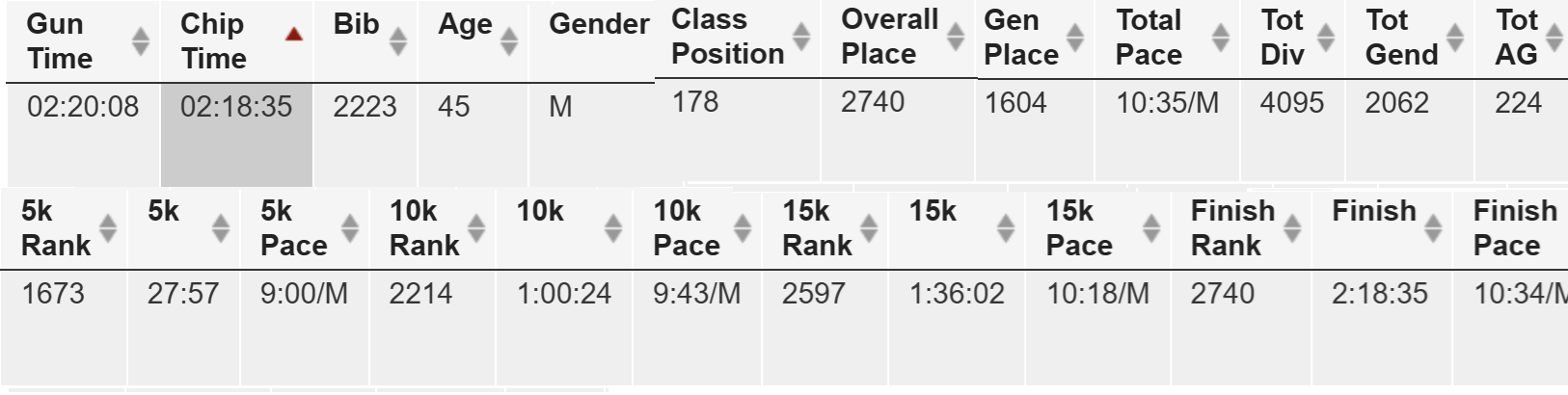
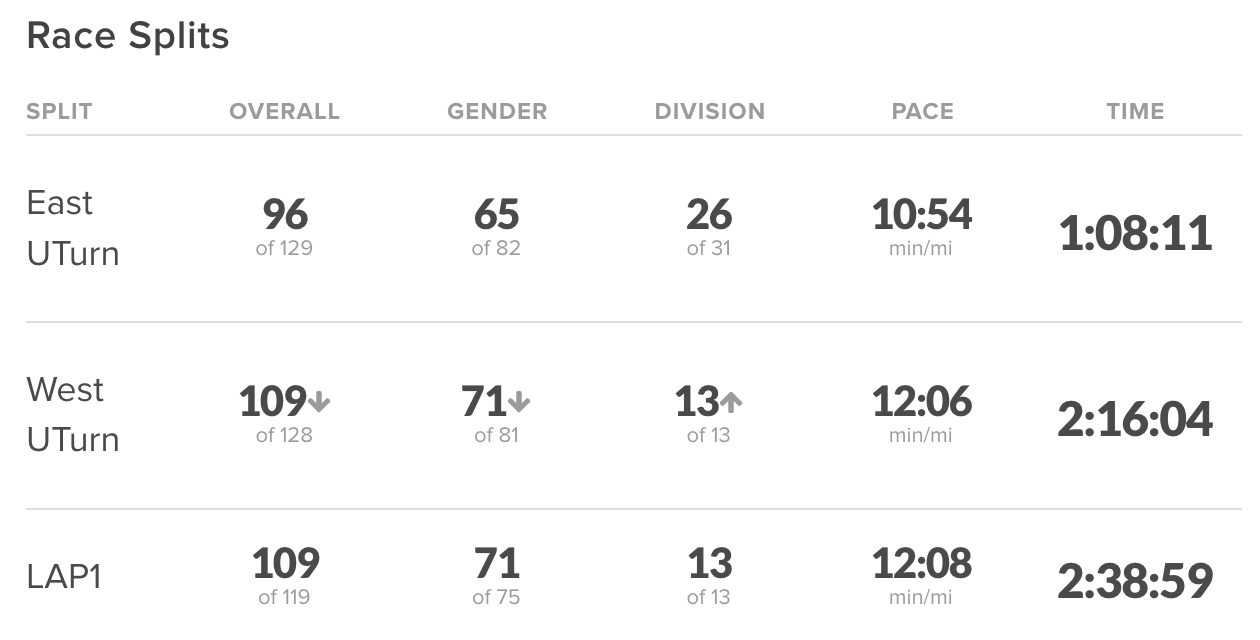
All in all, I finished in 2:18:35, nine minutes slower than last year’s race, which was itself nine minutes slower than my first effort.
Third Austin Half (2025) Results
While I’m not loving the direction my times are going, this race was (allegedly) 27 minutes faster than my glacial Dallas Half last month. I’m not entirely convinced that the Dallas numbers are legit (I was pretty sure I was around a still-slow 2:35.)
December 2024 Dallas Results
Spectator signs included a few copies of my favorite (“Seems like a lot of work for a banana”) and I was a bit annoyed to discover that they didn’t even have bananas at the end this year. What a scam!
The most topical spectator sign was “With TikTok banned, I’m so bored I’m watching this Half Marathon!” Two people had signs: “This isn’t that hard– even boys do it” which I’ll confess annoyed me more than amusing me. But that’s another post.
Alas, my failure to apply Body Glide was a worse mistake than I realized, and I spent the next few days (on a work visit to Redmond HQ) walking and sitting gingerly as the chafing turned out to be a lot worse than I realized on the run. Other than that, and a gross-but-routine blister on one toe, I was no worse for the wear. Still, the coming full Marathon in Galveston in just three weeks loomed large in my mind… will I be able to finish?
Galveston Full
Way back at the end of 2023, I ran the London Marathon on my treadmill, but I’ve not approached that distance since. Over a decade ago when Jane was training and running full marathons, I’d decided it was just a stupid distance — training was too time-consuming, and there was too high a risk of injury. When I finally started running myself, I decided that 10Ks would be my main target, with one half marathon “just to see if I could.”
Still, in the afternoon after 2024’s Galveston Half Marathon run (my fourth real-world half), I ended up walking for about 7 miles on the beach, so when it came time to sign up for the 2025 race I decided that I’d sign up for the Full. I expected I’d run as much as I could (maybe 20 miles or so) and just walk the rest.
Alas, between my treadmill being broken for the fall of 2024, weight gain, my ongoing problems with plantar fasciitis, and a lengthy cold after my mid-January trip to Redmond, I was not feeling very ready for the Galveston Full. I had a nice spaghetti dinner the night before and went to bed early, around 10pm. I woke at 4:30 and dozed in bed until 5:30. Alas, my bathroom trip was unproductive, although my belly felt fine and I figured I’d probably visit a porta-potty after the first half.
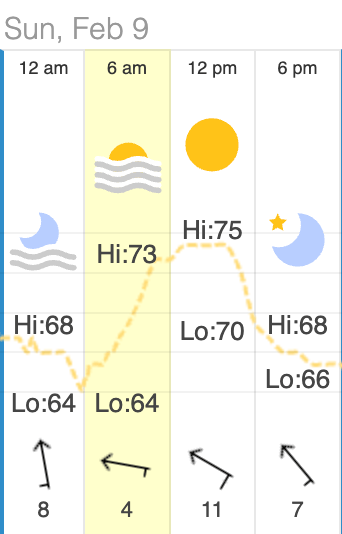
Race morning was cool and extremely humid (~97%) and clouds kept the morning sun at bay (although not quite as foggy as 2023’s race). A light wind felt nice along the beach for the 7:30am start:
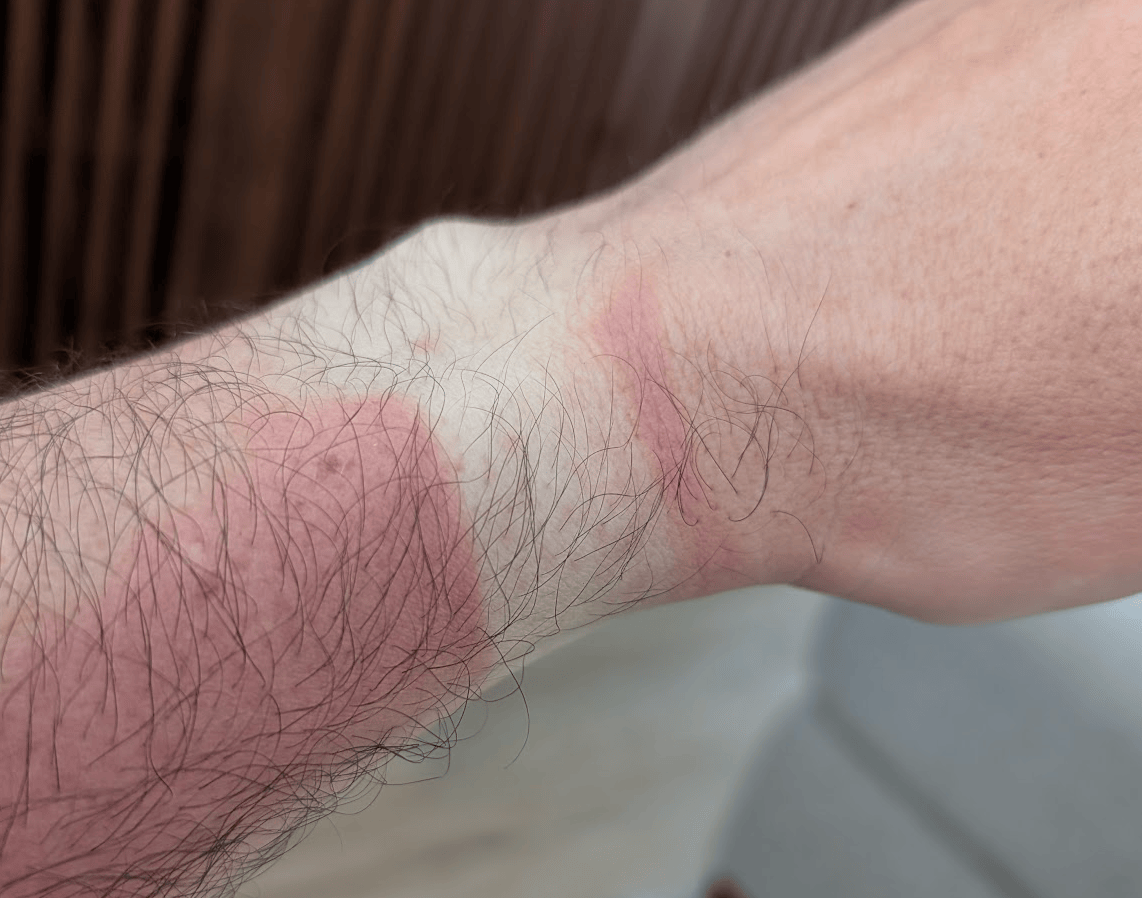
The sun broke through the clouds after a few hours and I had to apply more sunblock around mile 15, an effort that was not entirely effective 🤣l
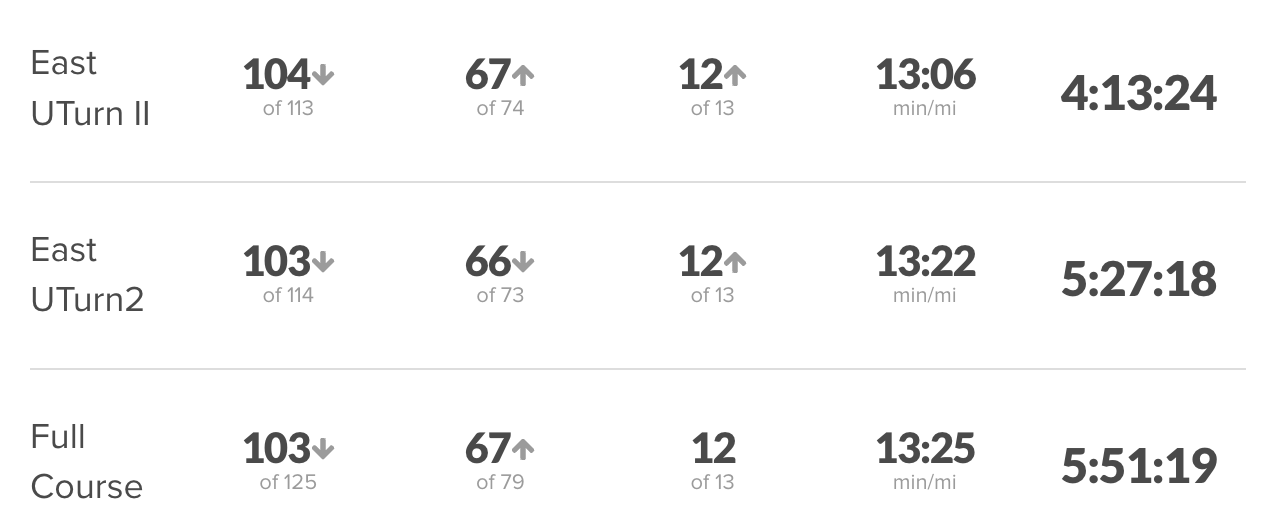
I’d expected to finish the first half in around the same time I’d achieved last year (~2:15) leaving me as much as 3:45 for the second half (the course officially closes in 6 hours). Alas, knowing that every step in my first lap was going to be repeated on tired legs did not help my motivation, and I finished the first loop in a glacial 2:39, almost as slow as my run in Dallas.
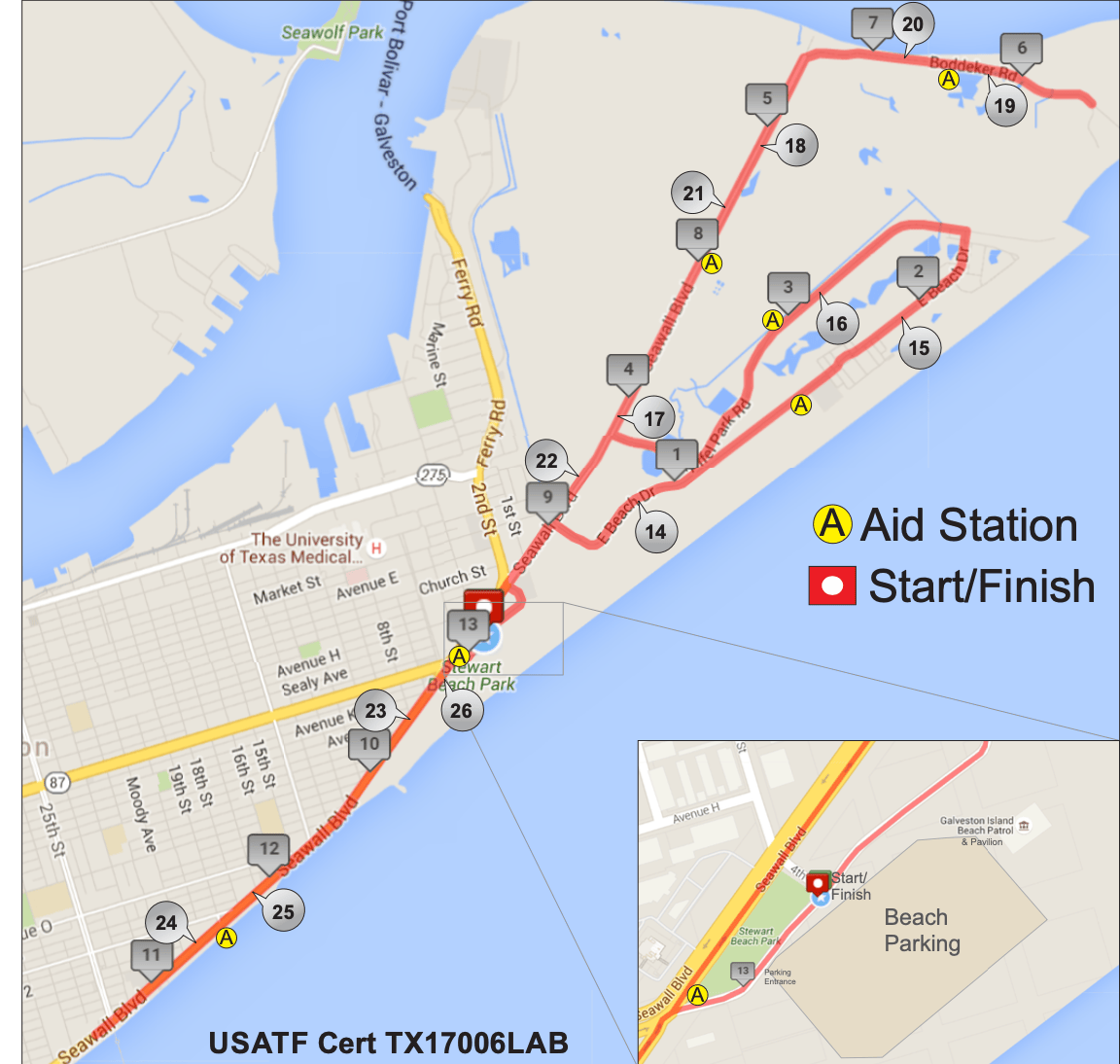
My optimistic plan of breaking down the full race into a Half, walking to mile 14, then running a 10K, then walking to mile 21, then running a 5K, then walking, then running a final 1K immediately fell apart when it made contact with reality. Both of my watches were being weird (they weren’t configured right and kept “pausing” my workout) so I started just using the on the distance marker signs for little intervals — the Half Marathon signs and Marathon signs were .1 miles apart, and I quickly settled into running between them and walking the rest. All told, I ended up running only about 2 miles of the second half, although my walking pace was a respectable 16 minutes/mile, so I didn’t feel too bad about things. I did spend miles 16 to 23 worried that I wasn’t going to finish before the course closed (I didn’t have the energy/motivation to really check my watches), and I watched with dismay when the final pacer passed me.
Between the humidity and the sun, I was increasingly dehydrated through the second half of the race, eventually refilling my water bottle at every aid station and emptying it before the next. Fortunately, sweating so much meant that I barely needed to pee (other than at the start/half/finish line, this race has just 3 porta-potties along the course). Having eaten two packs of Sport Beans in the first half (100 calories each), in the second I consumed 4 GU Liquid Energy packs (also 100 calories each). I probably should’ve had a couple more.
While I was tired and uncomfortable, nothing was really painful (a side/back cramp worried me for just ~1/3 of a mile, and I knew my feet were starting to blister). I felt strong each time I forced myself back into a run. All in all, I wasn’t working nearly as hard as I could’ve, and finishing 15 minutes faster probably would not have been all that challenging. As it was, my final results were… not great.
Still, I finished and I didn’t get hurt, so I’m counting the effort as a win. I figured I’d be immobile for the rest of the day at least, but managed to make it out to grab dinner and my first two drinks at the brewery before watching the Eagles trounce the Chiefs (40-22) in the Super Bowl. My feet are sore, I’ve got some sunburn, but no significant chafing, and blisters only on toes #2 and #9 and a tiny one on my left heel.
I do not plan to ever attempt a marathon again, but I’m very excited to do more half marathons, and hope to start getting some more respectable results in the upcoming Capitol 10K and 10K Sunshine runs in April and May.
I’d intended to write this post weeks ago, but I’ve been rather unproductive.
I ran the Dallas Half Marathon with an out-of-town friend on December 15th. It was a hard and very slow trek, but I managed to get back to a run in the last mile and I didn’t get hurt, so I’m counting it as a win.
<picture of chubby old guy jogging omitted because ain’t nobody paying $15 for that race photo :>
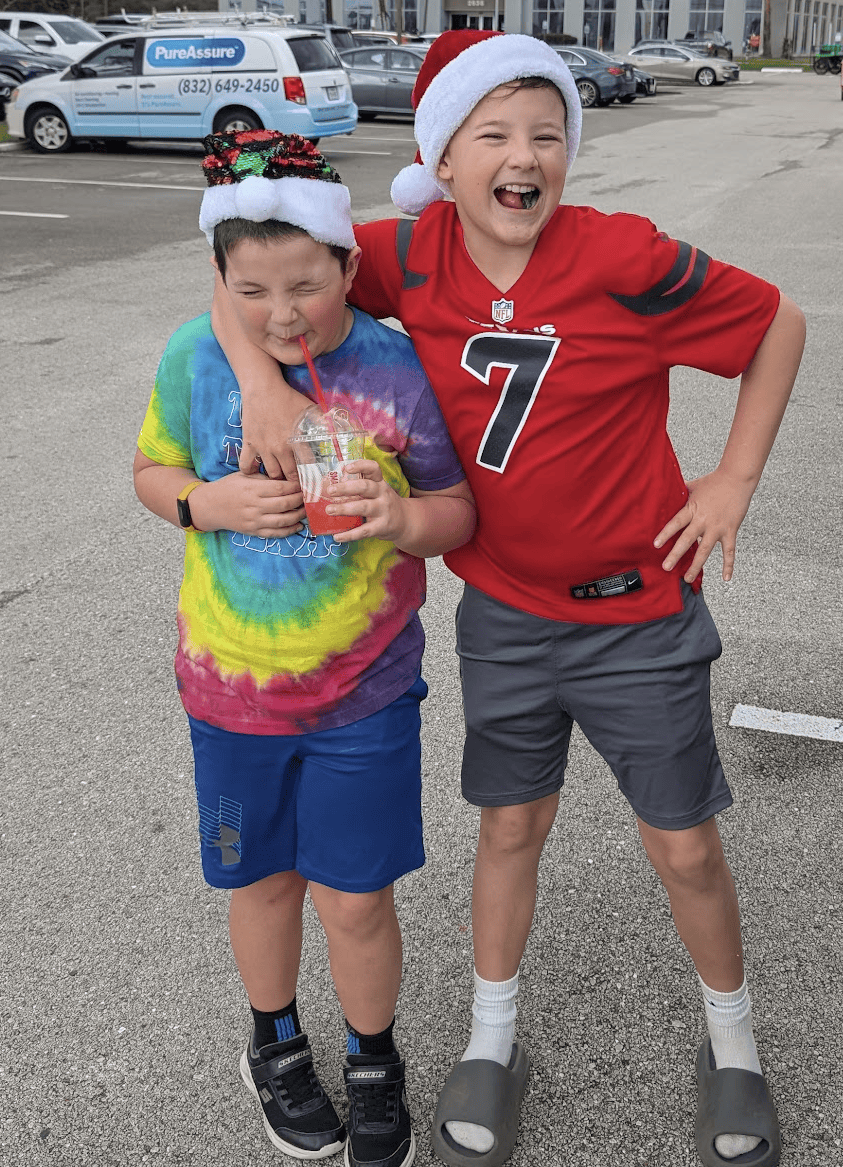
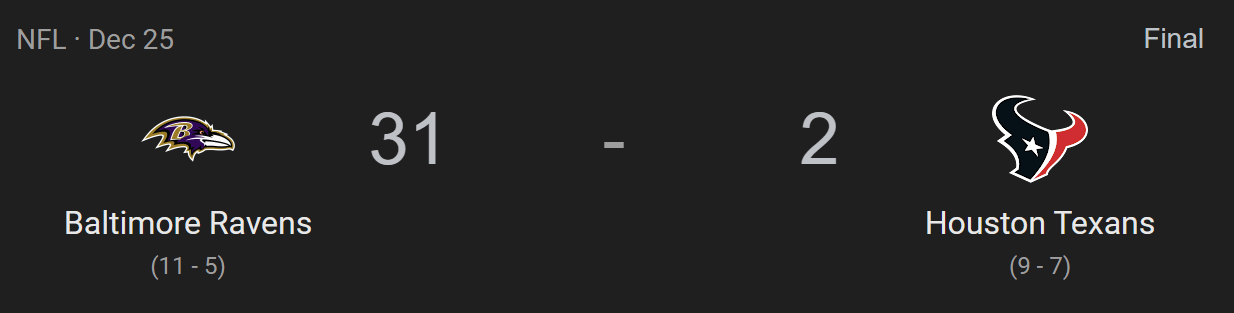
The boys and I went to see the Ravens play the Texans in Houston on Christmas Day.
The game itself was a miserable 31-2 blowout…
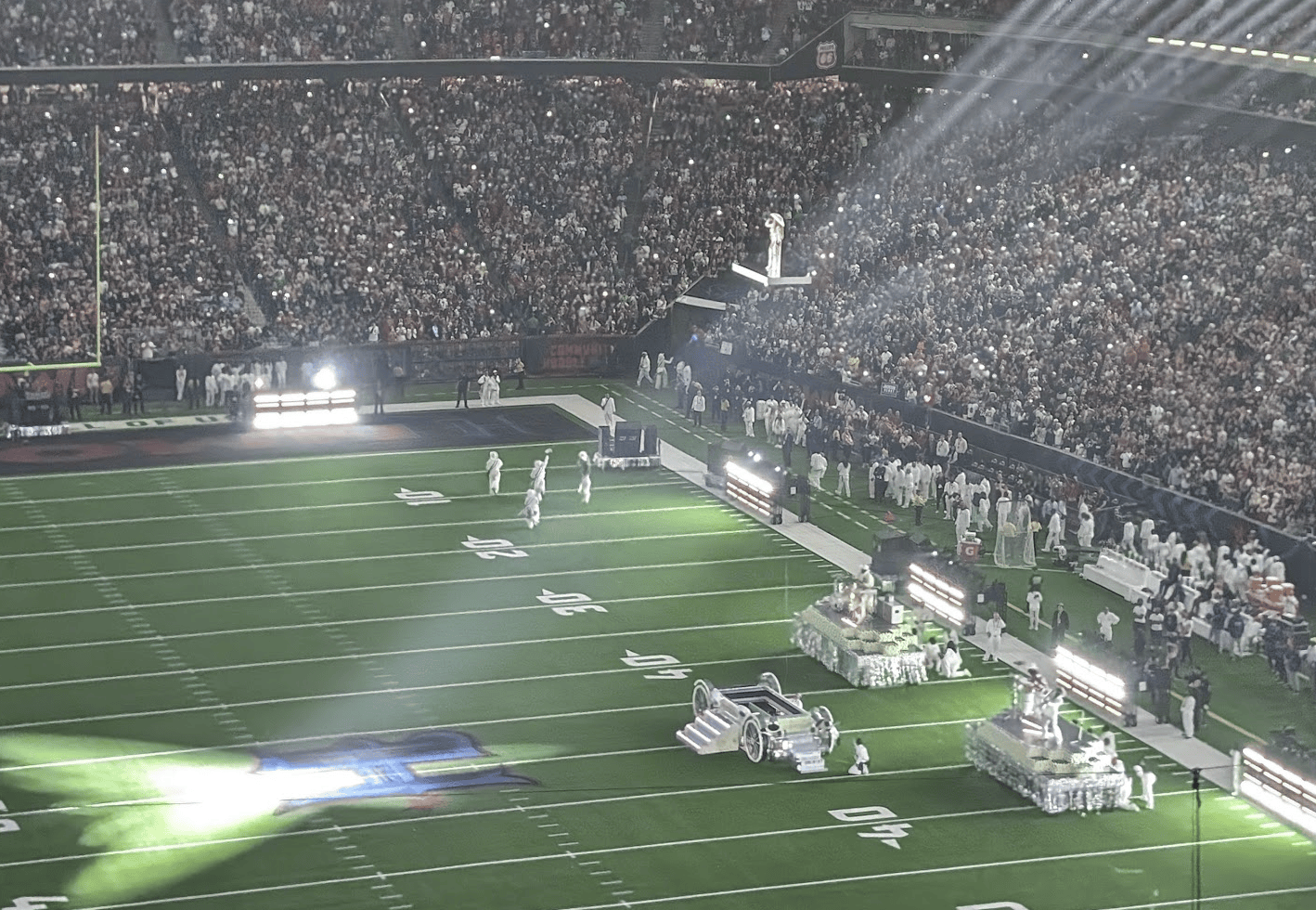
…but the (surprise?) halftime artist was neat. Beyonce put on an impressive show, even from our nose-bleed seats.
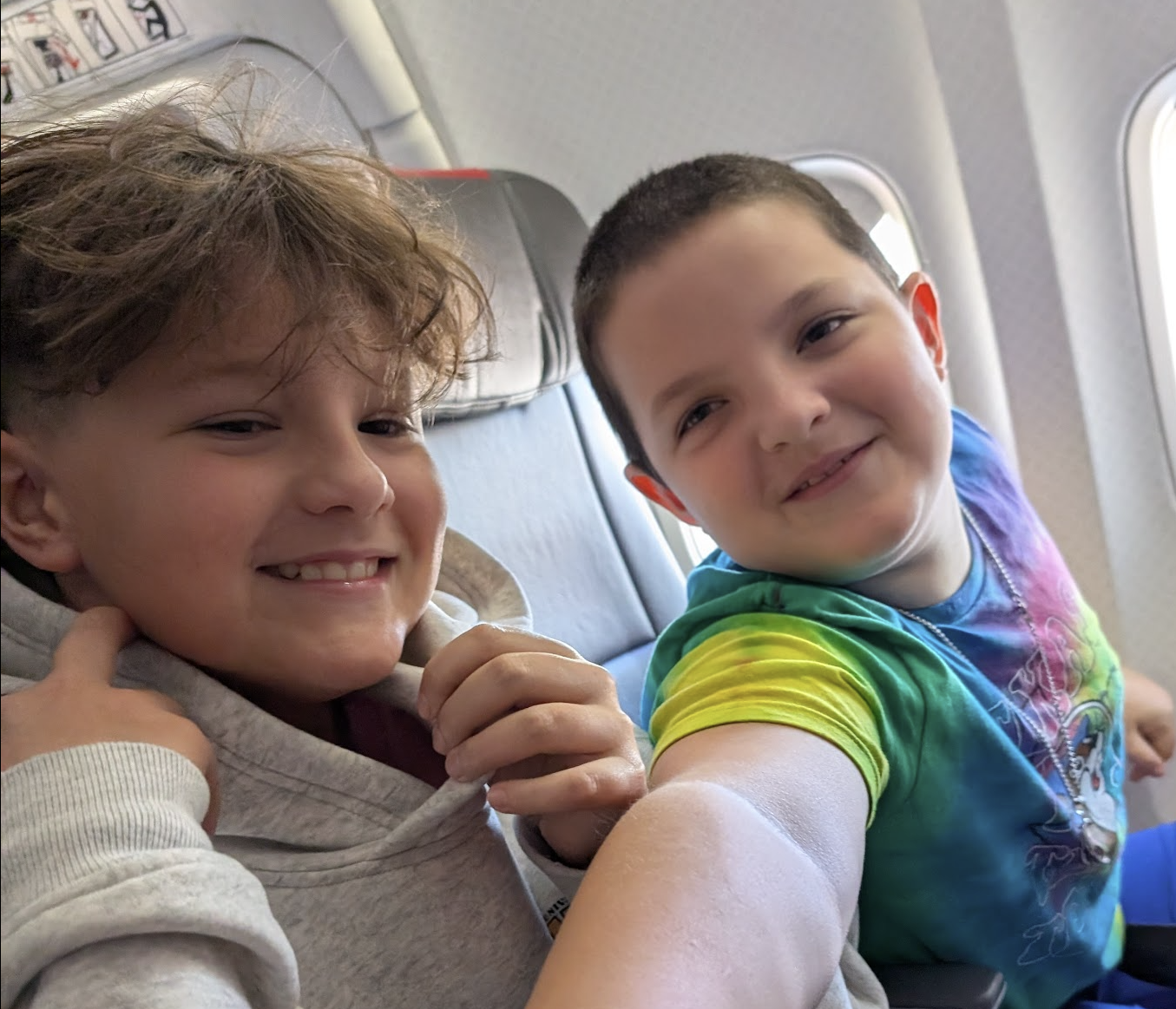
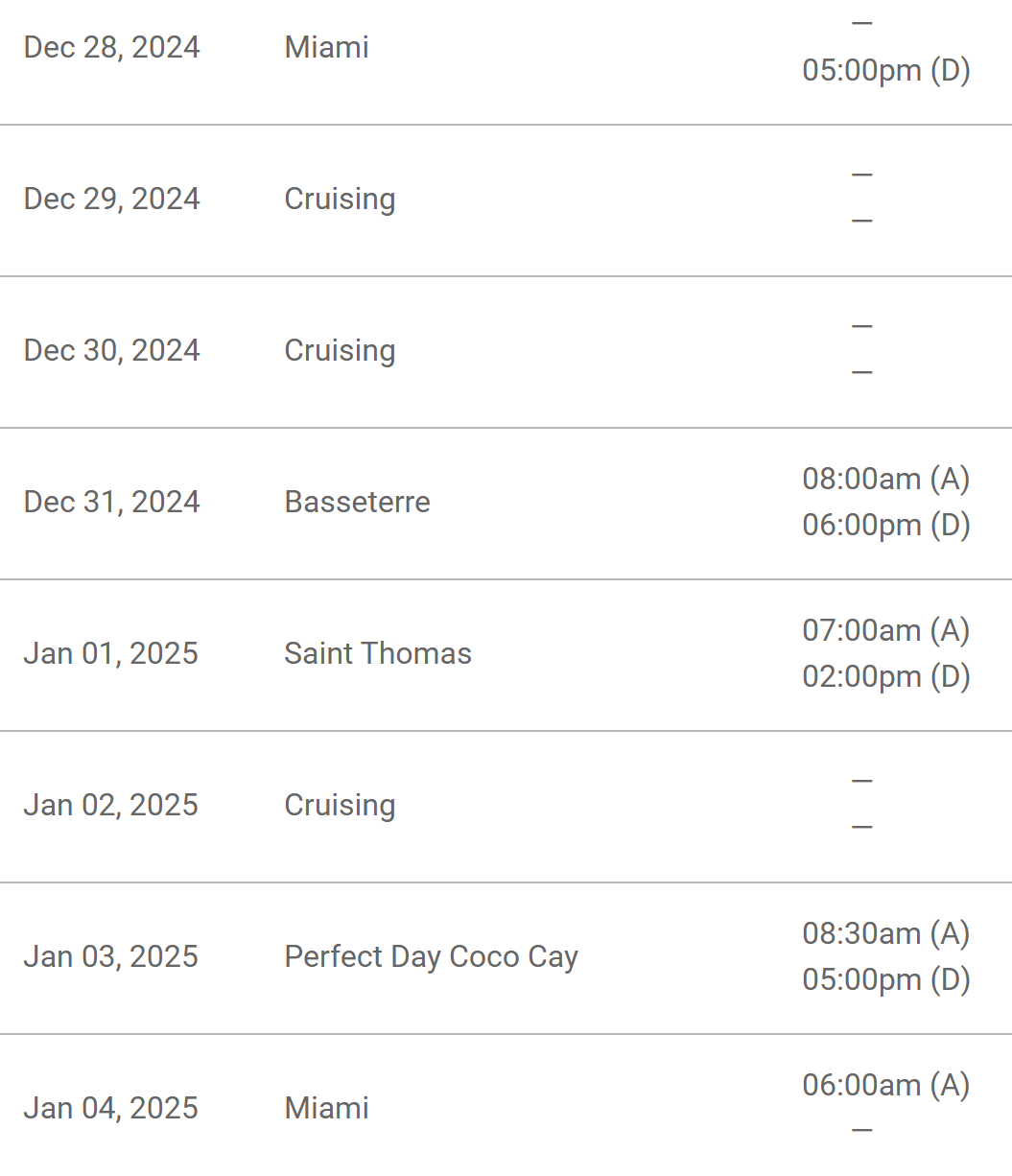
We spent the night in Houston, and two days later flew to Miami for a seven-night cruise.
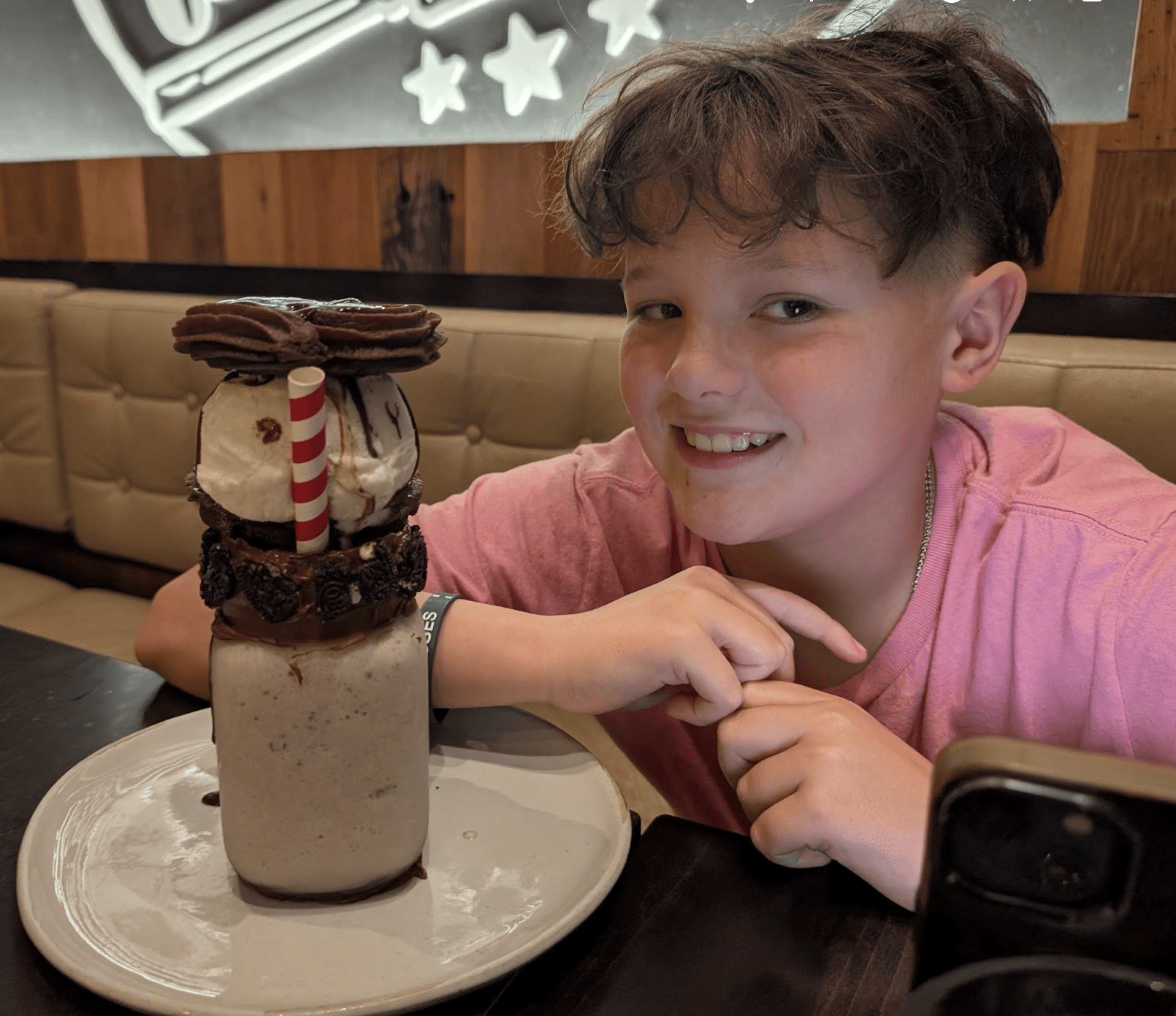
We had a pleasant-if-expensive overnight (Miami holiday hotels are $$$!). We first Uber’d to Coral Gables’ Hampton Inn, then experimented with the very convenient light-rail across the street to get to dinner. Noah loved the food at Bocas Grill and Nate and I both liked it too.
Insane dessert milkshake
We easily made our way to the cruise terminal the next morning, again by Uber because the light-rail doesn’t go out to the piers. Alas, once we arrived it was impossible to really appreciate the enormity of the ship from the terminal.
I was worried that Royal’s Icon of the Seas was going to be much too big for my taste, but it really wasn’t– the layout was awesome, and there was so much to do.
View from the elevator lobby near our room
Our balcony room was not nearly as large as the suite on our summer cruise, but it was still very nice; the Icon is less than a year old and most of the updates (e.g. USB ports all over) were very convenient.
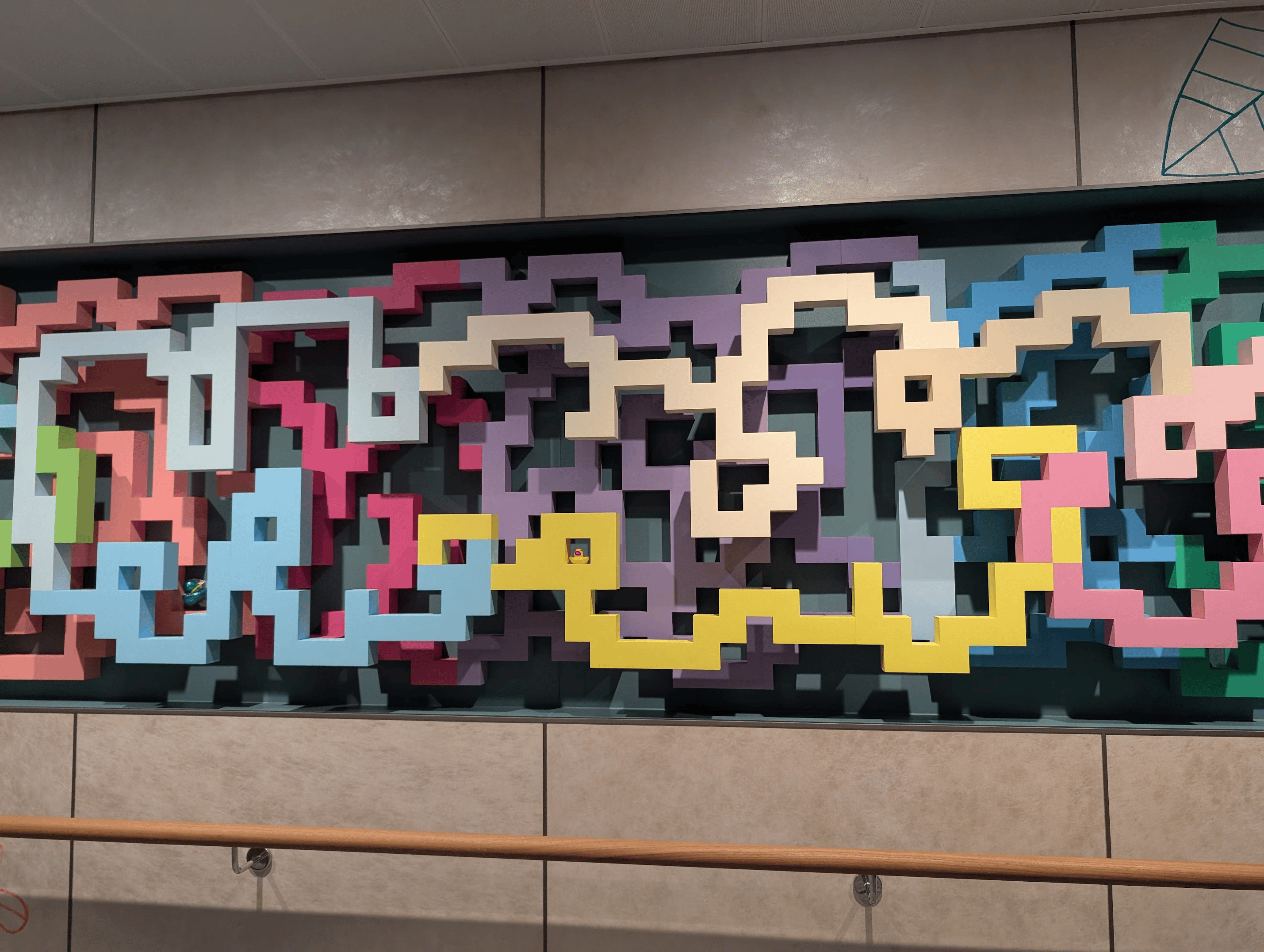
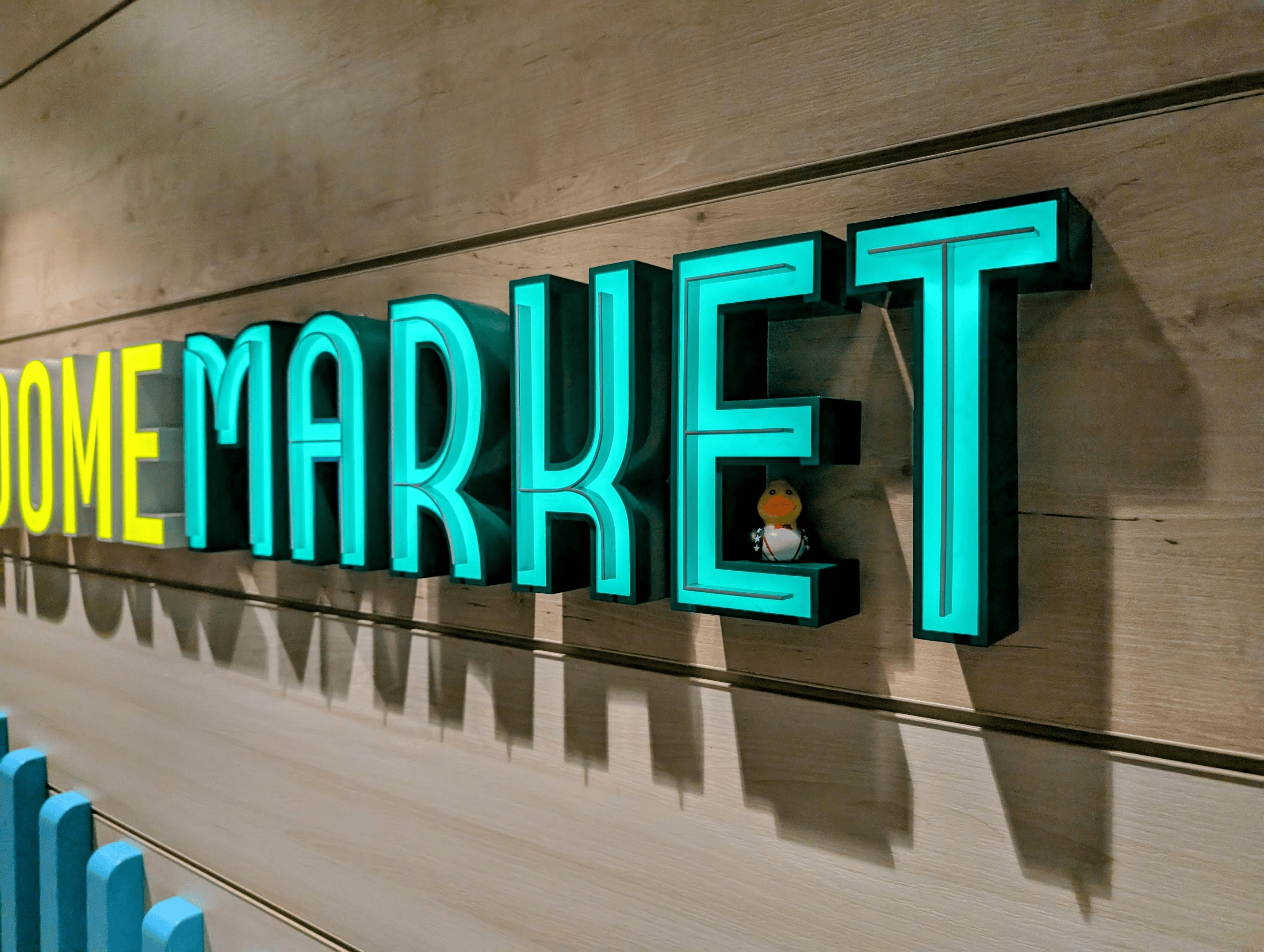
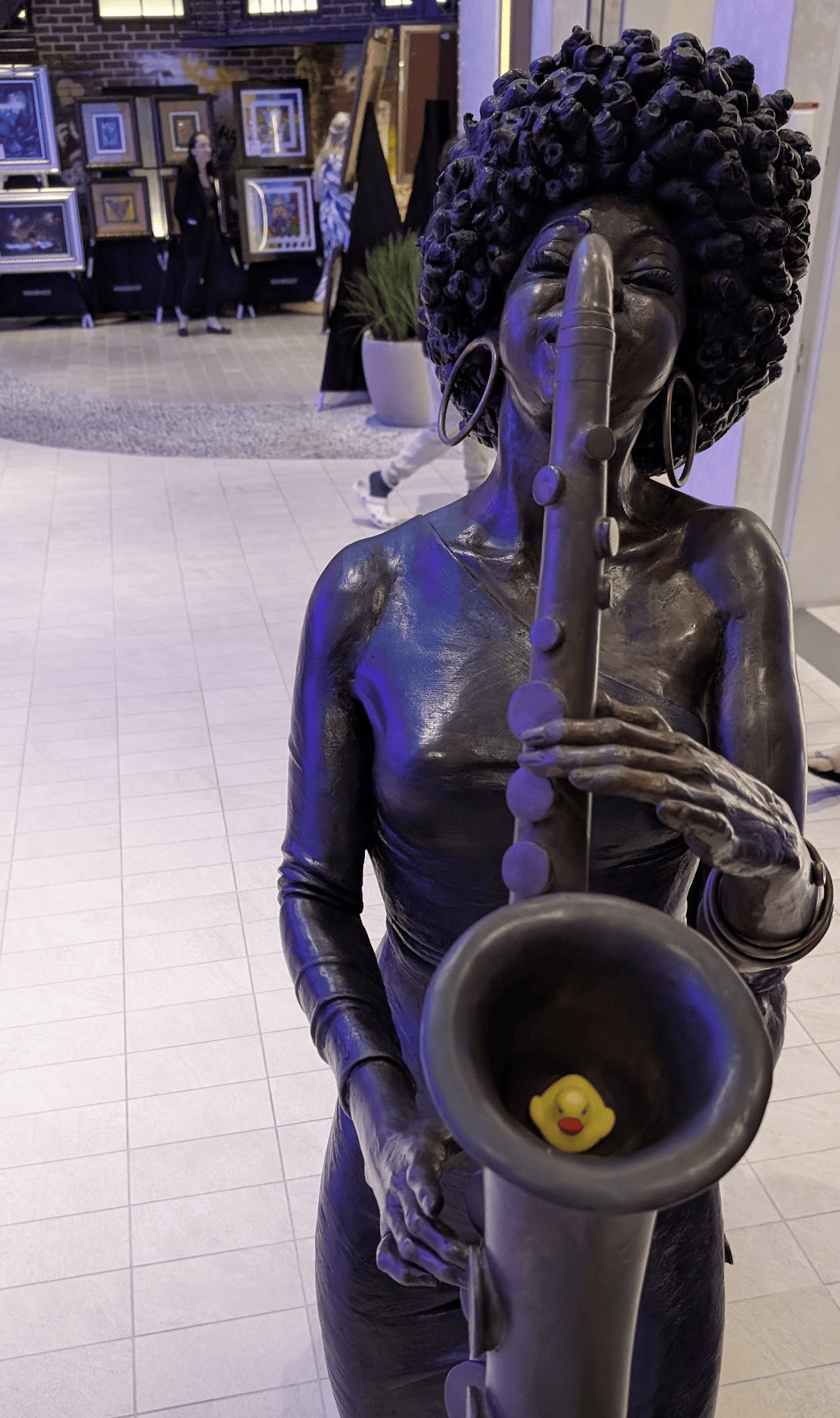
We brought 110 rubber ducks to hide on the boat, and Nate and I had a good time finding spots for them.
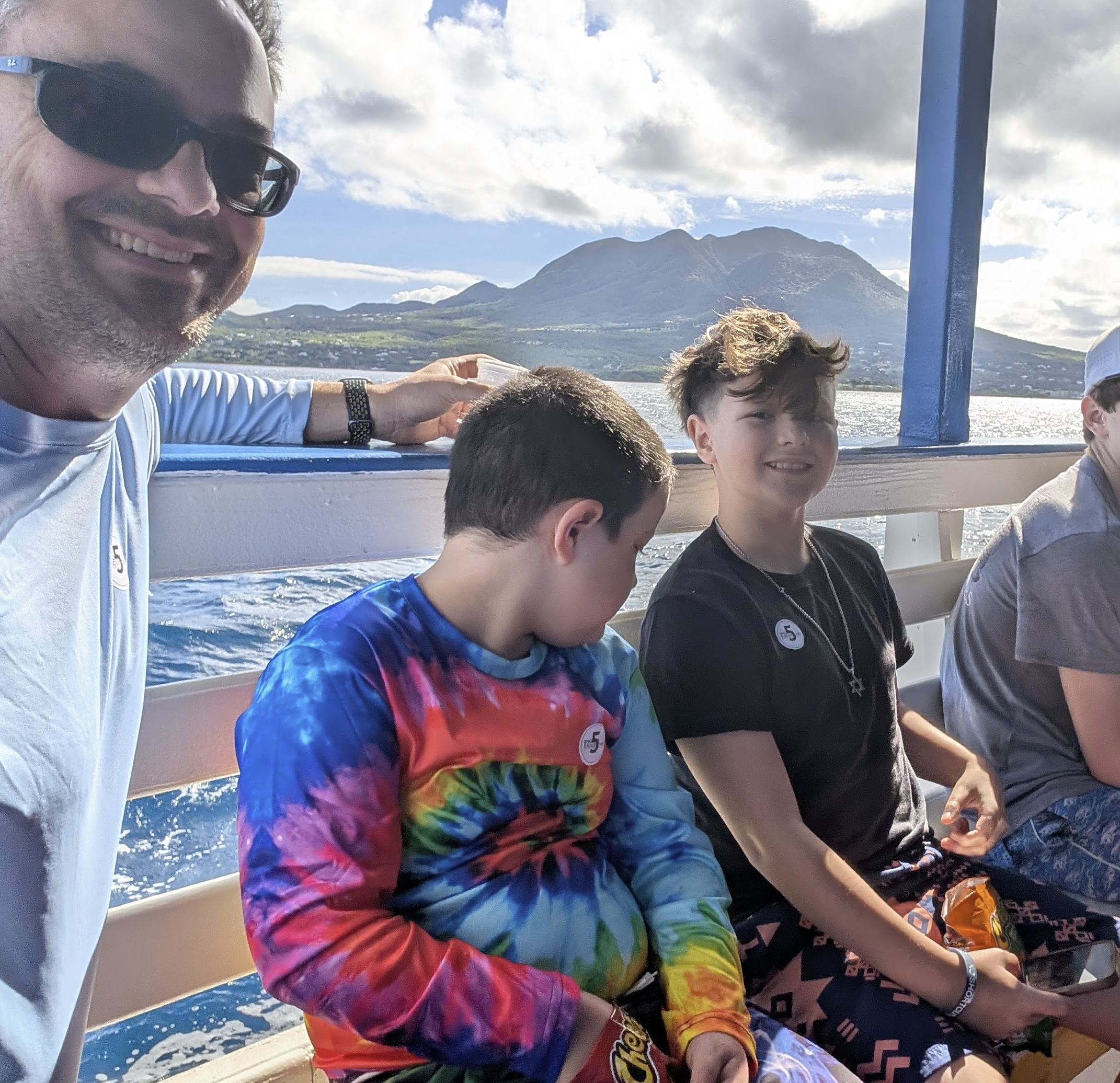
For our first excursion, we took a smaller ferry boat from St. Kitts to the adjacent Nevis to the sound of a steel drum player:
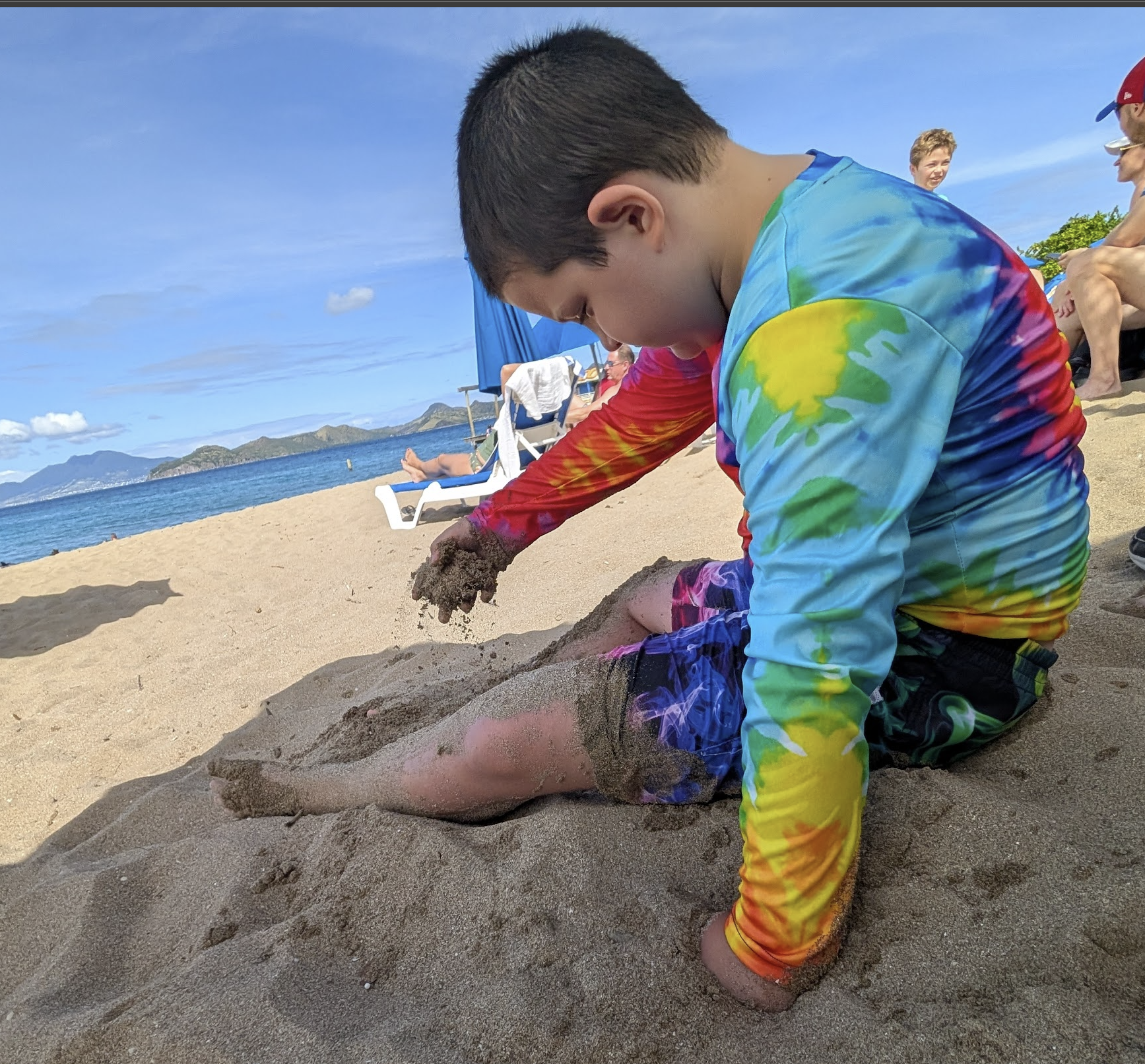
Once we arrived, Nate and I went in the ocean and he played in the sand, while Noah hung out in the adjacent beach restaurant and watched football.
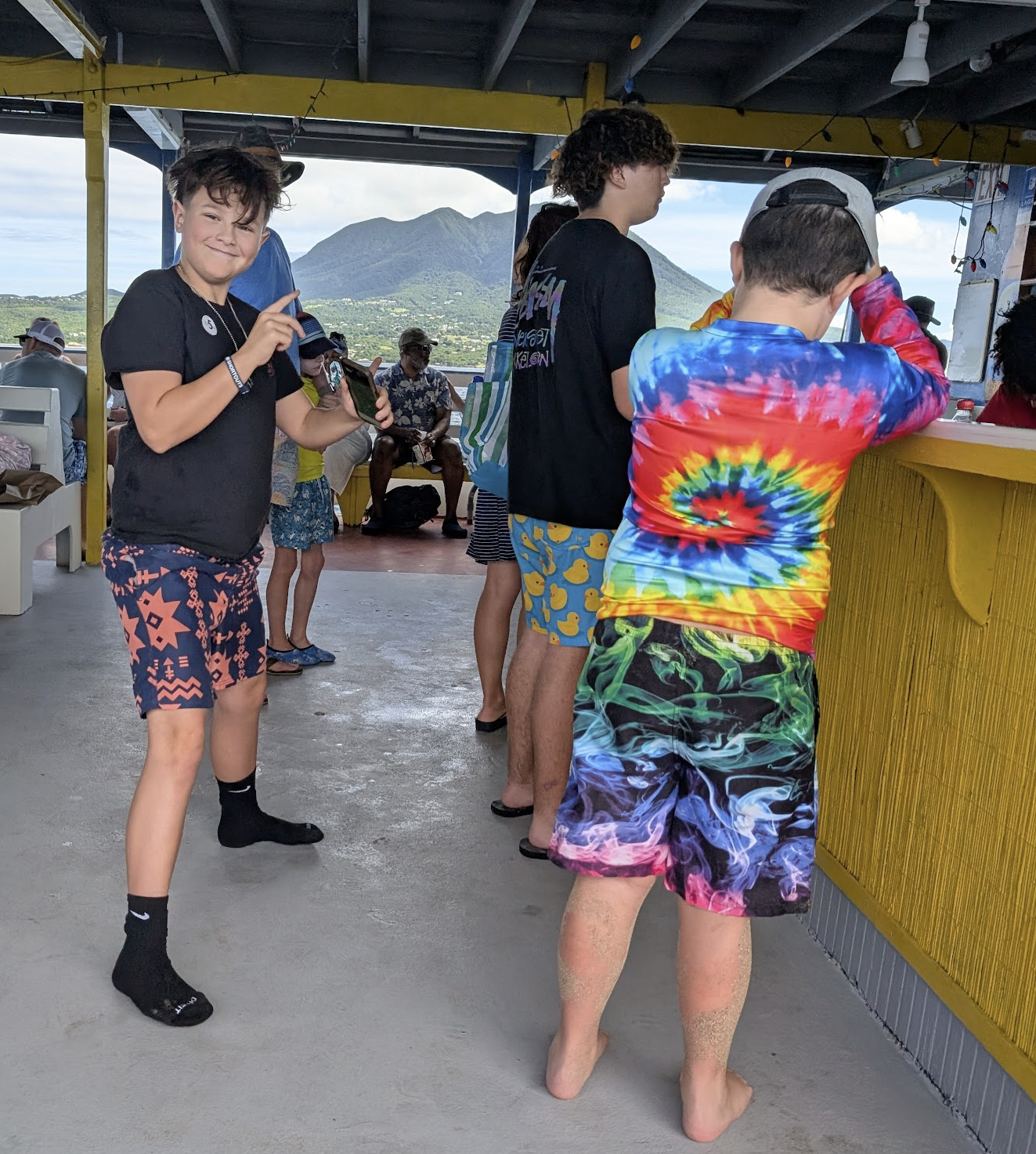
The ferry’s engine broke down on the way back, but the music played on and the bar stayed open. As the last day of 2024 before the start of Dry January, I took full advantage. Nate and Noah enjoyed endless cups of fruit punch and a dozen varieties of Cheetos. (Who knew there were so many?!?)
Nate does not allow pictures
Nate entertained himself on the trip back (and much of the rest of the cruise) chatting up teen girls, most of whom he met after getting into staring contests with them 🤣. Noah found some kids his own age to hang out with.
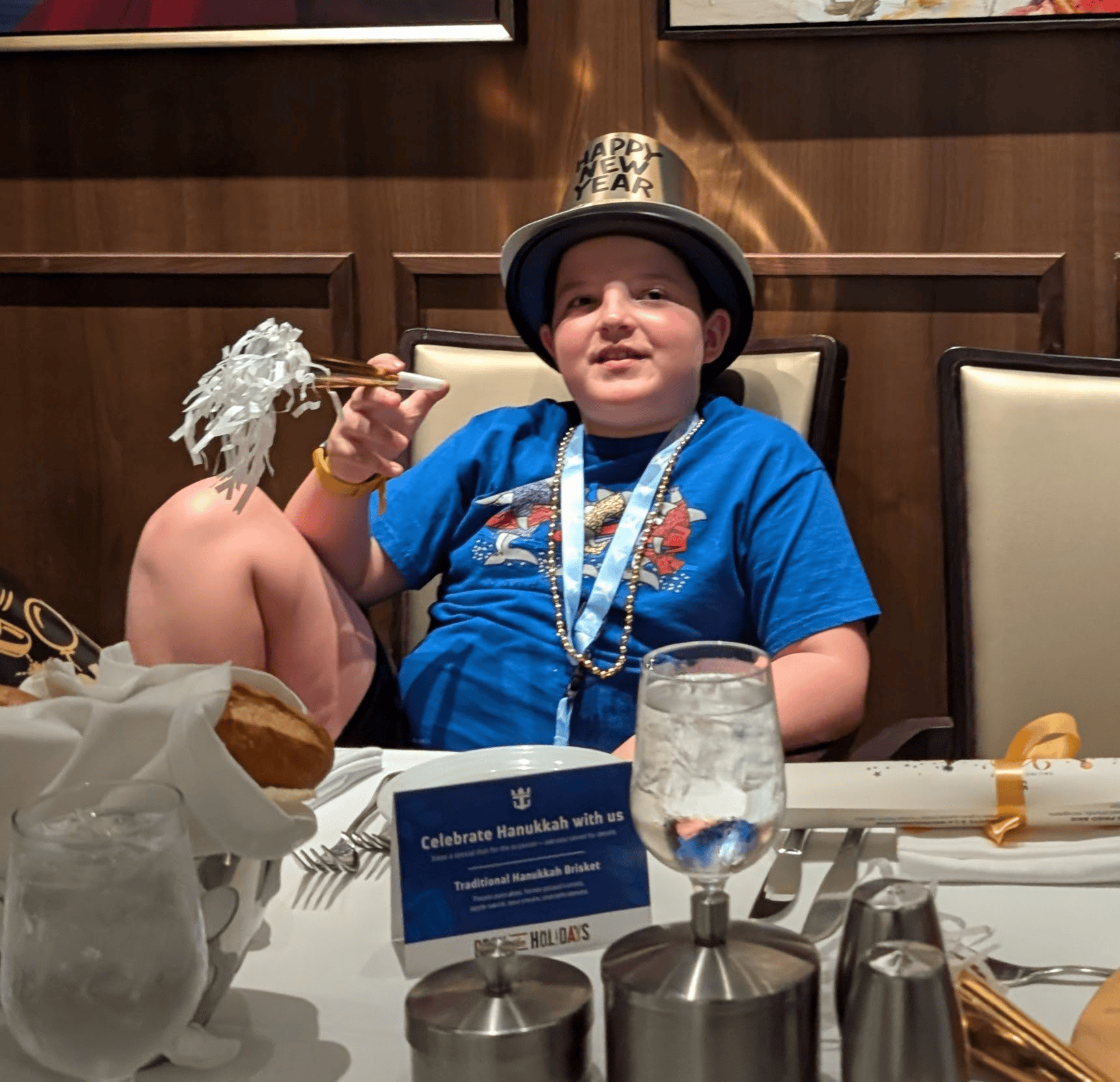
After an entertaining tow back to the ship, dinner that night included celebratory hats and noisemakers, and Nate took full advantage.
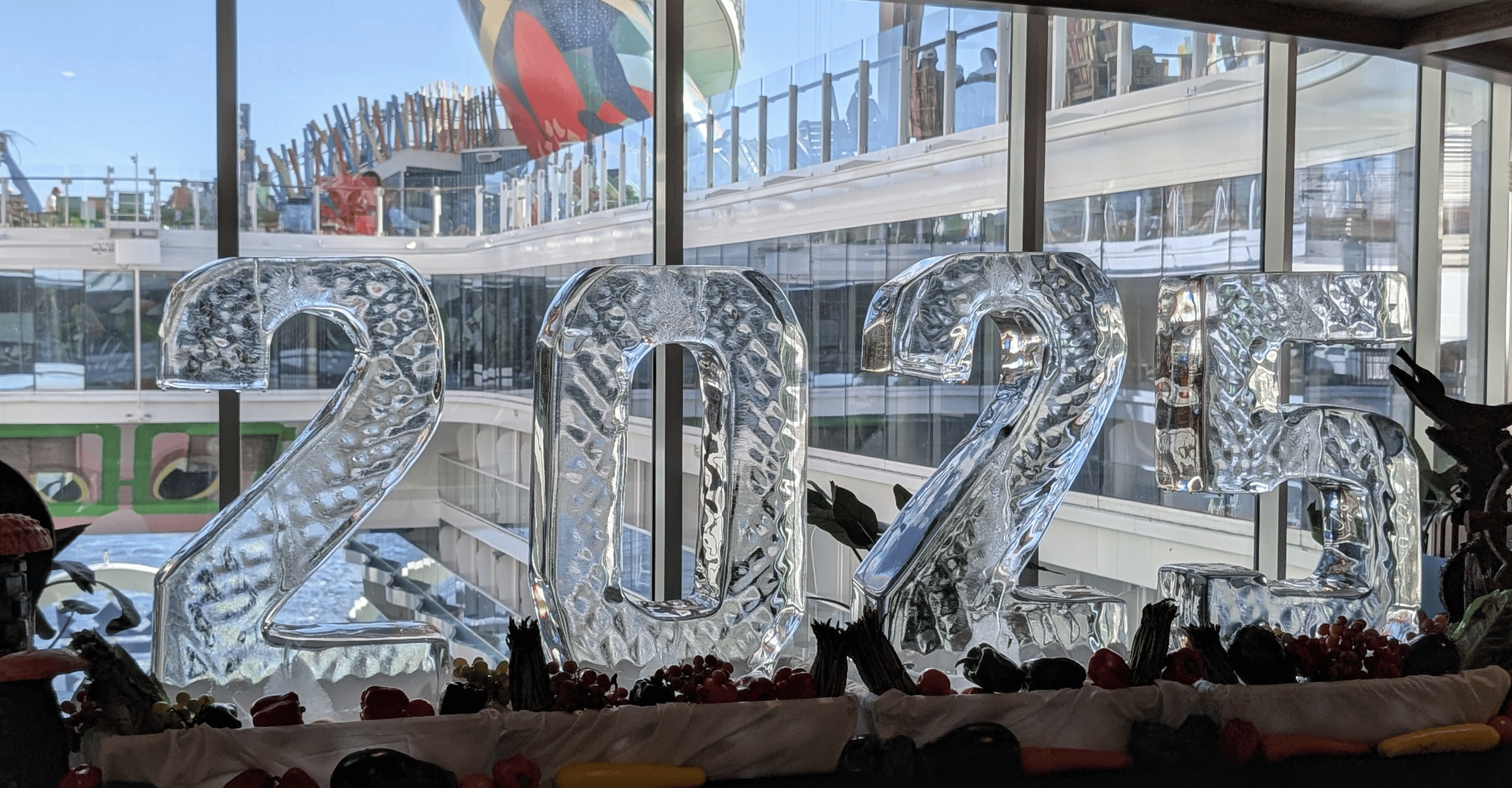
A massive balloon drop marked the start of the new year. Nate was amongst the revellers, and I took pictures through the skylight from the park above:
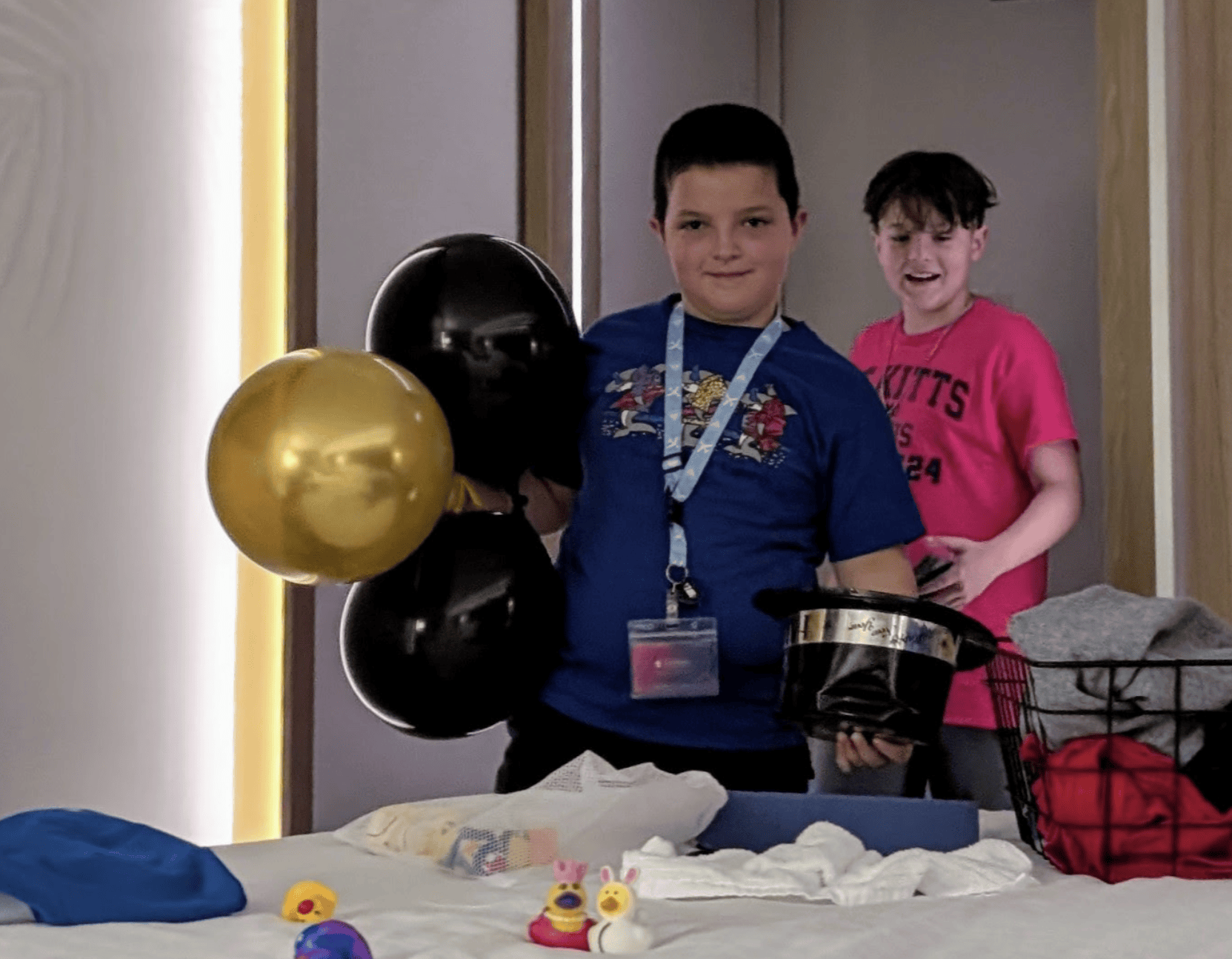
Nate brought some of the balloons back to the room:
The following morning we were in St. Thomas. A very short bus ride took us to a beach where Nate lazed under an umbrella and Noah and I took a rented jet ski out for a half hour trip. He whooped wildly as we flew across the water, maxing it out at 77kph. He wanted to move on to one of the two cars (think of a jetski with seating for four with a shell like a sports car), but they were dramatically more expensive ($350 vs. $80) so we didn’t try them. He also was interested in trying the awesome-looking “water jetpack” (Flyboard) but we didn’t manage to figure out where to rent one.
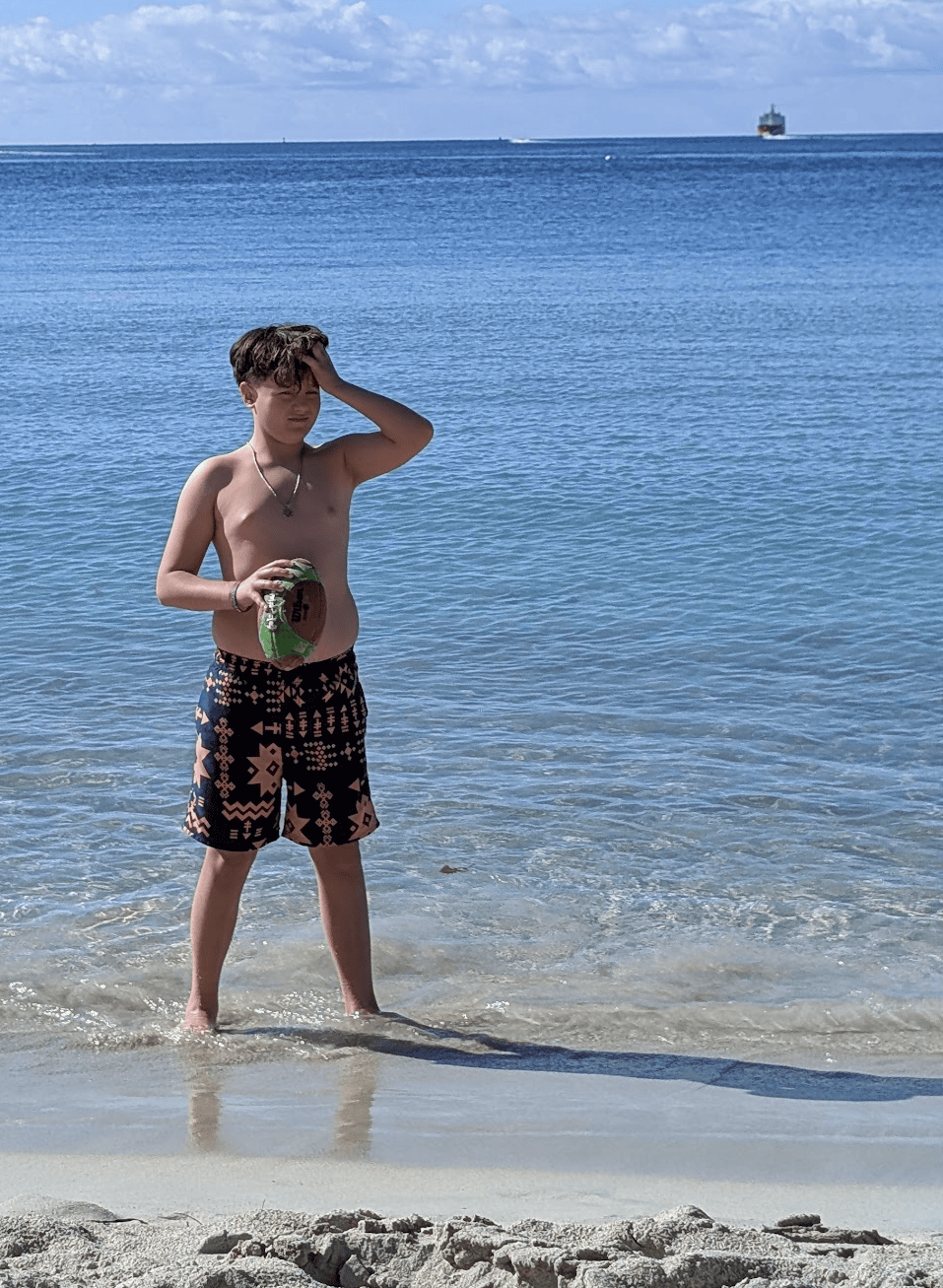
Noah spent the rest of the excursion tossing the football in the water as I tracked down lunch (apparently nobody starts cooking until noon in the US Virgin Islands).
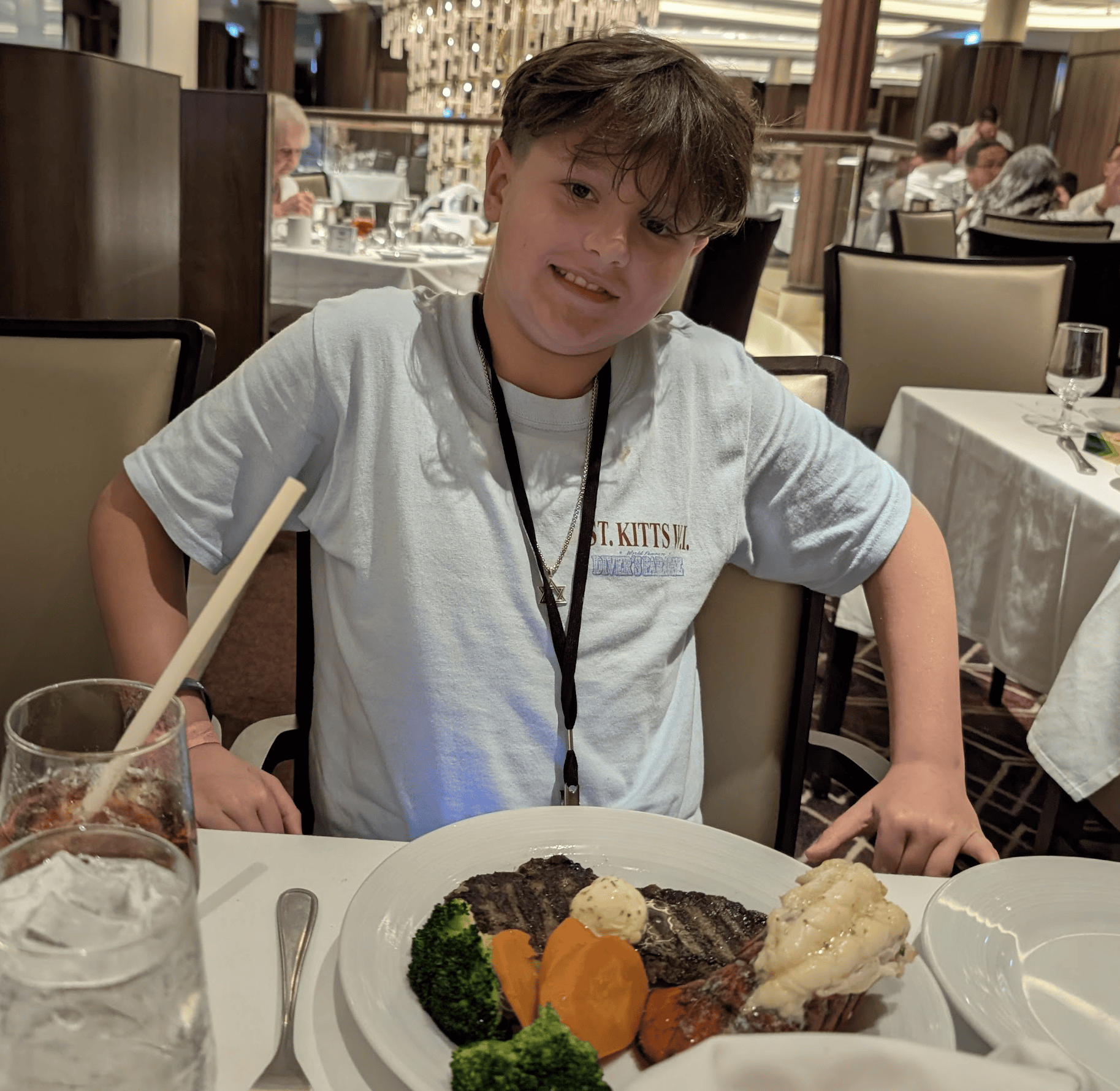
After rushing to finish burgers before our early-afternoon departure, we ran through a souvenir shop and reboarded the Icon. We had the early dinner slot and Noah was happy to again enjoy his “Surf-and-Turf”:
The kids passed time on sea days and in the evenings playing miniature golf, games on the sport court, watching NFL games, and chatting with other kids they met on the trip. (Surprisingly, one of Noah’s classmates was also aboard.)
Nate collected a 3rd place medal in the nightly glow-golf competition:
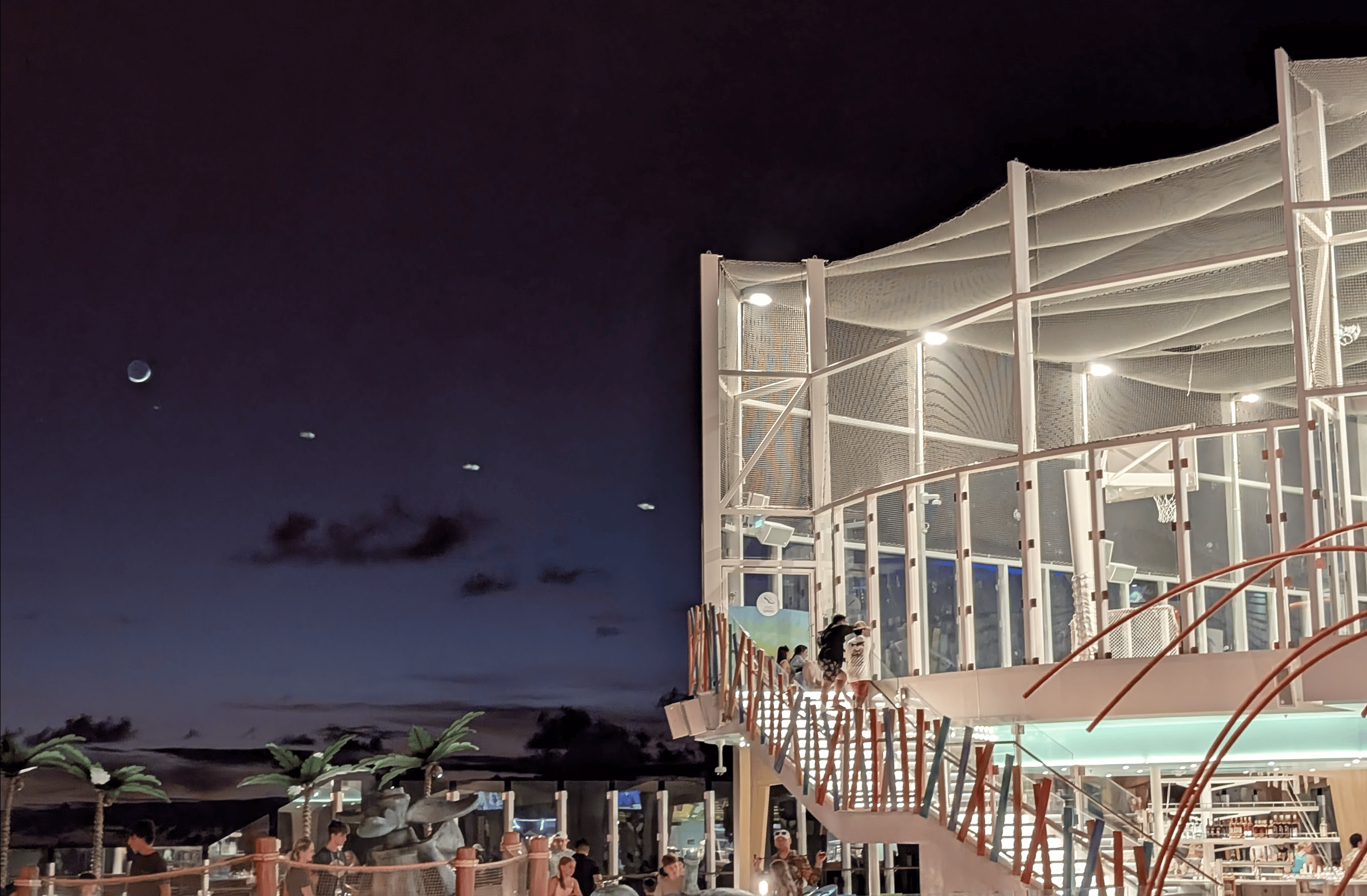
I spent a fair amount of time just enjoying the scenery and trying to figure out what the kids were up to.
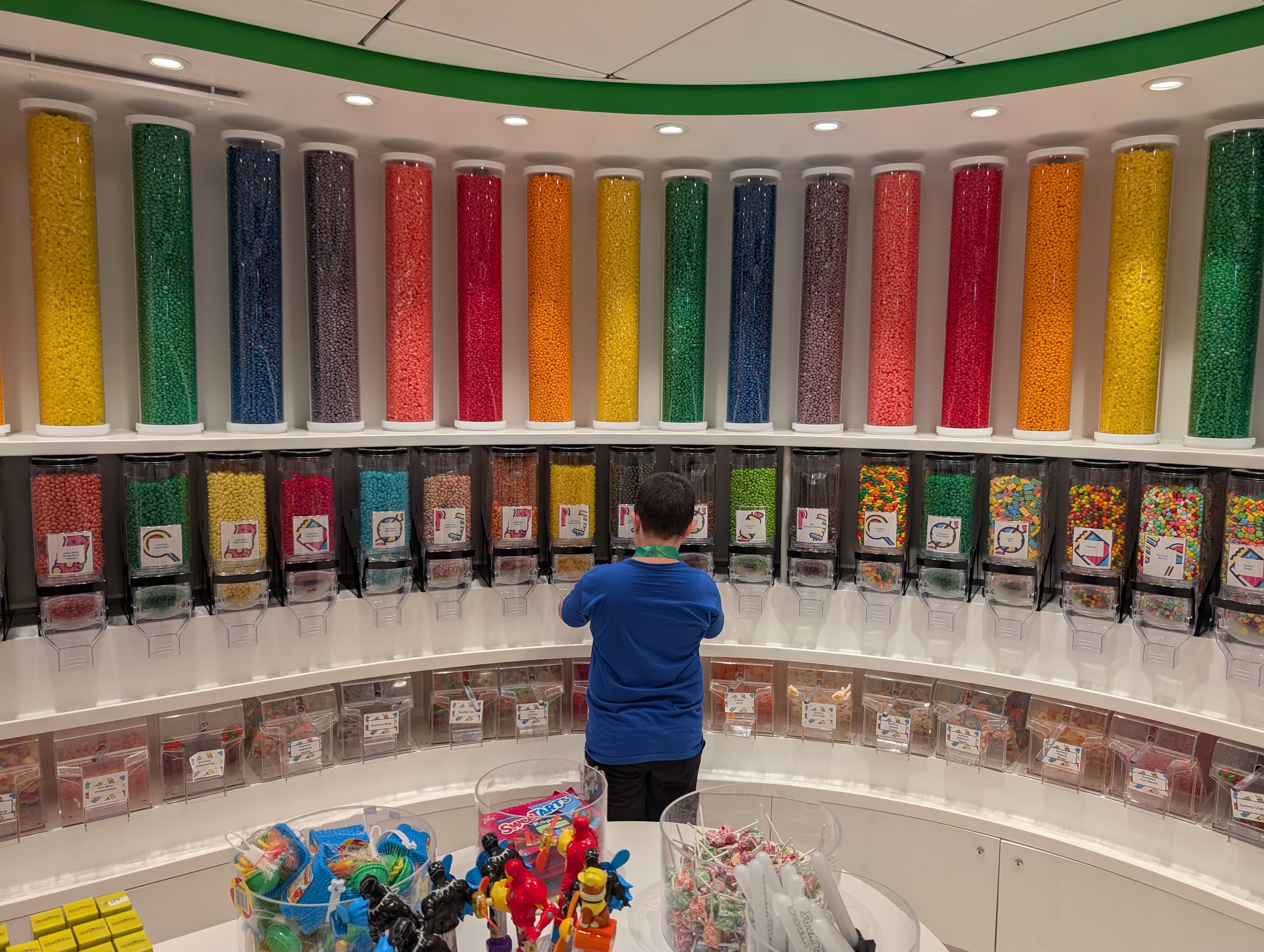
Fortunately, we didn’t discover the cotton candy / candy store until late in the cruise.
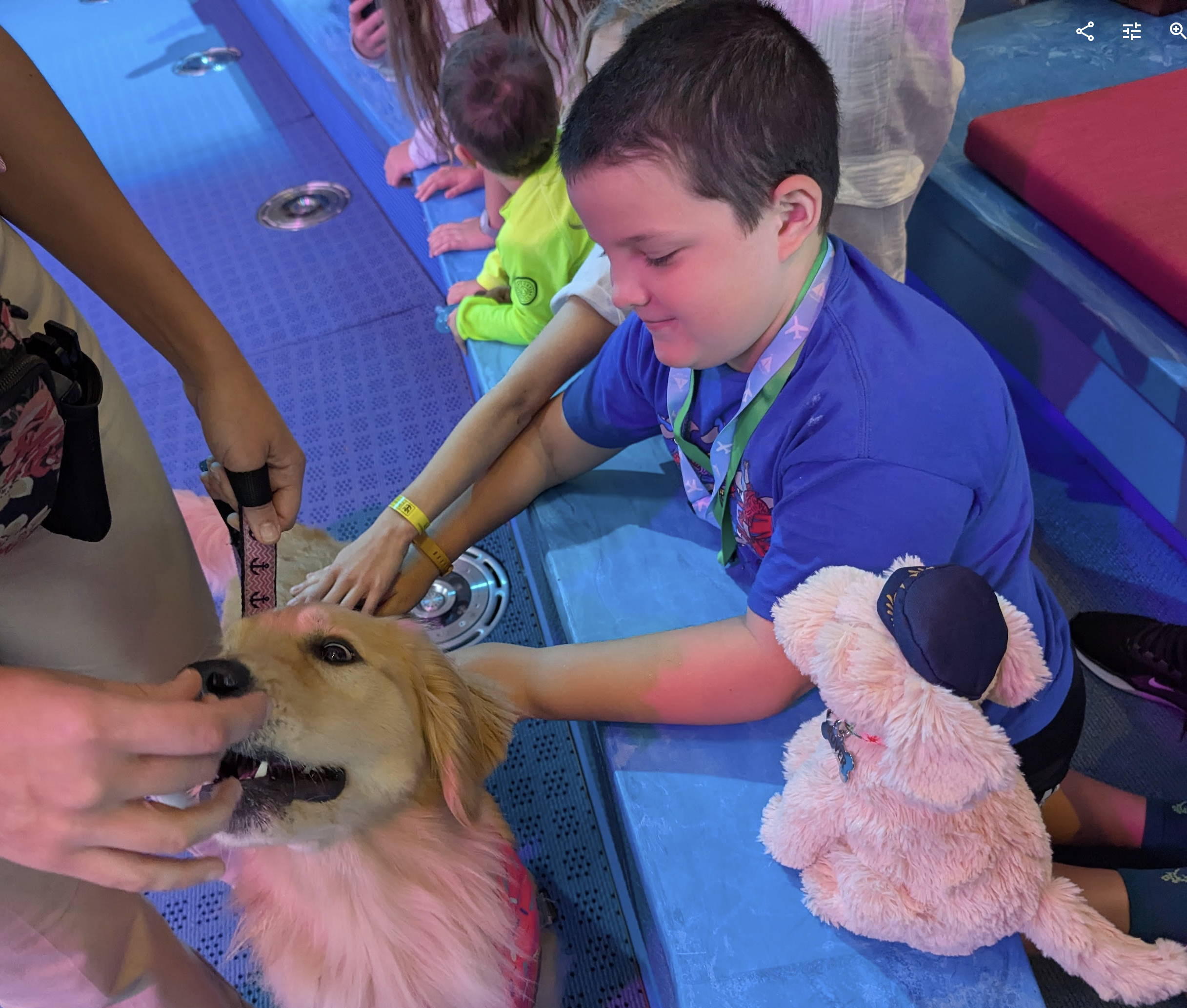
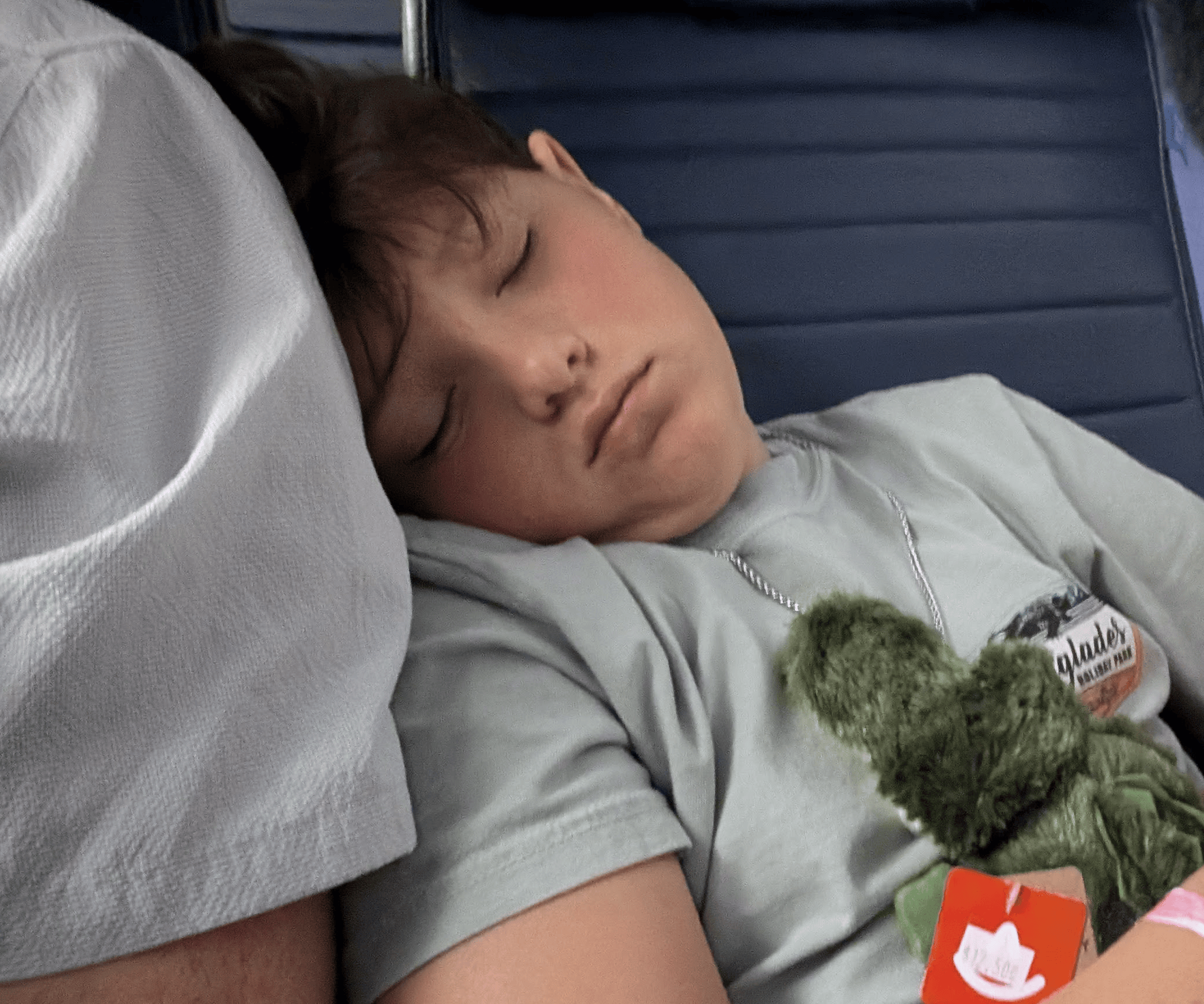
One of the biggest draws of the cruise was trying to find Rover, the Icon’s “Chief Dog Officer.” I spotted a stuffed version at the gift shop and surprised Nate with it on his pillow the night before we were slated to meet the real girl:
While we only got a few pets in at the meet-and-greet, Nate was satisfied:
Noah demanded wifi on the trip, and after a ~$150 mistake on our last cruise where he’d left his cellular on for a few minutes, I caved. While I still think getting away from the Internet is the primary reason to cruise, and $25/day is robbery, the Starlink connection managed a pretty impressive 9mbps.
Our final excursion was to CocoCay, Royal’s private island with the impressive “Thrill” waterpark. We’d already visited during our family cruise this summer and thus had already tried all of the slides, so we took it easier this time and had a ton of fun riding our favorites and otherwise relaxing. It was perhaps 5 degrees colder than ideal, but almost perfect.
Icon next to Voyager. Icon is 175 feet longer (17%) and 68 feet (43%) wider than the Voyager class (my old fave).
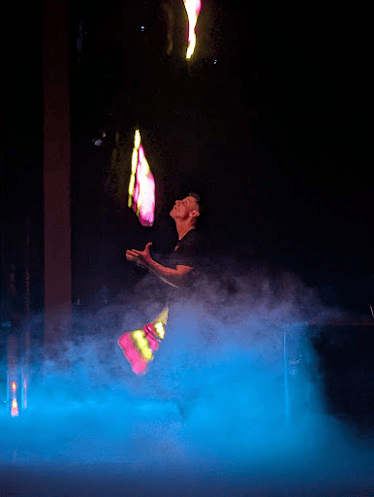
Shows on board were awesome. The three stand-up comedians were hilarious (very adult) and I saw them twice. The Ice Skating shows were both good and Nate and I watched both together. On the main stage, the juggler was really good (pretty sure I’ve seen him before), The Wizard of Oz was a bit of a snoozer, the “Avengers”-knockoff show was amazing (I saw it twice), and the high-diving acrobatics in the aqua-theater were spectacular.
Adam Kario
The “Effectors” show included some great SFX and a drone show over the audience
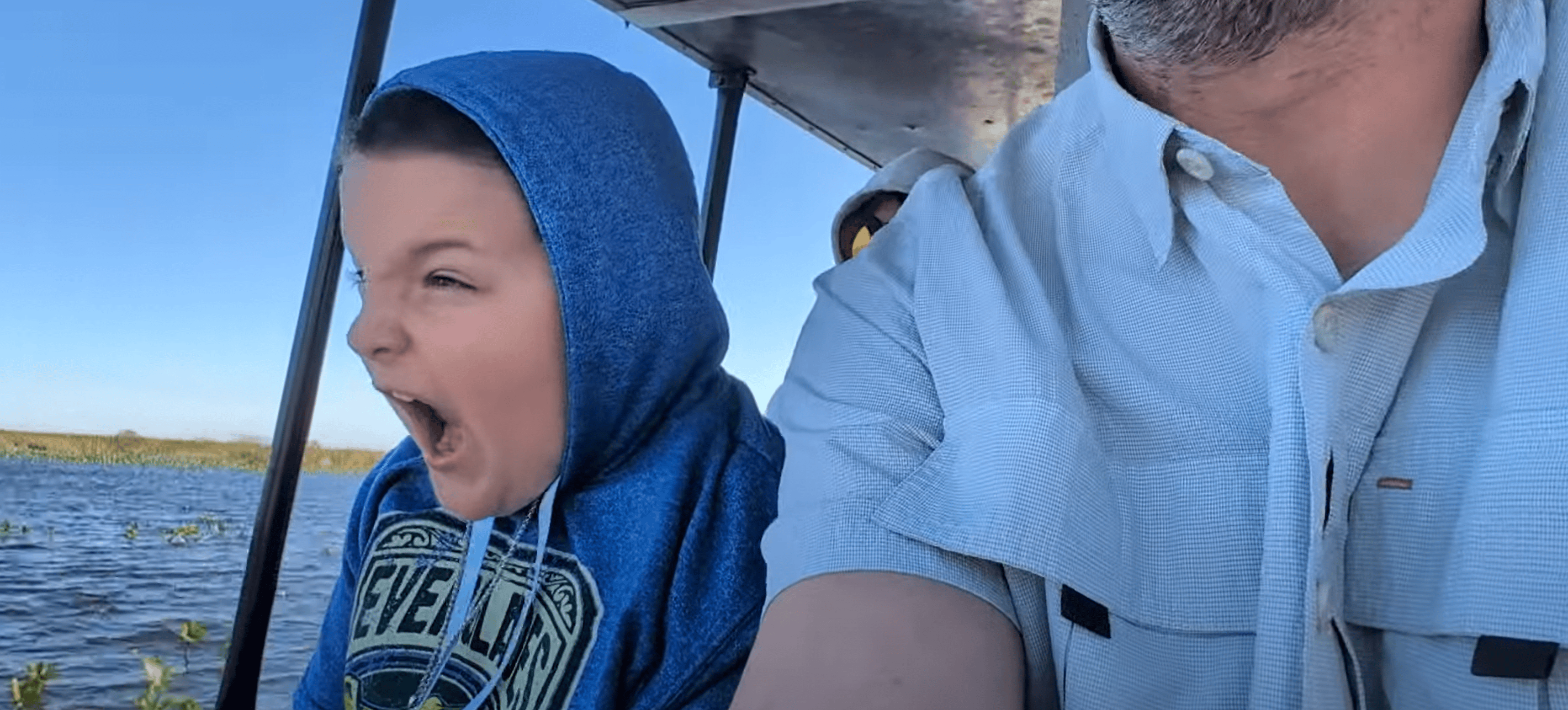
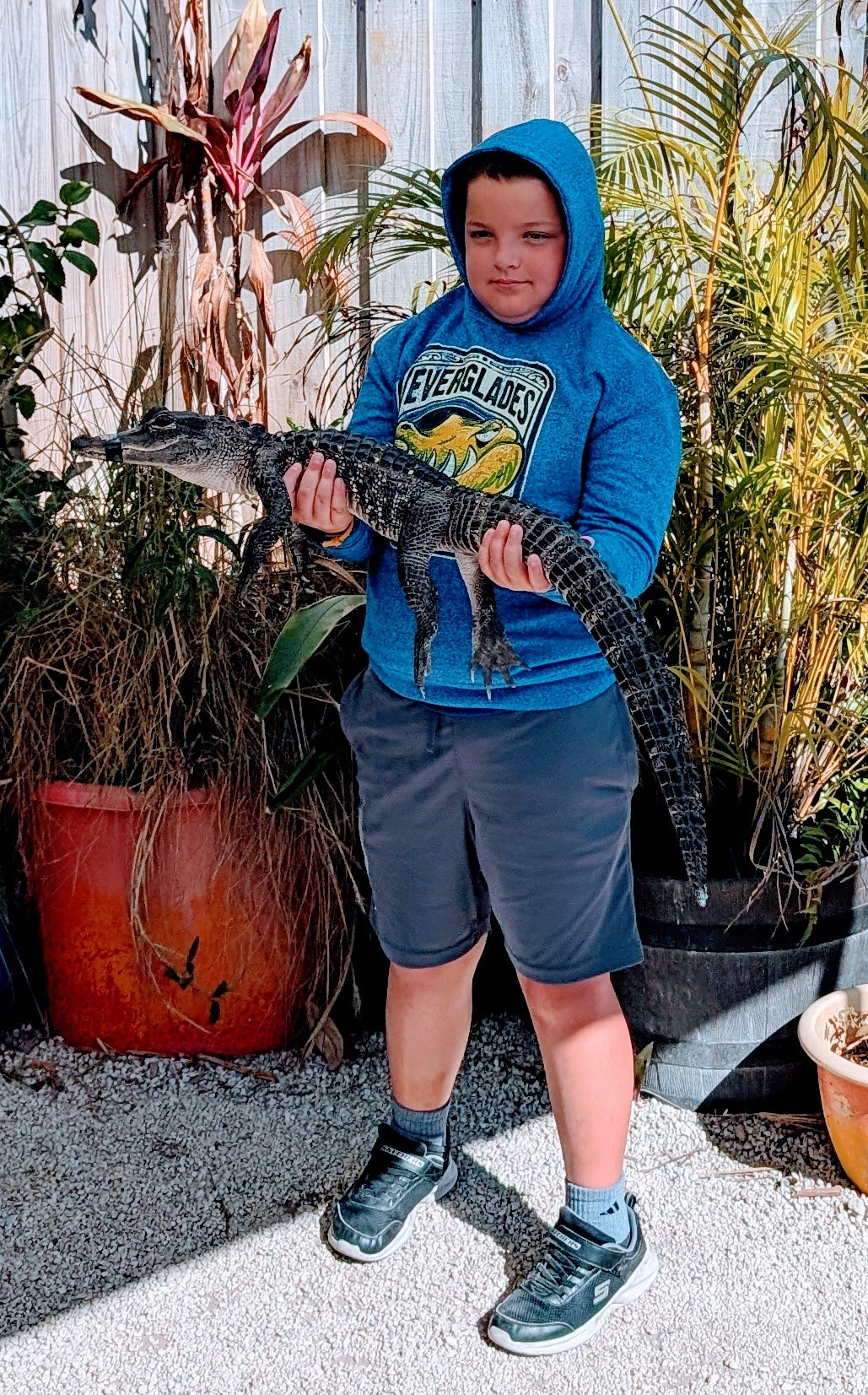
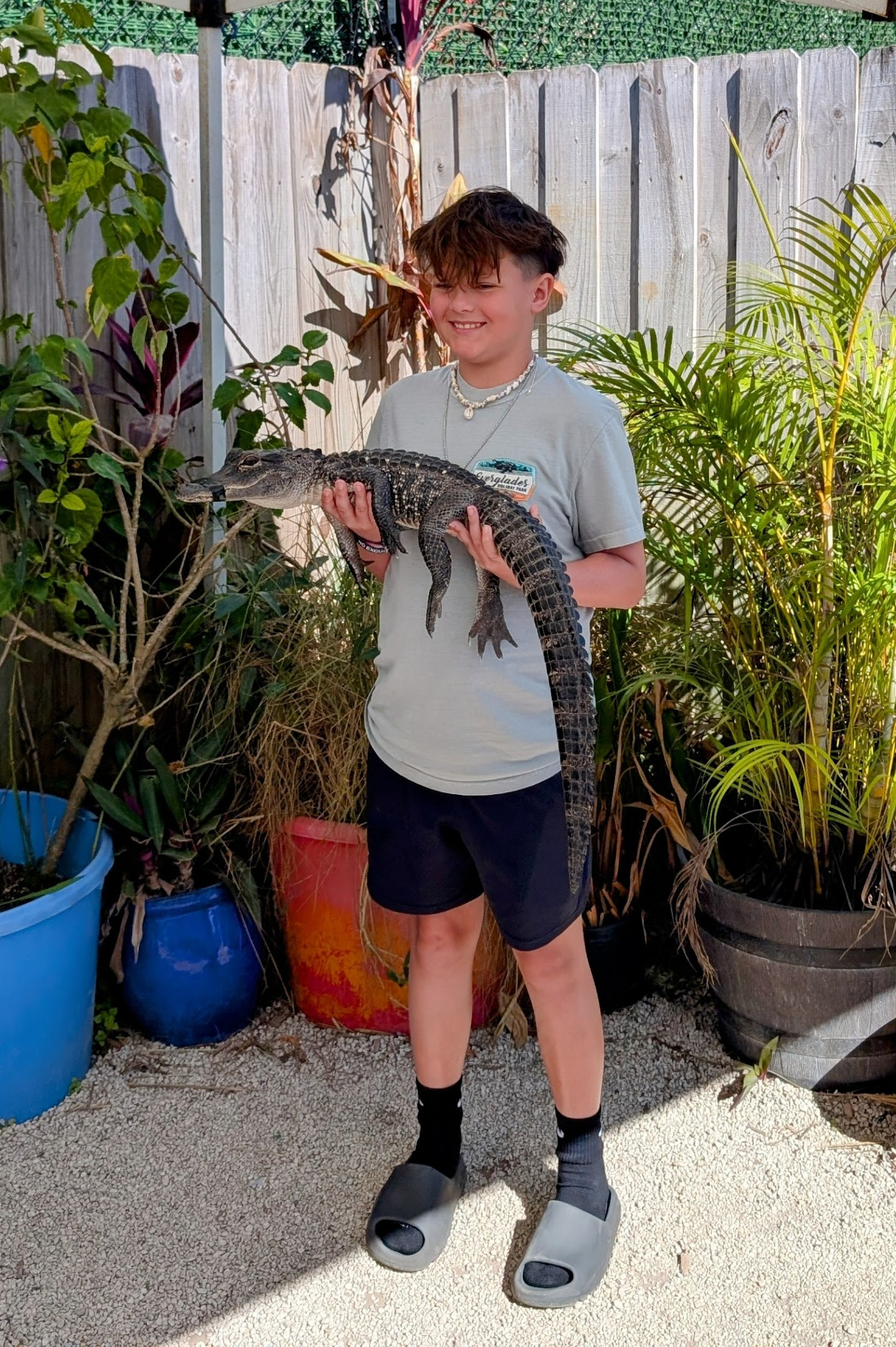
When we returned to Miami (too soon!), we took a quick trip to the Everglades to see some gators and ride the airboats. Nate had fun trying to out-scream the roar of the engines:
We had a delayed but otherwise uneventful flight back to Austin with a stop in Houston. United was pretty terrible, both with an ever-growing delay in Houston, and the fact that they still managed to leave my suitcase behind and had to deliver it the following day. But I was still in a good mood after a great vacation.
Looking forward
I fear and despair for what’s going to happen in the United States over this year, but these aren’t useful feelings, so I’m concentrating on what I can control.
My end-of-year revisit to Kilimanjaro’s summit looms in the distance, but I’ve got a lot of other things coming up before then.
First and most pressing — races. On January 19th, my third Austin Half Marathon. The current forecast calls for a frigid 28F, so I’ve got something of an excuse for what I expect to be a very slow pace — how fast can you expect a snowman to run anyway? Hours after the race, I’m flying to Seattle for a week with my team. On Super Bowl Sunday (Feb 19th), I’m going to test myself in the Galveston Marathon. When I (not entirely sober) signed up for the full marathon last year, I reasoned that even if I didn’t train, I could just run the first half and walk the second. That’s still the plan, but as the days fly by I’m less confident that the plan is a slam-dunk. (Bert Kreischer ran a full in 5:33:33, so beating that is my unofficial goal). Fingers crossed!
Other than that — cruises. I’m going to do a quick cruise on the Mariner of the Seas in March, then the boys and I are going to spend Thanksgiving week on Harmony of the Seas. They’re pushing for another trip on the Icon or the (brand new) Star sometime this summer, but I don’t know that we have either the time or the budget for that this year.
This morning, I awoke from a dream. I’d just discovered a ticking time bomb was a fake, and the dream ended as I said to my companion “There’s nothing quite as exhilarating as finding out that today isn’t the day you’re gonna die.”
As I opened my eyes in bed, my now-conscious mind unbidden replied “Okay, Universe, today you have the chance to do something REALLY funny.”
In my youth, I had remarkably little exposure to death– most of my elderly relatives had either passed away before my birth, or were still young or healthy. I lost a distant uncle in my teens. I lost my maternal great-grandfather (aged 99.75) when I was twenty. Also at 20, I met a new coworker on a Friday, and he died that weekend. I lost my first true friend when I was 33, while I was on vacation in the French countryside.
That’s not to say I never thought about death, just that I mostly had the unconsidered invincibility of youth. Death was an abstract idea that didn’t occupy much space in my brain, except that I wanted to come to some sort of meaningful end. My general thinking was encapsulated by this clip in Starship Troopers:
If everyone’s gotta die eventually, it’s probably best not to worry too much about it.
Even today, mortality remains at something of a distance. Startlingly, I’m 45 and have yet to attend a funeral. Nevertheless, mortality has been on my mind more than ever these last few years, between losing friends and the end of my marriage. In part, these thoughts are not of my choosing, but it’s also something that I’ve chosen to embrace.
The walls of my house are adorned with Latin phrases: Memento Mori, Memento Vivre, Tempus Fugit, and Carpe Diem are joined by Esse Sequitur Operare, Advance the Plot, and Choose. These are all reminders of the same theme: Just as it’s important to recognize that you’re not going to live forever, it’s also important to realize that you’re currently alive. The grimmest outcome is being alive, but not behaving as if you are. If not now, when?You are what you do.Get busy living.
While striving to make meaningful and long-lasting contributions to the world can be fulfilling and better mankind, it’s also important to put such work in context. Amidst a longer (and somewhat grim) post, a talented writer observed “Look around you. Everything you see will cease to exist one day. Get over it. Sure culture eats strategy for breakfast, but entropy eats everything for dinner.“
This line of thought can lead to very dark places, but anyone who’s ever enjoyed a video game should get it — video games blink out of existence when you hit the power button, but that’s not to say that they’re either pointless or have no impact beyond the screen. In life, as in video games, if you’re never having any fun, you’ve missed the point. And in the darkest times, the fact of mortality provides solace — while all good things come to an end, so do all the bad things.
Do all the good you can, by all the means you can, in all the ways you can, in all the places you can, at all the times you can, to all the people you can, for as long as you can. And strive to have as much fun as you can while doing it.
After spending decades where I sometimes acted like I was living out the marshmallow experiment, a line from Philip Su‘s recent book of life advice for his son best encapsulates my realization: “You don’t “win” life if you never eat the marshmallow.“
Every day is a gift, and no tomorrow has been promised.
Two years ago, I wrote up some best practices for developers who want to take a file’s security origin into account when deciding how to handle it. That post was an update of a post I’d written six years prior explaining how internet clients (e.g. browsers) mark a file to indicate that it originated from the untrusted Internet.
The tl;dr is that many native apps’ security vulnerabilities can be significantly mitigated by blocking the use of files from the Internet.
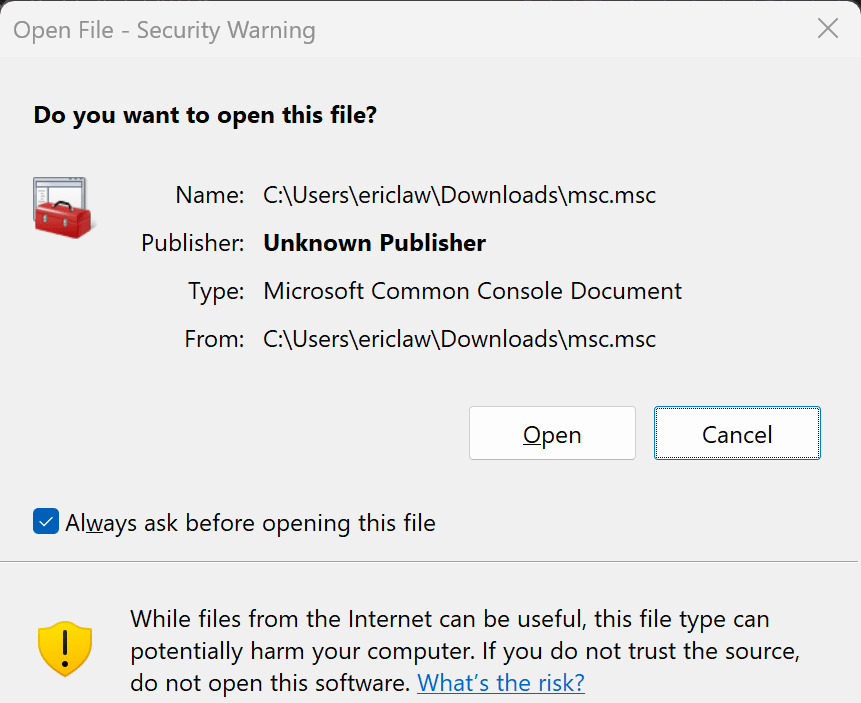
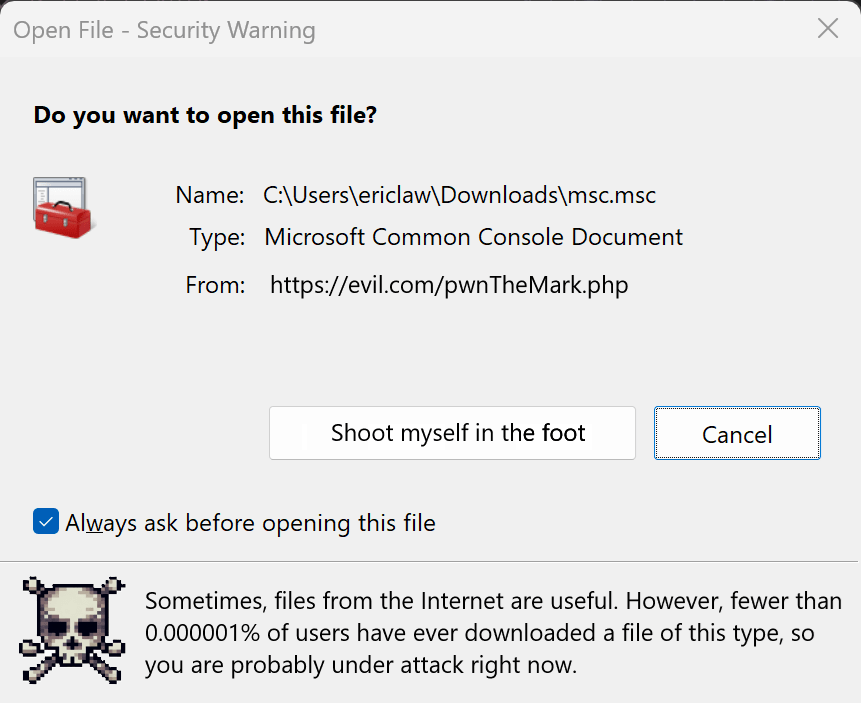
Consider GrimResource, an attack vector documented this summer, whereby attackers would send the victim a Microsoft Management Console (.msc file). A user receiving such a file would see a standard security warning prompt:
…and if accepted, the file would open and the attacker could run arbitrary code embedded in the file on the victim’s PC.
From a vulnerability purist’s viewpoint, there’s no vulnerability here — everything works as designed. From a security humanist’s viewpoint, however, this is unnecessarily awful.
A more accurate dialog box might read something like this:
However, thebest fix for this specific case is to forbid MSC files from the Internet entirely. Effectively all legitimate MSC files are pre-installed on the user’s local computer, so any such file from the Internet is almost guaranteed to be malicious. When the Management Console team fixed this bug, they chose the safe approach, simply blocking the file outright with no dangerous options:
Adding this check was pretty trivial.
// Files outside of the Local Computer, Trusted, and Intranet Zones
// are considered "Untrusted".
bool SourceIsUntrusted(LPCWSTR pwszFile)
{
bool fUntrusted = true;
DWORD dwZone = (DWORD)URLZONE_INVALID;
CComPtr<IInternetSecurityManager> pSecMan;
if (SUCCEEDED(CoInternetCreateSecurityManager(nullptr, &pSecMan, 0)))
{
if (SUCCEEDED(pSecMan->MapUrlToZone(pwszFile, &dwZone, 0)))
{
fUntrusted = (dwZone >= URLZONE_INTERNET);
// Note: For the tightest lockdown, instead use
// fUntrusted = (dwZone!=URLZONE_LOCAL_MACHINE);
}
}
return fUntrusted;
}
The .msc loader simply checks whether the source file originates from an untrusted location and if so, it errors out.
There are a few things to note about this SourceIsUntrusted function.
First, it fails closed— if the security manager cannot be created (very unlikely), the file is treated as untrusted. If the security manager cannot return a Zone mapping for the path (possible with various maliciously-crafted NTFS path strings), it’s treated as untrusted.
Next, it allows opening files from the Local Intranet and Trusted Sites security zones, allowing network admins some flexibility if they have some unusual practices in their environment (e.g. storing custom .msc files on an internal file share); they can unblock opening such files by using the Windows Site to Zone Assignment policy.
Finally, you may’ve noticed that the final argument to MapUrlToZone is 0. This is the MapURLToZone Flags argument, and the default value of 0 is usually what you want.
There is, however, an important exception.
Preventing NTLM Hash Leaks
In some cases, your app may wish to block opening remote files, e.g. to prevent a server from being able to see that a given file or folder was opened (a so-called Canary Token), or to prevent leakage of the user’s NTLM hash.
Because Windows will attempt to perform NTLM Single Sign On (SSO), when fetching network file paths (e.g. \\someserver\share\ or file://someserver/share/), it can leak the user’s account information (username) and hash of their password to the remote site. This fetch can happen even before a user chooses to “run” a file– for example, it can occur when fetching the icon for a shortcut to a remote file.
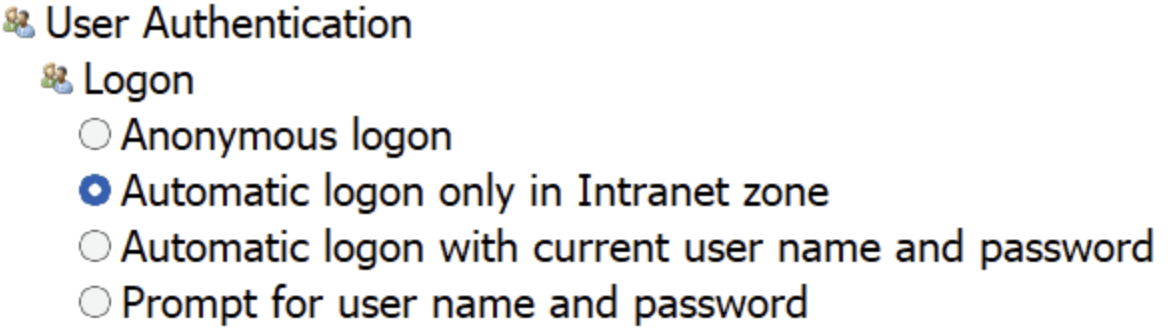
Crucially, NTLM SSO is not today restricted by Windows Security Zone settings like HTTP/HTTPS SSO is:
By default, Windows limits SSO to only the Intranet Zone for HTTP/HTTPS protocols
By default, the MapURLToZone function will connect to the server for a remote filepath to see whether there’s a Zone.Identifier alternate data stream on the target file. This zone check itself potentially leaks NTLM information as a part of that connection.
The MUTZ_NOSAVEDFILECHECK flag prevents the MapURLToZone function from looking for that Zone.Identifier stream, protecting the hash.
However, using MUTZ_NOSAVEDFILECHECK flag on a local file will also prevent your code from detecting that the file was downloaded from the Internet. Oops. What’s an app developer to do? The answer is to call it twice:
// Files outside of the Local Computer, Trusted, and Intranet Zones
// are considered "Untrusted". Avoid connecting to the target
// server unless the URL's Zone is trustworthy.
bool SaferSourceIsUntrusted(LPCWSTR pwszFile)
{
bool fUntrusted = true;
DWORD dwZone = (DWORD)URLZONE_INVALID;
CComPtr<IInternetSecurityManager> pSecMan;
if (SUCCEEDED(CoInternetCreateSecurityManager(nullptr, &pSecMan, 0)))
{
if (SUCCEEDED(pSecMan->MapUrlToZone(pwszFile, &dwZone, MUTZ_NOSAVEDFILECHECK))) {
fUntrusted = (dwZone >= URLZONE_INTERNET);
// For files currently stored in trusted locations,
Does every application need to use this more elaborate SaferSourceIsUntrusted function?
No.
It’s only worthwhile to prevent MapUrlToZone from touching the file in scenarios where nothing else has already touched the file first.
For example, if the user opened Windows Explorer to \\SomeServer\SomeShare and/or double-clicked on SomeMsc.msc, they’ve already performed NTLM SSO on the target SMB server, so stopping MapURLToZone from touching the file isn’t going to improve anything. Similarly, if something called `ShellExecute(‘\\someserver\someshare\Somemsc.msc’), the Shell itself is going to check for that file’s existence (performing SSO) long before the MSC handler application gets a chance to touch the file.
On the other hand, imagine that the Management Console team had created a new Application Protocol that allowed any website to open the management console and pass in a target MSC path. A malicious site could construct a link like so:
In this case, nothing touches the file before the handler application gets the target path. Because the very first thing the Management Console does is check the target file’s Zone, it should then use the enhanced SaferSourceIsUntrusted function to avoid performing an unwanted NTLM SSO and leaking the user’s hash.
Educating Windows About Dangerous File Types
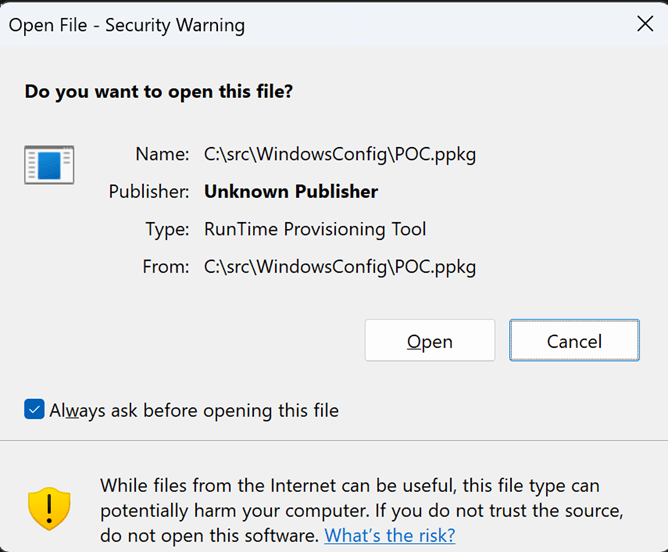
By default, Windows allows most files downloaded from the Internet to be passed to their handler application without warning. However, Windows does show a security prompt when opening a potentially-dangerous (high risk) file type that bears an Internet-Zone Mark-of-the-Web:
If your application introduces support for a potentially dangerous file type, you can inform Windows of the danger level by adding or updating the EditFlags DWORD for the type and adding the FTA_AlwaysUnsafe flag (0x20000).
Stay safe out there!
-Eric
PS: As someone who reads far more code than I write, I really prefer early-exit functions.
// Files outside of the Local Computer, Trusted, and Intranet Zones
// are considered "Untrusted". Avoid connecting to the target
// server unless the URL's Zone is trustworthy.
bool SaferSourceIsUntrusted(LPCWSTR pwszFile)
{
DWORD dwZone = (DWORD)URLZONE_INVALID;
CComPtr<IInternetSecurityManager> pSecMan;
if (FAILED(CoInternetCreateSecurityManager(nullptr, &pSecMan, 0))) return true;
if (FAILED(pSecMan->MapUrlToZone(pwszFile, &dwZone, MUTZ_NOSAVEDFILECHECK))) return true;
if (dwZone >= URLZONE_INTERNET) return true;
// For files currently stored in trusted locations,
// ensure we also look for any MotW storing the
// original source location.
if (FAILED(pSecMan->MapUrlToZone(pwszFile, &dwZone, MUTZ_REQUIRESAVEDFILECHECK))) return true;