Web Proxy Authentication

Last year, I wrote about how the new Microsoft Edge’s adoption of the Chromium stack changed proxy determination away from the Windows Service (WinHTTP Proxy Service) to similar but not identical code in Chromium. This change mostly goes unnoticed, but it can have performance and functionality implications.

In today’s post, I want to explore another side-effect of changing away from the Windows stack– the impact on Proxy Authentication.

Background

When the client is configured to route its traffic through an authenticating proxy server, the proxy responds to any request that does not contain a Proxy-Authorization request header with a HTTP/407 response that demands credentials, specifying the desired authentication scheme using a Proxy-Authenticate header:

The client is expected to resend the request with the requested credentials added in the Proxy-Authorization header.

Browsers tend to support four methods for authentication: the same four used for plain HTTP authentication: Basic, Digest, NTLM, and Negotiate (NTLM+Kerberos). The NTLM and Negotiate schemes are generally much preferred, as they can be configured to authenticate silently without showing a prompt to the user. However, depending on configuration (e.g. not in the right zone, or when the user’s Windows Login Credentials are not the ones the proxy requires), the user might see a proxy-authentication prompt in the browser.

Browser Credential UX

The prompt differs depending on the client; Google Chrome, and until recently Microsoft Edge, show an auth “bubble” anchored to the bottom of the browser address bar UI. In contrast, the latest versions of Edge and Internet Explorer show the battleship gray Windows Hello modal dialog box:

While these experiences are all conceptually similar, they differ in very important ways. First, note that Internet Explorer’s option shows a “Remember my credentials” checkbox while Chrome/Edge do not. Proxy credentials saved by Internet Explorer will be reused without prompting, across browsing sessions and across other applications that use the WinHTTP Proxy Service.

In contrast, in Chrome and older Edge, the proxy credentials prompt is integrated with the browser’s Password Manager. If the user accepts the followup prompt to save the proxy credentials, those credentials will autofill the dialog in future browser sessions. Notably, however, the proxy authentication is not automatic– the user must manually click the Sign in button once per browser session.

Storing a credential in your Edge profile’s password manager only applies to that one browser profile– other profiles and apps do not have access to the credential.

In Edge 88+, this password manager integration was lost in the switch to use the Windows Hello prompt for NTLM/Negotiate. A new policy (WindowsHelloForHTTPAuthEnabled) added to Edge 90 changes Edge’s proxy credentials dialog back to the older dialog.

Other App Credential UX

Support for manually-authenticating proxies outside of browsers has always been terrible, and many Win8 applications didn’t even bother to handle it. Sadly, that shortcoming remains in Windows 10, where you can’t even use the Windows Store when a proxy needs credentials that are not supplied automatically. An generic error page is shown:

However, as mentioned earlier, around IE11 a change was made to push proxy authentication creds entered in Internet Explorer’s proxy authentication prompt into the Windows Credential Manager (CredMan):

As seen in the Control Panel view (Persistence: Enterprise):

Even if you untick the “Remember my credentials” box on the prompt, the entered creds are still remembered for the Windows session (Persistence: Login Session):

As a consequence, users can “unbreak” various Windows scenarios by just using the browser to populate the Credential Manager with the proxy credentials.

We’ve lost that workaround in the new world, because Chromium’s password manager is not integrated with CredMan (for a number of sane1 reasons).

Surface Hub

The Microsoft Surface Hub is a “whiteboard computing” device designed for corporate conference rooms and the like. By default, the Windows logon session on the device uses an account named ComputerName\SurfaceHub, and that account is very unlikely to be supported by an authenticating proxy. To support it, Windows’ Settings applet on Surface Hub has a custom option:

However, this option doesn’t presently do anything for Chromium’s network stack. When Edge gets a Proxy-Authorization: Negotiate challenge from the proxy, it will respond with the credentials for the SurfaceHub account rather than the machine credentials, and the login will likely fail. At present, we don’t have a great workaround for this: it’s probably possible to write a browser extension (catching the onAuthRequired event and responding with non-default credentials) but this won’t pick up the Windows settings.

Other Brokenness

  • We recently fixed a bug in Edge Canary where the browser would crash on startup if the user was behind a manually-authenticated proxy server. A network request triggered very early in browser startup wasn’t prepared for an auth challenge.
  • If you have the Microsoft Office Chrome extension installed, it can (for reasons unknown) automatically cancel the manual proxy authentication dialog before the user has a chance to submit credentials.

In conclusion: Two decades in, support for proxy authentication remains a mess. The feature is required by the networks of some corporate titans (and thus support continues to limp along), but many corner cases remain broken. Consider carefully whether proxy authentication needs to be a part of your network strategy.

-Eric

1 There are several reasons, but one obvious one is that Chromium uses a “profiles” system whereby one Windows logon account may have multiple browser profiles, each of which is independent and does not share data with the others. This precludes direct use of system-level features that do not offer such partitioning.

window.close() Restrictions

Sometimes, Web Developers are surprised to find that the window.close() API doesn’t always close the browser window.

When looking at the Developer Tools console, they’ll see a message like:

Scripts may close only the windows that were opened by them.

Why Do Browsers Limit close()?

Before we dive into what factors govern what happens when close() is called, it’s important to understand why there’s a restriction at all.

While sometimes explained away as nebulous “Security reasons!“, the core reason is more aligned with simple user-experience— users could lose important state in their browser window or “back/forward” stack (in IE, we called this the TravelLog) if a tab or window went away unexpectedly. The user might’ve been using a tab to explore a set of search results, and if one of those results could blow away both itself and the backstack with the search results page, this would be pretty annoying.

There’s a minor anti-abuse/security argument as well– if a browser tab could blow itself away freely, this might be useful as a part of scareware or other user-experience abuses.

What Does the Standard Say?

Here’s what the dom-window-close section of the HTML Standard has to say:

A browsing context is script-closable if it is an auxiliary browsing context that was created by a script (as opposed to by an action of the user), or if it is a top-level browsing context whose session history contains only one Document.

This seems simple enough, although the parts I’ve bolded hide a lot of complexity and nuance. (Most obviously, “what should we do if the script was run in response to an action of the user?“)

What Do Browsers Do?

Unfortunately for us, each browser has a different set of behaviors (explore with this test page), partly because most were implemented before the standard was written.

Internet Explorer

In Internet Explorer, a tab/window will be closed silently if it was created as a result of a JavaScript window.open() call. There’s no attempt to check whether the back/forward stack contains only one document: a tab with a large TravelLog will still close silently if it was opened by script. (IE also allows HTA documents to close themselves without restriction.)

In all other circumstances, the tab/window will not silently close: instead, the user is presented with a one of two modal dialogs, depending on whether the page represents the only tab in the browser window:

Chromium (Microsoft Edge / Google Chrome / etc)

As of Chromium 88, window.close() succeeds if the new window/tab has an opener or if the back/forward stack contains fewer than two entries.

As you can see, there are subtle differences here between what the spec requires and what the browser implements.

First, notice that I said “has an opener” rather than “was created by a script.” Recall that the opener property allows a popup window to refer to the tab that created it.

  • If the user creates a new tab by clicking the frame button, hitting Ctrl+T, Shift+Clicking a link, or launching a URL from the Shell, the resulting new tab doesn’t have an opener set.
  • In contrast, if the tab is opened via open() or hyperlink with a named target (not _blank), then by default, the opener property is set.
  • Any hyperlink may include rel=opener or rel=noopener to specify whether the new tab has an opener set.
  • A open() JavaScript call can specify noopener in its windowFeatures string to set the new tab’s opener to null.

As you can see from the above list, both normal link clicks and JavaScript open() invocations can result in tabs with or without the opener set. This can be very confusing: Shift+click on a link might result in a tab that cannot self-close, while Left-click on that same link results in a tab that can always close itself.

Secondly, notice I said “entries” rather than “Documents.” In most cases, these are equivalent, but they’re not exactly the same. Consider the case where the new tab navigates to a HTML document with a Table of Contents at the top. The user clicks on a ToC link to #Section3 and the browser dutifully scrolls down to that section. The back/forward stack now contains two entries, both pointing to the same document. Chromium blocks window.close(), but it shouldn’t. This longstanding shortcoming was made more visible in Chromium 88, which now gives links targeting _blank the noopener behavior by default.

crbug.com/1170131 tracks fixing this issue by counting the number of Documents in the back/forward stack, but it will be tricky to fix because presently the renderer process running JavaScript has access only to the count of entries in the back/forward stack, not their URLs.

Chromium: User-Experience

When Chrome blocks close(), it emits a notice to the console:

Scripts may close only the windows that were opened by them.

…but there’s no notice to the user, who may be left confused if they clicked on a “Close” button or link inside the page. Recently filed crbug.com/1170034 suggests introducing a dialog box like Internet Explorer’s. (As an aside, it also sets a new standard for bug filing by including comic-book style art showing unhappy users converting to happy users if the proposed feature is landed. :)

Chromium: Exotic Bug Trivia

This is a super-obscure corner case. However, I’ve seen it independently reported against both Chrome and Edge in the span of five years, and it makes me laugh.

If you set Chromium’s On Startup option to “Continue where you left off”, navigate to a page that tries to close itself, and then close the window, the browser will subsequently kill itself on every startup.

It’s hard to get into this state, but it’s still possible in Chrome/Edge 90.

Repro steps: Visit https://webdbg.com/test/opener/. Click the ‘Page that tries to close itself‘ link. Hit Ctrl+Shift+Delete and Clear Browsing History (to clear the back/forward stack). Close the browser with the ‘X’ icon. Now, try to launch the browser from your start menu. Giggle wildly as your browser launches and then blows itself away.

Safari/WebKit

WebKit’s code is similar to Chromium’s (unsurprising, considering their shared lineage) except it does not equate navigations triggered with noopener with those created by browser UI. Thus, in Safari, the user may click between many different same-origin pages and close() is still permitted.

If close() is blocked, Safari’s (well-hidden) JavaScript console shows:

Can't close the window since it was not opened by JavaScript

Firefox

Unlike Chromium, Firefox correctly implements the “only one Document” part of the spec. Firefox calls IsOnlyTopLevelDocumentInSHistory which calls IsEmptyOrHasEntriesForSingleTopLevelPage() which enumerates the history list to check. If there is more than one entry, whether all of the entries are for the same Document. If they are all for the same document, the close() succeeds.

Firefox offers an about:config override setting named dom.allow_scripts_to_close_windows that bypasses the default restrictions.

When Firefox blocks close(), it emits a notice to the console:

Scripts may not close windows that were not opened by script.

There’s an 18 year-old feature request for Firefox to show a confirmation dialog instead of failing silently.

In Conclusion

umm…. browsers are wicked complicated?

-Eric

Sandboxing vs. Elevated Browsing (As Administrator)

The Web Browser is the most security-critical application on most users’ systems– it accepts untrusted input from servers anywhere in the world, parses that input using dozens to hundreds of parsers, and renders the result locally as fast as it can. For performance reasons, almost all code in almost all browsers is written in memory-unsafe languages.

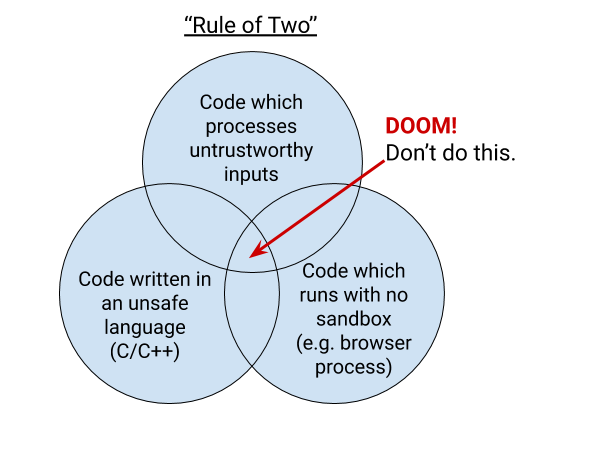
To mitigate this insanity, web browsers perform this chainsaw juggling act inside nested layers of sandboxing. When an attacker inevitably manages to find an exploit, the resulting damage might be contained by the sandbox. Chromium calls this “The Rule of 2”:

alt text

As a consequence, most real-world browser attacks now must include exploits for two vulnerabilities: the original RCE, and a Sandbox Escape.

A web browser uses multiple mechanisms for sandboxing, from “Design sandboxing” (Same-Origin-Policy, limited JavaScript capabilities) to Process Sandboxing (AppContainers, UAC Integrity Levels, Restricted Tokens, etc) to optional VM sandboxing (WDAG).

Process sandboxing arose in the mid-200Xs as a defense-in-depth against Design Sandboxing mistakes – any error in implementation meant that an attacker could achieve arbitrary code execution (RCE) and take over the victim user’s computer.

Windows Vista introduced the notion of UAC Integrity Levels, whereby each system object (including processes) had an integrity level that limited the other objects it could read and write. Internet Explorer 7 built atop the UAC Integrity Levels system and introduced the notion of “Protected Mode” whereby Internet Zone content ran inside a tighter sandbox with decreased write-access to the system. Google Chrome and later versions of IE went much further, with AppContainers and broader process restrictions to make exploitation more challenging and reduce its impact.

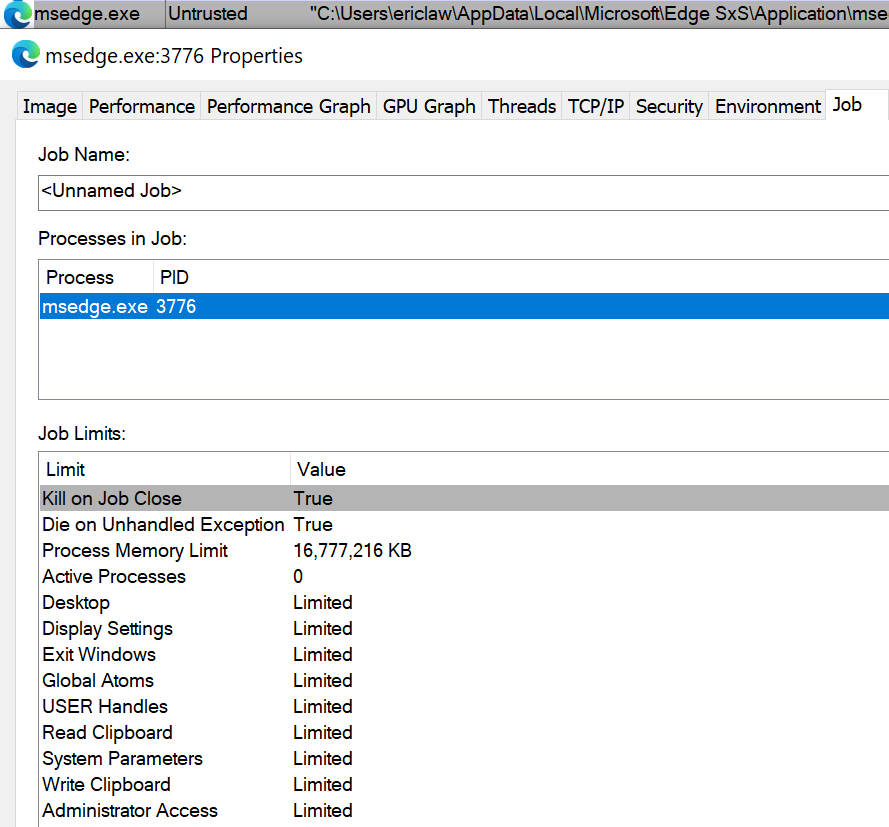
Tools like SysInternals’ Process Explorer allow inspecting some of the sandboxing limitations applied to browsers’ processes. For instance, you can see the Windows Job restrictions applied to this Edge Renderer Process:

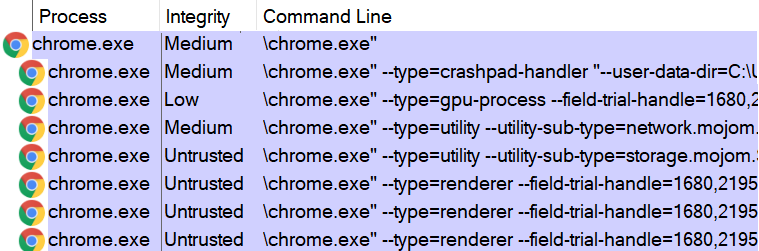
You’ll note that browsers typically use multiple processes with different sandboxing restrictions attached to each. For instance, in a default launch of Chrome, you’ll see that the main browser process launches at the default (“Medium”) Integrity Level, while the GPU process runs at Low Integrity, and the Renderer processes run at Untrusted Integrity (the lowest):

Looking at Internet Explorer, you can see that its main process runs at Medium, an Intranet Zone tab process runs at Medium, and an Internet Zone tab process runs at Low:

If you enable Enhanced Protected Mode, that Internet Zone tab process is further restricted to run in an AppContainer:

Run As Administrator

One interesting difference between Legacy IE and Microsoft Edge/Chrome is the behavior when you “Run As Administrator” (or launch Edge when logged in using the Built-in Administrator account): In the old IE, this resulted in the tab processes running unsandboxed at High IL:

For reasons that are hopefully obvious, running web content outside of a sandbox at High IL is an extremely dangerous configuration.

In contrast to IE behavior, in Edge/Chrome, the browser process, crash handler, and some utility processes run at High IL, but the sandboxed Renderers stay in Untrusted IL processes.

While this is clearly a safer configuration that what Internet Explorer had, the transitive nature of UAC Elevation means that many executables launched by this browser are launched at High Integrity, including Native Messaging Hosts, AppProtocol Handlers, downloaded executables, etc.

Functional Bugs

Beyond the increased security attack surface, there are some functional problems with running a Chromium-based browser at High IL. For instance, if you have AppLocker enabled, you may find that all of your sandboxed renderer processes crash (crbug.com/740132), or that link launches from non-admin processes are ignored (crbug.com/801539#c9). 

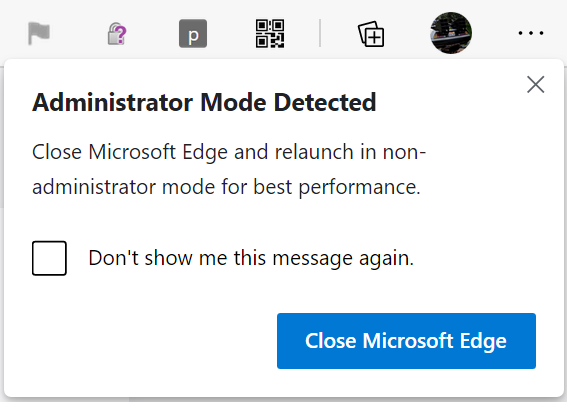
As a result of problems like these, Microsoft Edge will attempt to silently deelevate and relaunch itself when launched as an Administrator, running at Medium IL instead of High. If this feature is disabled (--do-not-de-elevate), Edge will show a warning to help users recognize the unexpected situation:

Administrator Mode Detected balloon in Edge

Generally speaking, there’s no legitimate reason to run your browser at High IL, and you shouldn’t ever do it.

But…

Impact on Windows Integrated Authentication

Recently, I was disappointed to learn that there are some scenarios where running at HighIL is still necessary. These scenarios are based on Windows Integrated Authentication, whereby the web server uses passthrough authentication to pass the user’s Elevated Authentication Token through to some backend service that requires membership in the Administrators group. If the web server receives and passes along the admin user’s non-elevated token (because the browser was run at Medium), the backend services will refuse to undertake the privileged operation.

The fact that such an application architecture ever worked is interesting but a bit bananas.

I’d be much happier with a design whereby this Elevated token passing scenario didn’t have to happen in the browser— either configuration should happen in some non-browser application, or the Service Account could invoke some native UI to collect the admin’s elevated credentials during the specific configuration operation where such credentials are needed. From a layering POV, I’m sure this would be complicated, because the ability of a background service to pop stuff on the admin user’s desktop is intentionally limited.

If you’re depending upon an architecture like this, please stop. Pretty please! It’s fragile: it behaves differently based on the user’s default browser, behaves differently depending on what browser windows the user already has open (launch msedge.exe as Admin doesn’t result in an Elevated browser if Edge was already open), and exposes the user to a greater attack surface if they use the Elevated browser for anything else after finishing with your scenario.

Stay safe (and de-elevated) out there!

-Eric

Objectively, the best cat

On March 15, 2009 we put my cat Jill (Jillian, Jilly, Jilly Bean, Jillkin) to sleep at an emergency vet. We didn’t know for sure why her kidneys failed, but it was sudden and unexpected. At times Jill could be grumpy and stubborn, but she was usually friendly, curious, and she was always very loved. I lamented at the time that it was “never going to be time to feed the monster again,” and we would always miss her. I didn’t expect to have another pet for a long time.

But then life intervened.

A Friday night two weeks later, my fiancée and I were waiting for a movie to start at the Regal theater next to the Crossroads mall in Bellevue. We saw that the Petco store adjacent was hosting some cats for adoption. We had no plans to get a new pet, especially not so soon, but we took a look anyway. I liked the look of a big cat (“Yoda”) snoring lazily in his cage, but Jane preferred a tiny black cat with a shaved belly and a curious face. After looking for a few minutes, we left for our movie.

In our seats, waiting for the previews to end, Jane remarked “She’s black and white. We could call her Domino.” and I spent the rest of subsequent movie impatiently waiting for it to end: the name was so perfect I couldn’t imagine living in a world where it wasn’t hers and she ours. Unfortunately, the pet store closed before our movie ended, but we were back bright and early the next day to adopt her.

A street kitten, under-weight, under-furred and under-age (she was allegedly a year old but plainly was only a few months) she took to her new home immediately; her fur grew in and she eventually stopped chasing her own tail.

Domino was playful and alert, and always pushing boundaries. We let her out a few times, but she kept getting hurt, one time returning with teeth marks on both sides of her little ribs suggesting that a dog had gotten its jaws around her entire body. After that, she was confined to our new deck– as soon as she stepped off, we’d pick her up and put her back on it. She clued in and began keeping a single paw arched back to the bottom step of the deck, her other three triumphantly planted in the grass. It was soon a common sight, one so comical that it was ingrained in my memory to the point that I never bothered to take a picture. I’d’ve never believed if I hadn’t seen it.

Unlike many cats who are standoffish or aloof, Domino was empathic– if we ever cried or even sounded sad, she’d immediately appear and start rubbing up against us, a furry friend without advice, just love. We bought her a fancy bed, but she never wanted to sleep in it– she always snuggled up to us instead.

When we moved from Seattle to Austin in 2012, we decided to drive rather than fly to make the trip easier on her– drugging her for a flight seemed cruel and unnecessary. A day into the trip, we realized what an error we’d made… she spent the first two days of the trip hiding in the back of the car, climbing up to the dashboard to peer out, then, terrified at America whizzing by at 75mph, jumping into the back or a lap to lay back down. This process repeated every few minutes until she’d fall asleep for short naps.

By the third day, she was plainly miserable; when we finally rolled into our new driveway, the first order of business was to let her out to explore her new back yard. Her backyard explorations were rare after that– we’d seen coyotes and snakes in the neighborhood, and between those threats and the blazing Texas summers, she was happy enough as an indoor cat. An occasional foray into the backyard to nibble some grass or roll around on the patio seemed to keep her happy.

We grew up together.

In 2013, we nervously brought our first son home, worried about how Domino might react. She kept her distance. In fact, if anything, she seemed terrified, avoiding both his crib and her food bowl. Her odd behavior went on for a few days until I finally figured out what had happened.

Tied to newborn Noah’s car seat floated a congratulatory Mylar balloon, and having never seen one, Domino was terrified of it. I foolishly made the mistake of trying to carry her over to it to show her that it was nothing to be afraid of. She clawed her way out of my arms, over my shoulder, and down my back, peeing the whole way. Later that afternoon, Noah peed all over me as I changed his diaper, and I joked that it was “pee on Dad day.”

After we got rid of the balloon, Domino was the perfect big sister, tolerating a toddler who would occasionally pull her tail or chase her around, never lifting a paw against him no matter how rough he wanted to play. Her patience continued with our second son, and it paid off– as they grew up, the boys were always happy to snuggle, pet her, and build increasingly elaborate cat forts out of whatever cardboard boxes they could get their hands on. She humored them and snuggled them every chance she got.

But she snuggled with all of us, including sleepy mom and dad.

When my wife asked me to move out a year ago, there wasn’t much debate — our cat was coming with me. Domino kept me company through the roughest pandemic year alone in a new home. Two or three other cats in my new neighborhood roamed free and Domino noisily defended her turf through the windows. As the weather cooled down, she started keeping me company on the porch, and then demanding to go out between dinner and bedtime. A month ago, she went out late and didn’t come back until first light, banging on my bedroom window and demanding breakfast.

So I didn’t think too much about it as I acceded to her demands and let her out the back door at around 11pm the night of November 9th, 2020. “Be good. Don’t get in trouble!” I admonished as always. At 12:30am, I checked for her, but she wasn’t around, so I reluctantly went to bed.

I woke up a few times in the night and checked for her, but she wasn’t around. When I woke up at 8am, I was officially worried. By the afternoon, I was papering the neighborhood with posters, updating the contact info for her microchip, and learning about all of the web resources for reuniting lost pets (some of which are pretty cool).

Going to bed alone that night with her still at large was hard. And it hasn’t gotten any easier over the last week, no matter how many posters I’ve put up, or web postings I’ve scoured.

o

Sounds like a great cat, huh? Well, you haven’t heard the real story yet.

Back when Noah was four, his right knee started swelling. We assumed it was bruising from a fall, but he didn’t complain about pain and the swelling didn’t go down in weeks. A series of doctors’ visits, scans, and a fully-anesthetized MRI led to a diagnosis of PVNS, a non-cancerous tumor that nonetheless would require major surgery on both the front and back of Noah’s knee. The expert doctor at Dell Children’s Hospital assured us that it was as clear a case as he’d ever seen, and we needed to do the surgery soon to ensure that Noah’s leg would grow normally. I pushed for doing the operation right away, but Jane suggested we do it later in the fall so that Noah would be able to recover without the temptations of the swimming pool and other summer fun.

Around this time we noticed Domino had developed a large growth (about the size of a large marble) in her neck, a recurrence of a problem (keratin buildup?) she’d had previously. We hoped she’d get better on her own again this time, as we had bigger worries now.

Throughout August and September, Noah would watch cartoons on the couch, and Domino would lay her swollen chin on his swollen knee. When it came time to go back to the hospital for Noah’s operation, the doctor was gobsmacked– the mass was completely gone. He had no explanation– he’d never seen anything like it. The doctor asked us to do an MRI in an attempt to figure out what had happened, but after confirming that Noah wouldn’t need surgery and an MRI wouldn’t change anything for his diagnosis, we declined. We were overwhelmed with relief. Domino’s growth disappeared too.

I’m not saying my cat cured my son (and vice-versa), but our best doctors don’t seem to be in a position to say that’s not what happened either.

I miss my friend.

Simply Making Simple Fixes Simple for Chromium

Google recently introduced a cool web-based editing tool for Chromium source code, a very stripped down version of the Willy Wonka tooling Googlers get to use for non-Chromium projects.

I’ve used this tool to submit two trivial change lists (CLs, aka PRs) to Chromium, but I was curious about whether this new feature would work for something not completely trivial, and while remaining simpler than the full Checklist for contributing to Chromium.

Let’s try it.

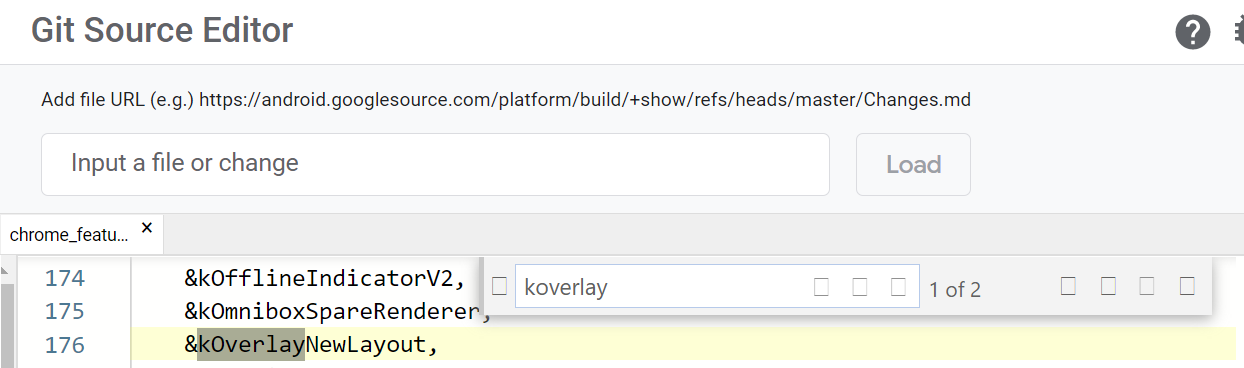
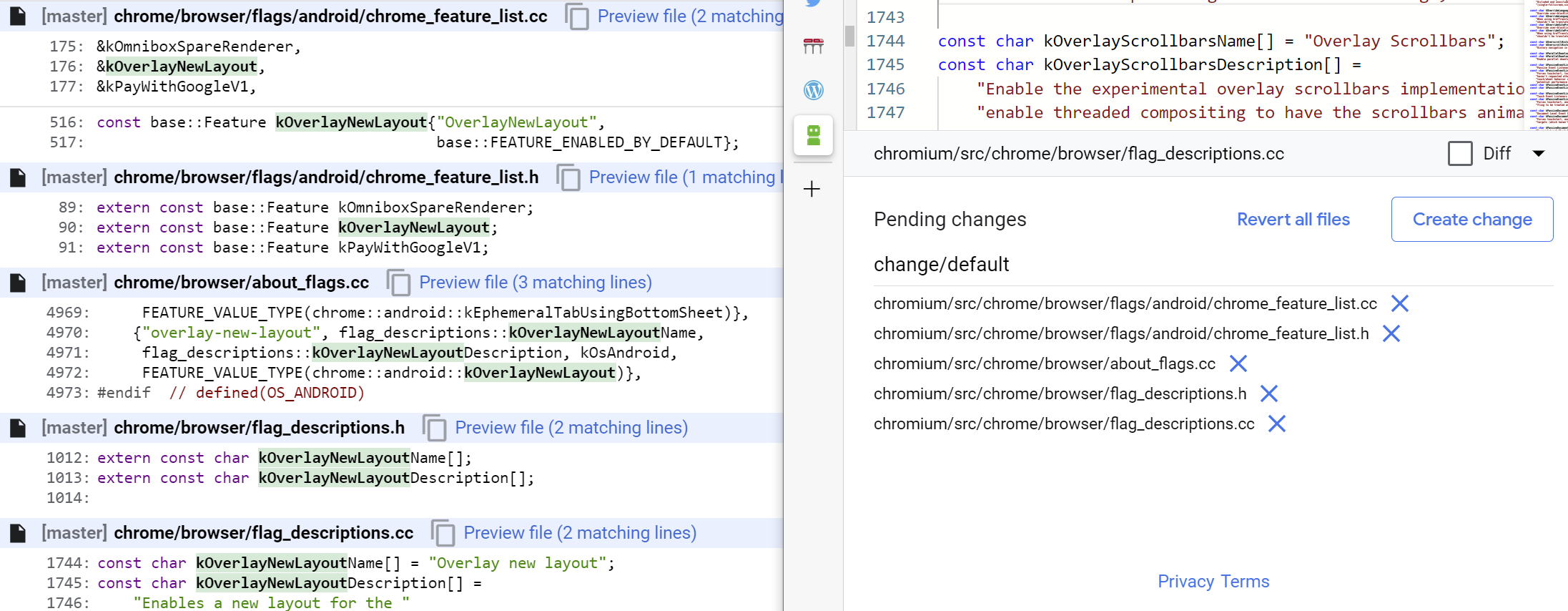
First, find an Available GoodFirstBug. Say, this one to remove an expired flag. Let’s search for the flag. Not too many hits:

Let’s click into the first hit to open it. Click Edit Code at the top right:

A web-based code editor opens:

Remove the &kOverlayNewLayout line and the function that references it later in the file. Use the navigation panel on the left to open the .h file corresponding and remove the declaration of the feature.

Open about_flags.cc and remove the lines referencing the flag:

Note that this will create orphan variables for the flag_descriptions that we need to go delete too. Go delete those from the flag_descriptions.cc and flag_descriptions.h files.

At this point, your Pending Changes pane contains all of the files with all of the hits that came up in the search.

If we think we’re done, we can go hit the Create Change button to actually create the change for review.

However, suspiciously, we haven’t actually found anything that respects the Feature we removed. If we instead search for OverlayNewLayout we see an additional hit appears:

Having worked on stuff like this before, I know that there’s some magical marshalling of feature values from C++ into Java-land (Android’s UI layer). So we need to go eliminate the use of the Java-side feature. Search for OVERLAY_NEW_LAYOUT.

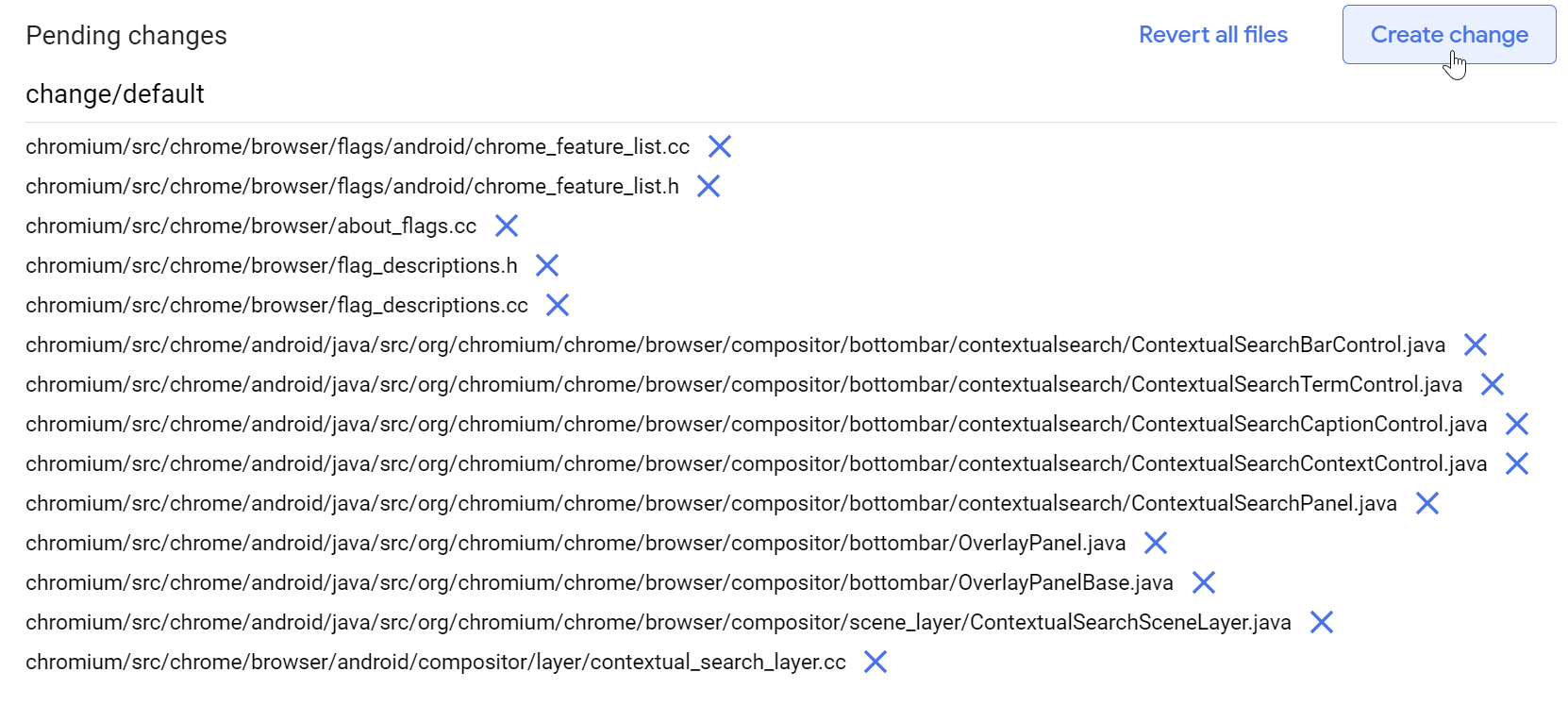
Oof. There are 8 more files: 7 are Java and one is a similarly-named variable in a CC file. (It’s a variable in C++ code that set based on the feature’s state from the Java-side based on a resource ID. Sneaky sneaky).

Worse, one of the early hits is this one:

… So we also need to remove this function entirely and update all of its callers to not check it. Fortunately, only two more files have references, but clearing up some of those implies that we might have resources that will become unused:

When we’re done pulling all the threads, the change has grown pretty big. Click Create change to put all of our changes together into a change list:

In the dialog that appears, enter a description of the changelist and click Create:

After a minute or so, a notice will appear:

Sadly, it’s not a hyperlink, but if you look down at the bottom of the editor, you’ll find a direct link to the Chromium Code Review site, where you can find the created change. After the CL is prepared, you can add reviewers for a code review, ask anyone with Try Permissions to run your change through the bots, and otherwise follow the process for contributing to Chromium.

If you need to modify a change after you’ve created a CL, you can do so using the Edit link on the Code Review Site. Push the button:

… then use the new commands down near the file list to modify (or add) files in the CL:

A few observations from this process:

1. A lot of Chromium GoodFirstBug‘s are much more complicated than they appear. This one required a followup CL to remove 400 more lines!

2. This new web-editing workflow is great for trivial fixes, but very limited. Most importantly, if you need to use any advanced tools (e.g. source formatting, manual code generators, presubmit checks, etc), you’ll need to download your CL from the code review site to use the tools on it.

3. Multi-file changes are challenging. It would be awesome to be able to just click “Edit Code” from the Chrome Source Viewer on multiple files and have them all open in the same “in-progress” change set, but it doesn’t seem to work like that (yet?). You must manually find all files after the first one in the editor’s sidebar.

I’m excited to see how Chromium’s Edit Code feature evolves.

-Eric

PS: When making downstream changes to Microsoft Edge, our internal process is somewhat similar, but this flow is a bit less intuitive. The biggest stumbling block is that when you go to commit, AzDO will complain TF401027: You need the Git 'CreateBranch' permission. To fix this, you need to name your branch with a prefix of “user/“, e.g. user/ericlaw/remove-old-policy. You’ll likely need to find a suitable reviewer by looking at MSOwners files (~replicating git ms owners) or by looking at file history to see who else touched it. You will also need a Proof-of-Presence YubiKey token (or ask a reviewer to use theirs) to land the change.