Debugging Browsers – Tools and Techniques

Last update: November 14, 2023

Earlier this year, I shared a post on how you can become an expert on web browsers from the comfort of your desk… or anywhere else you have an internet connection. In that post, I mostly covered how to search through the source, review issue reports, and find design documentation. I also provided a long list of browser experts you might consider following on Twitter.

In today’s post, I’d like to give a quick summary of some of the tools and techniques I use for diagnosing browser problems.

The Importance of Observation

Specs lie. Code misleads. Everything changes over time. Observation reveals what’s actually going on– not what the PM designed, or the Dev intended. If you want to know how something is going to behave, just try it!

This image has an empty alt attribute; its file name is image-16.png

It ain’t what you don’t know that gets you into trouble. It’s what you know for sure that just ain’t so. -various

In many cases, the fastest route to troubleshoot problems is to observe exactly what is happening on the network, disk, or screen and only then start looking at code and specs to figure out why.

Built-in Tools

The F12 Developer Tools (just hit F12) are tremendously useful for determining why a given website behaves in a certain way. In many cases, the DevTools Console will flag an observed problem with a helpful error message. I don’t know of a great tutorial, but there are likely some on YouTube. One non-obvious feature of the DevTools is that you can use a Desktop browser’s DevTools to remote debug a browser running on a mobile device. Another fun fact is that you can use DevTools to debug themselves and some other browser UI.

Chromium’s NetLogs (see chrome://net-export ) contain tons of detailed information about almost every aspect of networking, as well as other useful diagnostic data (the user’s enabled extensions, field trial experimental settings, etc). You can analyze NetLogs using a variety of free tools.

Chromium Tracing (see chrome://tracing ) allows you to diagnose performance issues in Chromium-based browsers using extremely in-depth tracelog data. Analysis of these logs isn’t for the faint-of-heart.

Chromium Histograms (see chrome://histograms) enables you to see events logged by Chromium to be sent to the browser vendor for analysis and detection of problems. For example, when troubleshooting missing cookies, you might look at the Histograms page to see if there’s a Cookie.LoadProblem value indicating that the Cookie database file failed to load, or the OSCrypt values to see whether there was a problem loading the decryption key for that database.

Chromium Logging (using the --enable-logging command line argument) is useful in diagnosing a number of internal issues in Chromium subsystems. Collecting and analyzing these logs is non-trivial, but is sometimes the fastest way to root-cause tricky problems. See the following resources:

Chromium includes over 20 Internals Pages that allow you to view detailed information about media playback, data sync, and other features. Visit chrome://chrome-urls and search for -internals to see the list.

Browser Extensions

The VisBug Chrome Extension – Easily manipulate any page layout, directly in your browser.

postMessage Debugger – This extension prints messages sent with postMessage to the console.

Extension source viewer – View the source of browser extensions directly from the Web Store listing.

Cross-Platform Tools

WireShark allows packet-level analysis of network traffic. This can be useful in rare cases where a network bug depends on the exact packet size and timing.

The Fiddler Web Debugger allows import of NetLog and HAR traffic captures, and enables losslessly capturing requests and responses from any browser. While Fiddler Classic is (effectively) Windows-only, Fiddler Everywhere runs on Windows, Mac, and Linux.

Windows Tools

If you need to watch file or registry key creation/read/write/deletion, or thread/process creations and exits, then Sysinternals Process Monitor has got your back. For instance, this helped us easily root cause a bug where launching a Chromium-based browser would delete a file owned by Chrome.

If you want to explore information about process sandboxing, startup parameters, Job limits, etc, then Sysinternals Process Explorer is the tool to use. For instance, this helped us track down a problem where a browser window was unexpectedly appearing. The user simply closed all browser instances, then waited for an unexpected browser to appear. Then, they looked at the process tree to see what application started it. For instance, in this case, Edge was launched by sr.exe:

If you need to debug a scenario involving drag/drop or copy/paste, you can use ClipSpy (binary only) or NirSoft InsideClipboard.

Bisecting

Bisecting is the process of making a repeated set of observations to determine the build in which a problem appeared (or disappeared). From there, you can easily assign bugs to the right owners for rapid fixes.

See the Bisect Regressions section of this post for details on how to use Chromium’s bisect-builds.py script (which does not require you to build Chromium or download all of its tools and source code) to bisect problems. Here’s another bisection case-study.

I’m sure there are a hundred great tools I’ve omitted. This post will grow over time. If you’ve got a suggestion for a great diagnostic tool, share with us!

-Eric

Local Data Encryption in Chromium

Back in February, I wrote about browser password managers and mentioned that it’s important to understand the threat model when deciding how to implement features and their security protections.

Generally speaking, “keeping secrets from yourself” is a fool’s errand, so it’s a waste of time and effort to encrypt data if you have to store the decryption key in a place that’s accessible to the attacker. That’s one reason why physically local attacks and machines infected with malware are generally outside the browser’s threat model: if an attacker has access to the keys, using encryption isn’t going to protect your data.

Web browsers store a variety of highly sensitive data, including credit card numbers, passwords and cookies (often containing authentication tokens functionally equivalent to passwords). When storing this extra-sensitive data, Chromium encrypts it using AES256 on Windows (AES128 on Linux/Mac), storing the encryption key in an OS storage area. This feature is called local data encryption. Not all of the browser’s data stores use encryption– for instance, the browser cache does not. If your device is at risk of theft, you should be using your OS’ full-disk encryption feature, e.g. BitLocker on Windows.

The profile’s encryption key is protected by OSCrypt: On Windows, the OS Storage area is a DPAPI-encrypted blob1; on Mac, it’s the Keychain; on Linux, it’s Gnome Keyring or KWallet.

Notably, all of these OS storage areas encrypt the AES key using a key accessible to (some or all2) processes running as the user– this means that if your PC is infected with malware, the bad guys can get decrypted access to the browser’s storage areas.

However, that’s not to say that Local Data Encryption is entirely without value– for instance, I recently came across a misconfigured web server that allowed any visitor to explore the server owner’s profile (e.g. c:\users\sally), including their Chrome profile folder. Because the browser key in the profile is encrypted using a key stored outside of the Chrome profile, their most sensitive data remained encrypted.

Similarly, if a laptop isn’t protected with Full Disk Encryption, Local Data Encryption will make a thief’s life harder.

Tradeoffs?

Okay, so Local Data Encryption might be useful. What are the downsides?

The obvious tradeoff is simple and mild: There’s always a performance cost to encrypting and decrypting data. However, AES is extremely fast (>1GB/sec) on modern hardware, and the data size of cookies and credentials is relatively small.

The bigger risk is complexity: If something goes wrong with either of the keys (the browser’s key that encrypts the data or the OS’s key that encrypts the browser’s key), then the user’s cookie and credential data will be unrecoverable. The user will be forced to re-log into every website and re-store all of the credentials in their password manager (or recover their credentials from the cloud using the browser’s sync feature).

Unfortunately, I seem to be a magnet for such problems.

On Mac, Edge recently had a problem where the browser would fail to get the browser key from the OS keychain. The browser would offer to wipe the keychain (losing all of your data), but ignoring the error message and restarting would typically correct the problem. A fix for that bug was recently issued.

On Windows, DPAPI failures are typically silent– your data disappears with nary a message box.

When I first rejoined Microsoft in 2018, a bug in AAD meant that my OS DPAPI key was corrupted, causing Chromium-based browsers to cause lsass to spin a CPU core forever when they launched. Troubleshooting this problem required months of effort.

More recently, we’ve heard from some users on Windows 10 that Edge and Chrome forget their data frequently (and similar effects are seen in other DPAPI-using applications).

Users in this state who visit chrome://histograms/OSCrypt in Chrome or Edge in the browser session where they first notice their sensitive data has gone missing will see an entry inside OSCrypt.Win.KeyDecryptionError with a value of -2146893813 (NTE_BAD_KEY_STATE), indicating that the OS API was unable to use the currently logged-in user’s credentials to decrypt the browser’s encryption key:

Fortunately (for us, not for him), this problem hit one of the best engineers in the world, and he was able to develop a solid theory of the root cause of the problem. If you find your system in this state, try running the following command in PowerShell:

Get-ScheduledTask | foreach { If (([xml](Export-ScheduledTask -TaskName $_.TaskName -TaskPath $_.TaskPath)).GetElementsByTagName("LogonType").'#text' -eq "S4U") { $_.TaskName } }

This will list off any scheduled tasks using the S4U feature suspected of causing the incorrect DPAPI credentials:

Update: The S4U bug was fixed for Windows 10 2004 and 20H2 as a part of the February 2021 Windows Updates.

-Eric

1 Windows’ DPAPI itself uses AES256/SHA2 to encrypt the blob for non-Domain user accounts, but defaults to 3DES/SHA1 for Domain accounts. Administrators who do not need legacy compatibility for their domain users may specify algorithm ids in registry keys to choose among RC4/SHA1, 3DES/SHA1 and AES256/SHA512. You can learn more about hacking DPAPI here.

2 The question of which processes can ask the OS to decrypt the browser’s key is a somewhat interesting one. On Windows, Chromium’s use of DPAPI’s CryptProtectData allows any process running as the user to make the request; there’s no attempt to use additional entropy to do “better” encryption, largely because there’s nowhere safe to store that additional entropy. On modern Windows, there are some other mechanisms that might provide somewhat more isolation than raw CryptProtectData, but full-trust malware is always going to be able to find a way to get at the data. Mid-2024 Update: The Chrome team has introduced an AppBound Encryption feature that locks down the storage on Windows more tightly.

On Mac, the Keychain protection restricts access to data such that it’s not accessible to every process running as the user, but this doesn’t mean the data is immune from malware. Malware on Mac must instead use Chrome as a sock-puppet, having it perform all of the data decryption tasks, driving it via extensibility interfaces or other mechanisms.

The overall threat model against local attackers is further complicated by the mechanisms and constraints of process isolation: for instance, attackers can dump the memory of a browser process, or inject threads into that process, enabling malware to steal the data after the browser has decrypted it.

Mobile platforms (iOS/Android) tend to have the strongest story here, with more robust process isolation, code-signing requirements, hardware-backed secure enclaves that require biometrics for release, etc.

Web Debugging: Watching Element Changes

Recently, I was debugging a regression where I wanted to watch change’s in an element’s property at runtime. Specifically, I wanted to watch the URL change when I select different colors in Tesla’s customizer. By using the Inspect Element tool, I can find the relevant image in the tree, and then when I pick a different color in the page, the Developer Tools briefly highlight the changes to the image’s attributes:

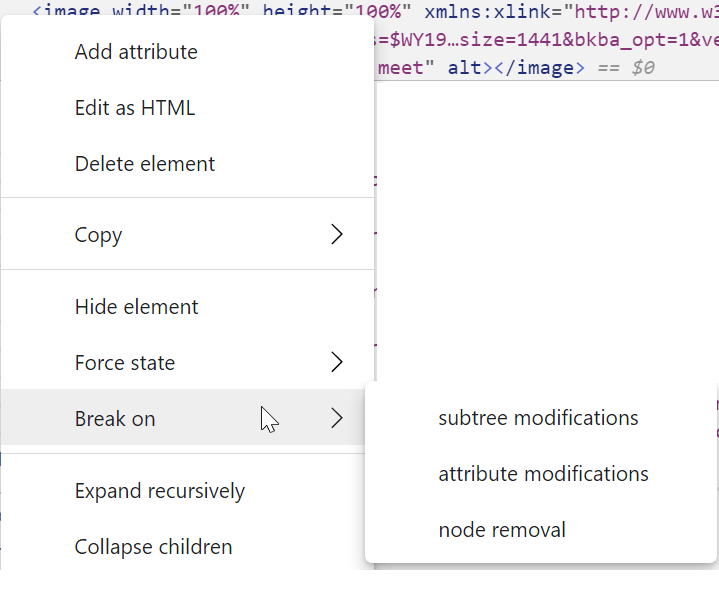
Unfortunately, you might notice that the value in the xlink:href property contains a ... in the middle of it, making it difficult to see what’s changed. I noted that the context menu offers a handy “Break on” submenu to break execution whenever the node changes:

…but I lamented that there’s no Watch attribute command to log the changing URLs to the console. Mozillian April King offered a helpful snippet that provides this functionality.

After selecting the image (which points Console variable $0 at the element), type the following in the Console:

new MutationObserver(i => console.log(i[0].target.attributes['xlink:href'])).observe($0,
{ attributes: ['xlink:href']});

This simple snippet creates a MutationObserver to watch the selected element’s xlink:href attribute, and every time it changes, the callback writes the current attribute value to the console:

Cool, huh?

Thanks, April!

-Eric

Browser Memory Limits

Last Update: November 29, 2023

Web browsers are notorious for being memory hogs, but this can be a bit misleading– in most cases, the memory used by the loaded pages accounts for the majority of memory consumption.

Unfortunately, some pages are not very good stewards of the system’s memory. One particularly common problem is memory leaks– a site establishes a fetch() connection to retrieve data from an endless stream of data coming from some webservice, then subsequently tries to hold onto the ever-growing response data forever.

Sandbox Limits

In Chromium-based browsers on Windows1 and Linux, a sandboxed 64-bit process’ memory consumption is bounded by a limit on the Windows Job object holding the process. For the renderer processes that load pages and run JavaScript, the limit was 4gb back in 2017 but now it can be as high as 16gb (UPDATE: 1TB as of 2023):

int64_t physical_memory = base::SysInfo::AmountOfPhysicalMemory();
    ...
    if (physical_memory > 16 * GB) {
      memory_limit = 16 * GB;
    } else if (physical_memory > 8 * GB) {
      memory_limit = 8 * GB;
    }

If the tab crashes and the error page shows SBOX_FATAL_MEMORY_EXCEEDED, it means that the tab used more memory than permitted for the sandboxed process2.

The sandbox limits are so high that exceeding them is almost always an indication of a memory leak or JavaScript error on the part of the site.

Running out of memory

Beyond hitting the sandbox limits, a process can simply run out of memory– if it asks for memory from the OS and the OS says “Sorry, nope“, the process will typically crash.

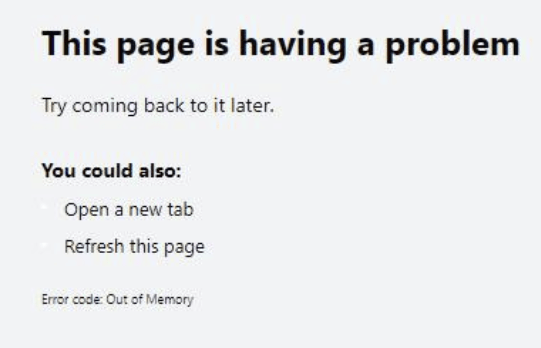
If the tab crashes, the error code will be rendered in the page:

Or, that’s what happens in the ideal case, at least.

If your system is truly out of free memory, all sorts of things are likely to fail– random processes around the system will likely fall over, and the critical top-level Browser process itself might crash, blowing away all of your tabs.

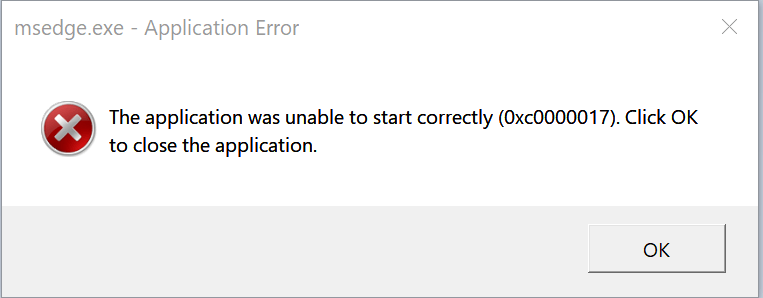
In my case, the crash reporter itself crashes, leading to this unfriendly dialog:

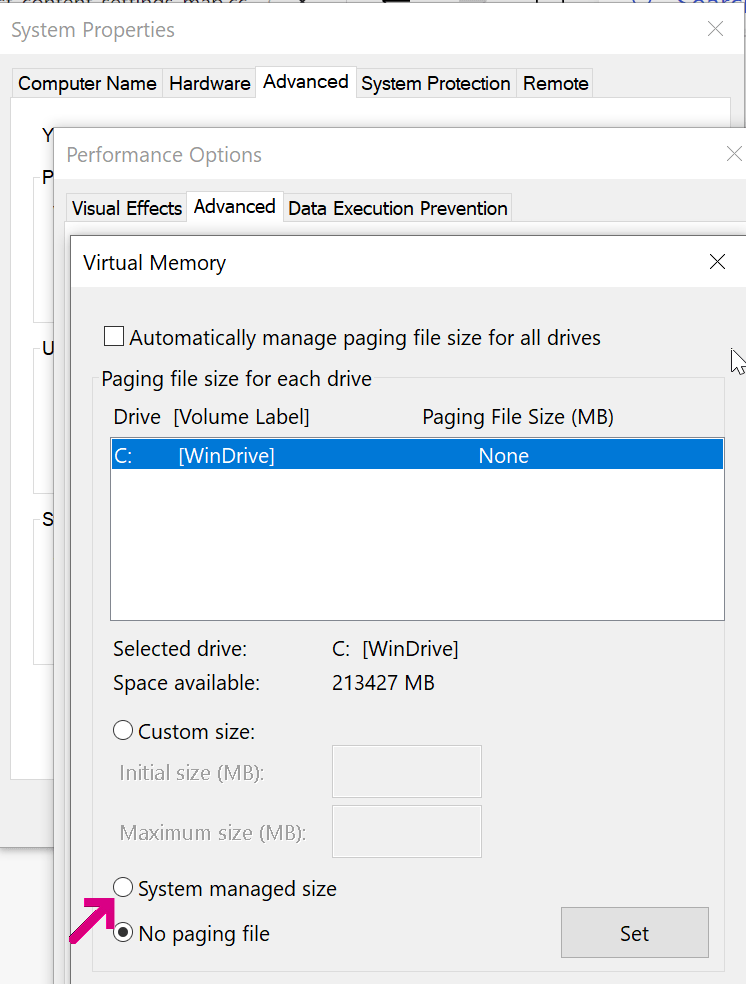
To make these sorts of catastrophic crashes less likely, allow Windows to manage the size of your page file.

Turning off OS page file as I had in the screenshot above means that when your last block of physical memory is exhausted, rather than slowing down, random processes on your system will fall over.

32bit Processes and Fragmentation

Notably, no sandbox limit is set for a 32bit browser instance; on 32-bit Windows, a 32bit process can almost always only allocate 2gb (std::numeric_limits::max() == 2147483647) before crashing with an OOM. For a 32-bit process running on 64bit Windows, a process compiled as LargeAddressAware (like Chromium) can allocate up to 4GB.

32-bit processes also often encounter another problem– even if you haven’t reached the 2gb process limit, it’s often hard to allocate more than a few hundred megabytes of contiguous memory because of address space fragmentation. If you encounter an “Out of Memory” error in a process that doesn’t seem to be using very much memory, visit chrome://version to ensure that you aren’t using a 32 bit browser.

Limits

Alex Gough from Chromium (subsequently updated by others) provided the following breakdown of other memory-related limits for Windows/Linux:

Q: Wait, what’s a “cage”?

A: See the comment block here. The general idea is that there can be performance and security benefits to allocating objects in different ways than a simple memory allocation of the needed size for the object and the associated pointer to the address of that object. These strategies do, however, impact the size and number of objects that can be allocated.

Renderer Test Page and Tooling

I’ve built a Memory Use test page that allows you to use gobs of memory to see how your browser (and Operating System) reacts. Note that memory accounting is complicated and sneaky: ArrayBuffers aren’t considered JavaScript memory, and on Mac Chromium, they’re not backed by “real memory” until used.

You can use the Browser Task Manager (hit Shift+Esc on Windows or use Window > Task Manager on Mac) to see how much memory your tabs and browser extensions are using:

You can also use the Memory tab in the F12 Developer tools to peek at heap memory usage. Click the Take Snapshot button to get a peek at where memory is being used (and potentially wasted):

Using lots of memory isn’t necessarily bad– memory not being used is memory that’s going to waste. But you should always ensure that your web application isn’t holding onto data that it will never need again.

Chromium has a design doc on the challenges of accounting for memory: https://chromium.googlesource.com/chromium/src/+/HEAD/docs/memory/key_concepts.md.

Memory: Use it, but don’t abuse it.

-Eric

1 Due to platform limitations, Chromium on OS X does not limit the sandbox size.

2 The error code isn’t fully reliable; Chrome’s test code notes:

// On 64-bit, the Job object should terminate the renderer on an OOM.
// However, if the system is low on memory already, then the allocator
// might just return a normal OOM before hitting the Job limit.

3 Starting with M92, the shared pointer compression cage means that all V8 Isolates in a given process share a common 4 GB reservation. This change was made in preparation for the shared structs proposal.

Web-to-App Communication: The Native Messaging API

Note: This post is part of a series about Web-to-App Communication techniques.

One of the most powerful mechanisms for Web-to-App and App-To-Web communication is to use an extension that utilizes the NativeMessaging API. The NativeMessaging API allows an extension running inside the browser to exchange messages with a native-code “Host” executable running outside of the browser sandbox. That Host executable runs with the full privileges of the current user account, meaning that it can show UI, make network connections, read/write to any files to which the user has access, call privileged APIs, etc.

The NativeMessaging approach requires installing both a native executable and a browser extension (e.g. from the Chrome or Edge Web Store). Web pages cannot themselves communicate directly with a NativeMessaging host, they must use message passing APIs to communicate from the web page to the Extension, which then uses NativeMessaging to communicate with the executable running outside of the browser. This restriction adds implementation complexity, but is considerably safer than historical approaches like ActiveX controls with elevated brokers.

Microsoft ships a have a few features implemented by Native Messaging:

  • Win10 Accounts extension
  • Microsoft Defender Purview extension
  • A SharePoint/OneDrive extension
  • Outlook Web Access’ SMIME extension
  • A WDAG extension

Implementing the Host Executable

The browser launches1 the Host executable in response to requests from an extension. On Windows, two command-line arguments are passed to the executable: the origin of the extension, and the browser’s HWND.

From the native code executable’s point-of-view, messages are received and sent using simple standard I/O streams. Messages are serialized using UTF8-encoded JSON preceded by a 32bit unsigned length in native byte order. Messages to the Host are capped at 4GB, and responses from the Host returned to the extension are capped at 1MB.

Hosts can be implemented using pretty much any language that supports standard I/O streams; using a cross-platform language like Go or Rust is probably a good choice if you aim to run on Windows, Mac, and Linux.

Avoid A Footgun
Be sure to set your streams to binary mode, or you might miscompute the data length prefix if the data contains CR/LF characters, causing Chromium to think your message was malformed.

_setmode(_fileno(stdin), _O_BINARY);
_setmode(_fileno(stdout), _O_BINARY);

Open-source examples of Native Messaging hosts abound; you can find some on GitHub, e.g. by searching for allowed_origins. For instance, here’s a simple one written in C#.

Registering the Host

The Native Messaging Host (typically installed by a downloaded executable or MSI installer) describes itself using a JSON manifest file that specifies the Extensions allowed to invoke it. For instance, say I wanted to add a NativeMessaging host that would allow my browser extension to file a bug in a local Microsoft Access database. The registration for the extension might look like this:

{
  "name": "com.bayden.moarTLSNative",
  "description": "MoarTLS Bug Filer",
  "path": "C:\\Program Files\\MoarTLSBugFiler\\native_messaging_host_for_bug_filing.exe",
  "type": "stdio",
  "allowed_origins": ["chrome-extension://emojohianibcocnaiionilkabjlppkjc/"]
}

On Windows, the host’s manifest is referenced in the registry, inside \Software\Microsoft\Edge\NativeMessagingHosts\ under either the HKLM or HKCU hive. By default, a reference in HKCU overrides a HKLM reference. For compatibility reasons (enabling Chrome Web Store extensions to work with Edge), Microsoft Edge will also check for NativeMessagingHosts registered within the Google Chrome registry key or file path:

On other platforms, the manifest is placed in a well-known path.

User-Level vs. System-Level Registration

Writing to HKLM (a so-called “System Level install”) requires that the installer run with Administrator permissions, so many extensions prefer to register within HKCU so that Admin permissions are not required for installation. However, there are two downsides to “User Level” registration:

  1. It requires every user account on a shared system to run the installer
  2. It does not work for some Enterprise configurations.

The latter requires some explanation. The Microsoft Edge team (and various other external organizations) publish “Security Baseline” documents that give Enterprises and other organizations advice about best practices for securely deploying web browsers.

One element in the Microsoft Edge team’s baseline recommends that enterprises policy-disable support for “user-level” Native Messaging host executables. This policy directive helps ensure that native code executables that run outside of the browser sandbox were properly vetted and installed by the organization (and have not been installed by a rogue end-user, for instance). The specific mechanism of enforcement is that a browser with this policy set will refuse to load a NativeMessagingHost unless it is registered in the HKLM hive of the registry; HKCU-registered hosts are simply ignored.

In order for Enterprises to deploy browser extensions that utilize NativeMessaging with NativeMessagingUserLevelHosts policy-disabled, such extension installers must offer the option to register the messaging host in HKLM. Those System-level installers will then require Admin-elevation to run, so it’s probably worthwhile to offer either two installers (one for User-level installs and one for System-level installs) or a single installer that elevates to install to HKLM if requested.

Calling the NativeMessaging Host

From the JavaScript extension platform point-of-view, messages are sent using a simple postMessage API.

To communicate with a Native Messaging host, the extension must include the nativeMessaging permission in its manifest. After doing so, it can send a message to the Host like so:

var port = chrome.runtime.connectNative('com.bayden.moarTLSNative');
port.postMessage({ url: activeTabs[0].url });

When the connectNative call executes, the browser launches the native_messaging_host_for_bug_filer.exe executable referenced in the manifest. The subsequent postMessage call results in writing the message data to the process’ stdin I/O stream. If the process responds, port‘s onMessage handler fires, or if the process disconnects, the onDisconnect handler is invoked.

Update: I built a GUI debugger for Native Messaging:


NativeMessaging is a remarkably powerful primitive for bi-directional communication with native apps. Please use it carefully– escaping the browser’s sandbox means that careless implementations might result in serious security vulnerabilities.

-Eric

1 As of Chromium 87, the way the executable is invoked on Windows is rather convoluted (cmd.exe is used as a proxy) and it may fail for some users. Avoid using any interesting characters (e.g. & and @) in the path to your Host executable, and be aware that Native Messaging will not work if the customer’s environment disables cmd.exe.