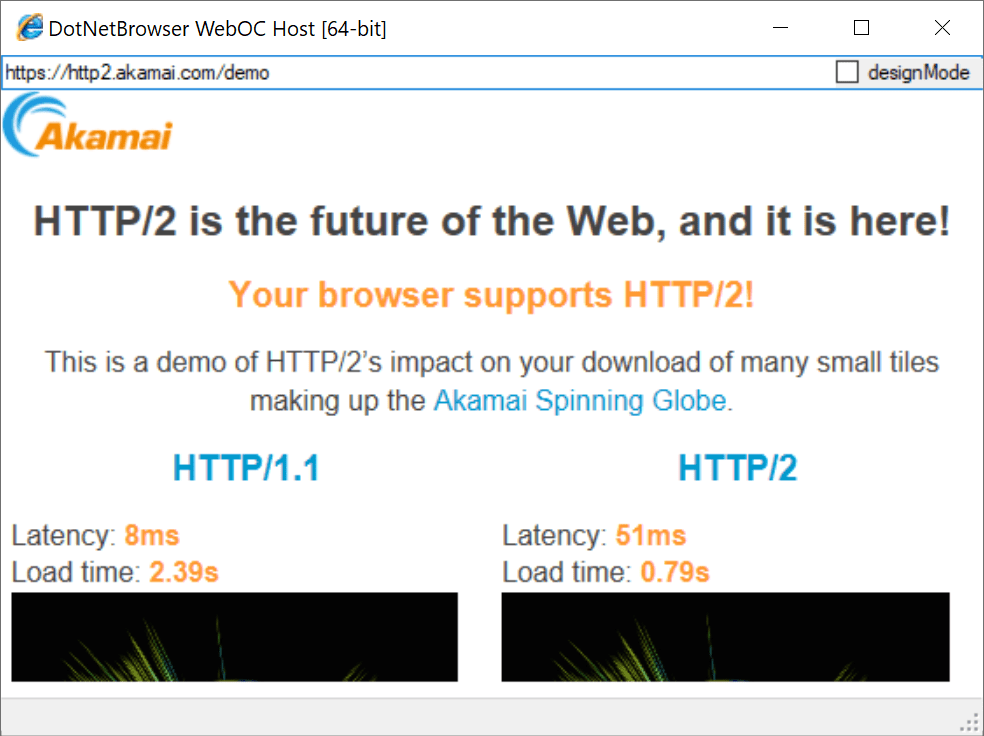
If you’ve built an application using the old Web Browser Control (mshtml, aka Internet Explorer), you might notice that by default it does not support HTTP/2. For instance, a trivial WebOC host loading Akamai’s HTTP2 test page:
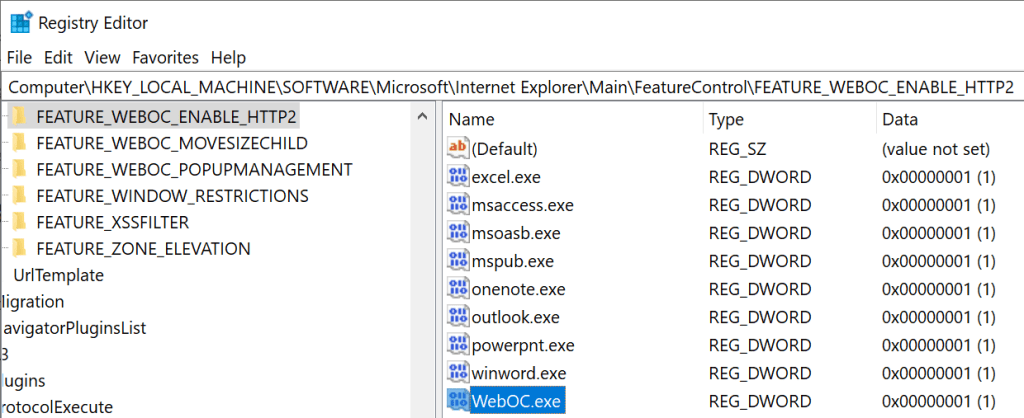
When your program is running on any build of Windows 10, you can set a Feature Control Key with your process’ name to opt-in to using HTTP/2.
For applications running at the OS-native bitness, write the key here:
For 32-bit applications running on 64-bit Windows, write it here: HKEY_LOCAL_MACHINE\SOFTWARE\WOW6432Node\Microsoft\Internet Explorer\Main\FeatureControl\FEATURE_WEBOC_ENABLE_HTTP2
Like so:
After you make this change and restart the application, it will use HTTP/2 if the server and network path supports it.
Update: Windows’ Internet Control Panel has a “HTTP2” checkbox, but it only controls web platform apps (IE and Legacy Edge), and unfortunately, the setting does not work properly for AppContainer/LowIL processes, which enable HTTP2 by default. This means that the checkbox, as of Windows 10 version 1909, is pretty much useless for its intended purpose (as only Intranet Zone sites outside of Protected Mode run at MediumIL).
A bug has been filed.
Update: Users of the new Chromium-based Edge browser can launch an instance with HTTP2 disabled using the disable-http2 command line argument, e.g. ms-edge.exe --disable-http2.
I’m not aware of a straightforward way to disable HTTP2 for the new Chromium-Edge-based WebView2 control, which has HTTP2 enabled by default.
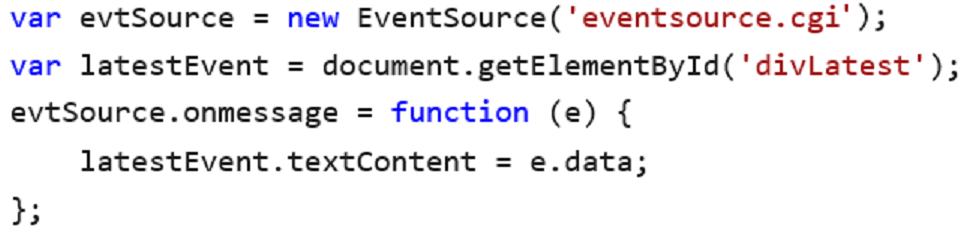
While there are many different ways for servers to stream data to clients, the Server-sent Events / EventSource Interface is one of the simplest. Your code simply creates an EventSource and then subscribes to its onmessage callback:
Implementing the server side is almost as simple: your handler just prefaces each piece of data it wants to send to the client with the string data: and ends it with a double line-ending (\n\n). Easy peasy. You can see the API in action in this simple demo.
I’ve long been sad that we didn’t manage to get this API into Internet Explorer or the Legacy Edge browser. While many polyfills for the API exist, I was happy that we finally have EventSource in the new Edge.
Yay! \o/
Alas, I wouldn’t be writing this post if I hadn’t learned something new yesterday.
Last week, a customer reached out to complain that the new Edge and Chrome didn’t work well with their webmail application. After they used the webmail site for a some indeterminate amount time, they noticed that its performance slowed to a crawl– switching between messages would take tens of seconds or longer, and the problem reproduced regardless of the speed of the network. The only way to reliably resolve the problem was to either close the tabs they’d opened from the main app (e.g. the individual email messages could be opened in their own tabs) or to restart the browser entirely.
As the networking PM, I was called in to figure out what was going wrong over video conference. I instructed the user to open the F12 Developer Tools and we looked at the network console together. Each time the user clicked on a message, new requests were created and sat in the (pending) state for a long time, meaning that the requests were getting queued and weren’t even going to the network promptly.
But why? Diagnosing this remotely wasn’t going to be trivial, so I had the user generate a Network Export log that I could examine later.
In examining the log using the online viewer, the problem became immediately clear. On the Sockets tab, the webmail’s server showed 19 requests in the Pending state, and 6 Active connections to the server, none of which were idle. The fact that there were six connections strongly suggested that the server was using HTTP/1.1 rather than HTTP/2, and a quick look at the HTTP/2 tab confirmed it. Looking at the Events tab, we see five outstanding URLRequests to a URL that strongly suggests that it’s being used as an EventSource:
Each of these sockets is in the READING_RESPONSE state, and each has returned just ten bytes of body data to each EventSource. The web application is using one EventSource instance of the app, and the user has five tabs open to the app.
And now everything falls into place. Nearly all browsers (including Chromium-derivatives) limit themselves to 6 concurrent connections per server (this will get a bit more complicated in the future). When the server supports HTTP/2, browsers typically need just one connection because HTTP/2 supports multiplexing many (Chromium default 100, server configurable to up to 256) concurrent streams onto a single connection. HTTP/1.1 doesn’t afford that luxury, so every long-lived connection used by a page decrements the available connections by one. So, for this user, all of their network traffic was going down a single HTTP/1.1 connection, and because HTTP/1.1 doesn’t allow multiplexing, it means that every action in the UI was blocked on a very narrow head-of-line-blocking pipe.
Looking in the Chrome bug tracker, we find this core problem (“SSE connections can starve other requests”) resolved “By Design” six years ago.
Now, I’m always skeptical when reading old bugs, because many issues are fixed over time, and it’s often the case that an old resolution is no longer accurate in the modern world. So I built a simple repro script for Meddler. The script returns one of four responses:
An HTML page that consumes an EventSource
An HTML page containing 15 frames pointed at the previous HTML page
An event source endpoint (text/event-stream)
A JPEG file (to test whether connection limits apply across both EventSources and other downloads)
And sure enough, when we load the page we see that only six frames are getting events from the EventSource, and the images that are supposed to load at the bottom of the frames never load at all:
Similarly, if we attempt to load the page in another tab, we find that it doesn’t even load, with a status message of “Waiting for available socket…”
The web app owners should definitely enable HTTP/2 on their server, which will make this problem disappear for almost all of their users.
However, even HTTP/2 is not a panacea, because the user might be behind a “break-and-inspect” proxy that downgrades connections to HTTP/1.1, or the browser might conceivably limit parallel requests on HTTP/2 connections for slow networks. As noted in the By Design issue, a server depending on EventSource in multiple tabs might use a BroadcastChannel or a SharedWorker to share a single EventSource connection with all of the tabs of the web application.
Alternatively, swapping an EventSource architecture with one based on WebSocket (even one that exposes itself as a EventSource polyfill) will also likely resolve the problem. That’s because, even if the client or server doesn’t support routing WebSockets over HTTP/2, the WebSockets-Per-Host limit is 255 in Chromium and 200 in Firefox.
I’ve previously written about Web-to-App communication via Application Protocols. App Protocols allow web content to invoke a native application outside of the browser.
WebApp advocates (like me!) want to continue to close the native/browser gaps that prevent web applications from becoming full-fledged replacements for native apps. To that end, I’ve recently spent some time looking at how the web platform allows JavaScript registration of a protocol handler, where the handling “app” is a same-origin web page.
Currently supported by Firefox and Chromium-based browsers (on platforms other than Android), the function navigator.registerProtocolHandler(scheme, url_template, description) enables a website to become a handler for a URL scheme.
Real-World Usage
The canonical use-case for this is web based email clients like Gmail. Gmail would like to be able to be the user’s handler for mailto links. When the user clicks a mailto link, the content of the link should be sent to a handler page on mail.google.com which responds accordingly (e.g. by creating a new email to the specified addressee).
The registerProtocolHandler API isn’t limited to the mailto scheme, however. It presently supports a short list of allowed schemes1, and any scheme named web+{one-or-more-lowercaseASCII}.
User Experience
I’ve built a page containing a number of test cases here. When you push the button to register a protocol handler, you receive a permission prompt from Chrome/Edge or Firefox:
To avoid annoying users, if the user declines Chrome’s prompt, the site is blocked from re-requesting permission to handle the protocol. A user must manually visit the settings page to unblock permission.
User-Activation Requirements
If a page attempts to call registerProtocolHandler() on load or before the user has interacted with the page (a so-called “gesture”), then Chromium-based browsers will not pop the permission prompt. Instead, an overlapping-diamonds icon is shown at the right-hand side of the address bar, with the text “This page wants to install a service handler.” Here’s what this looks like on Gmail:
Settings
Within Chrome, you can view your currently registered handlers (and sites blocked from asking to become the registered handler) by visiting chrome://settings/content/handlers.
Operating System Integration
One particularly interesting aspect of allowing web-based registration of protocol handlers is that it is desirable for the rest of the operating system outside of the browser to respect those protocol handler associations.
For example, clicking a mailto link in some other application should launch the browser to the web-based handler if registered. However, having the browser change system state in this manner is complicated, especially on modern versions of Windows whereby various protections have been put in place to try to prevent “hijacking” of file type and protocol handler associations.
Edge and Chrome will only attempt to become the systemwide handler for a protocol when running a channel that offers to become the default browser (e.g. Stable). On such a channel, if the browser wasn’t already the handler for the protocol, after the user clicks “Allow” on the Chrome permission bubble, a Windows UAC dialog is shown:
If the user accepts by clicking “Yes”, the RegisterChromeForProtocol function silently updates the registry:
Chrome, Edge, and Firefox disallow registration of protocol handlers in Private/Incognito/InPrivate modes; the call fails silently.
With my patch landed, Chrome, Edge, and Firefox disallow registration of protocol handlers from non-secure contexts (e.g. HTTP). Due to the same-origin requirement for the handler URL, this effectively prevents the use of a non-secure page as a handler.
Chromium-based browsers enable IT admins to set default scheme-to-web mappings using Group Policy.
Chromium-based browsers do not (as of v93) offer a Group Policy to disallow protocol handler registration; an end-user setting inside about://settings does allow an individual user to turn off the prompts.
Firefox does not support targeting a RPH registered protocol as the target of a form POST request; it silently drops the POST body.
Firefox does not implement the unregisterProtocolHandler API. Users must manually unregister protocol handlers using the browser UI.
On Windows at least, neither Firefox Stable nor Firefox Nightly seems to try to become the systemwide handler for a scheme.
If you have a custom scheme link in a subframe, you probably want to add a target=_blank attribute on it. Otherwise, the web app you’ve configured as the protocol handler might load within that subframe and get blocked due to privacy settings or X-Frame-Options directives.
Updated November 30, 2020 with new information about DoH in Edge, ECH, and HTTPSSVC records, and January 25, 2021 with a few remarks about Edge’s implementation.
Before connecting to the example.com server, your browser must convert “example.com” to the network address at which that server is located.
It does this lookup using a protocol called “DNS.” Today, most DNS transactions are conducted in plaintext (not encrypted) by sending UDP messages to the DNS resolver your computer is configured to use.
There are a number of problems with the 36-year-old DNS protocol, but a key one is that the unencrypted use of UDP traffic means that network intermediaries can see (and potentially modify) your lookups, such that attackers can know where you’re browsing, and potentially even direct your traffic to some other server.
The DNS-over-HTTPS (DoH) protocol attempts to address some of these problems by sending DNS traffic over a HTTPS connection to the DNS resolver. The encryption (TLS/QUIC) of the connection helps prevent network intermediaries from knowing what addresses your browser is looking up– your queries are private between your PC and the DNS resolver that is providing the answers. The expressiveness of HTTP (with request and response headers) provides interesting options for future extensibility, and the modern HTTP2 and HTTP3 protocols aim to provide high-performance and parallel transactions with a single connection.
An additional benefit of using securing DNS is that it enables the safe introduction of new security-related features to the DNS. That capability can help secure all forms of traffic, not just the target IP addresses. For instance, the proposed HTTPSSVC record will allow clients to securely receive useful information which can improve the security and performance of the HTTP2/HTTP3 connections used to download web pages.
Try It
Support for DNS-over-HTTPS is coming to many browsers and operating systems (including a future version of Windows). You can even try DoH out in the newest version of Microsoft Edge (v79+) by starting the browser with a special command line flag. The following command line will start the browser and instruct it to perform DNS lookups using the Cloudflare DoH server:
You can test to see whether the feature is working as expected by visiting https://1.1.1.1/help. Unfortunately, this command line flag presently only works on unmanaged PCs, meaning it doesn’t do anything from PCs that are joined to a Windows domain.
Microsoft Edge Fall 2020 Update
Starting in Edge 86, DNS-over-HTTPS configuration is now available inside edge://settings/privacy. Users may either leave the default at Use current service provider (in which case DoH will only be used if the user’s OS DNS provider is known to support DoH) or they may explicitly configure a DoH provider. Explicit configuration allows selection from a small set of popular DoH providers, or a fully-qualified HTTPS URL to the DoH provider may be entered in the text box.
Notably, for Enterprise/Managed PCs, the Edge Settings UI is disabled– only administrators may configure the settings using tworelated Group Policies.
A few remarks about Edge’s implementation:
If your OS-configured DNS provider is on a list known to support DoH, we try to start speaking DoH. If it fails, we fall back to non-secure DNS.
If you manually pick a DoH provider from the Settings Page’s list, we use that. There are only a few, and there’s no difference based on locale. If it fails, we do NOT fall back.
If you manually enter a DoH URL in the Settings page, you can use whatever provider you want. If it fails, we do NOT fall back.
If you’re an Enterprise User, there’s no end-user UI and everything is configured (URL, whether fallback is allowed) exclusively by tworelated Group Policies.
Unlike Firefox, we do not have any code to try to advertise/encourage the user to pick a DoH provider.
Long term, everyone is working on approaches whereby a DNS provider can “advertise” support for DoH rather than being added to a list in Chromium, but we’re probably many months away from anything happening there.
Long-time readers of this blog know that I want to “HTTPS ALL THE THINGS” and DNS is no exception. Unfortunately, as with most protocol transitions, this turns out to be very very complicated.
SNI
The privacy benefits of DNS-over-HTTPS are predicated on the idea that a network observer, blinded from your DNS lookups by encryption, will not be able to see where you’re browsing.
Unfortunately, network observers, by definition, can observe your traffic, even if the traffic encrypted.
The network observer will still see the IP addresses you’re connecting to, and that’s often sufficient to know what sites you’re browsing.
If your Internet Service Provider (say, for example, Comcast) is configured to offer DNS-over-HTTPS, and your browser uses their resolver, your network lookups are protected from observers on the local network, but not from the Comcast resolver.
Because the data handling practices of resolvers are often opaque, and because there are business incentives for resolvers to make use of lookup data (for advertising targeting or analytics revenue), it could be the case that the very actor you are trying to hide your traffic from (e.g. your ISP) is exactly the one holding the encryption key you’re using to encrypt the lookup traffic.
To address this, some users choose to send their traffic not to the default resolver their device is configured to use (typically provided by the ISP) but instead send the lookups to a “Public Resolver” provided by a third-party with a stronger privacy promise.
However, this introduces its own complexities.
Public Resolvers Don’t Know Private Addresses
A key problem in the deployment of DNS-over-HTTPS is that public resolvers (Google Public DNS, Cloudflare, Open DNS, etc) cannot know the addresses of servers that are within an intranet. If your browser attempts to look up a hostname on your intranet (say MySecretServer.intranet.MyCo.com) using the public resolver, the public resolver not only gets information about your internal network (e.g. now Google knows that you have a server called MySecretServer.intranet) but it also returns “Sorry, never heard of it.” At this point, your browser has to decide what to do next. It might fail entirely (“Sorry, site not found”) or it might “Fail open” and perform a plain UDP lookup using the system-configured resolver provided by e.g. your corporate network administrator.
This fallback means that a network attacker might simply block your DoH traffic such that you perform all of your queries in unprotected fashion. Not great.
Even alerting the user to such a problem is tricky: What could the browser even say that a human might understand? “Nerdy McNerdy Nerd Nerd Nerd Nerd Nerd Address Nerd Resolution Nerd Geek. Privacy. Network. Nerdery. Geekery. Continue?”
Centralization Isn’t Great
Centralizing DNS resolutions to the (relatively small) set of public DNS providers is contentious, at best. Some European jurisdictions are uncomfortable about the idea that their citizens’ DNS lookups might be sent to an American tech giant.
Some privacy-focused users are primarily worried about the internet giants (e.g. Google, Cloudflare) and are very nervous that the rise of DoH will result in browsers sending traffic to these resolvers by default. Google has said they won’t do that in Chrome, while Firefox is experimenting with using Cloudflare by default in some locales.
Content Filtering
Historically, DNS resolutions were a convenient choke point for schools, corporations, and parents to implement content filtering policies. By interfering with DNS lookups for sites that network users are forbidden to visit (e.g adult content, sites that put the user’s security at risk, or sites that might result in legal liability for the organization), these organizations were able to easily prevent non-savvy users from connecting to unwanted sites. Using DoH to a Public DNS provider bypasses these types of content filters, leaving the organization with unappealing choices: start using lower-granularity network interception (e.g. blocking by IP addresses), installing content-filters on the user’s devices directly, or attempting to block DoH resolvers entirely and forcing the user’s devices to fall back to the filtered resolver.
Geo CDNs and Other Tricks
In the past, DNS was one mechanism that a geographically distributed CDN could use to load-balance its traffic such that users get the “best” answers for their current locale. For instance, if the resolver was answering a query from a user in Australia, it might return a different server address than when resolving a query from a user in Florida.
These schemes and others get more complicated when the user isn’t using a local DNS resolver and is instead using a central public resolver, possibly provided by a competitor to the sites that the user is trying to visit.
Don’t Despair
Despite these challenges and others, DNS-over-HTTPS represents an improvement over the status quo, and as browser and OS engineering teams and standards bodies invest in addressing these problems, we can expect that deployment and use of DoH will grow more common in the coming years.
DoH will eventually be a part of a more private and secure web.
Support for the venerable FTP protocol is being removed from Chromium. Standardized in 1971, FTP is not a safe protocol for the modern internet. Its primary defect is lack of support for encryption (FTPS isn’t supported by any popular browsers), although poor support for authentication and other important features (download resumption, proxying) also have hampered the protocol over the years.
After FTP support is removed, clicking on a FTP link will either launch the operating system’s registered FTP handler (if any), or will silently fail to do anything (as Chrome fails silently when an application protocol handler is not installed).
If your scenario depends on FTP today, please switch over to HTTPS as soon as possible.







 text/plain