Private Browsing Mode

Note: This blog post was originally written before the new Chromium-based Microsoft Edge was announced. As a consequence, it includes discussion of the behavior of the Legacy Microsoft Edge browser. The new Chromium-based Edge behaves largely the same way as Google Chrome.

Last Update: 13 June 2025

InPrivate Mode was introduced in Internet Explorer 8 with the goal of helping users improve their privacy against both local and remote threats. Safari introduced a privacy mode in 2005.

All leading browsers offer a “Private Mode” and they all behave in the same general ways.

Privacy Mode Behaviors

HTTP Caching

While in Private mode, browsers typically ignore any previously cached resources and cookies. Similarly, the Private mode browser does not preserve any cached resources beyond the end of the browser session. These features help prevent a revisited website from trivially identifying a returning user (e.g. if the user’s identity were cached in a cookie or JSON file on the client) and help prevent “traces” that might be seen by a later user of the device.

In Firefox’s and Chrome’s Private modes, a memory-backed cache container is used for the HTTP cache, and its memory is simply freed when the browser session ends. Unfortunately, WinINET never implemented a memory cache, so in Internet Explorer InPrivate sessions, data is cached in a special WinINET cache partition on disk which is “cleaned up” when the InPrivate session ends.

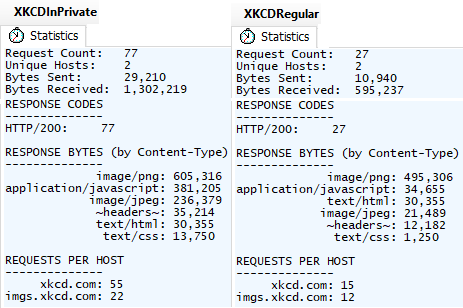
Because this cleanup process may be unreliable, in 2017, Edge Legacy made a change to simply disable the cache while running InPrivate, a design decision with significant impact on the browser’s network utilization and performance. For instance, consider the scenario of loading an image gallery that shows one large picture per page and clicking “Next” ten times:
InPrivateVsRegular

Because the gallery reuses some CSS, JavaScript, and images across pages, disabling the HTTP cache means that these resources must be re-downloaded on every navigation, resulting in 50 additional requests and a 118% increase in bytes downloaded for those eleven pages. Sites that reuse even more resources across pages will be more significantly impacted.

Another interesting quirk of Edge Legacy’s InPrivate implementation is that the browser will not download FavIcons while InPrivate. Surprisingly (and likely accidentally), the suppression of FavIcon downloads also occurs in any non-InPrivate windows so long as any InPrivate window is open on the system.

Web Platform Storage

Akin to the HTTP caching and cookie behaviors, browsers running in Private mode must restrict access to HTTP storage (e.g. HTML5 localStorage, ServiceWorker/CacheAPI, IndexedDB) to help prevent association/identification of the user and to avoid leaving traces behind locally. In some browsers and scenarios, storage mechanisms are simply set to an “ephemeral partition” while in others the DOM APIs providing access to storage are simply configured to return “Access Denied” errors.

You can explore the behavior of various storage mechanisms by loading this test page in Private mode and comparing to the behavior in non-Private mode.

Within IE and Edge Legacy’s InPrivate mode, localStorage uses an in-memory store that behaves exactly like the sessionStorage feature. This means that InPrivate’s storage is (incorrectly) not shared between tabs, even tabs in the same browser instance.

Update: Some browsers offer the option (opt-in or opt-out) to disable third-party cookies entirely while running in Private Mode, like this toggle on Chrome’s Incognito new tab page:

Similarly, Edge’s InPrivate mode offers a toggle to use the Strict Mode of the Tracking Prevention feature:

Network Features

Beyond the typical Web Storage scenarios, browser’s Private Modes should also undertake efforts to prevent association of users’ Private instance traffic with non-Private instance traffic. Impacted features here include anything that has a component that behaves “like a cookie” including TLS Session Tickets, TLS Resumption, HSTS directives, TCP Fast Open, Token Binding, ChannelID, and the like.

As of June 2024, Chromium-based browsers now default to enabling HTTPS First mode (automatic upgrades from HTTP to HTTPS URLs, if possible) in Private Mode.

Automatic Authentication

In Private mode, a browser’s AutoComplete features should be set to manual-fill mode to prevent a “NameTag” vulnerability, whereby a site can simply read an auto-filled username field to identify a returning user.

On Windows, most browsers support silent and automatic authentication using the current user’s Windows login credentials and either the NTLM and Kerberos schemes. Typically, browsers are only willing to automatically authenticate to sites on “the Intranet“. Some browsers behave differently when in Private mode, preventing silent authentication and forcing the user to manually enter or confirm an authentication request:

  • In Edge InPrivate, Edge Legacy’s InPrivate, and Firefox Private Mode, the browser will not automatically respond to a HTTP/401 challenge for Negotiate/NTLM credentials.
  • In IE InPrivate and Chrome/Brave Incognito (prior to v81), the browser will automatically respond to a HTTP/401 challenge for Negotiate/NTLM credentials.

Notes:

  • In Edge Legacy and the new Chromium-based Edge, the security manager returns MustPrompt when queried for URLACTION_CREDENTIALS_USE.
  • Unfortunately Edge Legacy’s Kiosk mode runs InPrivate, meaning you cannot easily use Kiosk mode to implement a display that projects a dashboard or other authenticated data on your Intranet.
  • For Firefox to support automatic authentication at all, the
    network.negotiate-auth.allow-non-fqdn and/or network.automatic-ntlm-auth.allow-non-fqdn preferences must be adjusted.

Accept-Language

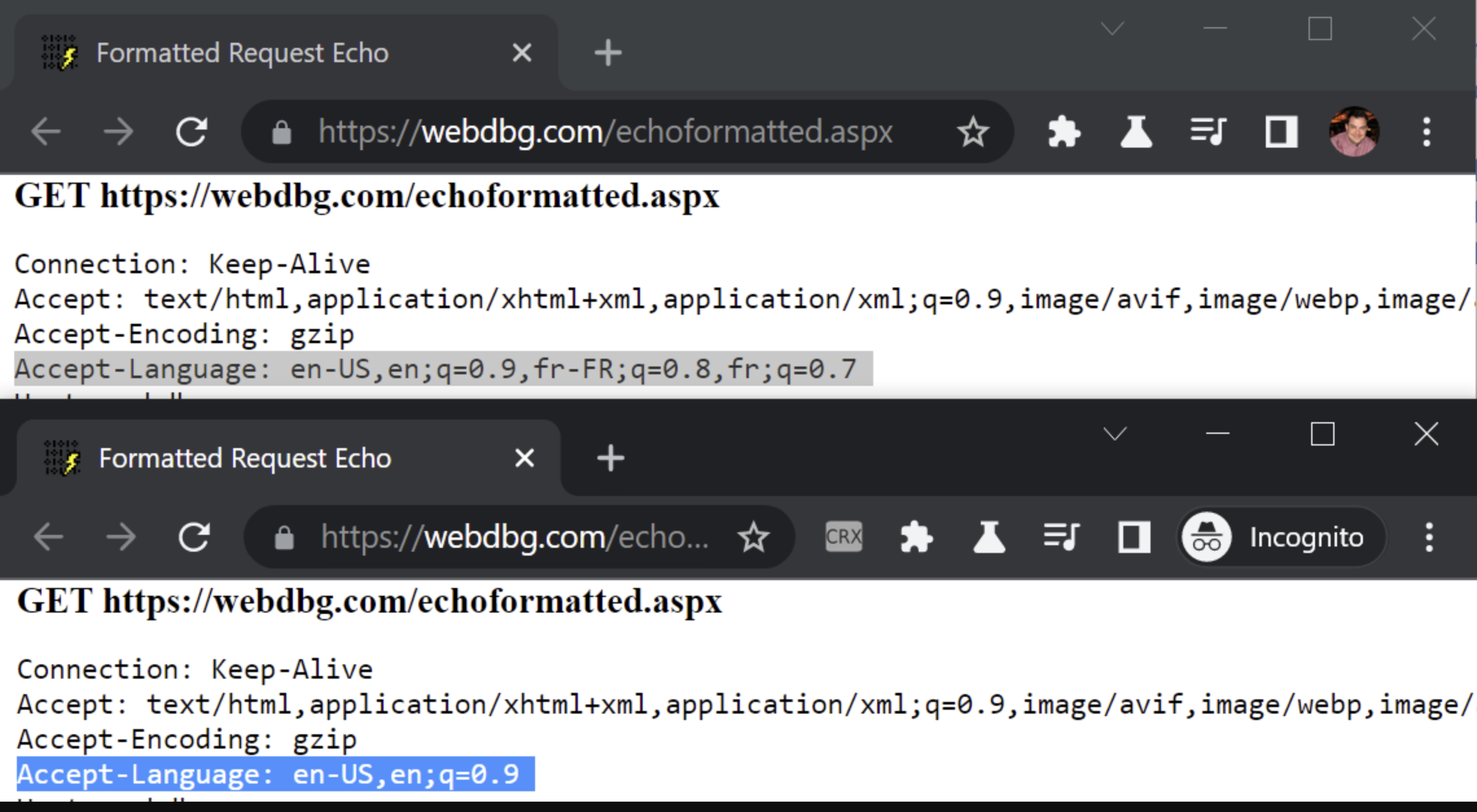
In one of the clearest privacy/user-experience tradeoffs, Chromium now sends only the first Accept-Language rather than the full list when loading sites in Private Mode.
registerProtocolHandler

All common browsers block the HTML5 registerProtocolHandler API in private mode.

System Integrations

Browsers often will change their behavior for windows running in Private Mode when integrating with the operating system. These restrictions are intended to help prevent inadvertent disclosure or retention of Private Mode information outside of the Private Mode browser instance.

For example, some browsers will avoid handing thumbnails of Private Mode windows to the OS, which uses such thumbnails for task switching UI, history views, etc.

Similarly, Chromium intends to stop exposing media titles and thumbnails to the OS from Private Mode pages to avoid their display in the volume mixer, playback controls on the OS lock screen, etc.

On Android, the Edge Private Mode sets the flag to prevent screen captures (user-initiated or app-invoked) from capturing the image of the screen (which users may like, or may find annoying). While Windows exposes the SetWindowDisplayAffinity() API, that API is presently used only by DRM and not by Private Mode.

As of 2024, Chromium will flag data copied from an Incognito window to the clipboard as “Private” so that it does not go in Clipboard history or Windows’ Clipboard cloud sync.

When downloaded and SaveAs files are saved to disk, the Mark-of-the-Web has the original URLs removed and replaced with the generic about:internet:

Another concern surrounds invocation of other applications (e.g. via an AppProtocol) that could allow web content running in a private mode instance to trigger an app that would in turn make a request outside of InPrivate allowing user identification via, for example, that app’s automatic release of credentials. (Example)

Detection of Privacy Modes

While browsers generally do not try to advertise to websites that they are running inside Private modes, it can be relatively straightforward for a website to feature-detect this mode and behave differently. For instance, some websites like the Boston Globe block visitors in Private Mode (forcing login) because they want to avoid circumvention of their “Non-logged-in users may only view three free articles per month” paywall logic.

Sites can detect privacy modes by looking for the behavioral changes that signal that a given browser is running in Private mode; for instance, indexedDB is disabled in Edge Legacy while InPrivate. Detectors have been built for each browser and wrapped in JavaScript libraries. Defeating Private mode detectors requires significant investment on the part of browsers (e.g. “implement an ephemeral mode for indexedDB“) and fixes lagged until mainstream news sites (e.g. Boston Globe, New York Times) began using these detectors more broadly.

See also:

End users might successfully circumvent such checks using a manually-created “Ephemeral Profile”, a regular mode profile which is configured to delete all storage on exit.

Signaling Privacy Mode

Update: Perhaps surprisingly, the new Microsoft Edge sends a deliberate signal to (only) the user’s default search engine when it is loaded in InPrivate mode. The HTTPS request header PreferAnonymous: 1 is sent on requests to the server to allow it to avoid caching any data related to the user’s use of the search engine.

This header is sent only to the search engine, and not to other sites.

“Guest” Profile

Browsers based on Chromium often also have a Guest Browsing mode, which has a superset (mostly*) of Private Mode behavior.

When you “Browse as Guest”, the browser session treats itself as running in Private Mode, but unlike a normal Private Mode session, the session also starts with an empty user profile. That means the browser will not

  • show history entries in the address box or History page
  • list your bookmarks
  • offer to fill in your account information or passwords
  • offer to fill in autocomplete information
  • etc.

When you close all Guest Profile windows, your history and other state generated in the session is deleted, just like in regular Private mode.

Using a Guest Profile helps prevent you from accidentally leaking information to sites (e.g. inadvertently triggering an autofill).

* Internally to Chromium, most features check a boolean flag IsOffTheRecord() when deciding how to behave. This boolean returns true for both InPrivate/Incognito and Guest profiles. In rare cases, Guest is not designed to have InPrivate behavior. For instance, as of Edge 86, the PreferAnonymous header mentioned earlier is not sent for Guest profiles. Developers can distinguish InPrivate/Incognito from Guest like so:

Profile::FromBrowserContext(web_contents->GetBrowserContext())
                            ->IsIncognitoProfile());

Advanced Private Modes

Generally, mainstream browsers have taken a middle ground in their privacy features, trading off some performance and some convenience for improved privacy. Users who are very concerned about maintaining privacy from a wider variety of threat actors need to take additional steps, like running their browser in a discardable Virtual Machine behind an anonymizing VPN/Proxy service, disabling JavaScript entirely, etc.

The Brave Browser offers a “Private Window with Tor” feature that routes traffic over the Tor anonymizing network; for many users this might be a more practical choice than the highly privacy-preserving Tor Browser Bundle, which offers additional options like built-in NoScript support to help protect privacy.

Common Questions

Q: When I open a new InPrivate window, somehow I’m already signed in to some site I was previously using InPrivate. What gives?
A: Today, Chromium uses a single “browser session” for all Private Mode windows. See this post for discussion.

Q: From web content, can I create a link that automatically opens InPrivate? Something like <a href="http://secret.example.com" rel="private" />?
A: No. There’s presently no standard for this, and browsers cannot safely implement something like this until the browser supports multiple parallel web sessions for Private mode. Otherwise, website running outside of Private Mode could “push” an identifier into a running Private Mode session that would unmask the user.

Q: As an end-user, can I configure a given site to always open in Private mode?
A: Not yet. You can easily create a desktop shortcut that does so (just add the --inprivate command line flag), but that won’t impact navigations from the address bar or regular site-to-site links inside the browser. The Issue mentions another workaround. But it would be a cool feature to build in, right?

Related Links

-Eric

An Update on the Edge XSS Filter

In Windows 10 RS5 (aka the “October 2018 Update”), the venerable XSS Filter first introduced in 2008 with IE8 was removed from Microsoft Edge. The XSS Filter debuted in a time before Content Security Policy as a part of a basket of new mitigations designed to mitigate the growing exploitation of cross-site scripting attacks, joining older features like HTTPOnly cookies and the sandbox attribute for IFRAMEs.

The XSS Filter feature was a difficult one to land– only through the sheer brilliance and dogged persistence of its creator (the late David Ross) did the IE team accept the proposal that a client-side filtering approach could be effective with a reasonable false positive rate and good-enough performance to ship on-by-default. The filter was carefully tuned, firing only on cross-site navigation, and in need of frequent updates as security researchers inside and outside the company found tricks to bypass it. One of the most significant technical challenges for the filter concerned how it was layered into the page download pipeline, intercepting documents as they were received as raw text from the network. The filter relied evaluating dynamically-generated regular expressions to look for potentially executable markup in the response body that could have been reflected from the request URL or POST body. Evaluating the regular expressions could prove to be extremely expensive in degenerate cases (multiple seconds of CPU time in the worst cases) and required ongoing tweaks to keep the performance costs in check.

In 2010, the Chrome team shipped their similar XSS Auditor feature, which had the luxury of injecting its detection logic after the HTML parser runsdetecting and blocking reflections as they entered the script engine. By throttling closer to the point of vulnerability, its performance and accuracy is significantly improved over the XSS Filter.

Unfortunately, no matter how you implement it, clientside XSS filtration is inherently limited– of the four classes of XSS Attack, only one is potentially mitigated by clientside XSS filtration. Attackers have the luxury of tuning their attacks to bypass filters before they deploy them to the world, and the relatively slow ship cycles of browsers (6 weeks for Chrome, and at least a few months for IE of the era) meant that bypasses remained exploitable for a long time.

False positives are an ever-present concern– this meant that the filters have to be somewhat conservative, leading to false-negative bypasses (e.g. multi-stage exploits that performed a same-site navigation) and pronouncements that certain attack patterns were simply out-of-scope (e.g. attacks encoded in anything but the most popular encoding formats).

Early attempts to mitigate the impact of false positives (by default, neutering exploits rather than blocking navigation entirely) proved bypassable and later were abused to introduce XSS exploits in sites that would otherwise be free of exploit (!!!). As a consequence, browsers were forced to offer options that would allow a site to block navigation upon detection of a reflection, or disable the XSS filter entirely.

Surprisingly, even in the ideal case, best-of-class XSS filters can introduce information disclosure exploits into sites that are free of XSS vulnerabilities. XSS filters work by matching attacker-controlled request data to text in a victim response page, which may be cross-origin. Clientside filters cannot really determine whether a given string from the request was truly reflected into the response, or whether the string is naturally present in the response. This shortcoming creates the possibility that such a filter may be abused by an attacker to determine the content of a cross-origin page, a violation of Same Origin Policy. In a canonical attack, the attacker frames a victim page with a string of interest in it, then attempts to determine that string by making a series of successive guesses until it detects blocking by the XSS filter. For instance, xoSubframe.contentWindow.length exposes the count of subframes of a frame, even cross-origin. If the XSS filter blocks the loading of a frame, its subframe count is zero and the attacker can conclude that their guess was correct.

In Windows 10 RS4 (April 2018 update), Edge shipped its implementation of the Fetch standard, which redefines how the browser downloads content for page loads. As a part of this massive architectural shift, a regression was introduced in Edge’s XSS Filter that caused it to incorrectly determine whether a navigation was cross-origin. As a result, the XSS Filter began running its logic on same-origin navigations and skipping processing of cross-origin navigations, leading to a predictable flood of bug reports.

In the process of triaging these reports and working to address the regression, we concluded that the XSS Filter had long been on the wrong side of the cost/benefit equation and we elected to remove the XSS Filter from Edge entirely, matching Firefox (which never shipped a filter to begin with).

We encourage sites that are concerned about XSS attacks to use the client-side platform features available to them (Content-Security-Policy, HTTPOnly cookies, sandboxing) and the server-side patterns and frameworks that are designed to mitigate script injection attacks.

-Eric Lawrence

Streaming Audio in Edge

This issue report complains that Edge doesn’t stream AAC files and instead tries to download them. It notes that, in contrast, URLs that point to MP3s result in a simple audio player loading inside the browser.

Edge has always supported AAC so what’s going on?

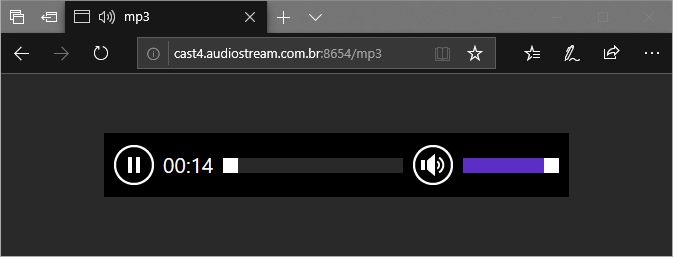
The issue here isn’t about AAC, per-se; it’s instead about whether or not the browser, upon direct navigation to an audio stream, will accommodate that by generating a wrapper HTML page with an <audio> element pointed at that audio stream URL.

PlaceholderPage

A site that wants to play streaming AAC in Edge (or, frankly, any media type, for any browser) should consider creating a HTML page with an appropriate Audio or Video element pointed at the stream.

The list of audio types for which Edge will automatically generate a wrapper page does not include AAC:

audio/mp4, audio/x-m4a, audio/mp3, audio/x-mp3, audio/mpeg,
audio/mpeg3, audio/x-mpeg, audio/wav, audio/wave, audio/x-wav,
audio/vnd.wave, audio/3gpp, audio/3gpp2

In contrast, Chrome creates the MediaDocument page for a broader set of known audio types:

static const char* const kStandardAudioTypes[] = {
 "audio/aac",  "audio/aiff", "audio/amr",  "audio/basic",  "audio/flac",
 "audio/midi",  "audio/mp3",  "audio/mp4",  "audio/mpeg",  "audio/mpeg3", 
 "audio/ogg", "audio/vorbis",  "audio/wav",  "audio/webm",  "audio/x-m4a",
 "audio/x-ms-wma",  "audio/vnd.rn-realaudio",  "audio/vnd.wave"};

If the the response sends Content-Type: application/octet-stream, includes a Content-Dispostion: attachment, or puts a download attribute on the anchor <a> element that leads to the media, Edge will download the media file instead of playing it in the browser.

Note: In Windows 10 RS5, the extension model is capable enough that it’s possible to write a browser extension that intercepts navigation directly to audio/video Media types and renavigates to a wrapper page. [Sample code]

-Eric

PS: Edge has similar special handling for video types:

"application/mp4","video/mp4","video/x-m4v","video/3gpp",
"video/3gpp2","video/quicktime"


ShellExecute Doesn’t

My oldest supported Windows application is a launcher app named SlickRun, and it’s ~24 years old this year. I haven’t done much to maintain it over the last few years, although it’s now available in 64-bit and runs great on Windows 10. (Thanks go to Embarcadero, who now offer a free “Community” edition of Delphi, the language/platform I ported SlickRun to circa 1994).

I still fix bugs in SlickRun from time to time, and as I was playing with Rust a few days ago I was reminded of one of the oldest limitations in my code– if you update your system’s %PATH% variable, those changes aren’t seen by applications/consoles spawned by SlickRun (even after the change) until you restart SlickRun. This is particularly annoying because it’s so unexpected– users expect that command consoles launched by Win+R,cmd.exe,Enter will behave the same way as Win+Q,cmd,Enter, but the former consoles have the updated %PATH% while the latter do not.

While ShellExecute() sounds like it’s an API that causes the shell (aka Explorer) to execute something, in fact it does nothing of the sort.

Updating the Environment Block

The root cause of the “outdated path” problem is that processes launched via ShellExecute inherit the environment variables of their spawning process, and those environment variables (typically) are assigned as the process launches and never touched again. Because SlickRun starts with Windows, the %PATH% when it starts is the %PATH% that every process it launches inherits. (You can easily view a process’ environment block using the Properties > Environment tab in Process Explorer).

So, how does Explorer detect the change? That part I figured out ages ago– after updating an environment variable, the System Properties > Environment Variables Control Panel UI (or the SetX.exe console tool) broadcasts a WM_SETTINGCHANGE message to all top-level windows with a lparam containing the string “Environment”. I could easily add code to SlickRun to detect that the variables had changed, but for decades I didn’t really know what to do next… I didn’t know how to read the updated variables (without doing something hacky like restarting the process) nor ensure that they were passed to the applications spawned by ShellExecute.

Yesterday, I got fed up and started Googling. A few posts on StackOverflow mentioned a promising-sounding function, RegenerateUserEnvironment. And while that function appears to be undocumented, there’s an amazing issue filed in an open-source tracker that explains exactly how Windows Explorer uses this function– basically, just wait for the WM_SETTINGCHANGE event, then call the API. The RegenerateUserEnvironment will replace the calling process’ current environment block with the latest values.

// Add to the Private section of your main form's type declaration.
Procedure WMSettingChange(Var MSG: TMessage); MESSAGE WM_SETTINGCHANGE;
// If the system PATH environment variable changes, we need to call an
// undocumented Windows Shell function to rebuild our own Environment
// block such that new consoles/apps we spawn will see the new PATH.
Procedure TMain.WMSettingChange(Var MSG: TMessage);
var hLib: THandle;
pfnRegenerate: Function (oldEnv: Pointer; regenCurrent: BOOL): BOOL; StdCall;
pNil: Pointer;
Begin
if (MSG.LParam = 0) then Exit;
OutputDebugString(PChar(Format('WM_SettingChange in area "%s"', [PChar(MSG.LParam)])));
if (0 <> StrComp(PChar('Environment'), PChar(MSG.LParam))) then Exit;
hLib := LoadLibraryEx('shell32.dll', 0, 0);
if (hLib = 0) then Exit;
pfnRegenerate := GetProcAddress(hLib, 'RegenerateUserEnvironment');
if (Assigned(pfnRegenerate)) then
Begin
pNil := nil;
pfnRegenerate (@pNil, true);
OutputDebugString('SlickRun Process Environment Block updated.');
End;
FreeLibrary(hLib);
End;

Launching at Medium Integrity

While we’re on the topic of executing applications “like the shell”, another scenario came up twelve years ago when Windows Vista was first introduced. The SlickRun installer, written in NSIS, launches SlickRun when installation completes. Unfortunately, the installer runs with Admin rights (High integrity), which means that, by default, all of the programs it launches inherit that integrity. For SlickRun, this is especially bad because it means that any programs that it, in turn, launches during that first session (e.g. your browser!) will run at High integrity too. Not good.

While you can easily use the Runas verb to ShellExecute to launch a High integrity application from a Medium integrity application, there (depressingly) isn’t a way to do the opposite. For years, the official recommendation was to do some fancy coding to clone Explorer’s tokens and use those. Unfortunately, these approaches are quite complicated to implement, especially within a NSIS script.

As it turns out, however, there’s a trivial workaround which works quite well– while ShellExecute doesn’t run things as the shell, applications can easily get Explorer to launch anything they like at Explorer’s integrity. The trick is to simply invoke explorer.exe and pass the filename to be executed as the first command line argument:

While this approach isn’t technically supported, I expect it is likely to continue to work for the foreseeable future.

It’s depressing that together these tricks have taken me almost twenty years to discover, but I’m happy that I have. I hope they help you out.

-Eric

UPDATE: I recently noticed that Firefox also uses the Windows Explorer Shell to execute application protocol handlers on its behalf, but not by using the trick I use above. It instead does so using this code, based on this approach, which reaches out to Explorer and directs it to launch a process via IShellDispatch2::ShellExecute.

Cookie Limits

I’ve been writing about Cookies a lot recently, and also did so almost a decade ago.

Edge/IE cookie limits

The June 1018 Cumulative Updates increased the per-domain cookie limit from 50 to 180 for IE and Edge Legacy across Windows 7, Windows 8.1, and Windows 10 (TH1 to RS2). This higher limit matches Chrome’s cookie jar.

In IE/Edge Legacy, if the cookie length exceeds 10240 characters, document.cookie returns an empty string. (Cookies over 1023 characters can also lead to an empty document.cookie string in the event of a race condition). Cookie strings longer than 10KB will still be sent to the server in the Cookie request header (up to 250KB for 50 cookies of 5k each!), although many servers will reject headers over 16kb in size.

In IE/Edge Legacy, the browser will ignore Set-Cookie headers over 5118 characters in length, and will suppress attempts to send individual cookies (name=value) over that length.

Other Browsers

Firefox and Chromium, including the new Edge, has a limit of 4096 characters for the entire Set-Cookie header value.

Test Page

At the time of this writing, there’s a nice test page that attempts to exercise cookie limits using the DOM.