Streaming Audio in Edge

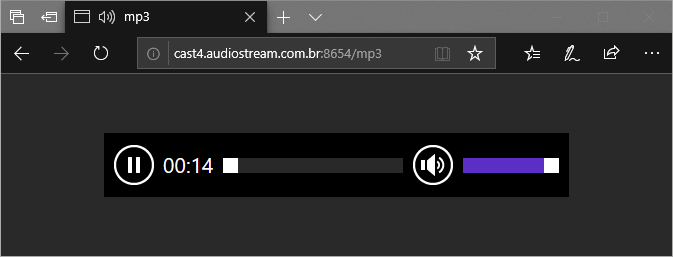
This issue report complains that Edge doesn’t stream AAC files and instead tries to download them. It notes that, in contrast, URLs that point to MP3s result in a simple audio player loading inside the browser.

Edge has always supported AAC so what’s going on?

The issue here isn’t about AAC, per-se; it’s instead about whether or not the browser, upon direct navigation to an audio stream, will accommodate that by generating a wrapper HTML page with an <audio> element pointed at that audio stream URL.

PlaceholderPage

A site that wants to play streaming AAC in Edge (or, frankly, any media type, for any browser) should consider creating a HTML page with an appropriate Audio or Video element pointed at the stream.

The list of audio types for which Edge will automatically generate a wrapper page does not include AAC:

audio/mp4, audio/x-m4a, audio/mp3, audio/x-mp3, audio/mpeg,
audio/mpeg3, audio/x-mpeg, audio/wav, audio/wave, audio/x-wav,
audio/vnd.wave, audio/3gpp, audio/3gpp2

In contrast, Chrome creates the MediaDocument page for a broader set of known audio types:

static const char* const kStandardAudioTypes[] = {
 "audio/aac",  "audio/aiff", "audio/amr",  "audio/basic",  "audio/flac",
 "audio/midi",  "audio/mp3",  "audio/mp4",  "audio/mpeg",  "audio/mpeg3", 
 "audio/ogg", "audio/vorbis",  "audio/wav",  "audio/webm",  "audio/x-m4a",
 "audio/x-ms-wma",  "audio/vnd.rn-realaudio",  "audio/vnd.wave"};

If the the response sends Content-Type: application/octet-stream, includes a Content-Dispostion: attachment, or puts a download attribute on the anchor <a> element that leads to the media, Edge will download the media file instead of playing it in the browser.

Note: In Windows 10 RS5, the extension model is capable enough that it’s possible to write a browser extension that intercepts navigation directly to audio/video Media types and renavigates to a wrapper page. [Sample code]

-Eric

PS: Edge has similar special handling for video types:

"application/mp4","video/mp4","video/x-m4v","video/3gpp",
"video/3gpp2","video/quicktime"


ShellExecute Doesn’t

My oldest supported Windows application is a launcher app named SlickRun, and it’s ~24 years old this year. I haven’t done much to maintain it over the last few years, although it’s now available in 64-bit and runs great on Windows 10. (Thanks go to Embarcadero, who now offer a free “Community” edition of Delphi, the language/platform I ported SlickRun to circa 1994).

I still fix bugs in SlickRun from time to time, and as I was playing with Rust a few days ago I was reminded of one of the oldest limitations in my code– if you update your system’s %PATH% variable, those changes aren’t seen by applications/consoles spawned by SlickRun (even after the change) until you restart SlickRun. This is particularly annoying because it’s so unexpected– users expect that command consoles launched by Win+R,cmd.exe,Enter will behave the same way as Win+Q,cmd,Enter, but the former consoles have the updated %PATH% while the latter do not.

While ShellExecute() sounds like it’s an API that causes the shell (aka Explorer) to execute something, in fact it does nothing of the sort.

Updating the Environment Block

The root cause of the “outdated path” problem is that processes launched via ShellExecute inherit the environment variables of their spawning process, and those environment variables (typically) are assigned as the process launches and never touched again. Because SlickRun starts with Windows, the %PATH% when it starts is the %PATH% that every process it launches inherits. (You can easily view a process’ environment block using the Properties > Environment tab in Process Explorer).

So, how does Explorer detect the change? That part I figured out ages ago– after updating an environment variable, the System Properties > Environment Variables Control Panel UI (or the SetX.exe console tool) broadcasts a WM_SETTINGCHANGE message to all top-level windows with a lparam containing the string “Environment”. I could easily add code to SlickRun to detect that the variables had changed, but for decades I didn’t really know what to do next… I didn’t know how to read the updated variables (without doing something hacky like restarting the process) nor ensure that they were passed to the applications spawned by ShellExecute.

Yesterday, I got fed up and started Googling. A few posts on StackOverflow mentioned a promising-sounding function, RegenerateUserEnvironment. And while that function appears to be undocumented, there’s an amazing issue filed in an open-source tracker that explains exactly how Windows Explorer uses this function– basically, just wait for the WM_SETTINGCHANGE event, then call the API. The RegenerateUserEnvironment will replace the calling process’ current environment block with the latest values.

// Add to the Private section of your main form's type declaration.
Procedure WMSettingChange(Var MSG: TMessage); MESSAGE WM_SETTINGCHANGE;
// If the system PATH environment variable changes, we need to call an
// undocumented Windows Shell function to rebuild our own Environment
// block such that new consoles/apps we spawn will see the new PATH.
Procedure TMain.WMSettingChange(Var MSG: TMessage);
var hLib: THandle;
pfnRegenerate: Function (oldEnv: Pointer; regenCurrent: BOOL): BOOL; StdCall;
pNil: Pointer;
Begin
if (MSG.LParam = 0) then Exit;
OutputDebugString(PChar(Format('WM_SettingChange in area "%s"', [PChar(MSG.LParam)])));
if (0 <> StrComp(PChar('Environment'), PChar(MSG.LParam))) then Exit;
hLib := LoadLibraryEx('shell32.dll', 0, 0);
if (hLib = 0) then Exit;
pfnRegenerate := GetProcAddress(hLib, 'RegenerateUserEnvironment');
if (Assigned(pfnRegenerate)) then
Begin
pNil := nil;
pfnRegenerate (@pNil, true);
OutputDebugString('SlickRun Process Environment Block updated.');
End;
FreeLibrary(hLib);
End;

Launching at Medium Integrity

While we’re on the topic of executing applications “like the shell”, another scenario came up twelve years ago when Windows Vista was first introduced. The SlickRun installer, written in NSIS, launches SlickRun when installation completes. Unfortunately, the installer runs with Admin rights (High integrity), which means that, by default, all of the programs it launches inherit that integrity. For SlickRun, this is especially bad because it means that any programs that it, in turn, launches during that first session (e.g. your browser!) will run at High integrity too. Not good.

While you can easily use the Runas verb to ShellExecute to launch a High integrity application from a Medium integrity application, there (depressingly) isn’t a way to do the opposite. For years, the official recommendation was to do some fancy coding to clone Explorer’s tokens and use those. Unfortunately, these approaches are quite complicated to implement, especially within a NSIS script.

As it turns out, however, there’s a trivial workaround which works quite well– while ShellExecute doesn’t run things as the shell, applications can easily get Explorer to launch anything they like at Explorer’s integrity. The trick is to simply invoke explorer.exe and pass the filename to be executed as the first command line argument:

; Run what we installed. Use a trick on Vista+ to run as non-Admin
GetDLLVersion "Kernel32.dll" $R0 $R1
IntOp $R2 $R0 >> 16
IntOp $R2 $R2 & 0x0000FFFF ; $R2 now contains major version
IntCmp $R2 6 is6 lessthan6 morethan6
is6:
morethan6:
exec '"$WINDIR\explorer.exe" "$INSTDIR\sr.exe"' ; We use Explorer to launch it to get it to run non-elevated
goto RanIt
lessthan6:
exec '"$INSTDIR\sr.exe"' ; No UAC on XP, but Authenticode prompts if we try to use Explorer to launch app
RanIt:
StrCpy $9 "Success"

While this approach isn’t technically supported, I expect it is likely to continue to work for the foreseeable future.

It’s depressing that together these tricks have taken me almost twenty years to discover, but I’m happy that I have. I hope they help you out.

-Eric

UPDATE: I recently noticed that Firefox also uses the Windows Explorer Shell to execute application protocol handlers on its behalf, but not by using the trick I use above. It instead does so using this code, based on this approach, which reaches out to Explorer and directs it to launch a process via IShellDispatch2::ShellExecute.

Cookie Limits

I’ve been writing about Cookies a lot recently, and also did so almost a decade ago.

Edge/IE cookie limits

The June 1018 Cumulative Updates increased the per-domain cookie limit from 50 to 180 for IE and Edge Legacy across Windows 7, Windows 8.1, and Windows 10 (TH1 to RS2). This higher limit matches Chrome’s cookie jar.

In IE/Edge Legacy, if the cookie length exceeds 10240 characters, document.cookie returns an empty string. (Cookies over 1023 characters can also lead to an empty document.cookie string in the event of a race condition). Cookie strings longer than 10KB will still be sent to the server in the Cookie request header (up to 250KB for 50 cookies of 5k each!), although many servers will reject headers over 16kb in size.

In IE/Edge Legacy, the browser will ignore Set-Cookie headers over 5118 characters in length, and will suppress attempts to send individual cookies (name=value) over that length.

Other Browsers

Firefox and Chromium, including the new Edge, has a limit of 4096 characters for the entire Set-Cookie header value.

Test Page

At the time of this writing, there’s a nice test page that attempts to exercise cookie limits using the DOM.

Cookie Controls, Revisited

Update: The October 2018 Cumulative Security Update (KB4462919) brings the RS5 Cookie Control changes described below to Windows 10 RS2, RS3, and RS4.

Note: Most of the content about “Edge” in this post describes Edge Legacy– modern Edge is based on Chromium and behaves mostly like Chrome. See more discussion of 3P cookies in 2022’s New Recipes for 3P Cookies.


Cookies are one of the most crucial features in the web platform, and large swaths of the web don’t work properly without them. Unfortunately, cookies are also one of the primary mechanisms that trackers and ad networks utilize to follow users around the web, potentially impacting users’ privacy. To that end, browsers have offered cookie controls for over twenty years.

Back in 2010, I wrote a summary of Internet Explorer’s Cookie Controls. IE’s cookie controls were very granular and quite powerful. The basic settings were augmented with P3P, a once-promising feature that allowed sites to advertise their privacy practices and browsers to automatically enforce users’ preferences against cookies. Unfortunately, major sites created fraudulent P3P statements, regulators failed to act, and the entire (complicated) system collapsed. P3P was removed from IE11 on Windows 10 and never implemented in Microsoft Edge.

Instead, Edge Legacy offers a very simple cookie control in the Privacy and Security section of the settings. Under the Cookies option, you have three choices: Don’t block cookies (the default), Block all cookies, and Block only third party cookies:

CookieSetting

This simple setting hides a bunch of subtlety that this post will explore.

For the October 2018 update (aka “Redstone Five” aka “RS5”) we’ve made some important changes to Edge Legacy’s Cookie control.

The biggest of the changes is that Edge Legacy now matches other browsers, and uses the cookie controls to restrict cookie-like storage mechanisms, including localStoragesessionStorageindexedDB, Cache API, and ServiceWorkers. Each of these features can behave much like a cookie, with a similar potential impact on users’ privacy. (See the “Chromium Audit” section below for more discussion).

While we didn’t change the Edge Legacy UI, it would be accurate to change it to:

CookieLike

This change improves privacy and can even improve site compatibility. During our testing, we were surprised to discover that some website flows fail if the browser blocks only 3rd party cookies without also blocking 3rd-party localStorage. This change brings Edge Legacy in line with other browsers with minor exceptions. For example, in Firefox 62, when 3rd-party site data is blocked, sessionStorage is still permitted in a 3rd-party context. In Edge Legacy RS5 and Chrome, 3rd party sessionStorage is blocked if the user blocks 3rd-party cookies.

Block Setting and Sending

Another subtlety exists because of the ambiguous terminology “third-party cookie.” A cookie is just a cookie– it belongs to a site (eTLD+1). Where the “party” comes into play is the context where the cookie was set and when it is sent.

In the web platform, unless a browser implements restrictions:

  • A cookie set in a first-party context will be sent to a first-party context
  • A cookie set in a first-party context will be sent to a third-party context
  • A cookie set in a third-party context will be sent to a first party context
  • A cookie set in a third-party context will be sent to a third-party context
Contexts

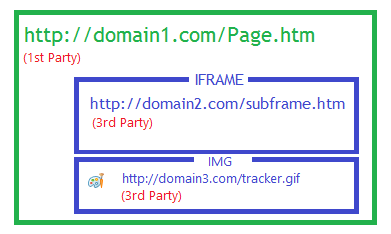
For instance, in this sample page, if the IFRAME and IMG both set a cookie, these cookies are set in a third-party context:

  • If the user subsequently visits domain2.com, the cookie set by that 3rd-Party IFRAME will now be sent to the domain2.com server in a 1st-Party context.
  • If the user subsequently visits domain3.com, the cookie set by that 3rd-Party IMG will now be sent to the domain3.com server in a 1st-Party context.

Historically, Edge Legacy and IE’s “Block 3rd party cookies” options controlled only whether a cookie could be set from a 3rd party context, but did not impact whether a cookie initially set in a 1st party context would be sent to a 3rd party context.

As of Edge Legacy RS5, setting “Block only 3rd party cookies” will now also block cookies that were set in a 1st party context from being sent in a 3rd-party context. This change is in line with the behavior of other browsers.

Edge Legacy Controls Impacted By Zones

With the move from Internet Explorer to Edge Legacy, the Windows Security Zones architecture was largely left by the wayside.

Zones

However, cookie controls are one of a small number of exceptions to this; Edge Legacy applies the cookie restrictions only in the Internet Zone, the zone almost all sites fall into (outside of users on corporate networks).

Perhaps surprisingly, cookie-like features and the document.cookie getter are restricted, even in the Intranet and Trusted zones.

Chrome and Firefox do not take Windows Security Zones into account when applying cookie policies. Modern Edge, based on Chromium, does not use Zones for this purpose.

Test Cases

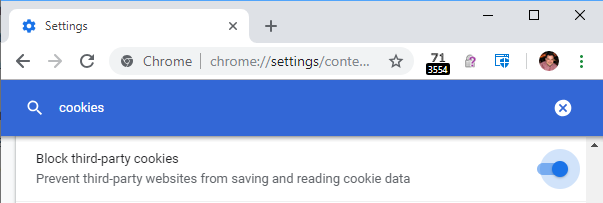
I’ve updated my old “Cookies” test page with new storage test cases. You can set your browser’s privacy controls:

Block3rdPartyChrome
Block3rdPartyFF

…then visit the test page to see how the browser limits features from 3rd-party contexts. You can use the Swap button on the page to swap 1st-party and 3rd-party contexts to see how restrictions have been applied. You should see that the latest versions of Chrome, Firefox, and Edge Legacy all behave pretty much the same way.

One interesting exception is that when configured to Block 3rd-party Cookies, Edge Legacy still allows 3rd-party contexts to delete their own cookies. (This is used by federated logout pages, for instance). Chrome does not allow deletion in this scenario– the attempt to delete cookies is ignored.

-Eric


Appendix: Chromium Audit

In the course of our site-compatibility investigations, I had a look at Chromium’s behavior with regard to their cookie controls. In Chromium, Blink asks the host application for permission to use various storages, and these chokepoints check methods like IsFullCookieAccessAllowed() which is sensitive to the various “Block Cookies” settings. (Things got much more complicated between 2018 and 2022; see this lengthy comment.)

Mojo messages come up through renderer_host/chrome_render_message_filter.cc, gating access to:

Additionally, ChromeContentBrowserClient gates:

Elsewhere, IsCookieAccessAllowed is used to limit:

Of these, Edge Legacy does not support WebSQL, FileSystem, SharedWorker, or Client Hints.

Update: As of Chromium v88, Windows Integrated Authentication (Kerberos/NTLM) is now blocked in third-party contexts if 3P Cookies are blocked.
Firefox and Fiddler – Easier than Ever

In a world where software and systems seem to march inexorably toward complexity, I love it when things get simpler.

Years ago, Firefox required non-obvious configuration changes to even send traffic to Fiddler. Eventually, Mozilla changed their default behavior on Windows to adopt the system’s proxy, meaning that Firefox would automatically use Fiddler when it was attached, just like Chrome, IE, Edge and other major browsers.

Unlike other browsers, Firefox also has its own Trusted Root Certificates store, which means that if you attempt to load a HTTPS page through Firefox with Fiddler’s HTTPS Decryption Mode enabled, you’ll get an error page:

FirefoxMITMDetected
MOZILLA_PKIX_ERROR_MITM_DETECTED error page

To configure Firefox to trust Fiddler’s root certificate, you used to have to manually install it by opening the FiddlerRoot.cer file, ticking the “Trust this CA to identify websites” box, and clicking OK:

FirefoxCA
The old way: Manually trusting Fiddler’s certificate

Making matters more annoying, any time you reset Fiddler’s root certificates (e.g. using the Actions button inside Tools > Fiddler Options > HTTPS), you had to do the whole dance over again. If you wanted to remove the obsolete root certificates, you had to visit a buried configuration UI:

ManualTrustFF
The old way: Administering the Firefox Certificate Store

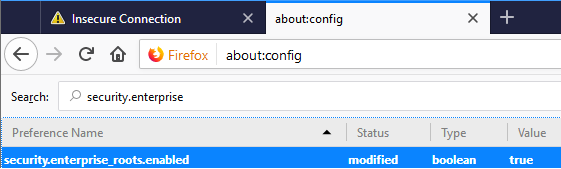
Yesterday, I was delighted to learn that Firefox added a better option way back in Firefox 49. Simply visit about:config in Firefox and toggle the security.enterprise_roots.enabled setting to true.

FirefoxEnterprise
Enable the new hotness in about:config

After you make this change, Firefox will automatically trust certificates chained to roots in the Windows Trusted Root Certificate store, just like Chrome, Edge, IE and other browsers. Unfortunately, Mozilla has declined to turn this on by default, but it’s still a great option.


-Eric