Automatically Evaluating Compressibility

Fiddler’s Transformer tab has long been a simple way to examine the use of HTTP compression of web assets, especially as new compression engines (like Zopfli) and compression formats (like Brotli) arose. However, the one-Session-at-a-time design of the Transformer tab means it is cumbersome to use to evaluate the compressibility of an entire page or series of pages.

Introducing Compressibility

Compressibility is a new Fiddler 4 add-on1 which allows you to easily find opportunities for compression savings across your entire site. Each resource dropped on the compressibility tab is recompressed using several compression algorithms and formats, and the resulting file sizes are recorded:

Compressibility tab

You can select multiple resources to see the aggregate savings:

Total savings text

WebP savings are only computed for PNG and JPEG images; Zopfli savings for PNG files are computed by using the PNGDistill tool rather than just using Zopfli directly. Zopfli is usable by all browsers (as it is only a high-efficiency encoder for Deflate) while WebP is supported only by Chrome and Opera. Brotli is available in Chrome and Firefox, but limited to use from HTTPS origins.

Download the Addon…

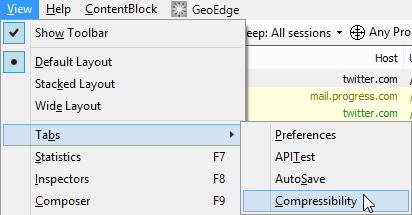
To show the Compressibility tab, simply install the add-on, restart Fiddler, and choose Compressibility from the View > Tabs menu2.

View > Tabs > Compressibility menu screenshot

The extension also adds ToWebP Lossless and ToWebP Lossy commands to the ImageView Inspector’s context menu:

ImagesMenuExt

I hope you find this new addon useful; please send me your feedback so I can enhance it in future updates!

-Eric

1 Note: Compressibility requires Fiddler 4, because there’s really no good reason to use Fiddler 2 any longer, and Fiddler 4 resolves a number of problems and offers extension developers the ability to utilize newer framework classes.

2 If you love Compressibility so much that you want it to be shown in the list of tabs by default, type prefs set extensions.Compressibility.AlwaysOn true in Fiddler’s QuickExec box and hit enter.

Putting Users First

When I worked on Internet Explorer, the team was proud of the fact that we could claim to be more aligned with our users’ goals than either of our major competitors (both of whom were funded almost entirely by advertising). IE, the story went, was paid for by users who purchased Windows, and thus our true customers were our users, not advertisers.

Over eight years on the team, there were very few instances where a decision was made that seemed to violate that “Users first, always” mantra (“Suggested Sites” being one noteworthy exception).

I was most proud of the work done around the IE Search Provider APIs, which made it easy for IE users to use the search engine of their choice, even though we knew that users’ choice would often not be Microsoft’s offering.

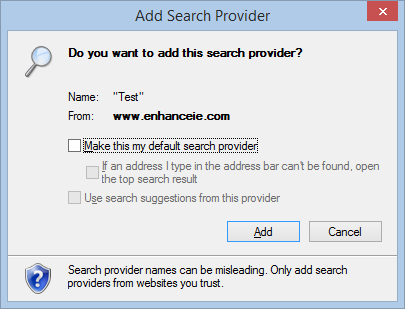
Add Search Provider (showing make default)

Last year, I was disappointed to see that Microsoft started removal of the Search Provider APIs, first deprecating them into legacy document modes, and next omitting them from the new Microsoft Edge browser. The result was that users had to follow a convoluted set of steps to add search providers for DuckDuckGo, Google, Wikipedia, etc. As a developer who loved using custom search providers for topic-specific searches on MSDN, StackOverflow, Amazon, and the like, I was really disappointed to see this change. I was only heartened to see this user-hostile change hadn’t been backported to earlier versions of Internet Explorer.

I recently upgraded Windows 10 to build 11082. Upon opening Internet Explorer 11, the following modal dialog box appeared:

srsly

I like to think that this dialog would never have shipped in the years I worked on IE. First, and most glaringly, the default option is to hijack the user’s search provider and homepage to Microsoft-owned properties. Next, the dialog box tries to justify this hijacking by implying that IE didn’t previously protect these settings (false) and that “websites” could “silently change” these settings (false). Clicking “Click here to learn more” takes the user to a page (delivered insecurely) which vaguely hand-waves about the threat of local malware, and says nothing about misbehaving websites.

So, if Microsoft is now “protecting” the settings they’ve just changed, how are they doing it?

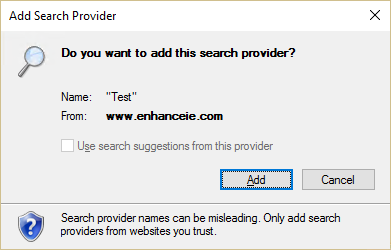
Let’s have a look at the new version of that Add Search Provider dialog box we saw earlier. See what’s missing?

Add Search Provider (missing "make default")

That’s right—the choice to change your default search engine has been removed. (The option is now buried in a subtab of a subdialog of the Internet Options dialog.)

Ick.


-Eric Lawrence

SHA-1 Certificates Blocked By Authenticode

Twitter started to light up a bit tonight with folks who are having problems with signatures; both third-party ISVs:

Twitter post about bad signature

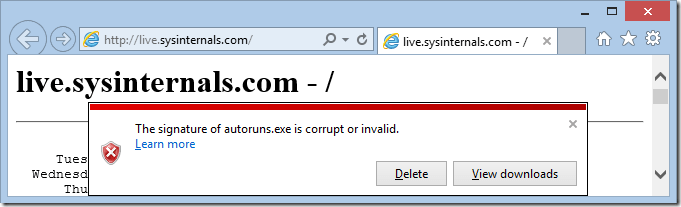
Signature is invalid or corrupt
The signature is corrupt or invalid.

… and even Microsoft’s own SysInternals utilities show1 an error:

Twitter complaint about bad signature

Signature is invalid or corrupt

Developers are surprised to see their workflow suddenly broken and wonder why.

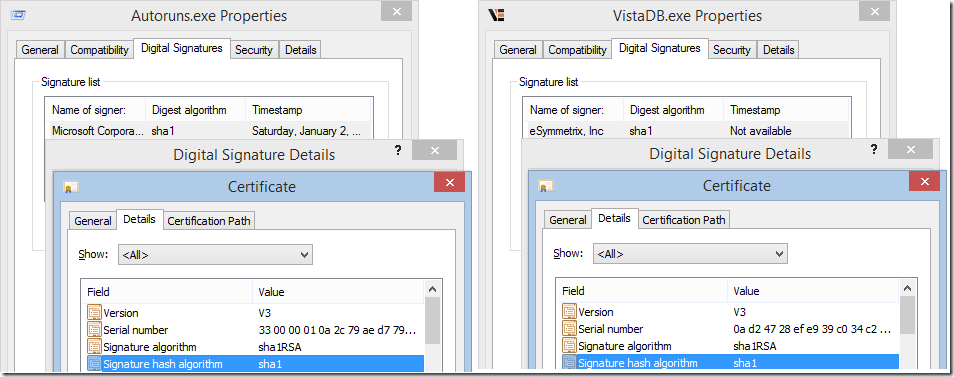
The problem is outlined here – the tl;dr is that you must use a SHA256-signed certificate when codesigning any file after January 1st, 2016. If you failed to timestamp your file when you signed it, the date of signature cannot be determined and today’s date is used.

Confusingly, if you examine the File Properties in Windows Explorer, it will say that the signature is OK:

Explorer UI shows OK
This digital signature is OK. But not really.

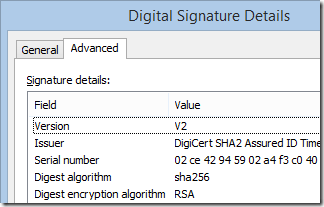
To see the problem, you must dig into the certificate details:

SHA1 certificates
SHA1-signed Certificates

To fix this problem, you must

  1. Replace your code-signing certificate with a SHA256-signed certificate. Your CA should be willing to do this for free; if they aren’t, a little public shaming on Twitter will probably change their mind. Note: The entire certificate chain (except the root) must be SHA256, not just your certificate.
  2. Re-sign your files with the new certificate
  3. Accept that Windows XP SP2 and earlier don’t understand SHA256 certificates and will treat the file as unsigned. This is fine; XP SP3 resolved that limitation and users on XP have much worse problems to worry about anyway.

After you upgrade to the proper certificate, you should look into dual-signing your binaries so that the Authenticode signature itself contains both SHA1 and SHA256 signatures; this isn’t strictly required yet, but may be in the future. You should also follow other best-practices, including time-stamping and using a hardware token.

Stay secure out there!

-Eric Lawrence
1 At first, when I tried this using the SysInternals site, I didn’t see any complaints about the signature. That’s because the http://www.sysinternals.com site sends its binaries inside a .ZIP file. I’m using 7-Zip, which has a significant security bug– it fails to propagate the Mark-of-the-Web from a .ZIP to the files extracted from a ZIP file; as a consequence, Windows and SmartScreen won’t recognize that the files are from the Internet. If you’re not using Explorer’s built-in ZIP engine (which propagates MOTW properly) you can download executables directly from live.sysinternals.com to see the SHA1 problem.

Authenticode in 2016

Last month, I noticed that my eToken USB code-signing key only supports SHA1 and not SHA256. I began hunting for a replacement that can sign using the stronger hash. Fortunately, I didn’t have to look far—the Yubico YubiKey 4 is $40 and supports SHA256, RSA 4096, and ECC p384. Beyond supporting stronger algorithms, it seems to integrate better with Windows – I don’t need to install third-party software to use it after loading my certificate with the YubiKey PIV Manager.

To take advantage of SHA256, I needed to update my scripts to use signtool.exe instead of the older signcode.exe, which only supports SHA1.

My script is simply:

signtool sign /d "Brotli [De]compressor" /du "https://github.com/google/brotli" /n "Eric Lawrence" /t http://timestamp.digicert.com /fd SHA1 brotli.exe
signtool sign /as /d "Brotli [De]compressor" /du "
https://github.com/google/brotli" /n "Eric Lawrence" /tr http://timestamp.digicert.com /td SHA256 /fd SHA256 brotli.exe

Notably, we sign the file twice:

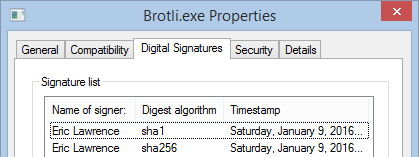
Windows File Properties show two signatures

First, sign using a SHA1 digest (older Windows versions don’t support SHA256). Then add an additional signature (the /as argument) using the stronger SHA256 file digest (the /fd argument).

For the stronger signature, use /tr to specify the timestamp URL (SHA256 signatures should use RFC3161 timestamps) and request that the timestamping server use a SHA256 digest (the /td argument).

Both signtool invocations will prompt for your PIN to access the private key stored on the token:

Windows PIN prompt

I was somewhat annoyed that the YubiKey only supports an 8 character PIN/password; I later learned that I can use the same 10 character password my old token uses—the final two characters are silently ignored.

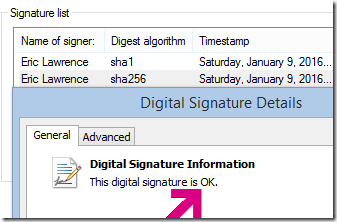
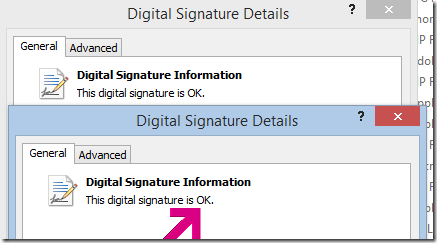
After you’ve signed the file, you should use Windows Explorer to verify that each of the signatures and timestamps is valid:

Signature OK

Timestamp Signature OK

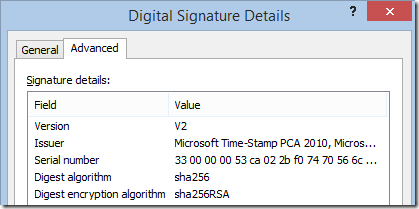
Interestingly, most public CAs will use SHA256 for the timestamp’s digest but not for the signature itself; you can see this if you look closely at the timestamp signature (“RSA”):

Just RSA

This is likely due to a limitation in OpenSSL, and isn’t seen in Microsoft’s signatures (“sha256RSA”):

SHA256RSA

A Few Caveats

  • MSIs cannot be dual-signed, only executables. (Update: Possibly introduced in Windows 8? See comments below.)
  • Not all timestamping servers support SHA256 and not all support RFC3161 from their default timestamp service. For GlobalSign, use http://timestamp.globalsign.com. For Comodo, use http://timestamp.comodoca.com/ (details). http://tsa.starfieldtech.com also works.

Getting Started with Profile Guided Optimization

For the convenience of the Windows developer community, I periodically compile the Zopfli and Brotli compressors from source, building for Win32 and code-signing the binaries (Interested? Get Zopfli.exe and Brotli.exe). After announcing the latest build on Twitter, I got an interesting question in reply:

Do you even PGO?

While I try to use the latest compiler (VS2015 U1), I’ve never used PGO with C++ myself. Profile guided optimization requires that you first compile a special instrumented binary that you run against a training set of data. The generated profiling data is fed into the compiler and it compiles an optimized binary based on the observed execution of the code, tuning the hottest paths for speed.

As with any technology-adoption question, I wondered: 1> Is using PGO hard? and 2> Will it noticeably improve performance?

Spoiler alert: The answers are “No” and “Yes.”

I started by skimming this old blog about PGO in Visual Studio; it looks pretty simple.

Optimizing a compressor with PGO is pretty straightforward. Unlike a GUI application with thousands of different operations, a compressor really only does one thing—compress.

I created a folder with files that I felt reasonably represent the types of data that I’ll be compressing with Zopfli (eight files captured via Fiddler). I could’ve experimented using a broader sample, but this seemed like a fine corpus of data with which to begin.

Click Build > Profile Guided Optimization > Instrument to generate an instrumented binary:

Build > Profile Guided Optimization > Instrument

Right-click the project in the Solution Explorer pane and choose Debugging under the Configuration Properties category. Edit the Command Arguments to specify the training scenario. Zopfli accepts a list of files to compress, so we simply list all eight:

Edit Command arguments

Close the dialog and click Build > Profile Guided Optimization > Run Instrumented/Optimized Application to run our application and generate profiling data:

Run Instrumented/Optimized Application

The scenario then runs; it takes a bit of extra time due to the cost of the profiling instructions in the instrumented binary. After it completes, a new file (Zopfli!1.pgc) is written to the \Release\ folder; if we’d run the application multiple times to train different scenarios, Zopfli!2.pgc, Zopfli!3.pgc, etc would be present as well.

Finally, click Build > Profile Guided Optimization > Optimize to generate a new build using the profiling data to select paths for optimization. You can see the effect of the profiling database on the Build in the Output window:

Build output shows optimizations

Now your executable has been optimized.

Pretty simple, right?

Proper benchmarking is an entire field itself, but let’s do the simplest thing that could possibly work to check the effectiveness of the optimizations:

Script runs optimized and unoptimized

We run the script a few times and see that the original unoptimized binary takes ~64 seconds to compress the corpus and the optimized binary takes ~46 seconds, a savings of almost 30%.

ZopFli PGO vs non PGO

You should run the same benchmark against a new set of data, just to ensure that your changes yield similar improvements (or at least no regression!) given different input data. A few runs of my PNGDistill tool (which uses Zopfli internally) show improvements of 10% to 25% when using the optimized compressor.

Pretty cool, right?

-Eric Lawrence