Hashes and Code-Signing

I’ve written a few articles about using Authenticode to sign your code to help prevent attacks, increase user confidence, and reduce interference from security software like Windows SmartScreen. You can read the overview, discussion of code-signing tokens, and “tricks” you can use to shoot yourself in the foot by adding data to a file without breaking its signature.

At the end of the last post, I mentioned that you shouldn’t be using signatures based on the MD5-hash, as that hash algorithm is outdated and collision attacks are getting better and cheaper with each passing day. Bizarrely, Microsoft hasn’t yet disabled MD5 for Authenticode (even as they increasingly talk about the threats to SHA1-hashed certificates). As far as I can tell, Microsoft hasn’t even announced a plan or timetable to do so.

The problem is that any signature based on MD5 could be simply copied from an MD5-signed file and then applied to any file whose MD5 hash was made to collide with the original—the result would be that the new file would appear to be signed by the certificate that had signed the original file. Back in 2014, the installer for CoPilot was signed with MD5 and was vulnerable to this attack.

Earlier this month, Automattic announced a new WordPress Desktop client which suffered from the same problem. You can examine the hash (digest) algorithm by right-clicking a signed file in Windows Explorer and choosing Properties from the context menu. The Digital Signatures tab will show information about the signed hash(es) used:

image

After investigating with the Automattic engineering team, we determined that the problem was due to the same root cause—signcode.exe defaults to MD5 and both the Windows and Mono version of this ancient tool default to the insecure MD5 hash.

The Automattic folks quickly fixed the problem (by simply adding -a SHA1 to the tool’s command line arguments) and pushed a new build. They were kind enough to name the release after me, with a funny release note:
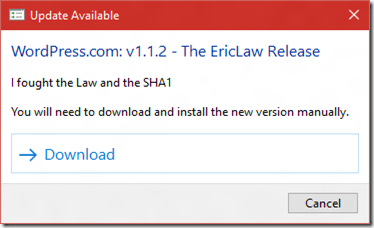
WordPress Update Dialog

Hashes, Hashes, and Hashes

When it comes to Authenticode, up to four different signed hashes are used:

  • The contents of the signed file
  • The contents of each of the certificates in the file’s signing certificate chain
  • The contents of the signing timestamp
  • The contents of each of the certificates in the timestamp’s signing certificate chain

The first hash is what this post has talked about thus far, but the second is arguably more interesting. If a certificate has a weak signature, an attacker could copy its weak signature to a maliciously crafted certificate and then he could sign an unlimited number of malicious files, making it appear as if they had been signed by the victim organization.

As a consequence of this greater threat, Microsoft has been gradually ramping up the restrictions on the hashes used in the signing chain: In 2016, certificate chains containing SHA1 will be blocked for files originating from the Internet. Code-signing certificate chains should be using the much stronger SHA256 hash.

You may be wondering whether you should be also using SHA256 to hash the contents of the file:
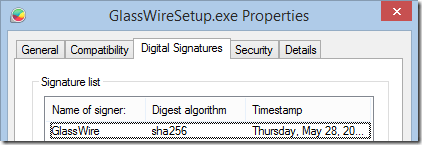
SHA256 digest

SHA256 file digests are supported on the latest versions of Windows, but not on Windows XP, even with Service Pack 3 which supports SHA256-hashed certificates. Fortunately, if you need to support older versions of Windows, you can dual-sign the file by applying multiple signatures:

Dual-signed with SHA1/SHA256

To dual-sign with SHA256, you must use the signtool.exe rather than signcode.exe; the /as argument is used to append additional signatures, and /fd sha256 is used to specify a SHA256 digest. You also need to ensure that your SHA256 signature’s timestamp uses a modern timestamping URL.

I was excited to start dual-signing my tools with SHA1 and SHA256, but I’ve hit a stumbling block; the eToken Pro signing token I use only supports MD5 and SHA1, but not SHA256. I’ll need to replace the token with a more modern version to use SHA256. Update: I ordered a YubiKey4 and wrote about using SHA256 with YubiKey.


Thanks for your help in securing downloads!

-Eric Lawrence

Understanding CONNECT Tunnels

When a browser needs to send a HTTPS request through a proxy (like Fiddler), there’s a bit of a problem.

The proxy needs to know where to send the client’s request, but the whole point of protecting traffic with HTTPS is that the content is encrypted and cannot be read by anyone else on the network, including the proxy!

To resolve this Catch-22, a trick is used– the browser sends a HTTP request with the method CONNECT and the target hostname and port to which the client would like a connection:

  CONNECT bayden.com:443 HTTP/1.1
  Host: bayden.com:443
  Connection: keep-alive
  User-Agent: Chrome/47.0.2526.58

Upon receiving such a request, the proxy is expected to establish a TCP/IP connection to the requested hostname and port and signal its success by returning a HTTP/200 response indicating that the requested connection was made:

  HTTP/1.1 200 Connection Established
  Connection: close

Subsequently, the proxy is expected to just blindly shuffle all bytes back and forth between the client and the server connections without looking at them. The client and server perform their HTTPS handshakes and then exchange encrypted traffic (typically, one or more HTTPS requests and responses). When the connection is no longer needed, either side closes the connection and the proxy, upon receiving notice that one side has closed the connection, closes the other side of the connection too.

We often refer to connections established in this way Proxy Tunnels.

In Fiddler, tunnels are represented by a grey lock icon with the text “Tunnel to” in place of the Host field; the URL field shows the target hostname and port, as seen in the first line of the screenshot:

image

Notably, Fiddler isn’t limited to blind proxy tunnels, it can execute a man-in-the-middle against both sides of the connection, pretending to the client that it is the server and pretending to the server that it is the client. When you enable HTTPS decryption in Fiddler, the proxy tunnel in the Web Sessions list is followed by all of the requests and responses that were transferred through that tunnel (as shown in the second and third lines in the screenshot).

-Eric

The Sad State of HAR

Spring 2017 Update: Some of these issues have been fixed.

The HTTP Archive Format (HAR) was designed to allow tools to exchange network traffic using a standard format; this format is akin to Fiddler’s Session Archive Zip format but is supported natively by browser developer tools. Unlike SAZ files, it is not compressed by default, and often includes redundant text to simplify parsers.

Unfortunately, none of the four major browsers (IE, Edge, Chrome, Firefox) generates HAR correctly.

Internet Explorer 11 and below: Generates the file in XML instead of the proper JSON, due to a misreading of the specification. The export is also limited by numerous bugs in the F12 Network Capture tool, including missing data and misrepresentation of certain response types (e.g. 304s).

Firefox 45: Attempts to store GZIP’d response bodies as text.

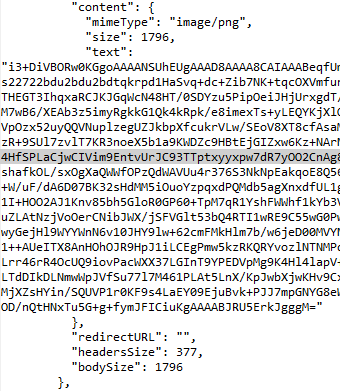
Fails to include the encoding=”base64″ attribute when storing binary bodies using base64 encoding.

Embedded image permalink

Microsoft Edge: Fails to include the encoding=base64 token when storing binary bodies using base64 encoding.

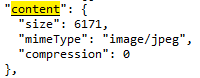
Chrome 47: “Save as HAR with content” doesn’t save the content.

Embedded image permalink

Unfortunately, there seems to be little effort to clean these problems up; the IE bug is at least four years old, the Edge bug is at least four months old. I filed bugs on Chrome and Firefox after failing to find any duplicates.

The HAR format specification itself has a number of shortcomings that have yet to be corrected, for instance:

  • No specified way to encode binary request bodies
  • No specified way to encode WebSocket messages

Perhaps the name of HAR spec-author Jan Odvarko’s blog is prescient: Software is hard.

-Eric

Reset Fiddler’s HTTPS certificates

I’ve made changes to the latest versions of Fiddler to improve the performance of certificate creation, and to avoid problems with new certificate validation logic coming to Chrome and Firefox. The biggest of the Fiddler changes is that CertEnroll is now the default certificate generator on Windows 7 and later.

Unfortunately, this change can cause problems for users who have previously trusted the Fiddler root certificate; the browser may show an error message like NET::ERR_CERT_AUTHORITY_INVALID or The certificate was not issued by a trusted certificate authority.

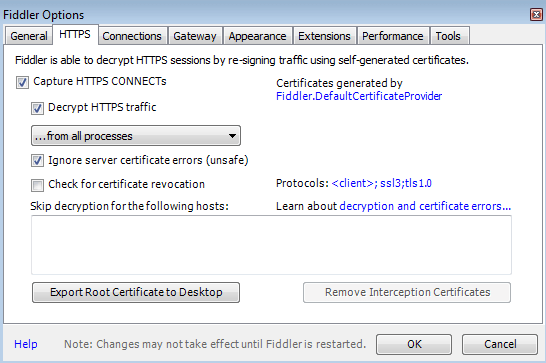
Please perform the following steps to recreate the Fiddler root certificate:

Fiddler 4.6.1.5+

  1. Click Tools > Fiddler Options.
  2. Click the HTTPS tab.
  3. Ensure that the text says Certificates generated by CertEnroll engine.
  4. Click Actions > Reset Certificates. This may take a minute.
  5. Accept all prompts

Fiddler 4.6.1.4 and earlier

  1. Click Tools > Fiddler Options.
  2. Click the HTTPS tab
  3. Uncheck the Decrypt HTTPS traffic checkbox
  4. Click the Remove Interception Certificates button. This may take a minute.
  5. Accept all of the prompts that appear (e.g. Do you want to delete these certificates, etc)
  6. (Optional) Click the Fiddler.DefaultCertificateProvider link and verify that the dropdown is set to CertEnroll
  7. Exit and restart Fiddler
  8. Click Tools > Fiddler Options.
  9. Click the HTTPS tab
  10. Re-check the Decrypt HTTPS traffic checkbox
  11. Accept all of the prompts that appear (e.g. Do you want to trust this root certificate)

image

If you are using Fiddler to capture secure traffic from a mobile device or Firefox, you will need to remove the old Fiddler root certificate from that device (or Firefox) and install the newly-generated Fiddler certificate.

I apologize for the inconvenience, but I believe that the new certificate generator will help ensure smooth debugging with current and future clients.

-Eric Lawrence

DotNet Makes Me Sad, In Pictures

.NET Framework KB 3088956:

image

Ouch, that sounds pretty severe.

I guess I’d better go manually install a hotfix?

image

Seriously? An email address and a CAPTCHA? Fine.

image

Oh, an email delivered HTTP URL pointed at an executable file? That seems totes legit.

image

Yup, definitely legit, it says “Microsoft” right there at the top!

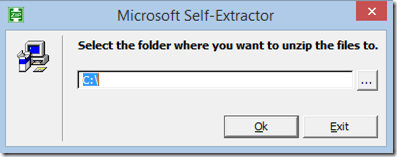
image

Sure, let’s put those files in the root of the C:\ drive. I’m sure that’ll work.

image

Oh, guess it did. Magic!

Oh, wait. No files in C:\. No magic, I guess.

Let’s use Process Monitor to watch the file writes… that’s what all the cool kids have to do to install patches, right?

image

Ah, there you are! UAC virtualization like it’s 2006!

image

Of course I must, Microsoft, of course I must.

-Eric