Explainer: File Types

On all popular computing systems, all files, at their most basic, are a series of bits (0 or 1), organized into a stream of bytes, each of which uses 8 bits to encode any of 256 possible values. Regardless of the type of the file, you can use a hex editor to view (or modify) those underlying bytes:

But, while you certainly could view every file by examining its bytes, that’s not really how humans interact with most files: we want to view images as pictures, listen to MP3s as audio, etc.

When deciding how to handle a file, users and software often need to determine specifically what type the file is. For example, is it a Microsoft Word Document, a PDF, a compressed ZIP archive containing other files, a plaintext file, a WebP image, etc. A file’s type usually determines what handler software will be launched if the user tries to “open or run” the file. Some file types are based on standards (e.g. JPEG or PDF), while others are proprietary to a single software product (e.g. Fiddler SAZ). Some file types are handled directly by the system (e.g. Screensaver files on Windows) while other types require that the user install handler software downloaded from the web or an app store.

Some file types are considered dangerous because opening or running files of that type could result in corrupting other files, infecting a device with malicious code, stealing a victim’s personal information, or causing unwanted transactions to be made using a victim’s identity or assets (e.g. money transfer). Software, like browsers or the operating system’s “shell” (Explorer on Windows, Finder on MacOS), may show warnings or otherwise behave more cautiously when a user interacts with a file type believed to be dangerous.

As a consequence, correctly determining a file’s type has security impact, because if the user or one part of the system believes a given file is benign, but the file is actually dangerous, calamity could ensue.

So, given this context, how can a file’s type be determined?

Type-Sniffing

One approach to determining a file’s type is to have code that opens the file and reads (“sniffs”) some of its bytes in an attempt to identify its internal structure. For some file formats, a magic bytes signature (typically at the very start of the file) conveys the type of the content. As seen above, for example, a Windows Executable starts with the characters MZ, while a PDF document begins with %PDF:

… and a PNG image file starts with the byte sequence 89 50 4E 47 0D 0A 1A 0A:

The Problems with Type-Sniffing

Unfortunately, sometimes a signature may be misleading. For example, both the Microsoft Office Document format and Fiddler’s Session Archive ZIP format are stored as specially-formatted ZIP files, so a file handler looking for a ZIP file’s magic bytes (PK) might get confused and think a Microsoft Word document is a generic archive file:

Alas, the problem is even worse than that, because many file type formats do not demand a magic byte signature at all. For example, a plain text file has no magic bytes, so any text that happens to be at the start of a text file could overlap with another format’s signature. One afternoon decades ago, I was tasked with solving the mystery of why Internet Explorer was renaming a the ZIP specification text file from zip_format.txt to zip_format.zip, but if you look at the bytes, the explanation is pretty obvious:

HTML is another popular format that does not define any magic bytes, and reliably distinguishing between HTML and text is difficult. In the old days, Internet Explorer would scan the first few hundred bytes of the file looking for known HTML tags like <html> and <body>. This worked well enough to be a problem — an author could rely upon this behavior, but then subtly change their document and it would stop working.

Because type-sniffing requires that a file be opened and (some portion of) its contents examined, there are important performance considerations. For example, if you tried to sort a directory listing by the file type, the OS shell would have to open every file to determine its type, and only after opening every file could the list be sorted. This could take a long time, especially if the file is located on a remote network share, or within a compressed archive. Furthermore, this logic would fail if the file could not be opened for some reason (e.g. it was already opened in exclusive mode by some other app, or if reading the file’s content requires additional security permissions).

In a system where type-sniffing is used, a user cannot reliably determine what will happen when a file is opened based solely on the name of the file. They must rely on the OS or browser software to determine the type and expose that information somewhere.

MIME Types

MIME standards describe a system where each type of file is described using a media type, a short, textual string, consisting of a type and subtype separated by a forward slash. Examples include image/jpeg, text/plain (this blog’s namesake), application/vnd.ms-word.document.12 and so on.

If you look at the raw source of an email that has a photo embedded within it, you’ll see the photo’s MIME type mentioned just above the encoded bytes of the image:

And, you’ll see the same if you download an image over HTTPS, listed as the value of the HTTP Content-Type header:

MIME Media types are a great way to represent the type of a file, but there’s a big shortcoming — they only work when there’s a consistent place to store the string, and unfortunately, that isn’t common. For internet-based protocols that offer headers, a Content-Type header is a great place to store the information, but after the file has been downloaded, where do you store the info?

Within some file systems, the data can be stored in an “alternate stream” attached to the file, but not all filesystems support the concept of alternate streams. You could imagine storing the type information in a separate database, but then the system has to be smart enough to keep the information in sync as the file is moved or edited.

Finally, even if you are able to reliably store and recall this information as needed, in a system where MIME types are used, a user cannot reliably determine what will happen when a file is opened based solely on the name of the file. They must rely on the OS or browser software to determine the type and expose that information somewhere.

File Extensions

Finally, we come to file extensions, the system of representing a file’s type using a short identifier at the end of the name, preceded by a dot. This approach is the most common one on popular operating systems, and it’s one I’ve previously described as “The worst approach, except for all of the other ones.”

In terms of disadvantages, there are a few big ones:

  • Users might not know what a file’s extension means
  • Users can accidentally corrupt a file’s type information if they change the extension while changing a filename
  • Some folks think that file extensions are “ugly”
  • Attackers might abuse security prompt UIs to try to confuse the user about which part of the filename is the extension. (A common fix is to show the extension separately)

However, there are numerous advantages to file extensions over other approaches:

  • Every popular OS supports naming of files, meaning that the file’s type isn’t “lost” as the file moves between different types of systems
  • Most UI surfaces are designed to show (at least) a file’s name, which means that the file’s type can be seen by the user
  • Most software operates on file names, which means that the file’s type is immediately available without requiring reading any of the file’s content
  • File extensions are relatively succinct and do not contain characters (e.g. the forward slash in a MIME-type) that have other meanings in file systems

Interoperability, in particular, is a very important consideration, and combined with the long legacy of systems built around file extensions (dating back more than 40 years), file extensions have become the dominant mechanism for representing a file’s type.

In practice, modern systems usually a mapping between file extensions and MIME types; for example, text/plain files have an extension of .txt, and .csv files have a MIME type of text/csv. In Windows, this mapping is maintained in the Windows Registry:

…and these mappings are respected by most programs (although e.g. Chromium also consults an override table built into the browser itself).

In some cases, a misconfigured MIME mapping in the Windows registry can impact browser scenarios like file upload.

File Extensions are associated with MIME types via registrations with the IANA standards body.

File Extension Arcana

On Windows, users can configure the Explorer Shell to hide the file extension from display; the setting applies to many file types, but not all of them.


MSDN contains a good deal of documentation about how Windows deals with file types, including the ability of a developer to indicate that a given file type is inherently dangerous (FTA_AlwaysUnsafe)

On Windows, you can find a path’s file extension using the PathFindExtensionW function. Note that a valid file name extension cannot contain a space. There’s more information within the article on File Type Handlers.

Windows also has the concept of “perceived types“, which are categories of types, like “image”, “video”, “text”, etc, akin to the first portion of the MIME type.


Importantly, file extensions can be “wrong” — if you rename an executable to have a .txt extension, the system will no longer treat it as potentially dangerous. However, from a security point-of-view, this mismatch is generally harmless– so long as everything treats the file as “text”, it will not be able to execute and damage the system. If you double-click on the misnamed file in Explorer, for example, it will simply open in Notepad and display the binary garbage.

However, the Windows console/terminal (cmd.exe) does not care (much) about file extensions when running programs. If you rename an executable to have a different extension, then type the full filename, the program will run[1]:

If you fail to include the extension, however, the program will not run unless the extension happens to be listed in the %PATHEXT% environment variable, which defaults to PATHEXT=.COM;.EXE;.BAT;.CMD;.VBS;.VBE;.JS;.JSE;.WSF;.WSH;.MSC


Some filenames might contain a “double-extension” like (.tar.gz) that conveys that the file is a “Tar file that has been compressed with GZip.” Some software is aware of this multiple-file-extensions concept (and can treat tar.gz files differently than .gz files) but most will simply respect only the so-called final extension.


The std::filesystem::path::extension() function (and Boost) will treat a file that consists of only an extension (e.g. .txt) as having no extension at all. This is an artifact of the fact that such files are considered “dotfiles” on Unix-based systems, where the leading dot suggests that the file should be considered “hidden.” Windows does not really have this concept (the hidden bit is a file attribute instead), and thus you can freely name a text file just .txt and, when invoked from the shell, the system will open Notepad to edit it as it would any other text file.

-Eric

[1] Or, it used to, at least. On my Windows 11 24H2 system, invoking the IAmNotaTextFile.txt file from the terminal opens in Notepad. I’m not sure what changed and when. Maybe there’s a setting?

How Microsoft Edge Updates

By default, Edge will update in the background automatically while you’re not using it. Open Microsoft Edge and you’ll be using the latest version.

However, if Edge is already running and an update becomes available, an update notifier icon will show in the Edge toolbar. When you see the update notifier (a green or red arrow on the … button):

… this means an update is ready for use and you simply need to restart the browser to have it applied.

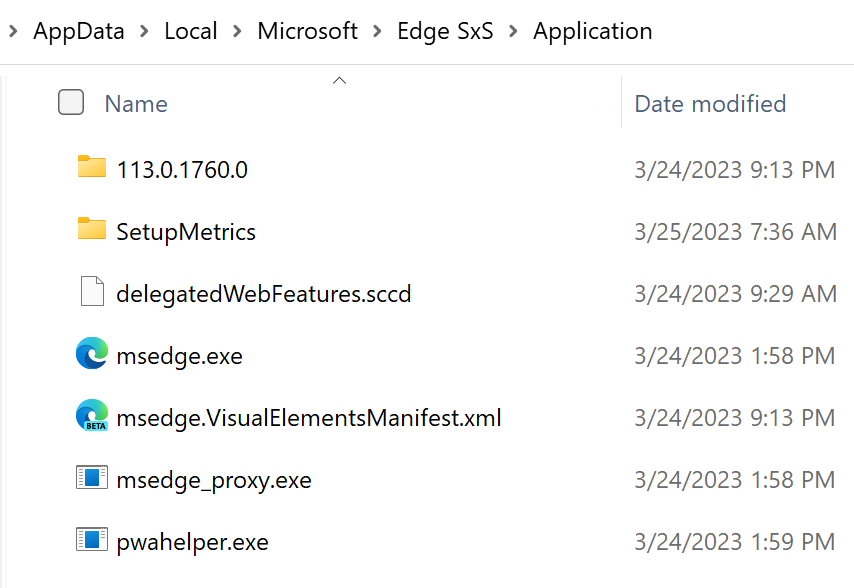
While you’re in this state, if you open Edge’s application folder, you’ll see the new version sitting side-by-side with the currently-running version:

When you choose to restart:

…either via the prompt or manually, Edge will rename and restart with the new binaries and remove the old ones:

In addition to cleaning up the old binaries, the newly-started Edge instance verifies if any data migration needs to take place (e.g. if the user profile database structure has been changed) and performs that migration.

The new instance restarts using Chromium’s session restoration feature, so all of your tabs, windows, cookies, etc, are right where you left them before the update (akin to typing edge://restart in the omnibox).

This design means that the new version is ready to go immediately, without the need to wait for any downloads or other steps that could take a while or go wrong along the way. This is important, because users who don’t restart the browser will continue running the outdated version (even for new tabs or windows) until they restart, and this could expose them to security vulnerabilities. Security Tip: If your see the update notification, you should restart as soon as possible!

Three Group Policies give administrators control of the relaunch process, including the ability to force a restart.

Threat Management / Software Inventory

Unfortunately, this design can cause some confusion for Enterprise Software Inventory / Threat Management products, because they will typically check the version of the current msedge.exe file on disk. That version may be outdated pending the relaunch of the browser, which will perform the replacement process.

For example, if the msedge.exe is on version 119.0.2112.0, but version 119.0.2213.0 is currently staged as new_msedge.exe, your Software Inventory tool might complain that the user has an outdated version of Edge until the user launches the browser.

Manually vs. Automatic Update Check

Users can trigger a check for updates by clicking > Help & Feedback > About Microsoft Edge or navigating to edge://settings/help.

If that doesn’t work (e.g. because Edge crashes before navigating anywhere) fear not — Edge’s Update Service will install a new release within a few hours of it becoming available. If you’d like to speed it along, you can ask the Updater to update Edge Canary thusly:

"C:\Program Files (x86)\Microsoft\EdgeUpdate\MicrosoftEdgeUpdate.exe" "/silent /install appguid={65C35B14-6C1D-4122-AC46-7148CC9D6497}&appname=Microsoft%20Edge%20Canary&needsadmin=False"

If you instead wanted to update Stable, the command line would be

C:\Program Files (x86)\Microsoft\EdgeUpdate\MicrosoftEdgeUpdate.exe" -argumentlist "/silent /install appguid={56EB18F8-B008-4CBD-B6D2-8C97FE7E9062}&appname=Microsoft%20Edge&needsadmin=True"

Beware Fake Updates from websites

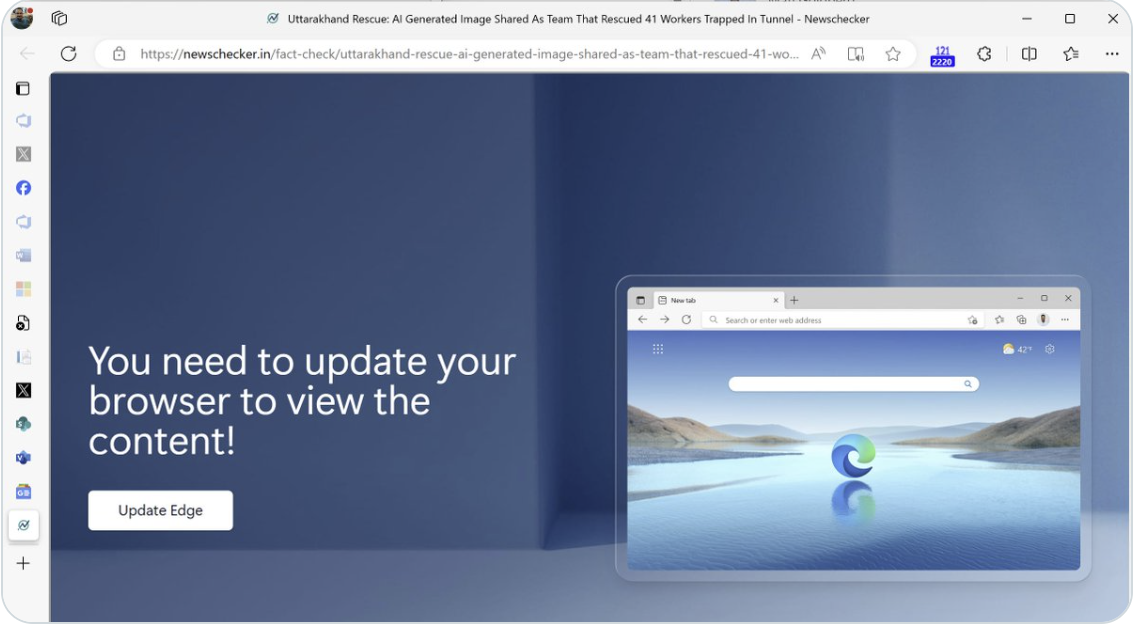
If a website claims that you need to install a browser update to continue, don’t do it, it’s a scam! Websites sometimes are compromised by malicious ads pretending to be a browser update, in the hopes that you’ll download and run their malicious software. Edge (and Chrome) never distribute updates in this way.

Screenshot of a SCAM site that attempts to trick the user into installing malware

-Eric

Technical Appendix

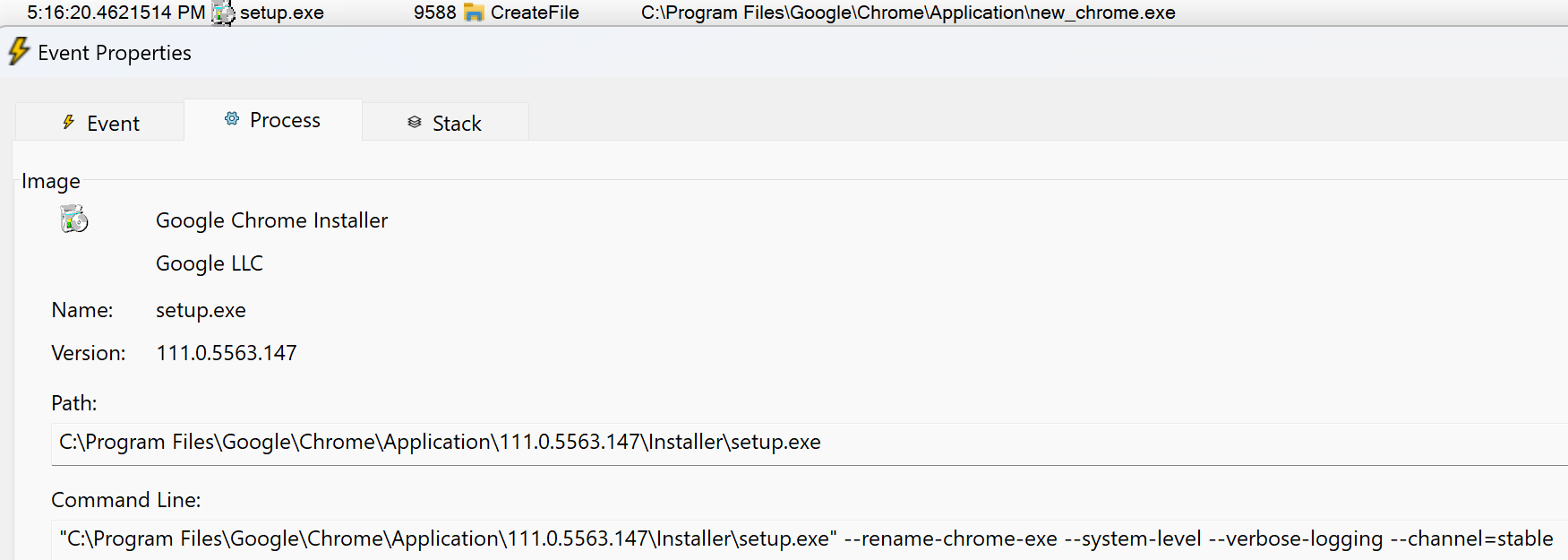
Chromium’s code for renaming the new_browser.exe binary can be seen here. When Chrome is installed at the machine-wide level, Chromium’s setup.exe is passed the --rename-chrome-exe command line switch, and its code performs the actual rename.

Edge’s background updater uses a variety of approaches to ensure that it’s available to install a new version upon release:

Attack Techniques: Spoofing via UserInfo

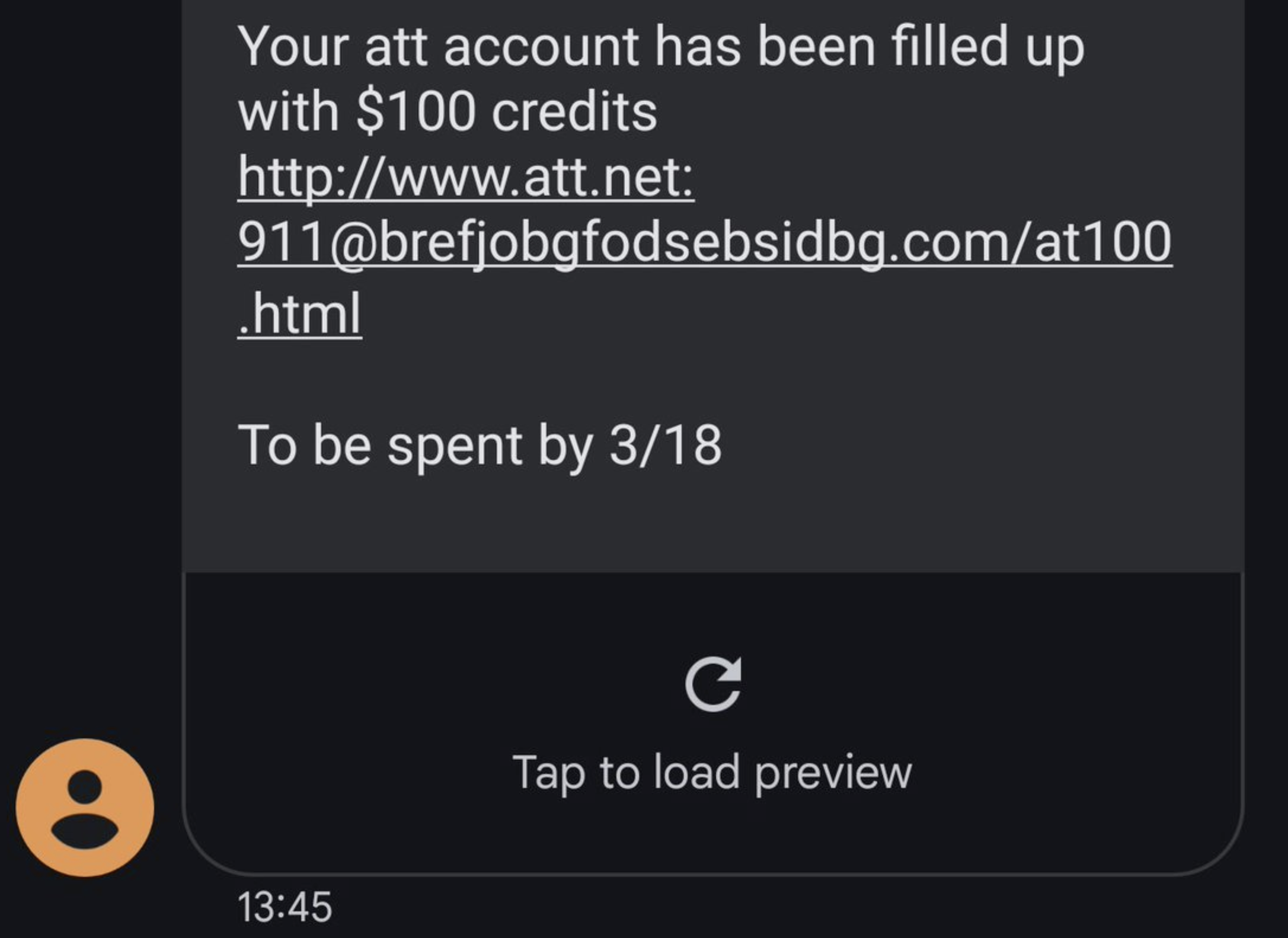
I received the following phishing lure by SMS a few days back:

The syntax of URLs is complicated, and even tech-savvy users often misinterpret them. In the case of the URL above, the actual site’s hostname is brefjobgfodsebsidbg.com, and the misleading www.att.net:911 text is just a phony username:password pair making up the UserInfo component of the URL.

Because users aren’t accustomed to encountering urls with UserInfo, they often will assume that tapping this URL will load att.net, which it certainly does not.

The Guidelines for Secure URL Display call for hiding the UserInfo data from UI surfaces where the user is expected to make a security decision (for example, the browser’s address bar/omnibox), and you’ll notice if you load this URL, the omnibox doesn’t show the spoofy portion. However, by the time that the user taps, the phisher likely has already successfully primed the user into expecting that the link is legitimate.

Test Links

Test Link: https://guest:guest@jigsaw.w3.org/HTTP/Digest/
Test Link: https://guest:guest@jigsaw.w3.org/HTTP/Basic/

If the page shows “Your browser made it!” without popping an authentication dialog, your browser automatically sent the credentials in response to the server’s HTTP/401.

Note that the UserInfo component of the URLs is visible in both NetLogs and browser extension events.

Browser Behavior

Nineteen years ago (April 2004), Internet Explorer 6 stopped supporting URLs containing userinfo, with the justification that this URI component wasn’t actually formally a part of the specification for HTTP/HTTPS URLs and it was primarily used for phishing. Last summer, RFC9110 made it official, suggesting:

Before making use of an "http" or "https" URI reference received from an untrusted source, a recipient SHOULD parse for userinfo and treat its presence as an error; it is likely being used to obscure the authority for the sake of phishing attacks.

The guidance goes on to note the risk of legitimately relying upon this URL syntax (it’s easy for the credentials to leak out due to bugs or careless handling).

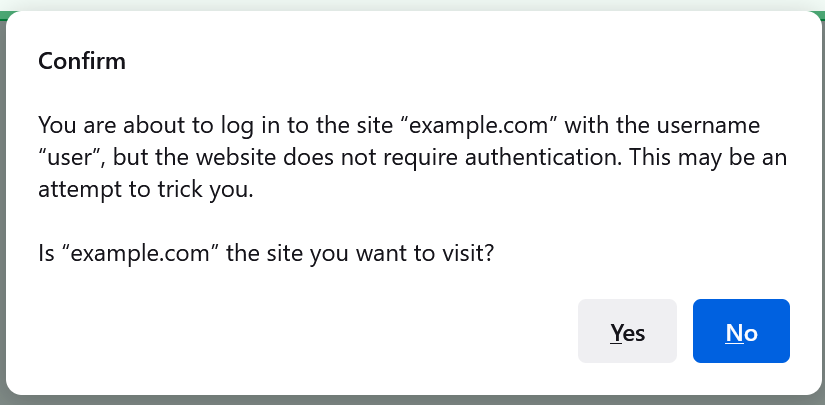
In contrast to IE’s choice, Firefox went a different way, showing the user a modal prompt:

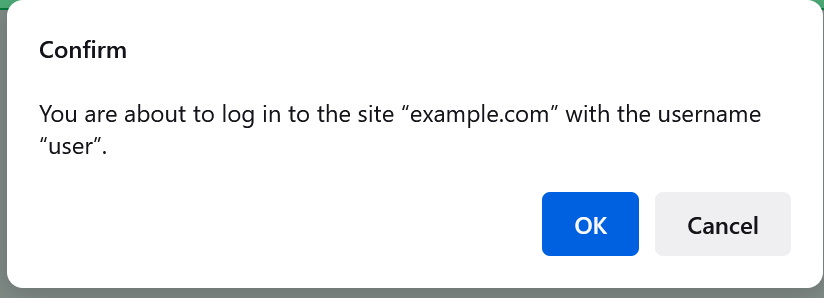
… which seems like a solid mitigation. However, the attacker can make the warning less scary by returning a HTTP/401 challenge, causing the text of the dialog to change to:

Chrome’s Security team reluctantly deems the acceptance of UserInfo as “Working as Intended.” While allowed for top-level navigations, Chromium disallows UserInfo in many niches, including the subresource fetches (which helps protects against a different class of attack). The crbug issue tracking that restriction includes some interesting conversation from folks encountering scenarios broken by the prohibition.

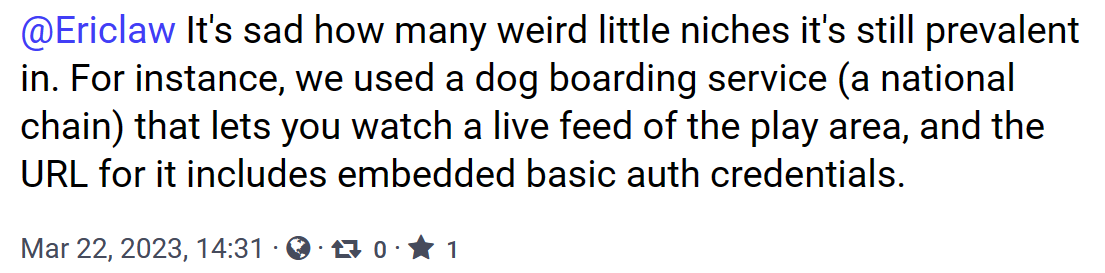
While it’s tempting to just disallow UserInfo everywhere (and I’d argue that all vendors probably should get RFC9110-compliant ASAP), it’s difficult to know how many real-world sites would break. Some browser vendors are probably reluctant to “go first” because in doing so, they might lose any inconvenienced users to a competitor that still allows the syntax. Just today, one security expert noted:

Ugh. Stay safe out there!

-Eric

Going Electric – Solar

For years now, I’ve wanted to get solar panels for my house in Austin, both because it feels morally responsible and because I’m a geek and powering my house with carbon-free fusion seems neat.

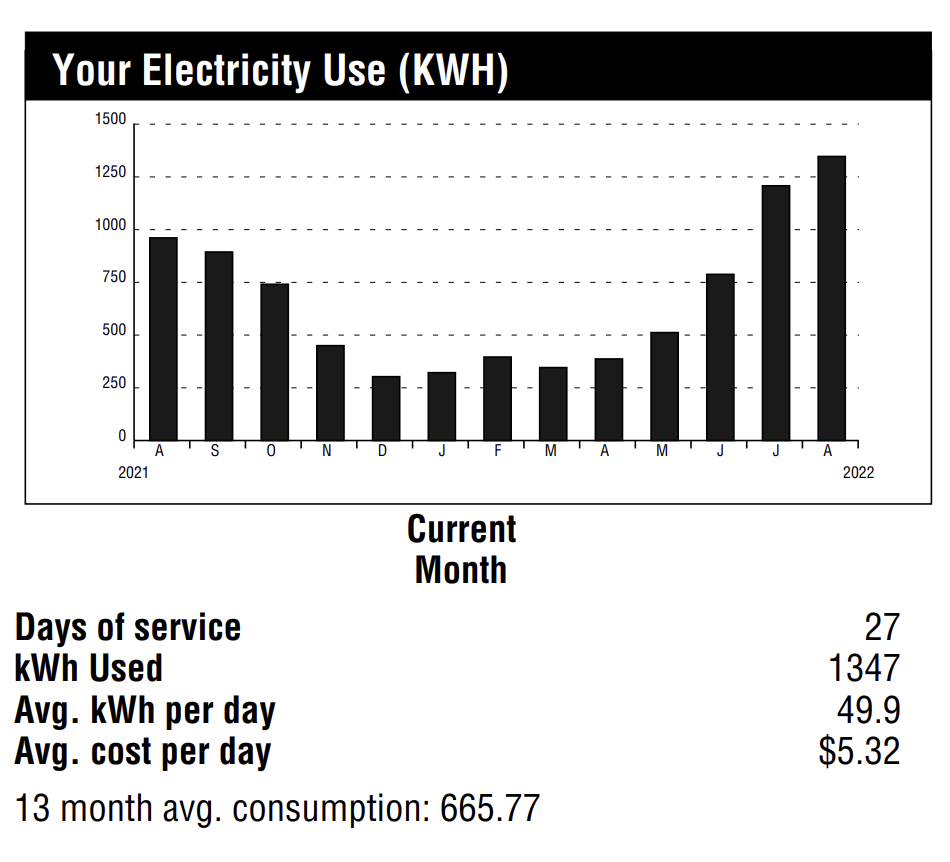
Economically, I assume I’ll eventually break even with solar power, but probably not for a long time– my house isn’t large by Texas standards, and I use energy pretty efficiently. In August 2022, my monthly usage peaked at 1347 kilowatt hours:

I held off on installing solar for a long time because I was afraid that it was going to end up like LED lighting– I buy in, and then the tech improves rapidly, with costs dropping like a rock and efficiency improving every year. But I’ve gotten tired of waiting, and tired of being grumpy about every sunny day in the blistering Austin summer.

In selecting a solar provider, I ended up doing less due-diligence than I’d planned, but got a few recommendations from folks on Twitter and in my neighborhood, ultimately settling on a local company, Native Solar. I suspect they are far from the cheapest provider (e.g. Tesla Solar quoted panels for thousands less), but in reading the reviews of solar companies, many have horrible reviews for both installation and ongoing support, and I don’t need more hassle in my life. (Update: A year in, I would not recommend Native Solar.).

I selected an 8Kw array, consisting of twenty panels and inverters:

The array is expected to generate 141% of my current power use, although I expect my power use will be higher in the future, thanks to my electric car and possible eventual switch to an induction stovetop and, possibly in a few years, a heat pump.

In Austin, solar power is sold to the grid at 9.5 cents per kWH, which is somewhat more than I pay for it, even at the “Tier 3” pricing you can see in my statement above.

The array was expensive, with total payments of $24900:

… but that doesn’t include a Federal tax credit of $7470 and a rebate of $2500 from my local power company (Austin Energy), for a net system cost of ~$15000 (Update a bit more).

Notably, I decided not to install a battery system. A 12kwh battery would have added delays and around $10K (after rebates) to the cost of the system, and with a service lifetime of just 10 years (the panels are expected to perform well for 25), that works out to be $1000 a year, every year, to handle any power outages. In my decade in Austin, significant power outages have been rare– in 2021’s big ice storm, I lost power for around twelve hours. In 2023’s enormous ice storm, I lost power for a very annoying fifty six hours and started to wonder if I’d made a mistake. (I’m hoping that one day, bidirectional power from cars will become more practical — my Nissan Leaf’s “puny” battery is 40kwh, but most of today’s electric cars don’t support acting as the house’s battery).

While I signed the contract for the solar install, I knew it was going to be a long process. My first payment was on September 1st of 2022, and the design wasn’t drawn until November. I quickly got it approved by the neighborhood home owners’ association, and Native Solar went through the process of getting the necessary approvals and permits from the power company and city.

At long last, on Wednesday (March 15th, 2023), the installers arrived to install the electrical boxes and the rails on my SW-facing roof:

After a rare rain interlude on Thursday, the installers returned on Friday to install the panels themselves. On the roof, the panels don’t look so big, but standing on the ground you can see how enormous they are:

After a few more hours work, the panels were all installed and hooked up:

Alas, the electrical panels are on the northeast side of the house, so there’s now a conduit that runs over the center of my roof:

Three new boxes were added left of the main panel and meter:

Alas, the big switch in the middle remains in the OFF position, as I’m not allowed to turn on the system until the City performs their final inspection of the installed system.

Hopefully they’ll get to it soon– I’m excited to see how much power I’m capturing!

Update: I provide results for my first year in this post.

-Eric

Improving Native Message Host Reliability on Windows

Last Update: Nov 28, 2023

Update: This change was checked into Chromium 113 before being backed out. The plan is to eventually turn it on-by-default, so extension authors really should read this post and update their extensions if needed.

The feature was relanded inside Chrome Canary version 115.0.5789.0. It’s off-by-default, behind a flag on the chrome://flags#launch-windows-native-hosts-directly page.

In Chrome 120.0.6090+ and Edge 120+, a Group Policy NativeHostsExecutablesLaunchDirectly allows admins to turn this on for users in restricted environments (Cloud PCs that forbid cmd.exe, for example).


Background

Previously, I’ve written about Chromium’s Native Messaging functionality that allows a browser extension to talk to a process running outside of the browser’s sandbox, and I shared a Native Messaging Debugger I wrote that allows you to monitor (and even tamper with) the communication channels between the browser extension and the Host App.

Obscure Problems on Windows

Native Messaging is a powerful capability, and a common choice for building extensions that need to interact with the rest of the system. However, over the years, users have reported a trail of bugs related to how the feature is implemented on Windows. While these bugs are typically only seen in uncommon configurations, they could break Native Messaging entirely for some users.

Some examples include:

  • crbug/335558 – Ampersand in Host’s path prevents launching (Fixed in 118)
  • crbug/387228 – Broken if %comspec% not pointed at cmd.exe
  • crbug/387233 – Broken when cmd.exe is disabled or set to RUNASADMIN

While the details of each of these issues differ, they all have the same root cause: On Windows, Chromium did not launch Native Message Hosts directly, instead launching cmd.exe (Windows’ console command prompt) and directing it to launch the target Host:

This approach provided two benefits: it enabled developers to implement Hosts using languages like Python, whose scripts are not directly executable in Windows, and it enabled support for Windows XP, where the APIs did not allow Chromium to easily set up the communication channel between the browser and the Native Host.

Unfortunately, the cmd-in-the-middle design meant that anything that prevented cmd.exe from running (387233, 387228) or that prevented it from starting the Host (335558) would cause the flow to fail. While these configurations tend to be uncommon (which is why the problems have existed for ten years), they also tend to be very very hard to recognize/diagnose, and the impacted customers often have little recourse short of abandoning the extension platform.

The Fix

So, over a few nights and weekends, I landed a changelist in Chromium to improve this scenario for Chromium 113.0.5656 and later. This change means that Chrome, Edge (version 113.0.1769+), and other Chromium-derived browsers will now directly invoke any Native Host that is a Windows Executable (.exe) rather than going through cmd.exe instead:

This change will reach the Stable Channel of Chrome and Edge (v113) in the last week of April 2023.

Native Hosts that are not implemented by executables (e.g. Python scripts or the like) will continue to use the old codepath.

I’ve got my fingers crossed that effectively no one even notices this change, with the exception of those unfortunate users who were encountering the old bugs who will now find that they can use previously-broken extensions.

However, this change also fixes two other bugs that were caused by the cmd-in-the-middle flow and those changes could cause problems if your Windows executable was not aware of the expected behavior for Native Hosts.

(In)Visibility

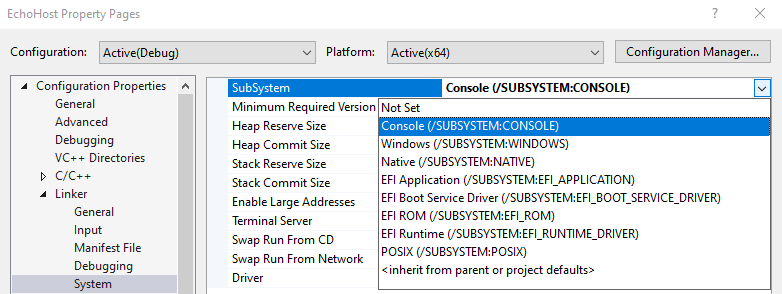
When Chromium launches a native host, it sets a start_hidden flag to prevent any UI from popping up from the host. That flag prevents the proxy cmd.exe‘s UI window (conhost.exe) from appearing on the screen. This start_hidden flag means that console-based (subsystem:console) Windows applications remain invisible during native-messaging communications. However, the start_hidden flag didn’t flow through to non-console applications (e.g. subsystem:Windows), like my Native Messaging Debugger application, which is built atop C#’s WinForms and meant to be seen by the user.

UPDATE: In the new version of this change that is available in version 115+, the browser will now look at headers inside of the target EXE. If the executable targets SUBSYSTEM:CONSOLE, it will be hidden as described in this section. If it targets SUBSYSTEM:WINDOWS (indicating a GUI application), the start_hidden flag will be set to false.

This compatibility accommodation will not resolve ALL problems, however. If you have a console app that occasionally shows a UI (e.g. a Windows certificate selection dialog box, for example) you will need to ensure that your app calls ShowWindow() explicitly.

The new Direct Launch for Executables flow changes this– now Windows .exe files are started hidden, meaning that they’re not visible to the user by default. Surprisingly, this might not be obvious to the application’s code; for example, checking frmMain.Visible in my WinForms startup code still returned true even though the window was not displayed to the user.

Fixing this in my Host was simple— I just explicitly call ShowWindow() in the application’s main form’s Load event handler:

// Inside the form's class:
private const int SW_SHOW = 5;
[DllImport("User32")]
private static extern int ShowWindow(int hwnd, int nCmdShow);

// Inside Form_Load():
ShowWindow((int)this.Handle, SW_SHOW);

While this works great for WinForms apps, depending on your app’s logic, you could conceivably need to call ShowWindow() twice due to some surprising behavior in Windows.

The Terminator

When a Native Host is no longer needed, either because the Extension’s sendNativeMessage() got a reply from the Host, or the disconnect() method was called (either explicitly or during garbage collection) on the port returned from connectNative(), Chromium shuts down the Native Host connection. First, it closes the stdin and stdout pipes that it established to communicate with the new process. Then, it checks whether the new process has exited itself (typical), and if not, sets up a timer to call Windows’ TerminateProcess() two seconds later if the Host is still running.

In the cmd.exe flow, this process termination was effectively a no-op, and a Host that did not self-terminate was always left running. You can see this with my Native Messaging Debugger app — the pipes close, but the UI remains alive.

In the new direct launch flow, the Host is reliably terminated two seconds after the pipes disconnect, if-and-only if Chromium is still running. (If the Host disconnects because Chromium is exiting entirely, the Host process’s pipes are detached but the Host process is not terminated… likely a longstanding bug where Chromium’s two-second callback is aborted during shutdown.)

While this is the intended design (preventing process leaks), unfortunately I’m not aware of an easy way for a Host that doesn’t want to exit to keep itself alive. Unlike many shutdown-type events, Windows does not allow a process to “decline” termination… it’s just there one moment and gone the next1. A Windows process can use a DACL trick to deny Process Terminate rights on handle non-elevated applications who get a handle to the process, but unfortunately this isn’t sufficient here, because Chromium gets a handle without this restriction as it launches the Host, before the Host process has a chance to protect itself. If your App truly needs to outlive the browser itself, you could either launch it via a .bat file, or you could have your Native Host itself be a stub that acts as an IPC proxy to the rest of your App.

Bonus Bug Fix

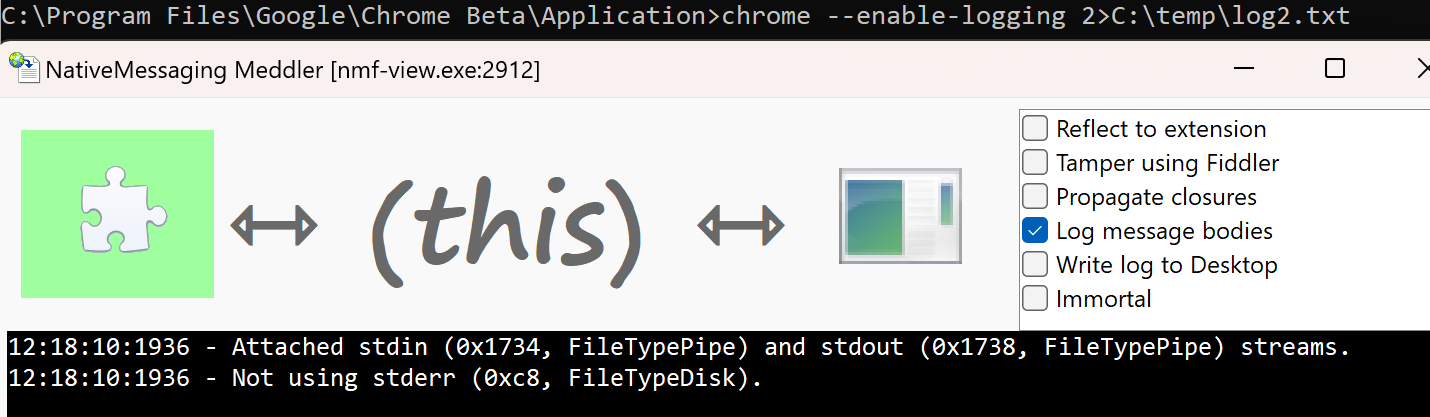
The Chromium documentation mentions that a native host can write error messages out to std_error and those error messages will be collected in Chrome’s standard error output log, which can be enabled by launching Chrome like:

chrome.exe --enable-logging 2>C:\temp\log.txt

However, prior to the new direct launch flow this did not work. For example, you can see that Chrome 112 does not pass the std_error handle through to the Native Host process, instead passing 0:

In contrast, when the Native Host is launched from Chrome 113, the handle properly points at the file-backed std_error handle inherited from Chrome:

Side Effect #1: Closing StdIn

Update: Mar 22, 2023: The developer of a popular extension found another behavior change in the new codepath that caused their extension to unexpectedly stop working. It’s a subtle issue, and hopefully theirs is the only one that will hit it.

What happened?

With the new launch flow, if your Host has an outstanding Read() on the Standard Input (stdin) handle, if you attempt to close that handle:

// Don't do this!
CloseHandle(GetStdHandle(StdIn));

…that function will now block unless/until the the Read() operation completes. If you were issuing this CloseHandle() call on the UI thread, your Host will hang until Chromium gets around to terminating your Host process, which could cause problems for your Host if it expected to perform any other cleanup after disconnecting.

The best fix for this issue is to simply not call CloseHandle(), because you don’t need to! All three STDIO handles will be correctly closed when your process exits in a few seconds anyway, so there’s no need to manually close the handle yourself.

If you really want to manually the handle, you can first call the function CancelIoEx(GetStdHandle(STD_INPUT_HANDLE), NULL); before calling CloseHandle(), but to reiterate, there’s really no good reason to bother closing the handle yourself.

Side Effect #2: Process Parent Changed

Update: Apr 18, 2023: A user of the 1Password Browser Extension found that it will no longer correctly connect to the NativeHost. The NativeHost launches, examines its runtime environment, and exits without returning a message to the extension.

When you look at the NativeHost’s log, you find that the client deliberately refuses the connection from the new browser:

opw_app::managers::browser_manager:52 > failed to validate browser. Error: opw-app\src\nmh.rs:133 untrusted chromium browser

Based on the logs, it appears what happens is that 1Password.exe walks up the process tree, from 1Password.exe to Chrome.exe to whatever launched Chrome.

Old: 1Password.exe -> cmd.exe -> Chrome.exe
New: 1Password.exe -> Chrome.exe -> WhateverLaunchedChrome.exe

For example, if you launched Chrome from Explorer, you’ll see:

opw_app::managers::browser_manager:52 > failed to validate browser. Error: opw-app\src\nmh.rs:133 untrusted chromium browser
  name: explorer, publisher: Microsoft Windows, pid: 9104, session id: 1, path: C:\Windows\explorer.exe, version: 10.0.19041.2846

Whereas if you launched Chrome from the SlickRun launcher, you’ll see:

opw_app::managers::browser_manager:52 > failed to validate browser. Error: opw-app\src\nmh.rs:133 untrusted chromium browser
 name: sr, publisher: Eric Lawrence, pid: 13424, session id: 1, path: C:\Program Files\SlickRun\sr.exe, version: 4.4.9.2

While other NativeHosts requiring the old behavior could be easily accommodated (e.g. by pointing the Host’s manifest.json at a simple batch file that launches the Host), 1Password cannot be fixed like this because their anti-tampering logic forbids it.

In general, Native Hosts should avoid any reliance on the particular process tree of their launch context, as any number of things (including this change) could cause such checks to become flaky.

(Fixed in v115) Side Effect #3: std_error

Update: May 2, 2023: The fix for this issue landed in Chrome r1135573 for version 115.0.5736.0.

A developer noticed that in the old cmd.exe flow, when the browser is started (as it is by default) without the std_error handle redirected to a file or pipe, the handle passed to the Native Host was 0, while with the new direct launch flow, the handle is INVALID_HANDLE_VALUE. While neither handle value would allow the Host to write to standard error (because there’s nothing listening), some frameworks appear to check for 0 but not INVALID_HANDLE_VALUE and will cause failures if the latter value is received. The fix for this issue in v115 reverts back to passing 0 in this case.

If you encounter another-side effect or scenario that visibly changes with this new flow enabled in Chromium-based browsers v115 and later, please let me know ASAP!

-Eric

1 It took me some time to actually figure out what was happening here. My Native Messaging Debugger app started disappearing after the pipes closed, and I didn’t know why. I assumed that an unhandled exception must be silently crashing my app. I finally figured out what was happening using the awesome Silent Process Exit debugger option inside gflags: