I am not really a fan of Dark Mode — I like my screens bright and shiny. But it’s October, and it’s sometimes fun to make things dark and spooky.
Some users of my Show Browser Version extension wanted it to better support Dark Mode– the default text colors didn’t work well when the browser frame was black. I landed a simple change to select bright text colors when the browser is in Dark Mode and called it done.
However, after testing my updates, I lazily left my Dev Channel browser in Dark Mode. Over the following months, I noticed that a surprising number of Chromium’s built-in pages were still rendering in brilliant white. Encountering a bright white screen after surfing around in dark mode can be jarring, to say the least.
I wondered how hard it would be to fix some of these pages. The answer, it turns out, is “it’s mostly trivial.”
To indicate that a page supports dark mode styling, simply add a color-scheme meta tag to the head section of the HTML:
However, many pages use more colors than just the default text and background color, so new colors to be used in Dark Mode must be selected. To adjust colors based on the dark mode preference, use the prefers-color-scheme media query to override the default color in your stylesheet. For example:
When I first updated the about:Net-Internals page, I added dark mode detection and colors to a JavaScript function used to temporarily highlight a div:
However, I noticed a downside to this approach– if I changed my OS color theme from Light to Dark after this function had run without reloading the page, the old white (#fff) background color lingered on the div— it didn’t update to dark like the rest of the background of the page.
The fix was to specify the light and dark colors using CSS Variables within the stylesheet:
Now, as the OS switches between light/dark, the CSS variable is recalculated and the colors in the page are updated automatically.
Tip: UA Stylesheets are Special
Updating Chromium’s View-Source to support Dark Mode was a bit trickier, because the styles used in View-Source rendering come from a User-Agent stylesheet. Unlike a regular stylesheet, UA Stylesheets’ support for Media Queries is very limited, and prefers-color-scheme is not allowed.
The solution turns out to be pretty simple: instead of using a media query, we express colors using a special (only usable in UA Stylesheets) function, LightDarkValuePair that returns one of its two color arguments based on whether light or dark theme is in use:
This allows the View-Source page to respect dark mode without needing a media query.
View-Source also uses a bunch of different text colors for syntax-highlighting, so I had to override those– to avoid picking my own colors, I borrowed the colors from the dark mode support in the Developer Tools.
Changelists and Bugs
There’s still more to do (e.g. text, json) but here’s a list of updates I’ve made so far:
The edge://settings UI for themes is the correct way to set Dark Mode for the browser, and it will affect pages that are designed to respect Dark Mode using the prefers-color-schemeCSS media query. (Today, there’s unfortunately not a good way to select a dark browser UI theme without also changing the content area into dark mode, or vice versa. Some users have requested such a feature.)
A big limitation of Dark Mode when it comes to web content is that there are a great many pages that are not designed to support Dark Mode and as a consequence changing the browser to Dark Mode has no impact at all on the rendering of the website. That’s where the “Auto Dark Mode for Web Contents” feature flag on edge://flags comes into play. That experimental feature forces a site into Dark Mode, replacing its color scheme with one computed by the browser. This works well on some sites, but less well on others. A site can manually opt-out of the automatic mode, but few will.
With little fanfare, an important security change has arrived on the web. Now, all major browsers (except Safari) block non-secure downloads from a secure page.
Update: Starting in Edge 127, Edge will match Chrome in blocking downloads of most filetypes (with a few exceptions) from HTTP even when the page with the download link is also non-secure HTTP.
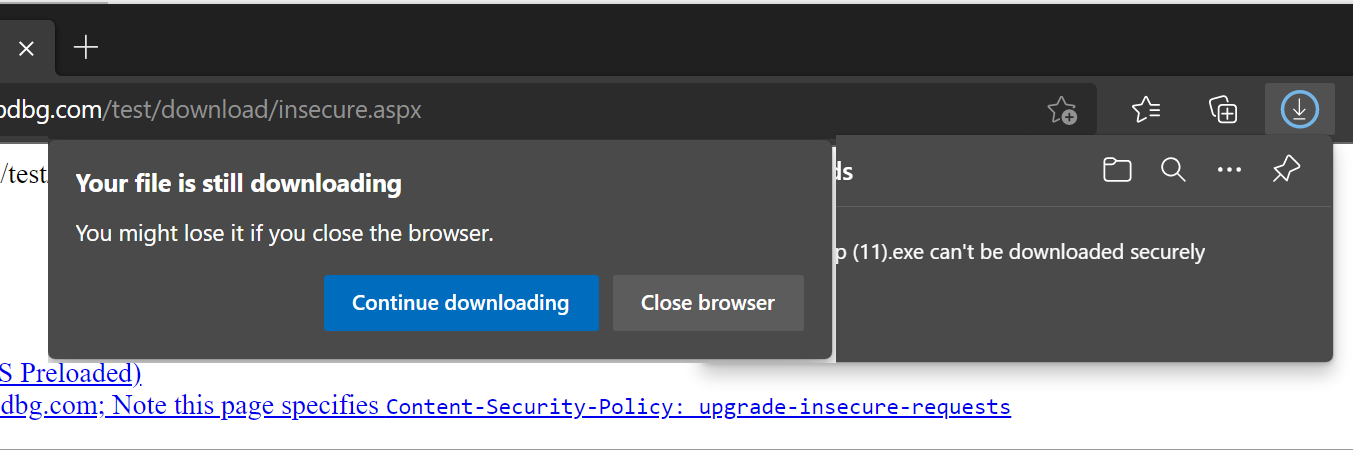
You can test your browser’s behavior with this test page. In Edge 94, the block looks like this:
By right-clicking on the “can’t be downloaded securely” item, you can choose to continue the download anyway.
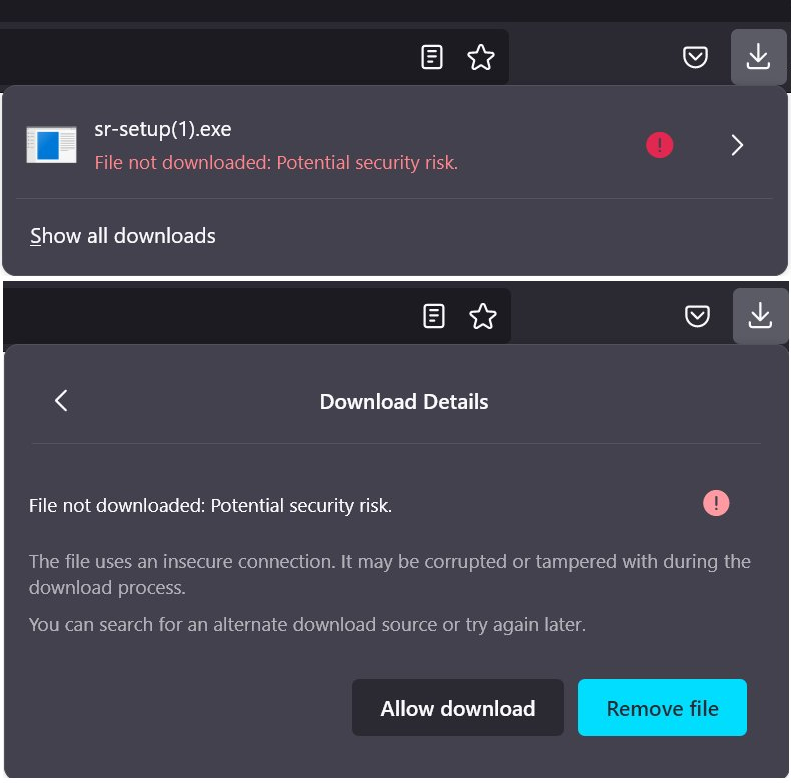
Firefox offers a very similar user-experience, although somewhat confusingly, they prompt for permission to save the file before blocking it:
Firefox 93 Blocking UX
The Chromium team started rolling out this protection last year. Over time, the Chrome block turned into a silent block (arguably confusing for users) where the only indication of an attempted/blocked download is a notice in the Developer Tools console:
End-User Override
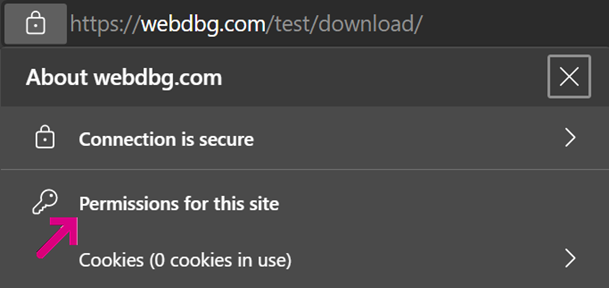
Within Chrome or Edge, a user may use the Permissions UI to enable a secure site to download non-secure resources without blocking.
IT Administrator Override
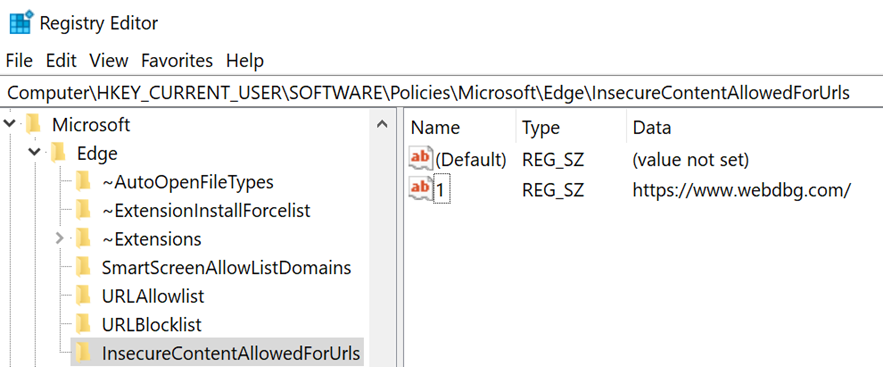
The InsecureContentAllowedForUrls policy allows an IT administrator to exempt sites from mixed content blocking. List the origins that are allowed to request non-secure content/downloads (list the source page’s origin, not the target resource’s origin):
InsecureContentallowedForUrls Policy
Discovering non-secure links
My MoarTLS browser extension makes it simple for you to see whether any of the links (including download links) on your page are non-secure:
… however, note that this tool only flags links that are directly non-secure– if the link goes to HTTPS but then subsequently redirects to (or through) HTTP, the tool won’t notice, but the browser blocker will.
The fact that the browser blocks the download if any URL used in a download’s source redirect chain is non-secure can lead to confusing UI whenever only a single URL is shown to the user. For instance, this download was blocked because the source page referred to HTTP but the request was subsequently redirected to the HTTPS URL shown:
Fixing HTTP Links
The first step in avoiding mixed content download blocking is to ensure that all of your resources are available over HTTPS; if a download isn’t available over HTTPS, updating the source page’s download link’s url to point to https isn’t going to work.
The second step to avoiding blocking is to change all of the download links from HTTP to HTTPS.
Unfortunately, this might be much easier said than done– you might have hundreds of pages with hundreds of links.
What to do?
One approach is to use automation to rewrite links, either as a one-time job, or as a dynamic rewrite. When I was first building my test page above, I couldn’t figure out why it wasn’t working. It took a good 15 minutes to realize that I’d configured Cloudflare to automatically rewrite HTTP links to HTTPS. (In the Cloudflare Control panel, select SSL/TLS > Edge Certificates and enable Automatic HTTPS Rewrites.)
Content-Security-Policy offers an Upgrade-Insecure-Requests(UIR) directive that upgrades all of a page’s embedded resource URLs from HTTP to HTTPS. This is a great approach for fixing mixed content bugs without doing a lot of work on every page. Unfortunately, file downloads are typically treated as “Navigation requests”, which means that a UIR rule on https://example.com will upgrade http://example.com/dl/somefile but UIR will not upgrade https://othersite.example.com/dl/somefile because it is not same-origin to the original page. Bummer.
You might hope that just putting your download site on the Strict-Transport-Security (HSTS) pre-load list might fix things because doing so ensures that your site is always contacted over HTTPS. Unfortunately, for historical reasons, HSTS is evaluated after mixed content blocking and so this approach does not work. But the Chromium team is considering whether blocking should be bypassed if non-secure requests in the download flow were upgraded to HTTPS via HSTS or the browser’s “Always use HTTPS” setting such that every URL that actually hit the network was secure.
Browser Bugs
Today, if you try to close the browser without explicitly aborting the blocked download, Edge complains at you. I’ve filed feedback that we should just cancel.
Chromium-based browsers offer a number of accessibility-related features. When you visit about:accessibility, you can see more about the state of these features (similarly, you can find the states in about:histograms/Accessibility.ModeFlag). You can enable features via the Accessibility page, or pass the command line argument --force-renderer-accessibility into the browser.
In some cases, you may be surprised to find some of the accessibility features enabled even when you have not manually enabled them:
This can happen when the browser detects interactions from a UI Automation tool; such API calls are mostly from accessibility tools like screen-readers. However, some features like Windows 10’s Text Cursor Indicator:
…are implemented using UIA, and when this feature is enabled, the browser enables the corresponding accessibility features.
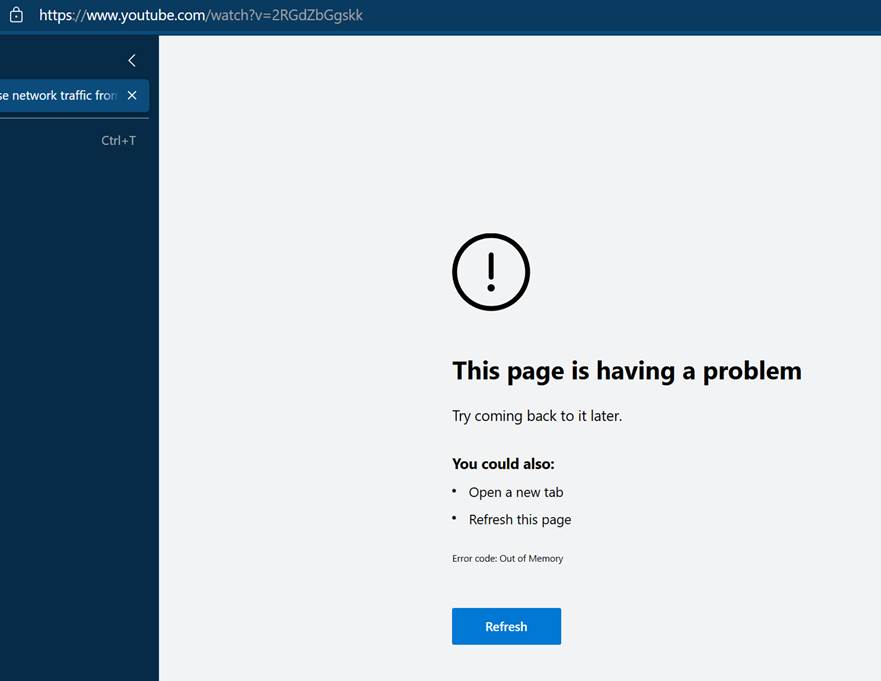
Back in the spring of 2021, some improvements to the Accessibility code caused a series of regressions that would result in crashes, hangs, and memory exhaustion when a loading many pages, including YouTube:
These regressions were impactful for many customers who didn’t expect to be running the impacted code. Fortunately, the problems were quickly fixed.
Update: A similar regression shipped in Edge 97.1069 and should be fixed in Edge 97.1073; in the case of the new crash, the entire browser crashes and disappears. :(
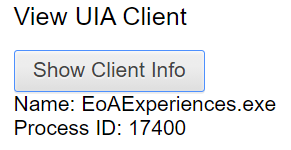
For end-users, tracking down how Accessibility features got enabled on their browsers used to be non-trivial. In Edge 93+, the edge://accessibility page includes a simple “Show Client Info” button. Easy peasy.
In this case, we see the Text Cursor Indicator feature implemented inside EoAExperiences.exe has enabled accessibility for Edge.
-Eric
Historical Appendix
Prior to Edge 93, figuring out which process turned on accessibility required a geeky scavenger hunt.
For Microsoft Edge users running Windows 10 version 20H1 or later, visiting about:histograms/UIA would show a truncated hash of the process name of the UIA client:
The value shown is the Integer representation of the first four bytes of the SHA-1 Hash of the process name. Some common values include:
Truncated Hash
Process Name
612857738
EoAExperiences.exe (Win10 Text Cursor Indicator feature)
1759000766
TextExpander.exe
319076627
Narrator.exe
427450884
Snagit32.exe
592588840
Magnify.exe
3897604127
magnify.exe
494880639
nvda.exe
Unfortunately, there’s no easy way to go from a truncated hash back to the original string; hashes are one-way. (The only way to do it is brute force — start with a list of possible strings and hash them all to find a match).
A simple PowerShell script mostly written by Artem Pronichkin allows you to get the hashes of all of your running processes, which you can then compare to the reported value:
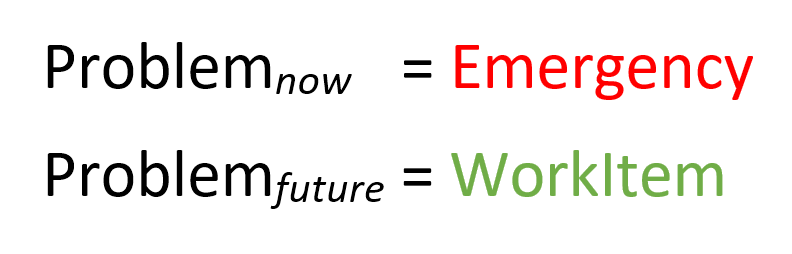
Many “emergency” situations in our modern world would’ve been easy to fix had they been foreseen in advance. If only we’d known what was going to happen, the badness could’ve easily been prevented.
Unfortunately, when problems are discovered only “as they happen” in production, everyone must race to minimize the damage and put out the fires, dramatically increasing the cost and fallout of otherwise-trivial problems.
Turn your Emergencies into WorkItems
Background: You Are A Time Traveler
Yes, you, dear reader. You travel through time. A second has passed since you started reading this paragraph. You are never getting that second back (sorry!).
For all of its complexities, time (or at least our perception of it) is the most reliable thing in the universe. With every passing second, the universe ticks forward in time.
So, now we’ve established that time travel is not only possible, but guaranteed. Unfortunately, this sort of time travel isn’t very useful for our purposes. It’s not useful because everyone around us is also traveling through time at the same rate. If we’re doing a great job of paying attention, perhaps we’ll notice a problem before everyone else and maybe we’ll be able to fix it before anyone else notices, but this is still the definition of an emergency– we’re in a race against the clock. It’s exhausting, and we’ll usually lose.
If we had a way to send messages back to our past, perhaps disasters could be averted or great fortunes could be won. Alas, time is an arrow, and that arrow only points to the future. Unfortunately, changing the past is out.
So, we’ll need to change the present based on what happens in the future.
If only we had some sort of magical time machine to let us see what was going to go wrong before it actually does. Seems like an overused trope for TV shows and somany of my favoritemovies, right?
What would you say if I told you that you’re surrounded by working time machines, you just have to use them?
The Future is Different
Before I tell you how to use or build time machines that let you glimpse the future, let’s clearly state our goal– Prevent future emergencies by discovering and fixing problems in advance.
A key reason we’re so often surprised by emergency problems is that we expect the tools we use successfully today to continue to work tomorrow. This is a fundamental mistake.
It’s probably not true that Einstein said “The definition of insanity is doing the same thing over and over again, but expecting different results,” but it’s absolutely true that I have said “The definition of insanity is doing the same thing over and over again, and expecting the same results.“
That’s because we can’t ever truly “do the same thing” over and over again: before we were doing it then, but when we do it again, we’re doing it now. We’re in a changed universe. (Example bug)
The only constant is change, and the present is simply different than the past; similarly, the future will be different than the present in innumerable ways. Many of those differences will be unpredictable, but fortunately some are predictable at high confidence.
For example, our software and services in the future will:
Always be executed at a later date and time
Probably bear a higher version number
Probably contain many new features and bugfixes
Given this knowledge, many of our software emergencies are entirely predictable:
Certificates, access tokens, cookies, caches, and time bombs will expire
Version parsers will get confused by or reject unexpectedly large numbers
Workarounds, hacks, and quirks will stop working
Computers have a rather primitive understanding of the real Universe; they largely believe whatever inputs we give them. By controlling the inputs, we control their Universe.
Practical Time Machine – The Clock
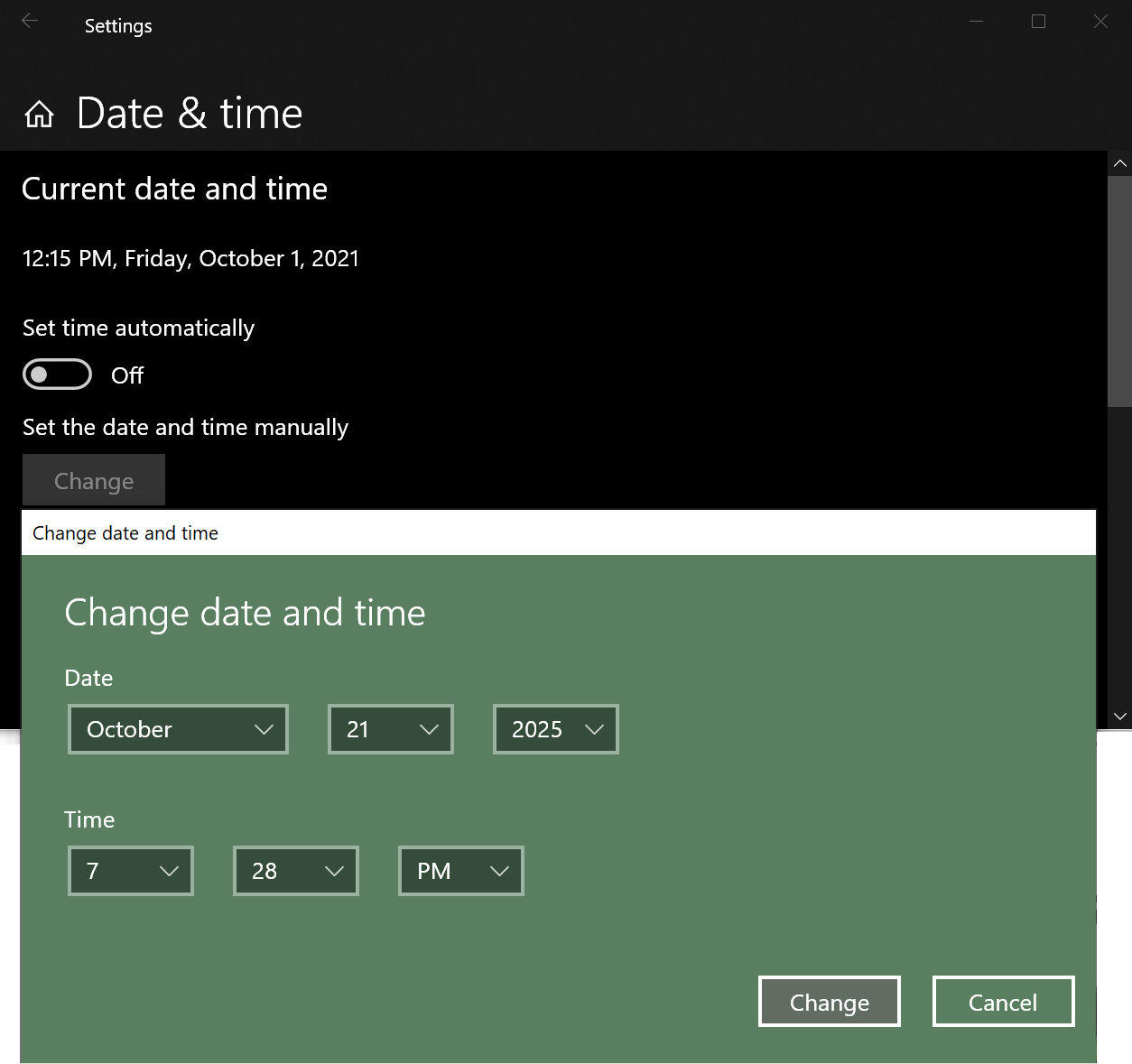
Your computer can travel to the future even more easily than a DeLorean. The UI isn’t quite as cool, but it doesn’t require plutonium. Simply open your system control panel, turn off the “Set time automatically” option, and click the button to adjust the system date/time to your target.
Almost immediately, all hell will break loose. Microsoft Teams and most other applications will go “offline.”
Webpages will stop loading:
Signed programs might start getting reported as “Unknown publisher”:
…and on and on.
Now, as a time machine, this one’s a bit buggy. It shows what is likely to happen in the future if nothing else changes. But some things will change. Most web servers are now using the ACME protocol to automatically renew certificates shortly in advance of their expiration, so setting your clock five years into the future is likely to turn up a lot of false positives. However, setting your clock five days into the future is probably reasonable – you’ll get enough advance warning to figure out why a certificate is expiring, what the implications are, and deploy a new certificate.
Automated renewal doesn’t solve all problems for certificates though– for instance, it doesn’t fix up certificates embedded in client software, and it typically only applies to the end-entity certificate, not intermediates. Back in 2019, Mozilla accidentally let a certificate expire, breaking all extensions. This week, an intermediate certificate used by LetsEncrypt expired, leading to a trail of broken apps, sites, and devices.
In the final screenshot above, Windows shows the “Unknown publisher” warning because the software’s signature lacks a timestamp.
Without an Authenticode timestamp, when the signer’s certificate expires, all of the signatures from that certificate are deemed invalid. Good luck replacing every binary on every user’s system.
Beyond certificates expiring, you’re likely to notice other issues as well– trial software will expire, Strict-Transport-Security preloads will stop working, etc. For each of these issues, you will need to investigate and decide to take action.
One of the most common predictable emergencies is when a scenario begins to fail because a software’s version number gets “too high.”
This happened so commonly in Windows client software that Microsoft changed the GetVersionEx function to start lying to applications unless they declare (via manifest) that they can handle the truth. Similarly, Windows 11 will advertise itself as version 10.0 to websites.
The Chromium team, anticipating that Chrome’s upcoming release of 100 is likely to break websites, built-in a simple flag to allow folks to test with the new 100 version number in the browser’s User-Agent string. Here’s an example of a problem (actually two) found when using the new “Force Version 100” flag:
As you can see, the website incorrectly parses the User-Agent string and concludes that Chrome is outdated, pushing the user to install another browser using icons circa 2009. And closer to home, my Show Chrome Version extension truncates the string 100 to 10 when rendering the information in the toolbar button. Oops.
Even if your browser vendor doesn’t offer a simple “Fake the future” flag, you can typically override the User-Agent string via a command-line argument (--user-agent), DevTools Command (Network Conditions), extension, or simple FiddlerScript rule.
Practical Time Machine – Channels
Most state-of-the-art software these days is available in multiple channels— a current version (commonly called “Release” or “Stable”) and future versions (often called “Pre-Release”, “Beta”, “Alpha”, “Dev”, “Canary”, “Preview”, or “Nightly”).
Using Pre-Release versions of browsers is, by far, the best way to learn what changes are coming in the future that might break your sites and services. There’s no higher-fidelity way (short of that plutonium-powered DeLorean) to find out what bugfixes, new features, and regressions (gulp) are headed for your user-base than to simply try the code that everyone will be running in a few weeks or months.
I cannot count how many times we (Chromium or Microsoft) got feedback from a Beta/Dev/Canary user of the browser that we used to fix a problem before it broke anyone in the Stable channel. Need examples? This break in M96 was fixed a week before Stable. Another? Two days before Chrome 88 branched for Stable release, an Enterprise reported that their app was broken in Beta. We quickly investigated and isolated the regression in handling of XSLTs. We fixed it within a day.
Unfortunately, a different department in the same Enterprise did not deploy a Beta ring, and a regression in their workflow wasn’t discovered until 88 Stable released, impacting everyone in the department.
Q: How do I “switch channels” for the new Microsoft Edge browser? A: In addition to Stable, there are 3 channels: Beta, Dev, and Canary, and you can install them all on the same device at the same time, and choose which you want to run at any time. They are all kept up to date automatically. Any of them can be set as your default browser. Also, if you enable sync, then your data will sync between installed channels on the same device (provided you log in to each with the same ID). To get all the channels, go to microsoftedgeinsider.com/download.
What about Extended Stable?
Google Chrome and Microsoft Edge recently introduced support for an Extended Stable version, which is a bit like a time-machine that keeps your users “stuck in the past”, allowing them to run an (even numbered) “Extended Stable” release for up to four weeks beyond the release date of the subsequent (odd numbered) “Stable” channel. This is an interesting variant of the time machine approach– you’re hoping that the extra four weeks will allow any problems in the “Stable” release to be found and fixed before upgrading to the next release. But it’s not a panacea. Say you’ve got your users on Edge 94 Extended Stable. They skip Edge 95 entirely, and four weeks later are upgraded to Edge 96 Extended Stable. While any problems in Edge 95 may have been mitigated before your users update to Edge 96, only problems found in the pre-release channels of Edge 96 will get fixed before everyone moves up to 96.
Not Just Browsers
Browsers aren’t alone in the “channel” approach: Microsoft Defender offers rollout by channels, as does Microsoft Office.
Read Dispatches from the Future
Beyond running pre-release channels yourself, you can also take advantage of published documentation about what changes are coming in the future. Ranging from Edge’s Site Impacting Changes list to our Roadmap to the Chrome Platform Status page, you can see lists of top changes that are heading to Stable in the future. While documentation is useful, I still strongly recommend running Beta/Dev channels in your environment– our documentation covers the top changes we made on purpose— it doesn’t cover accidental bugs or the thousands of other changes made to each release that we didn’t expect to break anyone.
Some Enterprises have asked “Can’t you just give us the full changelist for each release?!?” and I’ve been put in the unfortunate and dangerous position of saying “I know enough about you and your business to know what you’re asking for isn’t what you really want.”
The list changes in each new Stable release would run to hundreds of pages. A change like “Enable TableNG“, which completely replaced the table-layout engine, would be both extremely difficult to describe, and you as an IT Manager would be poorly equipped to understand whether it would impact your sites— the only practical approach is to test your sites and apps in a pre-release channel.
I promise.
There are other ways to discover what will happen in the future. Run your browser with the F12 Developer Tools open and watch the Console and Issues tabs for upcoming changes and deprecation notices:
Before deploying new features like Content-Security-Policy on your website, use the report_only mode to collect issue reports from real-world users, before enabling enforcement of those policies.
In many cases, sites quietly broadcast when something will break– for instance, a server’s certificate contains its expiration date. You can write rules in FiddlerScript to warn you on every HTTPS response whose certificate is soon to expire.
Calls To Action
If you’re responsible for using or deploying software, use the time machines at your disposal.
If you’re responsible for designing or building software, build new time machines for everyone to use.
If you’ve read this far, use the comments section below to remind me of real-world time machines I’ve forgotten to mention.
In general, you should not care what Operating System visitors are using to visit your website. If you attempt to be clever, you will often get it wrong and cause problems that are an annoyance for users and a hassle for me to debug.
So avoid trying to be nosy/clever if at all possible.
That being said, some websites want to be able to distinguish Windows versions for whatever reason; I’m an engineer, not a cop.
The typical path to get this information from Windows-based browsers is to look at the dreaded User-Agent string, a wretched hive of lies, scum, and villainy.
However, this approach falls down with Windows 11, which reports itself as Windows NT 10.0 (almost certainly for compatibility reasons); in general, browsers are moving toward freezing and reducingthe User-Agent string to limit passive fingerprinting. The modern mechanism for learning more information about the client is called Client Hints.
If you want to be able to distinguish between Windows 10 and Windows 11, starting around October 2021 in Microsoft Edge 95 (and v95 of most Chromium browsers), the Sec-Ch-UA-Platform-Version Client Hint is the way to go.
Available for request in v95+, this value will indicate the UniversalApiContract “API Level” of the Windows platform. The mapping of values to Windows version is:
Windows Version
Sec-CH-UA-Platform-Version
Windows 7 | 8 | 8.1
0.0.0
Windows 10 1507
1.0.0
Windows 10 1511
2.0.0
Windows 10 1607
3.0.0
Windows 10 1703
4.0.0
Windows 10 1709
5.0.0
Windows 10 1803
6.0.0
Windows 10 1809
7.0.0
Windows 10 1903 | 1909
8.0.0
Windows 10 2004 | 20H2 | 21H1
10.0.0
Windows 11 Previews
13.0.0 | 14.0.0
Windows 11 Release | 2022 SV2
15.0.0
Windows 11 2024 H2
19.0.0
You can request this Client Hint from JavaScript thusly:
As you may have noticed, the 0.0.0 value is shared across all pre-Windows 10 versions of Windows, so you’ll need to continue to use the User-Agent to distinguish between Windows 7, 8.0, and 8.1 platforms (starting in v107, you will need Client Hints, because the UA string will lie and claim 10.0 even on earlier Windows).
Distributors of native applications often would like to know the bitness and architecture of the client platform to ensure that they serve the correct installer for their native application (e.g. sending an ARM64-native app to a device like the Surface Pro X running Windows on ARM). The sec-ch-ua-bitness and sec-ch-ua-arch hints are useful for this purpose. Official Documentation
Unfortunately, there’s presently a bug in Chromium whereby ARM64 devices will return x86 as the architecture. UPDATE: Fixed in v98.
The legacy Edge-proprietary window.external.getHostEnvironmentValue("os-architecture") API returns the truth {"os-architecture":"ARM64"}, but this API is non-standard and you should not use it.
-Eric
PS: Native client apps should generally not check the registry key directly, instead it should query the appropriate “Is this API level supported??“ API. HKLM\SOFTWARE\Microsoft\WindowsRuntime\WellKnownContracts\Windows.Foundation.UniversalApiContract
















 text/plain