TLS Fallbacks are Dead

Gravestone reading RIP Fallbacks
tl;dr

Just over 5 years ago, I wrote a blog post titled “Misbehaving HTTPS Servers Impair TLS 1.1 and TLS 1.2.”

In that post, I noted that enabling versions 1.1 and 1.2 of the TLS protocol in IE would cause some sites to load more slowly, or fail to load at all. Sites that failed to load were sending TCP/IP RST packets when receiving a ClientHello message that indicated support for TLS 1.1 or 1.2; sites that loaded more slowly relied on the fact that the browser would retry with an earlier protocol version if the server had sent a TCP/IP FIN instead.

TLS version fallbacks were an ugly but practical hack– they allowed browsers to enable stronger protocol versions before some popular servers were compatible. But version fallback incurs real costs:

  • security – a MITM attacker can trigger fallback to the weakest supported protocol
  • performance – retrying handshakes takes time
  • complexity – falling back only in the right circumstances, creating new connections as needed
  • compatibility – not all clients are willing or able to fallback (e.g. Fiddler would never fallback)

Fortunately, server compatibility with TLS 1.1 and 1.2 has improved a great deal over the last five years, and browsers have begun to remove their fallbacks; first fallback to SSL 3 was disabled and now Firefox 37+ and Chrome 50+ have removed fallback entirely.

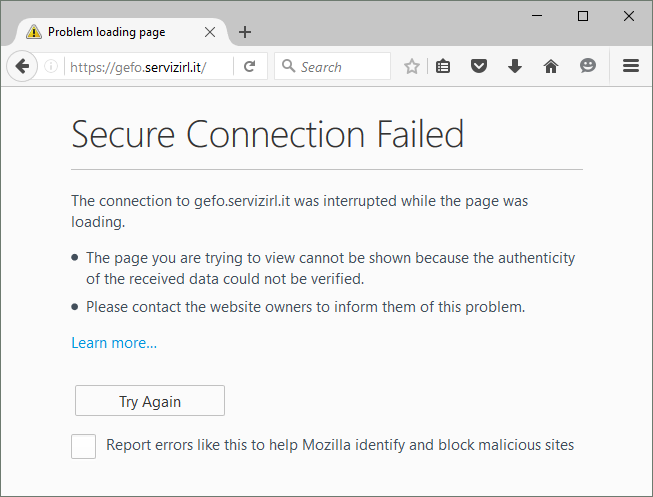
In the rare event that you encounter a site that needs fallback, you’ll see a message like this, in Chrome:
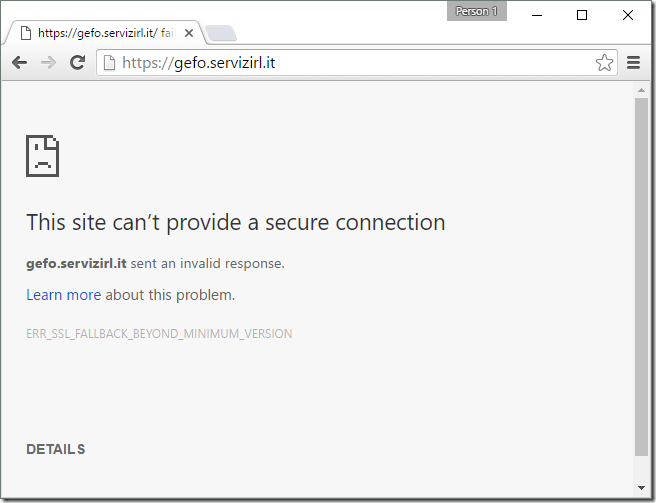
Google Chrome 52 error

or in Firefox:

Firefox 45 error

Currently, both Internet Explorer and Edge fallback; first a TLS 1.2 handshake is attempted:

TLS 1.2 ClientHello bytes

and after it fails (the server sends a TCP/IP FIN), a TLS 1.0 attempt is made:

TLS 1.0 ClientHello bytes

This attempt succeeds and the site loads in IE.

UPDATE: Windows 11 disables TLS/1.1 and TLS/1.0 by default for IE. Even if you manually enable these old protocol versions, fallbacks are not allowed unless a registry/policy override is set.

EnableInsecureTlsFallback = 1 (DWORD) set inside

HKLM\SOFTWARE\Microsoft\Windows\CurrentVersion\Internet Settings or
HKLM\SOFTWARE\Policies\Microsoft\Windows\CurrentVersion\Internet Settings

If you analyze the affected site using SSLLabs, you can see that it has a lot of problems, the key one for this case is in the middle:

Grade F on SSLLabs

This is repeated later in the analysis:

TLS Version intolerant for versions 1.2 and 1.3

The analyzer finds that the server refuses not only TLS 1.2 but also the upcoming TLS 1.3.

Unfortunately, as an end-user, there’s not much you can safely do here, short of contacting the site owners and asking them to update their server software to support modern standards. Fortunately, this problem is rare– the Chrome team found that only 0.0017% of TLS connections triggered fallbacks, and this tiny number is probably artificially high (since a spurious connection problem will trigger fallback).

-Eric
Non-Secure Clicktrackers–The Fastest Path from A+ to F

HTTPS only works if you use it.

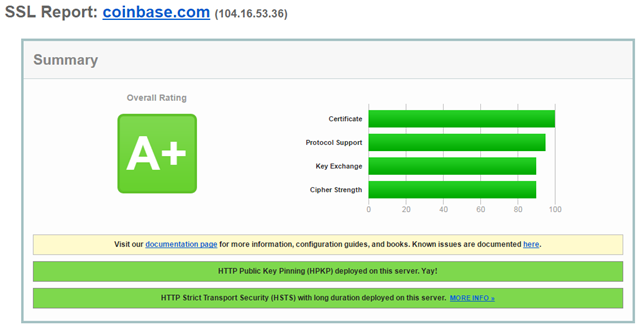
Coinbase is an online bitcoin exchange backed by $106M in venture capital investment. They’ve got a strong HTTPS security posture, including the latest ciphers, a 4096bit RSA key, and advanced features like browser-preloaded HSTS and HPKP.

SSLLabs grades Coinbase’s HTTPS deployment an A+:

A+ Grade from SSLLabs

This is a well-secured site with a professional security team.

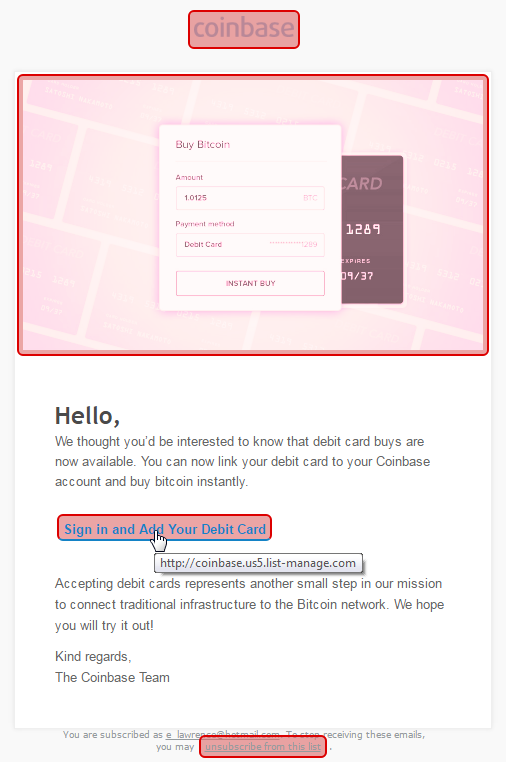
Here’s the email they just sent me:

"Add a debit card"

Let’s run the MoarTLS Analyzer on that:

All Red

That’s right… every hyperlink in this email is non-secure and any click can be intercepted and sent anywhere by a network-based attacker.

Sadly, Coinbase is far from alone in snatching security defeat from the jaws of victory; my #HTTPSFAIL folder includes a lot of other big names:

HTTPSFailures


It doesn’t matter how well you secure your castle if you won’t help your visitors get to it securely. Use HTTPS everywhere.


-Eric

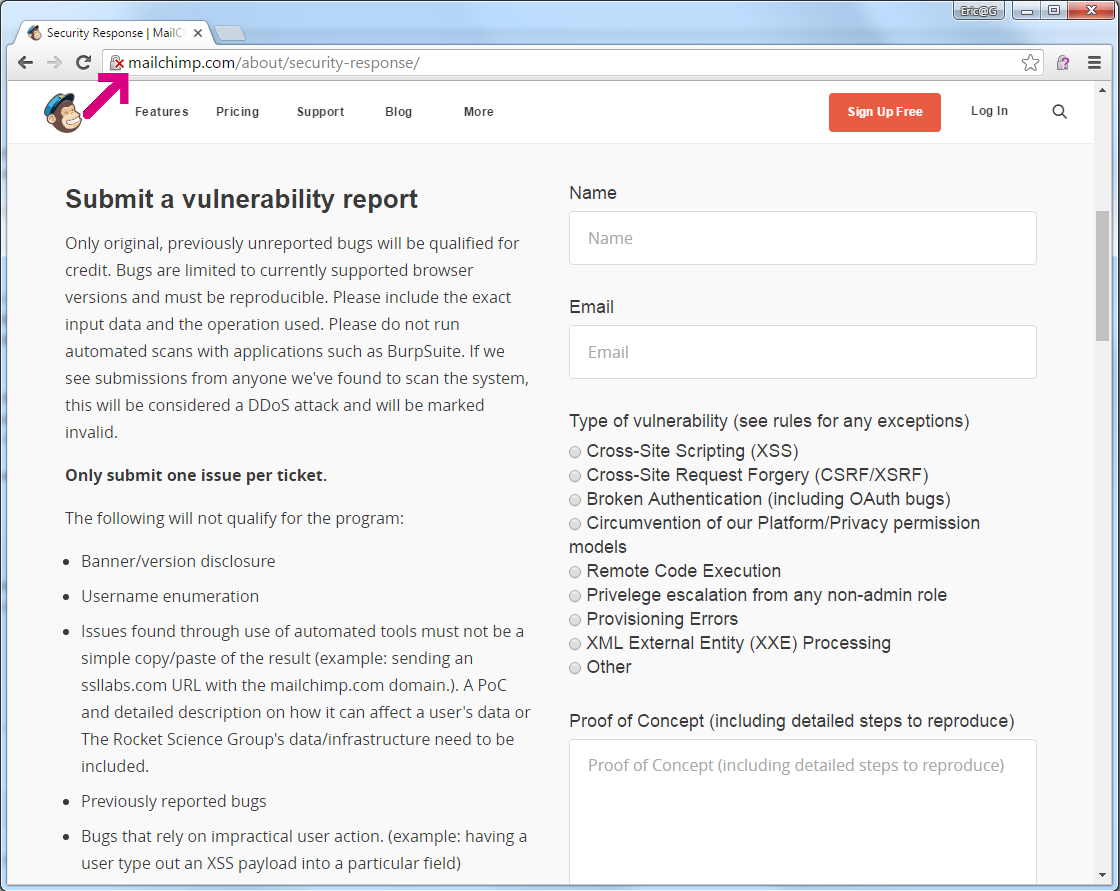
Update: I filed a bug with Coinbase on HackerOne. Their security team says that they “agree” that these links should be HTTPS, but the problem is Mailchimp (their email vendor) and they can’t fix it. Mailchimp offers a security vulnerability reporting form, delivered exclusively over HTTP:

MailChimp

Coinbase isn’t the first service whose security is bypassed because their emails are sent with non-secure links; the Brave browser download announcements suffered the same problem.

File Paths in Windows

Handling file-system paths in Windows can have many subtleties, and it’s easy to forget how some of this very intricate system works under the covers.

Happily, a .NET developer has started blogging a bit about file paths, presumably as they work to improve .NET’s handling of paths longer than the legacy MAX_PATH limit of 260 characters:

Also not to be missed are blog posts about Windows’ handling of File URIs:


-Eric

Stupid HexEdit Tricks

In the summer of 2015, I changed my default browser on Windows from Internet Explorer to Chrome, and for the most part, I haven’t looked back—Chrome is fast and stable.

The only real stumbling block I keep hitting is that the Alt+F,C keyboard chord isn’t bound to the command [File Menu > Close tab] as it is in nearly every other browser and Windows application that supports tabs. Neither of the alternative hotkeys (Ctrl+F4 or Ctrl+W) feels as natural (especially on laptop keyboards) and I haven’t been able to get accustomed to using either of them.

Unfortunately, while Chrome’s extensibility model is powerful, there’s no mechanism to add commands to its menus, and writing an extension that takes over Alt+F (suppressing its default behavior of opening the hamburger menu) is an unpleasant alternative.

Now that I’m building Chrome regularly, I considered just maintaining my own private fork, but compiling Chrome is an undertaking not to be taken lightly.

So… what to do? Write a utility process that thread-injects into Chrome to change the menu? Install a global keyboard hook? Something even more fragile?

Things were simpler when I was 15 years old… everything was closed-source, and when a program didn’t work as I liked, I didn’t have a lot of confusing choices. For instance, I once bought a CD of street maps but the viewer program’s window refused to resize larger than 800×600 pixels. Not having any better ideas, I opened the binary in a hex editor program and looked for the sequence of bytes 20 03 near the sequence 58 02, the hexadecimal encodings of 800 and 600 respectively. I then changed both values to 40 06, hoping to set a maximum size of 1600×1600 pixels. And to my surprise and delight, this worked fine.

Luckily for 36 year-old me, Chrome recently added a “Cast” command to the Alt+F menu (if enabled via chrome://flags/#media-router); I don’t ever need to cast my tabs, but there’s now a menu entry that responds to the Alt+F,C chord. All I need to do is change what actually happens when you click it.

Even more fortunately, Chrome is open-source. So I can easily see how the Cast command was added to the code:

  if (media_router::MediaRouterEnabled(browser_context_)) {
menu_model_.AddItemWithStringId(IDC_ROUTE_MEDIA,
IDS_MEDIA_ROUTER_MENU_ITEM_TITLE);

I now know that IDC_ROUTE_MEDIA is the command identifier for the action taken when the user invokes the menu item. IDC_ROUTE_MEDIA is defined as 35011, or 0x88c3, which will be represented in the binary in little-endian C3 88. And my instinctive hunch that the desired command identifier will be named IDC_CLOSE_TAB pans out—it’s defined as 34015, or 0x84df. So, all we need to do is overwrite the correct C3 88 with DF 84 and maybe we’ll magically get the behavior we want?

Uh oh. It turns out that there are almost 300 instances of C3 88 in Chrome.dll… how do we know which one to replace?

Well, the correct replacement will probably be the one near IDS_MEDIA_ROUTER_MENU_ITEM_TITLE (defined as 14630 0x3926, 26 39), right? Let’s whip up a dumb little program to search for those values near each other. Running the program, we find just two instances… one represents Chrome’s main menu and the other is used for the webpage’s context menu.

Unfortunately, this search approach isn’t completely stable, because Chrome’s string resources are generated (generated_resources.h) and thus they may change from build to build. To automate this (since Chrome releases new Canary builds daily, and minor updates to Stable builds every few weeks) we’ll need to use a more relaxed signature to find the bytes of interest.

For similar reasons, we cannot reliably just overwrite the menu text identifier 26 39 with 2D 42 (IDS_TAB_CXMENU_CLOSETAB aka “Close tab”) to change the menu text, since that definition also fluctuates. We could edit the raw “Cast…” menu text string inside en-US.pak, but if we do that it’ll change both the main menu AND the context menu. Since I hit ALT+F,C blindly, I’ll just leave that string alone.

And voila… the dumbest thing that could possibly work.

But… But… Security?

To overwrite a machine-installed Chrome inside the Program Files folder, you must already be running as Administrator. And an Administrator can already control everything on the machine.

Overwriting a per-user-installed Chrome inside the %LocalAppData% folder only gives you the ability to hack yourself.

So, what about code-signing?

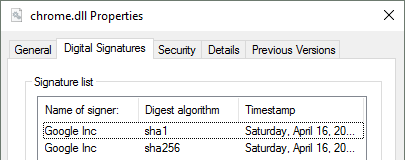
As you might hope, Chrome.dll is code-signed:

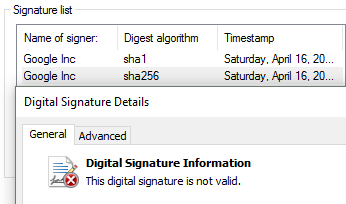
SHA1 and SHA256 signed

… and if you modify the bytes, the signature is no longer valid:

Signature Invalid

However, this matters relatively little in practice. Windows itself generally does not verify module signatures except under special configurations (e.g. AppLocker). So nobody complains about our little tweak. Some AV programs may freak out.

What Else Might Go Wrong?

I was originally worried that Chrome’s fancy delta-patching system might break when Chrome.dll has been modified, but it turns out that the delta-patches are computed against the cached installer binary. So there’s no harm there.

From experience, I can tell you that whenever Chrome does something weird, I now assume it’s the fault of this little hackery, even when it isn’t.


As smart people have said… just because you can do something, doesn’t mean you should.

badIdea

-Eric

Bolstering HTTPS Security

Last Update: 26 October 2023

When #MovingToHTTPS, the first step is to obtain the necessary certificates for your domains and enable HTTPS on your webserver. After your site is fully HTTPS, there are some other configuration changes you should consider to further enhance the site’s security.

Validate Basic Configuration

First, use SSLLab’s Server Test  to ensure that your existing HTTPS settings (cipher suites, etc) are configured well.

SECURE Cookies

After your site is fully secure, all of your cookies should be set with the SECURE attribute to prevent them from ever leaking over a non-secure channel. The (confusingly-named) HTTPOnly attribute should also be set on each cookie that doesn’t need to be accessible from JavaScript.

    Set-Cookie: SESSIONID=b12321ECLLDGH; secure; path=/

Strict Transport Security (HSTS)

Next, consider enabling HTTP Strict Transport Security. By sending a HSTS header from your HTTPS pages, you can ensure that all visitors navigate to your site via HTTPS, even if they accidentally type “http://” or follow an outdated, non-secure link.

HSTS also ensures that, if a network attacker were to try to intercept traffic to your HTTPS site using an invalid certificate, a non-savvy user can’t wreck their security by clicking through the browser’s certificate error page.

After you’ve tested out a short-lived HSTS declaration, validated that there are no problems, and ramped it up to a long-duration declaration (e.g. one year), you should consider requesting that browsers pre-load your declaration to prevent any “bootstrap” threats (whereby a user isn’t protected on their very first visit to your site).

    Strict-Transport-Security: max-age=631138519; includeSubDomains; preload

The includeSubdomains attribute indicates that all subdomains of the current page’s domain must also be secured with HTTPS. This is a powerful feature that helps protect cookies (which have weird scoping rules) but it is also probably the most common source of problems because site owners may “forget” about a legacy non-secure subdomain when they first enable this attribute.

Strict-Transport-Security is supported by virtually all browsers.

Certificate Authority Authorization (CAA)

Certificate Authority Authorization (supported by LetsEncrypt) allows a domain owner to specify which Certificate Authorities should be allowed to issue certificates for the domain. All CAA-compliant certificate authorities should refuse to issue a certificate unless they are the CA of record for the target site. This helps reduce the threat of a bad guy tricking a Certificate Authority into issuing a phony certificate for your site.

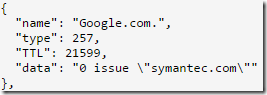
The CAA rule is stored as a DNS resource record of type 257. You can view a domain’s CAA rule using a DNS lookup service. For instance, this record for Google.com means that only Symantec’s Certificate Authority may issue certificates for that host:

issue symantec.com

Configuration of CAA rules is pretty straightforward if you have control of your DNS records.

Public Key Pinning (HPKP)

Unfortunately, many CAs have made mistakes over the years (e.g. DigiNotar, India CCA, CNNIC CA, ANSSI CA) and the fact that browsers trust so many different certificate authorities presents a large attack surface.

To further reduce the attack surface from sloppy or compromised certificate authorities, you can enable Public Key Pinning. Like HSTS, HPKP rules are sent as HTTPS response headers and cached on the client. Each domain’s HPKP rule contains a list of Public Key hashes that must be found within the certificate chain presented by the server. If the server presents a certificate and none of the specified hashes are found in that certificate’s chain, the certificate is rejected and (typically) a failure report is sent to the owner for investigation.

Public Key Pinning powerful feature, and sites must adopt it carefully—if a site carelessly sends a long-life HPKP header, it could deny users access to the site for the duration of the HPKP rule.

    Public-Key-Pins: pin-sha256=”8Rw90Ej3Ttt8RRkrg+WYDS9n7IS03bk5bjP/UXPtaY8=”;
pin-sha256=”YLh1dUR9y6Kja30RrAn7JKnbQG/uEtLMkBgFF2Fuihg=”;
max-age=600; includeSubdomains;
report-uri=”https://report-uri.io/report/93cb21052c”

Free services like ReportUri.io can be used to collect HPKP violation reports.

HPKP is supported by some browsers. 2023 UPDATE: “Dynamic” PKP support, whereby sites can opt-in via HTTPS response headers has been removed from most browsers as it was found to be a “foot-gun” leading to unintentional self-inflected denial-of-service mistakes. Chromium-based browsers have a tiny built-in list of pins as a part of their HSTS preload list and now consider Certificate Transparency the right way to go.

Certificate Transparency

Certificate Transparency is a scheme where each CA must publicly record each certificate it has issued to a public, auditable log. This log can be monitored by site and brand owners for any unexpected certificates, helping expose fraud and phony domains that might have otherwise gone unnoticed.

Site owners who want a lightweight way to look for all CT-logged certificates for their domains can use the Certificate Transparency Lookup Tool. Expect that other tools will become available to allow site owners to subscribe to notifications about certificates of interest.

Since 2015, Chrome has required that all EV certificates issued be logged in CT logs. Future browsers will almost certainly offer a way for a site to indicate to visiting browsers that it should Expect or Require that the received certificate be found in CT logs, reporting or blocking the connection if it is not. Update: What actually happened is that in 2018 browsers began requiring CT logging of all certificates. See my later post for details on an easy way to monitor certificate transparency logs.

Thanks for your help in securing the web!

-Eric