Seek and Destroy Non-Secure References Using the moarTLS Analyzer

tl;dr: I made a Chrome Extension that finds security vulnerabilities.
It’s now available for Firefox too!

To secure web connections, TLS-enabling servers is only half the battle; the other half is ensuring that TLS is used everywhere.

Unfortunately, many HTTPS sites today include insecure references that provide an network-based attacker the opportunity to break into the user’s experience as they interact with otherwise secure sites. For instance, consider the homepage of Fidelity Investments:

Fidelity Homepage

You can see that the site has got the green lock and it’s using an EV certificate such that the organization’s name and location are displayed. Looks great! Even if you loaded this page over a coffee shop’s WiFi network, you’d feel pretty good about interacting with it, right?

Unfortunately, there’s a problem. Hit F12 to open the Chrome Developer Tools, and use the tool to select the “Open An Account” link in the site’s toolbar. That’s the link you’d click to start giving the site all of your personal information.
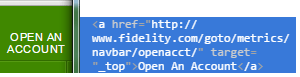
href attribute containing HTTP

Oops. See that http:// hiding out there? Even though Fidelity delivered the entire homepage securely, if a user clicks that link, a bad guy on the network has the opportunity to supply his own page in response! He can either return a HTML response that asks the victim for their information, or even redirect to a phony server (e.g. https://newaccountsetup.com) so that a lock icon remains in the address bar.

Adding insult to injury, what happens if a bad guy doesn’t take advantage of this hole?

    GET http://www.fidelity.com/open-account/overview
    301 Redirect to https://www.fidelity.com/open-account/overview

That’s right, in the best case, the server just sends you over to the HTTPS version of the page anyway. It’s as if the teller at your bank carried cash deposits out the front door, walking them around the building before reentering the bank and carrying them to the vault!

Okay, so, what’s a security-conscious person to do?

First, recognize the problem. If you stumble across a “HTTP” reference, it’s a security bug. Either fix it, or complain to someone who can.

Next, actively seek-and-destroy non-secure references.

A New Category of Mixed Content?

Web developers are familiar with two categories of Mixed Content: Active Mixed-Content (e.g. script) which is blocked by default, and Passive Mixed-Content (images, etc), which browsers tend to allow by default, usually with the penalty of removing the lock from the address bar.

However, secure pages with non-secure links don’t trigger ANY warning in the browser.

For now, let’s call the problem described in this post Latent Mixed Content.

Finding Latent Mixed Content

Finding HTTP links isn’t hard, but it can be tedious. To that end, between late-night feedings of my newborn, I’ve been learning Chrome’s extension model– a wonderful breath of fresh air after years of hacking together COM extensions in IE. The result of that effort is now available for your bug-hunting needs.

Download the moarTLS Chrome Extension.

#icanhazthecodez? Sure.

The extension adds an unobtrusive button to Chrome’s toolbar. The extension is designed to have little-to-no impact on the performance or operation of Chrome unless you actively interact invoke the extension.

When the Button button is clicked, the extension analyzes the current page to find out which hyperlinks (<a> elements) are targeting a non-secure protocol. If the page is free of non-secure links, the report is green:
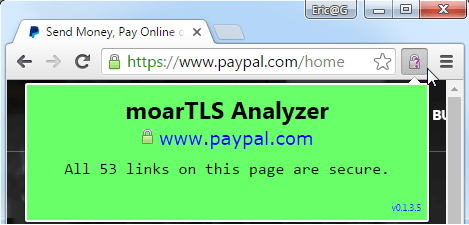
PayPal showing all green

If the current page’s host sends a HTTP Strict Transport Security directive, a green lock is shown next to the hostname at the top of the report: green lock. Click the hostname to launch the SSLLabs Server Test for the host to explore what secure protocols are supported and find any errors in the host’s certificate or TLS configuration.

If the page contains one or more non-secure links, the report gets a yellow background and the non-secure links are listed:
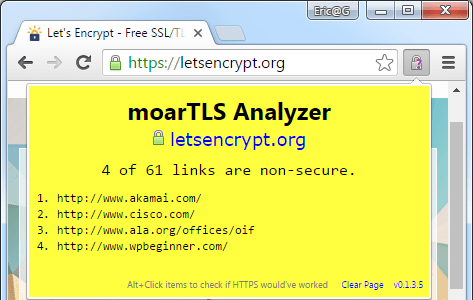
Yellow warning report, 4 non-secure links

The non-secure links in the content of the page are marked in red for ease-of-identification:
Four Red links in the page

Alt+Click (or Ctrl+Click) on any entry in the report to cause the extension to probe the target hostname to see whether a HTTPS connection to the listed hostname is possible. If a HTTPS connection attempt succeeds, a grey arrow is shown. If the connection attempt fails (indicating that the server is only accessible via HTTP), a red X is shown:

Three grey up-arrows, one red X

If the target is accessible over HTTPS and the response includes a HTTP Strict Transport Security header, the grey arrow is replaced with a green arrow:

Green Arrow

Note: Accepting HTTPS connections alone doesn’t necessarily indicate that the host completely supports HTTPS—the secure connection could result in error pages or redirections to a redirection back to HTTP. But a grey arrow indicates that at least the server has a valid certificate and is listening  for TLS connections on port 443. Before updating each link to HTTPS, verify that the expected page is returned.

Returning to our original example, Fidelity’s non-secure links are readily flagged:
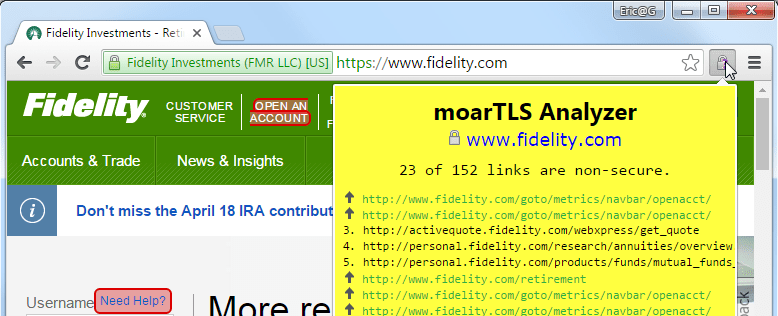
Non-secure links

If you read your email in a web client like GMail or Hotmail, you can also check whether your HTML emails are providing secure links:
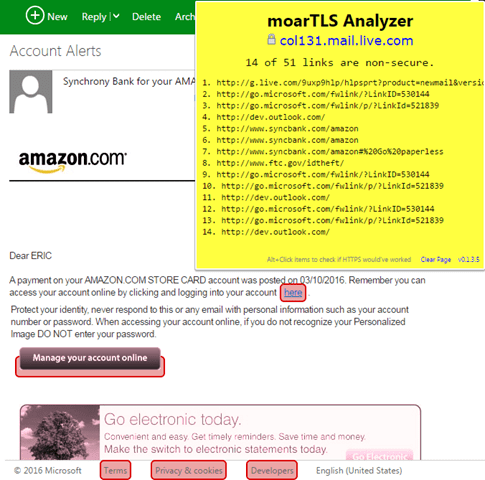
Insecure credit card


HTTP-Delivered Pages

The examples above presuppose that the current page was delivered over HTTPS. If the page itself was delivered non-securely (over HTTP), invoking the moarTLS extension colors the background of the page itself red. In the report flyout, the hostname shown at the top is prefixed with http/. The icon adjacent to the domain name will either be an up-arrow:
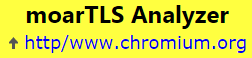
…indicating that the host accepts HTTPS connections, or a red-X, indicating that it does not:
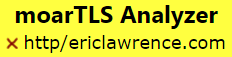
The extension exposes the option (simply right-click the icon) to flip insecurely-delivered images:
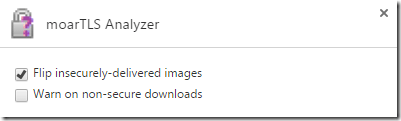
moarTLS options

When this option is enabled, images delivered insecurely are flipped vertically, graphically demonstrating one of the least malicious actions a Man-in-the-Middle could undertake when exploiting a site’s failure to use HTTPS.
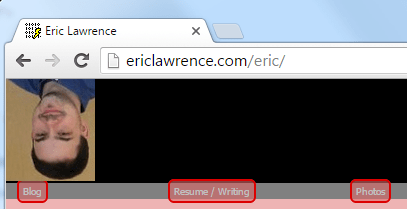
Upside-down images

The Warn on non-secure downloads option instructs the extension to warn you when a file download occurs if either the page linking to a download, or the download itself, used a non-secure protocol:

Non-secure download

Non-secure file downloads are extremely dangerous; we’ve already seen attacks in-the-wild where a MITM intercepts such requests and responds with malware-wrapped replacements. Authenticode-signing helps mitigate the threat, but it’s not available everywhere, and it should be bolstered with HTTPS.

Limitations

This extension has a number of limitations; some will be fixed in future updates.

False Negatives

  • moarTLS looks only at the links in the markup. JavaScript could intercept a link click and cause an non-secure navigation when the user clicks a link with an otherwise secure HREF.
  • moarTLS does not currently check the source of CSS background images.
  • moarTLS does not currently mangle insecurely-delivered fonts, audio, or video.
  • moarTLS only evaluates links currently in the page. If links are added later (e.g. via AJAX calls), they’re not marked unless you click the button again.

False Positives

  • moarTLS looks only at the links in the markup. JavaScript could intercept a link click and cause an secure navigation when the user clicks a link with an otherwise non-secure HREF. Arguably this isn’t a false-positive because the user may have JavaScript disabled.
  • moarTLS looks only at the link, and does not exempt links which are automatically upgraded by the browser due to a HSTS rule. Arguably this isn’t a false-positive because not all browsers support HSTS, and the user may copy a URL to a non-browser client (e.g. curl, wget, etc).
  • moarTLS isn’t aware of upgrade-insecure-requests, although that only helps for same-origin navigations. Arguably this isn’t a false-positive because not all browsers support this CSP directive, and the user may copy a URL to a non-browser client (e.g. curl, wget, etc).
  • moarTLS isn’t aware of block-all-mixed-content. Arguably this isn’t a false-positive because not all browsers support this CSP directive, and the user may copy a URL to a non-browser client (e.g. curl, wget, etc).

Q&A

Q1. Why is this an extension? Shouldn’t it be in the Developer Tools’ Security pane, which currently flags active and passive mixed content:
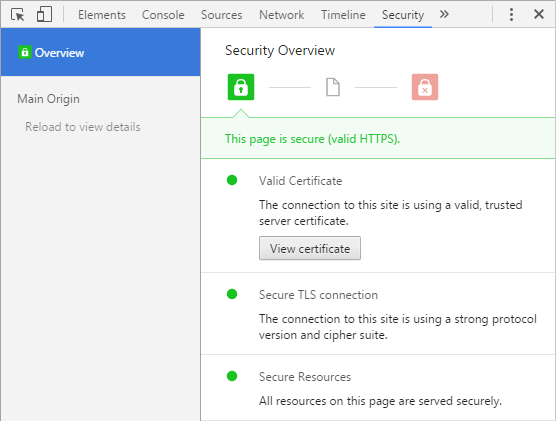
Security Report

A1. Great idea. :)

Q2. How do I examine “popups” which don’t show the Chrome toolbar?

No toolbar

A2. Use “Show as Tab” on the system menu:
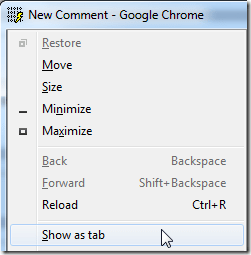
System Menu command Show As Tab


Q3. How much of the Web is HTTPS today?

A3. See https://security.googleblog.com/2016/03/securing-web-together_15.html
Using HTTPS Properly

Disclaimer: I’m a big fan of Pandora. I’ve been a listener for a decade or more, and I started paying for an annual subscription even before there was any real incentive to do so, solely because I loved the service and wanted it to succeed. This post isn’t really about Pandora, per-se, but about common anti-patterns in the industry.

On Friday, I opened Pandora.com in my browser. Unlike my normal pattern of throwing its player tab in the background, I instead decided to click around a bit (I’m testing a new Chrome extension, more on that later). I immediately noticed that the player page was delivered over unsecure HTTP and I frowned.

Then I clicked Settings:

Settings link on Pandora

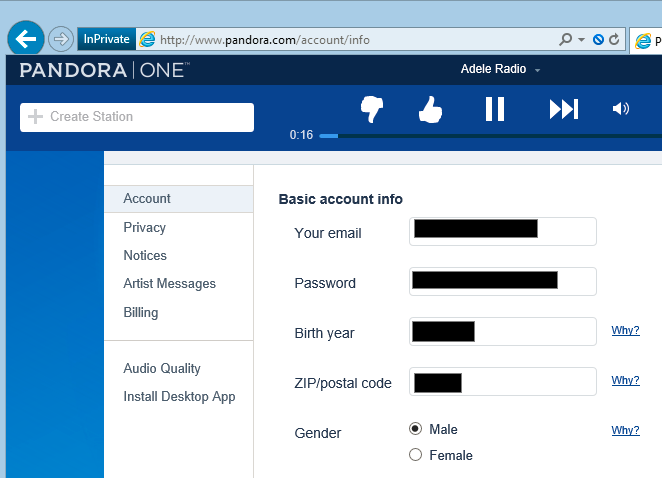
I was disappointed to see that the page remained over HTTP, and personal information was shown in the page:

Personal Info

Not good. While I have mixed feelings about network snoopers knowing what I’m listening to, I definitely get uncomfortable with the idea that they can see my email address, birth year, zip code, and more. With mounting concern, I clicked down to the Billing link:

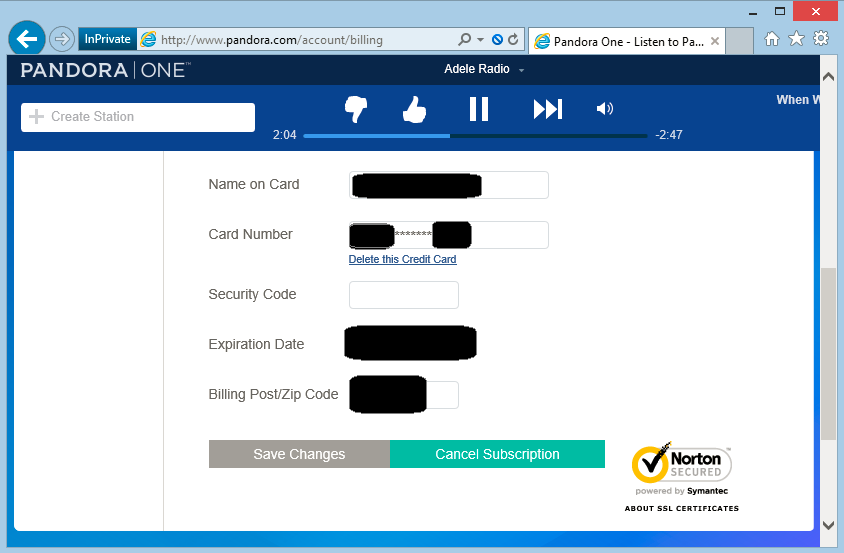
Billing Info

Okay, so that’s not good. My full name, zip code, eight digits of my credit card number, and its expiration are all on display in a page delivered over an unprotected channel. Any network snooper can steal this information, or prompt me for more information as if it were the legitimate site.

Perhaps even more galling is the little logo at the bottom right, assuring me that my information is secure:

Norton Secured logo

Okay, so what’s going on here? I’ve encountered sites that aren’t protected with HTTPS at all before, but it’s relatively rare to see a legitimate site claim that it is using HTTPS when it’s not. And Pandora’s a public company, over a decade old, valued at over $2,500,000,000.

Maybe Fiddler will reveal something interesting. The Billing page itself comes over HTTP:

Insecure download of /billing page

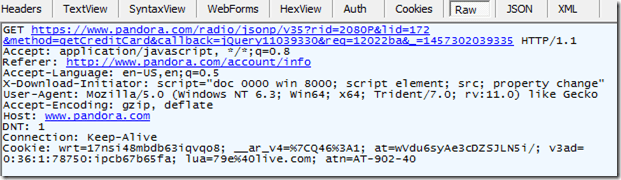
… but it doesn’t actually contain my private data. My private data is instead pulled as a JSONP response from a HTTPS URL:

HTTPS request shown in Fiddler

So, my private data doesn’t travel over the network in cleartext. Safe, right?

No, not so fast.

The first problem here is that this is JSONP data, which means that the unsecure calling page has access to all of the data—JSONP is being used to circumvent same-origin-policy. So, while a network-based attacker can’t read my data directly off the wire, he can simply rewrite the HTTP page itself to leak the data.

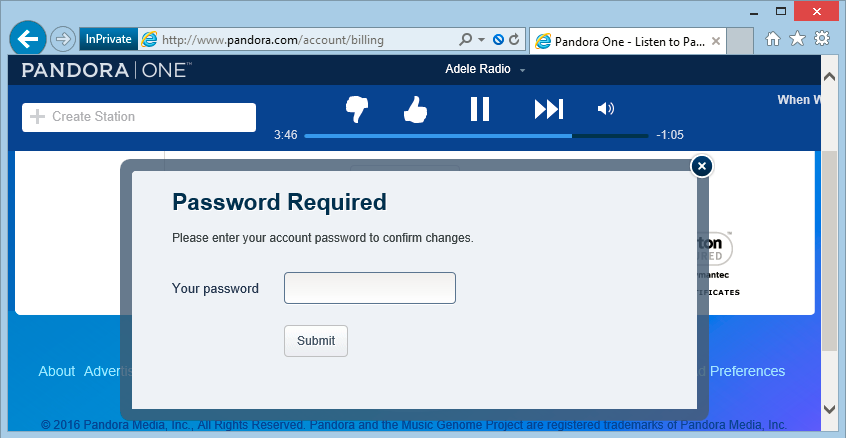
Furthermore, as a user, I don’t have any way of knowing which parts of this page are trustworthy and which are not. As a consequence, attacker-injected script on this page could ask for a password, and a reasonable person would probably type it. I groaned at spending 20 minutes mocking this up, but it turned out that I don’t even have to… the original HTTP page itself can ask for the password!

Password prompt on HTTP page

There’s no way for the user to know whether this is a legitimate password prompt which will securely handle the user’s password, or a fake injected by an attacker on the network.

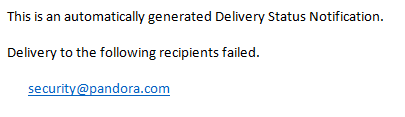
At this point, I’d seen enough, and decided to contact the security folks at Pandora. Unfortunately, the RFC2142-recommended email address security@pandora.com just bounces:

security@pandora.com does not exist

I also had a look at the HackerOne directory, but unfortunately there was no entry for Pandora.

March 9 Update: Pandora has enabled a security alias and registered it with the HackerOne Directory.

Okay, time for regular support channels. On Friday afternoon, I sent the following message to customer support:

SECURITY BUG

Your site needs to be using HTTPS for ALL pages. The way it’s designed today allows an attacker to steal all of the private information (credit card digits, expiration, email address, music choices, etc).

-Eric Lawrence

Around 22 hours later, I received the following response:

Hello Eric,

Thanks for writing!

Like a lot of sites these days, by default we only use SSL encryption (the actual under-the-hood technology behind an “https” connection) for the portions of our pages that accept or transmit financial data. This saves a lot of overhead, both on our end and within your own browser, by transmitting most of the page – background color, Pandora logo image and so on – via a non-secure (normal web “http”) connection.

The Verisign logo, and the “in good standing” account status we have with them (which you can see when you click the Verisign badge on our payment page), indicates that we’re really encrypting the parts of that page (like the credit-card-entry fields) that need to be encrypted.

You can see that here: https://trustsealinfo.verisign.com/splash?form_file=fdf/splash.fdf&dn=www.pandora.com&lang=en

As an added precaution, you can manually load https://pandora.com whenever you make a payment on the site or update your credit card information.

You can also upgrade using PayPal rather than entering your card information with us.

Let me know if you have any other questions about this. Thanks again for your support!

Groan. Perhaps the worst part about this response is that it’s clear that I’m not the first to complain about this.

Okay, let’s take this point-by-point:

Like a lot of sites these days, by default we only use SSL encryption (the actual under-the-hood technology behind an “https” connection) for the portions of our pages that accept or transmit financial data.

It’s true that some sites follow this insecure practice, but they’re almost all vulnerable to multiple forms of attack. Beyond the threat of an active man-in-the-middle, conducting most transactions in plaintext means that my ISP (or whoever is along the network path) can profile me (learning what artists I listen to, for instance) and sell that data to advertisers.

We needn’t rathole on the fact that that the Pandora servers thankfully don’t even support SSL anymore, allowing only TLS1 and later.

ProTip: If you think you’re clever enough to securely encrypt only part of your web application, you’re almost certainly wrong.

This saves a lot of overhead, both on our end and within your own browser, by transmitting most of the page – background color, Pandora logo image and so on – via a non-secure (normal web “http”) connection.

First off, TLS is plenty fast. Second, if a site sending an endless stream of 6mb MP3 files needs to optimize performance, it’s unlikely that the “background color” is really the problem. And if it is, using a 2.1K file which is visually identical to your 246K file is probably a good start, as is caching it for more than one day. But I digress.

The Verisign logo, and the “in good standing” account status we have with them (which you can see when you click the Verisign badge on our payment page), indicates that we’re really encrypting the parts of that page (like the credit-card-entry fields) that need to be encrypted.

You can see that here: https://trustsealinfo.verisign.com/splash?form_file=fdf/splash.fdf&dn=www.pandora.com&lang=en

The “Verisign logo” referenced here is actually a “Norton Secured, powered by Symantec” badge. I suspect that the agent had the wrong text because they’ve been copy/pasting the same incorrect information for years.

What this badge actually means is that they have a certificate, not that they’re using it properly. The Certificate Authority does not verify that you’re doing HTTPS properly. “In good standing” means only that your check cleared when you bought the certificate.

As an added precaution, you can manually load https://pandora.com whenever you make a payment on the site or update your credit card information.

Finally, we have a piece of new information—the site is available over HTTPS. Sorta.

Mixed Content notification

Security shouldn’t be optional; Pandora shouldn’t require users install browser add-ons (e.g. HTTPS Everywhere) or remember to type HTTPS every time to keep their information safe.

I emailed back and indicated that the response was inaccurate and requested my ticket be escalated to Pandora’s security team.

Sorry to hear you feel that way, Eric.

Thanks for writing in and sharing your thoughts with us. We value feedback from our listeners whether it’s positive or negative. Unfortunately, I am unable to put you in touch with our security team at this time.

So, that’s a no-go.

ProTip: Unless you want your frontline user-support team triaging security vulnerability reports, get a HackerOne account and hook up a security@ alias.

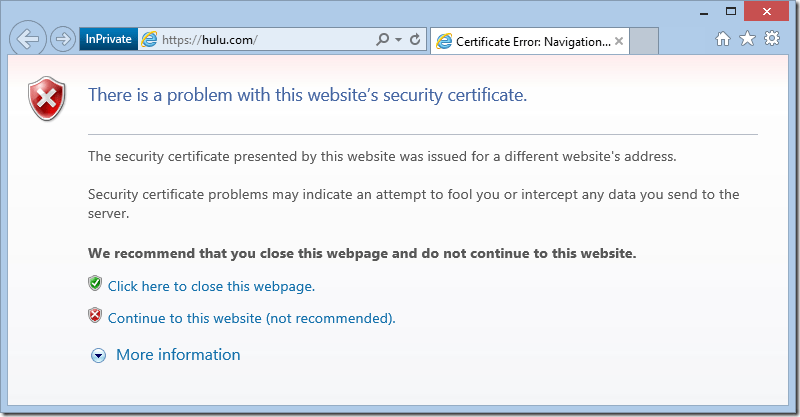
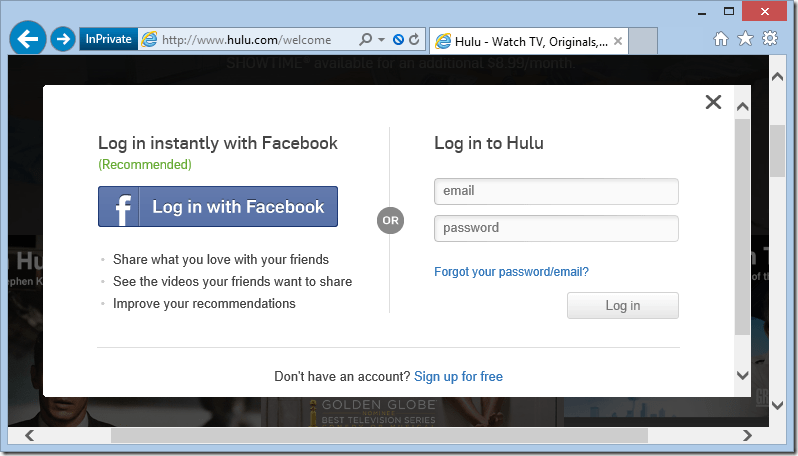
Since I promised that this post isn’t just about Pandora, here are two more screenshots:

Hulu Certificate Error

Hulu Insecure Login

It’s 2016. Bad actors are all over the network. Certificates are free. TLS is fast. Customers deserve better.

-Eric

March 9 Update: Pandora has enabled a security alias and registered it with the HackerOne Directory. They’ve also said “our engineering department is and has been actively working on transitioning http://www.pandora.com to HTTPS only.”

On Daylight Savings Time

In Fiddler, the Caching tab will attempt to calculate the cache freshness lifetime for responses that lack an explicit Expires or Cache-Control: max-age directive. The standard suggests clients use (0.1 * (DateTime.Now – Last-Modified)) as a heuristic freshness lifetime.

An alert Fiddler user noticed that the values he was seeing were slightly off what he expected: sometimes the values were 6 minutes shorter than he thought they should be.

Consider the following scenarios:

Last-Modified: February 28, 2016 01:00:00
Date: February 29, 2016 01:00:00
These are 24 hours apart (1440 minutes); 10% of that is 144 minutes.
Last-Modified: March 13, 2016 01:00:00
Date: March 14, 2016 01:00:00
Due to the “spring forward” adjustment of Daylight Savings Time, these values are just 23 hours apart (1380 minutes); 10% of that is 138 minutes.
Last-Modified: November 6, 01:00:00
Date: November 7, 01:00:00

Due to the “fall back” adjustment of Daylight Savings Time, these values are 25 hours apart (1500 minutes); 10% of that is 150 minutes.

So when a timespan encompasses an even number of those DST transitions, the effect cancels out. When a timespan encompasses an odd number of these DST transitions, the span is either an hour longer or an hour shorter than it would be if Daylight Savings Time did not exist.

-Eric

Out-of-Memory is (Usually) a Lie

  • The most common exception logged by Fiddler telemetry is OutOfMemoryException.
  • Yesterday, a Facebook friend lamented: “How does firefox have out of memory errors so often while only taking up 1.2 of my 8 gigs of ram?
  • This morning, a Python script running on my machine as a part of the Chromium build process failed with a MemoryError, despite 22gb of idle RAM.

Most platforms return an “Out of Memory error” if an attempt to allocate a block of memory fails, but the root cause of that problem very rarely has anything to do with truly being “out of memory.” That’s because, on almost every modern operating system, the memory manager will happily use your available hard disk space as place to store pages of memory that don’t fit in RAM; your computer can usually allocate memory until the disk fills up (or a swap limit is hit; in Windows, see System Properties > Performance Options > Advanced > Virtual memory).

So, what’s happening?

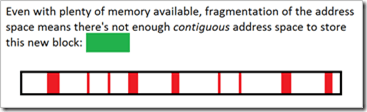
In most cases, the system isn’t out of RAM—instead, the memory manager simply cannot find a contiguous block of address space large enough to satisfy the program’s allocation request.

In each of the failure cases above, the process was 32bit. It doesn’t matter how much RAM you have, running in a 32bit process nearly always means that there are fewer than 3 billion addresses1 at which the allocation can begin. If you request an allocation of n bytes, the system must have n unused addresses in a row available to satisfy that request.

Making matters much worse, every active allocation in the program’s address space can cause “fragmentation” that can prevent future allocations by splitting available memory into chunks that are individually too small to satisfy a new allocation with one contiguous block.

Out-of-address-space

Running out of address space most often occurs when dealing with large data objects like arrays; in Fiddler, a huge server response like a movie or .iso download can be problematic. In my Python script failure this morning, a 1.3gb file (chrome_child.dll.pdb) needed to be loaded so its hash could be computed. In some cases, restarting a process may resolve the problem by either freeing up address space, or by temporarily reducing fragmentation enough that a large allocation can succeed.

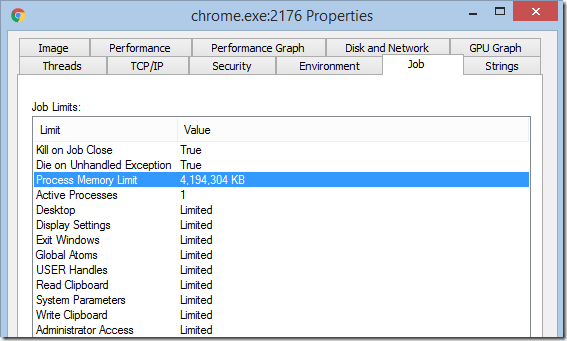
Running 64-bit versions of programs will usually eliminate problems with address space exhaustion, although you can still hit “out-of-memory” errors before your hard disk is full. For instance, to limit their capabilities and prevent “runaway” allocations, Chrome’s untrusted rendering processes run within a Windows job object with a 4gb memory allocation limit:

Job limit 4gb shown in SysInternals Process Explorer

Elsewhere, the .NET runtime restricts individual array dimensions to 2^31 entries, even in 64bit processes2.

-Eric Lawrence

1 If a 32bit application has the LARGEADDRESSAWARE flag set, it has access to s full 4gb of address space when run on a 64bit version of Windows.

2 So far, four readers have written to explain that the gcAllowVeryLargeObjects flag removes this .NET limitation. It does not. This flag allows objects which occupy more than 2gb of memory, but it does not permit a single-dimensional array to contain more than 2^31 entries.

Things I’ve Learned in my first weeks on Chrome

This is a stub post which will be updated periodically.

It would be impossible to summarize how much I’ve learned in the last six weeks working at Google, but it’s easy to throw together some references to the most interesting and accessible things I’ve learned. So that’s this post.

Developing Chrome

Searching the code is trivial. You don’t need to know C++ to read C++. And if you can write C++, the process of adding new code to Chrome isn’t too crazy.

Creating bugs is easy: https://crbug.com

Developing Chrome extensions is easy and approximately 5% as hard as building IE extensions.

Using Chrome

PM’ing at Microsoft was all about deleting email. Surviving at Google is largely an exercise in tab management, since nearly everything is a web page. QuickTabs allows you to find that tab you lost with a searchable most-recently-used list.

You can CTRL+Click *multiple* Chrome tabs and drag your selections out into a new window (unselected tabs temporarily dim). Use SHIFT+Click if you’d prefer to select a range of tabs.

Hit SHIFT+DEL when focused on unwanted entries in the omnibox (addressbar) dropdown to get rid of them.

Want to peek under the hood? Load chrome://chrome-urls to see all of the magic URLs that Chrome supports for examining and controlling its state, caches, etc. For instance, the ability to view network events and export them to a JSON log file (see chrome://net-internals), later importing those events to review them using the same UI is really cool. Other cool pages are chrome://tracing, chrome://crashes, and chrome://plugins/.

Chrome uses a powerful system of experimental field trials; your Chrome instance might behave differently than everyone else’s.