Last Update: March 24, 2026
I’ve previously explained how Chromium-based browsers assign a “danger level” based on the type of the file, as determined from its extension. Depending on the Danger Level, the browser may warn the user before a file download begins in order to confirm that the user really wanted a potentially-dangerous file.
Deep in that article, I noted that Edge and Chrome can override the danger level for specific files based on the result of reputation checks against their respective security services (SmartScreen for Edge, SafeBrowsing for Chrome).
Stated another way, reputation services don’t just block download of known-unsafe files, they also smooth the download flow for known-safe files.
SmartScreen Application Reputation (AppRep) is a cloud service that maintains reputation information on billions of files in use around the world, and uses that reputation information to help keep users’ devices and personal information safe. It enhances the legacy Windows Attachment Manager security feature that shows warnings for dangerous files opened from the Internet.
To see what SmartScreen AppRep looks like, consider the case of downloading a trustworthy .EXE installer file (the Edge Canary setup program) in Edge with SmartScreen disabled and enabled.
Scenario: “Good” File
With SmartScreen disabled, we see a warning from the browser that the file could harm your device, because the .exe file type which has a danger level of ALLOW_ON_USER_GESTURE and I haven’t visited this download site before today1 in this browser profile:

In contrast, if we enable SmartScreen and try again, this time, the new download MicrosoftEdgeSetupCanary (5).exe is not interrupted by a warning:

The new download’s default danger level was overridden by the result of SmartScreen’s reputation check on the downloaded file’s signature and hash. The result indicated that this is a known-safe signer or file:
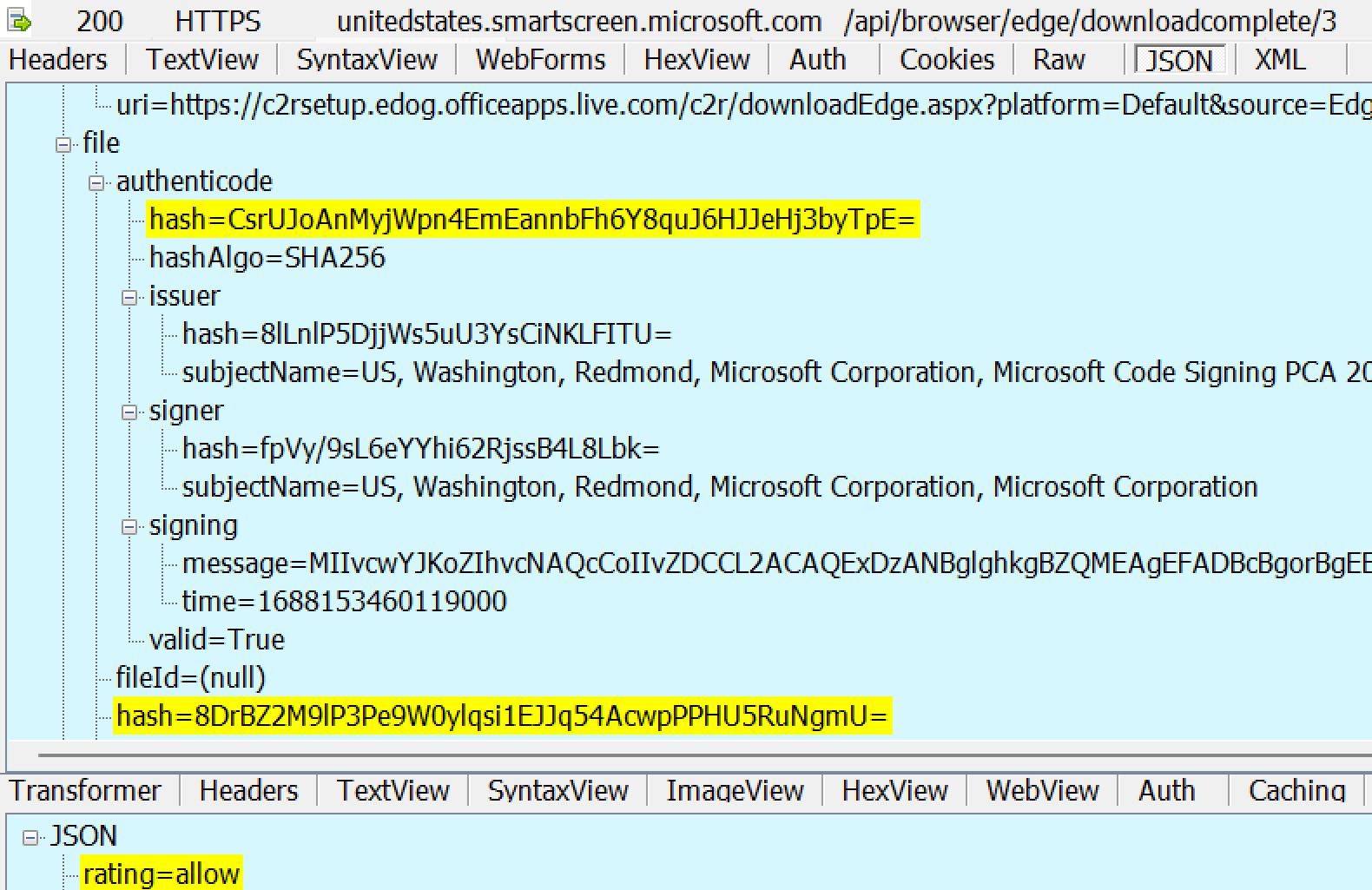
Scenario: “Bad” File
Now, consider the case the file is known to Microsoft to be malware. If SmartScreen isn’t enabled, there’s know way for Edge to know the file is bad, so users see the same security prompt as they saw for a “Good” file:

On the other hand, if SmartScreen is enabled, AppRep reports the file is bad and the user gets a block notice in Edge.

A user may choose to override the block by choosing Keep from the context menu:

If the user chooses to Keep the file, an explanatory confirmation dialog is presented:

Scenario: “Unknown”/”Uncommon” File
In some cases, SmartScreen doesn’t have enough information to know if a file is good or bad.
If SmartScreen is disabled in Edge, the user sees the same old dialog as they saw for “Good” and “Bad” files:

However, if SmartScreen is enabled, the user sees a notice warning them that the file is uncommon

The user may elect to keep the file:

If the user chooses to Keep the file, an explanatory confirmation dialog is shown:

Windows Shell Integration
Beyond the integration into Edge, SmartScreen Application Reputation is also built into the Windows Shell. Even when you download an executable file using a non-Edge browser like Firefox or Chrome, the file is tagged with a Mark-of-the-Web (MotW).
When a MotW-adorned file is executed via the ShellExecute() API, such as when the user double-clicks in Explorer or the browser’s download manager, the SmartScreen AppRep service evaluates the file if its extension is in the list of AppRep-supported file types (.appref-ms .bat .cmd .com .cpl .dll .drv .exe .gadget .hta .js .jse .lnk .msi .msu .ocx .pif .ps1 .scr .sys .vb .vbe .vbs .vxd .website .wsf .docm).
If the file has a known “Good” reputation, no security prompt is shown. However, if it is malicious or unknown, a prompt will warn or block the file:


In various cases, the legacy Windows Attachment Execution Services (AES) security prompt is shown instead:
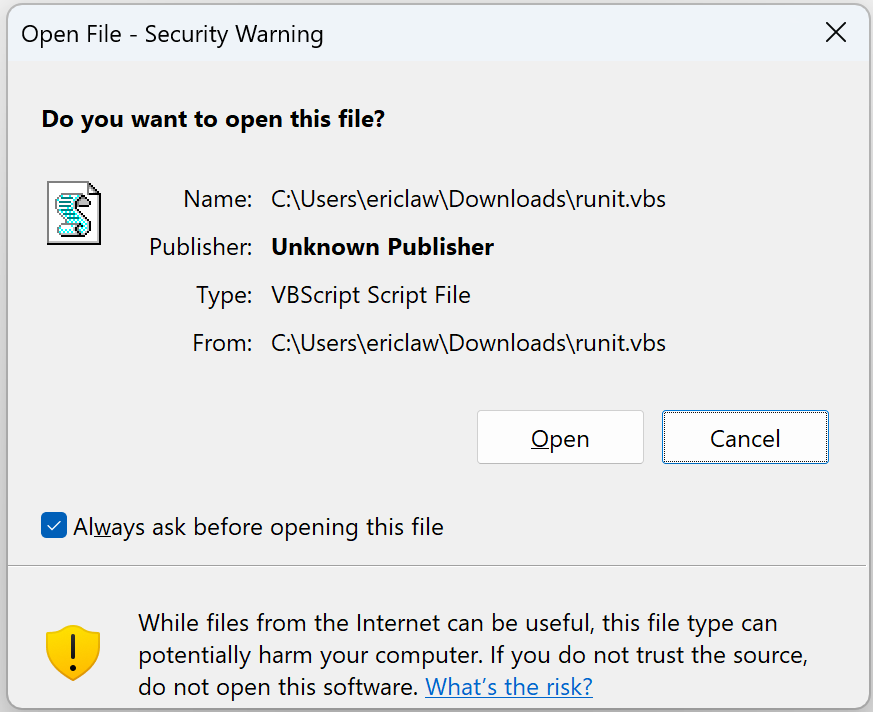
… if any of the following are true:
- If SmartScreen is disabled via the Windows Security toggle > Reputation-based Protection >
Check apps and files - If the file’s extension is deemed
High Riskbut is not in the supported extensions list built into the AppRep client (.appref-ms .bat .cmd .com .cpl .dll .drv .exe .gadget .hta .js .jse .lnk .msi .msu .ocx .pif .ps1 .scr .sys .vb .vbe .vbs .vxd .website .wsf .docm) - If the AppRep web service responds that it does not support the specific file (e.g. as of fall 2025, an
Unsupportedresult is expected for all.cmd,.bat, and some.jsfiles). - If the invoker used the
SEE_MASK_NO_UIflag when callingShellExecuteEx - If the file is not located on the local machine (e.g. when running a file directly from a network share using a UNC path like
\\server\share\file.exe)
If the downloaded file is manifested to “Run as Administrator”, the AES dialog isn’t shown, in favor of the UAC Elevation dialog which, somewhat unfortunately, looks less scary:

Scenario: User Overrides
Unless a Policy is set, the user may “click through” the warning by clicking “More Info” and then click “Run anyway.”

Scenario: Offline
If the device happens to be offline (or SmartScreen is otherwise unreachable), a local version of the dialog box is shown instead:
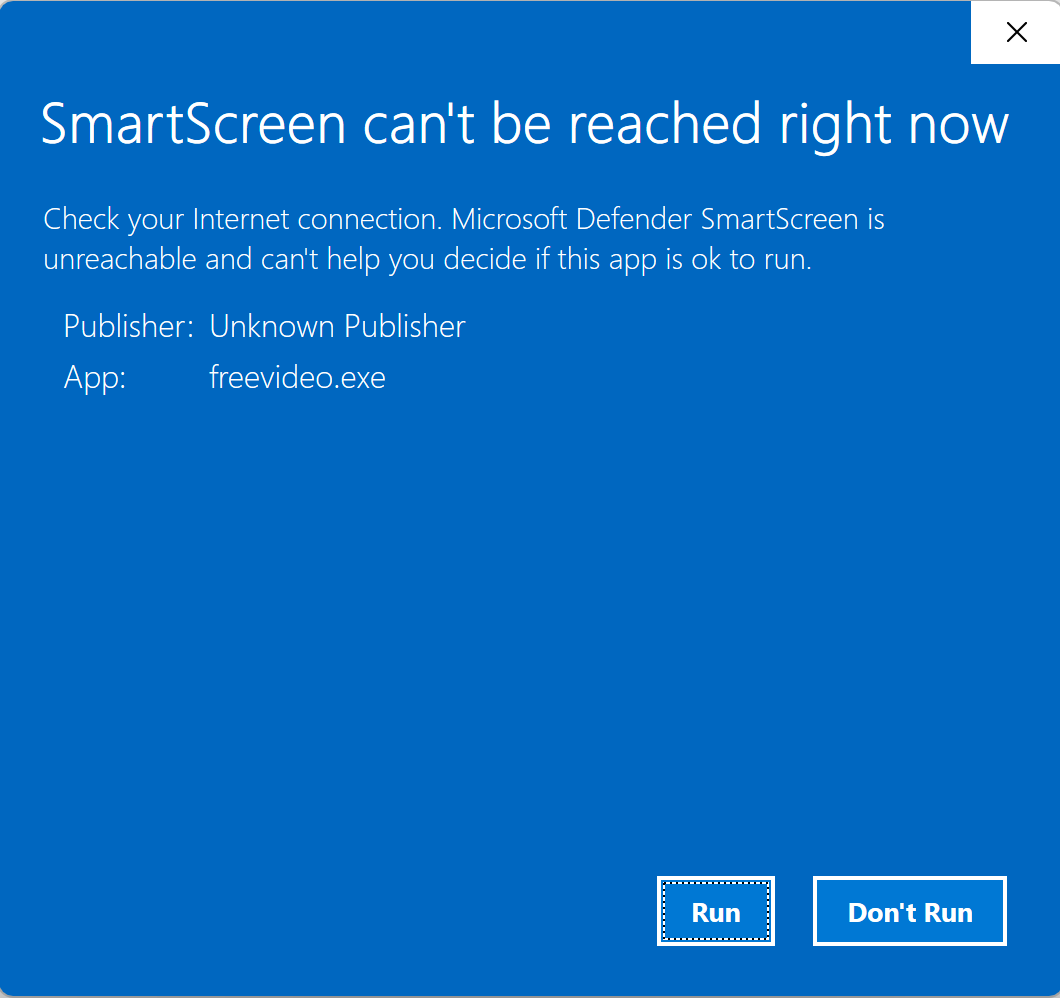
A Note on “Choose where to get Apps”
SmartScreen’s shell integration is controlled by the Security Settings > Reputation Based Protection > Check apps and files setting:
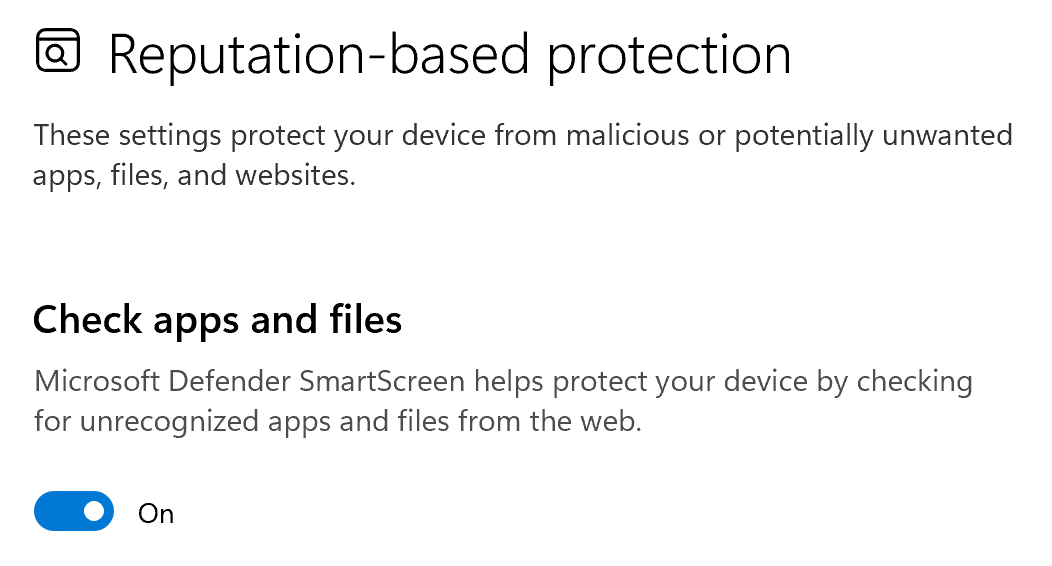
When On, SmartScreen checks are enabled. However, you may be surprised to notice that even with this setting toggled to Off, you can still get SmartScreen warnings:

The reason is that there’s a different Windows setting, titled Choose where to get apps, and if that setting is set to either of the “Anywhere, but...” options:

… then SmartScreen is also consulted (the “Choose where to get apps” feature is implemented by calling the same web service).
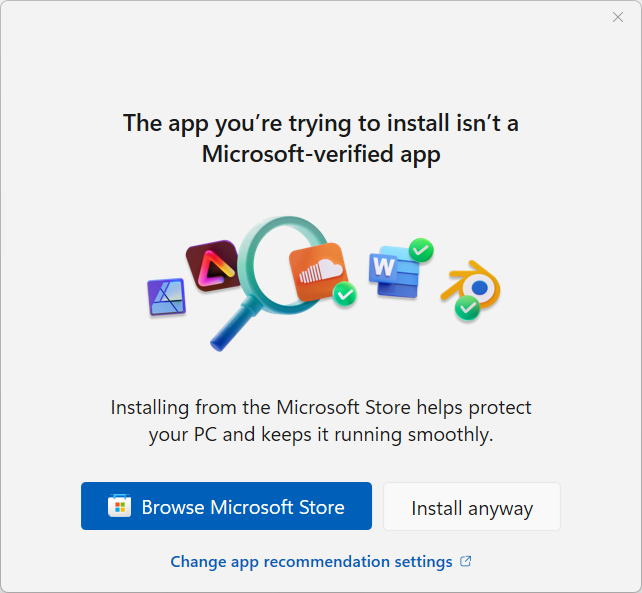
You can learn more about this setting in this post.
A Note about Invokers
Calls to display the Windows Shell Security prompts shown above:
1) Attachment Execution Services prompt (introduced circa 2000)
2) SmartScreen AppRep prompting (introduced circa 2010 & 2018)
…are integrated into the ShellExecuteEx API, and not into other APIs like CreateProcess.
As a consequence, execution of files bearing a Mark-of-the-Web does NOT trigger security prompts or SmartScreen Web Service checks when the invoker does not call ShellExecute(). The most common such invocation is CreateProcess, which is the launch mechanism used by cmd.exe and PowerShell.
Relationship to Microsoft Defender Antivirus
Notably, SmartScreen AppRep is not antivirus. For example, if you append one byte at the end of a malicious file, its hash will change, and its reputation will move from Malicious to Unknown.
In contrast to SmartScreen AppRep, Microsoft Defender Antivirus (MDAV) is a next-generation antivirus product that scans files and observes process behavior to detect malicious code before and during execution. Unlike AppRep, MDAV can detect even previously unknown malware files by scanning them for malicious signatures and behavior.
Relationship to Microsoft Defender for Endpoint
Some Microsoft Defender for Endpoint (MDE) customers would like to suppress SmartScreen AppRep warnings on files they trust. They typically try to do so using an Allow indicator on the file’s hash or certificate.
Unfortunately, this technique does not work today– SmartScreen AppRep does not take MDE’s Custom Indicators into account.
Instead, your best bet is to ensure that the source of your trusted files is a site that has been added to Windows’s Trusted Sites or Local Intranet security zones; you can do so using the Internet Control Panel UI, or Group Policy. When you do this, files copied/downloaded from the target site will no longer be tagged with an Internet Zone Mark-of-the-Web (MotW). Without the MotW, SmartScreen checks will not be run.
Relationship to WDAC/AppControl for Business
If you enable Application Control in “signed and reputable” mode:

…and if a binary has a MotW, WDAC will check with SmartScreen AppRep for a reputation. Critically and surprisingly to some customers, however, if SmartScreen returns Unknown, and the user gets the blue prompt, the user can say “Run anyway” and WDAC will treat that action as if SmartScreen had said the file was reputable.
Relationship to Smart App Control
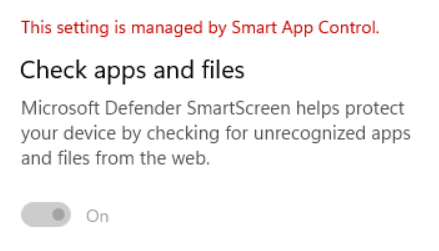
When Smart App Control is enabled, SmartScreen AppRep is disabled.
A Note about Reputation
The Application Reputation service builds reputation based on file hashes and the certificates used to sign those files. Because every update to a file changes its hash, this means that new files that are unsigned have no reputation by default. As a consequence, to avoid unexpected security warnings, a best practice for software developers is to sign your software using an Authenticode certificate. Because your certificate can be used to sign files for years, it will accumulate reputation that will accrue to files you sign in the future. Note that, from ~2013 to ~2019, all files signed by an Extended Validation Authenticode Certificate were given a “positive” reputation by default, but that is no longer the case — each certificate must build reputation itself.
While SmartScreen only checks the reputation of the main file that the user executes (aka its “entry point”), you should sign all files to help protect them from tampering, and to ensure your app works correctly when Windows 11’s Smart App Control feature is enabled. The Windows 11 Smart App Control feature goes further than SmartScreen and evaluates trust/signatures of all code (DLLs, scripts, etc) that is loaded by the Windows OS Loader and script engines. It also blocks certain file types entirely if the file in question originated from the Internet.
-Eric
[1] When testing this yourself, you might find that you unexpectedly still don’t get a security prompt for some files even after SmartScreen is disabled. The logic for ALLOW_ON_USER_GESTURE is quite subtle, and includes things like “Did you ever previously visit the site that triggered this download before today?“
Try using the “Clear Browsing History” command (Ctrl+Shift+Del) to clear Browser History/caches before trying this scenario.
 text/plain