Browser SSO / Automatic Signin

Last Update: 8 March 2024

Over the years, I’ve written a bunch about authentication in browsers, and today I aim to shed some light on another authentication feature that is not super-well understood: Browser SSO.

Recently, a user expressed surprise that after using the browser’s “Clear browsing data” option to delete everything, when they revisited https://portal.azure.com, they were logged into the Azure Portal app without supplying either a username or a password. Magic!

Here’s how that works.

When you select this option:

… the browser will delete all cookies. Because auth tokens are often stored in cookies, as noted in the text, this option indeed “Signs you out of most sites.” And, in fact, if you go look at your cookie jar, you will see that your cookies for e.g. https://portal.azure.com are indeed gone. In a strictly literal sense, you are no longer “logged into” Azure.

However, what this Clear Site Data command doesn’t do is log you out of the browser itself. If you click the Avatar icon in the Edge toolbar, you’ll see that the profile’s account is still listed and signed in:
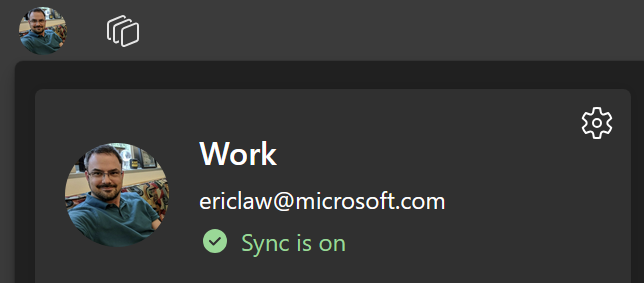
When you next visit https://portal.azure.com, the server says “Hrm, I don’t know who this is, I better get them to log in” … and the browser is redirected to a login page.

You might assume that this page would prompt for your username and password. And that is, in fact, what happens if you launch https://portal.azure.com in a default Chrome or Edge InPrivate browser instance.

But if you’re in a non-Private Edge window logged in with a profile or in a Chrome browser with the Windows 10 Accounts extension installed, that login.microsoftonline.com page doesn’t need to bother the user for a username and password – either the browser (Edge) or the extension (Chrome) just says “Oh, a login page! I know what to do with that – here, have a token!” (Under the hood, the token may be sent to the identity provider via a browser-injected HTTP header, or supplied to the identity provider page’s JavaScript via an extension API.)

Signing in to the browser itself is a relatively new mechanism for enabling “Single Sign On”, a catalog of approaches that have existed in one form or another for decades, including Client Certificate Authentication, Windows Integrated Authentication, and now Browser SSO. The Edge team has a nice documentation page explaining the various SSO features posted here here.

Because the browser/extension supplies the token in lieu of the username / password into the login page, the login page says “Okay, we’re good to go, navigate back to the portal.azure.com page – the user has supplied proof of their identity.”

And thus the “magic” here is pretty simple.

With that said, one factor that can lead to confusion about browser SSO is the fact that browser vendors tend to only support automatic authentication for their own first-party login pages. UPDATE: This changed in Chrome 111. See below.

For example, Microsoft Edge’s SSO automatically logs into web properties like https://portal.azure.com that rely on the Microsoft identity provider, while Google Chrome only enables SSO through the Microsoft logon page if the Chrome Windows 10 account extension is installed.

This “First Party” support isn’t unique to Microsoft. Consider the similar scenario in the “Google universe” version of this scenario”:

  1. Launch Chrome, using an @gmail.com profile.
  2. Visit mail.google.com and look at your email
  3. Hit CTRL+Shift+Delete and use the dialog to Clear Site Data for all time
  4. Close the browser
  5. Restart the browser
  6. Visit mail.google.com and observe: You’re still logged in.
    Why? Because you’re logged into Chrome, and it supplies your browser identity token to Google’s website.

Now,

  1. Launch Edge.
  2. Visit mail.google.com, sign in if needed, and look at your email
  3. Hit CTRL+Shift+Delete and use the dialog to Clear Site Data for all time
  4. Close the browser
  5. Restart the browser
  6. Visit mail.google.com and observe: You have to log in again.
    Why? Because while you’re logged into Edge, Edge doesn’t supply your browser identity token to Google’s website.

Note: Microsoft Edge does offer policies to control whether users may log into the browser itself, so if you really don’t want your users to be automatically signed in (and allowed to sync settings, history, credentials, etc), setting the policy would be one option.

Chrome CloudAPAuth

Chrome 111 introduced a new feature called CloudAPAuth. When enabled and running on Windows 10+, the browser will automatically add x-ms-DeviceCredential and x-ms-RefreshTokenCredential headers when sending requests to the login.microsoftonline.com authentication portal:

Chromium names this the PlatformAuthenticationProvider. When enabled (and not in Incognito/Guest mode), a navigation throttle adds the appropriate custom headers when navigating to login URLs pulled from the Windows registry:

…or hardcoded if the registry keys aren’t specified.

As an aside, this code flow looks very very similar to the code that the Edge team had built into their browser for the same purpose years ago.

This allows SSO authentication to Microsoft websites in Chrome even without the Windows Accounts browser extension installed. Note that both CloudAPAuth and the Windows Accounts extension go a bit beyond just user authentication — they also provide attestations about the state of the device, which can be targeted by Conditional Access to allow only, say, fully-patched managed PCs to access a sensitive website.

You can learn more about the token here.

Firefox 91+

Firefox offers this same feature:

Improving the Microsoft Defender Browser Protection Extension

Earlier this year, I wrote about various extensions available to bolster your browser’s defenses against malicious sites. Today, let’s look at another such extension: the Microsoft Defender Browser Protection extension. I first helped out with extension back in 2018 when I was an engineer on the Chrome Security team, and this spring, I was tasked with improving the extension.

The new release (version 1.663) is now available for installation from the Chrome Web Store. Its protection is available for Chrome and other Chromium-derived browsers (Opera, Brave, etc), running on Windows, Mac, Linux, or ChromeOS.

While the extension will technically work in Microsoft Edge, there’s no point in installing it there, as Edge’s SmartScreen integration already offers the same protection. Because Chrome on Android does not support browser extensions, to get SmartScreen protections on that platform, you’ll need to use Microsoft Edge for Android, or deploy Microsoft Defender for Endpoint.

What Does It Do?

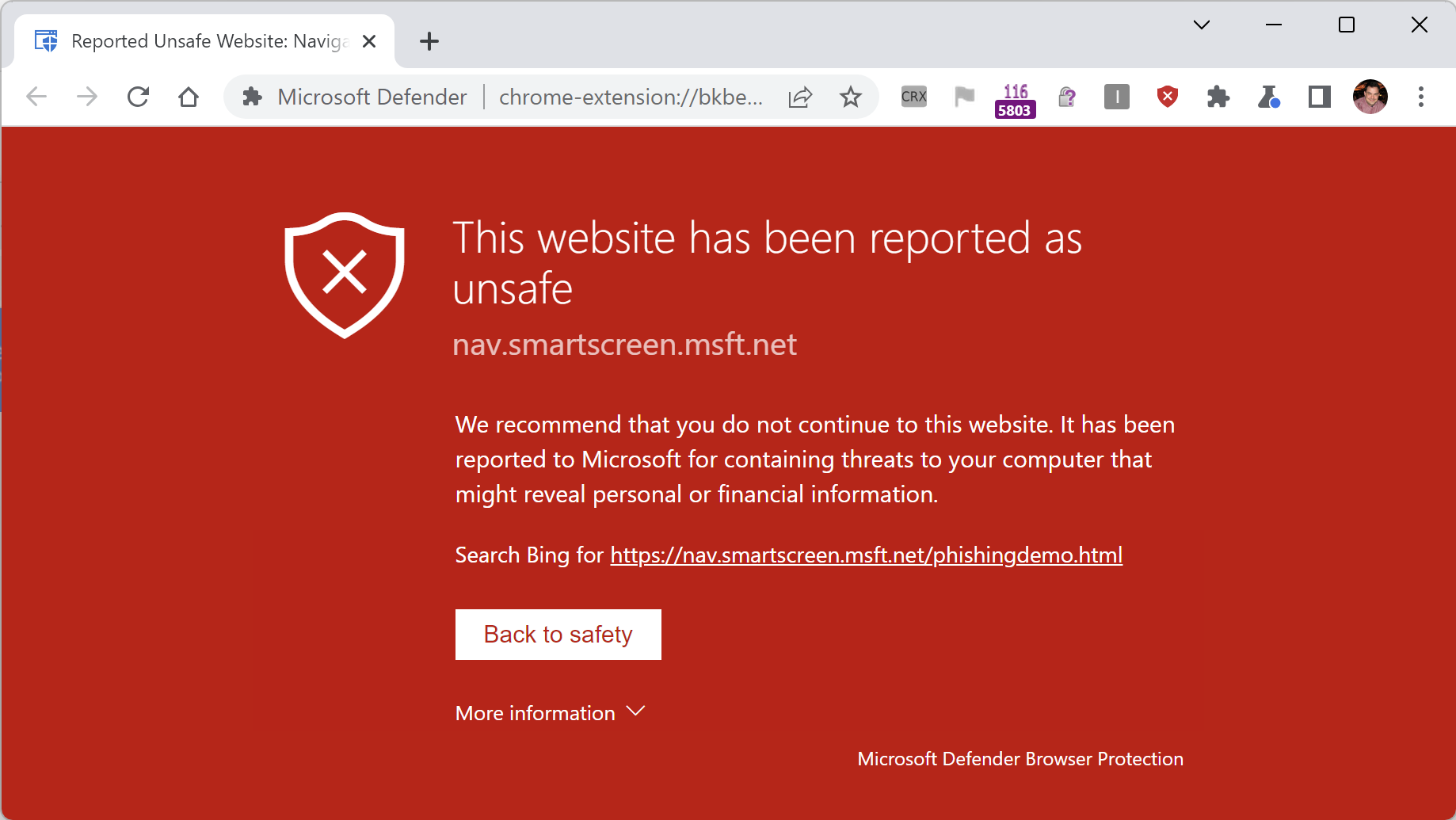
The extension is conceptually pretty simple: It performs URL reputation checks for sites you visit using the Microsoft SmartScreen web service that powers Microsoft Defender. If you attempt to navigate to a site which was reported for conducting phishing attacks, malware distribution, or tech scams, the extension will navigate you away to a blocking page:

This protection is similar to that offered by Google SafeBrowsing in Chrome, but because it uses the Microsoft SmartScreen service for reputation, it blocks malicious sites not included in Google’s block list.

What’s New?

The primary change in this new update is a migration from Chromium’s legacy “Manifest v2” extension platform to the new “Manifest v3” platform. Under the hood, that meant migrating the code from a background page to a ServiceWorker, and making assorted minor updates as APIs were renamed and so on.

The older version of the extension did not perform any caching of reputation check results, leading to slower performance and unnecessary hits to the SmartScreen URL reputation service. The new version of the extension respects caching directives from service responses, ensuring faster performance and lower bandwidth usage.

The older version of the extension did not work well when enabled in Incognito mode (the block page would not show); this has been fixed.

The older version of the extension displayed text in the wrong font in various places on non-Windows platforms; this has been fixed.

In addition to the aforementioned improvements, I fixed a number of small bugs, and introduced some new extension policies requested by a customer.

Enterprise Policy

Extensions can be deployed to managed Enterprise clients using the ExtensionInstallForceList group policy.

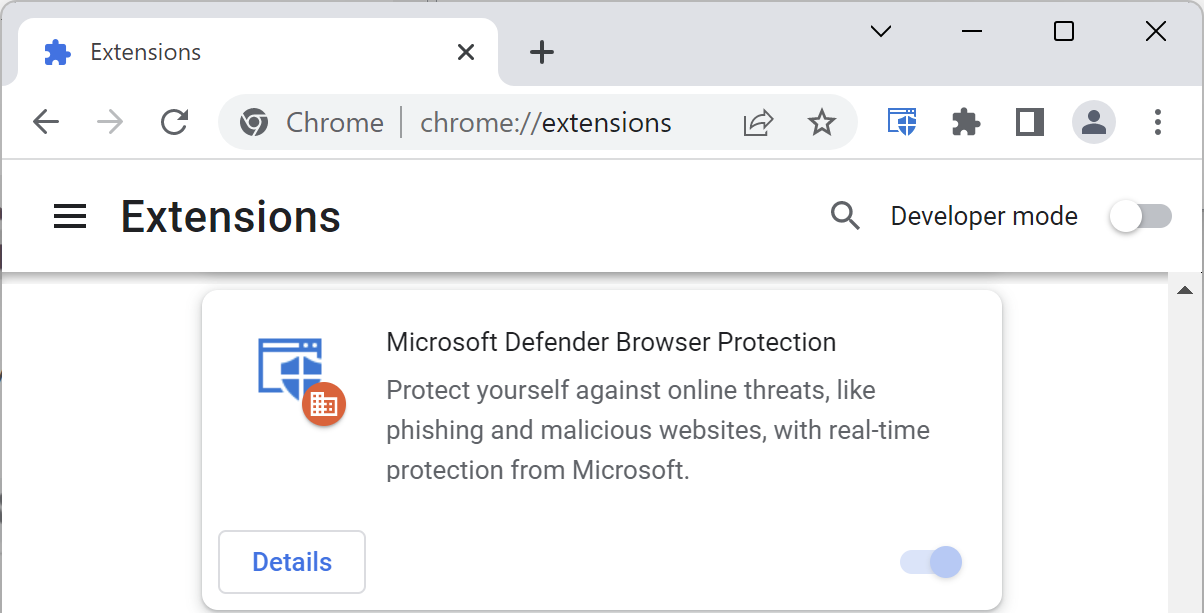
When installed in this way, Chrome disallows disabling or uninstalling the extension:

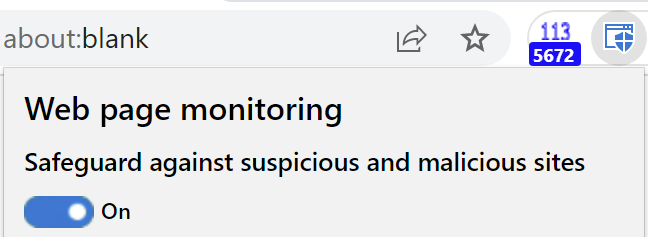
However, the extension itself offers the user a simple toggle to turn off its protection:

… and the “Disregard and continue” link in the malicious site blocking page allows a user to ignore the warning and proceed to a malicious site.

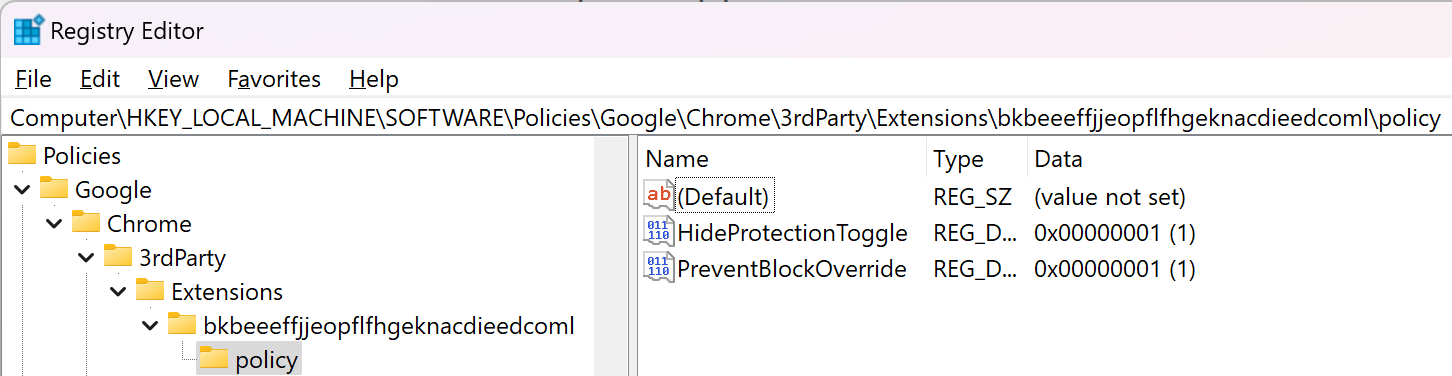
In the updated version of the extension, two Group Policies can be set to control the availability of the Protection Toggle and Disregard link.

Windows Registry Editor Version 5.00

[HKEY_LOCAL_MACHINE\SOFTWARE\Policies\Google\Chrome\3rdParty\Extensions\bkbeeeffjjeopflfhgeknacdieedcoml\policy]
"HideProtectionToggle"=dword:00000001
"PreventBlockOverride"=dword:00000001

After the policy is configured, you can visit the chrome://policy page to see the policies set for the extension:

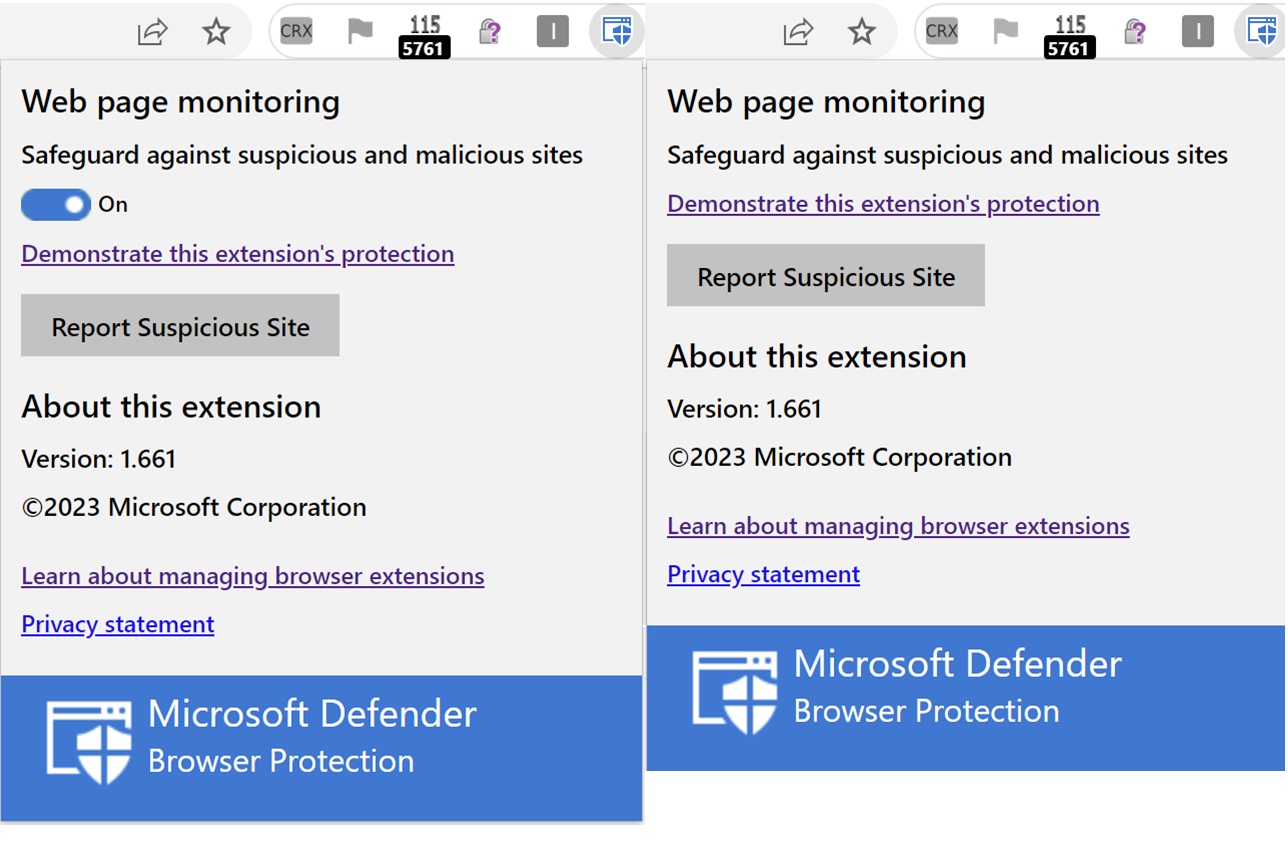
When both policies are set, the toggle and continue link are hidden, as shown in these side-by-side screenshots:

Note that extensions are not enabled by default in the Chrome Incognito mode, even when force-installed by an administrator. A user may manually enable individual extensions using the Details > Allow in Incognito toggle on the extension’s item in the chrome://extensions page, but there’s no way to do this via policy. An admin wanting to require use of an extension must block Incognito usage outright.

Limitations

Note that this extension has a few known limitations.

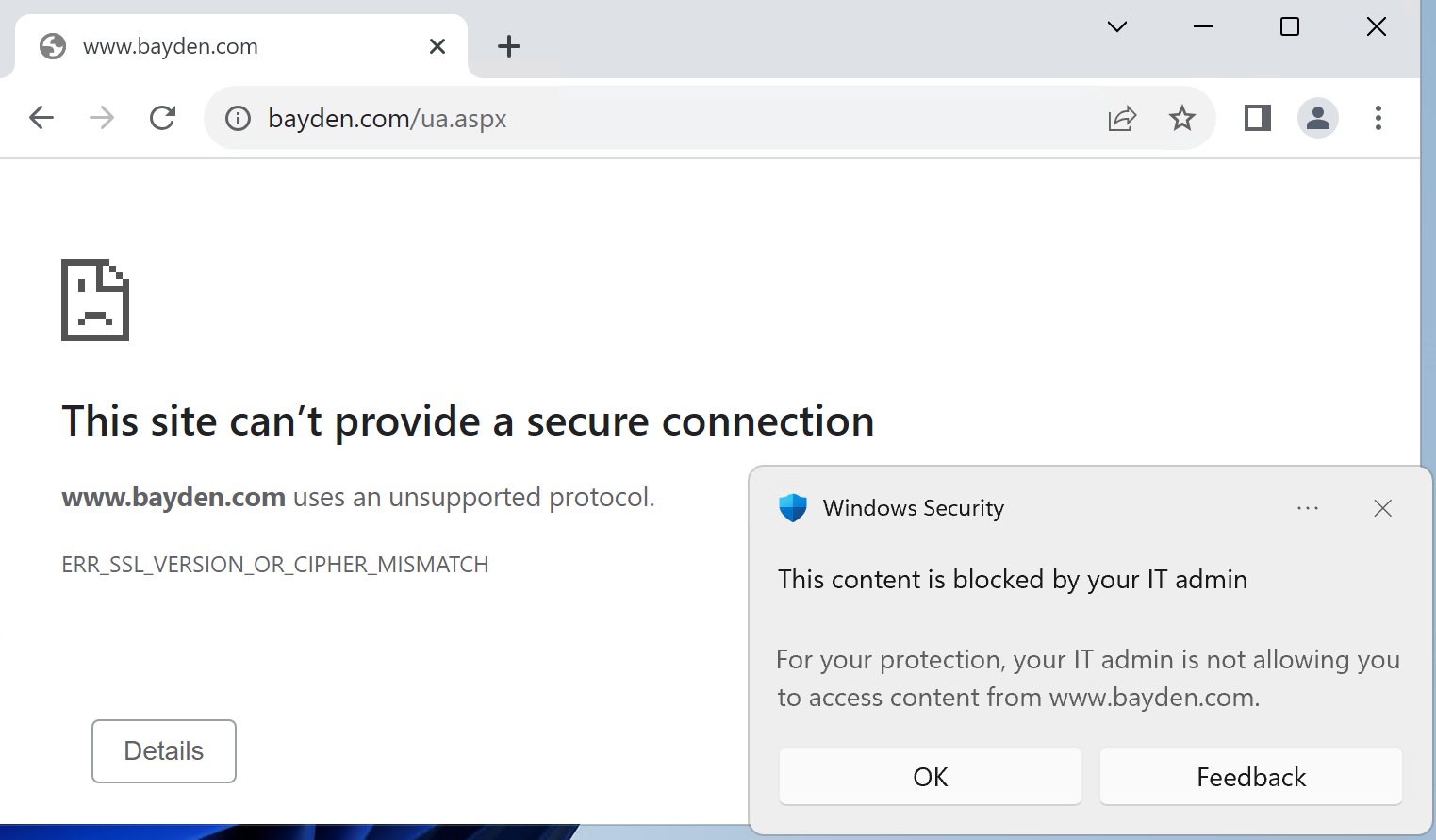
First, the extension only blocks phishing and malware sites known to Microsoft SmartScreen. If your organization has configured custom blocking of sites via Windows Defender’s Network Indicators or Web Content Filtering, those blocks are still enforced at the network level, meaning that you get a Windows toast notification and the browser will show a ERR_SSL_VERSION_OR_CIPHER_MISMATCH message.

Second, unlike SmartScreen in Edge, the extension does not support administrator-configured exceptions. For example, if your company uses a “phishing simulation” company to try to phish your employees for “testing” purposes, there’s no way to configure this extension to ignore the simulation site.

I hope you like the new version of this extension. Please reach out if you encounter any problems!

-Eric

How do Random Credentials Mysteriously Appear?

One commonly-reported issue to browsers’ security teams sounds like: “Some random person’s passwords started appearing in my browser password manager?!? This must be a security bug of some sort!”

This issue has been reported dozens of times, and it’s a reflection of a perhaps-surprising behavior of browser login and sync.

So, what’s happening?

Background

Even when you use a browser profile that is not configured to sync, it will offer to save credentials as you enter them into websites. The prompt looks a little like this:

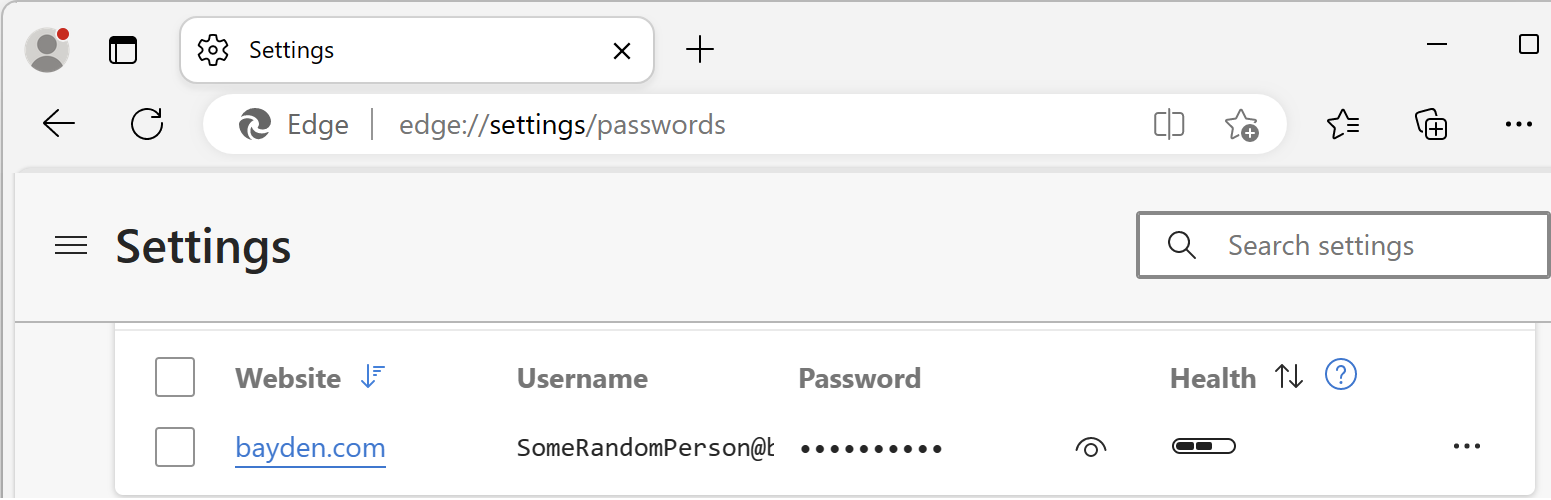
When you choose to save credentials in a non-synced browser, the credentials are saved locally and do not roam to any other device. You can view the stored credentials by visiting edge://settings/passwords:

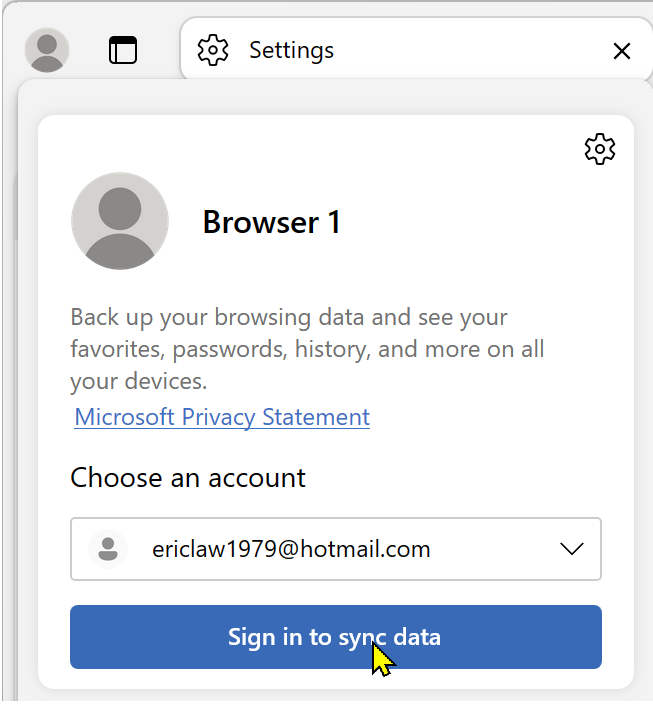
Now, if you subsequently enable sync by logging into the browser itself, using either the profile menu:

… or the edge://settings page:

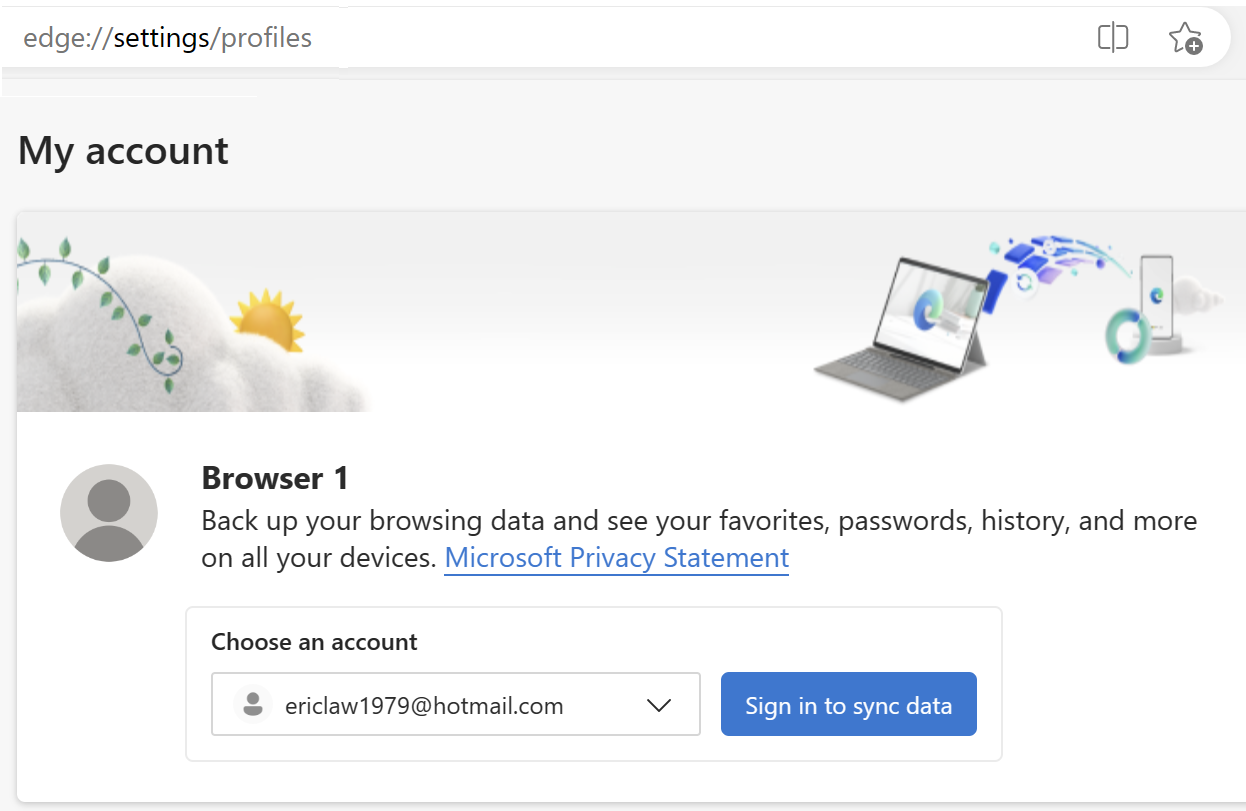
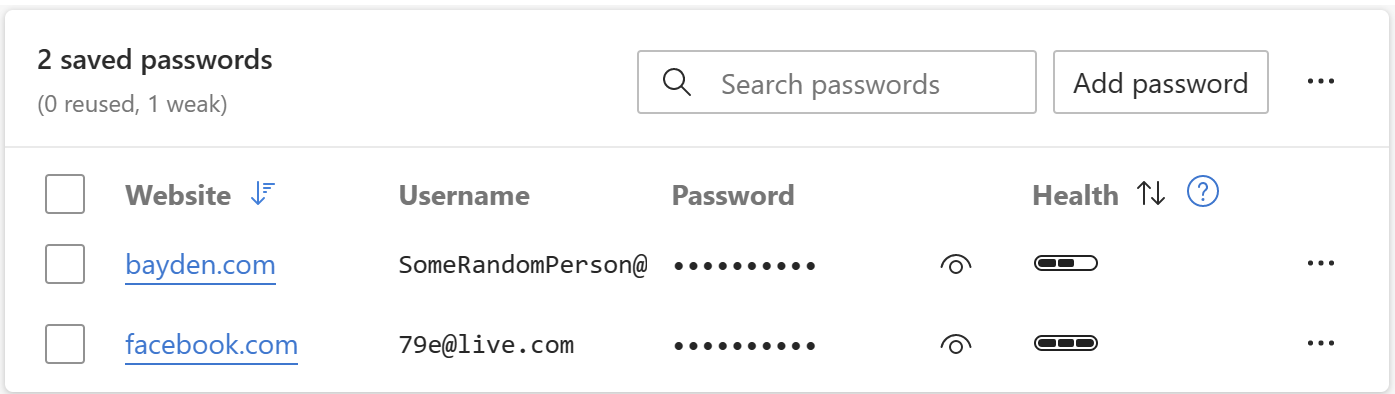
You will find that the passwords stored in that MSA/AAD sync account now appear in the local password manager, in addition to any credentials you stored before enabling sync. So, for example, we see the stored SomeRandomPerson@ cred, as well as the 79e@ credential that was freshly sync’d down from my Hotmail MSA account:

If you subsequently follow the same steps on a new PC:

  • Store a new credential, SomeOtherRandomPerson@,
  • Log into the browser and enable sync with the same Hotmail MSA account
  • Look in the credential manager

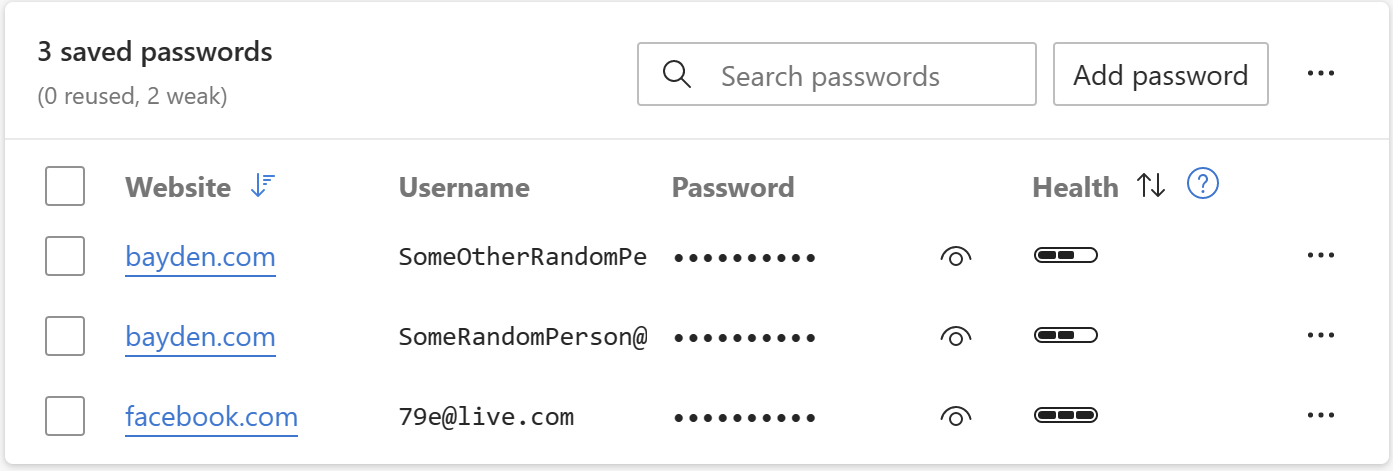
…you’ll see that the new PC has three credentials: the SomeRandomPerson@ cred roamed from the first PC and now in the MSA account, as well as the 79e@ credential originally in the MSA account, and now the new SomeOtherRandomPerson@ credential stored before enabling sync:

A bit later, if you then go check back on the first PC, you’ll see it too now has three credentials thanks to sync.

The goal of sync is to ensure that the password manager is to keep all of the credentials in sync, roamed using your MSA/AAD account.

However, users are sometimes surprised that credentials added to the Password Manager before enabling sync are automatically added to whatever MSA/AAD account you login to for sync.

The Culprit: Public and Borrowed PCs

When browser security teams investigate reports from users of credentials unexpectedly appearing, we usually ask whether the user has ever logged into the browser on a PC that wasn’t their own. In most cases (if they can remember at all), they report something like “Well, yeah, I logged into the PC at an Internet Cafe last month, but I logged out when I was done” or “I used my friend’s laptop for a while.”

And now the explanation for the mysterious appearance of credentials becomes clear: When the user logged into the Internet Cafe PC, any random credentials that happened to be on that PC were silently imported into their MSA/AAD account and will now roam to any PCs sync’d to that MSA/AAD account.

Now, there’s a further issue to be aware of: If you log out of a browser/sync, by default, all of your roamed-in credentials are left behind!

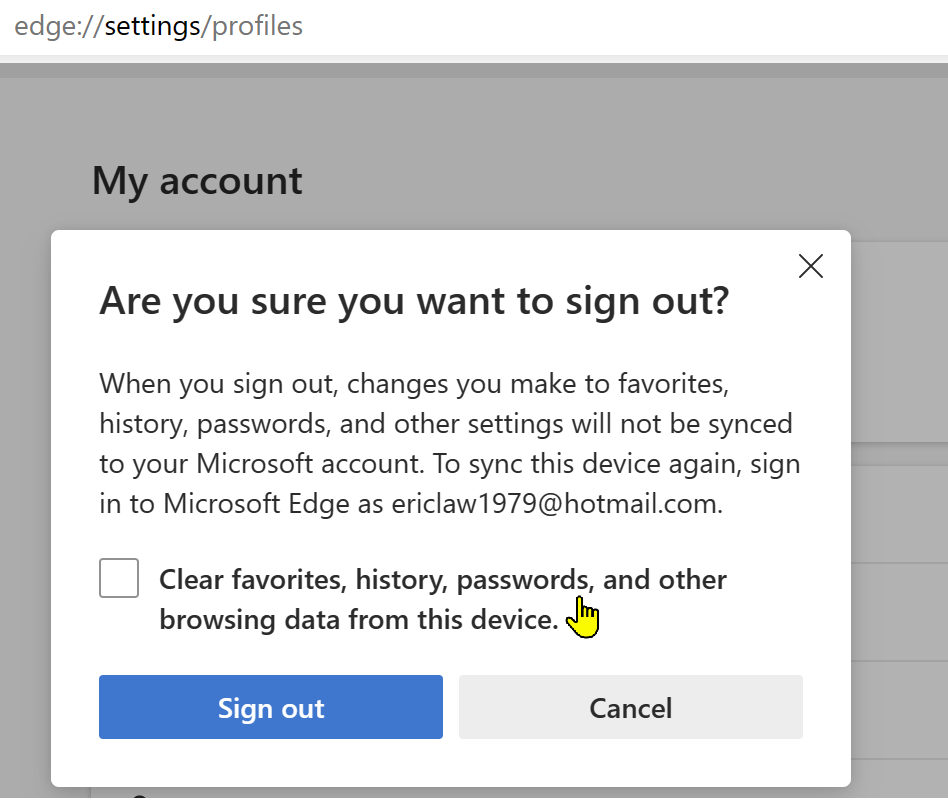
So, for example, if you logged into the browser on an Internet Kiosk, dutifully logging out of your profile after use, if you fail to tick this checkbox:

… the next person to use that browser profile will have access to your stored credentials. Even worse, if they decide to log into the profile, now your credentials are roamed from that Kiosk PC into their account, enabling them to log in as you from wherever they go. 😬

I would strongly recommend that you:

  1. Never log into a browser that isn’t your own.
  2. Never allow anyone else to use your browser while logged in as you (since they could trivially steal your browser data by enabling sync to their account).
  3. Avoid even using a browser on a device that isn’t under your control.

-Eric

Detecting When the User is Offline

Can you hear me now?

In the web platform, simple tasks are often anything but. Properly detecting whether the user is online/offline has been one of the “Surprisingly hard problems in computing” since, well, forever.

Web developers often ask one question (“Is this browser online?”) but when you dig into it, they’re really trying to answer a question that’s both simpler and much more complex: “Can I reliably send and receive data from a target server?”.

The browser purports to offer an API which will answer the first question via the simple navigator.online property. Unfortunately, this simple property doesn’t really answer the real question, because:

  • The property is a snapshot of a moment in time, “potentially failing due to Time of check vs. Time of use”. Network access can be lost or regained the instant after you query the property.
  • The property doesn’t indicate whether a request might be blocked by some other feature (firewall, proxy, security software, extension, etc).
  • Not all features on all platforms (e.g. Airplane mode) influence the output of the API.
  • The property indicates that the client has some form of connectivity, not necessarily connectivity to the desired site.
  • The API can return what reasonable people would call a “False Positive”: The navigator.onLine documentation notes:

You could be getting false positives, such as in cases where the computer is running a virtualization software that has virtual ethernet adapters that are always “connected.”

MDN

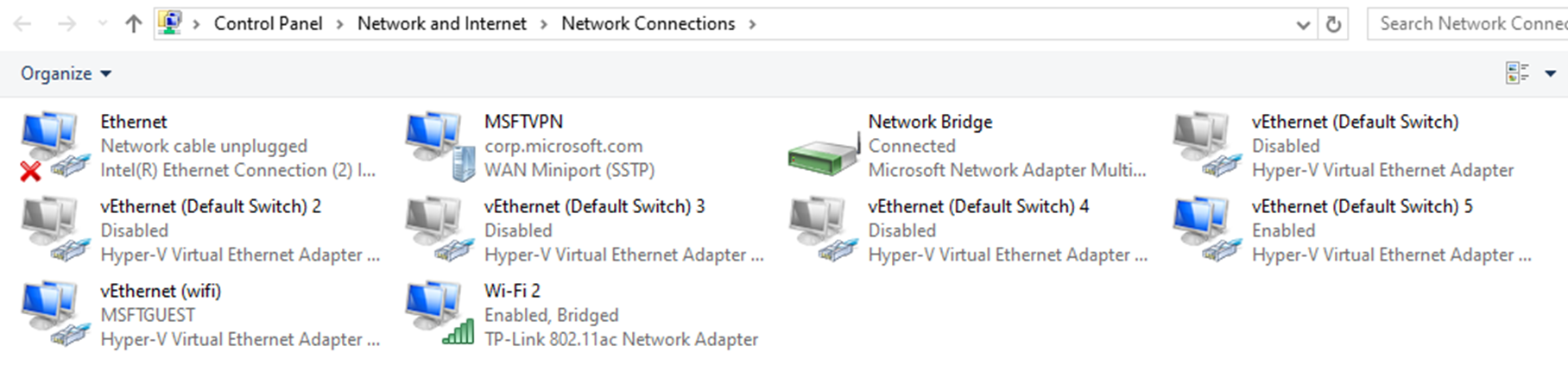
I encounter this issue all the time because I have HyperV installed:

Because of this, I never get the “Your browser is offline” version of the network error page– I instead get various DNS error pages instead.

The web platform’s Network Information API has similar shortcomings.

Non-browser Windows software can use the NLM API to try to learn about the user’s network availability, but it suffers from most of the same problems noted above. However, APIs like INetworkListManager_get_IsConnectedToInternet have the same problems when the user is behind a Captive Portal or a target requires a VPN, or when the user is connected via Wifi to a router (“Yay! You’re online!”) that’s plugged into a cable modem that is turned off (“But you can’t get anywhere!”).

What To Do?

While it’s unfortunate that answering the simple question (“Is the user online?“) is complex/impossible, answering the real question has a straightforward solution: If you want to know if something will work, try it!

The approach taken by most products is simple.

When your code wants to know “Can I exchange data with foo.com”, you just send a network request “Hey, Foo.com, can you hear me?” (sometimes sending a quick HEAD request to a simple echo service) and you wait to hear back “Yup!

If you don’t receive an affirmative response within a short timeout, you can conclude “Whelp, whether I’m connected or not, I can’t talk to the site I care about.”

You might then set up a retry loop, using a truncated exponential backoff delay[1] to avoid wasting a lot of effort.

-Eric

[1] For example, Chromium’s network error page retries as follows:

base::TimeDelta GetAutoReloadTime(size_t reload_count) {
  static const int kDelaysMs[] = {0, 5_000, 30_000, 60_000,
                                  300_000, 600_000, 1_800_000};

Chromium elsewhere contains a few notes on available approaches:

// (1) Use InternetGetConnectedState (wininet.dll). This function is really easy 
// to use (literally a one-liner), and runs quickly. The drawback is it adds a

// dependency on the wininet DLL.

//

// (2) Enumerate all of the network interfaces using GetAdaptersAddresses

// (iphlpapi.dll), and assume we are "online" if there is at least one interface

// that is connected, and that interface is not a loopback or tunnel.

//

// Safari on Windows has a fairly simple implementation that does this:

// http://trac.webkit.org/browser/trunk/WebCore/platform/network/win/NetworkStateNotifierWin.cpp.

//

// Mozilla similarly uses this approach:

// http://mxr.mozilla.org/mozilla1.9.2/source/netwerk/system/win32/nsNotifyAddrListener.cpp

//

// The biggest drawback to this approach is it is quite complicated.

// WebKit's implementation for example doesn't seem to test for ICS gateways

// (internet connection sharing), whereas Mozilla's implementation has extra

// code to guess that.

//

// (3) The method used in this file comes from google talk, and is similar to

// method (2). The main difference is it enumerates the winsock namespace

// providers rather than the actual adapters.

//

// I ran some benchmarks comparing the performance of each on my Windows 7

// workstation. Here is what I found:

//   * Approach (1) was pretty much zero-cost after the initial call.

//   * Approach (2) took an average of 3.25 milliseconds to enumerate the

//     adapters.

//   * Approach (3) took an average of 0.8 ms to enumerate the providers.

//

// In terms of correctness, all three approaches were comparable for the simple

// experiments I ran... However none of them correctly returned "offline" when

// executing 'ipconfig /release'.


New TLDs: Not Bad, Actually

The Top Level Domain (TLD) is the final label in a fully-qualified domain name:

The most common TLD you’ll see is com, but you may be surprised to learn that there are 1479 registered TLDs today. This list can be subdivided into categories:

  • Generic TLDs (gTLD) like .com
  • Country Code TLDs (ccTLDs) like .uk, each of which is controlled by specific countries
  • Sponsored TLDs (sTLDs) like .museum, which are designed to represent a particular community
  • … and a few more esoteric types

Some TLD owners will rent domain names under the TLD to any buyer (e.g. anyone can register a .com site), while others impose restrictions:

  • a ccTLD might require that a registrant have citizenship or a business nexus within their country to get a TLD in their namespace; e.g. to get a .ie domain name, you have to prove Irish citizenship
  • a sTLD may require that the registrant meet some other criteria; e.g. to register within the .bank TLD, you must hold an active banking license and meet other criteria

Zip and Mov

Recently, there’s been some excitement about the relatively-new .ZIP and .MOV top-level domains.

Why?

Because .zip and .mov are longstanding file extensions used to represent ZIP Archives and video files, respectively.

The argument goes that allowing .zip and .mov TLDs means that there’s now ambiguity: if a human or code encounters the string "example.zip", is that just a file name, or a bare hostname?

Alert readers might immediately note: “Hey, that’s also true of .com, the most popular TLD– COM files have existed since the 1970s!” That’s true, as far as it goes, but it is fair to say that .com files are rarely seen by users any more; on Windows, .com has mostly been supplanted by .exe except in some exotic situations. Thanks to the popularity of the TLD, most people hearing dotcom are going to think “website” not “application”.

(The super-geeks over on HackerNews point out that name collisions also exist for popular source code formats: pl is the extension for Perl Scripts and the ccTLD for Poland, sh is the extension for bash scripts and the ccTLD for St. Helena, and rs is the extension for Rust source code and the ccTLD for the Republic of Serbia.)

Okay, so what’s the badness that could result?

Automatic Hyperlinking

In poking the Twitter community, the top threat that folks have identified is concern about automatic hyperlinkers: If a user types a filename string into an email, or their blog editor, or twitter, etc, it might be misinterpreted as a URL and automatically converted into one. Subsequently, readers might see the automatically-generated link, and click it under the belief that the author intended to include a URL, effectively an endorsement.

This isn’t a purely new concern– for instance, folks mentioning the ASP.NET platform encounter the automatic linking behavior all the time, but that is a fairly constrained scenario, and the https://asp.net website is owned by the developers of ASP.NET, so there’s no real harm.

However, what if I sent an email to my family saying, “hey, check out VacationPhotos.zip” with a ZIP file of that name attached to my email, but the email editor automatically turned VacationPhotos.zip into a link to https://VacationPhotos.zip/.

I concede that this is absolutely possible, however, it does not seem terribly exciting as an attack vector, and I remain unconvinced that normal humans type filename extensions in most forms of communication.

Having said that, I would agree that it probably makes sense to exclude .mov and .zip from automatic hyperlinkers. Many (if not most) such hyperlinkers do not automatically link any string that contains every individual instance of the 1479 current TLDs, and I don’t think introducing autolinking for these two should be a priority for them either.

Google’s Gmail automatically hyperlinks 534 TLDs.

(As an aside, if I was talking to an author of an automatic hyperlinker library, my primary concern would be the fact that almost all such libraries convert example.com into a non-secure reference to http://example.com instead of a secure https://example.com URL.)

User Confusion

Another argument goes that URLs are already exceedingly confusing, and by introducing a popular file extension as a TLD, they might become more so.

I do not find this argument compelling.

URLs are already incredibly subtle, and relying on users to mentally parse them correctly is a losing proposition in multiple dimensions.

There’s no requirement that a URL contain a filename at all. Even before the introduction of the ZIP TLD, it was already possible to include .zip in the Scheme, UserInfo, Hostname, Path, Filename, QueryString, and Fragment components of a URL. The fact that a fully-qualified hostname can now end with this string does not seem especially more interesting.

Omnibox Search

When Google Chrome was first released, one of its innovations was collapsing the then-common two input controls at the top of web browsers (“Address” and “Search”) into a single control, the aptly-named omnibox. This UX paradigm, now copied by basically every browser, means that the omnibox must have code to decide whether a given string represents a URL, or a search request.

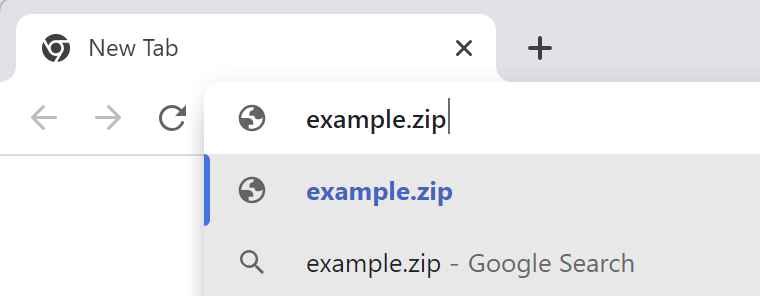
One of the inputs into that equation is whether the string contains a known TLD, such that example.zi and example.zipp are treated as search queries, while example.zip is assumed to mean https://example.zip/ as seen here:

If you’d like to signal your intent to perform a search, you can type a leading question mark to flip the omnibox into its explicit Search mode:

If you’d like to explicitly indicate that you want a navigation rather than a search, you can do so by typing a leading prefix of // before the hostname.

As with other concerns, omnibox ambiguity is not a new issue: it exists for .com, .rs, .sh, .pl domains/extensions, for example. The omnibox logic is also challenged when the user is on an Intranet that has servers that are accessed via “dotless” (aka “plain”) hostnames like https://payroll, (leading to a Group Policy control).

General Skepticism

Finally, there’s a general skepticism around the introduction of new TLDs, with pundits proclaiming that they simply represent an unnecessary “money grab” on the part of ICANN (because the fees to get an official TLD are significant, and a brand that wants to get their name under every TLD will have to spend a lot).

“Why do we even need these?” pundits protest, making an argument that boils down to “.com ought to be enough for anybody.

This does not feel like a compelling argument for a number of reasons:

  1. COM was intended for “commercial entities”, and many domain owners are not commercial at all
  2. COM is written in English, a language not spoken by many of the world’s population
  3. The legacy COM/NET/ORG namespace is very crowded, and name collisions are common. For example, one of my favorite image editors is Paint.Net, but that domain name was, until recently, owned by a paint manufacturer. Now it’s “parked” while the owner tries to sell it (likely for thousands of dollars).

Other pundits will agree that new TLDs are generally acceptable, but these specific TLDs are unnecessarily confusing due to the collision with popular file extensions and the lack of an obviously compelling scenario (e.g. “why do we need a .mov TLD when we already have .movie TLD?“). It’s a reasonable debate.

Some pundits argue “Hey, domains under new TLDs are often disproportionately malicious”, pointing at .xyz as an example.

That tracks, insofar as the biggest companies tend to stick to the most common TLDs. However, most malicious registrations under non-.COM TLDs don’t happen because getting a domain in a newer TLD is “easier” or subject to fewer checks or anything of that sort. If anything, new TLDs are likely to have more stringent registration requirements than a legacy TLD. And if the bad guys want to identify themselves by hanging out in a low-reputation TLD neighborhood, that seems like a net good for security.

New TLDs Represent New, More Secure Opportunities

One very cool thing about the introduction of a new TLD is that it gives the registrar the ability to introduce new requirements of the registrants without the fear of breaking legacy usage.

In particular, a common case is HSTS Preloading: a TLD owner can add the TLD to the browser’s HSTS preload list, such that every link to every site within that namespace is automatically HTTPS, even if someone (a human or an automatic hyperlinker) specifies a http:// prefix. There are now 40 such TLDs: android, app, bank, chrome, dev, foo, gle, gmail, google, hangout, insurance, meet, page, play, search, youtube, esq, fly, eat, nexus, ing, meme, phd, prof, boo, dad, day, channel, hotmail, mov, zip, windows, skype, azure, office, bing, xbox, microsoft, notably including ZIP and MOV.

One especially fun fact about requiring HTTPS for an entire TLD is that it means that every site within that TLD requires a HTTPS certificate. To get a HTTPS certificate from a public CA requires that the certificate be published to Certificate Transparency, a public ledger of every certificate. Security software and brand monitors can watch the certificate transparency logs and get immediate notification when a suspicious domain name appears.

Beyond HSTS-preload, some TLDs have other requirements that can reduce the likelihood of malicious behavior within their namespace; for example, getting a phony domain under bank or insurance is harder because of the registration requirements that demand steps that can lead to real-world prosecution.

Unfortunately, software today does little to represent a TLD’s protections to the end-user (there’s nothing in the browser that indicates “Hey, this is a .bank URL so it’s much more likely to be legitimate“), but a domain’s TLD can be used as an input into security software’s URL reputation services to help avoid false positives.

MakeA.zip

I decided to play around with the new TLD by registering a new site MakeA.zip which will point at a simple JavaScript program for creating ZIP files. The DNS registration is $15/year, and Cloudflare provides the required TLS certificate for free.

Now I just have to write the code. :)

-Eric