Kilimanjaro – Overview

Writing about my Kilimanjaro trek will not be easy: How can I do justice in describing what was:

… all at the same time?

Nevertheless, I’ve been back for a few weeks now and I’m compelled to put fingers to keyboard before life keeps moving on and memories fade.
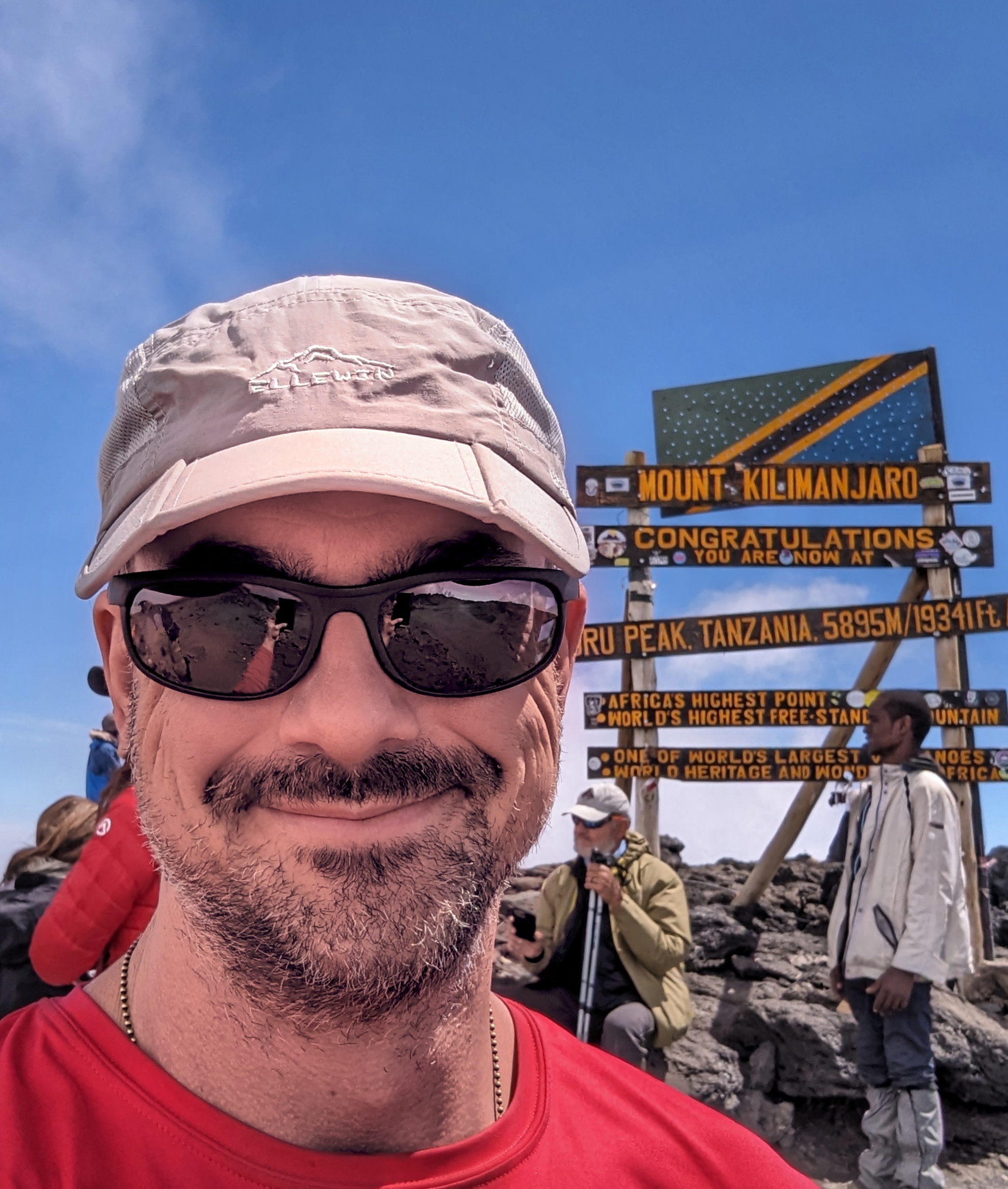
tl;dr: I made it to the summit at Uhuru Peak, 19341 feet.

First, Some Context

At 19341 feet, Kilimanjaro’s peak is the highest point in Africa (its representative in the Seven Summits). It’s the world’s highest free-standing mountain, and about the highest one can hike without specialized gear or oxygen. It was first summited in 1889, by a German.

It’s located on the border of Tanzania and Kenya.
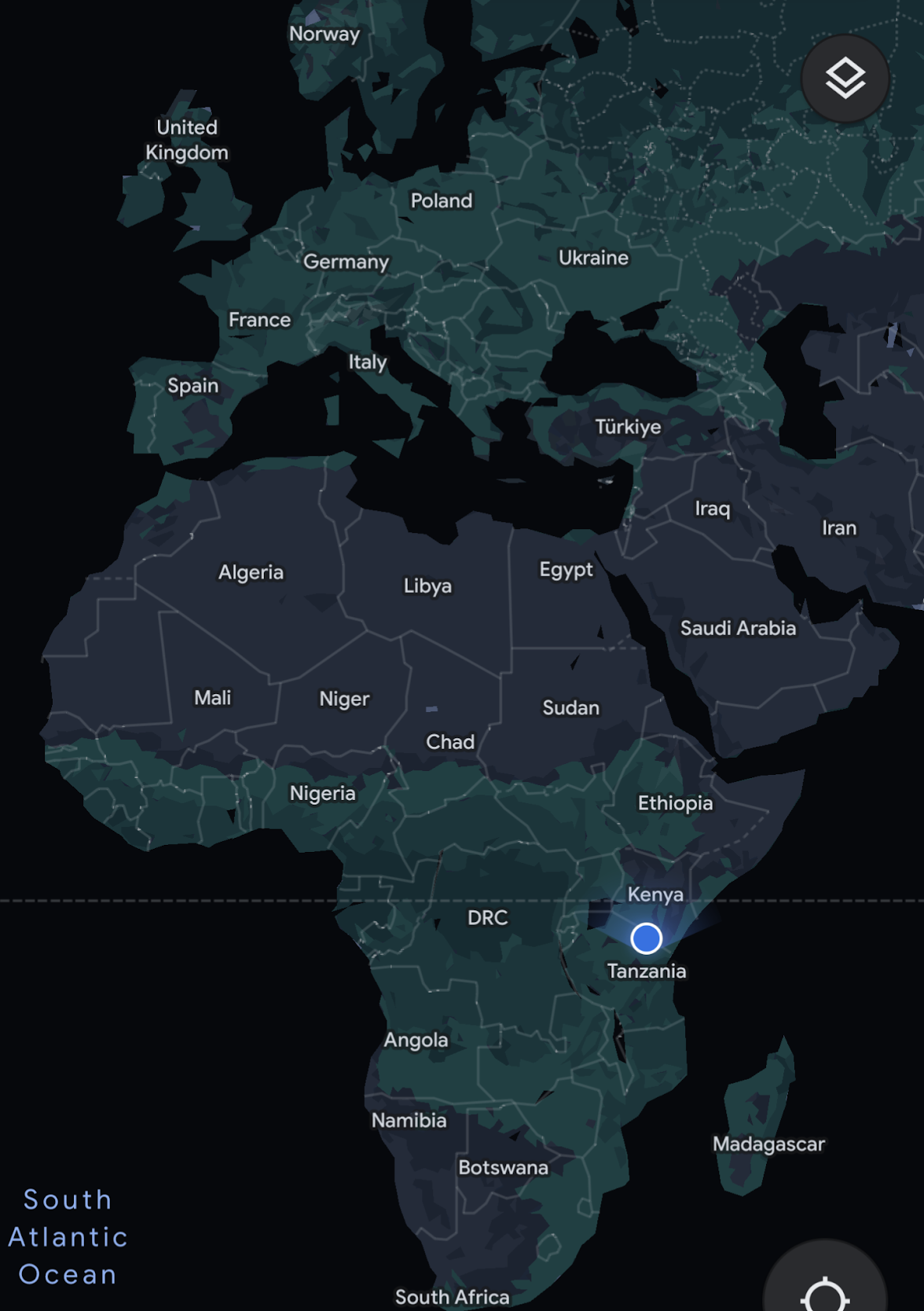
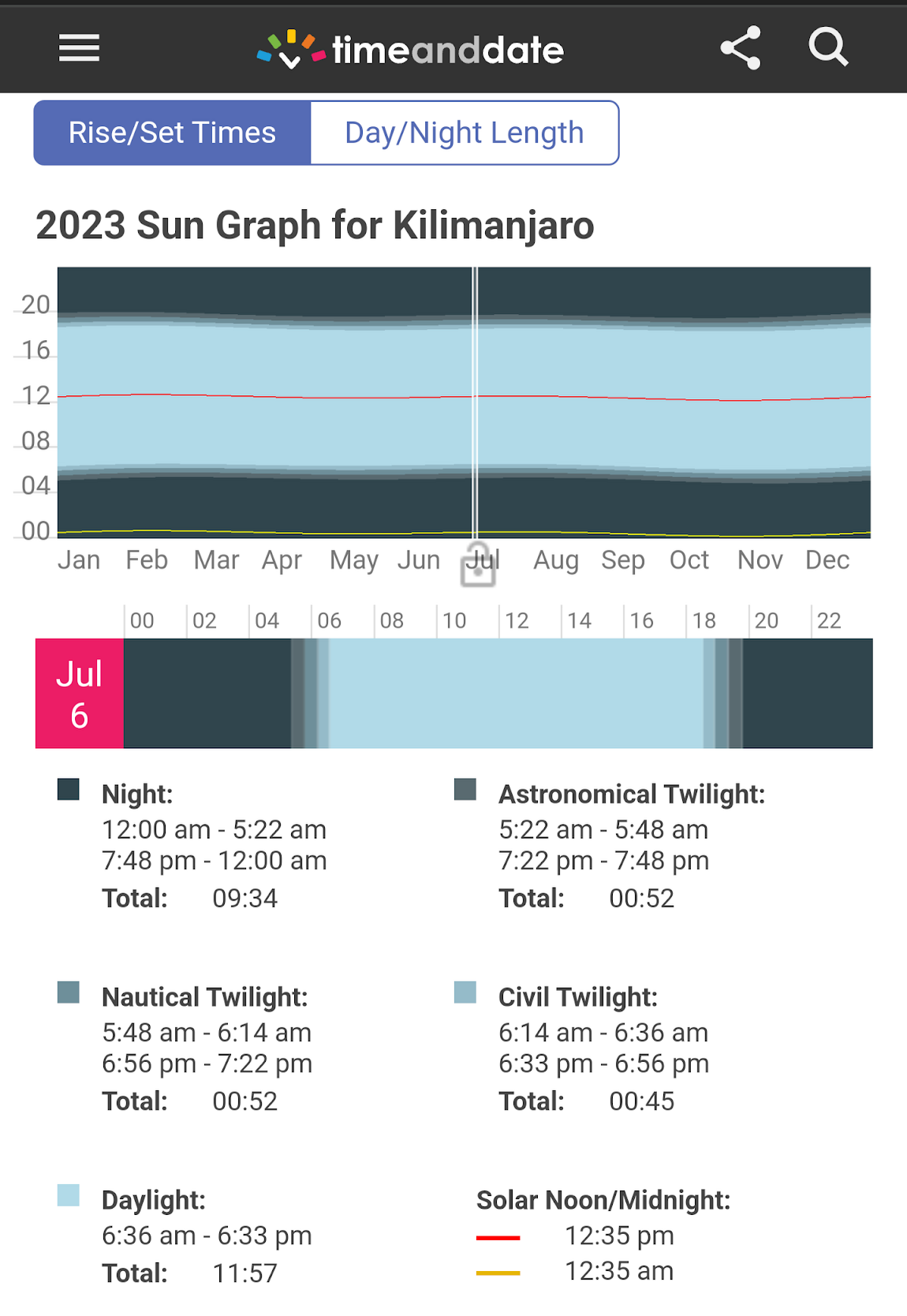
Thanks to its location just south of the equator, its longest day is within a minute of the shortest. We summitted on July 6, 2023:
The overall summit success rate for Kilimanjaro treks is only around 50%, but that’s primarily because many people try to do it too quickly (e.g. 5 days) and fail to acclimatize to the altitude. Our trek was 9 days via the Western Approach, an itinerary with a historical success rate of 98%.

Expectations

While I’d done some research before booking my trek, and some more before actually embarking, I also avoided high-bandwidth spoilers — I didn’t look at many photos, any videos, or even use Google Maps to look at Kilimanjaro. As a consequence, I had surprisingly few expectations for what trekking Kili would entail, and, for the most part, the expectations I did have were all wrong.

Expectation: The trek would be grueling.
Reality: While it was definitely tiring at times, my legs were sore only one evening. While most of my treadmill runs result in a heart rate of 150-170 for an hour or more at a time, I don’t think my heart rate went over 130 for the entire Kili trip. Most days involved only around 5 hours of slow-paced hiking.

My shoulders got sore at a few points (I haven’t worn a backpack in decades) but nothing major. I felt few effects of altitude (slightly short of breath at times, a minor headache one evening likely a result of dehydration).

My biggest issue (by far) was a persistent gurgling in my belly making me worry that I’d need a bathroom at a time when none was available.

Expectation: I’d be incredibly inspired by views of Kilimanjaro in our two days in Tanzania before the trek started.
Reality: Kili is a very shy mountain, often hidden from nearby cities by cloud cover. In the days before the trek started, we saw no more than a dark smudge above the clouds. When we finally broke through to the plains on the hike, we got our first real views of Kili and that was indeed pretty exciting.

Expectation: I’d be one of the older trekkers in our group.
Reality: Our trekking party numbered ten, ages 40, 40, 44 (me!), 45, 46, 47, 49, 50, 70 (his birthday on summit day!), and 72.

Expectation: The views on the trek would be astounding.
Reality: There were definitely some awesome vistas, but persistent cloud cover (below us for most of the trip!) meant that we mostly only had views of Kili’s peak itself, and the top of Mount Meru as a distant island across the sea of clouds. It’s an impressive mountain, for sure, but not necessarily a lot to look at for days on end.

The “Island” of Mount Meru in the sea of clouds

During the hike, I spent a huge amount of time with my eyes on the ground ahead, deciding where to plant my poles and feet. While we hiked through the forest, there were some neat things to look at, but none seemed especially exotic compared to, say, hiking in Hawaii, or (virtually) running in Belize on the treadmill.
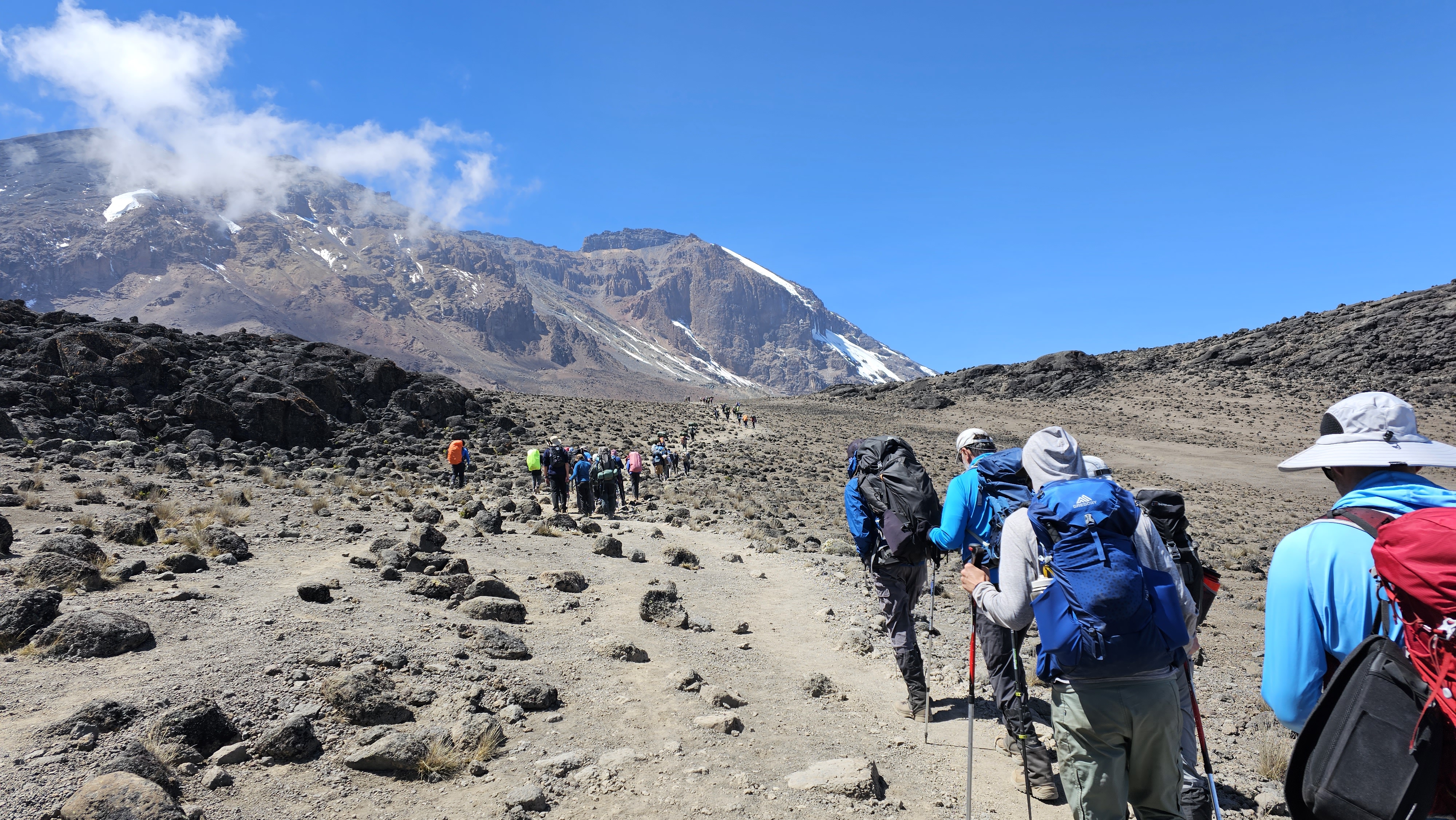
Much of the trek landscape seemed almost lunar — an endless field of nearly lifeless gray dust

Expectation: Given our prolonged schedule (a 9 day trek) there would be a lot of sitting around chatting with my fellow trekkers under a gorgeous field of stars.
Reality: While the sun did indeed go down at 6:30pm every night, a full moon made star-gazing less effective. More importantly, after sundown, the temperature dropped rapidly and precipitously, making the prospect of being anywhere except burrowed into my sleeping bag an unappealing prospect. Beyond that, my (non-sun) glasses remained packed away for almost the entire trip, meaning that when I did go out at night (mostly to use the bathroom tent), the stars were barely visible to my eye. This one was a bummer.

While we definitely got in some great socialization during the trek and at meals, I spent a lot of time in my own head, wandering around taking photos, and writing in my journal.
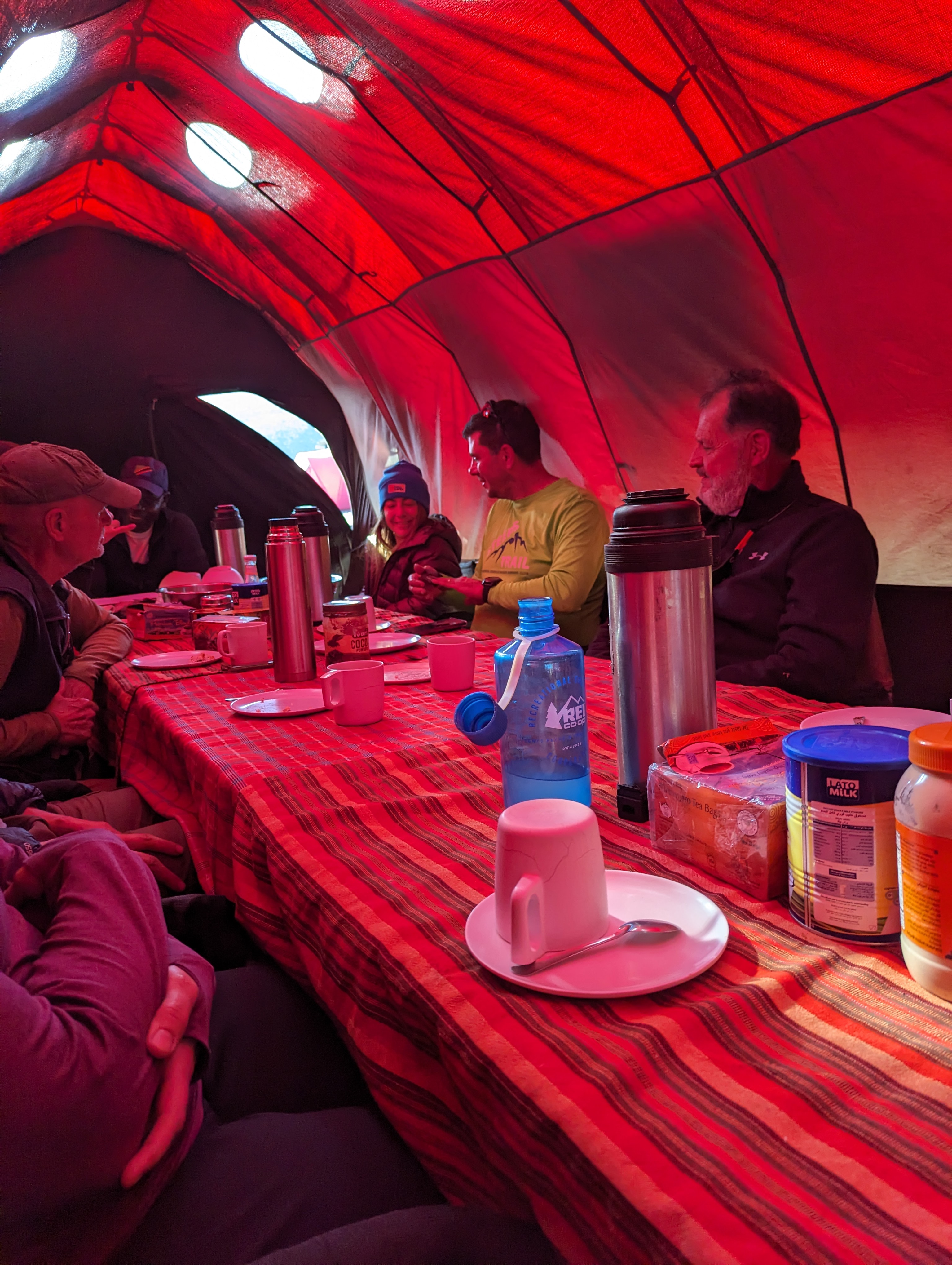
Socializing in the Chow tent: Breakfast, Lunch, Tea, and Dinner

Expectation: I’d feel a tremendous sense of accomplishment upon reaching the top.
Reality: I felt a sense of relief that I had made it without encountering any major problems. I was tired from a long day of extremely slow hiking, and reaching the top was much less emotional than I expected.

Prep

I’d set out a number of goals/plans to prepare for this trip, but much of the expected prep didn’t really happen.

  1. Get in shape. This I did do, but not in a very well-rounded way. I bought an incline trainer with the expectation of using it to simulate long uphill hikes, but I only did that a few times. 98% of my running was near flat. I never did any practice hikes, nor did I wear my backpack before the trip.
  2. Spend a bunch of time trying and buying gear. While it did indeed take quite a while to find/buy everything, I spent almost as little time as possible on it. I wrote a whole post about this topic.
  3. Get a bunch of vaccinations. It turns out that none are required. While I brought two new medications on the trip (anti-malarial and altitude acclimatization pill), I didn’t get any shots. While there are several recommended vaccines for Tanzania, most are not really needed for Kili hikers.
  4. Learn some Swahili. This seemed like a bit of a stretch but a fun exercise as I’m sadly very mono-lingual. I learned only a few words before the trip. It turns out that English is plenty to get by in tourist areas, but the locals will chat endlessly in Swahili around you and it would’ve been nice to have some clue about what they were saying.

What Went Great

The trek went great for a few reasons, but the top two were weather and people.

Our weather for the trip was basically perfect– sunny most days, and an ideal hiking temperature in the high 50s and 60s. I’d expected Tanzania to be much hotter (especially in our days on the ground before the trek) and the cool weather and altitude meant that I was barely sweaty at all. I’d packed 9 pairs of hiking socks and could’ve easily gotten away with 4. I wore a few of my hiking shirts for several days apiece, and while they got pretty dusty, they too didn’t end up smelly. While the nights got very cold (to my Texas body) dropping into the low 30s with wind, things never got as cold as expected, and I didn’t end up wearing my heavy gloves, boot spikes, or warmest base layer thermals. All told, I probably carried eight or nine pounds of weather-related gear that I didn’t need.

In terms of my trek-mates, I didn’t know what to expect, but was delighted by our group. As mentioned, we skewed older (not surprising as this was a pretty expensive trip) but we had some fascinating characters. Five had US military backgrounds– retired: two Marines, one Army, and active duty: a Navy Commander (a doctor), and an Air Force Lt. Colonel (a transport pilot).

Of us five civilians, there was a legal power couple (an EVP for a financial services company and her cinematographer husband), their college friend (also a lawyer), my brother and me.
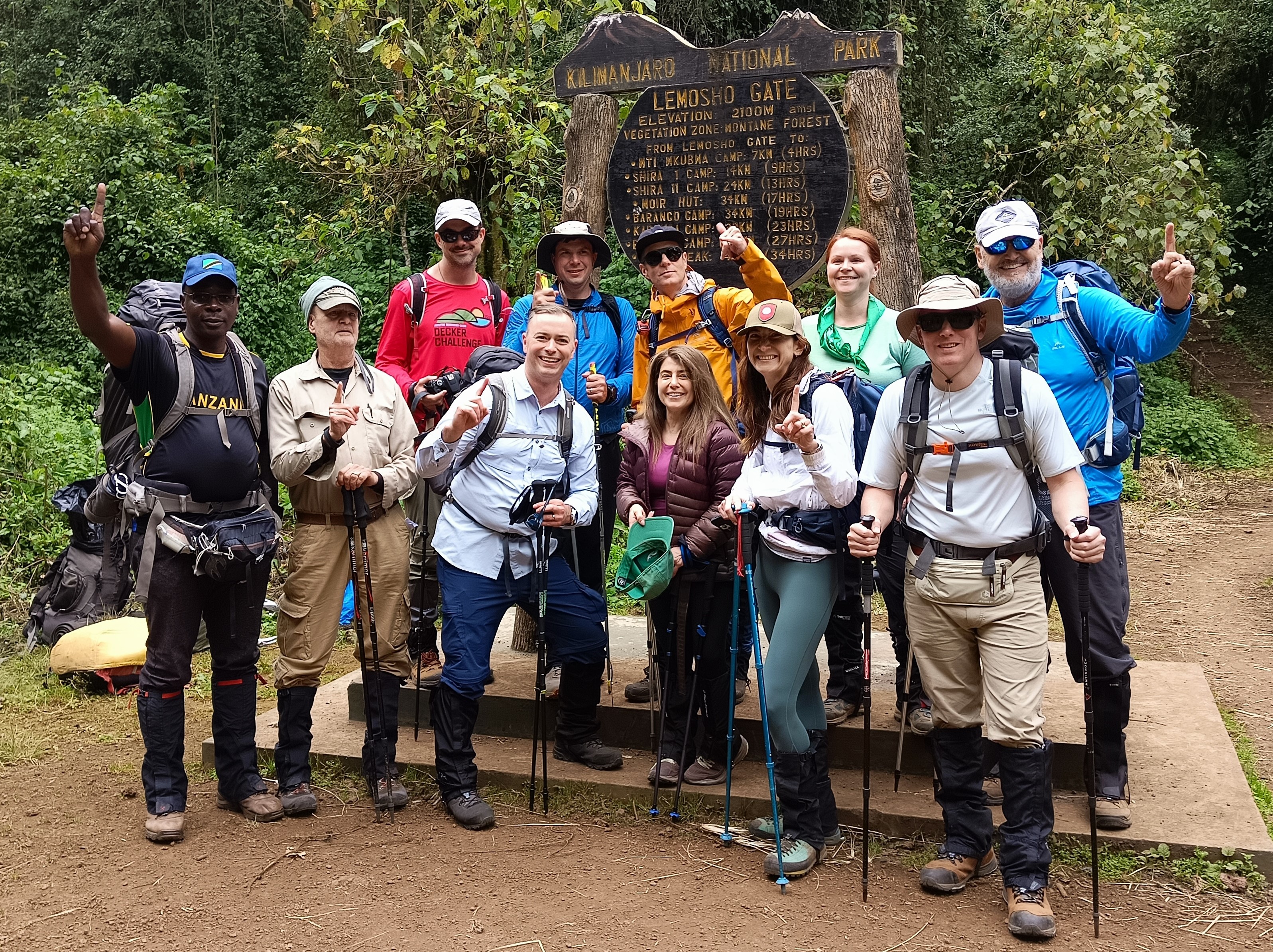
Our head guide and trekking team at the Lemosho route’s entry “gate”. I’m in red.

All ten of us had gone in assuming that there’d probably be at least one whiner in the group, but everyone was awesome, even in the face of setbacks. The biggest of those setbacks my brother and I had managed to avoid: Five of our trekmates’ luggage hadn’t arrived by the time we left our pre-trek safari lodge, meaning they’d have to start the trek with only the gear they’d packed in their carry-on backpacks and key items they could rent upon departure. We all tried to share some of our extra pieces as possible (water bottles, handkerchiefs, snacks, sunscreen, bug spray, anti-malarial/altitude medications, etc) and ultimately everyone’s luggage had arrived before the all-important summit day.

Beyond the ten of us trekkers, we also had a huge set of support staff: one head guide, three assistant guides, a chef, a waiter, a handful of personal porters, and almost fifty different porters who brought our tents, duffels, and other infrastructure up the mountain. They were an awesome, hardworking, and kind group who not only made the trek possible but also helped make the trip feel luxurious.

Final Costs

All tips are paid in cash using bills under 10 years old

While Kilimanjaro is not difficult to hike, getting there and going up is not accessible to many people for financial reasons.

When the idea to do this trip first entered my mind, I very roughly swagged it as likely to cost somewhere just under $40,000 total for my brother and I.

In reality, even though we went with a fancy company, the tab came in quite a bit under that guesstimate, although the true cost depends on what you include (e.g. I spent ~$6k on exercise equipment and services while getting in shape).

Total costs for my brother and I together, including myriad taxes:

Guided Trek$13300Thomson Safaris
Tips$1400Guides, porters, drivers, etc.
Carrying this much cash for almost two weeks did not feel comfortable.
Airfare$5694Delta/KLM Economy Plus
($4774 base fare + $920 in “Comfort” upgrades)
Insurance$536$461 airfare insurance, $75 in evacuation insurance
Gear$2600Mostly at Amazon. [Details]
Visas$200Tanzania Tourist Visas
2 Pre-Trek days in Tanzania$1600Including hotel, mini safari, coffee tour
Food/drink$100Most of our food/drink were part of the package
Souvenirs$300A canvas painting, coffee, shirts, fridge magnets, etc.

…for a total somewhere around $25730 for both of us.

Beyond the direct expenses, the trip entailed taking ~10 days off work, and I followed it with a week’s vacation with my family. These three weeks off of work made for my longest break in 22 working years.

To be continued…

This is the first post in a series. You can continue reading here:

Update: I’ve signed up for Thomson’s “Grand Traverse” trek over the last week of 2025.

Browser SSO / Automatic Signin

Last Update: 8 March 2024

Over the years, I’ve written a bunch about authentication in browsers, and today I aim to shed some light on another authentication feature that is not super-well understood: Browser SSO.

Recently, a user expressed surprise that after using the browser’s “Clear browsing data” option to delete everything, when they revisited https://portal.azure.com, they were logged into the Azure Portal app without supplying either a username or a password. Magic!

Here’s how that works.

When you select this option:

… the browser will delete all cookies. Because auth tokens are often stored in cookies, as noted in the text, this option indeed “Signs you out of most sites.” And, in fact, if you go look at your cookie jar, you will see that your cookies for e.g. https://portal.azure.com are indeed gone. In a strictly literal sense, you are no longer “logged into” Azure.

However, what this Clear Site Data command doesn’t do is log you out of the browser itself. If you click the Avatar icon in the Edge toolbar, you’ll see that the profile’s account is still listed and signed in:

When you next visit https://portal.azure.com, the server says “Hrm, I don’t know who this is, I better get them to log in” … and the browser is redirected to a login page.

You might assume that this page would prompt for your username and password. And that is, in fact, what happens if you launch https://portal.azure.com in a default Chrome or Edge InPrivate browser instance.

But if you’re in a non-Private Edge window logged in with a profile or in a Chrome browser with the Windows 10 Accounts extension installed, that login.microsoftonline.com page doesn’t need to bother the user for a username and password – either the browser (Edge) or the extension (Chrome) just says “Oh, a login page! I know what to do with that – here, have a token!” (Under the hood, the token may be sent to the identity provider via a browser-injected HTTP header, or supplied to the identity provider page’s JavaScript via an extension API.)

Signing in to the browser itself is a relatively new mechanism for enabling “Single Sign On”, a catalog of approaches that have existed in one form or another for decades, including Client Certificate Authentication, Windows Integrated Authentication, and now Browser SSO. The Edge team has a nice documentation page explaining the various SSO features posted here here.

Because the browser/extension supplies the token in lieu of the username / password into the login page, the login page says “Okay, we’re good to go, navigate back to the portal.azure.com page – the user has supplied proof of their identity.”

And thus the “magic” here is pretty simple.

With that said, one factor that can lead to confusion about browser SSO is the fact that browser vendors tend to only support automatic authentication for their own first-party login pages. UPDATE: This changed in Chrome 111. See below.

For example, Microsoft Edge’s SSO automatically logs into web properties like https://portal.azure.com that rely on the Microsoft identity provider, while Google Chrome only enables SSO through the Microsoft logon page if the Chrome Windows 10 account extension is installed.

This “First Party” support isn’t unique to Microsoft. Consider the similar scenario in the “Google universe” version of this scenario”:

  1. Launch Chrome, using an @gmail.com profile.
  2. Visit mail.google.com and look at your email
  3. Hit CTRL+Shift+Delete and use the dialog to Clear Site Data for all time
  4. Close the browser
  5. Restart the browser
  6. Visit mail.google.com and observe: You’re still logged in.
    Why? Because you’re logged into Chrome, and it supplies your browser identity token to Google’s website.

Now,

  1. Launch Edge.
  2. Visit mail.google.com, sign in if needed, and look at your email
  3. Hit CTRL+Shift+Delete and use the dialog to Clear Site Data for all time
  4. Close the browser
  5. Restart the browser
  6. Visit mail.google.com and observe: You have to log in again.
    Why? Because while you’re logged into Edge, Edge doesn’t supply your browser identity token to Google’s website.

Note: Microsoft Edge does offer policies to control whether users may log into the browser itself, so if you really don’t want your users to be automatically signed in (and allowed to sync settings, history, credentials, etc), setting the policy would be one option.

Chrome CloudAPAuth

Chrome 111 introduced a new feature called CloudAPAuth. When enabled and running on Windows 10+, the browser will automatically add x-ms-DeviceCredential and x-ms-RefreshTokenCredential headers when sending requests to the login.microsoftonline.com authentication portal:

Chromium names this the PlatformAuthenticationProvider. When enabled (and not in Incognito/Guest mode), a navigation throttle adds the appropriate custom headers when navigating to login URLs pulled from the Windows registry:

…or hardcoded if the registry keys aren’t specified.

As an aside, this code flow looks very very similar to the code that the Edge team had built into their browser for the same purpose years ago.

This allows SSO authentication to Microsoft websites in Chrome even without the Windows Accounts browser extension installed. Note that both CloudAPAuth and the Windows Accounts extension go a bit beyond just user authentication — they also provide attestations about the state of the device, which can be targeted by Conditional Access to allow only, say, fully-patched managed PCs to access a sensitive website.

You can learn more about the token here.

Firefox 91+

Firefox offers this same feature:

Improving the Microsoft Defender Browser Protection Extension

Earlier this year, I wrote about various extensions available to bolster your browser’s defenses against malicious sites. Today, let’s look at another such extension: the Microsoft Defender Browser Protection extension. I first helped out with extension back in 2018 when I was an engineer on the Chrome Security team, and this spring, I was tasked with improving the extension.

The new release (version 1.663) is now available for installation from the Chrome Web Store. Its protection is available for Chrome and other Chromium-derived browsers (Opera, Brave, etc), running on Windows, Mac, Linux, or ChromeOS.

While the extension will technically work in Microsoft Edge, there’s no point in installing it there, as Edge’s SmartScreen integration already offers the same protection. Because Chrome on Android does not support browser extensions, to get SmartScreen protections on that platform, you’ll need to use Microsoft Edge for Android, or deploy Microsoft Defender for Endpoint.

What Does It Do?

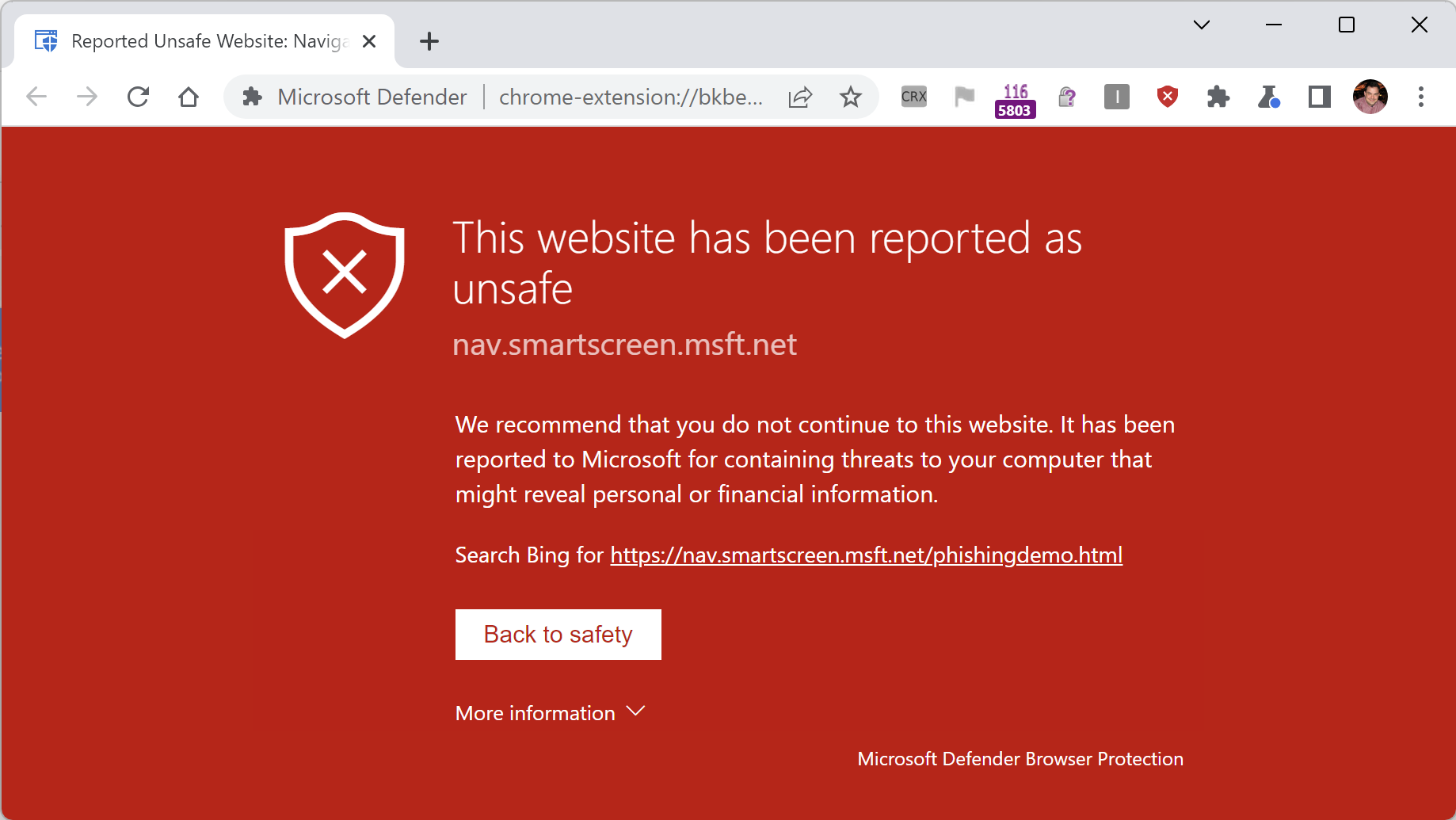
The extension is conceptually pretty simple: It performs URL reputation checks for sites you visit using the Microsoft SmartScreen web service that powers Microsoft Defender. If you attempt to navigate to a site which was reported for conducting phishing attacks, malware distribution, or tech scams, the extension will navigate you away to a blocking page:

This protection is similar to that offered by Google SafeBrowsing in Chrome, but because it uses the Microsoft SmartScreen service for reputation, it blocks malicious sites not included in Google’s block list.

What’s New?

The primary change in this new update is a migration from Chromium’s legacy “Manifest v2” extension platform to the new “Manifest v3” platform. Under the hood, that meant migrating the code from a background page to a ServiceWorker, and making assorted minor updates as APIs were renamed and so on.

The older version of the extension did not perform any caching of reputation check results, leading to slower performance and unnecessary hits to the SmartScreen URL reputation service. The new version of the extension respects caching directives from service responses, ensuring faster performance and lower bandwidth usage.

The older version of the extension did not work well when enabled in Incognito mode (the block page would not show); this has been fixed.

The older version of the extension displayed text in the wrong font in various places on non-Windows platforms; this has been fixed.

In addition to the aforementioned improvements, I fixed a number of small bugs, and introduced some new extension policies requested by a customer.

Enterprise Policy

Extensions can be deployed to managed Enterprise clients using the ExtensionInstallForceList group policy.

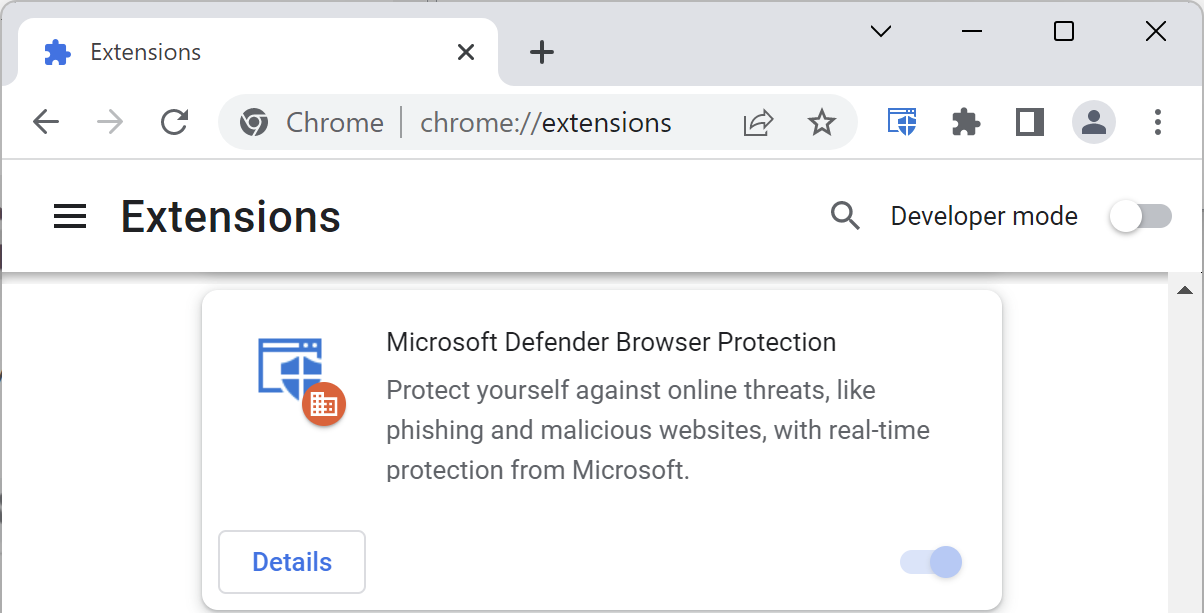
When installed in this way, Chrome disallows disabling or uninstalling the extension:

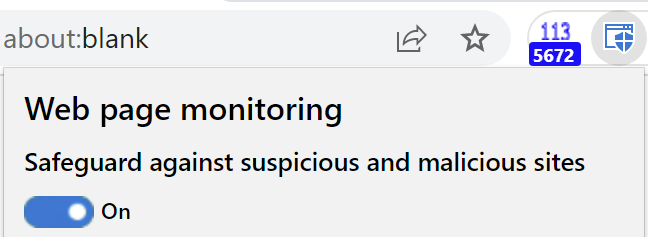
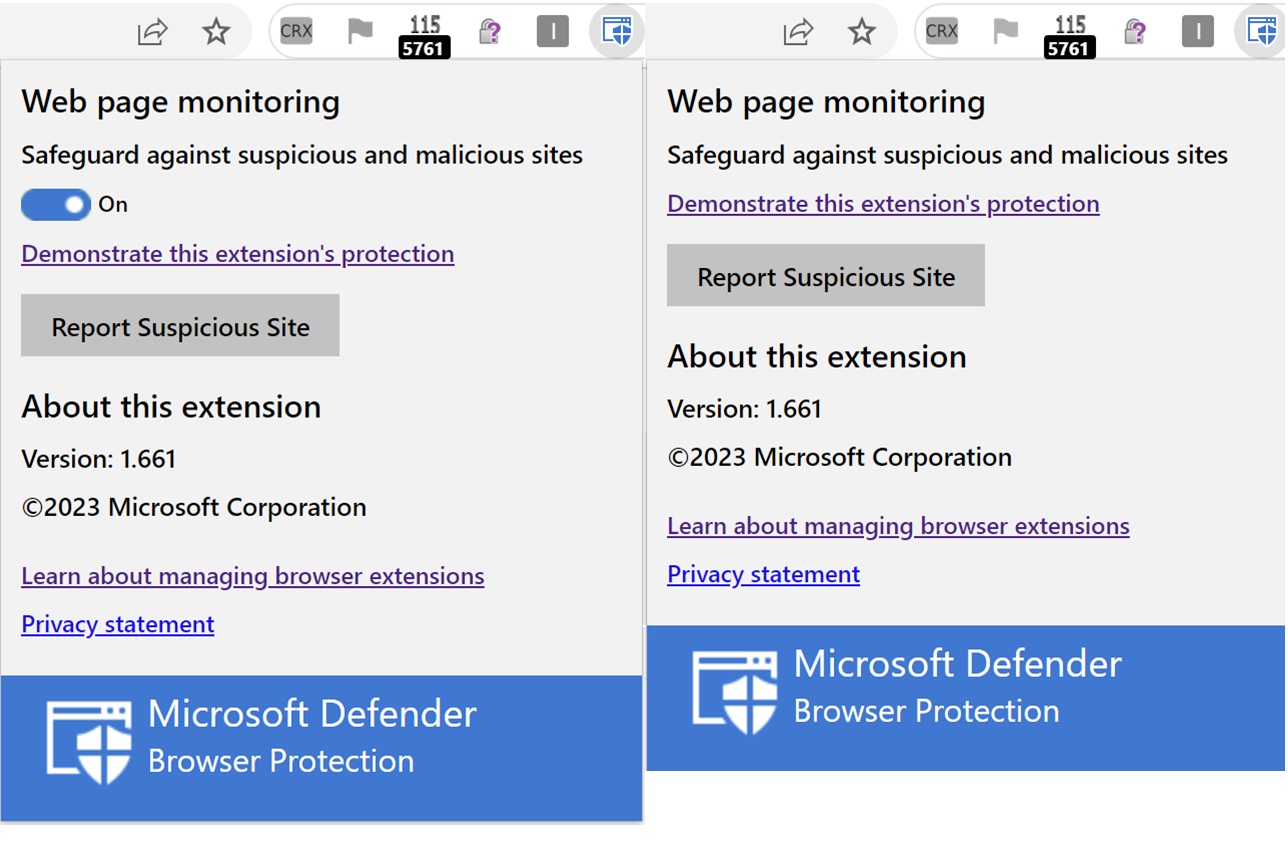
However, the extension itself offers the user a simple toggle to turn off its protection:

… and the “Disregard and continue” link in the malicious site blocking page allows a user to ignore the warning and proceed to a malicious site.

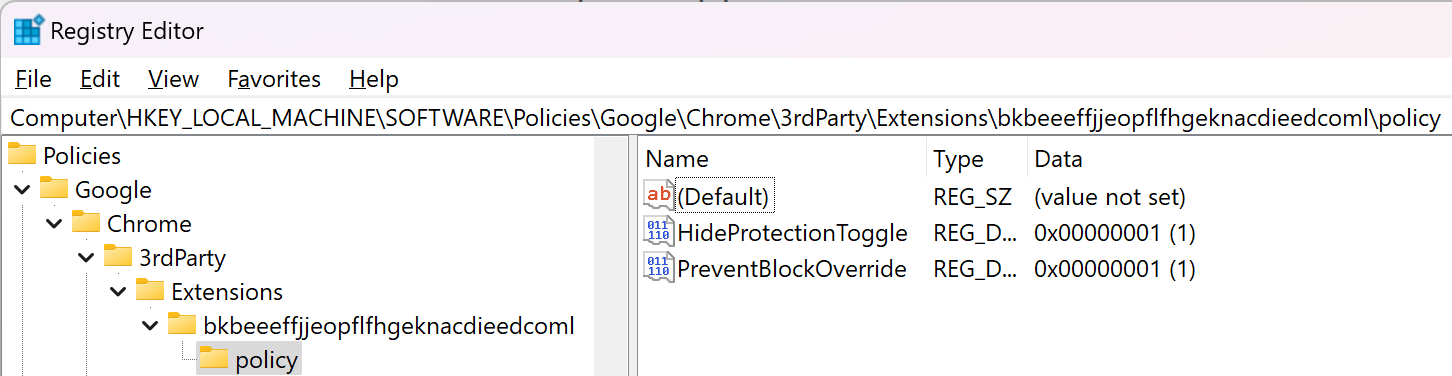
In the updated version of the extension, two Group Policies can be set to control the availability of the Protection Toggle and Disregard link.

Windows Registry Editor Version 5.00

[HKEY_LOCAL_MACHINE\SOFTWARE\Policies\Google\Chrome\3rdParty\Extensions\bkbeeeffjjeopflfhgeknacdieedcoml\policy]
"HideProtectionToggle"=dword:00000001
"PreventBlockOverride"=dword:00000001

After the policy is configured, you can visit the chrome://policy page to see the policies set for the extension:

When both policies are set, the toggle and continue link are hidden, as shown in these side-by-side screenshots:

Note that extensions are not enabled by default in the Chrome Incognito mode, even when force-installed by an administrator. A user may manually enable individual extensions using the Details > Allow in Incognito toggle on the extension’s item in the chrome://extensions page, but there’s no way to do this via policy. An admin wanting to require use of an extension must block Incognito usage outright.

Limitations

Note that this extension has a few known limitations.

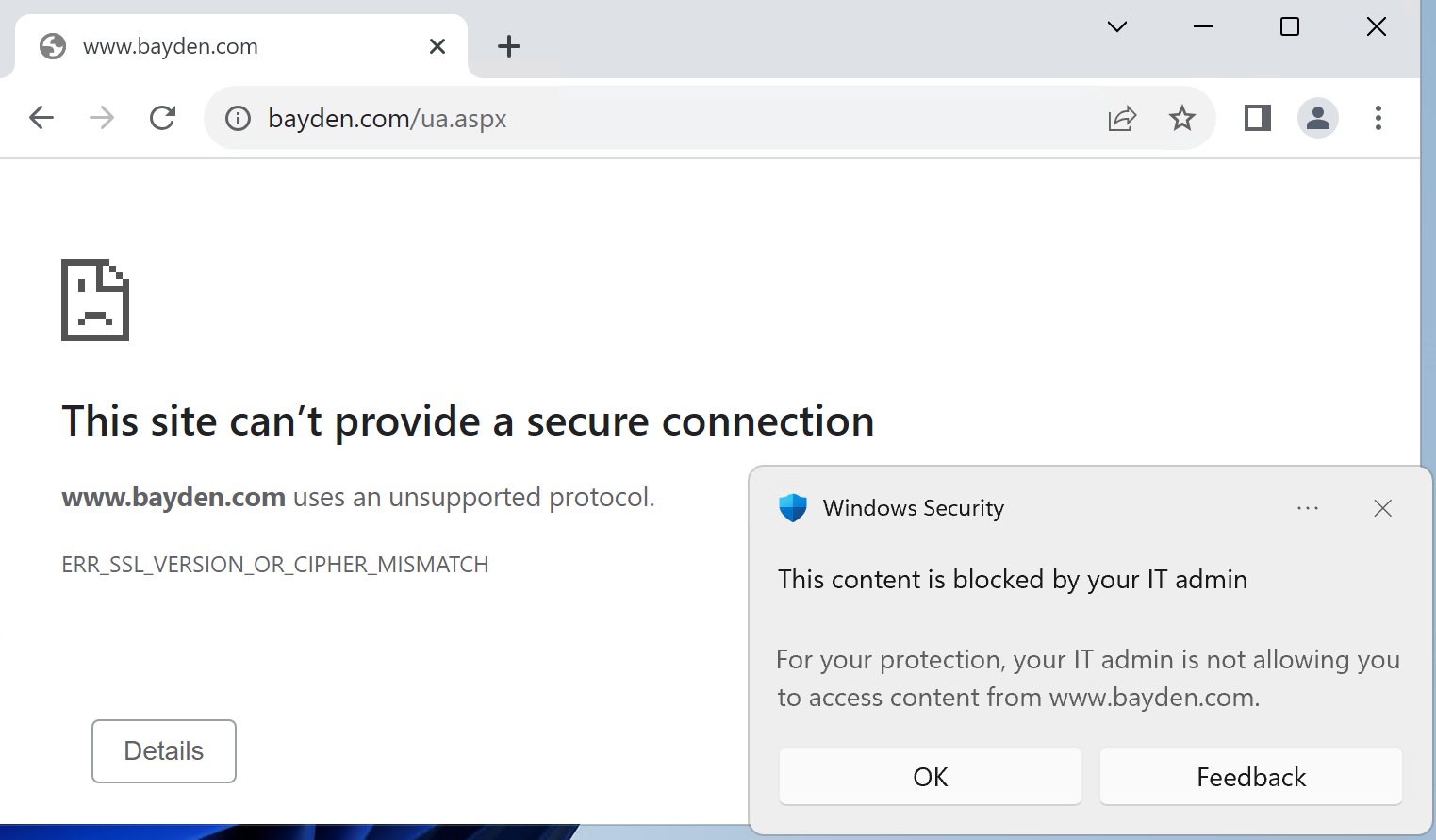
First, the extension only blocks phishing and malware sites known to Microsoft SmartScreen. If your organization has configured custom blocking of sites via Windows Defender’s Network Indicators or Web Content Filtering, those blocks are still enforced at the network level, meaning that you get a Windows toast notification and the browser will show a ERR_SSL_VERSION_OR_CIPHER_MISMATCH message.

Second, unlike SmartScreen in Edge, the extension does not support administrator-configured exceptions. For example, if your company uses a “phishing simulation” company to try to phish your employees for “testing” purposes, there’s no way to configure this extension to ignore the simulation site.

I hope you like the new version of this extension. Please reach out if you encounter any problems!

-Eric

How do Random Credentials Mysteriously Appear?

One commonly-reported issue to browsers’ security teams sounds like: “Some random person’s passwords started appearing in my browser password manager?!? This must be a security bug of some sort!”

This issue has been reported dozens of times, and it’s a reflection of a perhaps-surprising behavior of browser login and sync.

So, what’s happening?

Background

Even when you use a browser profile that is not configured to sync, it will offer to save credentials as you enter them into websites. The prompt looks a little like this:

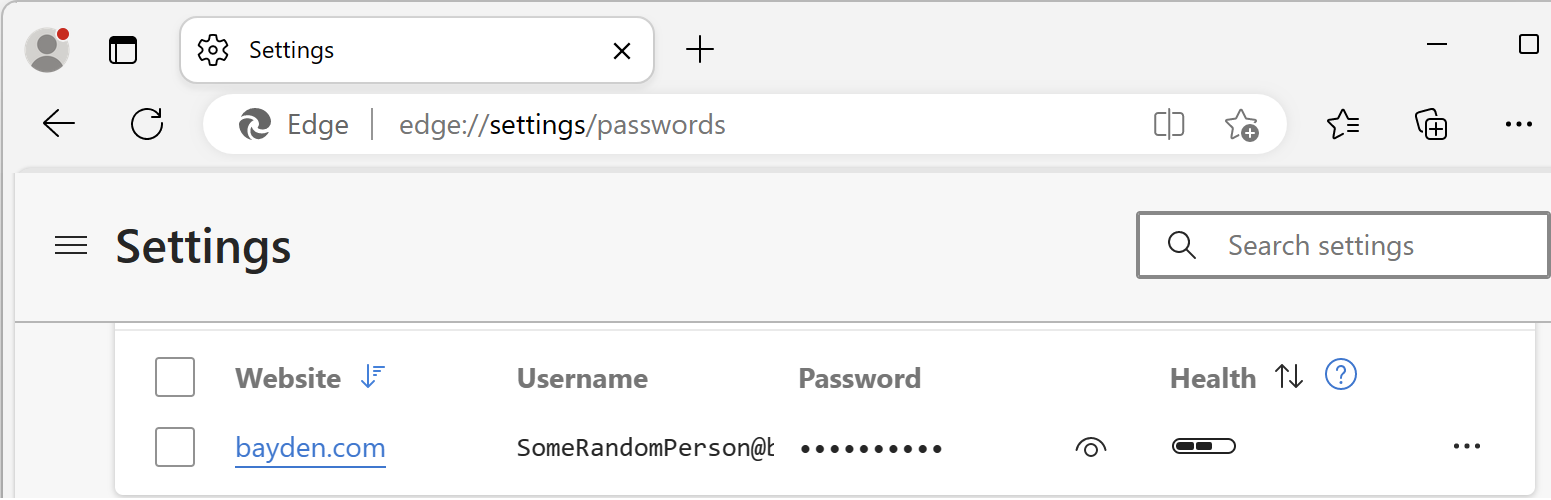
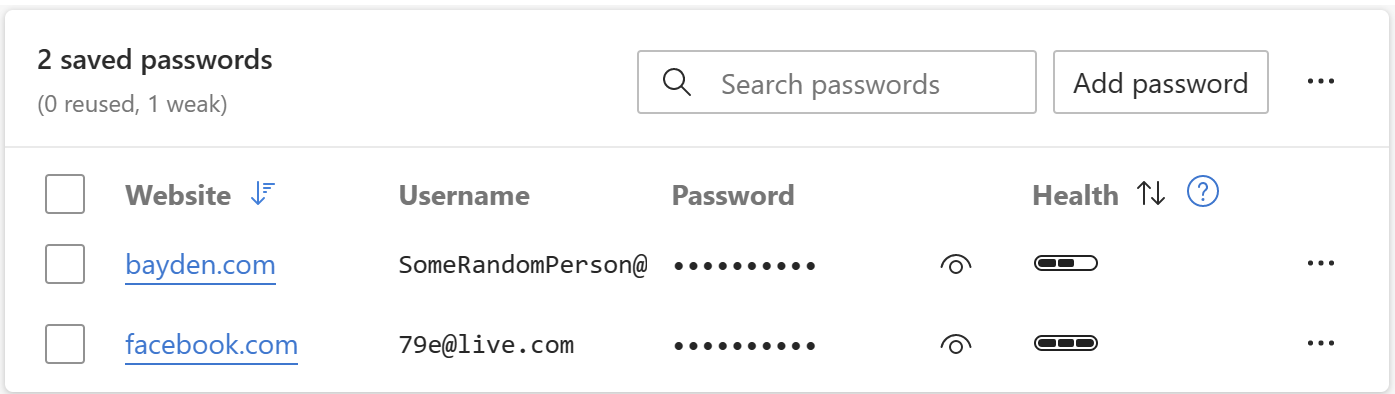
When you choose to save credentials in a non-synced browser, the credentials are saved locally and do not roam to any other device. You can view the stored credentials by visiting edge://settings/passwords:

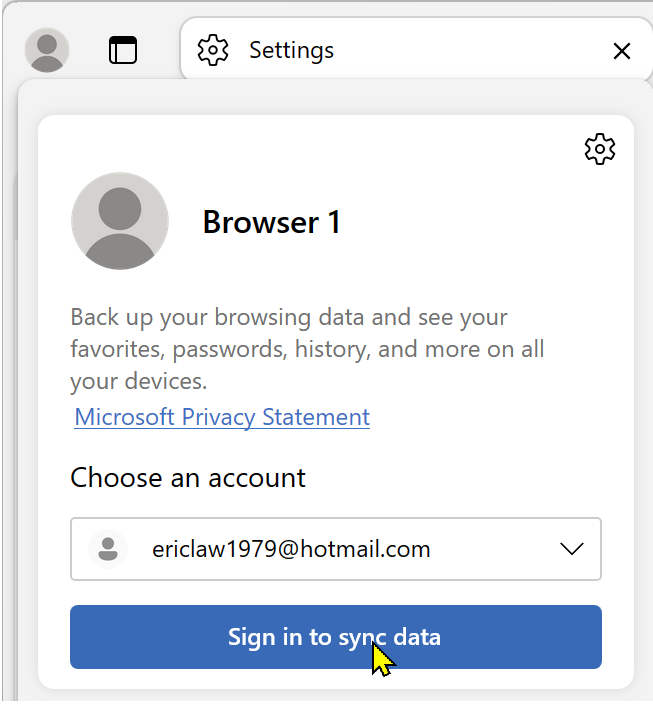
Now, if you subsequently enable sync by logging into the browser itself, using either the profile menu:

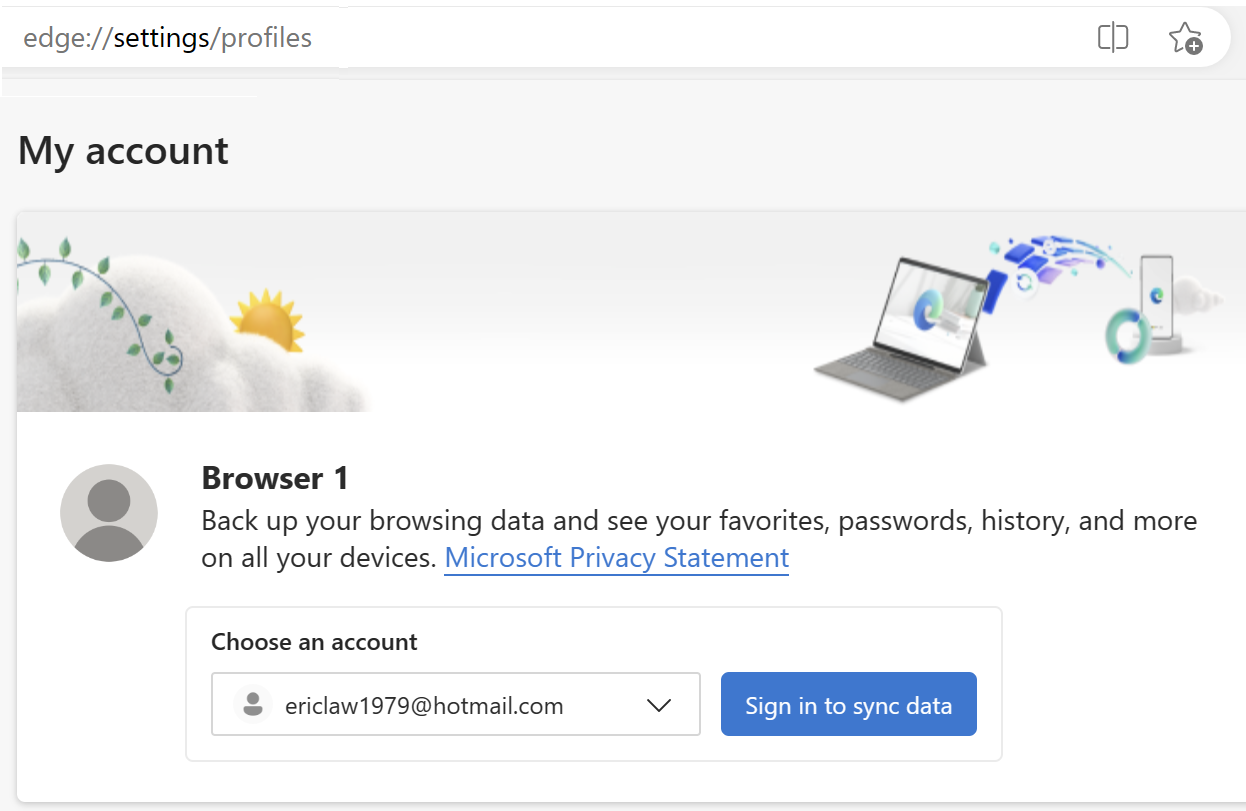
… or the edge://settings page:

You will find that the passwords stored in that MSA/AAD sync account now appear in the local password manager, in addition to any credentials you stored before enabling sync. So, for example, we see the stored SomeRandomPerson@ cred, as well as the 79e@ credential that was freshly sync’d down from my Hotmail MSA account:

If you subsequently follow the same steps on a new PC:

  • Store a new credential, SomeOtherRandomPerson@,
  • Log into the browser and enable sync with the same Hotmail MSA account
  • Look in the credential manager

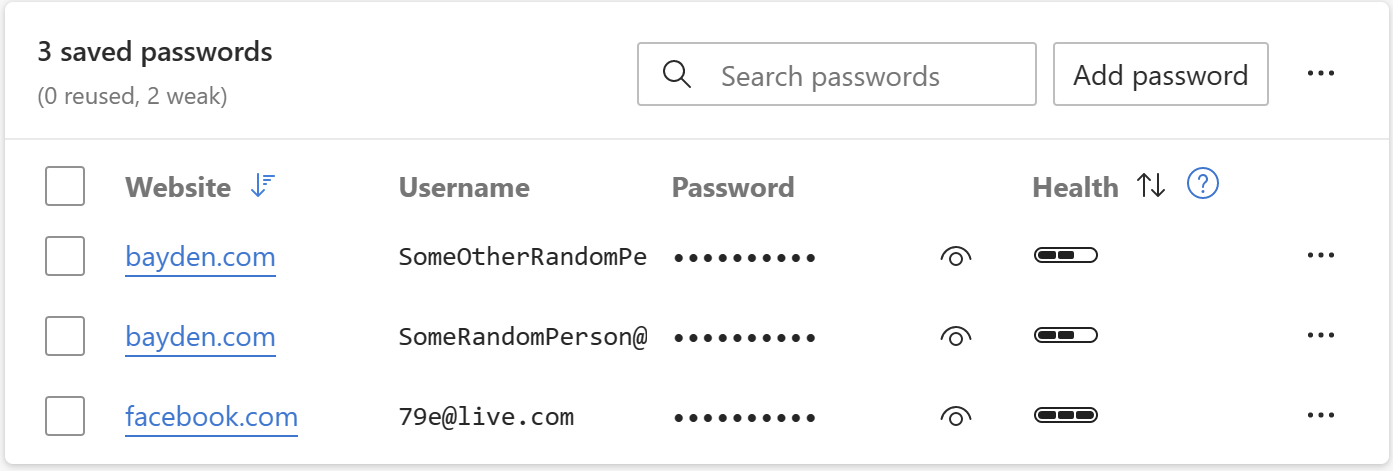
…you’ll see that the new PC has three credentials: the SomeRandomPerson@ cred roamed from the first PC and now in the MSA account, as well as the 79e@ credential originally in the MSA account, and now the new SomeOtherRandomPerson@ credential stored before enabling sync:

A bit later, if you then go check back on the first PC, you’ll see it too now has three credentials thanks to sync.

The goal of sync is to ensure that the password manager is to keep all of the credentials in sync, roamed using your MSA/AAD account.

However, users are sometimes surprised that credentials added to the Password Manager before enabling sync are automatically added to whatever MSA/AAD account you login to for sync.

The Culprit: Public and Borrowed PCs

When browser security teams investigate reports from users of credentials unexpectedly appearing, we usually ask whether the user has ever logged into the browser on a PC that wasn’t their own. In most cases (if they can remember at all), they report something like “Well, yeah, I logged into the PC at an Internet Cafe last month, but I logged out when I was done” or “I used my friend’s laptop for a while.”

And now the explanation for the mysterious appearance of credentials becomes clear: When the user logged into the Internet Cafe PC, any random credentials that happened to be on that PC were silently imported into their MSA/AAD account and will now roam to any PCs sync’d to that MSA/AAD account.

Now, there’s a further issue to be aware of: If you log out of a browser/sync, by default, all of your roamed-in credentials are left behind!

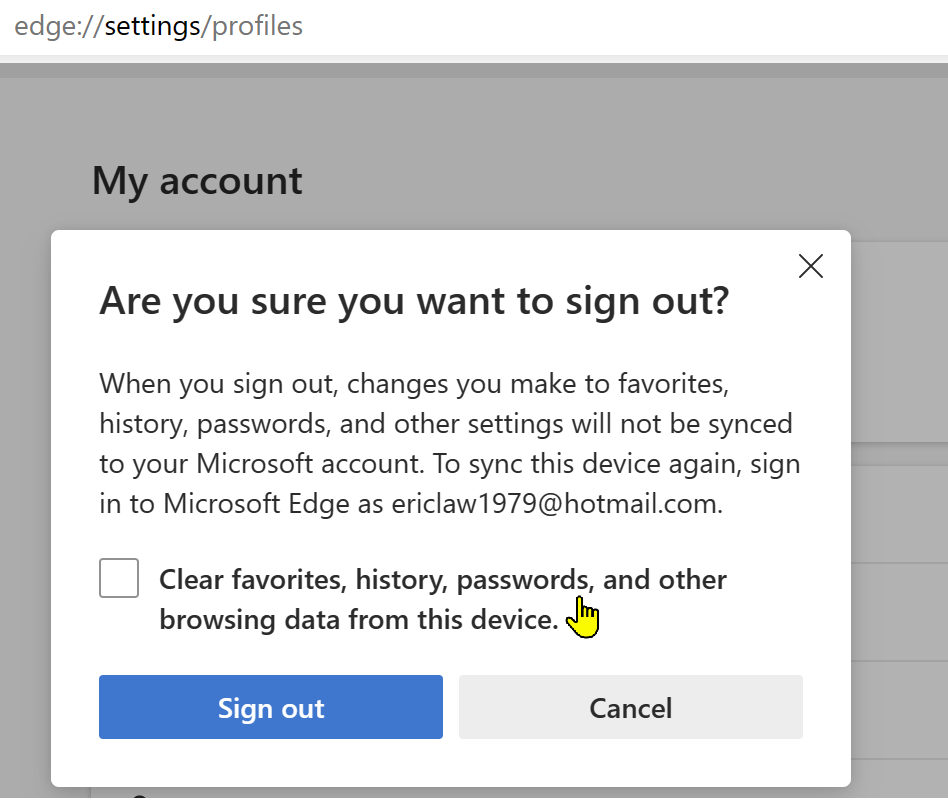
So, for example, if you logged into the browser on an Internet Kiosk, dutifully logging out of your profile after use, if you fail to tick this checkbox:

… the next person to use that browser profile will have access to your stored credentials. Even worse, if they decide to log into the profile, now your credentials are roamed from that Kiosk PC into their account, enabling them to log in as you from wherever they go. 😬

I would strongly recommend that you:

  1. Never log into a browser that isn’t your own.
  2. Never allow anyone else to use your browser while logged in as you (since they could trivially steal your browser data by enabling sync to their account).
  3. Avoid even using a browser on a device that isn’t under your control.

-Eric

Detecting When the User is Offline

Can you hear me now?

In the web platform, simple tasks are often anything but. Properly detecting whether the user is online/offline has been one of the “Surprisingly hard problems in computing” since, well, forever.

Web developers often ask one question (“Is this browser online?”) but when you dig into it, they’re really trying to answer a question that’s both simpler and much more complex: “Can I reliably send and receive data from a target server?”.

The browser purports to offer an API which will answer the first question via the simple navigator.online property. Unfortunately, this simple property doesn’t really answer the real question, because:

  • The property is a snapshot of a moment in time, “potentially failing due to Time of check vs. Time of use”. Network access can be lost or regained the instant after you query the property.
  • The property doesn’t indicate whether a request might be blocked by some other feature (firewall, proxy, security software, extension, etc).
  • Not all features on all platforms (e.g. Airplane mode) influence the output of the API.
  • The property indicates that the client has some form of connectivity, not necessarily connectivity to the desired site.
  • The API can return what reasonable people would call a “False Positive”: The navigator.onLine documentation notes:

You could be getting false positives, such as in cases where the computer is running a virtualization software that has virtual ethernet adapters that are always “connected.”

MDN

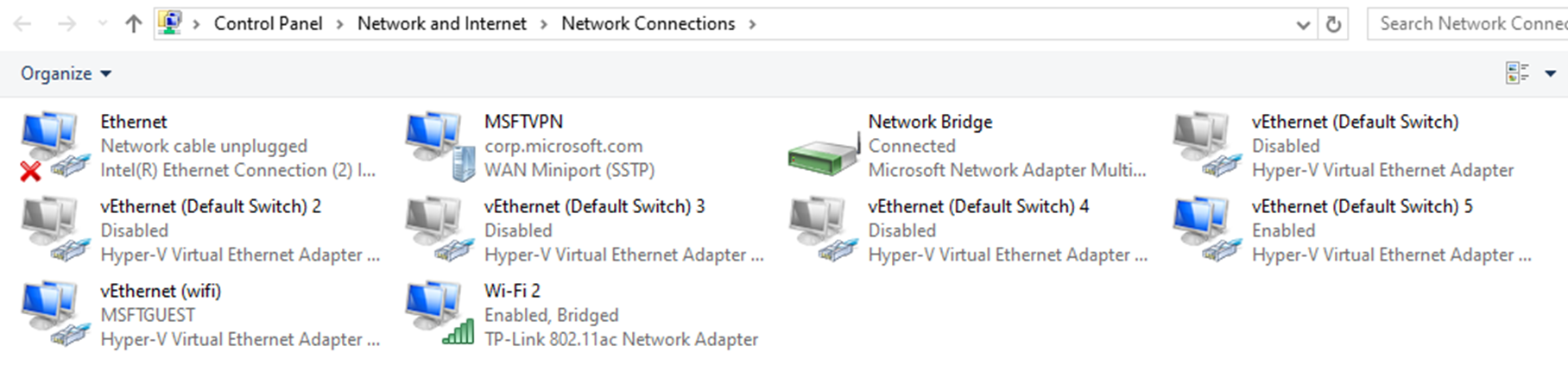
I encounter this issue all the time because I have HyperV installed:

Because of this, I never get the “Your browser is offline” version of the network error page– I instead get various DNS error pages instead.

The web platform’s Network Information API has similar shortcomings.

Non-browser Windows software can use the NLM API to try to learn about the user’s network availability, but it suffers from most of the same problems noted above. However, APIs like INetworkListManager_get_IsConnectedToInternet have the same problems when the user is behind a Captive Portal or a target requires a VPN, or when the user is connected via Wifi to a router (“Yay! You’re online!”) that’s plugged into a cable modem that is turned off (“But you can’t get anywhere!”).

What To Do?

While it’s unfortunate that answering the simple question (“Is the user online?“) is complex/impossible, answering the real question has a straightforward solution: If you want to know if something will work, try it!

The approach taken by most products is simple.

When your code wants to know “Can I exchange data with foo.com”, you just send a network request “Hey, Foo.com, can you hear me?” (sometimes sending a quick HEAD request to a simple echo service) and you wait to hear back “Yup!

If you don’t receive an affirmative response within a short timeout, you can conclude “Whelp, whether I’m connected or not, I can’t talk to the site I care about.”

You might then set up a retry loop, using a truncated exponential backoff delay[1] to avoid wasting a lot of effort.

-Eric

[1] For example, Chromium’s network error page retries as follows:

base::TimeDelta GetAutoReloadTime(size_t reload_count) {
  static const int kDelaysMs[] = {0, 5_000, 30_000, 60_000,
                                  300_000, 600_000, 1_800_000};

Chromium elsewhere contains a few notes on available approaches:

// (1) Use InternetGetConnectedState (wininet.dll). This function is really easy 
// to use (literally a one-liner), and runs quickly. The drawback is it adds a

// dependency on the wininet DLL.

//

// (2) Enumerate all of the network interfaces using GetAdaptersAddresses

// (iphlpapi.dll), and assume we are "online" if there is at least one interface

// that is connected, and that interface is not a loopback or tunnel.

//

// Safari on Windows has a fairly simple implementation that does this:

// http://trac.webkit.org/browser/trunk/WebCore/platform/network/win/NetworkStateNotifierWin.cpp.

//

// Mozilla similarly uses this approach:

// http://mxr.mozilla.org/mozilla1.9.2/source/netwerk/system/win32/nsNotifyAddrListener.cpp

//

// The biggest drawback to this approach is it is quite complicated.

// WebKit's implementation for example doesn't seem to test for ICS gateways

// (internet connection sharing), whereas Mozilla's implementation has extra

// code to guess that.

//

// (3) The method used in this file comes from google talk, and is similar to

// method (2). The main difference is it enumerates the winsock namespace

// providers rather than the actual adapters.

//

// I ran some benchmarks comparing the performance of each on my Windows 7

// workstation. Here is what I found:

//   * Approach (1) was pretty much zero-cost after the initial call.

//   * Approach (2) took an average of 3.25 milliseconds to enumerate the

//     adapters.

//   * Approach (3) took an average of 0.8 ms to enumerate the providers.

//

// In terms of correctness, all three approaches were comparable for the simple

// experiments I ran... However none of them correctly returned "offline" when

// executing 'ipconfig /release'.