Best Practice: Post-Mortems

I’ve written a bit about working at Google in the past. Google does a lot of things right, and other companies would benefit by following their example.

At Google, one of the technical practices that I thought was both essential and very well done was the “post-mortem”– whenever they hit a significant problem, after putting out the fires and getting everything running again, they’d get the engineers closest to the problem to spend a day or two investigating the root cause of the issue and writing up their findings for everyone to read. The visibility of post-mortems meant that even a lowly browser engineer could go read in-depth content about how a live service went down for a day (“We didn’t think about what would happen if the data center caught on fire during the migration“), or the comic tale about what happens when a catering order for 1000 donuts is misunderstood as an order for 1000 dozen donuts. Some post-mortems are even made public.

The aim was a “blameless” post-mortem (nobody got in trouble for the results) where the goal was to identify the true root causes (not just the immediately precipitating errors) and file bugs to eradicate those causes and prevent recurrence of not just the same problem, but all similar problems in the future. As a part of the process, they’d calculate out exactly how much the problem ended up costing in direct dollars (lost revenue, damage, etc). 

Bugs filed from post-mortems got worked on with priority– there was solid evidence showing the real danger of leaving things unfixed, and no one wanted to get burned by the same root causes twice. Having open, broadly shared post-mortems helps ensure that the same mistakes aren’t repeated, and it helps build a common understanding of the greater impact of fire marshals over firefighters.

A key technique in the post-mortem was following the “Five Whys” paradigm (famously introduced at Toyota) for finding root causes, in which the participants would start at the immediate issue and then probe further toward the root causes by asking “And why did that happen?” (The downtime was caused because the database ran out of space and the code didn’t notice. Why? Because there was no test for that case. Why? Because the test environment ran on different hardware with a mock database that couldn’t run out of space. Why? Because it was deemed too difficult to test on production-class hardware. Why? Because we haven’t prioritized building a parallel test environment. Why? Because it’s expensive and we didn’t think it was necessary. Now we know better). 

The post-mortems were serious affairs — mandatory, well-funded (engineering time is expensive), and broadly reviewed — all of them published on an intranet portal for anyone in the company to learn from. They were tremendously effective — fixes for the root causes were prioritized based on cost and impact and rapidly addressed. I don’t think Google could have become a trillion-dollar company without them.

Many companies’ engineering cultures have adopted post-mortems in theory— but if your culture isn’t willing to expect, fund, recognize, and respect them, they become yet another source of overhead and another exhausting checkbox to tick.
Attack Techniques: Notification Spam

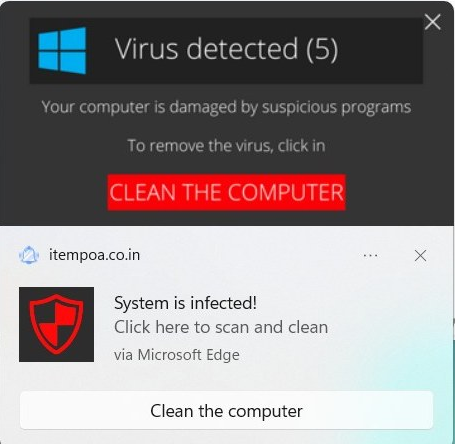
A colleague recently saw the following popups when using their computer:

Because they seemed to come from nowhere in particular, they seemed credible– either Windows itself had detected a virus, or perhaps their computer was infected with malware and it caused the popups?

The reality is more mundane and more much more common. These are notifications sent by a website (itempoa.co.in) that Windows dutifully displays as a part of the browser’s HTML5 Notifications API feature.

Permissions Abuse

Now, websites need permission to subscribe you to notifications, but this permission is often gained as a result of trickery — for instance, a page that claims you need to push a button to prove you’re a human.

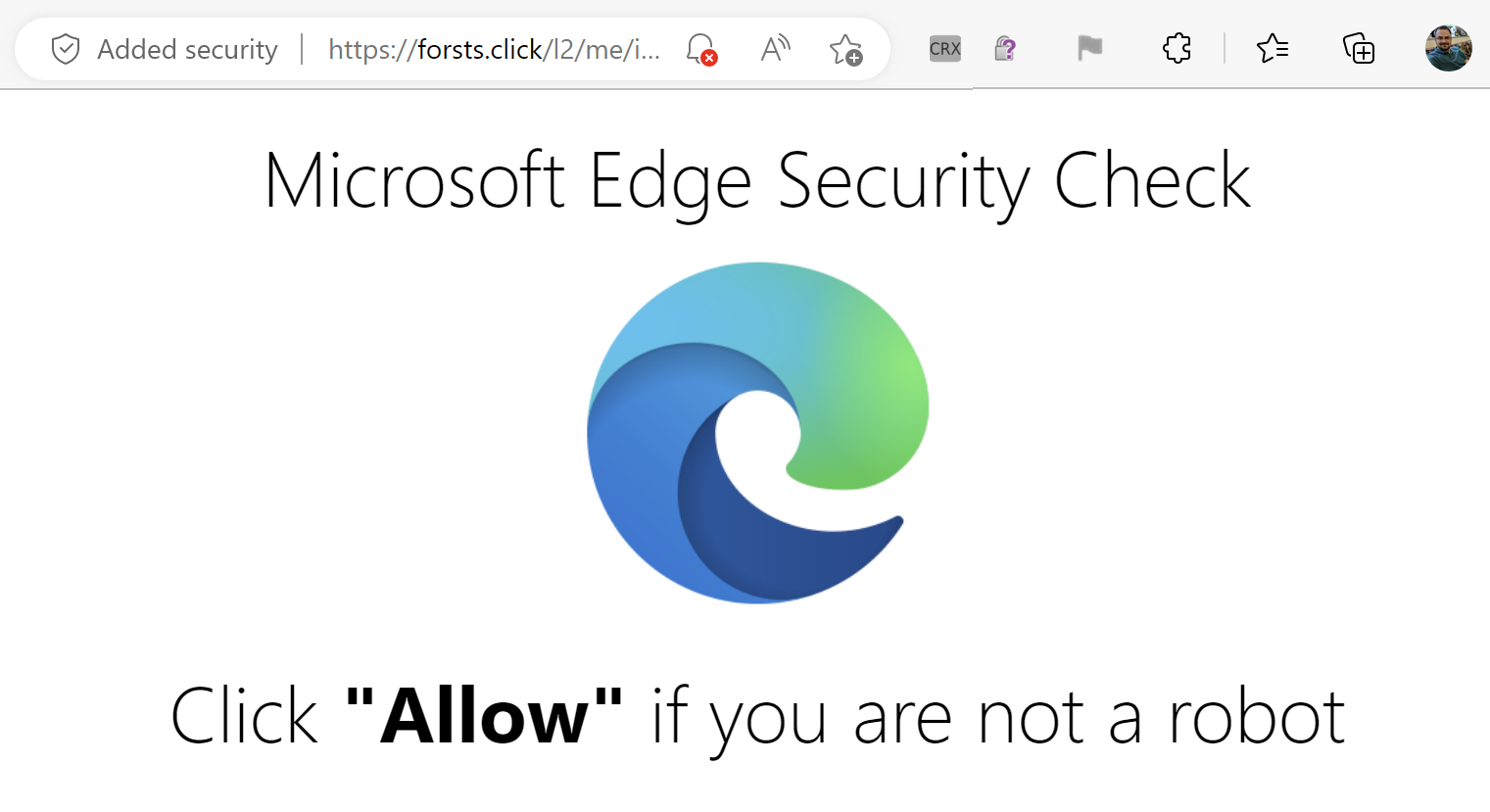
For example, I tried visiting an old colleague’s long-expired blog just to see what would happen. I was immediately redirected here:

Wat? What is this even talking about? There’s no “Allow” link or button anywhere.

The clue is that tiny bell with a red X in the omnibox– This site tried to ask for permission to spam me with notifications forevermore. The site hopes that I don’t understand the permission prompt, I will assume this is one of the billions of CAPTCHAs on today’s web, and that I will simply click “Allow”.

However, in this case, Edge said “Naw, we’re not even going to bother showing the prompt for this site” and suppressed it by default.

The resulting user experience isn’t an awesome one for the user, but there’s not a ton the browser can do about that in general– websites can always lie to visitors, and the browser’s ability to do anything reasonable in response is limited. The truly bad outcome (a continuous flood of spam notifications appearing inside the OS, leading the user to wonder whether they’ve been hacked for weeks afterward) has been averted because the user never sees the “Shoot self in foot” option.

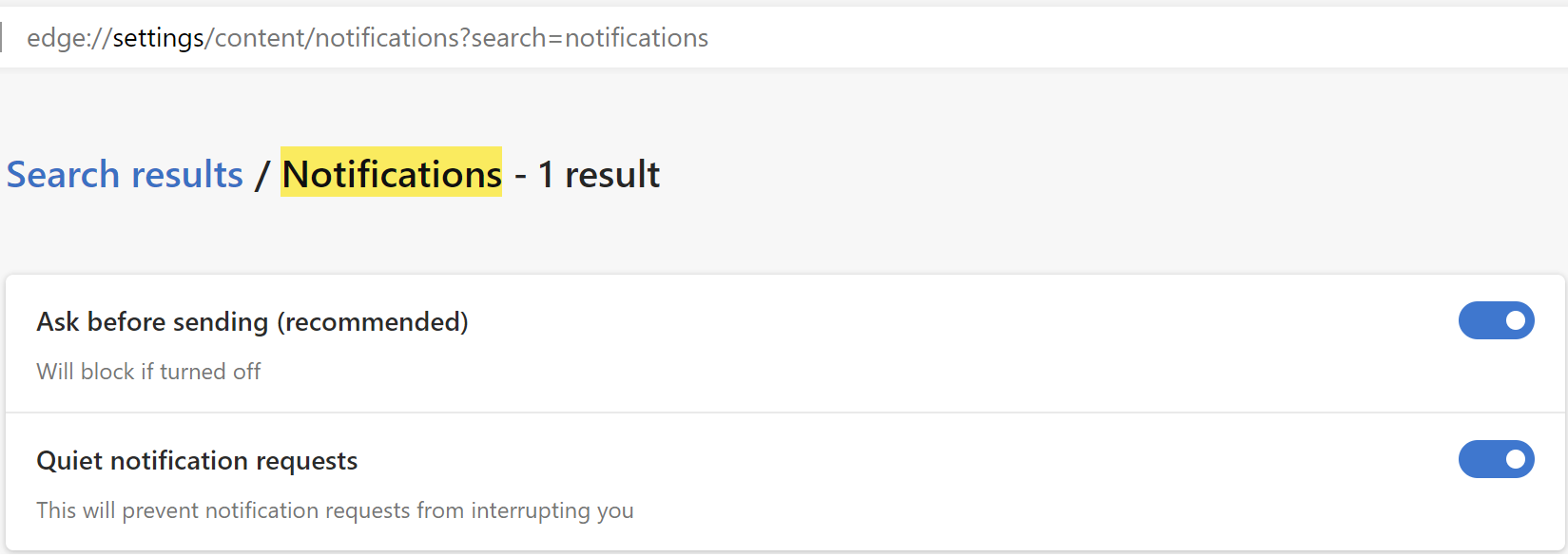
This “Quieter Notifications” behavior can be found in Edge Settings; you can use the other toggle to turn off Notification permission requests entirely:

edge://settings/content/notifications screenshot

Today, there’s no “Report this site is trying to trick users” feature. The current menu command ... > Help and Feedback > Report Unsafe Site is today only used to report sites that distribute malware or conduct phishing attacks for blocking with SmartScreen.

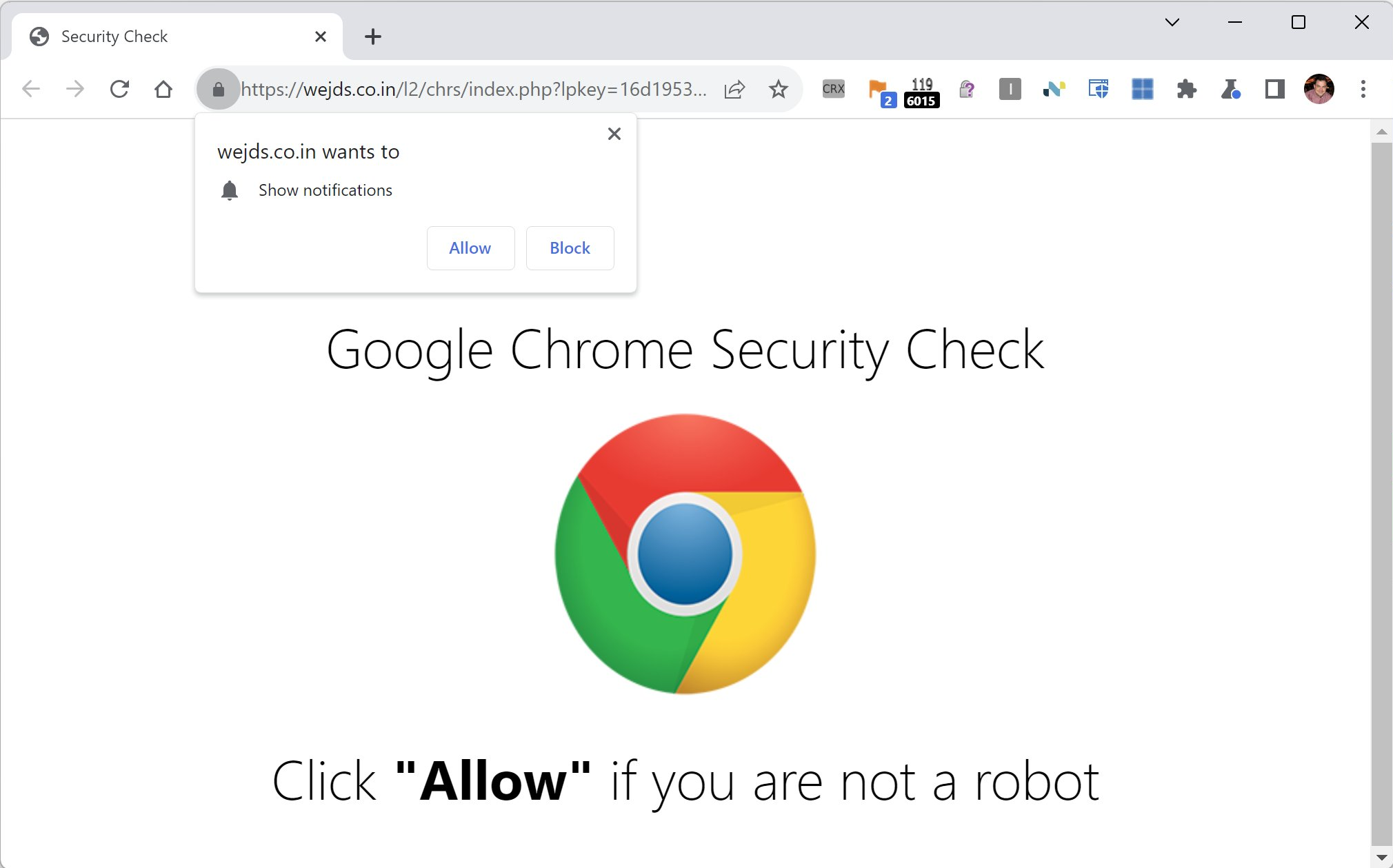
Here’s a similar attack site loaded in Chrome, which is showing the prompt. (Chrome does have a similar anti-abuse effort).


After the user is suckered into granting the Notifications permission, hours, days, or weeks later they’ll be subjected to the sorts of spam notifications seen at the top of this post.

Cleanup and Prevention

You can stop getting notifications from spammy sites by adjusting permissions in Edge Settings. If you don’t think Web Notifications are useful in general, you can visit edge://settings/content/notifications and set the toggle like so:

Edge’s Super-Res Image Enhancement

One interesting feature that the Edge team is experimenting with this summer is called “SuperRes” or “Enhance Images.” This feature allows Microsoft Edge to use a Microsoft-built AI/ML service to enhance the quality of images shown within the browser. You can learn more about how the images are enhanced (and see some examples) in the Turing SuperRes blog post.

Currently only a tiny fraction of Stable channel users and much larger fraction of Dev/Canary channel users have the feature enabled by field trial flags. If the feature is enabled, you’ll have an option to enable/disable it inside edge://settings:

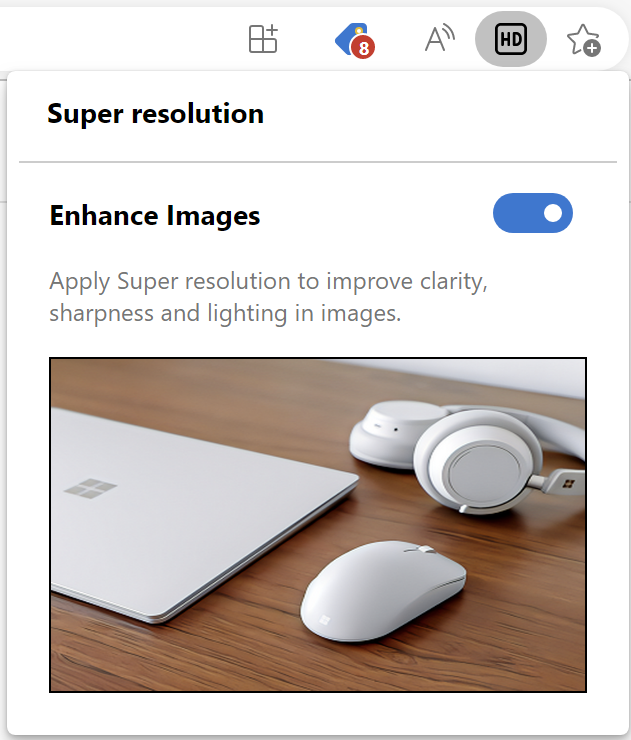
Users of the latest builds will also see a “HD” icon appear in the omnibox. When clicked, it opens a configuration balloon that allows you to control the feature:

As seen in the blog post, this feature can meaningfully enhance the quality of many photographs, but the model is not yet perfect. One limitation is that it tends not to work as well for PNG screenshots, which sometimes get pink fuzzies:

“Pink Fuzzies” JPEG Artifacts

… and today I filed a bug because it seems like the feature does not handle ICCv4 color profiles correctly.

Green tint due to failed color profile handling

If you encounter failed enhancements like this, please report them to the Edge team using the … > Help and Feedback > Send Feedback tool so the team can help improve the model.

On-the-Wire

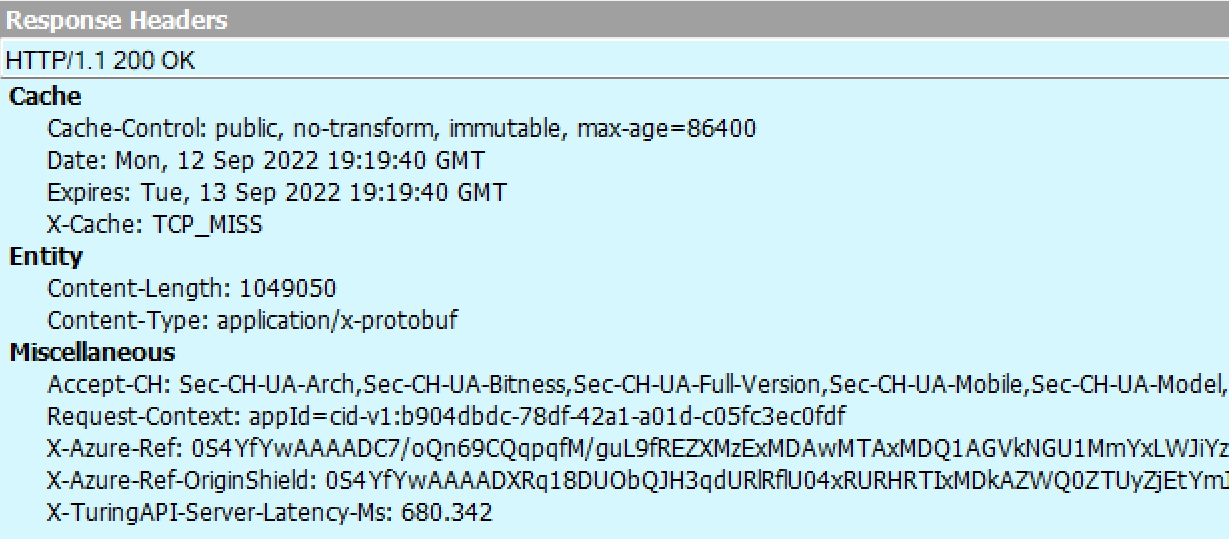
Using Fiddler, you can see the image enhancement requests that flow out to the Turing Service in the cloud:

Inspecting each response from the server takes a little bit of effort because the response image is encapsulated within a Protocol Buffer wrapper:

Because of the wrapper, Fiddler’s ImageView will not be able to render the image by default:

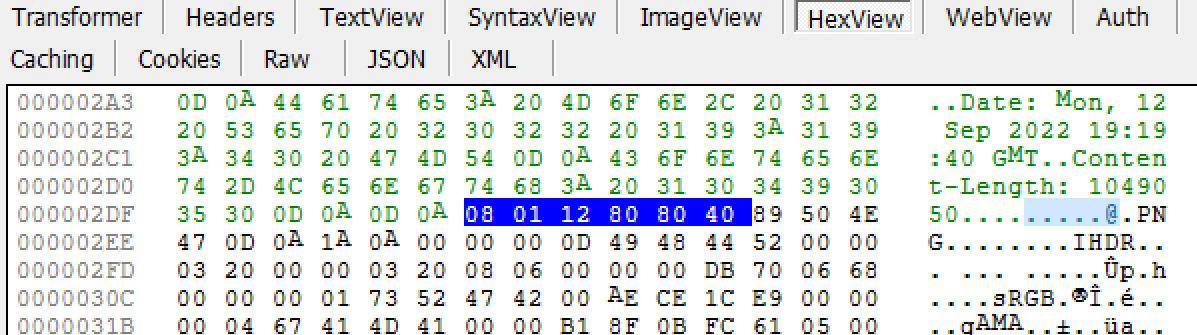
Fortunately, the response image is near the top of the buffer, so you can simply focus the Web Session, hit F2 to unlock it for editing, and use the HexView inspector to delete the prefix bytes:

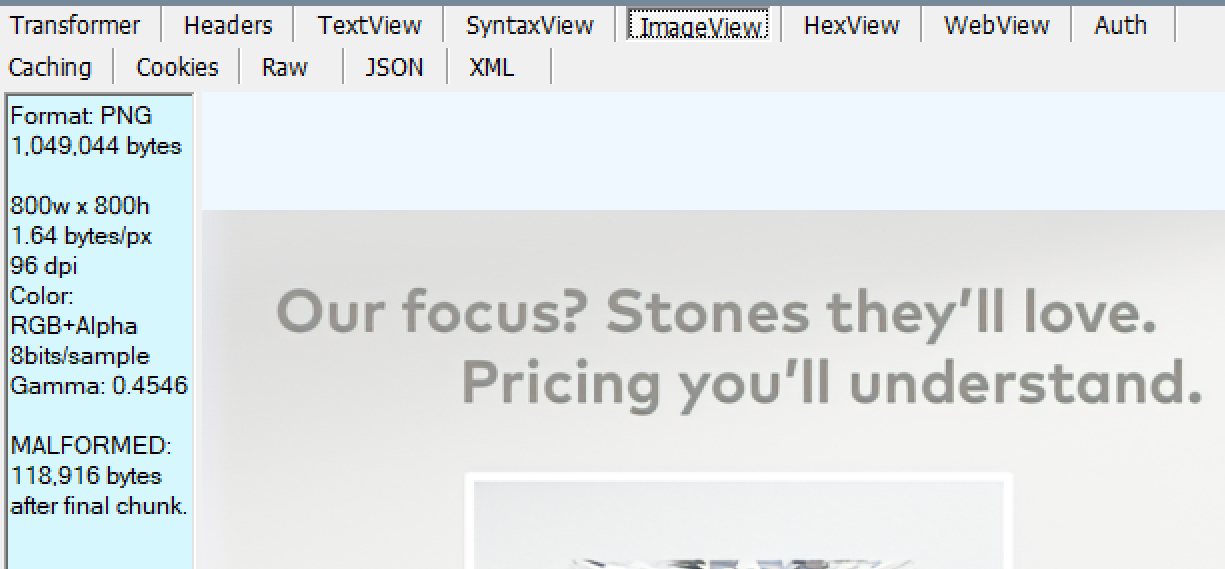
…then hit F2 to commit the changes to the response. You can then use the ImageView inspector to render the enhanced image, skipping over the remainder of the bytes in the protocol buffer (see the “bytes after final chunk” warning on the left):

Stay sharp out there!

-Eric

PS: There is not, as of October 2022, a mechanism by which a website can opt its pages out of this feature.

QuickFix: Trivial Chrome Extensions

Almost a decade before I released the first version of Fiddler, I started work on my first app that survives to this day, SlickRun. SlickRun is a floating command line that can launch any app on your PC, as well as launching web applications and performing other simple and useful features, like showing battery, CPU usage, countdowns to upcoming events, and so forth:

SlickRun allows you to come up with memorable commands (called MagicWords) for any operation, so you can type whatever’s natural to you (e.g. bugs/edge launches the Edge bug tracker) for any operation.

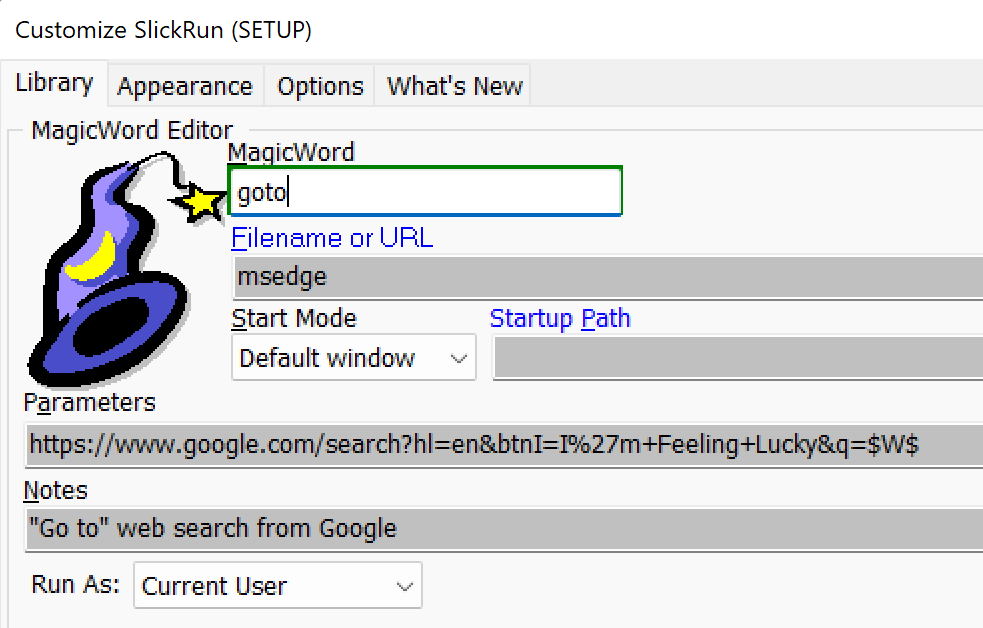
One of my favorite MagicWords, beloved for decades now, is goto. It launches your browser to the best match for any web search:

For example, I can type goto download fiddler and my browser will launch and go to the Fiddler download page (as found by an “I’m Feeling Lucky” search on Google) without any further effort on my part.

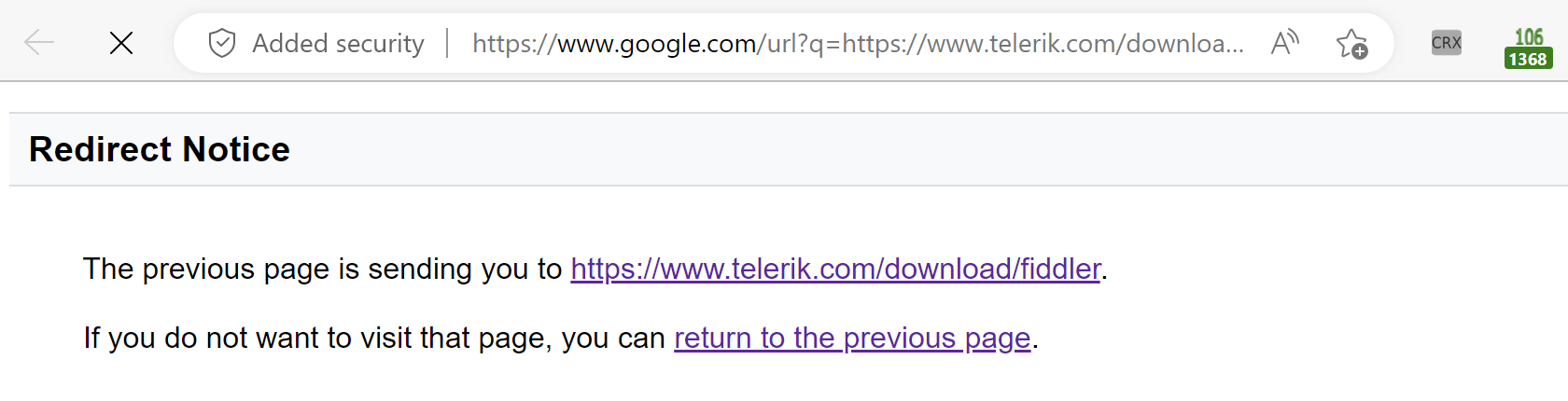
Unfortunately, back in 2020 (presumably for anti-abuse reasons), Google started interrupting their “I’m Feeling Lucky” experience with a confirmation page that requires the user to acknowledge that they’re going to a different website:

… and this makes the goto user flow much less magical. I grumbled about Google’s change at the time, without much hope that it would ever be fixed.

Last week, while vegging on some video in another tab, I typed out a trivial little browser extension which does the simplest possible thing: When it sees this page appear as the first or second navigation in the browser, it auto-clicks the continue link. It does so by instructing the browser to inject a trivial content script into the target page:

"content_scripts": [
    {
      "matches": ["https://www.google.com/url?*"],
      "js": ["content-script.js"]
    }

…and that injected script clicks the link:

// On the Redirect Notice page, click the first link.
if (window.history.length<=2) {
  document.links[0].click(); 
}
else {
  console.log(`Skipping auto-continue, because history.length == ${window.history.length}`);
}

This whole thing took me under 10 minutes to build, and it still delights me every time.

-Eric

Passkeys – Syncable WebAuthN credentials

Passwords have lousy security properties, and if you try to use them securely (long, complicated, and different for every site), they often have horrible usability as well. Over the decades, the industry has slowly tried to shore up passwords’ security with multi-factor authentication (e.g. one-time codes via SMS, ToTP authenticators, etc) and usability improvements (e.g. password managers), but these mechanisms are often clunky and have limited impact on phishing attacks.

The Web Authentication API (WebAuthN) offers a way out — cryptographically secure credentials that cannot be phished and need not be remembered by a human. But the user-experience for WebAuthN has historically been a bit clunky, and adoption by websites has been slow.

That’s all set to change.

Passkeys, built atop the existing WebAuthN standards, offers a much slicker experience, with enhanced usability and support across three major ecosystems: Google, Apple, and Microsoft. It will work in your desktop browser (Chrome, Safari, or Edge), as well as well as on your mobile phone (iPhone or Android, in both web apps and native apps).

Passkeys offers the sort of usability improvement that finally makes it practical for sites to seize the security improvement from retiring passwords entirely (or treating password-based logins with extreme suspicion).

PMs from Google and Microsoft put together an awesome (and short!) demo video for the User Experience across devices which you can see over on YouTube.

You can visit https://passkeys.dev to learn more.

I’m super-excited about this evolution and hope we’ll see major adoption as quickly as possible. Stay secure out there!

-Eric

Bonus Content: A PassKeys Podcast featuring Google Cryptographer Adam Langley, IMO one of the smartest humans alive.