When you join a public WiFi network, sometimes you’ll notice that you have to accept “Terms of Use” or provide a password or payment to use the network. Your browser opens or navigates to a page that shows the network’s legal terms or web log on form, you fill it out, and you’re on your way. Ideally.
How does this all work?
Wikipedia has a nice article about Captive Portals, but let’s talk about the lower-level mechanics.
Operating Systems’ Portal Detection
When a new network connection is established, Windows will send a background HTTP request to www.msftconnecttest.com/connecttest.txt. If the result is a HTTP/200 but the response body doesn’t match the string the server is known to always send in reply (“Microsoft Connect Test“), the OS will launch a web browser to the non-secure HTTP URL www.msftconnecttest.com/redirect. The expectation is that if the user is behind a Captive Portal, the WiFi router will intercept these HTTP requests and respond with a redirect to a page that will allow the user to log on to the network. After the user completes the ritual, the WiFi router stores the MAC Address of the device’s network card to avoid repeating the dance on every subsequent connection.
This probing functionality is a part of the Network Connectivity Status Indicator feature of Windows, which will also ensure that the WiFi icon in your task bar indicates if the current connection does not yet have access to the Internet at large. Beyond this active probing behavior, NCSI also has a passive polling behavior that watches the behavior of other network APIs to detect the network state.
Other Windows applications can detect the Captive Portal State using the Network List Manager API, which indicates NLM_INTERNET_CONNECTIVITY_WEBHIJACK when Windows noticed that the active probe was hijacked by the network. Enterprises can reconfigure the behavior of the NCSI feature using registry keys or Group Policy.
On MacOS computers, the OS offers a very similar active probe: a non-secure probe to http://captive.apple.com is expected to always reply with (“Success“).
Edge Portal Detection
Chromium includes its own Captive Portal detection logic whereby a probe URL is expected to return a HTTP/204 No Content response.
Edge specifies a probe url of http://edge-http.microsoft.com/captiveportal/generate_204
Chrome uses the probe URL http://www.gstatic.com/generate_204.
Avoiding HTTPS
Some Captive Portals perform their interception by returning a forged server address when the client attempts a DNS lookup. However, DNS hijacking is not possible if DNS-over-HTTPS (DoH) is in use. To mitigate this, the detector bypasses DoH when resolving the probe URL’s hostname.
Similarly, note that all of the probe URLs specify non-secure http://. If a probe URL started with https://, the WiFi router would not be able to successfully hijack it. HTTPS is explicitly designed to prevent a Monster-in-the-Middle (MiTM) like a WiFi router from changing any of the traffic, using cryptography and digital signatures to protect the traffic from modification. If a hijack tries to redirect a request to a different location, the browser will show a Certificate Error page that indicates that either the router’s certificate is not trusted, or that the certificate the router used to encrypt its response does not have a URL address that matches the expected website (e.g. edge-http.microsoft.com).
This means, among other things, that new browser features that upgrade non-secure HTTP requests to HTTPS must not attempt to upgrade the probe requests, because doing so will prevent successful hijacking. To that end, Edge’s Automatic HTTPS feature includes a set of exclusions:
Unfortunately, this exclusion list alone isn’t always enough. Consider the case where a WiFi router hijacks the request for edge-http.microsoft.com and redirects it to http://captiveportal.net/accept_terms. The browser might try to upgrade that navigation request (which targets a hostname not on the exclusion list) to HTTPS. If the portal’s server doesn’t support HTTPS, the user will either encounter a Connection Refused error or an Untrusted Certificate error.
If a user does happen to try to navigate to a HTTPS address before authenticating to the portal, and the router tries to hijack the secure request, Chromium detects this condition and replaces the normal certificate error page with a page suggesting that the user must first satisfy the demands of the Captive Portal:
For years, this friendly design had a flaw– if the actual captive portal server specified a HTTPS log on URL but that log on URL sent an invalid certificate, there was no way for the user to specify “I don’t care about the untrusted certificate, continue anyway!” I fixed that shortcoming in Chromium v101, such that the special “Connect to Wi-Fi” page is not shown if the certificate error appears on the tab shown for Captive Portal login.
Fiddler’s ImageView Inspector offers a lot of powerfulfunctionality for inspecting images and discovering ways to shrink an image’s byte-weight without impacting its quality.
Less well-known is the fact that the ImageView Inspector is very extensible, such that you can add new tools to it very simply. To do so, simply download any required executables and add registry entries pointing at them.
For instance, consider Guetzli, the JPEG-optimizer from the compression experts at Google. It aims to shrink JPEG images by 20-30% without impacting quality. The tool is delivered as a command-line executable that accepts an image’s path as input, generating a new file containing the optimized image. If you pass no arguments at all, you get the following help text:
To integrate this tool into Fiddler, simply:
Download the executable (x64 or x86 as appropriate) to a suitable folder.
Run regedit.exe and navigate to HKEY_CURRENT_USER\Software\Microsoft\Fiddler2\ImagesMenuExt\
Create a new key with the caption of the menu item you’d like to add. (Optionally, add a & character before the accelerator key.)
Create Command, Parameters and Types values of type REG_SZ. Read on for details of what to put in each.
Alternatively, you could use Notepad to edit a AddCommand.reg script and then double-click the file to update your registry:
Windows Registry Editor Version 5.00

[HKEY_CURRENT_USER\Software\Microsoft\Fiddler2\ImagesMenuExt\&JPEGGuetzli]
"Command"="C:\\YOURPATHToTools\\guetzli_windows_x86-64.exe"
"Parameters"="{in} {out:jpg}"
"Types"="image/jpeg"
When you’re done, the registry key should look something like:
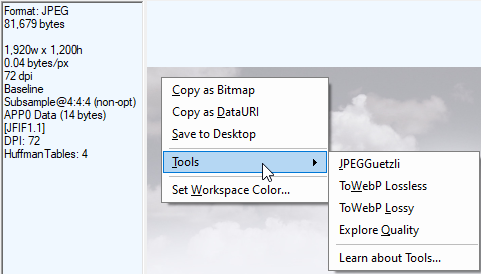
After you’ve set up your new command, when you right-click on a JPEG in the ImageView, you’ll see your new menu item in the Tools submenu:
When you run the command, the tool will run and a new entry will be added to the Web Sessions list, containing the now optimized image:
Registry Values
The required Commandentry points to the location of the executable on disk.
The optional Parametersentry specifies the parameters to pass to the tool. The Parameters entry supports two tokens, {in} and {out}. The {in} token is replaced with the full path to the temporary file Fiddler uses to store the raw image from the ImageView Inspector before running the tool. The {out} token is replaced with the filepath Fiddler requests the tool write its output to. If you want the output file to have a particular extension, you can specify it after a colon; for example {out:jpg} generates a filename ending in .jpg. If you omit the Parameters value, a default of {in} is used.
The optional Typesparameter limits the MIME types on which your tool is offered. For example, if your tool only analyzes .png files, you can specify image/png. You can specify multiple types by separating them with a comma, space, or semicolon.
The optional Optionsvalue enables you to specify either <stdout> or <stderr> (or both) and Fiddler will collect any textual output from the tool and show it in a message box. For instance, the default To WebP Lossless command sets the <stderr> option, and after the tool finishes, a dialog box is shown:
Fundamentals are invisible.Features are controversial.
One of the few common complaints against Microsoft Edge is that “It’s bloated– there’s too much stuff in it!”
A big philosophical question for designers of popular software concerns whether the product should include features that might not be useful for everyone or even a majority of users. There are strong arguments on both sides of this issue, and in this post, I’ll explore the concerns, the counterpoints, and share some thoughts on how software designers should think about this tradeoff.
But first, a few stories
I started working in Microsoft Office back in 1999, on the team that was to eventually ship SharePoint. Every few months in the early 2000s, a startup would appear, promising a new office software package that’s “just the 10% of Microsoft Office that people actually use.” All of these products failed (for various reasons), but they all failed in part because their development and marketing teams failed to recognize a key fact: Yes, the vast majority of customers use less than 10% of the features of the Microsoft Office suite, but it’s a different 10% for each customer.
I started building the Fiddler Web Debugger in 2003, as a way for my team (the Office Clip Art team) to debug client/server traffic between the Microsoft Clip Art client app and the Design Gallery Live webservice that hosted the bulk of the clipart Microsoft made available. I had no particular ambitions to build a general purpose debugger, but I had a problem: I needed to offer a simple way to filter the list of web requests based on their URLs or other criteria, but I really didn’t want to futz with building a complicated filter UI with dozens of comboboxes and text fields.
I mused “If only I could let the user write their queries in code and then Fiddler would just run that!” And then I realized I could do exactly that, by embedding the JScript.NET engine into Fiddler. I did so, and folks from all over the company started using this as an extensibility mechanism that went far beyond my original plans. As I started getting more feature requests from folks interested in tailoring Fiddler to their own needs, I figured “Why not just allow developers to write their own features in .NET?” So I built in a simplistic extensibility model that allowed adding new features and tabs all over. Over a few short years, a niche tool morphed into a wildly extensible debugger used by millions of developers around the world.
The original 2008 release of the Chrome browser was very limited in terms of features, as the team was heavily focused on performance, security, and simplicity. But one feature that seemed to get a lot of consideration early on was support for Mouse Gestures; some folks on the team loved gestures, but there was recognition that it was unlikely to be a broadly-used feature. Ultimately, the Chrome team decided not to implement mouse gestures, instead leaving the problem space to browser extensions.
Years later, after Chrome became my primary browser, I lost my beloved IE Mouse Gestures extension, so I started hunting for a replacement. I found one that seemed to work okay, but because I run Fiddler constantly, I soon noticed that every time I invoked a gesture, it sent the current page’s URL and other sensitive data off to some server in China. Appalled at the hidden impact to my privacy and security, I reported the extension to the Chrome Web Store team and uninstalled it. The extension was delisted from the web store.
Some time later, now back on the Edge team, a new lead joined and excitedly recommended we all try out a great Mouse Gestures extension for Chromium. I was disappointed to discover it was the same extension that had been removed previously, now with a slightly more complete Privacy Policy, and now using HTTPS when leaking users’ URLs to its own servers. (Update: As of 2023, Edge has built-in Mouse Gestures. Hooray!)
With these background stories in hand, let’s look at the tradeoffs.
“Bloated!”
There are three common classes of complaint from folks who point at the long list of features Edge has added over upstream Chromium and furiously charge “It’s bloated!“:
User Experience complexity
Security/reliability
Performance
UX Complexity
Usually when you add a feature to the browser, you add new menu items, hotkeys, support articles, group policies, and other user-visible infrastructure to support that feature. If you’re not careful, it’s easy to accidentally break a user’s longstanding workflows or muscle memory.
One of the Windows 7 Design Principles was “Change is bad, unless it’s great!” and that’s a great truth to keep in mind– entropy accumulates, and if you’re not careful, you can easily make the product worse. Users don’t like it when you move their cheese.
A natural response to this concern is to design new features to be unobtrusive, by leaving them off-by-default, or hiding them away in context menus, or otherwise keeping them out of the way. But now we’ve got a problem– if users don’t even know about your feature, why bother building it? If potential customers don’t know that your unique and valuable features exist, why would they start using your product instead of sticking with the market leader, even if that leader has been stagnant for years?
Worse still, many startups and experiments are essentially “graded” based on the number of monthly or daily active users (MAU or DAU)– if a feature isn’t getting used, it gets axed or deprioritized, and the team behind it is reallocated to a more promising area. Users cannot use a feature if they haven’t discovered it. As a consequence, in an organization that lacks powerful oversight there’s a serious risk of tragedy, whereby your product becomes a sea of banners and popups each begging the user for attention. Users don’t like it when they think you’re distracting them from the cheese they’ve been enjoying.
Security/reliability risk
Engineers and enthusiasts know that software is, inescapably, never free of errors, and intuitively it seems that every additional line of code in a product is another potential source of crashes or security vulnerabilities.
If software has an average of, say, two errors per thousand lines of code, adding a million lines of new feature code mathmatically suggests there are now two thousand more bugs that the user might suffer.
If users have to “pay” for features they’re not using, this feels like a bad deal.
Performance
Unlike features, Performance is one of the “Universal Goods” in software– no user anywhere has ever complained that “My app runs too fast!” (with the possible exception of today’s gamers trying to use their 4ghz CPUs to run retro games from the 1990s).
However, we users also note that, even as our hardware has gotten thousands of times faster over the decades, our software doesn’t seem to have gotten much faster at all. Much like our worry about new features introducing code defects, we also worry that introducing new features will make the product as a whole slower, with higher CPU, memory, or storage requirements.
Each of these three buckets of concerns is important; keep them in mind as we consider the other side.
“Batteries Included!“
We use software to accomplish tasks, and features are the mechanism that software exposes to help us accomplish our tasks.
We might imagine that ideal software would offer exactly and only the features we need, but this is impractical. Oftentimes, we may not recognize the full scope of our own needs, and even if we do, most software must appeal to broad audiences to be viable (e.g. the “10% of Microsoft Office” problem). And beyond that, our needs often change over time, such that we no longer need some features but do need other features we didn’t use previously.
One school of thought suggests that the product team should build a very lightweight app with very few features, each of which is used by almost everyone. Features that will be used by fewer users are instead relegated to implementation via an extensibility model, and users can cobble together their own perfect app atop the base.
There’s a lot of appeal in such a system– with less code running, surely the product must be more secure, more performant, more reliable, and less complex. Right?
Unfortunately, that’s not necessarily the case. Extension models are extremely hard to get right, because until you build all of the extensions, you’re not sure that the model is correct or complete. If you need to change the model, you may need to change all of the extensions (e.g. witness the painful transition from Chromium’s Manifest v2 to Manifest v3).
Building features atop an extension model sometimes entails major performance bugs, because data must flow through more layers and interfaces, and if needed events aren’t exposed, you may need to poll for updates. Individual extensions with common needs may have to do redundant work (e.g. each extension scanning the full text of each loaded page, rather than the browser itself scanning the whole thing just once).
As we saw with the Mouse Gestures story above, allowing third-party extensions carries along with it a huge amount of complexity related to security risk and misaligned incentives. In an adversarial ecosystem where good and bad actors both participate, you must invest heavily in security and anti-abuse mechanisms.
Finally, regression testing and prevention gets much more challenging when important features are relegated to extensions. Product changes that break extensions won’t block the commit queue, and the combinatorics involved in testing with arbitrary combinations of extensions quickly hockey sticks upward to infinity.
Extensions also introduce complexity in the management and update experience, and users might miss out on great functionality because they never discovered extension exists to address a need they have (or didn’t even realize they have). You’d probably be surprised by the low percentage of users that have any browser extensions installed at all.
With Fiddler, I originally took the “Platform” approach where each extra feature was its own extension. Users would download Fiddler, then download four or five other packages after/if they realized such valuable functionality existed. Over time, I realized that nobody was happy with my Ikea-style assemble-your-own debugger, so I started shipping a “Mondo build” of Fiddler that just included everything.
Extensions, while useful, are no panacea.
Principles
These days, I’ve come around to the idea that we should include as many awesome features as we can, but we should follow some key principles:
To the extent possible, features must be “pay to play.” If a user isn’t using a given feature, it should not impact performance, security, or reliability. Even small regressions quickly add up.
Don’t abuse integration to avoid clean layering and architecture. Just because your feature’s implementation can go poke down into the bowels of the engine doesn’t mean it should.
Respect users and carefully manage UX complexity. Remember, “change is bad unless it’s great.” Invest in systems that enable you to only advertise new features to the right users at the right time.
Remove failed experiments. If you ship a feature and find that it’s not meeting your goals, pull it out. If you must accommodate a niche audience that fell in love, consider whether an extension might meet their needs.
Find ways to measure, market, and prioritize investments in Fundamentals. Features usually hog all the glory, but Fundamentals ensure those features have the opportunity to shine.
Last Updated: June 3, 2022. The intent of this post is to capture a list of non-obvious features of the browser that might be useful to you.
Q: How do I find the tab playing audio? It’s cool that Microsoft Edge shows the volume icon in the tab playing music and I can click to mute it:
…but what if I have a bunch of Edge windows? I have to go into each window to find the icon?
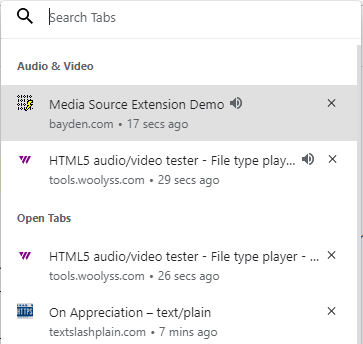
A: The Ctrl+Shift+A hotkey is your friend. It will show your open tabs to allow you to search across them, and those playing audio/video are listed in a group at the top:
Q: How can I move a few tabs out of the current window?
A: You can simply drag the tab’s button/title out of the tab strip to move it to a new window. Less obviously, you can Ctrl+Click *multiple* tabs and drag your selections out into a new window (unselected tabs temporarily dim). Use Shift+Click if you’d prefer to select a range of tabs.
Q: How can I duplicate a tab?
A: Hit Ctrl+Shift+K or use the “Duplicate Tab” command on the tabstrip’s context menu to duplicate the current tab. If you have a middle-mouse button, middle-click the Refresh button.
Less obviously, you can Ctrl+Click the back or forward arrow buttons to open the previous or next entry in the history in a new tab, or you can Shift+Click the buttons to open the page in a new window.
Q: How can I get back a tab I accidentally closed?
A: Hit Ctrl+Shift+T or use the “Reopen closed” option on the tabstrip’s context menu shown on right-click.
You also might be interested in the “Ask before closing a window with multiple tabs” option available inside the edge://settings page:
Q: On a desktop mouse, is middle-click useful for anything?
A: Middle-click a link to open it in a new tab. Middle-click a tab title button to close that tab rather than hunting for its [x] icon. Middle-click the refresh button to duplicate the tab.
Q: How can I easily open a given site in a different profile?
A: You can right-click a link in a page and choose “Open as” to open that link in a different profile:
If you already have the desired page open, you can right-click the tab title button and choose “Move Tab To” and pick the desired profile:
Move the current tab to a different profile
You can also use the options at edge://settings/profiles/multiProfileSettings to open particular sites using a particular profile, useful for splitting your “Work Sites” from your “Life Sites” and your “Ephemeral sites“.
Open AzDo in the Work Profile, and Hotmail in my Personal Profile
Q: How can I make any site act more like an “App” with its own window that isn’t cluttered with other tabs?
A: You can use the --app=url command line argument to give a any site its own standalone window that does not mix with your other sites. For example, if you run msedge.exe --app=https://outlook.live.com, the result looks like this:
This works great with command launchers like SlickRun, because you can then just type e.g. Mail to launch the standalone web app.
“My browser lost its cookies” has long been one of the most longstanding Support complaints in the history of browsers. Unfortunately, the reason that it has been such a longstanding issue is that it’s not the result of a single problem, and if the problem is intermittent (as it often is), troubleshooting the root cause may be non-trivial.
In this post, I’ll explain:
How cookies are stored,
What might cause cookies to go missing, and
How to troubleshoot missing cookies
Background: Session vs. Persistent
Before we get started, it’s important to distinguish between “Session” cookies and “Persistent” cookies. Session cookies are meant to go away when your browser session ends (e.g. you close the last window/tab) while Persistent cookies are meant to exist until you either manually remove them or a server-specified expiration date is reached.
In a default configuration, closing your browser is meant to discard all of your session cookies, unless you happen to have the browser’s “Continue where I left off” option set, in which case Session cookies are expected to live forever.
Chromium stores its persistent cookies as encrypted entries in a SQLite database file named Cookies, found within the profile folder:
Unfortunately, as a user it’s not trivial to understand whether a given cookie was marked Persistent and expected to survive browser shutdown. You have to look at either the 🔒 > Cookies > Cookies in use dialog:
…or the F12 Developer Tools’ Application tab:
If the cookie in question was set as a Persistent cookie, but it disappeared unexpectedly, there could be any of a number of root causes. Let’s take a look.
Culprit: User Settings
The most common causes of cookies going missing are not exactly a “bug” at all– the cookies are gone because the user either configured the browser to regularly clear cookies, or instructed it to do so on a one-time basis.
Microsoft Edge can be configured to clear selected data every time the browser is closed using the option at edge://settings/clearBrowsingDataOnClose:
This is a powerful feature useful for creating an “Ephemeral Profile“, but if you set this option on your main profile and forget you did so, it can be very frustrating. You can also use edge://settings/content/cookies to clear cookies on exit for specific sites:
That same page also contains an option to block all cookies in a 3rd party context, which can have surprising consequences if you set the option and forget it.
Culprit: User Actions
By hitting Ctrl+Shift+Delete or using the Clear browsing data button inside about://settings, you can clear either all of your cookies, or any cookie set within a particular date range:
Notably, the claim this will clear your data across all your synced devices does not apply to cookies. Because cookies are not synced/roamed, deleting them on one computer will not delete them on another.
You can also use the 🔒 > Cookies > Cookies in use dialog to remove cookies for just the currently loaded site, or use edge://settings/siteData to clear cookies for an individual site:
Culprit: Multiple Browsers/Profiles/Channels
For me personally, the #1 thing that causes me to “lose” cookies is the fact that I use 14 different browser profiles (8 in Edge, 4 in Chrome, 2 in Firefox) on a regular basis. Oftentimes when I find myself annoyed that my browser isn’t logged in, or otherwise is “missing” an expected cookie, the real reason is that I’m in a different browser/channel/profile than the last time I used the site in question. When I switch to the same browser+channel+profile I used last time, the site “magically” works as expected again.
In Fall 2023, users of Microsoft Edge on Mac found that each time their browser restarted, all of their persistent cookies were lost. Not long after, some Edge users on Windows reported the same problem.
Both of these problems shared a similar cause, reached differently.
In both cases, the source of the error could be seen in the about:histograms page; users would see an entry named Cookie.LoadProblem with a value of 3 (COOKIE_LOAD_PROBLEM_OPEN_DB), and an entry named Microsoft.SQLite.Database.OpenFailure with a value of 14 (SQLITE_CANTOPEN).
In both cases, the team immediately began investigating what went wrong.
In the case of Mac, the problem was related to a race condition in the initialization of an experimental feature (the Edge VPN). This race condition caused an Edge process to attempt to open the Cookies database too early, before the Network Process’ sandbox had been granted access to the database’s location within the file system. The problem was quickly eliminated by disabling the experiment from the Experimental Configuration Service (ECS) server until the race condition could be corrected.
On Windows, the direct cause was that at the end of July 2023, Chromium landed a change that meant that if the browser could not open its cookie database exclusively (with no other processes having it open simultaneously), the browser would not load the database at all. This meant that if any other process had already opened the cookie database for any reason, the new Edge session would start with with an empty cookie jar, losing all of its persistent cookies.
An alert Windows user reported the cookie loss problem and collected a SysInternals’ Process Monitor log of filesystem activity on the cookie file. Unfortunately, he didn’t manage to catch any unexpected processes opening the file, but he then used SysInternals’ Handle and found that a process named UpdateBrowserForApp.exe had the cookie database open.
He performed his own sleuthing and found that this process seemed to be correlated with the Bing Wallpaper app, and some users had found that removing the app caused the Edge problem to disappear.
We talked to the owners of UpdateBrowserForApp.exe and found that the intent of this utility was to set a cookie that would allow a website to detect that the Wallpaper app was installed so that it could stop offering the app to users who’d already installed it. The Edge team explained that this was not a safe practice– beyond the immediate problems caused by exclusive locks, Chromium’s SQLite cookie database format is not a stable extensibility point, and the schema can change in any browser update. Therefore, using any external utility to modify the cookie database is completely unsupportable. The Wallpaper team released an update (v2.0.0.5) to turn off the bad behavior.
Reliably and safely communicating between Websites and Apps is a challenging problem space post-IE days; I explore this area in depth in my post about Web-to-App (and App-to-Web) Techniques.
Culprit: 3rd-Party Cleanup Utilities
Sometimes, a user loses their cookies unexpectedly because they’ve run (or their computer automatically ran) any of a number of 3rd-party Privacy/Security/Cleanup utilities that include as a feature deletion of browser cookies. Because these tools run outside of the browser context, they can delete the cookies without the browser’s awareness or control.
Culprit: Website Changes
Websites can change their behavior from minute to minute (especially when they perform “A/B testing” to try out new fixes. Sometimes, a website will, knowingly or unknowingly, cause a cookie to be discarded or ignored when new website code is rolled out. Websites can even cause all of their cookies to be deleted (e.g. when a user clicks “Logout”) using the ClearSiteData API.
(Unlikely) Culprit: Lost Decryption Key
As I mentioned earlier, Chromium encrypts cookies (and passwords) using an encryption key that is stored in the browser profile, and which is itself encrypted using a key stored by the OS user account.
If the key in the Chromium profile is deleted or corrupted, Chromium will not be able to obtain the AES key required to decrypt passwords and cookies and will behave as if those data stores were empty.
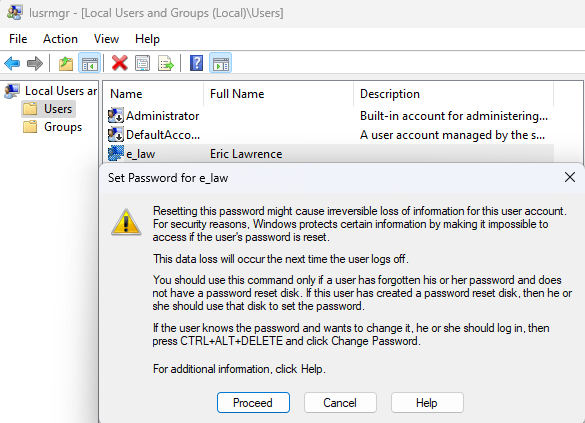
Similarly, the same loss is possible if the OS user account’s encryption key is lost or reset. This should be very rare, but prior to Windows 10 20H2 there was a bug where the key could be lost if the S4U task scheduler was in use. In 2022, a similar bug hit PCs with 3rd-party credential providers installed. Finally, if the user’s password is forgotten and “Reset”, the account’s encryption key is intentionally reinitialized, resulting in the “irreversible loss of information” mentioned at the top of the confirmation dialog box:
(Unlikely) Culprit: Data Corruption
Chromium has made significant technical investments in protecting the integrity of data and I’m not aware of any significant issues where cookie data was lost due to browser crashes or the like.
Having said that, the browser is ultimately at the mercy of the integrity of the data it reads off disk. If that data is corrupted due to e.g. disk or memory failure, cookie data can be irretrievably lost, and the problem can recur until the failing hardware is replaced.
Troubleshooting Steps
Check which browser/channel/profile you’re using and ensure that its the one you used last time.
Visit about://settings/clearBrowsingDataOnClose to ensure that you’re not configured to delete cookies on exit.
Visit about://settings/siteData to see whether all cookies were lost, or just some went missing.
Visit about://settings/content/cookies to see whether third-party cookies are allowed, and whether you have any rules to clear a site’s cookies on exit.
If cookies are missing after restart, visit about:histograms and look for an entry named Cookie.LoadProblem with a value of 3 (COOKIE_LOAD_PROBLEM_OPEN_DB), or an entry named Microsoft.SQLite.Database.OpenFailure with a value of 14 (SQLITE_CANTOPEN)
If you use the browser’s Password Manager, see whether your saved passwords went missing too, by visiting about://settings/passwords.
If they also went missing, you may have a problem with Local Data Encryption keys. Check whether any error values appear inside the about:histograms/OSCrypt page immediately after noticing missing data.
Visit Cookie/Storage test page, pick a color from the dropdown, and restart your browser fully. See whether the persistentCookie and localStorage values reflect the color previously chosen.
Use theWindows Memory Diagnostic in your Start Menu to check for any memory errors.
Use the Properties > Tools > Check for Errors option to check the system drive (usually C:) for corruption:











 text/plain