Compression Context

ZIP is a great format—it’s extremely broadly deployed, relatively simple, and supports a wide variety of use-cases pretty well. ZIP is the underlying format beneath Java (.jar) Archives, Office (docx/xlsx/pptx) files, Fiddler (.saz) Session Archive ZIP files, and many more.

Even though some features (Unicode filenames, AES encryption, advanced compression engines) aren’t supported by all clients (particularly Windows Explorer), basic support for ZIP is omnipresent. There are even solid implementations in JavaScript (optionally utilizing asmjs), and discussion of adding related primitives directly to the browser. 2024 Update: I made a simple WebApp for zipping files.

I learned a fair amount about the ZIP format when building ZIP repair features in Fiddler’s SAZ file loader. Perhaps the most interesting finding is that each individual file within a ZIP is compressed on its own, without any context from files already added to the ZIP. This means, for instance, that you can easily remove files from within a ZIP file without recompressing anything—you need only delete the removed entries and recompute the index. However, this limitation also means that if the data files you’re compressing contain a lot of interfile redundancy (duplicated data across multiple files), the compression ratio does not improve as it would if there were intrafile redundancy (duplicate data in a single file).

This limitation can be striking in cases like Fiddler, where there may be a lot of repeated data across multiple Sessions. In the extreme case, consider a SAZ file with 1000 near-identical Sessions. When that data is compressed to a SAZ, it is 187 megabytes. If the data were instead compressed with 7-Zip, which shares a compression context across embedded files, the output is 99.85% smaller!

ZIP almost 650x larger than 7z

In most cases, of course, the Session data is not identical, but web traffic sessions on the whole tend to contain a lot of redundancy, particularly when you consider HTTP headers and the Session metadata XML files.

The takeaway here is that when you look at compression, the compression context is very important to the resulting compression ratio. This fact rears its head in a number of other interesting places:

  • brotli compression achieves high-compression ratios in part by using a 16 megabyte sliding window, as compared to the 32kb window used by nearly all DEFLATE implementations. This means that brotli content can “point back” much further in the already-compressed data stream when repeated data is encountered.
  • brotli also benefits by pre-seeding the compression context with a 122kb static dictionary of common web content; this means that even the first bytes of a brotli-compressed response can benefit from existing context.
  • SDCH compression achieves high-compression ratios by supplying a carefully-crafted dictionary of strings that result in an “ideal” compression context, so that later content can simply refer to the previously-calculated dictionary entries.
  • Adding context introduces a key tradeoff, however, as the larger a compression context grows, the more memory a compressor and decompressor tend to require.
  • While HTTP/2 reduces the need to concatenate CSS and JS files by reducing the performance cost of individual web requests, HTTP response body compression contexts are still per-resource. That means that larger files tend to yield higher-compression ratios. See “Bundling Improves Compression.”
  • Compression contexts can introduce information disclosure security vulnerabilities if a context is shared between “secret” and “untrusted” content. See also CRIME, BREACH, and HPACK. In these attacks, the bad guy takes advantage of the fact that if his “guess” matches some secret string earlier in the compression context, it will compress better (smaller) than if his guess is wrong. This attack can be combatted by isolating compression contexts by trust level, or by introducing random padding to frustrate size analysis.

Want to learn much more about ZIP files? Check out these two great posts; or you can learn more about the author of PKZIP in this great (sad) video.

Ready to learn a lot more about compression on the web? Check out my earlier Compressing the Web blog, my Brotli blog, and the excellent Google Developers CompressorHead video series.

-Eric

Downloads and the Mark-of-the-Web

Last update: October 28, 2025

Background

To help protect the user and their device, Windows and its applications will often treat files originating from the Internet more cautiously than files generated locally. The Windows Security Zones determination process is most directly implemented by the MapURLToZone API; that API accepts a URL or a file path and returns the correct Zone for the file.

An obvious problem arises, however– content downloaded from web browsers or email programs resides on the local disk, but originated from the Internet.

Windows uses a simple technique to keep track of where downloaded files originated. Each downloaded file is is tagged with a hidden NTFS Alternate Data Stream file named Zone.Identifier. You can check for the presence of this “Mark of the Web” (MotW) using dir /r or programmatically, and you can view the contents of the MotW stream using Notepad:

Zone.Identifier Stream shown in Notepad

Within the file, the ZoneTransfer element contains a ZoneId element with the ordinal value of the URLMon Zone from which the file came1. The value 3 indicates that the file is from the Internet Zone2.

Aside: One common question is “Why does the file contain a Zone Id rather than the original URL? There’s a lot of cool things that we could do if a URL was preserved!” The answer is mostly related to privacy—storing a URL within a hidden data stream is a foot gun that would likely lead to accidental disclosure of private URLs. This problem isn’t just theoretical—the Alternate Data Stream is only one mechanism used for MotW. Another mechanism involves writing a <!--saved from url=http://example.com> comment to HTML markup; that form does include a raw URL. A few years ago, attackers noticed that they could use Google to search for files containing a MOTW of the form <!--saved from url(0042)ftp://username:secretpassword@host.com –> and collect credentials. Oops. UpdateMicrosoft later decided the tradeoff was worth it. Windows 10+ includes the referrer URL, source URL and other information in the Zone.Identifier stream.

Browsers and other internet clients (e.g. email and chat programs) can participate in the MOTW-marking system by using the IAttachmentExecute interface’s methods (preferred) or by writing the Alternate Data Stream directly. Chrome uses IAttachmentExecute and thus includes the URL information on Windows 10. Firefox writes the Alternate Data Stream directly (and as of February 2021, it too includes the URL information).

Handling Marked Files

The Windows Shell and some applications treat Internet Zone files differently. For instance, examining a downloaded executable file’s properties shows the following notice:

Windows Explorer Property Sheet

More importantly, attempting to run the executable using Windows Explorer or ShellExecute() will first trigger evaluation using SmartScreen Application Reputation (Win8+) and any registered anti-virus scanners. The file’s digital signature will be checked, and execution will be confirmed with the user, either using the older Attachment Execution Services prompt, or the newer UAC elevation prompt:

Authenticode AES Prompt
UAC Prompt

Notably, MotW files invoked by non-shell means (e.g. cmd.exe or PowerShell) do not trigger security checks or prompts.

Smart App Control

While SmartScreen only checks the reputation of the entry point program, Windows 11’s Smart App Control goes further than SmartScreen and evaluates trust/signatures of all code (DLLs, scripts, etc) that is loaded by the Windows OS Loader and script engines.

Beyond signature evaluation, when Smart App Control is enabled, many dangerous file types are blocked from ShellExecute() entirely if a MotW is present on the file:

SmartAppControl blocks a downloaded JS file from running

The current list of SAC-blocked-if-MotW extensions is .appref-ms, .appx, .appxbundle, .bat, .chm, .cmd, .com, .cpl, .dll, .drv, .gadget, .hta, .iso, .js, .jse, .lnk, .msc, .msp, .ocx, .pif, .ppkg, .printerexport, .ps1, .rdp, .reg, .scf, .scr, .settingcontent-ms, .sys, .url, .vb, .vbe, .vbs, .vhd, .vhdx, .vxd, .wcx, .website, .wsf, .wsh.

Office

Microsoft Office documents bearing a MotW open in Protected View, a security sandbox that attempts to block many forms of malicious content, and starting in 2022, macros are disabled in Internet-sourced documents.

Other Apps

As of October 2024, the Microsoft Management Console will refuse to load a .msc file from the Internet Zone (with a slightly misformatted prompt):

Some other applications inherit protections against files bearing a MotW, but don’t have any user-interface that explains what is going on. For instance, if you download a CHM with a MotW, its HTML content will not render until you unblock it using the “Always ask before opening this file” or the “Unblock” button:

Blocked CHM file with blank HTML

What Could Go Wrong?

With such a simple scheme, what could go wrong? Unfortunately, quite a lot.

Internet Clients must participate

The first hurdle is that Internet clients must explicitly mark their downloads using the Mark-of-the-Web, either by calling IAttachmentExecute or by writing the Alternate Data Stream directly. Most popular end-user download clients will do so, but support is neither universal nor comprehensive.

For instance, for a few years, Firefox failed to mark downloads if the user used the Open command instead of Save. Similarly, in the past, browser plugins might have allowed attackers to save files to disk and bypass MotW tagging.

Microsoft Outlook (tested v2010) and Microsoft Windows Live Mail Desktop (tested v2012 16.4.3563.0918) both tag message attachments with a MotW you double-click on an attachment or right-click and choose Save As. Unfortunately, however, both clients fail to tag attachments if the user uses drag-and-drop to copy the attachment to somewhere in their filesystem. This oversight is likely to be seen in many different clients, owing to the complexity in determining the drop destination.

There are many ways to download files to a Windows system that do not result in writing a MotW to the file. For example, you can use the copy of CURL that ships in Windows, bitsadmin, a script that calls into WinINET or WinHTTP or System.NET objects (including from PowerShell), or you can use any of various binaries that offer downloads as a side-effect. The fact that these tools do not apply MotW is by-design — these are not common vectors for distribution of socially-engineered malware, and other security checks (e.g. Defender AV) still run.

Update: In the summer of 2024, a security update to File Explorer in Windows began adding a MotW to files copied to the local computer from untrusted network shares. When performing a file copy, File Explorer checks if the source file’s zone is Internet or Untrusted and, if so, it then evaluates URLACTION_SHELL_EXECUTE_HIGHRISK for the source file’s Zone. If that URLAction’s result is not set to URLPOLICY_ALLOW, then the destination file has a MotW added to it. A Group Policy was added to turn off the new behavior if desired. 

Target file system must be NTFS

The Zone.Identifier stream can only be saved in an NTFS stream. These streams are not available on FAT32-formatted devices (e.g. some USB Flash drives), CD/DVDs, or the ReFS file system in Windows 8 / Server 2012 (support was later added to ReFS in Windows 8.1).

If you copy a file tagged with a MotW to a non-NTFS filesystem (or try to save it to such a file system to start with), the Mark of the Web is omitted and the protection is lost.

Originating location must be Internet or Restricted Zone

The IAttachmentExecute:Save API will not write the MotW unless the URL provided in the SetSource method is in a zone configured to write it (because that Zone’s setting for Launching applications and unsafe files is set to Enable):

Thus, by default, a MoTW can be written for Trusted, Internet or Restricted Sites zones. However, things get pretty weird for the Trusted Zone; a MotW is written only for a download from the Trusted Zone if there’s a Referrer and that Referrer is not Local Machine Zone1.

On some systems, code may have added domains to the user’s Trusted Sites zone without their knowledge. On other systems, a proxy configuration script may cause Internet sites to be treated as belonging to the  Intranet zone.

Normally, Windows will howl if an unsafe “Enable” configuration is set for the Internet Zone, but there’s a registry key that turns off the “Your security settings are unsafe” warning bar shown:

Policy must not disable the feature

Writing of the MoTW can be suppressed in the AttachmentExecuteServices API via Group Policy. In GPEdit.msc, see Administrative Templates > Windows Components > Attachment Manager > Do not preserve zone information in file attachments.

In the registry, the REG_DWORD SaveZoneInformation controls the behavior.

[HKEY_CURRENT_USER\Software\Microsoft\Windows\CurrentVersion\Policies\Attachments]
SaveZoneInformation

A value of 1 will prevent the MoTW from being written to files. (No, this isn’t an intuitive constant. For this policy, 1 means disabled, while 2 means enabled.)

Source scheme must be HTTP/HTTPS/FILE/FTP-like

Some sites use scripts to generate file downloads that don’t have a traditional source URL.

For example, if the source of the download is a data: URI the browser has no great way to know what marking to put on the file. For data URIs or other anonymous sources, writing a default of about:internet is a common conservative choice to ensure that the file was treated as if it came from the Internet Zone. In Chrome v130, Chrome changed to begin storing the request_initiator for data: URL downloads.

Chromium stores about:internet rather than the real urls when saving downloaded files in Private Mode instances:

A url of about:untrusted would cause the file to be treated as originating from the Restricted Sites Zone.

blob: scheme URIs have a similar issue, but because blob URIs only exist within a security context (https://example/download/file.aspx can create blob:https://example/guid) the client can write that security context’s origin as a URL (e.g. https://example/ in this case) into the MoTW to help ensure proper handling.

Origin-Laundering via Archives

One simple trick that attackers use to try to circumvent MotW protections is to enclose their data within an archive like a .ZIP, .7z, or .RAR file, or a virtual disk like a .iso file. Attackers may go further and add a password to block virus scanners; the password is provided to the victim in the attacking webpage or email.

In order to remain secure, archive extractors must correctly propagate the MotW from the archive file itself to each file extracted from the archive.

Despite being one of the worst ZIP clients available, Windows Explorer gets this right:

Security prompt for embedded file

In contrast, 7-zip does not reliably get this right. Malware within a 7-zip archive can be extracted without propagation of the MotW. 7-zip v15.14 will add a MotW if you double-click an exe within an archive, but not if you extract it first. The older 7-zip v9.2 did not tag with MotW either way.

Embedded Executable runs without prompt

A quick look at popular archive extractors shows:

  • Windows Explorer – Not vulnerable
  • WinRar 5.31 – Not vulnerable
  • WinZip 20.0.11649 – Not vulnerable
  • 7-Zip 15.14 – Vulnerable (bug); 7-Zip 22.0 – Optional
  • IZArc 4.2 – Vulnerable (Developer says: “Will be fixed in next version“)

Update: A researcher has surveyed the current MoTW-propagation landscape as of May 2022.

Loss via Transfers

A file’s Zone.Identifier stream can be lost if the file is copied to a drive that does not support alternate streams (e.g. a FAT32-formatted USB key), or if it is copied via a tool that does not copy alternate streams (e.g. Remote Desktop, various cloud file-synchronization utilities).

SmartScreen & the User may unmark

Finally, users may unmark files using the Unblock button on the file’s Properties dialog in Windows Explorer, or by unticking the “Always ask before opening this file” checkbox on the pre-launch security prompt. The HideZoneInfoOnProperties policy can be used to hide these UIs from the user.

Similarly, on systems with Microsoft SmartScreen, SmartScreen AppRep itself may unmark the file (actually, it replaces the ZoneId with an (undocumented) field of AppZoneId=4). Update March 2022: SmartScreen now seems to have changed to write a separate SmartScreen alternate stream from Edge, rather than modifying the Zone.Identifier stream. Update Feb 2023: When executing a program from the Windows Shell in Win11, the Zone.Identifier stream is removed from the file after the AppRep check.

File Opener/Launcher must participate

In order for a MotW to have an impact, the application that opens the file must check the zone of the file.

  • When launching a file, to have the MotW consulted, use ShellExecuteEx. The CreateProcess API does not care about the MotW.
  • ShellExecuteEx() callers may ignore the mark by passing SEE_MASK_NOZONECHECKS.
  • An environment variable named SEE_MASK_NOZONECHECKS with value 1 will disable the Zone checking inside ShellExecute().
  • If checking the zone of a file yourself, you should call MapURLToZone rather than checking for a MotW yourself. Developers should read the additional guidance for implementers using MoTW.

Mark-of-the-Web is valuable, but fragile.

-Eric Lawrence

Appendix: Useful Scripts

It is sometimes nice to be able to set and view the Mark-of-the-Web data streams from the command line. Create three text files in C:\tools like so:

motw.cmd
@dir /r "%1"
@echo.
@echo == Alternate Data Stream ==
@echo.
@more < "%1:Zone.Identifier"

MOTWTag.cmd
@type C:\tools\InternetZoneADS.txt > "%1:Zone.Identifier"

InternetZoneADS.txt
[ZoneTransfer]
ZoneId=3

1 This is an oversimplification. The ZoneId value written is the least-privileged zone of the calculated zones for the caller-supplied Source URL and the Referrer URL. Interestingly, this means that if you download a Trusted Zone file from a link on an Internet Zone webpage, it will be treated as if it had originated from the Internet Zone.

There are other (surprising) nuances as well.

First, if either the Source or Referrer is not supplied, it is treated as “Local Machine Zone”; a caller can pass about:internet as a generic “Internet Zone” URL, or about:untrusted as a generic “Restricted Sites” URL. Using a generic URL can be necessary if the file is sourced from a non-basic URL like blob: or one that is over 2083 characters (INTERNET_MAX_URL_LENGTH).

Second, the determination of what zone is “least-privileged” diverges from the standard order for Windows Security Zones. The MoTW code orders the Zones as Untrusted < Internet < Intranet < Local Machine < Trusted. The standard ordering in URLMon is Untrusted < Internet < Trusted < Intranet < Local Machine.

Third, the Zone Marking code is hard-coded to avoid writing a MoTW to a file whose “least-privileged” zone is Local Machine. This seems reasonable (otherwise copying a file from the local computer to the local computer could add a MoTW), but, coupled with the non-standard ordering of Zones, results in a surprising outcome. To wit, if you call the API with a Source URL in the Trusted Zone, but do not supply a Referrer URL (say, because the user entered the URL in the address bar, or the download link has a rel=noreferrer attribute), no MoTW is written to the file (test case).

2 The Windows Zone identifier constants are Restricted Zone=4, Internet=3, Trusted Zone=2, Intranet=1. The Local Machine Zone is 0, but the API will not write a Zone.Identifier stream for a file whose ZoneId is 0.

Building the moarTLS Analyzer

I’m passionate about building tools that help developers and testers discover, analyze, and fix problems with their sites.

Some of the first code I ever released was a set of trivial JavaScript-based browser extensions for IE5. I later used the more powerful COM-based extensibility model to hack together some add-ons that would log ActiveX controls and perform other tasks as you browsed. But the IE COM extensibility model was extremely hard to use safely, and I never released any significant extensions based on it.

Later, I built a simple Firefox extension based on their XUL Overlay extensibility model to better-integrate Fiddler with Firefox, but this extension recently stopped working as Mozilla begins to retire that older extensibility model in favor of a new one.

Having joined the Chrome team, I was excited to see how difficult it would be to build extensions using the Chrome model which is conceptually quite a bit different than both the old IE and Firefox models. Both Microsoft Edge (IE’s successor) and Firefox are adopting the Chrome model for their new extensions, so I figured the time would be well-spent.

I haven’t ever coded anything of consequence using JavaScript, HTML, and CSS, so I expected that the learning curve would be pretty steep.

It wasn’t.

Sitting on the couch with my older son and an iPad a few weeks ago, I idly Googled for “Create Chrome Extension.” One of the first hits was John Sonmez’s article “Create a Chrome Extension in 10 Minutes Flat.” I’m currently reading a book he wrote and I like his writing style, so with a fair amount of skepticism, I opened the article.

Wow, that looks easy.

chrome://extensions

After my kids went to bed that night, I banged out my first trivial Chrome extension. After suffering from nearly non-existent documentation of IE’s extension models, and largely outdated and confusing docs for Mozilla’s old model, I was surprised and delighted to discover that Chrome has great documentation for building extensions, including a simple tutorial and developer’s guide

Beyond that, there’s a magically wonderful Chrome Extension Source Viewer that allows you to easily peruse the source code of every extension on the Chrome Web Store:

CRX Viewer

CRX Source

Over the next few weeks, I built my moarTLS Analyzer extension, mostly between the hours of 11pm and 2am– peak programmer hours in my youth, but that was long ago.

I pulled out some old JavaScript and CSS books I’d always been meaning to read, and giggled with glee at the joy of building for a modern browser where all of the legacy hacks these books spilled so much ink over were no longer needed.

I found a few minor omissions from the Chrome documentation (bugs submitted) but on the whole I never really got stuck.

My Code

You can install the extension from the Chrome Web Store. The extension is on GitHub; have a look at the source and feel free to report bugs.

The code is simple and you can read it all in less than five minutes:

Code Map

The images folder contains the images used in the toolbar and the report UI. The manifest.json file defines the extension’s name, icons, permissions, and browser compatibility. The popup.{css|html|js} files implement the flyout report UI. When invoked, the flyout uses the executeScript and insertCSS APIs to add the injected.{css|js} files to each frame in the currently loaded page. The script sends a message back to the popup to tattle on any non-secure links it finds. The background.js file watches for File Downloads and shows an alert() if any non-secure downloads occur. The options.{css|html|js} files implement the settings block that control the extension’s settings.

Things I Learned

allFrames Isn’t Always

When you call chrome.tabs.executeScript with allFrames: true, your script will only be injected into same-origin subframes if your manifest.json only specifies the activeTab permission. To have it inject your script into cross-origin subframes, you must declare the <all_urls> permission. This is unfortunate, but entirely logical for security reasons. Declaring the all_urls permission results in a somewhat scary permissions dialog when the extension is installed:

Permissions prompt

The Shadow DOM Hides Things

When I was testing the extension, I noticed that it wasn’t working properly on the ChromeStatus site. A quick peek at the Developer Tools revealed that my call to document.querySelectorAll(“a[href]”) wasn’t turning up any anchor elements nested inside the #shadow-root nodes.

#shadow-root node

These nodes are part of the Shadow DOM, a technology that allows building web pages containing web components—encapsulated blocks of markup written in HTML and CSS. By default, the internal markup of these nodes is invisible to normal DOM APIs like getElementsByClassname.

Fortunately, this was easy to fix. While deprecated in CSS, the /deep/ selector can still be used by querySelectorAll, and changing my code to document.querySelectorAll(“* /deep/ a[href]”); allowed enumeration of the links in the Shadow DOM.

The Downloads API Is Limited

The chrome.downloads API offers a lot of functionality, but not the one key thing I wanted—access to the raw file after the download is complete. Enabling moarTLS to warn users when a file download came from HTTP was easy, but I wanted to also automatically compute the hash of the downloaded file and display it for examination (since some sites still don’t sign files but they do publish their hashes). (Chromium itself calculates a SHA-256 hash on DownloadItems but does not appear to expose it to extensions.)

Unfortunately, it looks like the only way to get access to the file’s content is to use a native platform installer to install an “Native Host” executable, and have the Chrome extension use nativeMessaging to invoke that executable on the file. Ideally, you’d write the native portion in a cross-platform language like Go so that it will run on Windows, Linux, and OS X.

Landmines around filename case-sensitivity

chrome-extension URLs are case-sensitive only on Linux and CrOS which means that you can easily write an extension that works correctly on Mac/Win and fails on CrOS and Linux; on CrOS, the extension might be marked as corrupt while on Linux the request will just fail (probably breaking the extension).

Publishing your Extension is Easy

I figured getting my add-on listed on the Chrome Web Store would be complicated. It’s not. It costs $5 to get a developer account. Surprisingly, you don’t use the Pack extension command in the chrome://extensions tab—you instead just ZIP up the folder containing your manifest and other files. Be sure to omit unneeded files like unit tests, unused fonts, etc, and optimize your images. After you’ve got that ZIP, you simply upload it to the store. You’ll need to use the WebUI to upload a number of screenshots and other metadata about the extension, but it’ll be live for everyone to download shortly thereafter.

Updates are simple—just upload a new ZIP file, tweak any metadata, and wait about an hour for the update to start getting deployed to users.

Firefox, Edge, and Opera

After publishing my extension yesterday, two interesting things happened. First, someone said “I’ll use it when it runs in Firefox” and second, Microsoft released the first build of Edge with support for browser extensions. Last night, decided to look at what’s involved in porting moarTLS to Firefox and Edge.

For Firefox, it’s actually pretty straightforward and took about twenty minutes (coding without a mouse!):

I grabbed the Nightly build of Firefox and  popped open their instructions on Porting Extensions from Chrome and Loading Unpacked Extensions from Disk. I had to make only a few tiny tweaks to get my extension running in Firefox:

1. The manifest needs an applications object:

  “applications”: {
“gecko”: {
“id”: “moarTLS@bayden.com”,
“strict_min_version”: “47.0”
}
},

2. The chrome object is named browser instead. You can resolve this with the following code at the top of your script:  if (!chrome) chrome = browser || msBrowser || chrome; The chrome object is also defined, so it’s not clear there’s any value in preferring one over the other

3. It appears the /deep/ selector doesn’t work.

4. Styles using the -webkit- prefix need either the -moz- prefix or need to gracefully fall back.

5. The storage API is not available to content scripts yet.

Mozilla tracks progress of their implementation on http://arewewebextensionsyet.com/.

Getting the extension running in Microsoft Edge Legacy wasn’t possible yet. At first, even after adding:

  “minimum_edge_version”: “33.14281.1000.0”,

…to the manifest, the extension wouldn’t load at all. SysInternals’ Process Monitor revealed that the browser process was getting Access Denied when trying to read manifest.json. I suspect the reason is that Microsoft hasn’t yet hooked up the plumbing that allows read access out of the sandboxed AppContainer—this explains why Microsoft’s three demo extensions are unpacked by an executable instead of a plain ZIP file—the executable probably calls ICALCS.exe to set up the permissions on the folder to allow read from the sandbox. I tested this theory by allowing their installer to unpack one of the demo extensions, then I ripped out all of their files in that folder and replaced them with my own and it was loaded.

The extension still doesn’t run properly however; none of Microsoft’s three demos uses a browser_action with a default default_popup so I’m guessing that maybe they haven’t hooked up this capability yet. I’m hassling the Edge team on Twitter. :)

I haven’t tried building an Opera Extension yet, but I suspect my Chrome Extension will probably work almost without modification.

Seek and Destroy Non-Secure References Using the moarTLS Analyzer

tl;dr: I made a Chrome Extension that finds security vulnerabilities.
It’s now available for Firefox too!

To secure web connections, TLS-enabling servers is only half the battle; the other half is ensuring that TLS is used everywhere.

Unfortunately, many HTTPS sites today include insecure references that provide an network-based attacker the opportunity to break into the user’s experience as they interact with otherwise secure sites. For instance, consider the homepage of Fidelity Investments:

Fidelity Homepage

You can see that the site has got the green lock and it’s using an EV certificate such that the organization’s name and location are displayed. Looks great! Even if you loaded this page over a coffee shop’s WiFi network, you’d feel pretty good about interacting with it, right?

Unfortunately, there’s a problem. Hit F12 to open the Chrome Developer Tools, and use the tool to select the “Open An Account” link in the site’s toolbar. That’s the link you’d click to start giving the site all of your personal information.

href attribute containing HTTP

Oops. See that http:// hiding out there? Even though Fidelity delivered the entire homepage securely, if a user clicks that link, a bad guy on the network has the opportunity to supply his own page in response! He can either return a HTML response that asks the victim for their information, or even redirect to a phony server (e.g. https://newaccountsetup.com) so that a lock icon remains in the address bar.

Adding insult to injury, what happens if a bad guy doesn’t take advantage of this hole?

    GET http://www.fidelity.com/open-account/overview
    301 Redirect to https://www.fidelity.com/open-account/overview

That’s right, in the best case, the server just sends you over to the HTTPS version of the page anyway. It’s as if the teller at your bank carried cash deposits out the front door, walking them around the building before reentering the bank and carrying them to the vault!

Okay, so, what’s a security-conscious person to do?

First, recognize the problem. If you stumble across a “HTTP” reference, it’s a security bug. Either fix it, or complain to someone who can.

Next, actively seek-and-destroy non-secure references.

A New Category of Mixed Content?

Web developers are familiar with two categories of Mixed Content: Active Mixed-Content (e.g. script) which is blocked by default, and Passive Mixed-Content (images, etc), which browsers tend to allow by default, usually with the penalty of removing the lock from the address bar.

However, secure pages with non-secure links don’t trigger ANY warning in the browser.

For now, let’s call the problem described in this post Latent Mixed Content.

Finding Latent Mixed Content

Finding HTTP links isn’t hard, but it can be tedious. To that end, between late-night feedings of my newborn, I’ve been learning Chrome’s extension model– a wonderful breath of fresh air after years of hacking together COM extensions in IE. The result of that effort is now available for your bug-hunting needs.

Download the moarTLS Chrome Extension.

#icanhazthecodez? Sure.

The extension adds an unobtrusive button to Chrome’s toolbar. The extension is designed to have little-to-no impact on the performance or operation of Chrome unless you actively interact invoke the extension.

When the Button button is clicked, the extension analyzes the current page to find out which hyperlinks (<a> elements) are targeting a non-secure protocol. If the page is free of non-secure links, the report is green:

PayPal showing all green

If the current page’s host sends a HTTP Strict Transport Security directive, a green lock is shown next to the hostname at the top of the report: green lock. Click the hostname to launch the SSLLabs Server Test for the host to explore what secure protocols are supported and find any errors in the host’s certificate or TLS configuration.

If the page contains one or more non-secure links, the report gets a yellow background and the non-secure links are listed:

Yellow warning report, 4 non-secure links

The non-secure links in the content of the page are marked in red for ease-of-identification:

Four Red links in the page

Alt+Click (or Ctrl+Click) on any entry in the report to cause the extension to probe the target hostname to see whether a HTTPS connection to the listed hostname is possible. If a HTTPS connection attempt succeeds, a grey arrow is shown. If the connection attempt fails (indicating that the server is only accessible via HTTP), a red X is shown:

Three grey up-arrows, one red X

If the target is accessible over HTTPS and the response includes a HTTP Strict Transport Security header, the grey arrow is replaced with a green arrow:

Green Arrow

Note: Accepting HTTPS connections alone doesn’t necessarily indicate that the host completely supports HTTPS—the secure connection could result in error pages or redirections to a redirection back to HTTP. But a grey arrow indicates that at least the server has a valid certificate and is listening  for TLS connections on port 443. Before updating each link to HTTPS, verify that the expected page is returned.

Returning to our original example, Fidelity’s non-secure links are readily flagged:

Non-secure links

If you read your email in a web client like GMail or Hotmail, you can also check whether your HTML emails are providing secure links:

Insecure credit card


HTTP-Delivered Pages

The examples above presuppose that the current page was delivered over HTTPS. If the page itself was delivered non-securely (over HTTP), invoking the moarTLS extension colors the background of the page itself red. In the report flyout, the hostname shown at the top is prefixed with http/. The icon adjacent to the domain name will either be an up-arrow:

…indicating that the host accepts HTTPS connections, or a red-X, indicating that it does not:

The extension exposes the option (simply right-click the icon) to flip insecurely-delivered images:

moarTLS options

When this option is enabled, images delivered insecurely are flipped vertically, graphically demonstrating one of the least malicious actions a Man-in-the-Middle could undertake when exploiting a site’s failure to use HTTPS.

Upside-down images

The Warn on non-secure downloads option instructs the extension to warn you when a file download occurs if either the page linking to a download, or the download itself, used a non-secure protocol:

Non-secure download

Non-secure file downloads are extremely dangerous; we’ve already seen attacks in-the-wild where a MITM intercepts such requests and responds with malware-wrapped replacements. Authenticode-signing helps mitigate the threat, but it’s not available everywhere, and it should be bolstered with HTTPS.

Limitations

This extension has a number of limitations; some will be fixed in future updates.

False Negatives

  • moarTLS looks only at the links in the markup. JavaScript could intercept a link click and cause an non-secure navigation when the user clicks a link with an otherwise secure HREF.
  • moarTLS does not currently check the source of CSS background images.
  • moarTLS does not currently mangle insecurely-delivered fonts, audio, or video.
  • moarTLS only evaluates links currently in the page. If links are added later (e.g. via AJAX calls), they’re not marked unless you click the button again.

False Positives

  • moarTLS looks only at the links in the markup. JavaScript could intercept a link click and cause an secure navigation when the user clicks a link with an otherwise non-secure HREF. Arguably this isn’t a false-positive because the user may have JavaScript disabled.
  • moarTLS looks only at the link, and does not exempt links which are automatically upgraded by the browser due to a HSTS rule. Arguably this isn’t a false-positive because not all browsers support HSTS, and the user may copy a URL to a non-browser client (e.g. curl, wget, etc).
  • moarTLS isn’t aware of upgrade-insecure-requests, although that only helps for same-origin navigations. Arguably this isn’t a false-positive because not all browsers support this CSP directive, and the user may copy a URL to a non-browser client (e.g. curl, wget, etc).
  • moarTLS isn’t aware of block-all-mixed-content. Arguably this isn’t a false-positive because not all browsers support this CSP directive, and the user may copy a URL to a non-browser client (e.g. curl, wget, etc).

Q&A

Q1. Why is this an extension? Shouldn’t it be in the Developer Tools’ Security pane, which currently flags active and passive mixed content:

Security Report

A1. Great idea. :)

Q2. How do I examine “popups” which don’t show the Chrome toolbar?

No toolbar

A2. Use “Show as Tab” on the system menu:

System Menu command Show As Tab


Q3. How much of the Web is HTTPS today?

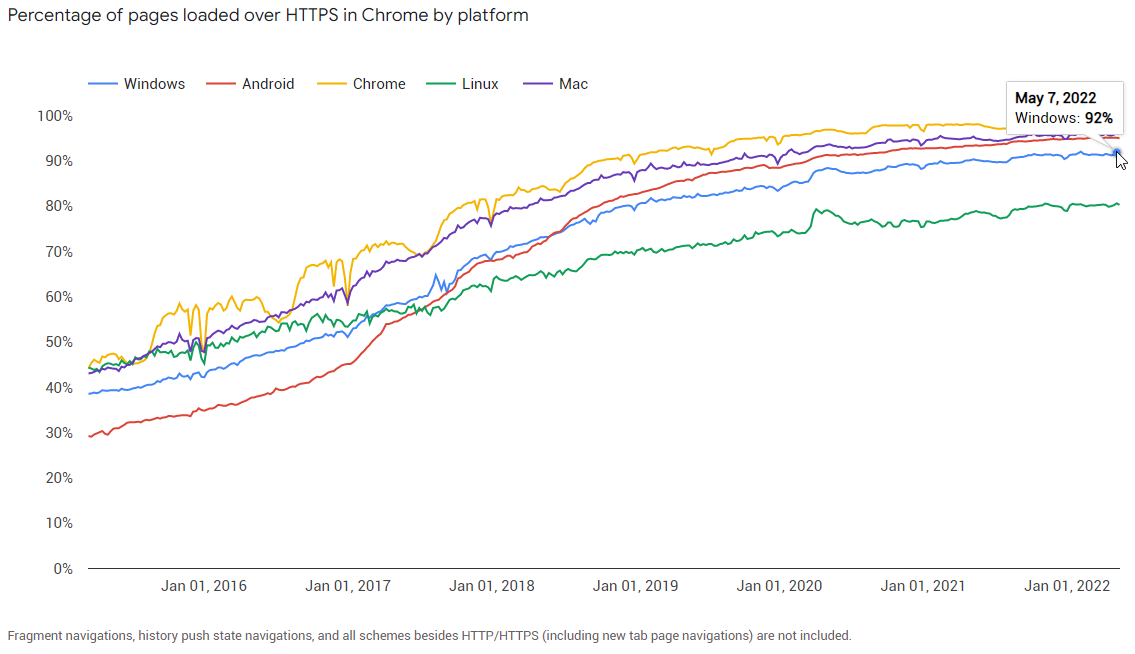
A3. See https://security.googleblog.com/2016/03/securing-web-together_15.html

Using HTTPS Properly

Disclaimer: I’m a big fan of Pandora. I’ve been a listener for a decade or more, and I started paying for an annual subscription even before there was any real incentive to do so, solely because I loved the service and wanted it to succeed. This post isn’t really about Pandora, per-se, but about common anti-patterns in the industry.

On Friday, I opened Pandora.com in my browser. Unlike my normal pattern of throwing its player tab in the background, I instead decided to click around a bit (I’m testing a new Chrome extension, more on that later). I immediately noticed that the player page was delivered over unsecure HTTP and I frowned.

Then I clicked Settings:

Settings link on Pandora

I was disappointed to see that the page remained over HTTP, and personal information was shown in the page:

Personal Info

Not good. While I have mixed feelings about network snoopers knowing what I’m listening to, I definitely get uncomfortable with the idea that they can see my email address, birth year, zip code, and more. With mounting concern, I clicked down to the Billing link:

Billing Info

Okay, so that’s not good. My full name, zip code, eight digits of my credit card number, and its expiration are all on display in a page delivered over an unprotected channel. Any network snooper can steal this information, or prompt me for more information as if it were the legitimate site.

Perhaps even more galling is the little logo at the bottom right, assuring me that my information is secure:

Norton Secured logo

Okay, so what’s going on here? I’ve encountered sites that aren’t protected with HTTPS at all before, but it’s relatively rare to see a legitimate site claim that it is using HTTPS when it’s not. And Pandora’s a public company, over a decade old, valued at over $2,500,000,000.

Maybe Fiddler will reveal something interesting. The Billing page itself comes over HTTP:

Insecure download of /billing page

… but it doesn’t actually contain my private data. My private data is instead pulled as a JSONP response from a HTTPS URL:

HTTPS request shown in Fiddler

So, my private data doesn’t travel over the network in cleartext. Safe, right?

No, not so fast.

The first problem here is that this is JSONP data, which means that the unsecure calling page has access to all of the data—JSONP is being used to circumvent same-origin-policy. So, while a network-based attacker can’t read my data directly off the wire, he can simply rewrite the HTTP page itself to leak the data.

Furthermore, as a user, I don’t have any way of knowing which parts of this page are trustworthy and which are not. As a consequence, attacker-injected script on this page could ask for a password, and a reasonable person would probably type it. I groaned at spending 20 minutes mocking this up, but it turned out that I don’t even have to… the original HTTP page itself can ask for the password!

Password prompt on HTTP page

There’s no way for the user to know whether this is a legitimate password prompt which will securely handle the user’s password, or a fake injected by an attacker on the network.

At this point, I’d seen enough, and decided to contact the security folks at Pandora. Unfortunately, the RFC2142-recommended email address security@pandora.com just bounces:

security@pandora.com does not exist

I also had a look at the HackerOne directory, but unfortunately there was no entry for Pandora.

March 9 Update: Pandora has enabled a security alias and registered it with the HackerOne Directory.

Okay, time for regular support channels. On Friday afternoon, I sent the following message to customer support:

SECURITY BUG

Your site needs to be using HTTPS for ALL pages. The way it’s designed today allows an attacker to steal all of the private information (credit card digits, expiration, email address, music choices, etc).

-Eric Lawrence

Around 22 hours later, I received the following response:

Hello Eric,

Thanks for writing!

Like a lot of sites these days, by default we only use SSL encryption (the actual under-the-hood technology behind an “https” connection) for the portions of our pages that accept or transmit financial data. This saves a lot of overhead, both on our end and within your own browser, by transmitting most of the page – background color, Pandora logo image and so on – via a non-secure (normal web “http”) connection.

The Verisign logo, and the “in good standing” account status we have with them (which you can see when you click the Verisign badge on our payment page), indicates that we’re really encrypting the parts of that page (like the credit-card-entry fields) that need to be encrypted.

You can see that here: https://trustsealinfo.verisign.com/splash?form_file=fdf/splash.fdf&dn=www.pandora.com&lang=en

As an added precaution, you can manually load https://pandora.com whenever you make a payment on the site or update your credit card information.

You can also upgrade using PayPal rather than entering your card information with us.

Let me know if you have any other questions about this. Thanks again for your support!

Groan. Perhaps the worst part about this response is that it’s clear that I’m not the first to complain about this.

Okay, let’s take this point-by-point:

Like a lot of sites these days, by default we only use SSL encryption (the actual under-the-hood technology behind an “https” connection) for the portions of our pages that accept or transmit financial data.

It’s true that some sites follow this insecure practice, but they’re almost all vulnerable to multiple forms of attack. Beyond the threat of an active man-in-the-middle, conducting most transactions in plaintext means that my ISP (or whoever is along the network path) can profile me (learning what artists I listen to, for instance) and sell that data to advertisers.

We needn’t rathole on the fact that that the Pandora servers thankfully don’t even support SSL anymore, allowing only TLS1 and later.

ProTip: If you think you’re clever enough to securely encrypt only part of your web application, you’re almost certainly wrong.

This saves a lot of overhead, both on our end and within your own browser, by transmitting most of the page – background color, Pandora logo image and so on – via a non-secure (normal web “http”) connection.

First off, TLS is plenty fast. Second, if a site sending an endless stream of 6mb MP3 files needs to optimize performance, it’s unlikely that the “background color” is really the problem. And if it is, using a 2.1K file which is visually identical to your 246K file is probably a good start, as is caching it for more than one day. But I digress.

The Verisign logo, and the “in good standing” account status we have with them (which you can see when you click the Verisign badge on our payment page), indicates that we’re really encrypting the parts of that page (like the credit-card-entry fields) that need to be encrypted.

You can see that here: https://trustsealinfo.verisign.com/splash?form_file=fdf/splash.fdf&dn=www.pandora.com&lang=en

The “Verisign logo” referenced here is actually a “Norton Secured, powered by Symantec” badge. I suspect that the agent had the wrong text because they’ve been copy/pasting the same incorrect information for years.

What this badge actually means is that they have a certificate, not that they’re using it properly. The Certificate Authority does not verify that you’re doing HTTPS properly. “In good standing” means only that your check cleared when you bought the certificate.

As an added precaution, you can manually load https://pandora.com whenever you make a payment on the site or update your credit card information.

Finally, we have a piece of new information—the site is available over HTTPS. Sorta.

Mixed Content notification

Security shouldn’t be optional; Pandora shouldn’t require users install browser add-ons (e.g. HTTPS Everywhere) or remember to type HTTPS every time to keep their information safe.

I emailed back and indicated that the response was inaccurate and requested my ticket be escalated to Pandora’s security team.

Sorry to hear you feel that way, Eric.

Thanks for writing in and sharing your thoughts with us. We value feedback from our listeners whether it’s positive or negative. Unfortunately, I am unable to put you in touch with our security team at this time.

So, that’s a no-go.

ProTip: Unless you want your frontline user-support team triaging security vulnerability reports, get a HackerOne account and hook up a security@ alias.

Since I promised that this post isn’t just about Pandora, here are two more screenshots:

Hulu Certificate Error

Hulu Insecure Login

It’s 2016. Bad actors are all over the network. Certificates are free. TLS is fast. Customers deserve better.

-Eric

March 9 Update: Pandora has enabled a security alias and registered it with the HackerOne Directory. They’ve also said “our engineering department is and has been actively working on transitioning http://www.pandora.com to HTTPS only.”

On Daylight Savings Time

In Fiddler, the Caching tab will attempt to calculate the cache freshness lifetime for responses that lack an explicit Expires or Cache-Control: max-age directive. The standard suggests clients use (0.1 * (DateTime.Now – Last-Modified)) as a heuristic freshness lifetime.

An alert Fiddler user noticed that the values he was seeing were slightly off what he expected: sometimes the values were 6 minutes shorter than he thought they should be.

Consider the following scenarios:

Last-Modified: February 28, 2016 01:00:00
Date: February 29, 2016 01:00:00
These are 24 hours apart (1440 minutes); 10% of that is 144 minutes.
Last-Modified: March 13, 2016 01:00:00
Date: March 14, 2016 01:00:00
Due to the “spring forward” adjustment of Daylight Savings Time, these values are just 23 hours apart (1380 minutes); 10% of that is 138 minutes.
Last-Modified: November 6, 01:00:00
Date: November 7, 01:00:00

Due to the “fall back” adjustment of Daylight Savings Time, these values are 25 hours apart (1500 minutes); 10% of that is 150 minutes.

So when a timespan encompasses an even number of those DST transitions, the effect cancels out. When a timespan encompasses an odd number of these DST transitions, the span is either an hour longer or an hour shorter than it would be if Daylight Savings Time did not exist.

-Eric

Out-of-Memory is (Usually) a Lie

  • The most common exception logged by Fiddler telemetry is OutOfMemoryException.
  • Yesterday, a Facebook friend lamented: “How does firefox have out of memory errors so often while only taking up 1.2 of my 8 gigs of ram?
  • This morning, a Python script running on my machine as a part of the Chromium build process failed with a MemoryError, despite 22gb of idle RAM.

Most platforms return an “Out of Memory error” if an attempt to allocate a block of memory fails, but the root cause of that problem very rarely has anything to do with truly being “out of memory.” That’s because, on almost every modern operating system, the memory manager will happily use your available hard disk space as place to store pages of memory that don’t fit in RAM; your computer can usually allocate memory until the disk fills up (or a swap limit is hit; in Windows, see System Properties > Performance Options > Advanced > Virtual memory).

So, what’s happening?

In most cases, the system isn’t out of RAM—instead, the memory manager simply cannot find a contiguous block of address space large enough to satisfy the program’s allocation request.

In each of the failure cases above, the process was 32bit. It doesn’t matter how much RAM you have, running in a 32bit process nearly always means that there are fewer than 3 billion addresses1 at which the allocation can begin. If you request an allocation of n bytes, the system must have n unused addresses in a row available to satisfy that request.

Making matters much worse, every active allocation in the program’s address space can cause “fragmentation” that can prevent future allocations by splitting available memory into chunks that are individually too small to satisfy a new allocation with one contiguous block.

Out-of-address-space

Running out of address space most often occurs when dealing with large data objects like arrays; in Fiddler, a huge server response like a movie or .iso download can be problematic. In my Python script failure this morning, a 1.3gb file (chrome_child.dll.pdb) needed to be loaded so its hash could be computed. In some cases, restarting a process may resolve the problem by either freeing up address space, or by temporarily reducing fragmentation enough that a large allocation can succeed.

Running 64-bit versions of programs will usually eliminate problems with address space exhaustion, although you can still hit “out-of-memory” errors before your hard disk is full. For instance, to limit their capabilities and prevent “runaway” allocations, Chrome’s untrusted rendering processes run within a Windows job object with a 4gb memory allocation limit:

Job limit 4gb shown in SysInternals Process Explorer

Elsewhere, the .NET runtime restricts individual array dimensions to 2^31 entries, even in 64bit processes2.

-Eric Lawrence

1 If a 32bit application has the LARGEADDRESSAWARE flag set, it has access to s full 4gb of address space when run on a 64bit version of Windows.

2 So far, four readers have written to explain that the gcAllowVeryLargeObjects flag removes this .NET limitation. It does not. This flag allows objects which occupy more than 2gb of memory, but it does not permit a single-dimensional array to contain more than 2^31 entries.

Things I’ve Learned in my first weeks on Chrome

This is a stub post which will be updated periodically.

It would be impossible to summarize how much I’ve learned in the last six weeks working at Google, but it’s easy to throw together some references to the most interesting and accessible things I’ve learned. So that’s this post.

Developing Chrome

Searching the code is trivial. You don’t need to know C++ to read C++. And if you can write C++, the process of adding new code to Chrome isn’t too crazy.

Creating bugs is easy: https://crbug.com

Developing Chrome extensions is easy and approximately 5% as hard as building IE extensions.

Using Chrome

PM’ing at Microsoft was all about deleting email. Surviving at Google is largely an exercise in tab management, since nearly everything is a web page. QuickTabs allows you to find that tab you lost with a searchable most-recently-used list.

You can CTRL+Click *multiple* Chrome tabs and drag your selections out into a new window (unselected tabs temporarily dim). Use SHIFT+Click if you’d prefer to select a range of tabs.

Hit SHIFT+DEL when focused on unwanted entries in the omnibox (addressbar) dropdown to get rid of them.

Want to peek under the hood? Load chrome://chrome-urls to see all of the magic URLs that Chrome supports for examining and controlling its state, caches, etc. For instance, the ability to view network events and export them to a JSON log file (see chrome://net-internals), later importing those events to review them using the same UI is really cool. Other cool pages are chrome://tracing, chrome://crashes, and chrome://plugins/.

Chrome uses a powerful system of experimental field trials; your Chrome instance might behave differently than everyone else’s.

Web Developers and Footguns

If you offer web developers footguns, you’d better staff up your local trauma department.

In a prior life, I wrote a lot about Same-Origin-Policy, including the basic DENY-READ principle that means that script running in the context of origin A.com cannot read content from B.com. When we built the (ill-fated) XDomainRequest object in IE8, we resisted calls to enhance its power and offer dangerous capabilities that web developers might misconfigure. As evidence that even experienced web developers could be trusted to misconfigure almost anything, we pointed to a high-profile misconfiguration of Flash cross-domain policy by a major website (Flickr).

For a number of reasons (prominently including unwillingness to fix major bugs in our implementation), XDomainRequest received little adoption, and in IE10 IE joined the other browsers in supporting CORS (Cross-Origin-Resource-Sharing) in the existing XMLHttpRequest object.

The CORS specification allows sites to allow extremely powerful cross-origin access to data via the Access-Control-Allow-Origin and Access-Control-Allow-Credentials headers. By setting these headers, a site effectively opts-out of the bedrock isolation principle of the web and allows script from any other site to read its data.

Evan Johnson recently did a scan of top sites and found over 600 sites which have used the CORS footgun to disable security, allowing, in some cases, theft of account information, API keys, and the like. One of the most interesting findings is that some sites attempt to limit their sharing by checking the inbound Origin request header for their own domain, without verifying that their domain was at the end of the string. So, victim.com is vulnerable if the attacker uses an attacking page on hostname victim.com.Malicious.com or even AttackThisVictim.com. Oops.

Vulnerability Checklist

For your site to be vulnerable, a few things need to be true:

1. You send Access-Control-Allow headers

If you’re not sending these headers to opt-out of Same-Origin-Policy, you’re not vulnerable.

2. You allow arbitrary or untrusted Origins

If your Access-Control-Allow-Origin header only specifies a site that you trust and which is under your control (and which is free of XSS bugs), then the header won’t hurt you.

3. Your site serves non-public information

If your site only ever serves up public information that doesn’t vary based on the user’s cookies or authentication, then same-origin-policy isn’t providing you any meaningful protection. An attacker could scrape your site from a bot directly without abusing a user’s tokens.

Warning: If your site is on an Intranet, keep in mind that it is offering non-public information—you’re relying upon ambient authorization because your sites’ visitors are inside your firewall. You may not want Internet sites to be able to be able to scrape your Intranet.

Warning: If your site has any sort of login process, it’s almost guaranteed that it serves non-public information. For instance, consider a site where I can log in using my email address and browse some boring public information. If any of the pages on the site show me my username or email address, you’re now serving non-public information. An attacker can scrape the username or email address from any visitor to his site that also happens to be logged into your site, violating the user’s expectation of anonymity.

Visualizing in Fiddler

In Fiddler, you can easily see Access-Control policy headers in the Web Sessions list. Right-click the column headers, choose Customize Columns, choose Response Headers and type the name of the Header you’d like to display in the Web Sessions list.

Add a custom column

For extra info, you can click Rules > Customize Rules and add the following inside the Handlers class:


public static BindUIColumn("Access-Control", 200, 1)
function FillAccessControlCol(oS: Session): String {
  if (!oS.bHasResponse) return String.Empty;
  var sResult = String.Empty;
  var s = oS.ResponseHeaders.AllValues("Access-Control-Allow-Origin");
  if (s.Length > 0) sResult += ("Origin: " + s);

  if (oS.ResponseHeaders.ExistsAndContains(
    "Access-Control-Allow-Credentials", "true"))
  {
    sResult += " +Creds";
  }

  var s = oS.ResponseHeaders.AllValues("Access-Control-Allow-Methods");
  if (s.Length > 0) sResult += (" Methods: " + s);

  var s = oS.ResponseHeaders.AllValues("Access-Control-Allow-Headers");
    if (s.Length > 0) sResult += (" SendHdrs: " + s);

  var s = oS.ResponseHeaders.AllValues("Access-Control-Expose-Headers");
  if (s.Length > 0) sResult += (" ExposeHdrs: " + s);

  return sResult;
}

-Eric

Leaking Keystrokes

Windows 10’s IE11 continues to send your keystrokes over the internet in plaintext as you type in the address bar, a part of the “Search Suggestions” feature:

failing

“But I don’t search from the address bar,” you might say.

That may be, but if you fail to type or paste a URL (sans protocol) into the address bar, all of that text gets leaked too:

Danger

This problem doesn’t exist in Edge (which always gets search suggestions from Bing, regardless of your Search Provider, but it at least uses HTTPS). It also doesn’t occur in Firefox’s or Chrome’s provider for Bing Search, or if you use Google or Yahoo search providers in Internet Explorer.