Browser Architecture: Web-to-App Communication Overview

This is an introduction/summary post which will link to individual articles about browser mechanisms for communicating directly between web content and native apps on the local computer (and vice-versa).

This series aims to provide, for each mechanism, information about:

  • On which platforms is it available?
  • Can the site detect that the app/mechanism is available?
  • Can the site send more than one message to the application without invoking the mechanism again, or is it fire-and-forget?
  • Can the application bidirectionally communicate back to the web content via the same mechanism?
  • What are the security implications?
  • What is the UX?

Application Protocols

Read my Blog post.

tl;dr: Apps can register url protocol schemes (e.g. myapp://mydata). Browsers will spawn the native apps when directed to navigate to a url of that scheme.

Characteristics: Fire-and-Forget. Generally non-detectable. Supported across all browsers for decades, supported on desktop platforms, but typically not mobile platforms. Prompts on launch by default, but warnings usually can be suppressed.

Native Messaging via Extensions

Read my Blog post.

tl;dr: Browser extensions can communicate with a local native app using stdin/stdout channels, passing JSON between the app and the extension. The extension may pass information to/from web content if desired.

Characteristics: Bi-directional communications. Detectable. Supported across most modern browsers; not legacy IE. Dunno about Safari. Installing extensions requires a prompt, and installing Native Hosts requires a local application installation, but post-install, communication is (usually) silent.

File downloads (Traditional)

Blog Post – I gave a long talk on this topic at a conference.

tl;dr: Apps can register to handle file types of their choosing. The user may spawn the app to open the downloaded file.

Characteristics: Fire-and-Forget. Non-detectable (can’t tell if the user has the app). Supported across all browsers in default configurations, although administrators may restrict download of certain file types. Shows prompts for most file types, but some browsers allow bypassing the prompt.

DirectInvoke of File downloads

Read my Blog post.

tl;dr: Internet Explorer/Edge support DirectInvoke, a scheme whereby a file handler application is launched with a URL instead of a local file.

Characteristics: Fire-and-Forget. Non-detectable. Windows only. Supported in Internet Explorer, Edge 18 and below, and Edge 78 and above. Degrades gracefully into a traditional file download in unsupported browsers.

Drag/Drop

Blog Post – Coming someday.

tl;dr: Users can drag/drop files into and out of the browser.

Bi-directional. Awkward. “Looks like” a file upload or download in most ways.

System Clipboard

Blog Post – Coming someday.

tl;dr: Much in common with drag/drop: Web Pages and local applications can read and write the shared clipboard. You can pass limited types of data this way, and sometimes attackers do.

Bi-directional. Awkward. If you don’t immediately use and clear the clipboard, some other site/app with access to it might read or overwrite your data.

Local Web Server

Blog Post – Coming someday.

tl;dr: Apps can run a HTTP(S) server on localhost and internet webpages can communicate with that server using fetch/XHR/WebSocket/WebRTC etc.

Requires calling page be a secure context. Potential future restrictions: may require internal website to respond to a CORS pre-flight

Update: As of 2026, such connections require that the user approve a permission request:
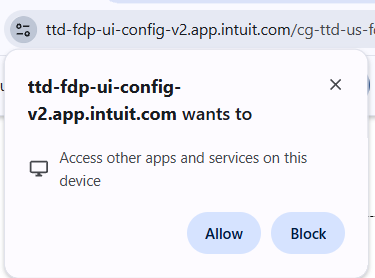
Permission Prompt for Loopback communication in Chrome 147

Characteristics: Bi-directional communications directly from web pages. Detectable. Supported across all browsers. Not available on mobile. Complexities around Secure Contexts / HTTPS, and loopback network protections in Edge18/IE AppContainers and upcoming restrictions in Chromium.

Risks: Webservers are complicated and present a lot of attack surface. Many products have gotten this wrong; beware of DNS Rebinding attacks

This capability has also been abused as a tracking-vector and for other abuse.

Local Web Server- Challenges with HTTPS

In many cases, HTTPS pages may not send requests to HTTP URLs (depending on whether the browser supports the new “SecureContexts” feature that treats http://localhost as a secure context, and not as mixed content. As a result, in some cases, applications wish to get a HTTPS certificate for their local servers.

Getting a trusted certificate for a non-public server is complex and error-prone. Many vendors used a hack, whereby they’d get a publicly-trusted certificate for a hostname (e.g. loopback.example.com) for which they would later use DNS to point at 127.0.0.1. However, doing things this way requires putting the certificate’s private key in the service software on the client (where anyone can steal it). After that private key is extracted and released, anyone can abuse it to MITM connections to services using that certificate. In practice, this attack is of limited interest (it’s not useful for attacking traffic broadly) but compromise of a private key means that the certificate must be revoked per the rules for CAs. So that’s what happens. Over and over and over.

The inimitable Ryan Sleevi wrote up a short history of the bad things people do here after Atlassian got dinged for doing this wrong.

Prior to Atlassian, Amazon Music’s web exposure can be found here: https://medium.com/0xcc/what-the-heck-is-tcp-port-18800-a16899f0f48f

How to do this right? There’s a writeup of how Plex got HTTPS certificates for their local servers. See Emily Stark’s post to explore this further.

There exist WebRTC tricks to bypass HTTPS requirements.

—–

Notes: https://wicg.github.io/cors-rfc1918/#mixed-content

Andrew (@drewml) tweeted at 4:23 PM on Tue, Jul 09, 2019:
The @zoom_us vuln sucks, but it’s definitely not new. This was/is a common approach used to sidestep the NPAPI deprecation in Chrome. Seems like a @taviso favorite:
Anti virus, logitech, utorrent. (https://twitter.com/drewml/status/1148704362811801602?s=03)

Bypass of localhost CORS protections by utilizing GET request for an Image
https://bugs.chromium.org/p/chromium/issues/detail?id=951540#c28

Variant: Public HTTPS Server as a Cloud Broker

An alternative approach would be to communicate indirectly. For instance, a web application and a client application using HTTPS/WebSockets could each individually communicate to a common server on the public internet which brokers messages between them.

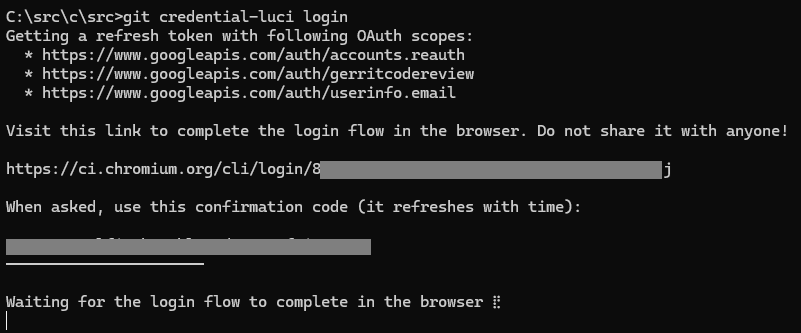
I think Chromium’s engineering system is currently using this during the authentication process:
HTML5 getInstalledRelatedApps()

While not directly an API to communicate with a local app, the getInstalledRelatedApps() method allows your web app to detect whether a native app is installed on a user’s device, allowing the web app to either suggest that users install the native client, or navigate the user to a web-based equivalent app if the native app isn’t installed. On Windows, this API only supports discovery of UWP Apps, not classic Win32 applications.

This mechanism attempts to provide better privacy and performance characteristics than the defunct mechanisms once offered by Internet Explorer (User-Agent string tokens or Version Vectors that could be targeted by that browser’s Conditional Comments feature).

Learn more

Allow navigation to certain namespaces (domains) to be handed off to a native application on the local device. So, when you navigate to https://netflix.com/, for instance, the Netflix App opens instead. Registered handlers can be found in the “Apps for websites” section of the Windows Control Panel:
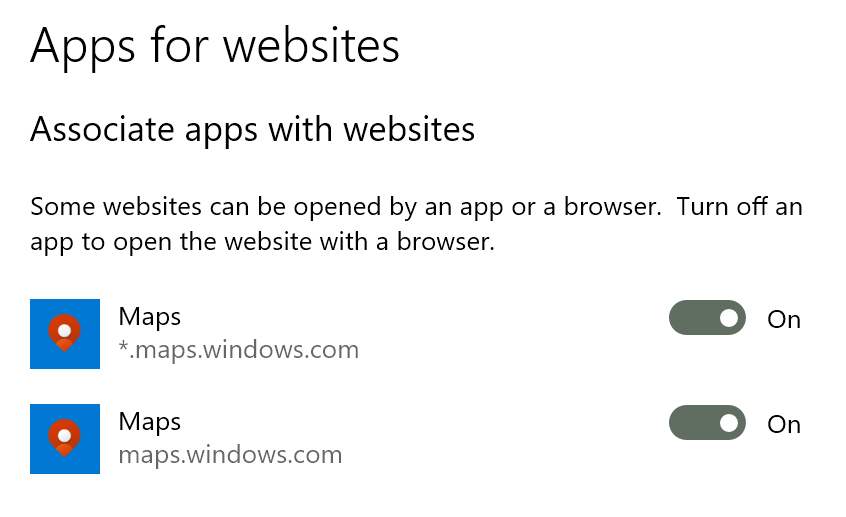
This feature is commonly available on mobile operating systems (e.g. Android) and was supported briefly in Legacy Edge on Windows 10, where it caused a fair amount of user annoyance, because sometimes users really do want to stay in the browser. This feature is not supported in the new Edge, Chrome, or Firefox.

Android AppLinks

Basically the same as Windows AppLinks: your app’s manifest declares ownership over URLs in your HTTPS domain’s namespace. Learn more.

Android Intents

Very similar to App Protocols, a web page can launch a native Android application to handle a particular task. See this blog paul.kinlan.me/launch-app-from-web-with-fallback/ and learn more and more and more and more.

Windows .NET ClickOnce

Internet Explorer, Edge Legacy, and the new Edge support a Microsoft application deployment technology named ClickOnce. A website can include a link to a ClickOnce .application file, and when the client uses DirectInvoke to spawn the ClickOnce app, it will pass the full URL, including any query string arguments, into that app.

Other browsers (e.g. Firefox and Chrome) will download the .application and launch it, but any querystring arguments on the download URL will not be passed to the application unless you install a browser extension.

Android Instant Apps

Basically, the idea is that navigating to a website can stream/run an Android Application. Learn more.

Legacy Plugins/ActiveX architecture

Please no!

Characteristics: Support has been mostly removed from nearly all browsers. Bi-directional communications. Detectable. Generally not available on mobile. One of the biggest sources of security risk in web platform history.

Browser Devs Only: Site-Locked Private APIs

Browser vendors have the ability to expose powerful APIs to only a subset of web pages loaded within the browser.

Chromium has a built-in facility to limit certain DOM APIs to certain pages, mostly to enable powerful APIs to certain built-in chrome:// pages. However, this capability can also be used to lock an API to a list of https:// sites. For instance, Microsoft Edge Marketing webpages have the ability to direct Edge to launch certain user-experiences, and the Edge New Tab Page has access to some JavaScript APIs that allow web content from the New Tab Page website to interact with native code in the browser.

Site-Locked Private APIs are expensive to build and have serious security and privacy implications (an XSS on an allow-listed site would allow an attacker to abuse its Private API permissions). Even without a site vulnerability, most pages can be modified by many browser extensions, such that a private API could be abused by any extension with the ability to modify a page that is allowlisted by a privileged API.

Furthermore, these Private APIs sometimes have implications for Open Standards and legal regulations that can make them very difficult to build.

Site-Locked Private APIs are not typically something that Web Developers or the public in general can add or make use of– these are typically only available for the developer of the browser itself.

Browser Devs Only: Native Url Protocols

In a similar vein, browser developers have the ability to add new Native URL Protocols to the browser, allowing the browser to send and receive data from a custom URL scheme whose code is a part of the browser itself. (Internet Explorer allowed any code to supply the implementation, a huge security nightmare).

Native URL protocol functionality is used, for example, by the edge: URL scheme to return the web content that implements Edge’s settings pages.

Adding new native URL protocols is very expensive and has serious security implications. I wrote a post where you can learn more about the implications of adding protocol schemes to Chromium.

Browser Devs Only: NavigationThrottles and ResourceThrottles

Browser developers have the ability to introduce custom behaviors when performing navigations or downloading resources from websites. Commonly, this might entail adding custom HTTP request headers or setting cookies when navigating to particular websites. Within Chromium there exist throttles (NavigationThrottles and ResourceThrottles) which easily expose this power to the browser developer.

For example, browsers might add authentication tokens in cookies or headers sent when navigating to login pages to avoid asking users for their passwords; this is how a Single Sign On mechanism works. Similarly, Edge sends a custom HTTP request header (PreferAnonymous) when navigating to the user’s default search engine while the user is in InPrivate mode so that the website can respect that privacy expectation.

FootGun: Cookie Database Manipulation

Native App Developers have a lot of power — their code runs at full-trust and generally can see most all files on the system. Feeling clever, some app developers have thought to themselves: “Hey, the browser stores its cookies in a SQLite database on disk. I can just open that and add cookies to it which the browser will send the next time the user visits a site I want to communicate with.” For example, the Bing Wallpaper app tried to set a cookie that would let the Bing website know to stop asking the user to install the native app.

Do not do this.

The problem is that modifying browser cookie databases on disk is not supported, and not supportable. The schema for cookie databases changes from time-to-time, and browsers have started opening the database with an exclusive lock, causing a loss of all cookies if the browser opens while your app has a handle on the database.

Beyond those insurmountable challenges, there are more obvious ones that also preclude similar approaches. For example, a user may use any of dozens of browsers, and they may have multiple profiles for each browser — how do you decide where to write the cookie? Do you write it in every profile of every browser?
Spying on HTTPS

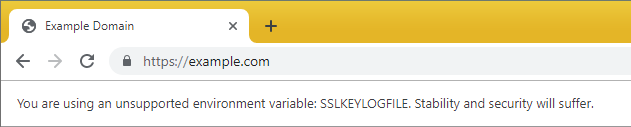
When I launched Chrome on Thursday, I saw something unexpected:

SSLKeyLogfile

While most users probably would have no idea what to make of this, I happened to know what it means– Chrome is warning me that the system configuration has instructed it to leak the secret keys it uses to encrypt and decrypt HTTPS traffic to a stream on the local computer.

Looking at the Chrome source code, this warning was newly added last week. More surprising was that I couldn’t find the SSLKeyLogFile setting anywhere on my system. Opening a new console showed that it wasn’t set:

C:\WINDOWS\system32>set sslkeylogfile
Environment variable sslkeylogfile not defined

…and opening the System Properties > Advanced > Environment Variables UI showed that it wasn’t set for either my user account or the system at large. Weird.

Fortunately, I understood from past investigations that a process can have different environment variables than the rest of the system, and Process Explorer can show the environment variables inside a running process. Opening Chrome.exe, we see that it indeed has an SSLKEYLOGFILE set:

SSLKeyLogfileEB

The unusual syntax with the leading \\.\ means that this isn’t a typical local file path but instead a named pipe, which means that it doesn’t point to a file on disk (e.g. C:\temp\sslkeys.txt) but instead to memory that another process can see.

My machine was in this state because earlier that morning, I’d installed Avast Antivirus to attempt to reproduce a bug a Chrome user encountered. Avast is injecting the SSLKEYLOGFILE setting so that it can conduct a monster-in-the-browser attack (MITB) and see the encrypted traffic going into Chrome.

Update: In February 2024, Avast was assessed a $16.5M fine by the FTC over their handling of data gathered via this technique.

Makers of antivirus products know that browsers are one of the primary vectors by which attackers compromise PCs, and as a consequence their security products often conduct MITB attacks in order to scan web content. Antivirus developers have two common techniques to scan content running in the browser:

  1. Code injection
  2. Network interception

Code Injection

The code injection technique relies upon injecting security code into the browser process. The problem with this approach is that native code injections are inherently fragile– any update to the browser might move its functions and data structures around such that the security code will fail and crash the process. Browsers discourage native code injection, and the bug I was looking at was related to a new feature, RendererCodeIntegrity, that directs the Windows kernel to block loading of any code not signed by Microsoft or Google into the browser’s renderer processes.

An alternative code-injection approach relies upon using a browser extension that operates within the APIs exposed by the browser– this approach is more stable, but can address fewer threats.

Even well-written code injections that don’t cause stability problems can cause significant performance regressions for browsers– when I last looked at the state of the industry, performance costs for top AV products ranged from 20% to 400% in browser scenarios.

Network Interception

The Network interception technique relies upon scanning the HTTP and HTTPS traffic that goes into the browser process. Scanning HTTP traffic is straightforward (a simple proxy server can do it), but scanning HTTPS traffic is harder because the whole point of HTTPS is to make it impossible for a network intermediary to view or modify the plaintext network traffic.

Historically, the most common mechanism for security-scanning HTTPS traffic was to use a monster-in-the-middle (MitM) proxy server running on the local computer. The MITM would instruct Windows to trust a self-signed root certificate, and it would automatically generate new interception certificates for every secure site you visit. I spent over a decade working on such a MITM proxy server, the Fiddler Web Debugger. Many Enterprise security products offer a MitM (“TLS Inspection”) option, including products from Palo Alto, Broadcom, and Microsoft’s own Entra Internet Access.

There are many problems with using a MitM proxy, however. The primary problem is that it’s very very hard to ensure that it behaves exactly as the browser does and that it does not introduce security vulnerabilities. For instance, if the MITM’s certificate verification logic has bugs, then it might accept a bogus certificate from a spoof server and the user would not be warned– Avast used to use a MITM proxy and had exactly this bug; they were not alone. Similarly, the MITM might not support the most secure versions of protocols supported by the browser and server (e.g. TLS/1.3) and thus using the MITM would degrade security. Some protocol features (e.g. Client Certificates) are incompatible with MITM proxies. And lastly, some security features (specifically certificate pinning) are fundamentally incompatible with MITM certificates and are disabled when MITM certificates are used.

Given the shortcomings of using a MITM proxy, it appears that Avast has moved on to a newer technique, using the SSLKeyLogFile to leak the secret keys HTTPS negotiates on each connection to encrypt the traffic. Firefox and Chromium support this feature, and it enables decryption of TLS traffic without using the MITM certificate generation technique. While browser vendors are wary of any sort of interception of HTTPS traffic, this approach is generally preferable to MITM proxies.

There’s some worry that Chrome’s new notification bar might drive security vendors back to using more dangerous techniques, so this notification might not make its way into the stable release of Chrome.

When it comes to browser architecture, tradeoffs abound.

-Eric

PS: I’m told that Avast may be monetizing the data they’re decrypting.
Update: In February 2024, Avast was assessed a $16.5M fine by the FTC over their handling of data gathered via this technique.

Appendix: Peeking at the Keys

If we point the SSLKeyLog setting at a regular file instead of a named pipe:

chrome --ssl-key-log-file=C:\temp\sslkeys.txt

…we can examine the file’s contents as we browse to reveal the encryption keys:

ExportedKeys

This file alone isn’t very readable for a human (even if you read Mozilla’s helpful file format documentation), but you can configure tools like Wireshark to make use of it and automatically decrypt captured TLS traffic back to plaintext.

Livin’ on the Edge: Dude Where’s My Fix?!? (Redux)

In my last post, I showed you how to use OmahaProxy’s Find Releases tool to discover which versions of Chrome contain a given bugfix.

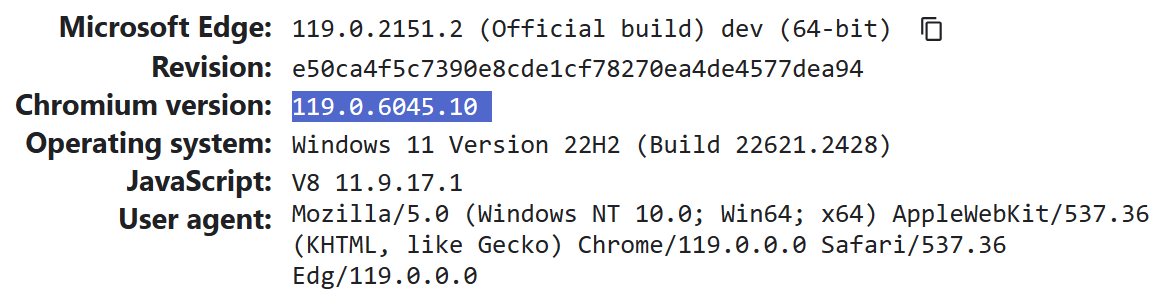
I noted that if you’re using Microsoft’s new Chromium-based Edge, you can look at the edge://version page or this extension to see the upstream Chrome version upon which Edge is based:

Oct 2022 Update: Unfortunately, the edge://version page approach no longer works. The browser has started sanitizing the User-Agent string to zero out all of the sub-build number information in the User-Agent string, such that Edge will now claim e.g. Chrome/106.0.0.0. I’ve filed a bug on the Edge team asking them to add a new field to the edge://version page. The extension works properly:

ShowChromeVersion

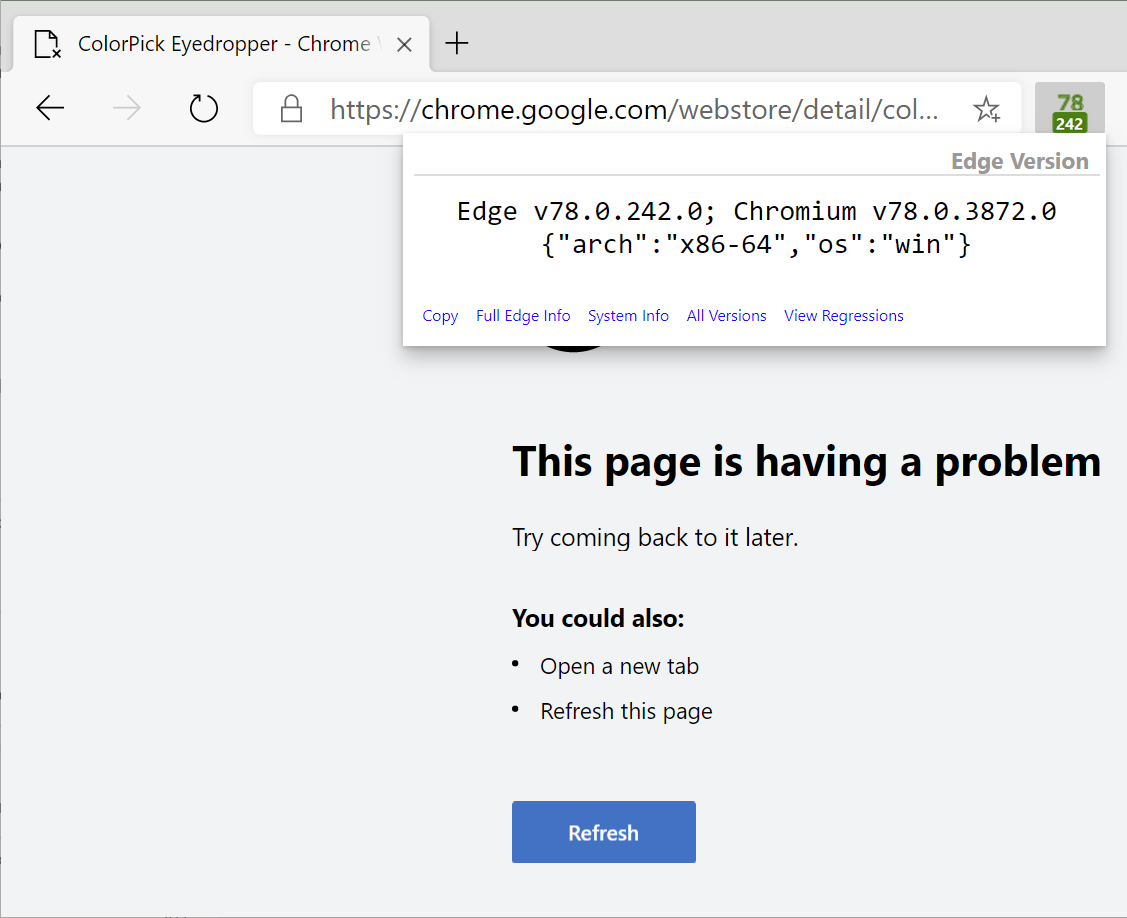
Until today, I never realized that this version number can be off-by-one. I noticed this discrepancy after complaints about a nasty bug in Edge that caused a bunch of webpage renderers to crash. The fix, we learned from OmahaProxy, landed in version Chrome Canary 78.0.3872.0.

When Edge next updated, I was alarmed to see that the crash was still present, but the user-agent header contains Chrome/78.0.3872.0, the version that’s supposed to have the fix.

StillCrashing.png

What’s going on?

Chromium’s src/chrome/VERSION file gets updated shortly after the prior Chrome Canary ships, as you can see in this timeline:

  1. At 03:13 on Aug 1, /src/chrome/VERSION was updated to 3872.
  2. Around 04:00 on Aug 1, Edge’s code pump ingested all of the commits from upstream Chromium into our internal integration branch, preparing for our 78.0.242 Canary build.
  3. At 11:20 on Aug 1, the fix for the crash landed.
  4. At 23:16 on Aug 1, the last commit from Chromium Master that went into Chrome Canary 78.0.3872 landed.
    Within a few hours, the Canary branch was declared an Official release.
  5. At 03:13 on Aug 2, /src/chrome/VERSION was updated to 3873.

Because Edge’s code pump pulled between when the version number was bumped to 3872 [1] and when the crasher’s fix landed [3], Edge ended up with a build that has the 3872 version number, but without the fix that went into Chrome Canary 78.0.3872.

So, for the moment at least, the safe way to be sure that a given Edge build has a given Chromium fix is to ensure that the Chrome token in the user-agent string is later than the Chrome Canary build number in which the patch first shipped.

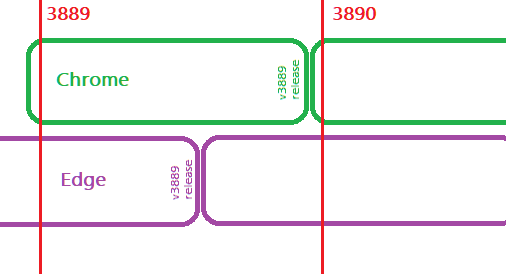
Chrome 3889 includes some fixes and bugs not present in Edge 3889

-Eric

Livin’ on the Edge: Dude Where’s My Fix?!?

Yesterday, we covered the mechanisms that modern browsers can use to rapidly update their release channels. Today, let’s look at how to figure out when an eagerly awaited fix will become available in the Canary channels.

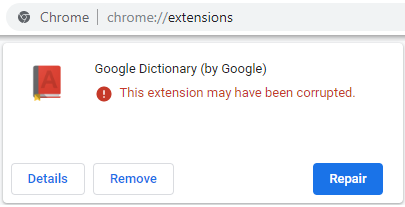
By way of example, consider crbug.com/977805, a nasty beast that caused some extensions to randomly be disabled and marked corrupt:

corruption

By bisecting the builds to find where the regression was introduced, we discovered that the problem was the result of a commit with hash fa8cdc81f5 that landed back on May 20th. This (probably security) change exposed an earlier bug in Chromium’s extension verification system such that an aborted request for a resource in an extension (say, because a page getting torn down just as a content script was getting injected) resulted in the verification logic thinking that the extension’s resource file was corrupted on disk.

On July 12th, the area owner landed a fix with the commit hash of cad2f6468. But how do I know whether my browser has this fix already? In what version(s) did the fix get released?

To answer these questions, we turn back to our trusted OmahaProxy. In the Find Releases box at the bottom, paste the full or partial hash value into the box and hit the Find Releases button:

UPDATE: OmahaProxy was deprecated. Find out where CLs were landed using the ChromiumDash tool instead. Just paste the commit id into the box:

… and the first release with the change will be listed. Click the title to see a full page about where the change went:

The system will churn for a bit and then return the following page:

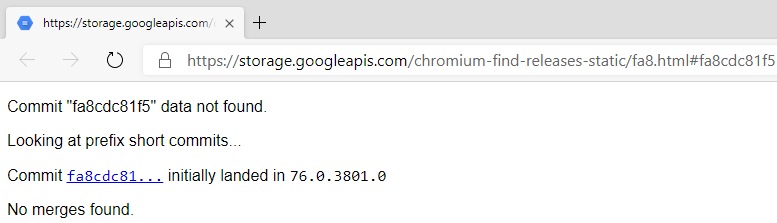
So, now we know two things: 1) The fix will be in Chromium-based browsers with version numbers later than 77.0.3852.0, and 2) So far, the fix only landed there and hasn’t been merged elsewhere.

Does it need to be merged? Let’s figure out where the original regression was landed using the same tool with the regressing change list’s hash:

regress
Now-deprecated OmahaProxy UI, but the ChromiumDash UI is similar enough.
regress

We see that the regression originally landed in Master before the Chrome 76 branch point, so the bug is in Chrome 76.0.3801 and later. That means that after the fix is verified, we’ll need to request that it be merged from Master where it landed, over to the 76 branch where it’s also needed.

Merged

We can see what that’ll look like by looking at the fix for crbug.com/980803. This regression in the layout engine was fixed by a1dd95e43b5 in 77, but needed to be put into Chromium 76 as well. So, it was, and the result is shown as:

Note: It’s possible for a merge to be performed but not show up here. The tool looks for a particular string in the merge’s commit message, and some developers accidentally remove or alter it.

Finally, if you’re really champing at the bit for a fix, you might run Find Releases on a commit hash and see

notyetin

Assuming you didn’t mistype the hash, what this means is that the fix isn’t yet in the Canary channel. If you were to clone the Chromium master @HEAD and build it yourself, you’d see the fix, but it’s not yet in a public Canary. In almost all cases, you’ll need to wait until the next morning (Pacific time) to get an official channel build with the fix.

Now, so far we’ve mostly focused on Chrome, but what about other Chromium-based browsers?

Things are mostly the same, with the caveat that most other Chromium-based browsers are usually days to weeks to (gulp) months behind Chrome Canary. Is the extensions bug yet fixed in my Edge Canary?

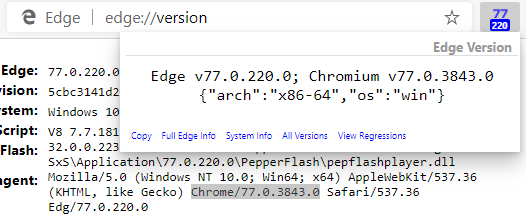
The simplest (and generally reliable) way to check is to just look at the Chrome version by visiting edge://version or using my handy Show Chrome Version browser extension.

Note: Edge began sanitizing the User-Agent string to zero out all of the sub-build number information in the User-Agent string, such that Edge will now claim e.g. Chrome/106.0.0.0. The Edge team added a new field to the edge://version page to show the upstream version.

As you can see in both places, Edge 77.0.220.0 Canary is based on Chromium 77.0.3843, a bit behind the 77.0.3852 version containing the extensions verification fix:

ShowChromeVersion

So, I’ll probably have to wait a few days to get this fix into my browser.

Warning: The “Chrome” token shown in Edge might be off-by-one. See my followup post for details.

Also, note that it’s possible for Microsoft and other Chromium embedders to “cherry-pick” critical fixes into our builds before our merge pump naturally pulls them down from upstream, but this is a relatively rare occurrence for Edge Canary. 

tl;dr: OmahaProxy was awesome; its replacement, ChromiumDash is also awesome.

-Eric

PS: To view the state of a code file as compiled into a particular build/branch, you can click the build number on ChromiumDash and then navigate into the folder containing the source file.

Great Product Support

And now for something completely different…

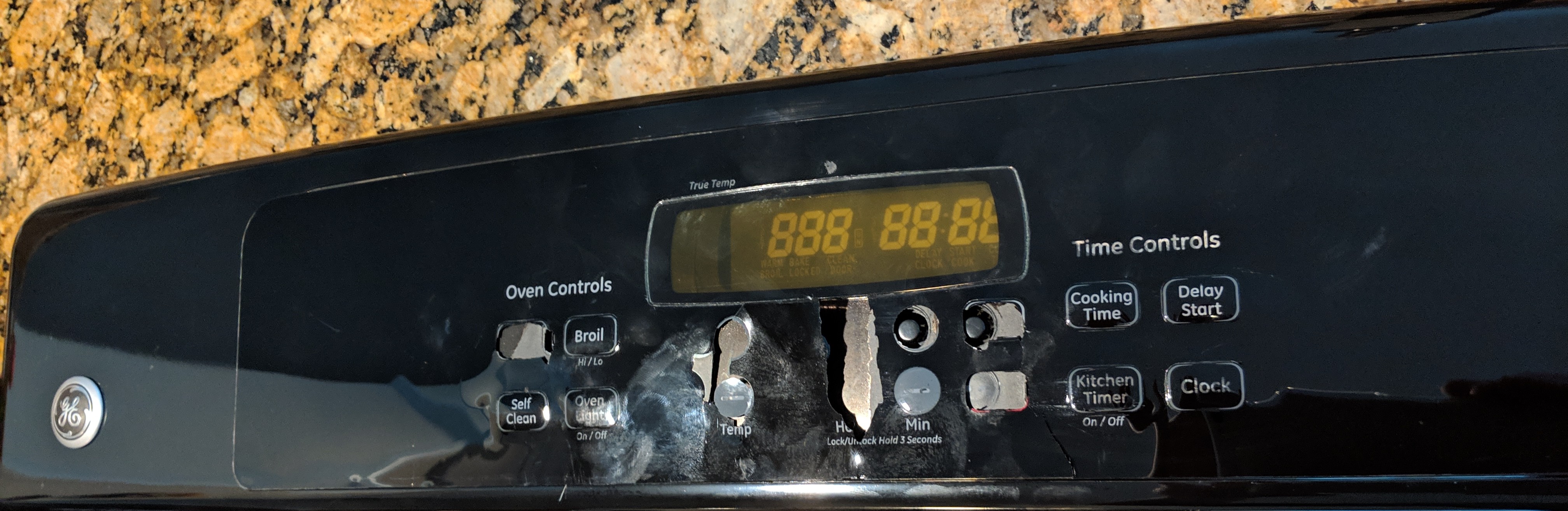
Shortly after we moved into our house in late 2012, the control panel on our GE Oven (model #JTP30B0M1BB) started to fall apart. The faceplate of the control panel was made of a plastic that wasn’t sufficiently heat-resistant. The labeled plastic began to bubble, crack, and peel. By 2018, the plastic covering many of the buttons had fallen off entirely. It looked bad, to put it mildly, as you can see in this photo I took after I took the panel off:

IMG_20190303_161013On a whim, I searched around to see whether maybe I could buy a new overlay to stick atop the old panel.

I learned that, far from being alone, so many other people had had this problem that GE had completely redesigned the control panel. A thread on a forum led me to the magic direct phone number to the GE Parts department (866-622-6184). We called and after supplying the model number and serial number of our oven, a free replacement control panel was on its way to our house. The new panel took under an hour to install, using just a screwdriver and socket wrench. Basically, turn off the power, unscrew the old panel, unplug 7 connections from the old panel, and plug them into the new panel.

IMG_20190303_161437.jpg

The new panel looks great, and the modified ventilation and layout seem much less likely to encounter any problem like this in the future.

IMG_20190716_224532

Beyond being happy about the outcome, I’m gob-smacked about this support process. I never would have expected GE to send a free replacement panel, especially considering that the oven was over ten years old and originally purchased by another buyer. We didn’t have to supply anything other than the serial number, didn’t get stuck on hold for tens of minutes, and we didn’t even pay for shipping.

I’m approximately 25 times more likely to buy an appliance from GE in the future.

And, I’m grateful for the Internet, because there’s no chance that I would’ve ever discovered this fix for a longstanding annoyance if it wasn’t so easy to find a community of people with the same problem offering helpful steps to resolve it.