Yesterday, we covered the mechanisms that modern browsers can use to rapidly update their release channels. Today, let’s look at how to figure out when an eagerly awaited fix will become available in the Canary channels.
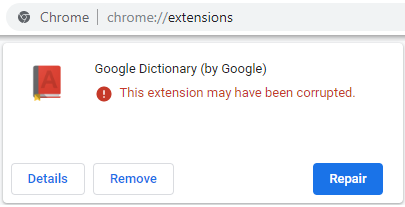
By way of example, consider crbug.com/977805, a nasty beast that caused some extensions to randomly be disabled and marked corrupt:
By bisecting the builds to find where the regression was introduced, we discovered that the problem was the result of a commit with hash fa8cdc81f5 that landed back on May 20th. This (probably security) change exposed an earlier bug in Chromium’s extension verification system such that an aborted request for a resource in an extension (say, because a page getting torn down just as a content script was getting injected) resulted in the verification logic thinking that the extension’s resource file was corrupted on disk.
On July 12th, the area owner landed a fix with the commit hash of cad2f6468. But how do I know whether my browser has this fix already? In what version(s) did the fix get released?
To answer these questions, we turn back to our trusted OmahaProxy. In the Find Releases box at the bottom, paste the full or partial hash value into the box and hit the Find Releases button:
UPDATE: OmahaProxy was deprecated. Find out where CLs were landed using the ChromiumDash tool instead. Just paste the commit id into the box:
… and the first release with the change will be listed. Click the title to see a full page about where the change went:
The system will churn for a bit and then return the following page:
So, now we know two things: 1) The fix will be in Chromium-based browsers with version numbers later than 77.0.3852.0, and 2) So far, the fix only landed there and hasn’t been merged elsewhere.
Does it need to be merged? Let’s figure out where the original regression was landed using the same tool with the regressing change list’s hash:
Now-deprecated OmahaProxy UI, but the ChromiumDash UI is similar enough.
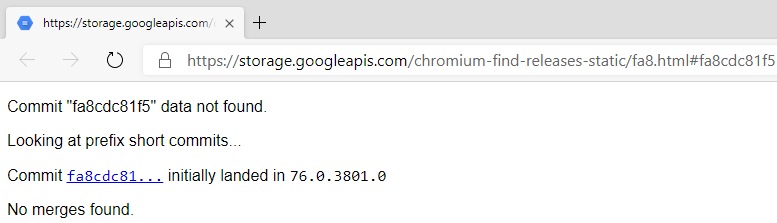
We see that the regression originally landed in Master before the Chrome 76 branch point, so the bug is in Chrome 76.0.3801 and later. That means that after the fix is verified, we’ll need to request that it be merged from Master where it landed, over to the 76 branch where it’s also needed.
We can see what that’ll look like by looking at the fix for crbug.com/980803. This regression in the layout engine was fixed by a1dd95e43b5 in 77, but needed to be put into Chromium 76 as well. So, it was, and the result is shown as:
Note: It’s possible for a merge to be performed but not show up here. The tool looks for a particular string in the merge’s commit message, and some developers accidentally remove or alter it.
Finally, if you’re really champing at the bit for a fix, you might run Find Releases on a commit hash and see
Assuming you didn’t mistype the hash, what this means is that the fix isn’t yet in the Canary channel. If you were to clone the Chromium master @HEAD and build it yourself, you’d see the fix, but it’s not yet in a public Canary. In almost all cases, you’ll need to wait until the next morning (Pacific time) to get an official channel build with the fix.
Now, so far we’ve mostly focused on Chrome, but what about other Chromium-based browsers?
Things are mostly the same, with the caveat that most other Chromium-based browsers are usually days to weeks to (gulp) months behind Chrome Canary. Is the extensions bug yet fixed in my Edge Canary?
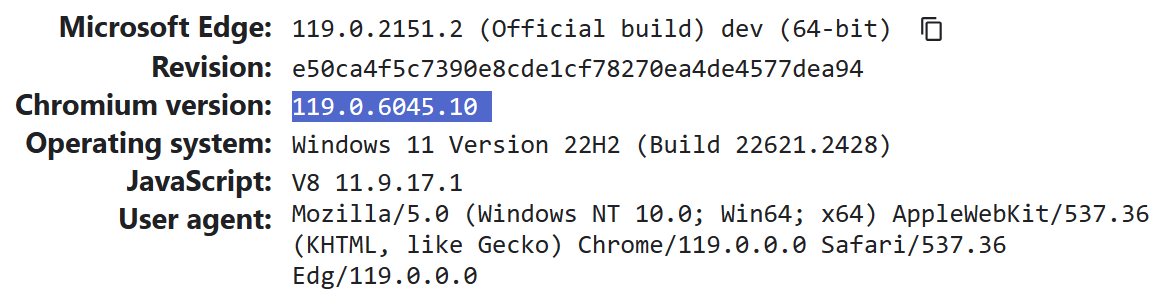
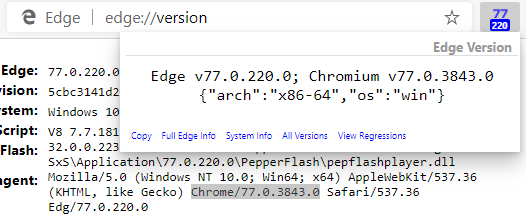
The simplest (and generally reliable) way to check is to just look at the Chrome version by visiting edge://versionor using my handy Show Chrome Version browser extension.
Note: Edge began sanitizing the User-Agent string to zero out all of the sub-build number information in the User-Agent string, such that Edge will now claim e.g. Chrome/106.0.0.0. The Edge team added a new field to the edge://version page to show the upstream version.
As you can see in both places, Edge 77.0.220.0 Canary is based on Chromium 77.0.3843, a bit behind the 77.0.3852 version containing the extensions verification fix:
So, I’ll probably have to wait a few days to get this fix into my browser.
Also, note that it’s possible for Microsoft and other Chromium embedders to “cherry-pick” critical fixes into our builds before our merge pump naturally pulls them down from upstream, but this is a relatively rare occurrence for Edge Canary.
tl;dr: OmahaProxy was awesome; its replacement, ChromiumDash is also awesome.
-Eric
PS: To view the state of a code file as compiled into a particular build/branch, you can click the build number on ChromiumDash and then navigate into the folder containing the source file.
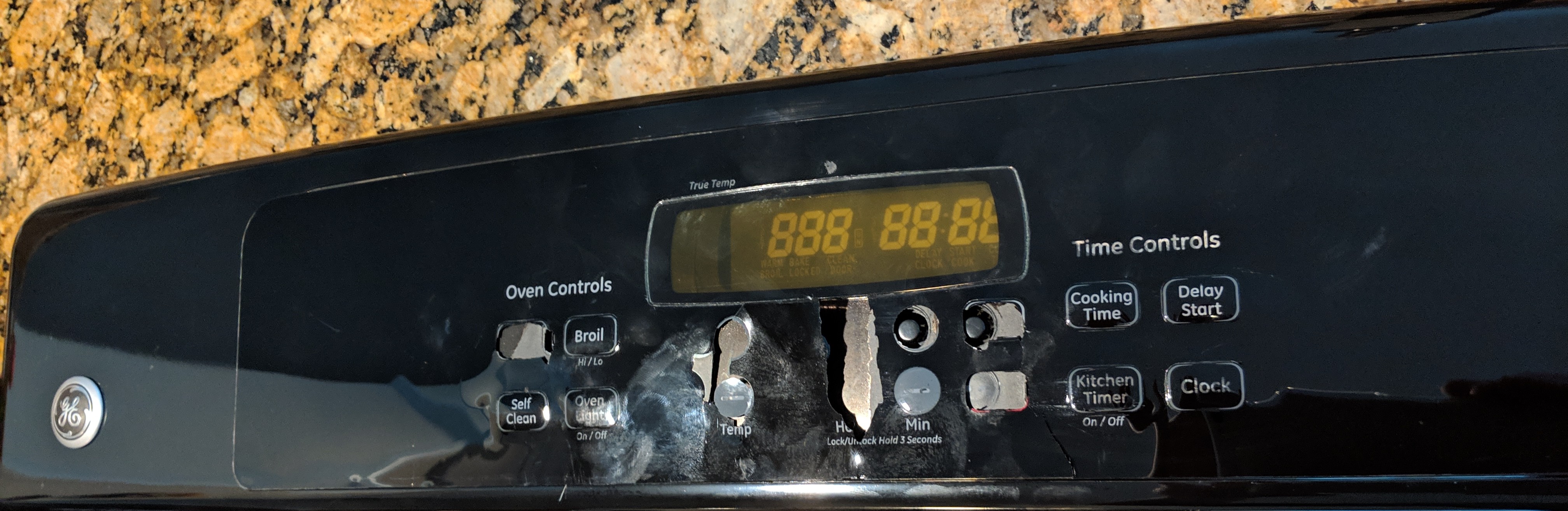
Shortly after we moved into our house in late 2012, the control panel on our GE Oven (model #JTP30B0M1BB) started to fall apart. The faceplate of the control panel was made of a plastic that wasn’t sufficiently heat-resistant. The labeled plastic began to bubble, crack, and peel. By 2018, the plastic covering many of the buttons had fallen off entirely. It looked bad, to put it mildly, as you can see in this photo I took after I took the panel off:
On a whim, I searched around to see whether maybe I could buy a new overlay to stick atop the old panel.
I learned that, far from being alone, so many other people had had this problem that GE had completely redesigned the control panel. A thread on a forum led me to the magic direct phone number to the GE Parts department (866-622-6184). We called and after supplying the model number and serial number of our oven, a free replacement control panel was on its way to our house. The new panel took under an hour to install, using just a screwdriver and socket wrench. Basically, turn off the power, unscrew the old panel, unplug 7 connections from the old panel, and plug them into the new panel.
The new panel looks great, and the modified ventilation and layout seem much less likely to encounter any problem like this in the future.
Beyond being happy about the outcome, I’m gob-smacked about this support process. I never would have expected GE to send a free replacement panel, especially considering that the oven was over ten years old and originally purchased by another buyer. We didn’t have to supply anything other than the serial number, didn’t get stuck on hold for tens of minutes, and we didn’t even pay for shipping.
I’m approximately 25 times more likely to buy an appliance from GE in the future.
And, I’m grateful for the Internet, because there’s no chance that I would’ve ever discovered this fix for a longstanding annoyance if it wasn’t so easy to find a community of people with the same problem offering helpful steps to resolve it.
What might be less obvious is that this six four week cadence represents an upper-bound for how long it might take for an important change to make its way to the user.
Background: Staged Rollouts
Chrome uses a staged rollout plan, which means only a small percentage (1%-5%) of users get the new version immediately. If any high-priority problems are flagged by those initial users, the rollout can be paused while the team considers how to best fix the problem. That fix might involve shipping a new build, turning off a feature using the experimentation server, or dynamically updating a component.
Let’s look at each.
Respins
If a serious security or functionality problem is found in the Stable Channel, the development team generates a respin of the release, which is a new build of the browser with the specific issue patched. The major and minor version numbers of the browser stay the same. For instance, on July 15th, Chrome Stable version 75.0.3770.100 was updated to 75.0.3770.142. Users who had already installed the buggy version in the channel are updated automatically, and users who haven’t yet updated to the buggy version will just get the fixed version when the rollout reaches them.
If you’re curious, you can see exactly which versions of Chrome are being delivered from Google’s update servers for each Channel using ChromiumDash.
Field Trial Flags
In some cases, a problem is discovered in a new feature that the team is experimenting with. In these cases, it’s usually easy for the team to simply remotely disable or reconfigure the experiment as needed using the experimental flags. The browser client periodically polls the development team’s servers to get the latest experimental configuration settings. Chrome codenames their experimental system “Finch,” while Microsoft calls ours “ECS” (Experimental Control System”) or “CFR” (Controlled Feature Rollout).
You can see your browser’s current field trial configuration by navigating to
chrome://version/?show-variations-cmd
The hexadecimal Variations list is generally inscrutable, but the Command-line variations section later in the page is often more useful and allows you to better understand what trials are underway. You can even use this list to identify the exact trial causing a particular problem.
Update: Chrome does not publish their field-trial configuration in human-readable form, but here is a tool to grab the complete configuration data from Google directly. In contrast, Edge’s configuration data is sent on a per-client basis, so there’s no way for the public to see the configuration for the entire population.
Components
In other cases, a problem is found in a part of the browser implemented as a “Component.” Components are much like hidden, built-in extensions that can be silently and automatically updated by the Component Updater.
The primary benefit of components is that they can be updated without an update to Chrome itself, which allows them to have faster (or desynchronized) release cadences, lower bandwidth consumption, and avoids bloat in the (already sizable) Chrome installer. The primary drawback is that they require Chrome to tolerate their absence in a sane way.
To me, the coolest part of components is that not only can they update without downloading a new version of the browser, in some cases users don’t even need to restart their browser to begin using the updated version of a component. As soon as a new version is downloaded, it can “take over” from the prior version.
To see the list of components in the browser, visit
chrome://components
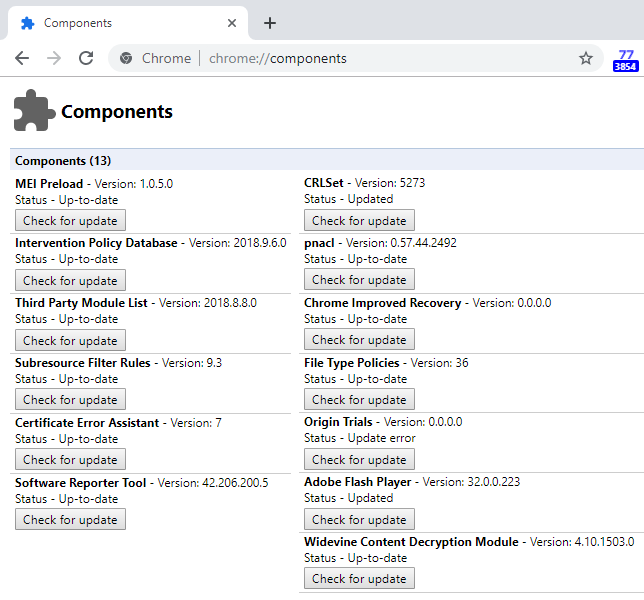
In my Chrome Canary instance, I see the following components:
As you can see, many of these have rather obtuse names, but here’s a quick explanation where I know offhand:
MEI Preload – Policies for autoplay (see chrome://media-engagement/ )
Intervention Policy – Controls interventions used on misbehaving web pages
Third Party Module – Used to exempt accessibility and other components from the Code Integrity protections on the browser’s process that otherwise forbid injection of DLLs.
Chrome Improved Recovery – Unsure, but comments suggest this is related to helping fix broken Google Updater services, etc.
File Type Policies – Maps a list of file types to a set of policies concerning how they should be downloaded, what warnings should be presented, etc. See below.
Origin Trials – Used to allow websites to opt-in to experimenting with future web features on their sites. Explainer.
Adobe Flash Player – The world’s most popular plugin, gradually being phased out; slated for complete removal in late 2020.
Widevine Content Decryption – A DRM system that permits playback of protected video content.
If you’re using an older Chrome build, you might see:
Zxcvbn Data Dictionaries – Password strength evaluator metadata(?)
Edge AutoLaunch Protocols – Allow certain sites to launch certain protocols without a prompt. See this post.
Domain Actions – Allow Edge to apply certain compatibility overrides on specific sites.
Well Known Domains – A list of popular and generally reputable sites used by a variety of features.
If you’re using the Chromium-derived Brave browser, you’ll see that brave://components includes a bunch of extra components, including “Ad Blocker”, “Tor Client”, “PDF Viewer”, “HTTPS Everywhere”, and “Local Data Updater.”
If you’re using Chrome on Android, you might notice that it’s only using three components instead of thirteen; the missing components simply aren’t used (for various reasons) on the mobile platform. As noted in the developer documentation, “The primary drawback [to building a feature using a Component] is that [Components] require Chrome to tolerate their absence in a sane way.“
Edge checks for updated versions of components one minute after startup, then every five hours after that.
Case Study: Fast Protection via Component Update
Let’s take a closer look at my favorite component, the File Type Policies component.
When the browser downloads a file, it must make a number of decisions for security reasons. In particular, it needs to know whether the file type is potentially harmful to the user’s device. If the filetype is innocuous (e.g. plaintext), then the file may be downloaded without any prompts. If the type is potentially dangerous, the user should be warned before the download completes, and security features like SafeBrowsing/SmartScreen should scan the completed download for malicious content.
In the past, this sort of “What File Types are Dangerous?” list was hardcoded into various products. If a file type were later found to be dangerous, patching these products with updated threat information required weeks to months.
In contrast, Chrome delivers this file type policy information using the File Type Policies component. The component lets Chrome engineers specify which types are dangerous, which types may be configured to automatically open, which types are archives that contain other files that may require scanning, and so on.
How does this work in the real world? Here’s an example.
Around a year ago, it was discovered that files with the .SettingContent-ms file extension could be used to compromise the security of the user’s device. Browsers previously didn’t take any special care when such files were downloaded, and most users had no idea what the files were or what would happen if they were opened. Everyone was caught flat-footed.
Less than a day after this threat came to light, a Chrome engineer simply updated a single file to mark the settingcontent-ms file type as potentially dangerous. The change was picked up by the component builder, and Chrome users across all versions and channels were protected as their browser automatically pulled down the updated component in the background within hours.
Ever faster!
-Eric
Appendix A: Component Update Policy
This information is current as of October 2020 but will likely change over time.
The Microsoft Edge ComponentUpdatesEnabled policy can be set to default (unset), enabled, or disabled. In the case that a component supports the policy and the policy is disabled, the update will be blocked. Otherwise, the component will be updated when a new version is found.
Component Name
Can be disabled by policy
Approximate size of CRX
Adobe Flash
Yes
13MB
Subresource Filter Rules
Yes
77kB
Trust Protection Lists
Yes
54kB
Edge Improved Recovery
Yes
Not in use
CRLSet
No
22kB
Origin Trials
No
Less than 1kB
Widevine Content Decryption Module
Yes
5MB
Currently, only CRLSet and Origin Trials forcibly download their updates.
The update check step is a request asking what updates exist, and is very small (>1kB typically). The CRLSet and Origin Trials will download based upon that information either way, but they are also fairly small.
The update check also allows the browser to know if components like Flash or Widevine are too old to use safely. Widevine ships with a version bundled into the browser, and updates every few months otherwise; leaving updates disabled for it could impact viewing of some DRM protected videos until the next browser release.
Flash updates monthly, but is only sent to users that already have it or who request it (in edge://settings/content/flash). The Flash configuration can additionally be disabled by Flash/Plugin specific group policies; see DefaultPluginsSetting – and set that to Block. Then Flash will not update, even if other component updates are enabled.2024 Update: Flash was removed years ago.
The update check runs every five hours; if configured for fast update, it starts 10 seconds after browser launch, but more normally 5 minutes after browser launch. (Extensions do update after 10 seconds though, and they likely look similar from a network perspective.)
The Edge Browser installer includes the then-current version of only some of the components, so disabling ComponentUpdatesshould not break your browser, but users may have a suboptimal experience (because compatibility problems or other issues may be fixed by unavailable or outdated components).
Many websites offer a “Log in” capability where they don’t manage the user’s account; instead, they offer visitors the ability to “Login with <identity provider>.”
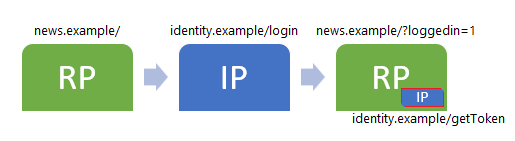
When the user clicks the Login button on the original relying party (RP) website, they are navigated to a login page at the identity provider (IP) (e.g. login.microsoft.com) and then redirected back to the RP. That original site then gets some amount of the user’s identity info (e.g. their Name & a unique identifier) but it never sees the user’s password.
Such Federated Identity schemes have benefits for both the user and the RP site– the user doesn’t need to set up yet another password and the site doesn’t have to worry about the complexity of safely storing the user’s password, managing forgotten passwords, etc.
In some cases, the federated identity login process (typically implemented as a JavaScript library) relies on navigating the user to a top-level page to log in, then back to the relying party website into which the library injects an IFRAME1 back to the identity provider’s website.
The authentication library in the RP top-level page communicates with the IP subframe (using postMessage or the like) to get the logged-in user’s identity information, API tokens, etc. [Here’s a demo].
In theory, everything works great. The IP subframe in the RP page knows who the user is (by looking at its own cookies or HTML5 localStorage or indexedDB data) and can release to the RP caller whatever identity information is appropriate.
Crucially, however, notice that this login flow is entirely dependent upon the assumption that the IP subframe is accessing the same set of cookies, HTML5 storage, and/or indexedDB data as the top-level IP page. If the IP subframe doesn’t have access to the same storage, then it won’t recognize the user as logged in.
Unfortunately, this assumption has been problematic for many years, and it’s becoming even more dangerous over time as browsers ramp up their security and privacy features.
The root of the problem is that the IP subframe is considered a third-party resource, because it comes from a different domain (identity.example) than the page (news.example) into which it is embedded.
For privacy and security reasons, browsers might treat third-party resources differently than first-party resources. Examples include:
When a browser restricts access to storage for a 3rd party context, our theoretically simple login process falls apart. The IP subframe on the relying party doesn’t see the user’s login information because it is loaded in a 3rd party context. The authentication library is likely to conclude that the user is not logged in, and redirect them back to the login page. A frustrating and baffling infinite loop may result as the user is bounced between the RP and IP.
The worst part of all of this is that a site’s login process might usually work, but fail depending on the user’s browser choice, browser configuration, browser patch level, security zone assignments, or security/privacy extensions. As a result, a site owner might not even notice that some fraction of their users are unable to log in.
So, what’s a web developer to do?
The first task is awareness: Understand how your federated login library works — is it using cookies? Does it use subframes? Is the IP site likely to be considered a “Tracker” by popular privacy lists?
The second task is to build designs that are more resilient to 3rd-party storage restrictions:
Be sure to convey the expected state from the Identity Provider’s login page back to the Relying Party. E.g. if your site automatically redirects from news.example to identity.example/login back to news.example/?loggedin=1, the RP page should take note of that URL parameter. If the authentication library still reports “Not signed in”, avoid an infinite loop and do not redirect back to the Identity Provider automatically.
Authentication libraries should consider conveying identity information back to the RP directly, which will then save that information in a first party context. For instance, the IP could send the identity data to the RP via a HTTP POST, and the RP could then store that data using its own first party cookies.
For browsers that support it, the Storage Access API may be used to allow access to storage that would otherwise be unavailable in a 3rd-party context. Note that this API might require action on the part of the user (e.g. a frame click and a permission prompt).
The final task is verification: Ensure that you’re testing your site in modern browsers, with and without the privacy settings ratcheted up.
-Eric
[1] The call back to the IP might not use an IFRAME; it could also use a SCRIPT tag to retrieve JSONP, or issue a fetch/XHR call, etc. The basic principles are the same. [2] P3P was removed from IE11 on Windows 10. [3] In Windows 10 RS2, Edge 15 “Spartan” started sharing cookies across Security Zones, but HTML5 Storage and indexedDB remain partitioned.
I’ve been working on browsers professionally for 12 of the last 15 years, and in related areas for 20 of the last 20, and over the years I’ve discovered enough surprises in browser behavior that they’re no longer very surprising.
Back in April, I wrote up a quick post explaining how easy it is to delete a single site’s cookies in the new Edge browser. That post was written in response to a compatibility problem with some internal web application that could somehow get in a state where a single “bad” cookie would cause the application to fail to load. The team that owns the application later looked into things further and discovered that the problem was that the application was misbehaving upon receipt of a very old (over a month) session cookie.
Recall that there are two types of cookies:
Persistent cookies, sent to the server until the expiration date supplied when they were set, or until the user clears their cookies, whichever happens first, and
Session cookies, sent to the server until the end of the user’s browser session.
Now, in most cases, developers expect that Persistent cookies will live longer than Session cookies– most users restart their browsers (or computers) every few days, and many modern browsers require restart (to install updates) every few weeks. In contrast, many Persistent cookies are configured to last for a year or more.
So how did this zombie cookie live so long?
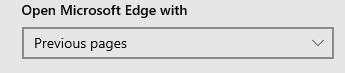
Until last week, I didn’t realize that these browser settings in Chrome/Edge76:
…and Firefox:
…both behave very differently than the old setting from Internet Explorer:
…and the old setting from Edge 18 (Spartan) and earlier:
The Internet Explorer and Edge 18 settings simply open tabs to the URLs of the tabs that were open when you last closed your browser.
In contrast, the Firefox/Chrome/Edge76+ settings restore the browser session itself… which means that closing the browser does not delete your session cookies and doesn’t empty the HTML5 sessionStorage (Update: Chromium broke sessionStorage recovery in Chrome 77, twenty days after this post).
In many ways, preserving session state makes sense– without it, users are likely to find that their restored tabs are immediately navigated to a login page when the browser is restarted. However, a consequence of this session restoration behavior is that browsers with this option configured might keep session cookies alive for a very long time:
If you’d like to play with your browser’s behavior, try setting the option and then play with this simple test page. (The background of the page is generated by the session cookie, and the sessionStorage and localStorage values are shown in the text of the page. Adjust the dropdown to change the color.)
Note: If the Chromium-based browser is restarted by visiting chrome://restart or if it restarts to install an update, it behaves as if “Continue where I left off” is set, even if it isn’t.
Web Developers: Given this session resumption behavior, it’s more important than ever to ensure that your site behaves reasonably upon receipt of an outdated session cookie (e.g. redirect the user to the login page instead of showing an error).
Users: If you enable the session resumption option, keep in mind that you can’t simply close your browser to “log out” of a site– you need to explicitly use the site’s logout option (I’ve written about this before).
-Eric
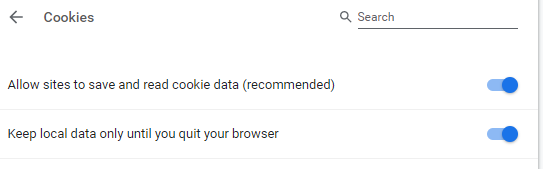
PS: If you’re really concerned about privacy, you can set the Keep local data only until you quit your browser option:
This will clear all Session and Persistent storage areas every time you exit your browser, regardless of whether you’ve set the “On Startup: Continue where you left off”.
PS2: What else is bound to “session lifetime”? Client Hint opt-in, for one thing.




 On a whim, I searched around to see whether maybe I could buy a new overlay to stick atop the old panel.





 text/plain