Fiddler And LINQ

Since moving to Google at the beginning of 2016, I’ve gained some perspective about my work on Fiddler over the prior 12+ years. Mostly, I’m happy about what I accomplished, although I’m a bit awed about how much work I put into it, and how big my “little side project” turned out to be.

It’s been interesting to see where the team at Telerik has taken the tool since then. Some things I’m not so psyched about (running the code through an obfuscator has been a source of bugs and annoyance), but the one feature I think is super-cool is support for writing FiddlerScript in C#. That’s a feature I informally supported via an extension, but foolishly (in hindsight) never invested in baking into the tool itself. That’s despite the fact that JScript.NET is a bit of an abomination which is uncomfortable for both proper JavaScript developers and .NET developers. But I digress… C# FiddlerScript is really neat, and even though it may take a bit of effort to port the many existing example FiddlerScript snippets, I think many .NET developers will find it worthwhile.

I’ve long been hesitant about adopting the more fancy features of the modern .NET framework, LINQ key among them. For a while, I justified this as needing Fiddler to work on the bare .NET 2.0 framework, but that excuse is long gone. And I’ll confess, after using LINQ in FiddlerScript, it feels awkward and cumbersome not to.

To use LINQ in FiddlerScript, you must be using the C# scripting engine and you must add System.core.dll inside Tools > Fiddler Options > Scripting. Then, add using System.Linq; to the top of your C# script file.

After you make these changes, you can do things like:

    var arrSess = FiddlerApplication.UI.GetAllSessions();
    bool b = arrSess.Any(s=>s.HostnameIs("Example.com"));
    FiddlerApplication.UI.SetStatusText((b) ? "Found it!":"Didn't find it.");

-Eric Lawrence
Chrome 59 on Mac and TeletexString Fields

Update: This change ended up getting backed out, after it was discovered that it impacted smartcard authentication. Thanks for self-hosting Chrome Dev builds, IT teams!

A change quietly went into Chrome 59 that may impact your certificates if they contain non-ASCII characters in a TeletexString field. Specifically, these certificates will fail to validate on Mac, resulting in either a ERR_SSL_SERVER_CERT_BAD_FORMAT error for server certificates or a ERR_BAD_SSL_CLIENT_AUTH_CERT error for client certificates. The change that rejects such certificates is presently only in the Mac version of Chrome, but it will eventually make its way to other platforms.

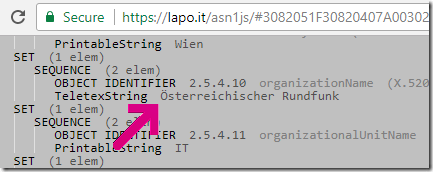
You can see whether your certificates are using teletexStrings using an ASN.1 decoder program, like this one. Simply upload the .CER file, and look for the TeletexString type in the output. If you find any such fields that contain non-ASCII characters, the certificate is impacted:

Non-ASCII character in string

Background: Certificates are encoded using a general-purpose data encoding scheme called ASN.1. ASN.1 specifies encoding rules, and strings may be encoded using any of a number of different data types (teletexString, printableString, universalString, utf8String, bmpString). Due to the complexity and underspecified nature of the TeletexString, as well as the old practice of shoving Latin1 strings in fields marked as TeletexString, the Chrome change takes a conservative approach to handling TeletexString, only allowing the ASCII subset. utf8String is a well-specified and well-supported standard and should be used in place of the obsolete teletexString type.

To correct the problem with the certificate, regenerate it using UTF8String fields to store non-ASCII data.

-Eric Lawrence

Inspecting Certificates in Chrome

With a check-in on Monday night, Chrome Canary build 60.0.3088 regained a quick path to view certificates from the top-level security UI. When the new feature is enabled, you can just click the lock icon to the left of the address box, then click the “Valid” link in the new Certificate section of the Page Information bubble to see the certificate:

Chrome 60 Page Info dropdown showing certificate section

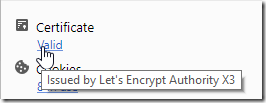
In some cases, you might only be interested in learning which Certificate Authority issued the site’s certificate. If the connection security is Valid, simply hover over the link to see the issuer information in a tooltip:

Tooltip shows Issuer CA

The new link is also available on the blocking error page in the event of an HTTPS error, although no tooltip is shown:

The link also available at the blocking Certificate Error page

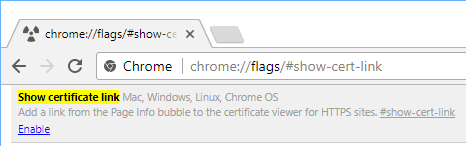
Note: For now, you must manually enable the new Certificate section. Type chrome://flags/#show-cert-link in Chrome’s address box and hit enter. Click the Enable link and relaunch Chrome.

image

This section is enabled by default in Chrome 63 along with some other work to simplify the Page Information bubble.

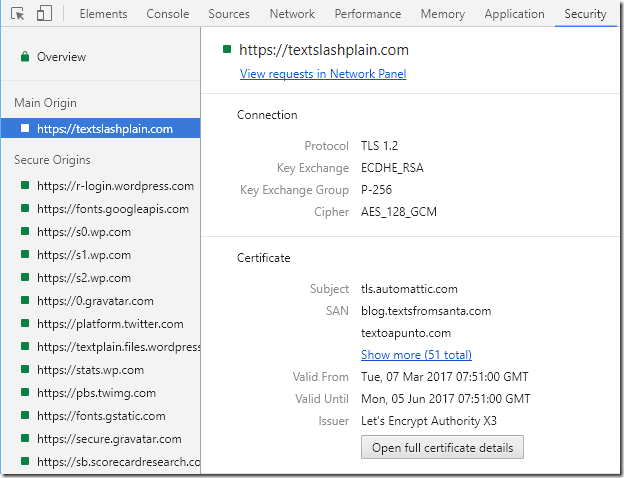
If you want more information about the HTTPS connection, or to see the certificates of the resources used in the page, hit F12 to open the Developer Tools and click to the Security tab:

Chrome DevTools Security tab shows more information

You can learn more about Chrome’s certificate UIs and philosophy in this post from Chrome Security’s Chris Palmer.

-Eric Lawrence

Finding Image Bloat In Binary Files

I’ve previously talked about using PNGDistill to optimize batches of images, but in today’s quick post, I’d like to show how you can use the tool to check whether images in your software binaries are well optimized.

For instance, consider Chrome. Chrome uses a lot of PNGs, all mashed together a single resources.pak file. Tip: Search for files for the string IEND to find embedded PNG files.

With Fiddler installed, go to a command prompt and enter the following commands:

cd %USERPROFILE%\AppData\Local\Google\Chrome SxS\Application\60.0.3079.0
mkdir temp
copy resources.pak temp
cd temp
"C:\Program Files (x86)\Fiddler2\tools\PngDistill.exe" resources.pak grovel
for /f "delims=|" %f in ('dir /b *.png') do "c:\program files (x86)\fiddler2\tools\pngdistill" "%f" log

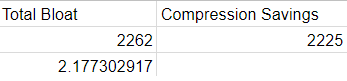
You now have a PNGDistill.LOG file showing the results. Open it in a CSV viewer like Excel or Google Sheets. You can see that Chrome is pretty well-optimized, with under 3% bloat.

image

Let’s take a look at Brave, which uses electron_resources.pak:

image

Brave does even better! Firefox has images in a few different files; I found a bunch in a file named omni.ja:

image

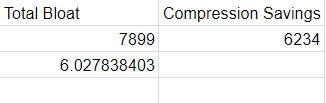
The picture gets less rosy elsewhere though. Microsoft’s MFC140u.dll’s images are 7% bloat:

image

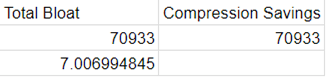
Windows’ Shell32.dll uses poor compression:

image

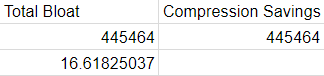
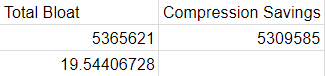
Windows’ ImageRes.dll has over 5 megabytes (nearly 20% of image weight) bloat:

image

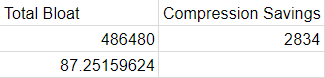
And the Windows 10’s ApplicationFrame.dll is well-compressed, but the images have nearly 87% metadata bloat:

image

Does ImageBloat Matter?

Well, yes, it does. Even when software isn’t distributed by webpages, image bloat still takes up precious space on your disk (which might be limited in the case of a SSD) and it burns cycles and memory to process or discard unneeded metadata.

Optimize your images. Make it automatic via your build process and test your binaries to make sure it’s working as expected.

-Eric

PS: Rafael Rivera wrote a graphical tool for finding metadata bloat in binaries; check it out.

PPS: I ran PNGDistill against all of the PNGs embedded in EXE/DLLs in the Windows\System32 folder. 33mb * 270M devices = 8.9 petabytes of wasted storage for imagebloat in system32 alone.  Raw Data:

Get Help with HTTPS problems

Sometimes, when you try to load a HTTPS address in Chrome, instead of the expected page, you get a scary warning, like this one:

image

Chrome has found a problem with the security of the connection and has blocked loading the page to protect your information.

In a lot of cases, if you’re just surfing around, the easiest thing to do is just find a different page to visit. But what happens if this happens on an important site that you really need to see? You shouldn’t just “click through” the error, because this could put your device or information at risk.

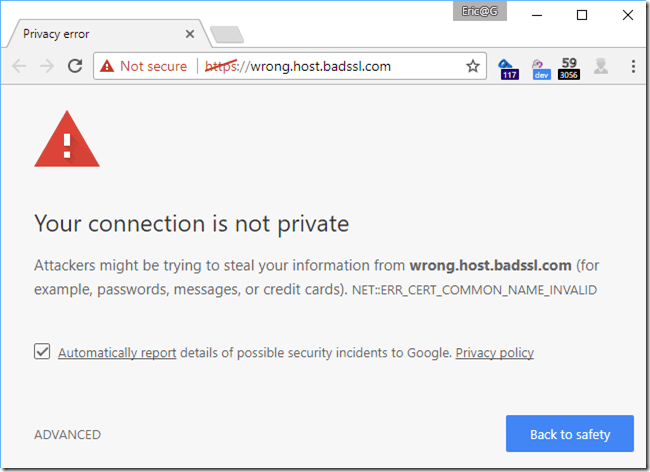
In some cases, clicking the ADVANCED link might explain more about the problem. For instance, in this example, the error message says that the site is sending the wrong certificate; you might try finding a different link to the site using your favorite search engine.

image

Or, in this case, Chrome explains that the certificate has expired, and asks you to verify that your computer clock’s Date and Time are set correctly:

image

You can see the specific error code in the middle of the text:

image

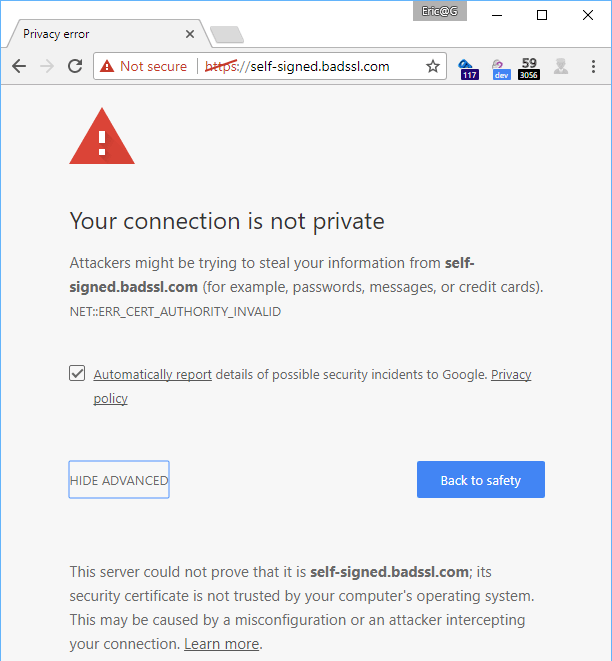
Some types of errors are a bit more confusing. For instance, NET::ERR_CERT_AUTHORITY_INVALID means that the site’s certificate didn’t come from a company that your computer is configured to trust.

image

Google Internet Authority G3?

If the root certificate is from Google Internet Authority G3, see this article.

Errors Everywhere?

What happens if you start encountering errors like this on every HTTPS page that you visit, even major sites like https://google.com?

In such cases, this often means that you have some software on your device or network that is interfering with your secure connections. Sometimes this software is well-meaning (e.g. anti-virus software, ad-blockers, parental control filters), and sometimes it’s malicious (adware, malware, etc). But even buggy well-meaning software can break your secure connections.

If you know what software is intercepting your traffic (e.g. your antivirus) consider updating it or contacting the vendor.

Getting Help

If you don’t know what to do, you may be able to get help in the Chrome Help Forum. When you ask for help, please include the following information:

  • The error code (e.g. NET::ERR_CERT_AUTHORITY_INVALID).
    • To help the right people find your issue, consider adding this to the title of your posting.
  • What version of Chrome you’re using. Visit chrome://version in your browser to see the version number
  • The type of device and network (e.g. “I’m using a laptop on wifi on my school’s network.”)
  • The error diagnostic information.

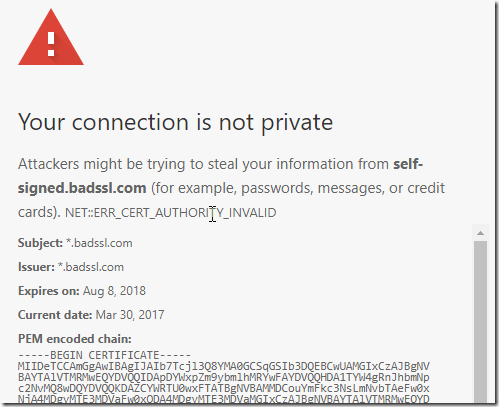
You can get diagnostic information by clicking or tapping directly on the text of the error code: image. When you do so, a bunch of new text will appear in the page:

image

You should select all of the text:

image

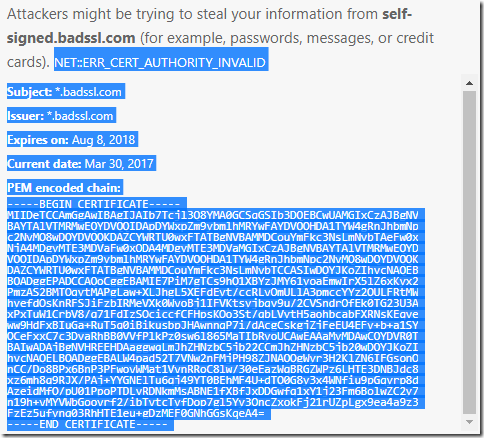
…then hit CTRL+C (or Command ⌘+C on Mac) to copy the text to your clipboard. You can then paste the text into your post. The “PEM encoded chain” information will allow engineers to see exactly what certificate the server sent to your computer, which might shed light on what specifically is interfering with your secure connections.

With any luck, we’ll be able to help you figure out how to surf securely again in no time!


-Eric