Client Certificates on Android

Recently, this interesting tidbit crossed my Twitter feed:

Tweet: "Your site asks for a client certificate?"

Sure enough, if you visited the site in Chrome, you’d get a baffling prompt.

My hometown newspaper shows the same thing:

No Certificates Found prompt on Android

Weird, huh?

Client certificates are a way for a browser to supply a certificate to the server to verify the client’s identity (in the typical case, a HTTPS server only sends its certificate so that the client can validate that the server is what it says it is.

In the bad old days of IE6 and IE7, the default behavior was to show a similar prompt, but what’s going on with the latest Chrome on modern Android?

It turns out that this is a limitation of the Android security model, to which Chrome on Android is subject. In order for Chrome to interact with the system’s certificate store, the operating system itself shows a security prompt.

If your server has been configured to accept client certificates (in either require or want mode), you should be sure to test it on Android devices to verify that it behaves as you expect for your visitors (most of whom likely will not have any client certificates to supply).

-Eric

HTTPS Only Works If You Use It – Tipster Edition

Convoy with three armored tanks and one pickup truck

It’s recently become fashionable for news organizations to build “anonymous tip” sites that permit members of the public to confidentially submit tips about stories of public interest.

Unfortunately, would-be tipsters need to take great care when exploring such options, because many organizations aren’t using HTTPS properly to ensure that the user’s traffic to the news site is protected from snoopers on the network.

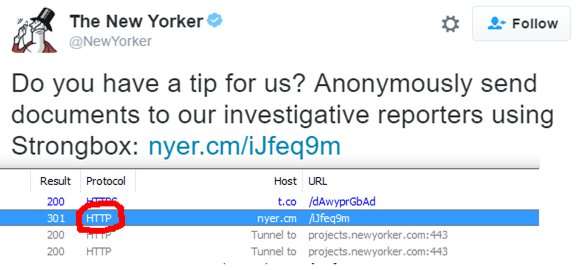
If the organization uses any non-secure redirections in loading its “Tips” page, or the page pulls any unique images or other content over a non-secure connection, the fact that you’ve visited the “Tips” page will be plainly visible to your ISP, employer, fellow coffee shop patron, home-router-pwning group, etc.

NYTimes call for Tips, showing non-secure redirects

The New Yorker Magazine call for Tips, showing non-secure redirects

Here are a few best practices for organizations that either a) anonymous tips online or b) use webpages to tell would-be leakers how to send anonymous tips via Tor or non-electronic means:

For end users:

  • Consider using Tor or other privacy-aiding software.
  • Don’t use a work PC or any PC that may have spyware or non-public certificate roots installed.

Stay private out there!

-Eric

Security UI in Chrome

The combined address box and search bar at the top of the Chrome window is called the omnibox. The icon and optional verbose state text adjacent to that icon are collectively known as the Security Chip:

image

The security chip can render in a number of states, depending on the status of the page:

image Secure – Shown for HTTPS pages that were securely delivered using a valid certificate and not compromised by mixed content or other problems.
image Secure, Extended Validation – Shown for Secure pages whose certificate indicates that Extended Validation was performed.
image Neutral – Shown for HTTP pages, as well as Chrome’s built-in pages, like chrome://extensions, as well as pages containing passive mixed content, or delivered using a policy-allowed SHA-1 certificates.
image Not Secure – Shown for HTTP pages that contain a password or credit card input field. Learn more.
image Not Secure (Red) – What Chrome will eventually show for all HTTP pages. You can configure a flag (chrome://flags/#mark-non-secure-as) to Always mark HTTP as actively dangerous today to get this experience early.
image Not Secure, Certificate Error – Shown when a site has a major problem with its certificate (e.g. it’s expired).
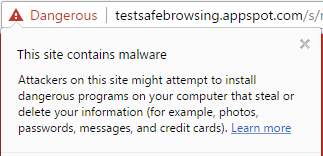
image Dangerous – Shown when Google Safe Browsing has identified this page as a source of malware or phishing attacks.

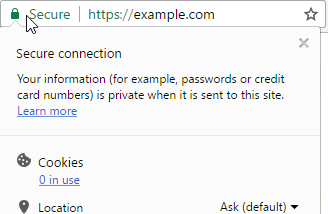
The flyout that appears when you click the security chip is called PageInfo or Website Settings; it shows the security status of the page and the permissions assigned to the origin website:
image

The text atop the pageinfo flyout explains the security state of the page:

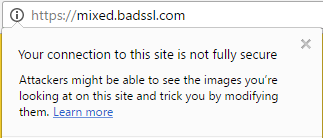
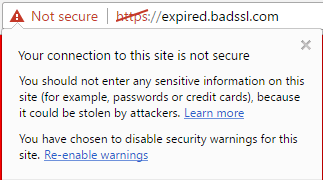
image imageimage mixedexpired

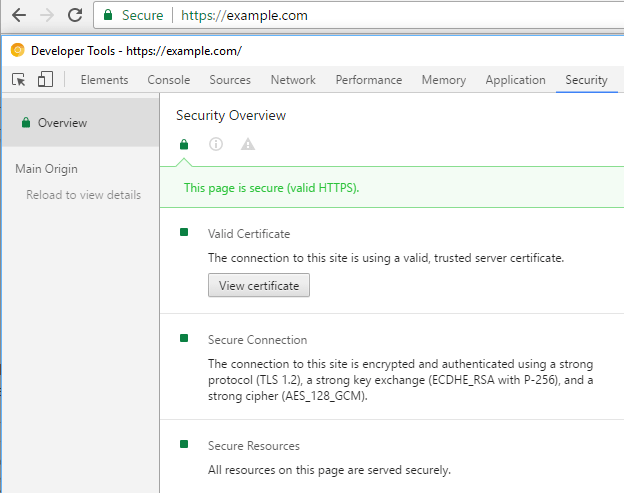
Clicking the Learn More link on the flyout for valid HTTPS sites once opened the Chrome Developer Tools’ Security Panel, but now it goes to a Help article. To learn more about the HTTPS state of the page, instead press F12 and select the Security Panel:
image

The View certificate button opens the Windows certificate viewer and displays the current origin’s certificate. Reload the page with the Developer Tools open to see all of the secure origins in the Secure Origins List; selecting any origin allows you to view information about the connection and examine its certificate.
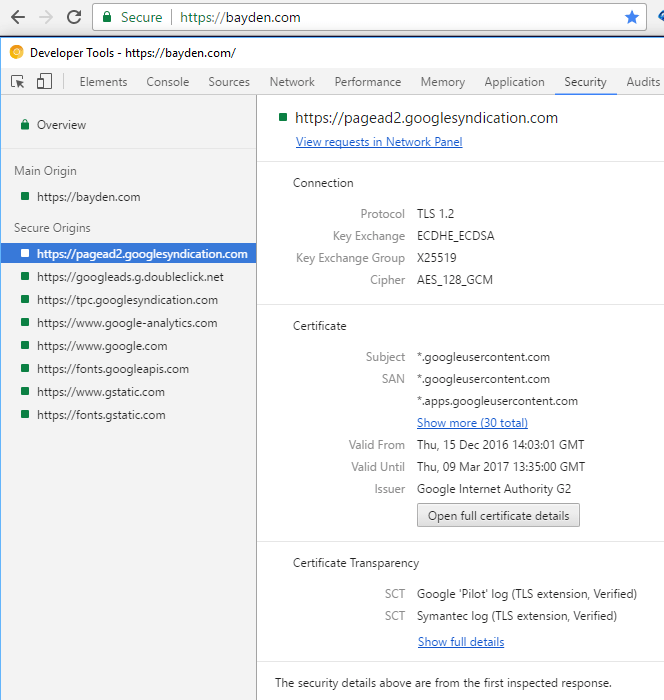
image

The floating grey box at the bottom of the Chrome window that appears when you over over a link is called the status bubble. It is not a security surface and, like IE’s status bar, it is easily spoofed.

image

Navigation to sites with severe security problems is blocked by an interstitial page.
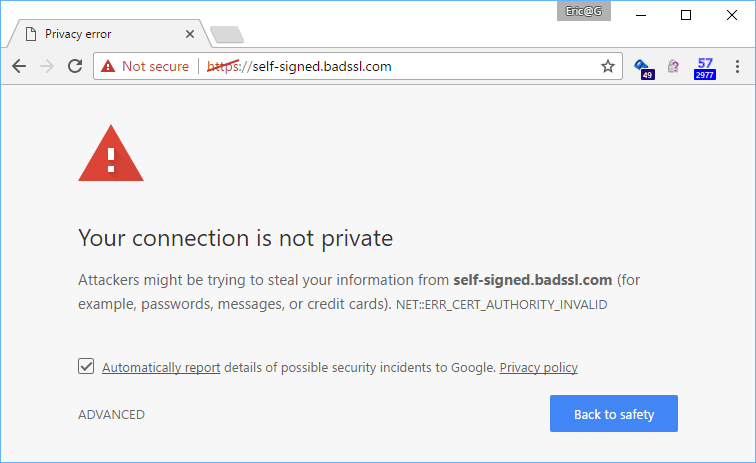
image

(A list of interstitial pages in Chrome can be found at chrome://interstitials/ ).

Clicking on the error code (e.g. ERR_CERT_AUTHORITY_INVALID in the screenshot below) will show more information about the certificate of the blocked site:
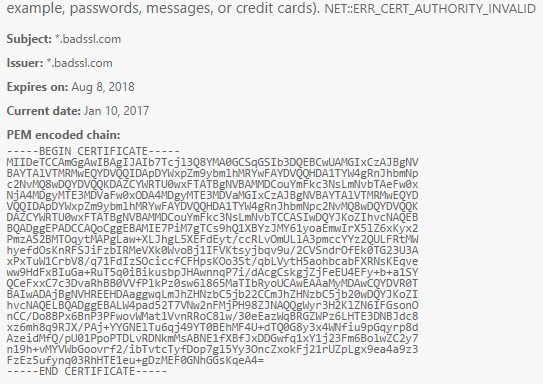
image

Clicking the Advanced link shows more information, and in some cases will show an override link that allows you to disregard the security protection and proceed to the site anyway.

image

If a site uses HTTP Strict Transport Security, the Proceed link is hidden and the user has no visible option to proceed.

image

In current versions of Chrome, the user can type a fixed string (sometimes referred to as a Konami code) to bypass HSTS, but this option is deliberately undocumented and slated for removal from Chrome.

If a HTTPS problem is sufficiently bad, the network stack will not connect to the site and will show a network error page instead.

image

-Eric

PS: There exists a developer reference to Chrome Security UI across platforms, but it’s somewhat outdated.


2016 Brotli Update

Windows 10 Build 14986 adds support for Brotli compression to the Edge browser (but, somewhat surprisingly, not IE11). So at the end of 2016, we now have support for this improved compression algorithm in Chrome, Firefox, Edge, Opera, Brave, Vivaldi, and the long tail of browsers based on Chromium. Of modern browsers, only Apple is a holdout, with a “Radar” feature request logged against Safari but no public announcements.

Unfortunately, behavior across browsers varies at the edges:

  • Edge advertises support for and decodes Brotli compression on both HTTP and HTTPS requests.
  • Chrome advertises Brotli for HTTPS connections but will decode Brotli for both HTTPS and HTTP responses.
  • Firefox advertises Brotli for HTTPS connections and will not decode Brotli responses on HTTP responses.

There’s nothing horribly broken here: sites can safely serve Brotli content to clients that ask for it and those clients will probably decode it. The exception is when the request goes over HTTP… the reason Firefox and Chrome limit their request for Brotli to HTTPS is that, historically, middleboxes (like proxies and gateway filters) have been known to corrupt compression schemes other than gzip and deflate. This proved to be such a big problem in the rollout of SDCH (a now defunct compression algorithm Chrome supported), that the Brotli implementers decided to try to avoid the issue by requiring a secure transport.

-Eric

PS: Major sites, including Facebook and Google, have started deploying Brotli in production– if your site pulls fonts from Google Fonts, you’re already using Brotli today! In unrelated news, the 2016 Performance Calendar includes a post on serving Brotli from CDNs that don’t explicitly support it yet. Another recent post shows how to pair maximal compression for static files with fast compression for dynamically generated responses.

Do Not Lie to Users

Multiple people working on Outlook.com thought this was a reasonable design.

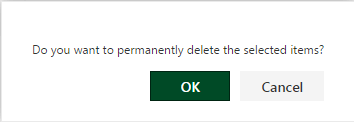
After a user deletes an email, then manually goes into the Deleted Items folder, then clicks Delete again, then acknowledges that they wish to Permanently Delete the deleted item:

Delete

… the item is still not deleted. You can “Recover deleted items” from your Deleted items folder:

Recover

… and voila, they’re all hiding out there:

Purge

Further, if you click the Purge button, you’ll find that it doesn’t actually do anything.

The poor user is expected to:

  1. Be aware of this insane behavior
  2. Individually check a box next to each unwanted message, then click Purge.

Microsoft’s design is offensively anti-privacy.

-Eric

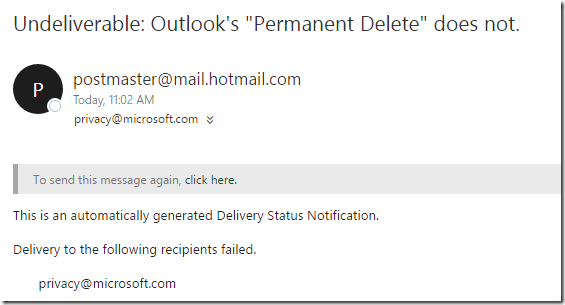
PS: This sums it up pretty well.

image