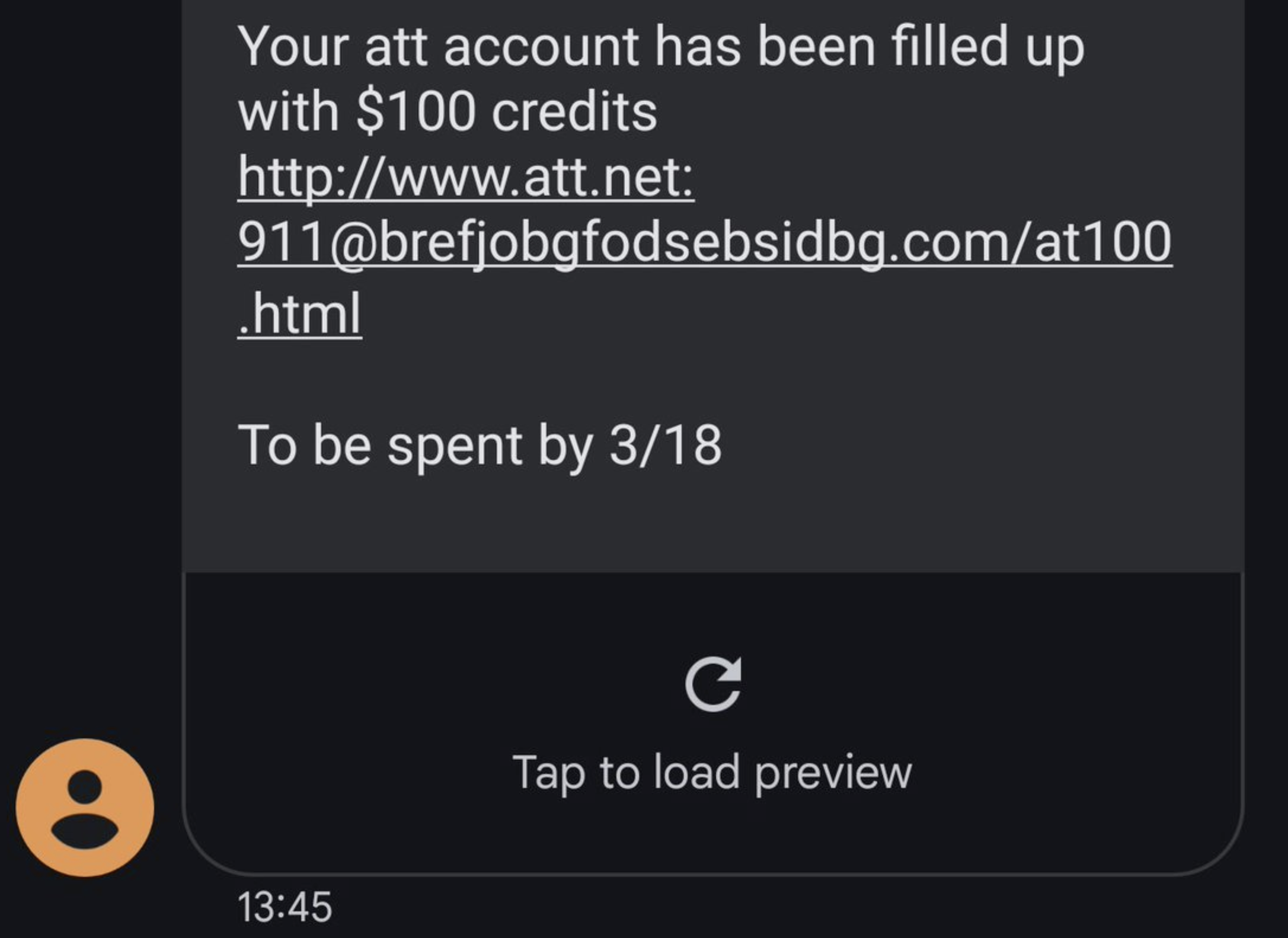
I received the following phishing lure by SMS a few days back:
The syntax of URLs is complicated, and even tech-savvy users often misinterpret them. In the case of the URL above, the actual site’s hostname is brefjobgfodsebsidbg.com, and the misleading www.att.net:911 text is just a phony username:password pair making up the UserInfo component of the URL.
Because users aren’t accustomed to encountering urls with UserInfo, they often will assume that tapping this URL will load att.net, which it certainly does not.
The Guidelines for Secure URL Display call for hiding the UserInfo data from UI surfaces where the user is expected to make a security decision (for example, the browser’s address bar/omnibox), and you’ll notice if you load this URL, the omnibox doesn’t show the spoofy portion. However, by the time that the user taps, the phisher likely has already successfully primed the user into expecting that the link is legitimate.
If the page shows “Your browser made it!” without popping an authentication dialog, your browser automatically sent the credentials in response to the server’s HTTP/401.
Note that the UserInfo component of the URLs is visible in both NetLogs and browser extension events.
Browser Behavior
Nineteen years ago (April 2004), Internet Explorer 6 stopped supporting URLs containing userinfo, with the justification that this URI component wasn’t actually formally a part of the specification for HTTP/HTTPS URLs and it was primarily used for phishing. Last summer, RFC9110 made it official, suggesting:
Before making use of an "http" or "https" URI reference received from an untrusted source, a recipient SHOULD parse for userinfo and treat its presence as an error; it is likely being used to obscure the authority for the sake of phishing attacks.
The guidance goes on to note the risk of legitimately relying upon this URL syntax (it’s easy for the credentials to leak out due to bugs or careless handling).
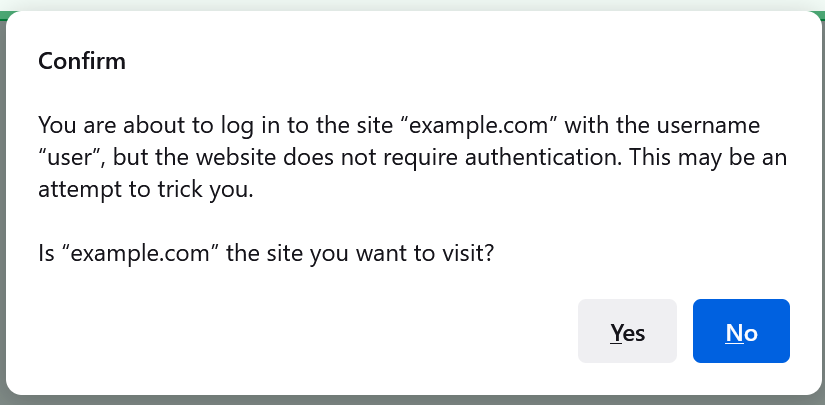
In contrast to IE’s choice, Firefox went a different way, showing the user a modal prompt:
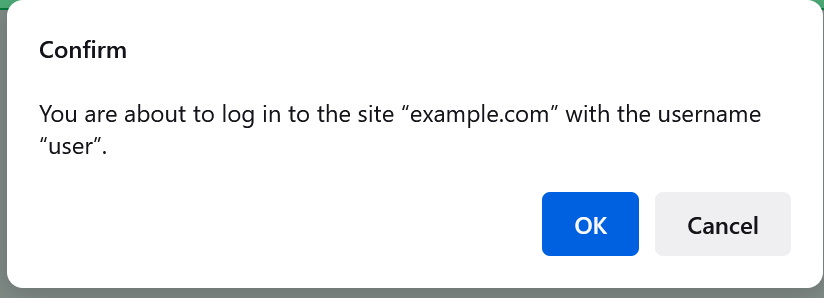
… which seems like a solid mitigation. However, the attacker can make the warning less scary by returning a HTTP/401 challenge, causing the text of the dialog to change to:
Chrome’s Security team reluctantly deems the acceptance of UserInfo as “Working as Intended.” While allowed for top-level navigations, Chromium disallows UserInfo in many niches, including the subresource fetches (which helps protects against a different class of attack). The crbug issue tracking that restriction includes some interesting conversation from folks encountering scenarios broken by the prohibition.
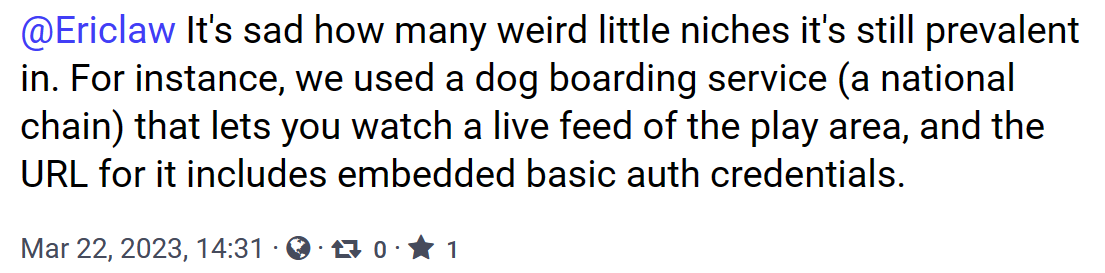
While it’s tempting to just disallow UserInfo everywhere (and I’d argue that all vendors probably should get RFC9110-compliant ASAP),it’s difficult to know how many real-world sites would break. Some browser vendors are probably reluctant to “go first” because in doing so, they might lose any inconvenienced users to a competitor that still allows the syntax. Just today, one security expert noted:
For years now, I’ve wanted to get solar panels for my house in Austin, both because it feels morally responsible and because I’m a geek and powering my house with carbon-free fusion seems neat.
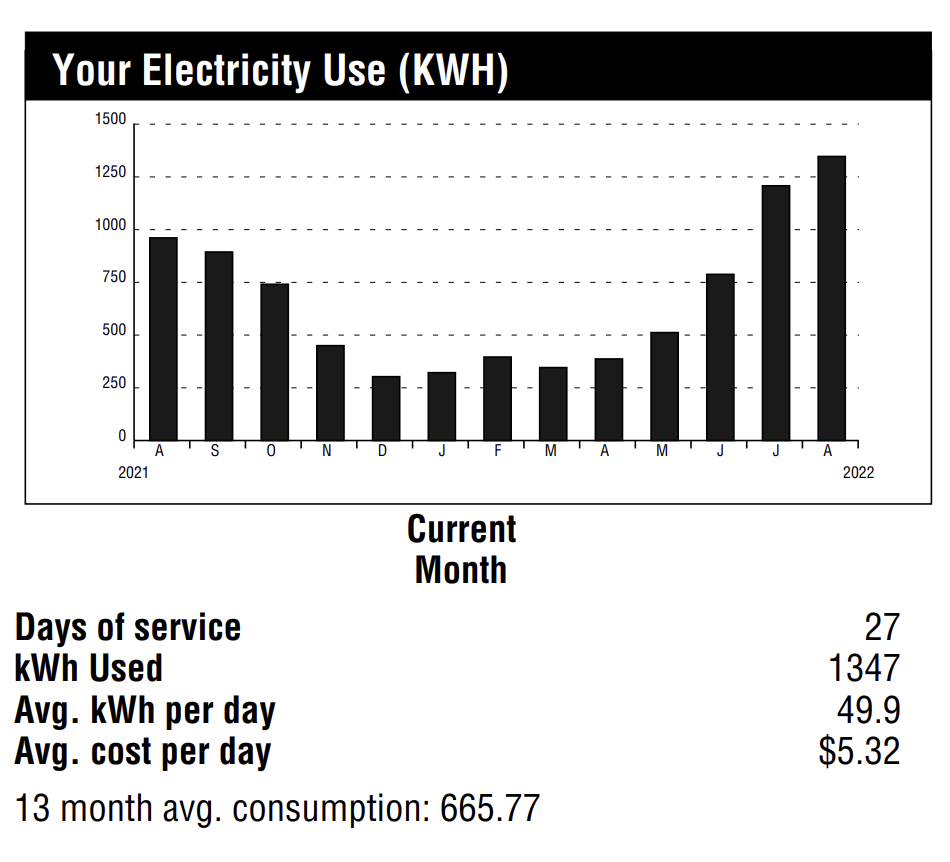
Economically, I assume I’ll eventually break even with solar power, but probably not for a long time– my house isn’t large by Texas standards, and I use energy pretty efficiently. In August 2022, my monthly usage peaked at 1347 kilowatt hours:
I held off on installing solar for a long time because I was afraid that it was going to end up like LED lighting– I buy in, and then the tech improves rapidly, with costs dropping like a rock and efficiency improving every year. But I’ve gotten tired of waiting, and tired of being grumpy about every sunny day in the blistering Austin summer.
In selecting a solar provider, I ended up doing less due-diligence than I’d planned, but got a few recommendations from folks on Twitter and in my neighborhood, ultimately settling on a local company, Native Solar. I suspect they are far from the cheapest provider (e.g. Tesla Solar quoted panels for thousands less), but in reading the reviews of solar companies, many have horrible reviews for both installation and ongoing support, and I don’t need more hassle in my life. (Update: A year in, I would not recommend Native Solar.).
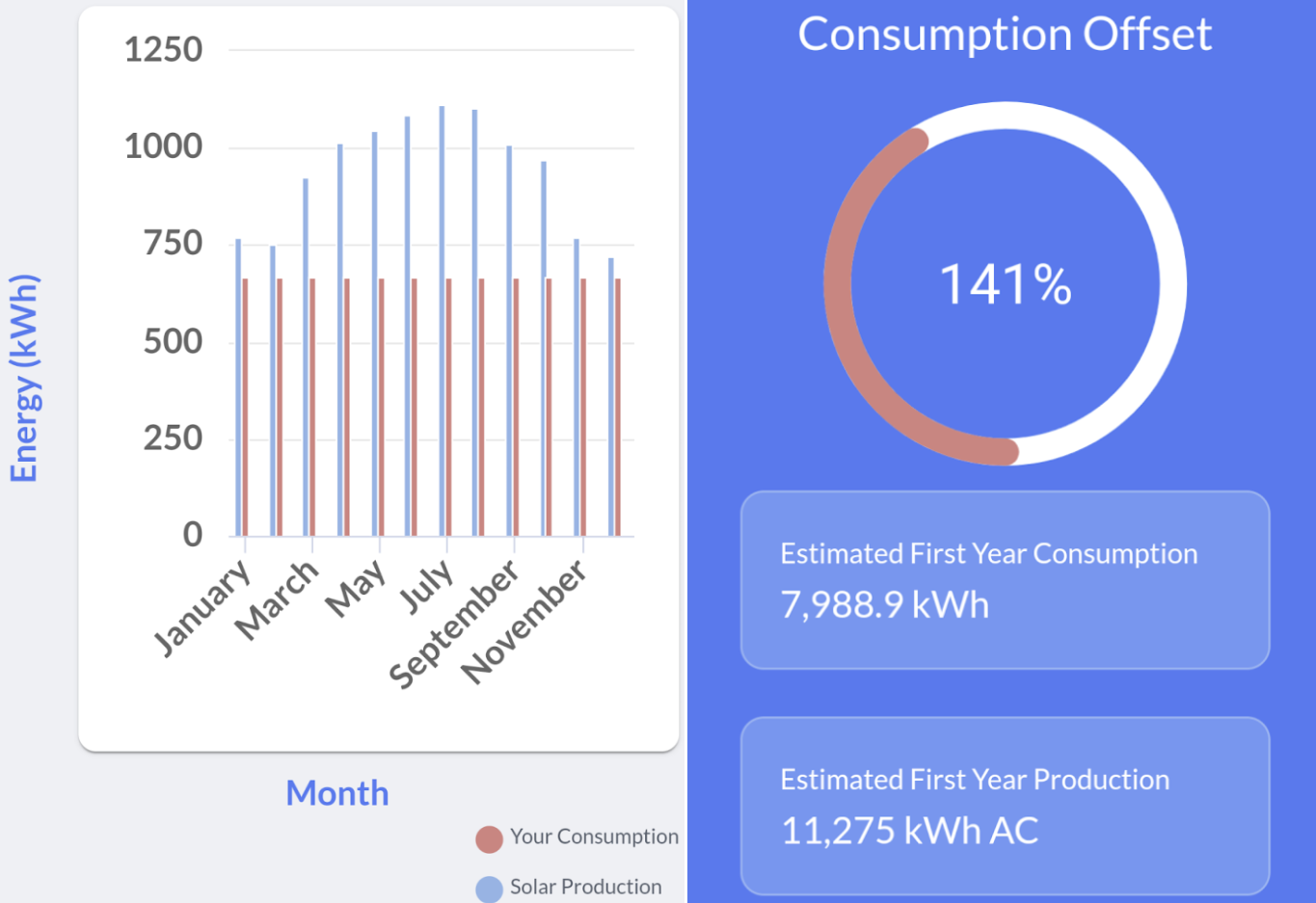
I selected an 8Kw array, consisting of twenty panels and inverters:
The array is expected to generate 141% of my current power use, although I expect my power use will be higher in the future, thanks to my electric car and possible eventual switch to an induction stovetop and, possibly in a few years, a heat pump.
In Austin, solar power is sold to the grid at 9.5 cents per kWH, which is somewhat more than I pay for it, even at the “Tier 3” pricing you can see in my statement above.
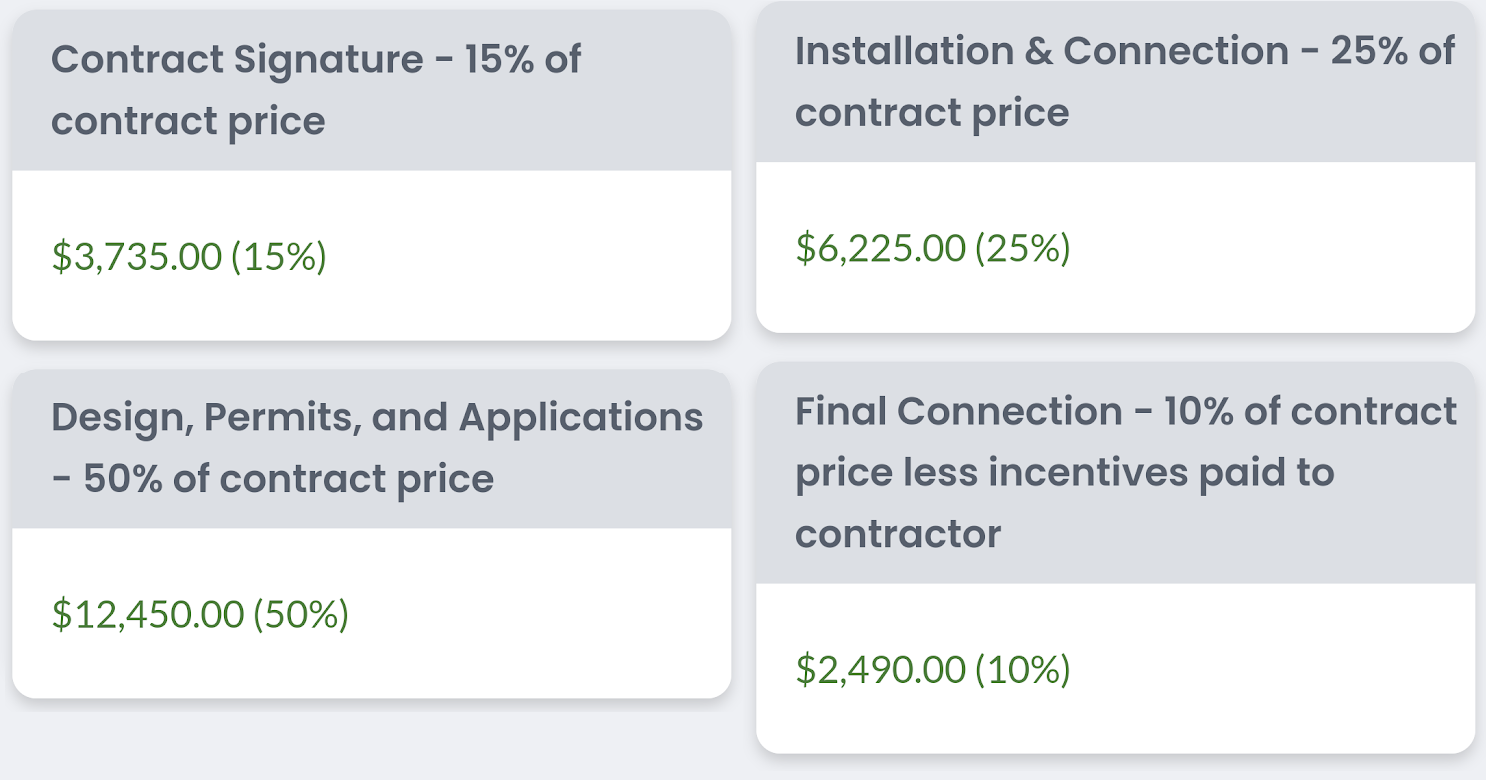
The array was expensive, with total payments of $24900:
… but that doesn’t include a Federal tax credit of $7470 and a rebate of $2500 from my local power company (Austin Energy), for a net system cost of ~$15000 (Update a bit more).
Notably, I decided not to install a battery system. A 12kwh battery would have added delays and around $10K (after rebates) to the cost of the system, and with a service lifetime of just 10 years (the panels are expected to perform well for 25), that works out to be $1000 a year, every year, to handle any power outages. In my decade in Austin, significant power outages have been rare– in 2021’s big ice storm, I lost power for around twelve hours. In 2023’s enormous ice storm, I lost power for a very annoying fifty six hours and started to wonder if I’d made a mistake. (I’m hoping that one day, bidirectional power from cars will become more practical — my Nissan Leaf’s “puny” battery is 40kwh, but most of today’s electric cars don’t support acting as the house’s battery).
While I signed the contract for the solar install, I knew it was going to be a long process. My first payment was on September 1st of 2022, and the design wasn’t drawn until November. I quickly got it approved by the neighborhood home owners’ association, and Native Solar went through the process of getting the necessary approvals and permits from the power company and city.
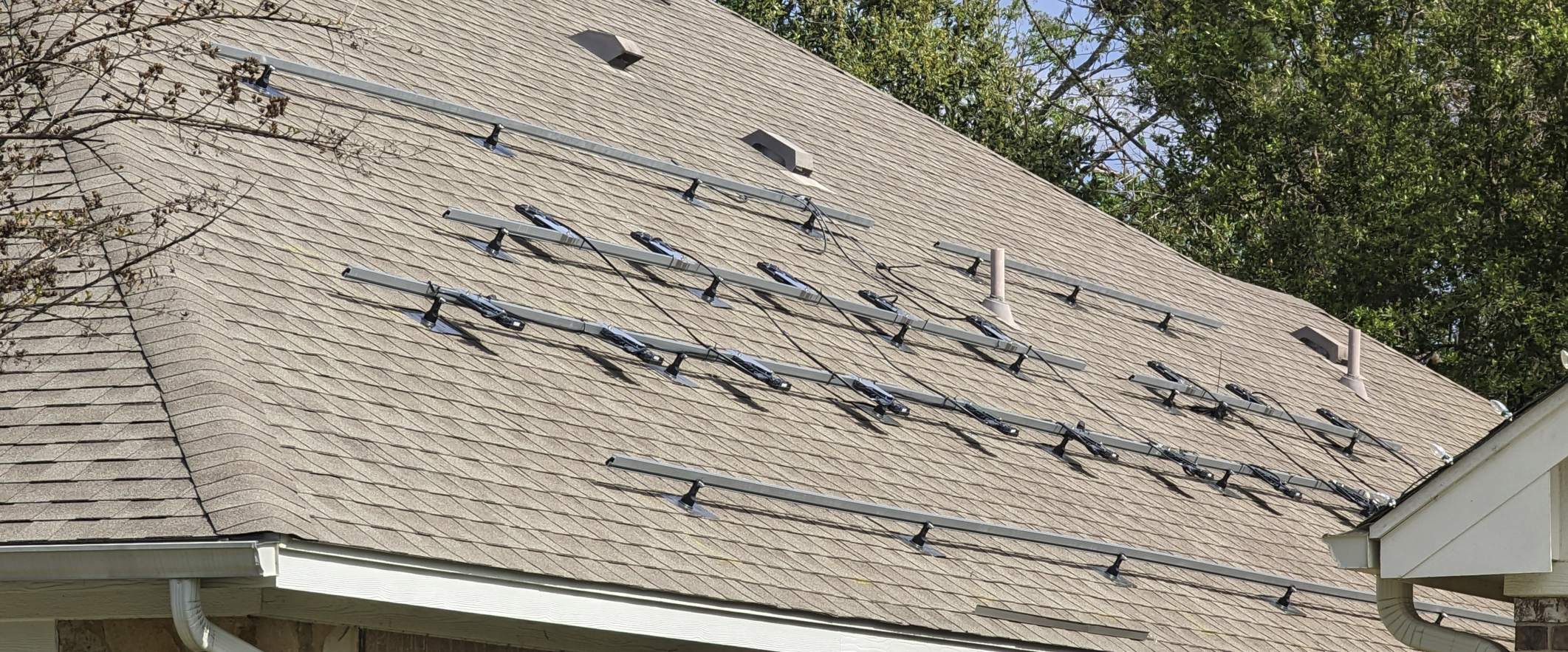
At long last, on Wednesday (March 15th, 2023), the installers arrived to install the electrical boxes and the rails on my SW-facing roof:
After a rare rain interlude on Thursday, the installers returned on Friday to install the panels themselves. On the roof, the panels don’t look so big, but standing on the ground you can see how enormous they are:
After a few more hours work, the panels were all installed and hooked up:
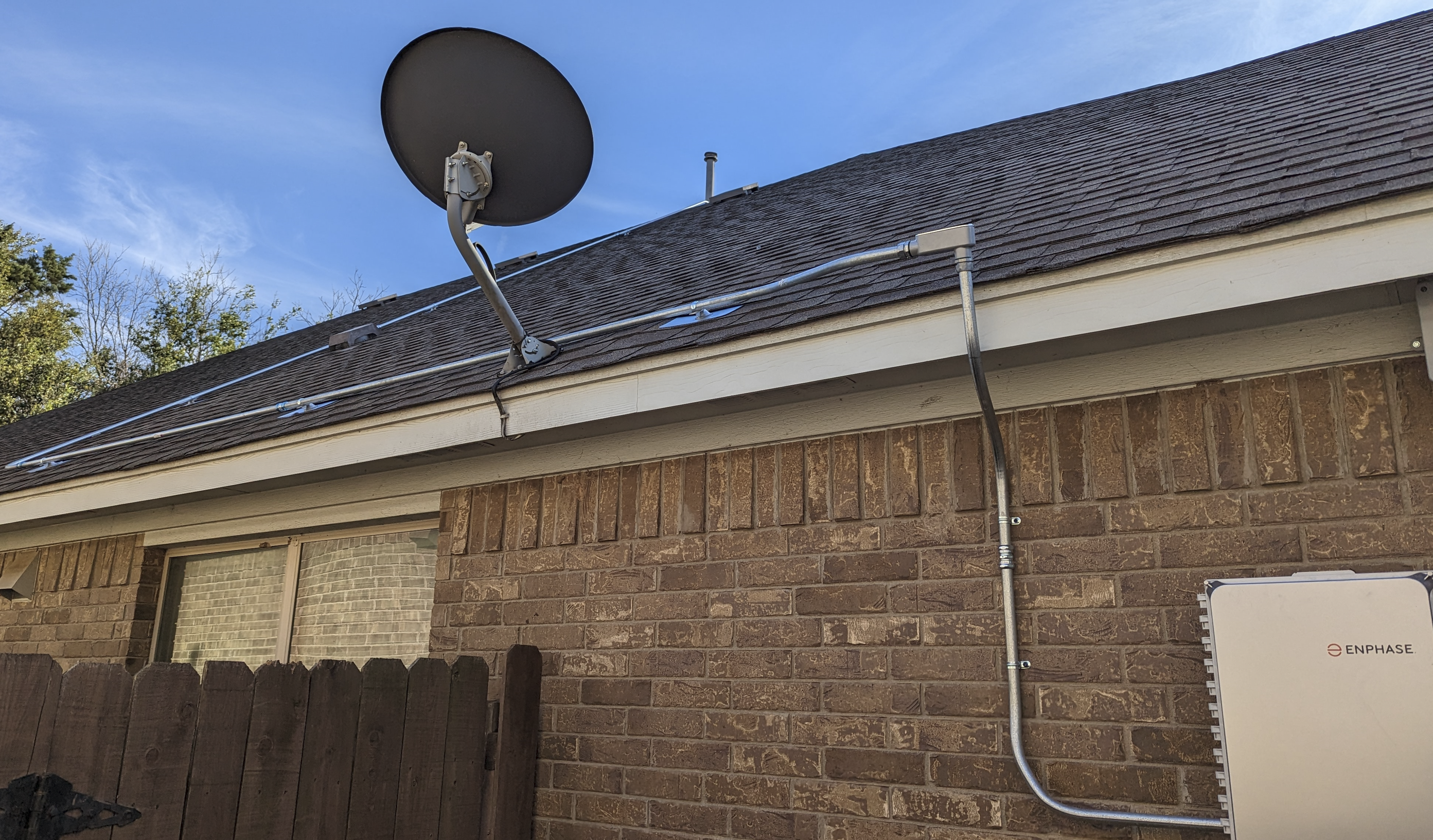
Alas, the electrical panels are on the northeast side of the house, so there’s now a conduit that runs over the center of my roof:
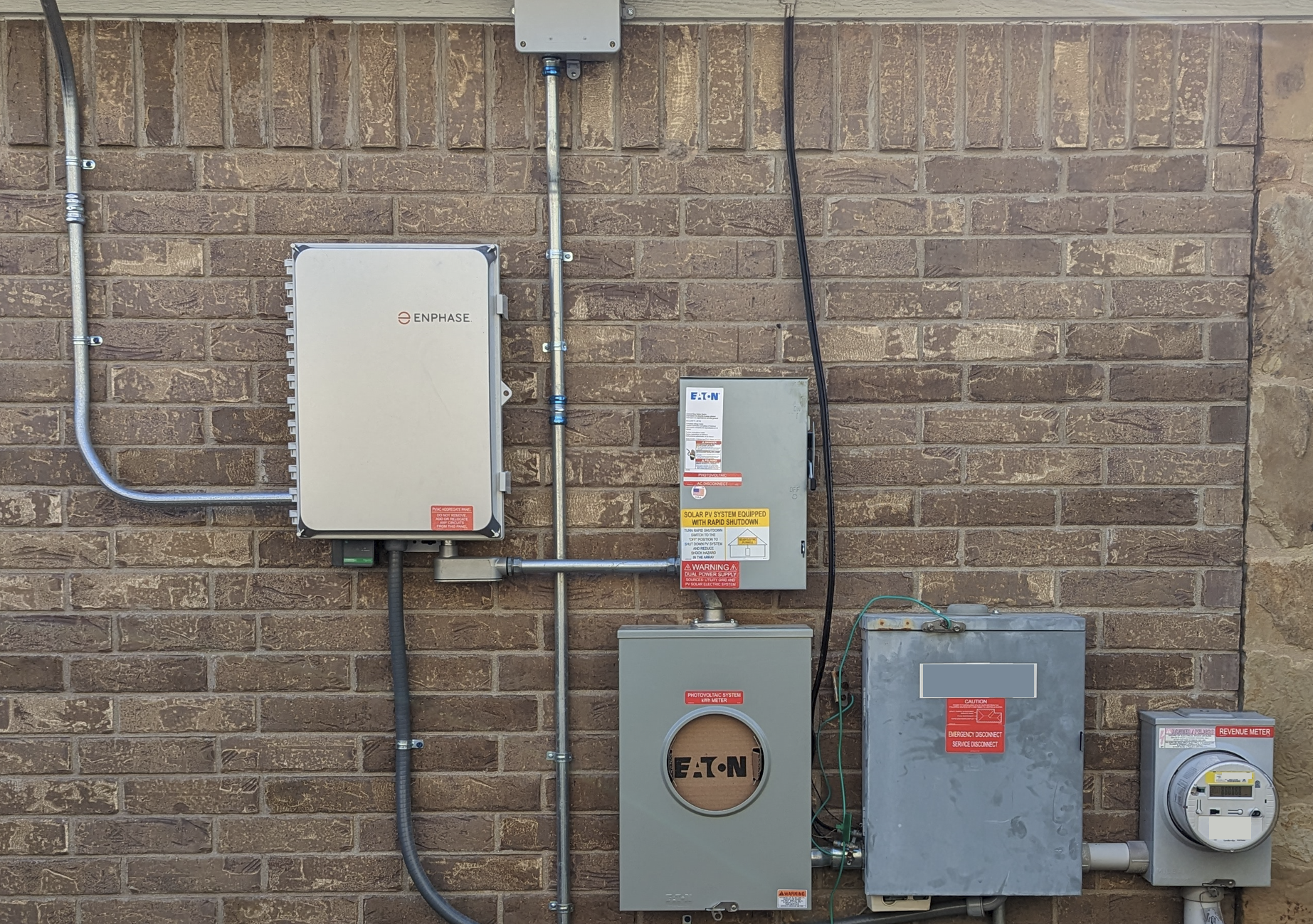
Three new boxes were added left of the main panel and meter:
Alas, the big switch in the middle remains in the OFF position, as I’m not allowed to turn on the system until the City performs their final inspection of the installed system.
Hopefully they’ll get to it soon– I’m excited to see how much power I’m capturing!
Update: I provide results for my first year in this post.
Update: This change was checked into Chromium 113 before being backed out. The plan is to eventually turn it on-by-default, so extension authors really should read this post and update their extensions if needed.
The feature was relanded inside Chrome Canary version 115.0.5789.0. It’s off-by-default, behind a flag on the chrome://flags#launch-windows-native-hosts-directly page.
In Chrome 120.0.6090+ and Edge 120+, a Group PolicyNativeHostsExecutablesLaunchDirectly allows admins to turn this on for users in restricted environments (Cloud PCs that forbid cmd.exe, for example).
Background
Previously, I’ve written about Chromium’s Native Messaging functionality that allows a browser extension to talk to a process running outside of the browser’s sandbox, and I shared a Native Messaging Debugger I wrote that allows you to monitor (and even tamper with) the communication channels between the browser extension and the Host App.
Obscure Problems on Windows
Native Messaging is a powerful capability, and a common choice for building extensions that need to interact with the rest of the system. However, over the years, users have reported a trail of bugs related to how the feature is implemented on Windows. While these bugs are typically only seen in uncommon configurations, they could break Native Messaging entirely for some users.
Some examples include:
crbug/335558 – Ampersand in Host’s path prevents launching (Fixed in 118)
crbug/387228 – Broken if %comspec% not pointed at cmd.exe
crbug/387233 – Broken when cmd.exe is disabled or set to RUNASADMIN
While the details of each of these issues differ, they all have the same root cause: On Windows, Chromium did not launch Native Message Hosts directly, instead launching cmd.exe (Windows’ console command prompt) and directing it to launch the target Host:
This approach provided two benefits: it enabled developers to implement Hosts using languages like Python, whose scripts are not directly executable in Windows, and it enabled support for Windows XP, where the APIs did not allow Chromium to easily set up the communication channel between the browser and the Native Host.
Unfortunately, the cmd-in-the-middle design meant that anything that prevented cmd.exe from running (387233, 387228) or that prevented it from starting the Host (335558) would cause the flow to fail. While these configurations tend to be uncommon (which is why the problems have existed for ten years), they also tend to be very very hard to recognize/diagnose, and the impacted customers often have little recourse short of abandoning the extension platform.
The Fix
So, over a few nights and weekends, I landeda changelist in Chromium to improve this scenario for Chromium 113.0.5656 and later. This change means that Chrome, Edge (version 113.0.1769+), and other Chromium-derived browsers will now directly invoke any Native Host that is a Windows Executable (.exe) rather than going through cmd.exe instead:
This change will reach the Stable Channel of Chrome and Edge (v113) in the last week of April 2023.
Native Hosts that are not implemented by executables (e.g. Python scripts or the like) will continue to use the old codepath.
I’ve got my fingers crossed that effectively no one even notices this change, with the exception of those unfortunate users who were encountering the old bugs who will now find that they can use previously-broken extensions.
However, this change also fixes two other bugs that were caused by the cmd-in-the-middle flow and those changes could cause problems if your Windows executable was not aware of the expected behavior for Native Hosts.
(In)Visibility
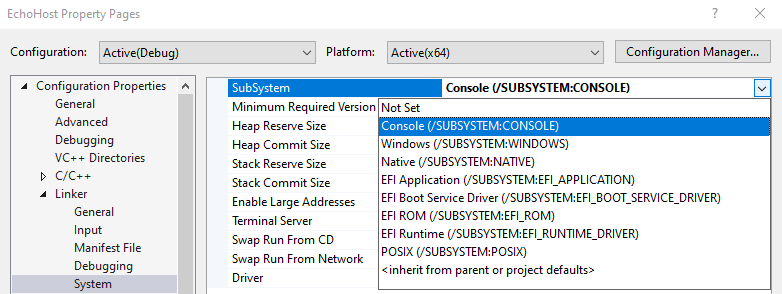
When Chromium launches a native host, it sets a start_hidden flag to prevent any UI from popping up from the host. That flag prevents the proxy cmd.exe‘s UI window (conhost.exe) from appearing on the screen. This start_hidden flag means that console-based (subsystem:console) Windows applications remain invisible during native-messaging communications. However, the start_hidden flag didn’t flow through to non-console applications (e.g. subsystem:Windows), like my Native Messaging Debugger application, which is built atop C#’s WinForms and meant to be seen by the user.
UPDATE: In the new version of this change that is available in version 115+, the browser will now look at headers inside of the target EXE. If the executable targets SUBSYSTEM:CONSOLE, it will be hidden as described in this section. If it targets SUBSYSTEM:WINDOWS (indicating a GUI application), the start_hidden flag will be set to false.
This compatibility accommodation will not resolve ALL problems, however. If you have a console app that occasionally shows a UI (e.g. a Windows certificate selection dialog box, for example) you will need to ensure that your app calls ShowWindow() explicitly.
The new Direct Launch for Executables flow changes this– now Windows .exe files are started hidden, meaning that they’re not visible to the user by default. Surprisingly, this might not be obvious to the application’s code; for example, checking frmMain.Visible in my WinForms startup code still returned true even though the window was not displayed to the user.
Fixing this in my Host was simple— I just explicitly call ShowWindow() in the application’s main form’s Load event handler:
// Inside the form's class:
private const int SW_SHOW = 5;
[DllImport("User32")]
private static extern int ShowWindow(int hwnd, int nCmdShow);

// Inside Form_Load():
ShowWindow((int)this.Handle, SW_SHOW);
While this works great for WinForms apps, depending on your app’s logic, you could conceivably need to call ShowWindow() twice due to some surprising behavior in Windows.
The Terminator
When a Native Host is no longer needed, either because the Extension’s sendNativeMessage() got a reply from the Host, or the disconnect() method was called (either explicitly or during garbage collection) on the port returned from connectNative(), Chromium shuts down the Native Host connection. First, it closes the stdin and stdout pipes that it established to communicate with the new process. Then, it checks whether the new process has exited itself (typical), and if not, sets up a timer to call Windows’ TerminateProcess() two seconds later if the Host is still running.
In the cmd.exe flow, this process termination was effectively a no-op, and a Host that did not self-terminate was always left running. You can see this with my Native Messaging Debugger app — the pipes close, but the UI remains alive.
In the new direct launch flow, the Host is reliably terminated two seconds after the pipes disconnect, if-and-only if Chromium is still running. (If the Host disconnects because Chromium is exiting entirely, the Host process’s pipes are detached but the Host process is not terminated… likely a longstanding bug where Chromium’s two-second callback is aborted during shutdown.)
While this is the intended design (preventing process leaks), unfortunately I’m not aware of an easy way for a Host that doesn’t want to exit to keep itself alive. Unlike many shutdown-type events, Windows does not allow a process to “decline” termination… it’s just there one moment and gone the next1. A Windows process can use a DACL trick to deny Process Terminate rights on handle non-elevated applications who get a handle to the process, but unfortunately this isn’t sufficient here, because Chromium gets a handle without this restriction as it launches the Host, before the Host process has a chance to protect itself. If your App truly needs to outlive the browser itself, you could either launch it via a .bat file, or you could have your Native Host itself be a stub that acts as an IPC proxy to the rest of your App.
Bonus Bug Fix
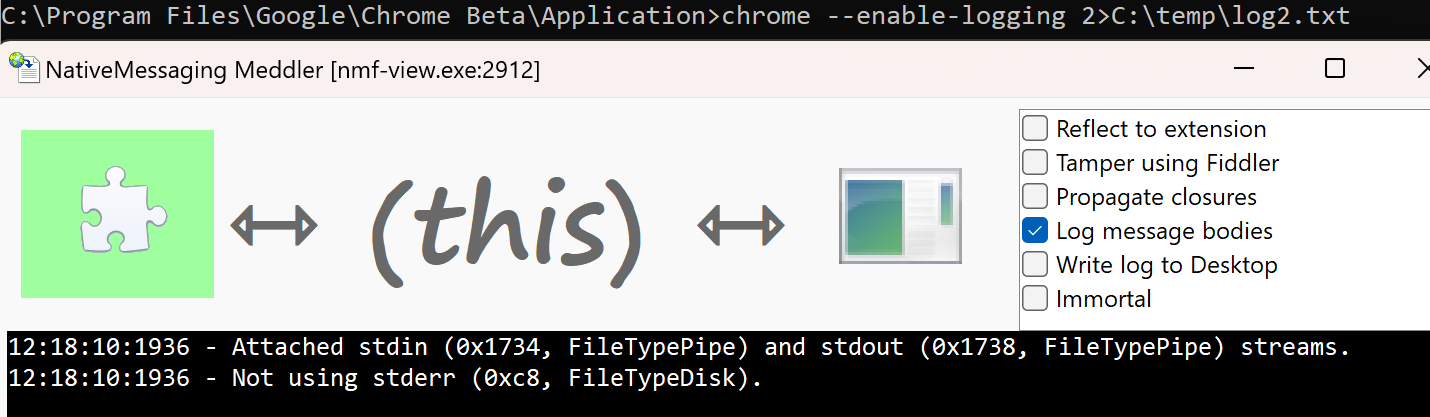
The Chromium documentation mentions that a native host can write error messages out to std_error and those error messages will be collected in Chrome’s standard error output log, which can be enabled by launching Chrome like:
chrome.exe --enable-logging 2>C:\temp\log.txt
However, prior to the new direct launch flow this did not work. For example, you can see that Chrome 112 does not pass the std_error handle through to the Native Host process, instead passing 0:
In contrast, when the Native Host is launched from Chrome 113, the handle properly points at the file-backed std_error handle inherited from Chrome:
Side Effect #1: Closing StdIn
Update: Mar 22, 2023: The developer of a popular extension found another behavior change in the new codepath that caused their extension to unexpectedly stop working. It’s a subtle issue, and hopefully theirs is the only one that will hit it.
What happened?
With the new launch flow, if your Host has an outstanding Read() on the Standard Input (stdin) handle, if you attempt to close that handle:
// Don't do this!
CloseHandle(GetStdHandle(StdIn));
…that function will now block unless/until the the Read() operation completes. If you were issuing this CloseHandle() call on the UI thread, your Host will hang until Chromium gets around to terminating your Host process, which could cause problems for your Host if it expected to perform any other cleanup after disconnecting.
The best fix for this issue is to simply not call CloseHandle(), because you don’t need to! All three STDIO handles will be correctly closed when your process exits in a few seconds anyway, so there’s no need to manually close the handle yourself.
If you really want to manually the handle, you can first call the function CancelIoEx(GetStdHandle(STD_INPUT_HANDLE), NULL);before calling CloseHandle(), but to reiterate, there’s really no good reason to bother closing the handle yourself.
Side Effect #2: Process Parent Changed
Update: Apr 18, 2023: A user of the 1Password Browser Extension found that it will no longer correctly connect to the NativeHost. The NativeHost launches, examines its runtime environment, and exits without returning a message to the extension.
When you look at the NativeHost’s log, you find that the client deliberately refuses the connection from the new browser:
Based on the logs, it appears what happens is that 1Password.exe walks up the process tree, from 1Password.exe to Chrome.exe to whatever launched Chrome.
While other NativeHosts requiring the old behavior could be easily accommodated (e.g. by pointing the Host’s manifest.json at a simple batch file that launches the Host), 1Password cannot be fixed like this because their anti-tampering logic forbids it.
In general, Native Hosts should avoid any reliance on the particular process tree of their launch context, as any number of things (including this change) could cause such checks to become flaky.
(Fixed in v115) Side Effect #3: std_error
Update: May 2, 2023: The fix for this issue landed in Chrome r1135573 for version 115.0.5736.0.
A developer noticed that in the old cmd.exe flow, when the browser is started (as it is by default) without the std_error handle redirected to a file or pipe, the handle passed to the Native Host was 0, while with the new direct launch flow, the handle is INVALID_HANDLE_VALUE. While neither handle value would allow the Host to write to standard error (because there’s nothing listening), some frameworks appear to check for 0 but not INVALID_HANDLE_VALUE and will cause failures if the latter value is received. The fix for this issue in v115 reverts back to passing 0 in this case.
If you encounter another-side effect or scenario that visibly changes with this new flow enabled in Chromium-based browsers v115 and later, please let me know ASAP!
-Eric
1 It took me some time to actually figure out what was happening here. My Native Messaging Debugger app started disappearing after the pipes closed, and I didn’t know why. I assumed that an unhandled exception must be silently crashing my app. I finally figured out what was happening using the awesome Silent Process Exit debugger option inside gflags:
The average phishing site doesn’t live very long– think hours rather than days or weeks. Attackers use a variety of techniques to try to keep ahead of the Defenders who work tirelessly to break their attack chains and protect the public.
Defenders have several opportunities to interfere with attackers:
Email scanners can detect Lure emails and either block them entirely, or warn the user (e.g. Microsoft SafeLinks) if they click on a link in an email that leads to a malicious site. These email scanners might check embedded URLs by directly checking URL Reputation Services, or they might use Detonators, automated bots which try to navigate a virtual machine to the URLs contained within a Lure email to determine whether the user will end up on a malicious site.
Browsers themselves use URL Reputation Services (Microsoft SmartScreen, Google SafeBrowsing) to block navigations to URLs that have been reported as maliciously Requesting the victim’s credentials and/or Recording those stolen credentials.
Browser extensions (e.g. NetCraft, Suspicious Site Reporter) can warn the user if the site they’re visiting is suspicious in some way (newly, bad reputation, hosted in a “dodgy neighborhood”, etc).
Defenders can work with Certificate Authorities to revoke the HTTPS certificates of malicious sites (alas, this no longer works very well)
Defenders and Authorities work with web infrastructure providers (hosting companies, CDNs, domain registration authorities, etc) to take down malicious sites.
Each of these represents a weak link for attackers, and they can improve their odds by avoiding them as much as possible. For example, phishers can try to avoid URL Reputation services’ blocking entirely by sending Lures that trick users into completing their victimization over the phone. Or, they can try to limit their exposure to URL Reputation services by using the Lure to serve the credential Request from the victim’s own computer, so that only the url that Records the stolen credentials is a candidate for blocking.
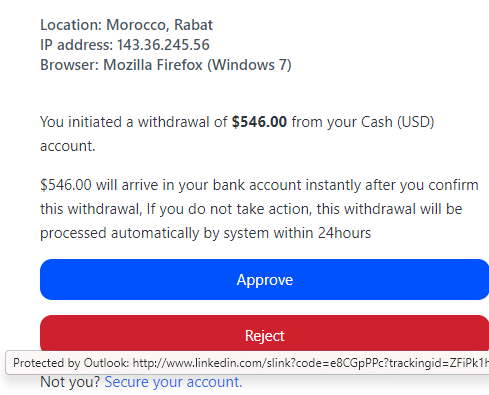
To make their Lure emails’ URLs less suspicious to mail scanners, some phishers will not include a URL that points directly at the credential Request page, instead pointing at a Redirect URL. In some cases, that redirector is provided by a legitimate service, like Google or LinkedIn:
That first Redirect URL might itself link to another Redirect service; in some cases, a Cloaking Redirector might be used which tries to determine whether the visitor is a real person (potential victim) or a security scanning bot (Defender). If the Cloaking Redirector believes they’ve got a real bite, they’ll send them to the Credential Request page, but if not, they’ll instead send the bot to some innocuous other page (Google and Microsoft homepages are common choices).
Redirectors can also complicate the phish-reporting process: a user reporting a phishing site might not report the original URL, so when the credential Request page starts getting blocked, the attacker can just update the Redirect URL used in their lure to point to a new Request page.
Before showing the user the credential Request, an attacker might ask the user to complete a CAPTCHA. Now, you might naturally wonder “Why would an attacker ever put a hurdle in the way of the victim on their merry way to give up their secrets?” And the answer is simple: While CAPTCHAs make things slightly harder for human victims, they make things significantly harder for the Defender’s Detonators — if an automated security scanner can’t get to the final URL, it cannot evaluate its phishyness.
After the user has been successfully lured to a credential collection page, the attacker bears some risk: the would-be victim might report the phish to URL reputation services. To mitigate that risk, the attacker might rely on cloaking techniques, so that graders cannot “see” the phishing attack when they check the false negative report.
Similarly, the would-be victim might themselves report the URL directly to the phisher’s web host, who often has no idea that they’re facilitating a criminal enterprise.
To avoid getting their sites taken offline by hosting providers, attackers may split their attack across multiple servers, with the credential Request happening at one URL, and the user’s stolen data sent to be Recorded on another domain entirely. That way, if only Request URL is taken down, the attacker can still collect their plunder from the other domain.
Proxy-Type Services
An attack I saw today utilized several of these techniques all at once. The attacker sent a lure with a URL pointing to a Google-owned translate.goog domain. That URL was itself just acting as a proxy for a Cloudflare IPFS gateway. IPFS is a new-ish technology that’s not supported by most browsers yet, but it has a huge benefit to attackers in that Authorities have no good way to “take down” content served via IPFS, although there’s a bad bits list.
To enable the attack page to be reachable by normal users’ browsers (which don’t natively support IPFS), the attackers supply a URL to a Cloudflare IPFS gateway, a special webservice that allows browsers to retrieve IPFS content using plain-old HTTPS. In this case, neither Google nor Cloudflare recognizes that they’re facilitating the attack, as neither of them is really acting as a “Web server” in any traditional sense.
Even if Google Translate and Cloudflare eventually do block the malicious URLs, the attacker can easily pick a different proxy service and a different IPFS gateway, without even having to republish their attack elsewhere on IPFS. The design of IPFS makes it harder to ever discover who’s behind the malicious page.
Now, storing data back to IPFS is a somewhat harder challenge for attackers, so this phishing site uses a different server for that purpose. The “KikiCard” URL used by the attackers receives POST requests with victims’ credentials, stores those credentials into a database for the attacker, and then redirects the user to some generic error page on Microsoft.com. In most cases, victims will never even see the “KikiCard” URL anywhere, making it much less likely to be reported.
Google SafeBrowsing is now blocking the KikiCard host as malicious, but it’s still online with a valid certificate.
Without more research, I usually couldn’t tell you whether this domain has always been owned by attackers, or whether an attacker simply hacked into an innocent web server and started using it for nefarious purposes. In this case, however, a quick search shows that it was found as a Recorder of stolen credentials going back to July 2022, not long after it got its first HTTPS certificate.
Open-Framer Vulnerabilities
Another attack variant abuses a legitimate site much like open-redirector and proxy-type service abuse. In this variant, a website has a vulnerability where an attacker is able to control the URL of a subframe of a page on that website. In contrast to a similar cross-site scripting attack, in this attack the attacker’s content is isolated by the web platform into a frame, ensuring that it cannot steal the user’s cookies or run script against content outside the frame in the containing page. However, because browsers do not indicate which parts of the page are inside subframes, users will naturally assume that the content in the frame legitimately originates from the parent page. An attacker can abuse this trust and prompt the user to perform an unsafe action in the frame (e.g. entering credentials or downloading files), and the user is likely to make their trust decision based on the URL of the unwitting outer page.
Trivia: These days, this attack requires a vulnerability in the website (e.g. accepting an arbitrary URL in a parameter), but decades ago it was a bug in the Internet Explorer web platform (any page could navigate any subframe contained inside a different page). This attack got the evocative nickname Super-Spoof Deluxe.
After my first real-world half marathon in January, I ended up signing up for the 2024 race, but I also quickly decided that I didn’t want to wait a full year to give it another shot. A day or so later, I signed up for the Galveston Island Half Marathon at the end of February, with the hope that a similarly flat course would give me a shot at beating my Austin finishing time.
Alas, it wasn’t to be, although I’m still glad I ran it.
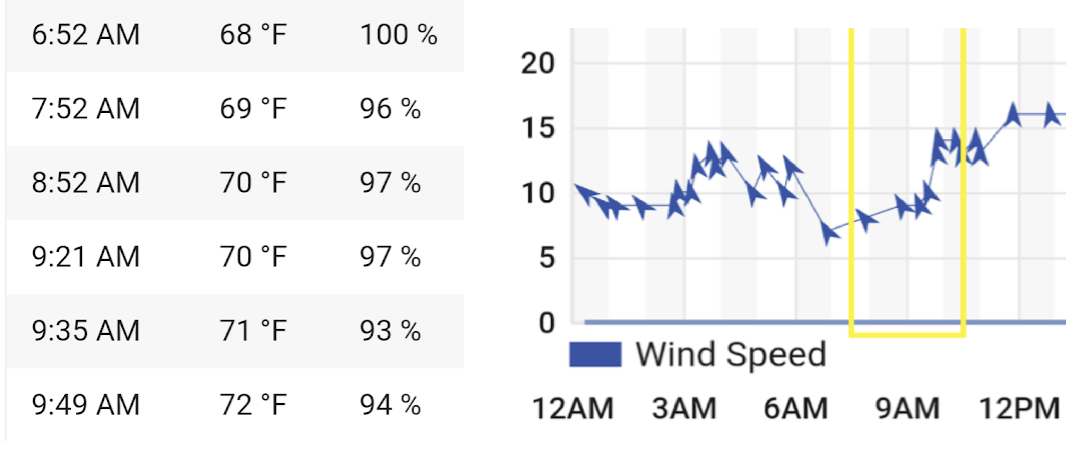
The weather forecast bounced around a bit in the final weeks leading up to the race, with rain predicted for a while, but race morning ultimately proved to be free of precipitation but extremely humid.
I woke up for half an hour at 3:15am, which wasn’t ideal, but I didn’t feel very tired. This time, I had a productive trip to the bathroom before leaving the house, and managed to squeeze in a final coffee disposal in the porta-potties just before the start.
In pre-race prep, I’d added more “peppy” music to my playlist, and configured my watch for easier visibility, although infuriatingly, I couldn’t coax it to tell me the time of day or total elapsed time: for my next run, I’m going to wear two watches.
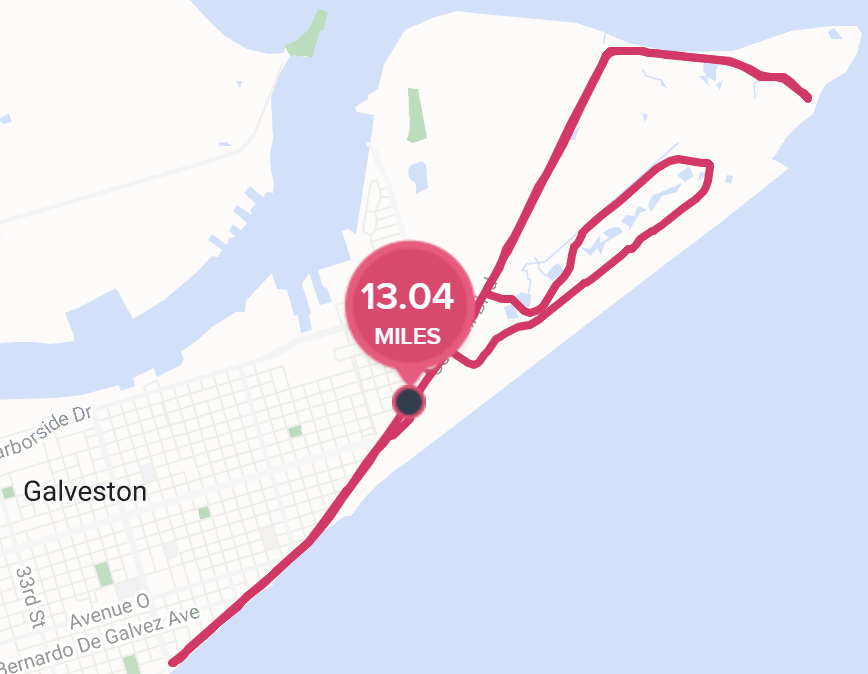
…heading north before looping back and passing by the starting area around 9.5 miles later:
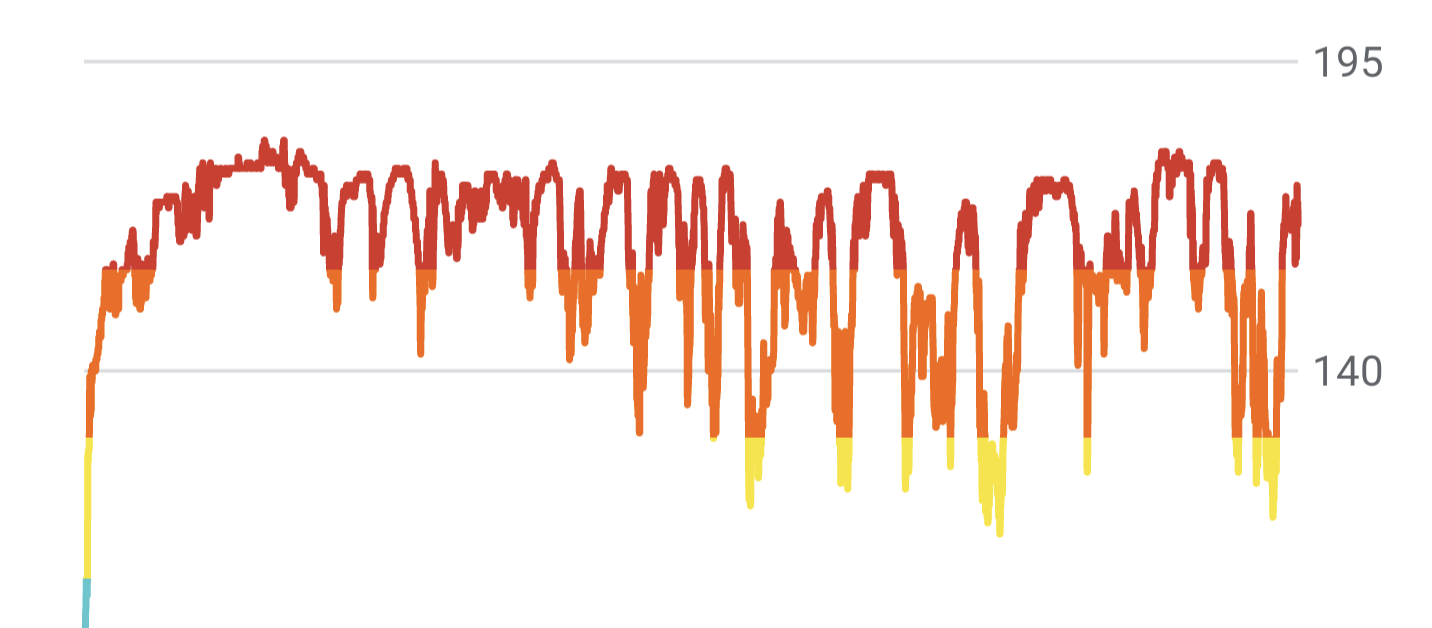
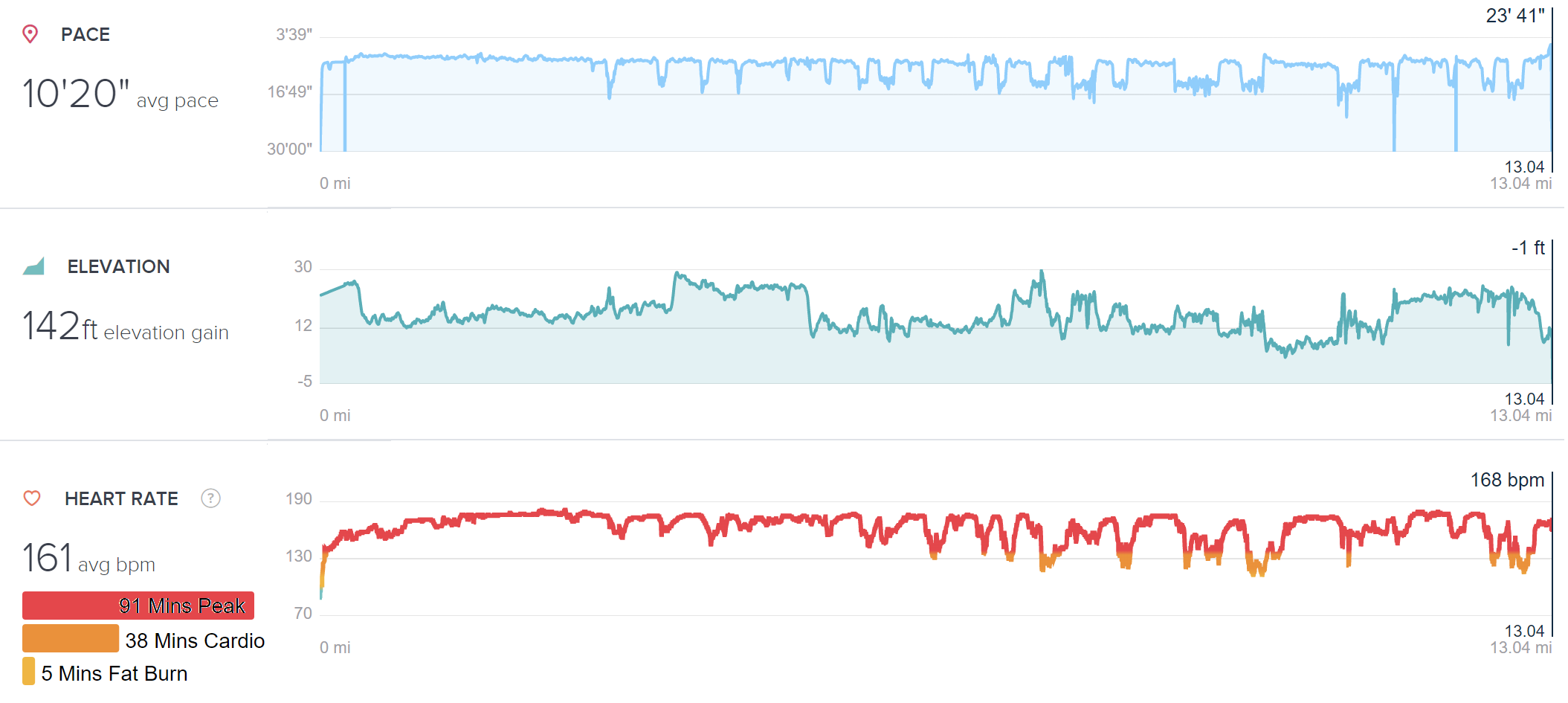
Unfortunately, this run was hard. I never found my rhythm and ended up in my Peak heart rate zone almost immediately; after mile three, I was regularly dropping down to walks.
I ended up not needing my sunglasses (or sunscreen), and it was kinda nice to run alongside the foggy beach and surf. That said, I needed water or Gatorade at almost every aid stop and I think I pumped out more sweat than on any other run.
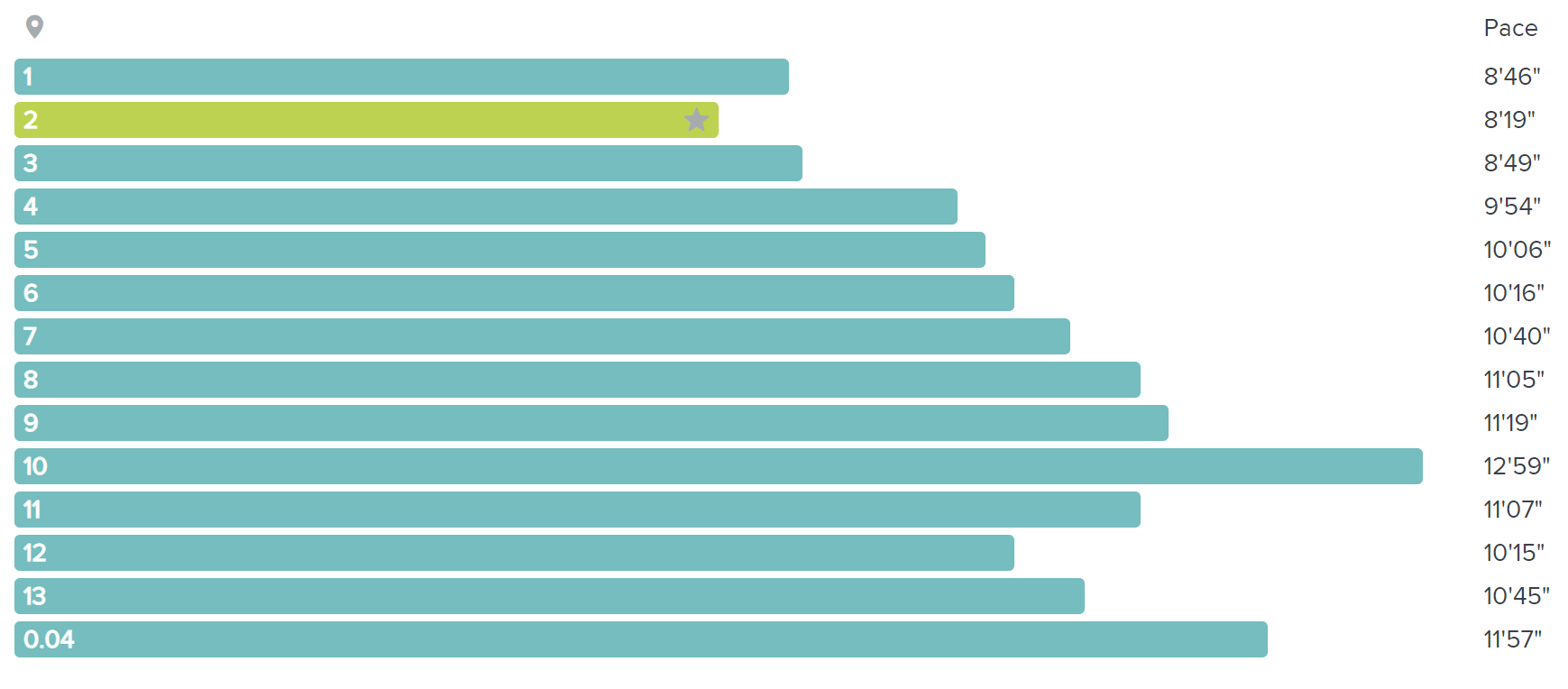
My pace for the first six miles was considerably slower than my expected (8:34), and only fell from there:
The middle miles of the race were hard. While nothing hurt for more than a second or two (a budding blister made its presence known, but it wasn’t either a surprise or bothersome), nothing felt very good either. I again found myself lost in unhappy thoughts and worries (mostly loneliness) and never managed to “zone out” and just run like I do on the treadmill.
When the finish line was finally in sight, I started sprinting; my knees instantly warned me that this wasn’t going to last, but otherwise it felt great to finally be moving.
I crossed the line fourteen minutes slower than my Austin Half, happy to be done:
After a shower back at the AirBnB, friends and I went to the Galveston Island Brewing taproom and sampled their beers. After a few hours, I walked over to the beach to enjoy the sun and warm weather (the fog had dissipated).
“Math Is Hard” Double IPA. (Or was it a quad, since I had two? :)
By the end of the day, I’d walked almost 6 additional miles, crossing over 35000 steps for the day.
The long-sleeve race shirt was pretty nice, and the logo was the same one used for the finisher’s medal.
Unfortunately, landscapers with a mower destroyed the back window of my car while it was parked at the AirBnB, but I managed to get it back to Austin without the shattered glass completely falling out.
I’m looking forward to some recovery treadmill runs for the next two months before the Capital 10K in April. I had a relaxed 8 mile run this morning and it felt great.






















 text/plain