Recently, I was debugging a regression where I wanted to watch change’s in an element’s property at runtime. Specifically, I wanted to watch the URL change when I select different colors in Tesla’s customizer. By using the Inspect Element tool, I can find the relevant image in the tree, and then when I pick a different color in the page, the Developer Tools briefly highlight the changes to the image’s attributes:
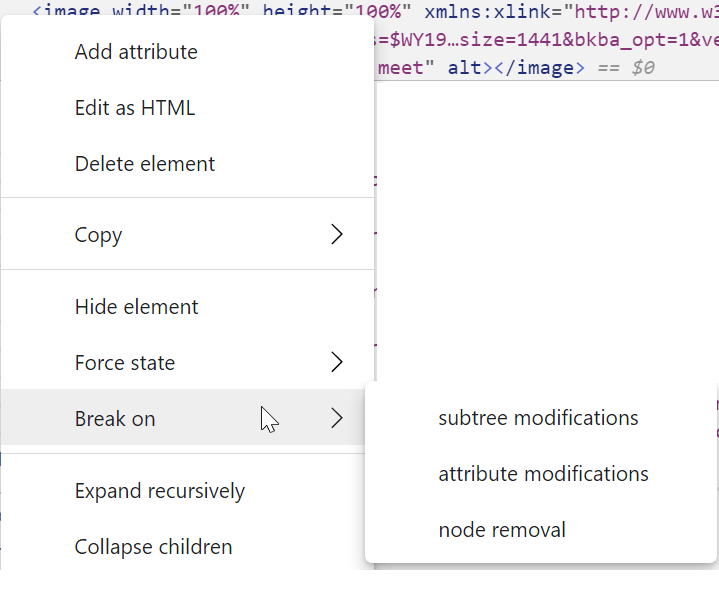
Unfortunately, you might notice that the value in the xlink:href property contains a ... in the middle of it, making it difficult to see what’s changed. I noted that the context menu offers a handy “Break on” submenu to break execution whenever the node changes:
…but I lamented that there’s no Watch attribute command to log the changing URLs to the console. Mozillian April King offered a helpful snippet that provides this functionality.
After selecting the image (which points Console variable $0 at the element), type the following in the Console:
new MutationObserver(i => console.log(i[0].target.attributes['xlink:href'])).observe($0, { attributes: ['xlink:href']});
This simple snippet creates a MutationObserver to watch the selected element’s xlink:href attribute, and every time it changes, the callback writes the current attribute value to the console:
Web browsers are notorious for being memory hogs, but this can be a bit misleading– in most cases, the memory used by the loaded pages accounts for the majority of memory consumption.
Unfortunately, some pages are not very good stewards of the system’s memory. One particularly common problem is memory leaks– a site establishes a fetch() connection to retrieve data from an endless stream of data coming from some webservice, then subsequently tries to hold onto the ever-growing response data forever.
If the tab crashes and the error page shows SBOX_FATAL_MEMORY_EXCEEDED, it means that the tab used more memory than permitted for the sandboxed process2.
The sandbox limits are so high that exceeding them is almost always an indication of a memory leak or JavaScript error on the part of the site.
Running out of memory
Beyond hitting the sandbox limits, a process can simply run out of memory– if it asks for memory from the OS and the OS says “Sorry, nope“, the process will typically crash.
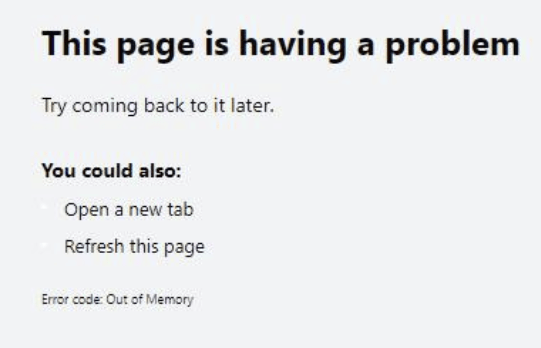
If the tab crashes, the error code will be rendered in the page:
Or, that’s what happens in the ideal case, at least.
If your system is truly out of free memory, all sorts of things are likely to fail– random processes around the system will likely fall over, and the critical top-level Browser process itself might crash, blowing away all of your tabs.
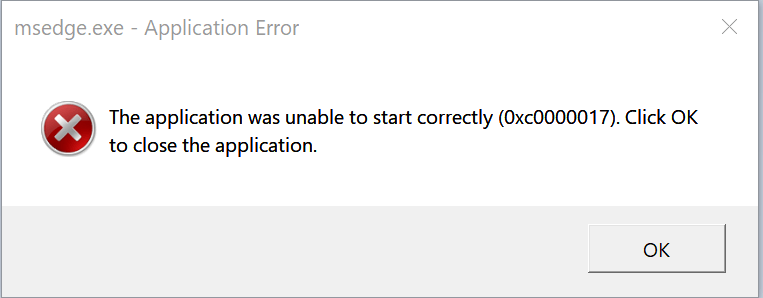
In my case, the crash reporter itself crashes, leading to this unfriendly dialog:
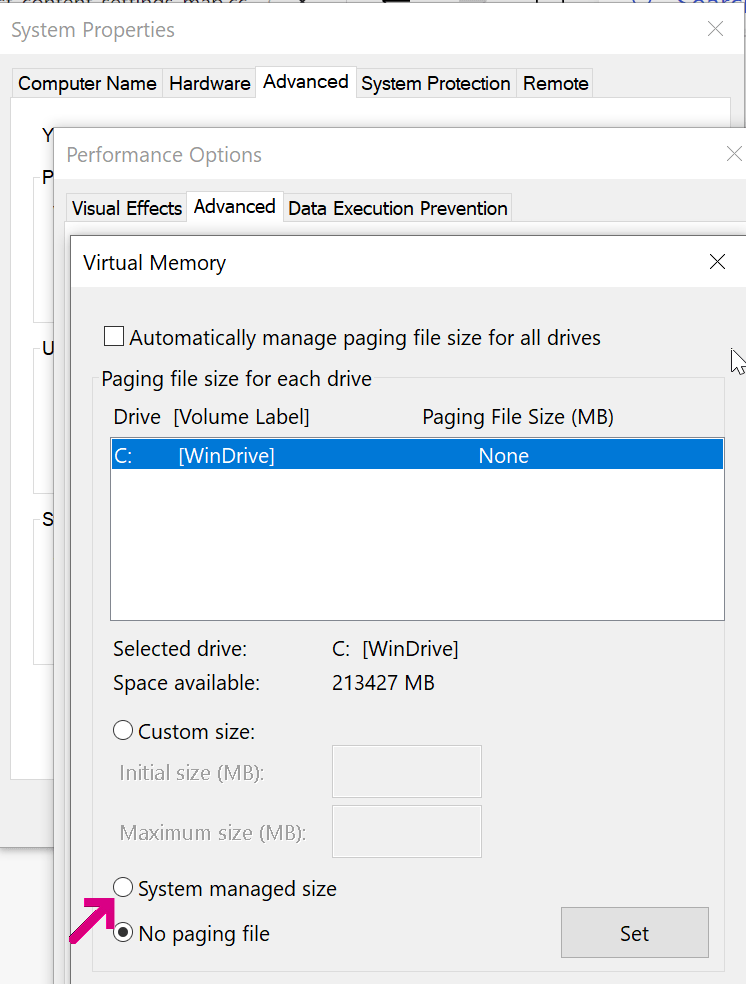
Turning off OS page file as I had in the screenshot above means that when your last block of physical memory is exhausted, rather than slowing down, random processes on your system will fall over.
32bit Processes and Fragmentation
Notably, no sandbox limit is set for a 32bit browser instance; on 32-bit Windows, a 32bit process can almost always only allocate 2gb (std::numeric_limits::max() == 2147483647) before crashing with an OOM. For a 32-bit process running on 64bit Windows, a process compiled as LargeAddressAware (like Chromium) can allocate up to 4GB.
32-bit processes also often encounter another problem– even if you haven’t reached the 2gb process limit, it’s often hard to allocate more than a few hundred megabytes of contiguous memory because of address space fragmentation. If you encounter an “Out of Memory” error in a process that doesn’t seem to be using very much memory, visit chrome://version to ensure that you aren’t using a 32 bit browser.
Limits
Alex Gough from Chromium (subsequently updated by others) provided the following breakdown of other memory-related limits for Windows/Linux:
A: See the comment block here. The general idea is that there can be performance and security benefits to allocating objects in different ways than a simple memory allocation of the needed size for the object and the associated pointer to the address of that object. These strategies do, however, impact the size and number of objects that can be allocated.
You can use the Browser Task Manager (hit Shift+Esc on Windows or use Window > Task Manager on Mac) to see how much memory your tabs and browser extensions are using:
You can also use the Memory tab in the F12 Developer tools to peek at heap memory usage. Click the Take Snapshot button to get a peek at where memory is being used (and potentially wasted):
Using lots of memory isn’t necessarily bad– memory not being used is memory that’s going to waste. But you should always ensure that your web application isn’t holding onto data that it will never need again.
1 Due to platform limitations, Chromium on OS X does not limit the sandbox size.
2 The error code isn’t fully reliable; Chrome’s test code notes:
// On 64-bit, the Job object should terminate the renderer on an OOM.
// However, if the system is low on memory already, then the allocator
// might just return a normal OOM before hitting the Job limit.
One of the most powerful mechanisms for Web-to-App and App-To-Web communication is to use an extension that utilizes the NativeMessaging API. The NativeMessaging API allows an extension running inside the browser to exchange messages with a native-code “Host” executable running outside of the browser sandbox. That Host executable runs with the full privileges of the current user account, meaning that it can show UI, make network connections, read/write to any files to which the user has access, call privileged APIs, etc.
The NativeMessaging approach requires installing both a native executable and a browser extension (e.g. from the Chrome or Edge Web Store). Web pages cannot themselves communicate directly with a NativeMessaging host, they must use message passing APIs to communicate from the web page to the Extension, which then uses NativeMessaging to communicate with the executable running outside of the browser. This restriction adds implementation complexity, but is considerably safer than historical approaches like ActiveX controls with elevated brokers.
Microsoft ships a have a few features implemented by Native Messaging:
The browser launches1 the Host executable in response to requests from an extension. On Windows, two command-line arguments are passed to the executable: the origin of the extension, and the browser’s HWND.
From the native code executable’s point-of-view, messages are received and sent using simple standard I/O streams. Messages are serialized using UTF8-encoded JSON preceded by a 32bit unsigned length in native byte order. Messages to the Host are capped at 4GB, and responses from the Host returned to the extension are capped at 1MB.
Hosts can be implemented using pretty much any language that supports standard I/O streams; using a cross-platform language like Go or Rust is probably a good choice if you aim to run on Windows, Mac, and Linux.
Avoid A Footgun Be sure to set your streams to binary mode, or you might miscompute the data length prefix if the data contains CR/LF characters, causing Chromium to think your message was malformed.
Open-source examples of Native Messaging hosts abound; you can find some on GitHub, e.g. by searching for allowed_origins. For instance, here’s a simple one written in C#.
Registering the Host
The Native Messaging Host (typically installed by a downloaded executable or MSI installer) describes itself using a JSON manifest file that specifies the Extensions allowed to invoke it. For instance, say I wanted to add a NativeMessaging host that would allow my browser extension to file a bug in a local Microsoft Access database. The registration for the extension might look like this:
On Windows, the host’s manifest is referenced in the registry, inside \Software\Microsoft\Edge\NativeMessagingHosts\ under either the HKLM or HKCU hive. By default, a reference in HKCUoverrides a HKLM reference. For compatibility reasons (enabling Chrome Web Store extensions to work with Edge), Microsoft Edge will also check for NativeMessagingHosts registered within the Google Chrome registry key or file path:
Writing to HKLM (a so-called “System Level install”) requires that the installer run with Administrator permissions, so many extensions prefer to register within HKCU so that Admin permissions are not required for installation. However, there are two downsides to “User Level” registration:
It requires every user account on a shared system to run the installer
It does not work for some Enterprise configurations.
The latter requires some explanation. The Microsoft Edge team (and various other external organizations) publish “Security Baseline” documents that give Enterprises and other organizations advice about best practices for securely deploying web browsers.
One element in the Microsoft Edge team’s baseline recommends that enterprises policy-disable support for “user-level” Native Messaging host executables. This policy directive helps ensure that native code executables that run outside of the browser sandbox were properly vetted and installed by the organization (and have not been installed by a rogue end-user, for instance). The specific mechanism of enforcement is that a browser with this policy set will refuse to load a NativeMessagingHost unless it is registered in the HKLM hive of the registry; HKCU-registered hosts are simply ignored.
In order for Enterprises to deploy browser extensions that utilize NativeMessaging with NativeMessagingUserLevelHosts policy-disabled, such extension installers must offer the option to register the messaging host in HKLM. Those System-level installers will then require Admin-elevation to run, so it’s probably worthwhile to offer either two installers (one for User-level installs and one for System-level installs) or a single installer that elevates to install to HKLM if requested.
Calling the NativeMessaging Host
From the JavaScript extension platform point-of-view, messages are sent using a simple postMessage API.
To communicate with a Native Messaging host, the extension must include the nativeMessaging permission in its manifest. After doing so, it can send a message to the Host like so:
var port = chrome.runtime.connectNative('com.bayden.moarTLSNative');
port.postMessage({ url: activeTabs[0].url });
When the connectNative call executes, the browser launches the native_messaging_host_for_bug_filer.exe executable referenced in the manifest. The subsequent postMessage call results in writing the message data to the process’ stdin I/O stream. If the process responds, port‘s onMessage handler fires, or if the process disconnects, the onDisconnect handler is invoked.
NativeMessaging is a remarkably powerful primitive for bi-directional communication with native apps. Please use it carefully– escaping the browser’s sandbox means that careless implementations might result in serious security vulnerabilities.
-Eric
1 As of Chromium 87, the way the executable is invoked on Windows is rather convoluted (cmd.exe is used as a proxy) and it may fail for some users. Avoid using any interesting characters (e.g. & and @) in the path to your Host executable, and be aware that Native Messaging will not work if the customer’s environment disables cmd.exe.
Text rendering quality is an amazingly complicated topic, with hardware, settings, fonts, differing rendering engine philosophies, and user preferences all playing key roles. In some cases, however, almost everyone can agree that one rendering is superior to another. Consider, for instance, the text of this Gizmodo article as seen on one user’s computer:
You can use this fancy swipe-view widget to wipe between the renderings of the full paragraph:
Most people think the text for Edge looks awful, with unexpectedly chunky letters and irregular kerning, but the text for IE11 looks pretty good.
Investigation reveals that the problem here is that Edge and Firefox are respecting the system’s font smoothing setting, but IE11 is ignoring it.
Font Smoothing in Windows
Windows has three levels of font smoothing: Off, Basic/Standard, and ClearType. Here’s a quick chart showing the impact of each setting across three browser engines:
Notably, the IE11 rendering is pixel-for-pixel identical regardless of Windows settings– it renders with grayscale subpixel smoothing even when smoothing is off or ClearType is enabled. In contrast, if you zoom into the ClearType examples in Edge 86 and Firefox 80 you can see subpixel smoothing at work, with tiny colored fringes smoothing the edges of the characters.
Examining Smoothing Parameters
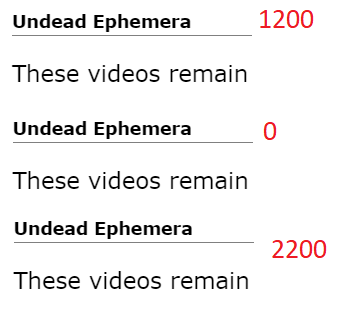
Font Smoothing is controlled by four registry values inside HKCU\Control Panel\Desktop. FontSmoothing supports two values {0=Off,2=On} and FontSmoothingType supports values {1=Basic,2=ClearType}. The FontSmoothingGamma parameter controls the darkness of the smoothing and accepts values between 1000 and 2200. You have to zoom in pretty close to see the effect:
The FontSmoothingOrientation flag controls the order of the red, blue, and green pixels in the display; it supports two values {0=BGR, 1=RGB}; ClearType needs this information to understand which subpixels to illuminate when smoothing. RGB is the most common and the default.
Applications that need this information should use the SystemParametersInfo function to retrieve these parameters.
Tuning Parameters
End-users can enable FontSmoothing in the Windows Performance Options (Win+R, then SystemPropertiesPerformance.exe):
To enable ClearType and tune its settings for your displays and settings, run the ClearType Tuner Wizard (Win+R, then CTTune.exe):
The Tuner will walk you through a series of side-by-side text renderings, asking which of them looks best, a bit like an eye doctor determining the parameters for your prescription eyeglasses.
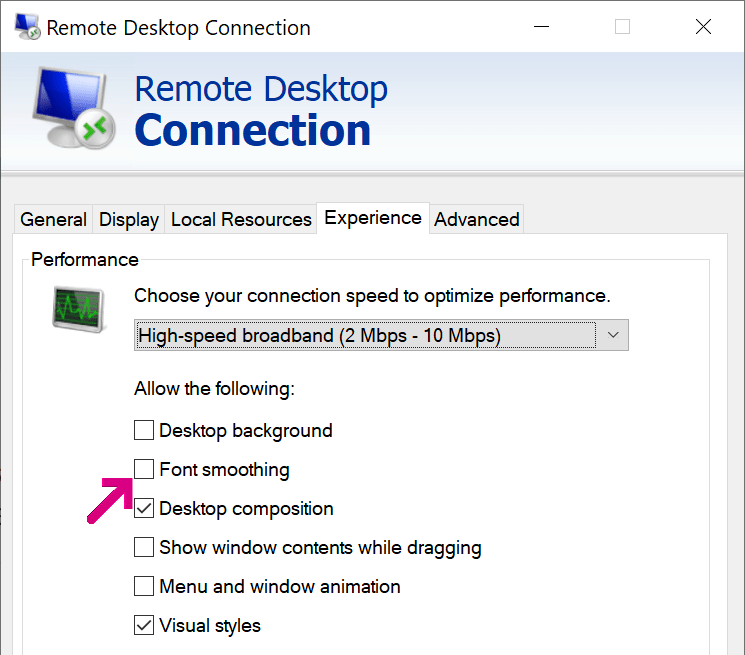
Note: If you use a Windows PC via a remote desktop connection, ensure that the “Font Smoothing” option is checked in the connection properties:
Windows settings do not account for all cases of text rendering dissatisfaction.
In some cases, the problem is that a website has selected a font not present on the user’s PC, forcing fallback to an inferior font lacking proper hinting data for smoothing. Within Chromium itself, the browser changes the default fixed width font from Courier New to Consolas if ClearType is enabled, because the latter has better hinting information. Similarly, in Edge 85, we improved font fallback for Chinese to prefer the (ClearType-optimized) Microsoft YaHei and Microsoft JhengHei fonts over legacy fonts.
In other cases, users may simply prefer darker text than ClearType generates, perhaps using a browser extension to achieve their preferences.
In other cases, the user’s hardware might not be optimally configured for font smoothing. For instance, if you run a monitor in Portrait mode, its pixels have a different layout. A device can report its subpixel geometry using a registry key.
If you see a case of poor text rendering across browsers that you cannot explain using the information in this post, please let us know about it!
The new Microsoft Edge offers a rich set of policies that enable IT administrators to control many aspects of its operation.
You can visit edge://policy/ to see the policies in effect in your current browser:
Clicking on a policy name will take you to the documentation for that policy. The Status column indicates whether the policy is in effect, in Error, or Ignored. A policy is in Error if the policy name is unrecognized or the policy value is malformed.
A policy can be Ignored for several reasons. On reason is if the policy is a Protected Policy and the machine is not Domain Joined or MDM managed. Policies are marked “Protected” if they are especially often abused by malware. For instance, policies controlling the content of the New Tab Page are protected because adware/malware commonly attempted to monetize users by silently changing their search engine and homepage when their “free” apps were installed on a user’s PC. Protected Policies are marked in the Edge documentation with the note:
This policy is available only on Windows instances that are joined to a Microsoft Active Directory domain, Windows 10 Pro or Enterprise instances that enrolled for device management, or macOS instances that are that are managed via MDM or joined to a domain via MCX.
When Edge detects that a device is in a managed state in which Protected Policies are allowed, it will show “Managed by your organization” at the bottom of the … menu
A Policy may also be ignored if the user is running in a Personal (MSA) Profile on an Enterprise client and the policy has been filtered as not applicable.
A Policy may also be ignored if there are conflicting policies between EMX/MAM and GP/MDM management tooling.
UPDATE: With the introduction of “Edge for Business” in version 116, some policies apply only to browser profiles signed in with organizational/enterprise accounts (e.g. eric@contoso.com) but not Microsoft Accounts (e.g. eric@hotmail.com). Each of Edge’s available policies has been annotated to note whether it applies to non-organizational accounts. For example, this policy will not be respected for a profile signed in with a personal Hotmail account:
The idea of this split is to better delineate between settings the enterprise is expected to have control over vs. those things that shouldn’t need to be controlled in an employee’s personal browsing. This was an … interesting … design choice.
Implementation mechanism
There’s no magic in how policies are implemented: while you should prefer using edge://policy to look at policies to get Edge’s own perspective about what policies are set, you can also view (and set) policies using the Windows Registry:
On Mac, the policies are stored in a .plist configuration file.
One important note: Chromium policy names are case-sensitive. If you write a policy to the registry yourself (rather than relying on the Group Policy editor or the like), you will see that the policy is not respected if you do not exactly match the case. For example, if you try to specify the URLBlocklist policy but write it as URLblocklist, you’ll see the following error inside the edge://policy page:
Careful, this thing is loaded…
You must take great care when configuring policies, as they are deliberately much more powerful than the options exposed to end-users. In particular, it is possible to set policies that will render the browser and the device it runs on vulnerable to attack from malicious websites.
Administrators should take great care when relaxing security restrictions through policy to avoid opening clients up to attack. For instance, avoid using entries like https://* in URLList permission controls– while such a rule may cover all of your Intranet Zone sites, it also includes any malicious site on the Internet using HTTPS.
… but Incomplete
Notably, not all settings in the browser can be controlled via policy. For instance, some of the web platform feature settings inside edge://settings/content can only be enabled/disabled entirely (instead of on a per-site basis), or may not be controllable by policy at all, only enabling end-user control.
In some cases, you may only be able to use a Master Preferences file to control the initial value for a setting, but the user may later change that value freely.










 text/plain