Back in the mid-aughts, Adam G., a colleague on the IE team, used the email signature “IE Networking Team – Without us, you’d be browsing your hard drive.” And while I’m sure it was meant to be a bit tongue-in-cheek, it’s really true– without a working network stack, web browsers aren’t nearly as useful.
Background on Proxy Determination
One of the very first things a browser must do on startup is figure out how to send requests over the network. Typically, the host operating system already provides the transport (TCP/IP, UDP) and lower-level primitives, so the browser’s first task is to figure out whether or not web requests should be sent through a proxy. Until this question is resolved, the browser cannot send any network requests to load pages, sync profile information, update phishing blocklists, etc.
In some cases, proxy determination is simple— the browser is directly configured to ignore proxies, or to send all requests to a directly specified proxy.
However, for convenience and to simplify cases where a user might move a laptop between different networks with different proxy requirements, all major browsers support an algorithm called “Web Proxy Auto Discovery”, or WPAD. The WPAD process is meant to find and download a Proxy AutoConfiguration Script (PAC) for the current network.
The steps of the WPAD protocol are straightforward, if lengthy:
- Determine whether WPAD should be used, either by looking at browser settings or asking the host operating system if the browser is configured to match the OS setting.
- Ensure the network is ready.
- If WPAD is to be used, issue a DHCPINFORM query to ask for the URL of the PAC script to use.
- If the DHCPINFORM query fails to return a URL, perform a DNS lookup for the unqualified hostname wpad.
- If the DNS lookup succeeds, then the PAC URL shall be http://wpad/wpad.dat.
- Establish a HTTP(S) connection to discovered URL’s server and download the PAC script.
- If the PAC script downloads successfully, parse and optionally compile it.
- For each network request, call FindProxyForURL() in the PAC script and use the proxy settings returned from the function.
While conceptually simple, any of these steps might fail, and any failure might prevent the browser from using the network.
Performance
… or “Why on earth do I see Downloading proxy script… for a few seconds every time I start my browser!??!”
A Microsoft Edge feature team reached out to the networking team this week asking for help with an observed 3 second delay in the initialization of their feature. They observed that this delay magically disappeared if Fiddler happened to be running.
With symptoms like that, proxy determination is the obvious suspect, because Fiddler specifies the exact proxy configuration for browsers to use, meaning that they do not need to perform the WPAD process.
We asked the team to take an Edge network trace using the “Capture on Startup” steps. Sure enough, when we analyzed the resulting NetLog, we found almost exactly three seconds of blocking time during startup:
t= 52   PROXY_CONFIG_CHANGED
             --> new_config = Auto-detect
t= 52  +PAC_FILE_DECIDER
t= 52  PAC_FILE_DECIDER_WAIT
t=2007 +PAC_FILE_DECIDER_FETCH_PAC_SCRIPT
              --> source = "WPAD DHCP"
t=2032 -PAC_FILE_DECIDER_FETCH_PAC_SCRIPT
            --> net_error = -348 (ERR_PAC_NOT_IN_DHCP)
t=2032 PAC_FILE_DECIDER_FALLING_BACK_TO_NEXT_PAC_SOURCE
t=2032 +HOST_RESOLVER_IMPL_REQUEST
              --> host = "wpad:80"
t=3033 CANCELLED
Note: Timestamps [e.g. t=52] are shown in milliseconds.
Because the browser took a full three seconds to decide whether or not to use a proxy, every feature that relies on the network will take at least three seconds to get the data it needs.
So, where’s the delay coming from? In this case, the delay comes from two places: a two second delay for PAC_FILE_DECIDER_WAIT and a one second delay for the DNS lookup of wpad.
The two second PAC_FILE_DECIDER_WAIT [Step #2] is a deliberate delay that is meant to delay PAC lookups after a network change event is observed, to accommodate situations where the browser is notified of a network change by the Operating System before the network is truly “ready” to perform the DHCP/DNS/Download steps of WPAD. In this browser-startup case, we haven’t yet figured out why the browser thinks a network change has occurred, but the repro is not consistent and it seems likely to be a bug.
The (failing) DNS lookup [Step #3] might’ve taken even longer to return, but it timed out after one second thanks to an enabled-by-default feature called WPADQuickCheckEnabled.
This three second delay on startup is bad, but it could be even worse. We got reports from one Microsoft employee that every browser startup took around 21 seconds to navigate anywhere. In looking at his network log, we found that the wpad DNS lookup [Step #5] succeeded, returning an IP address, but the returned IP was unreachable and took 21 seconds to timeout during TCP/IP connection establishment.
What makes these delays especially galling is that they were all encountered on a network that does not actually need a proxy!
Failures
Beyond the time delays, each of these steps might fail, and if a proxy is required on the current network, the user will be unable to browse until the problem is corrected.
For example, we recently saw that [Step #7] failed for some users because the Utility Process running the PAC script always crashed due to forbidden 3rd-party code injection. When the Utility Process crashes, Chromium attempts to bypass the proxy and send requests directly to the server, which was forbidden by the Enterprise customer’s network firewall.
We’ve also found that care must be taken in the JavaScript implementation of FindProxyForURL() [Step #8] because script functions behave slightly differently across different browsers. In most cases, scripts work just fine across browsers, but sometimes corner cases are encountered that require careful handling.
Script Download
In Chromium, if a PAC script must be downloaded, it is fetched bypassing the cache.
Even if we were to comment out the LOAD_DISABLE_CACHE directive in the fetch, this wouldn’t allow reuse of a previously downloaded script file– my assumption is that the download is happening in a NetworkContext that doesn’t actually have a persistent cache, but I haven’t looked into this.
The PAC script fetches will be repeated on network change or browser restart.
Security
WPAD is something of a security threat, because it means that another computer on your network might be able to become your proxy server without you realizing it. In theory, HTTPS traffic is protected against malicious proxy servers, but non-secure HTTP traffic hasn’t yet been eradicated from the web, and users might not notice if a malicious proxy performed an SSLStripping attack on a site that wasn’t HSTS preloaded, for example.
Note: Back in 2016, it was noticed that the default Chromium proxy script implementation leaked full URLs (including HTTPS URLs’ query strings) to the proxy script; this was fixed by truncating the URL to the hostname. (In the new world of DoH, there’s some question as to whether we might be able to avoid sending the hostname to the proxy at all).
Edge Legacy and Internet Explorer have a surprising default behavior that treats sites for which a PAC script returns DIRECT (“bypass the proxy for this request“) as belonging to your browser’s Intranet Zone.
This mapping can lead to functionality glitches and security/privacy risks. Even in Chrome and the new Edge, Windows Integrated Authentication still occurs Automatically for the Windows Intranet Zone, which means this WPAD Zone Mapping behavior is still relevant in modern browsers.
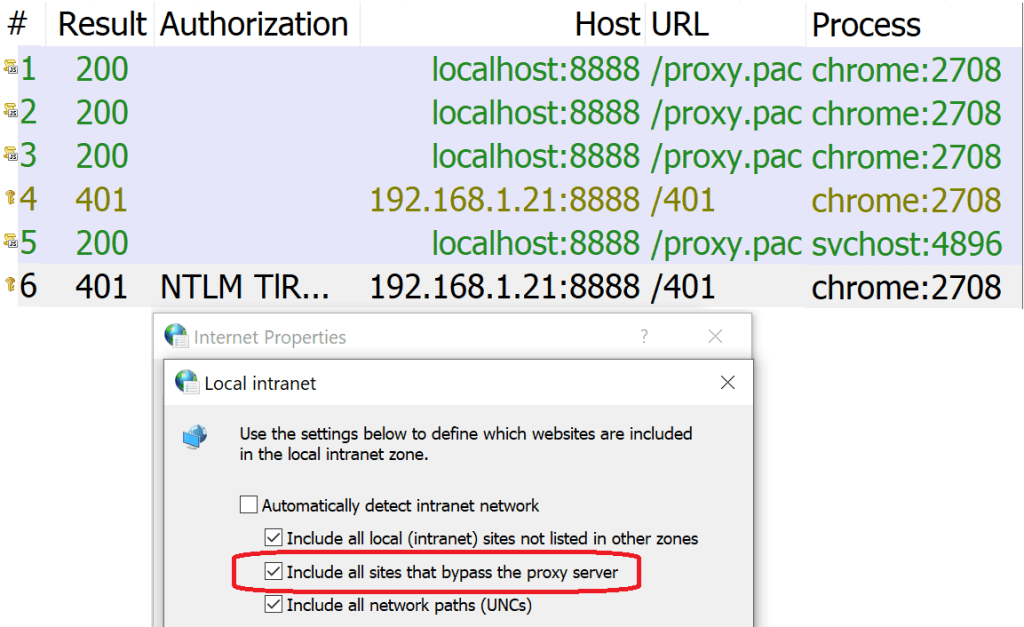
Edge Legacy and Internet Explorer
Interestingly, performance and functionality problems with WPAD might have been less common for the Edge Legacy and Internet Explorer browsers on Windows 10. That’s because both of these browsers rely upon the WinHTTP Web Proxy Auto-Discovery Service:
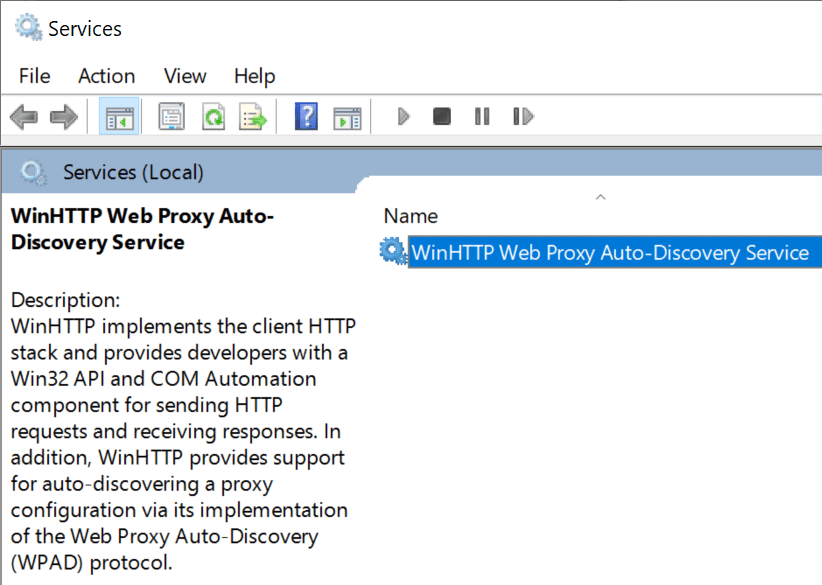
This is a system service that handles proxy determination tasks for clients using the WinHTTP/WinINET HTTP(S) network stacks. Because the service is long-running, performance penalties are amortized (e.g. a 3 second delay once per boot is much cheaper than a 3 second delay every time your browser starts), and the service can maintain caches across different processes.
Chromium does not, by default, directly use this service, but it can be directed to do so by starting it with the command-line argument:
--winhttp-proxy-resolver
A Group Policy that matches the command-line argument is also available.
SmartWPAD
Prior to the enhancement of the WinHTTP WPAD Service, a feature called SmartWPAD was introduced in Internet Explorer 8’s version of WinINET. SmartWPAD caches in the registry a list of networks on which WPAD has not resulted in a PAC URL, saving clients the performance cost of performing the WPAD process each time they restarted for the common case where WPAD fails to discover a PAC file:
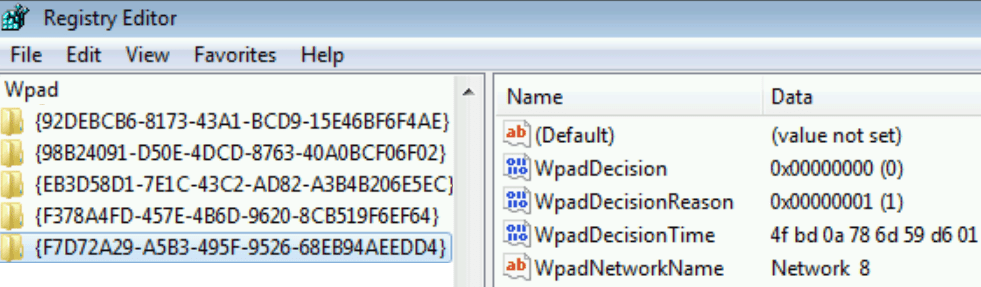
Cache entries would be maintained for a given network fingerprint for one month. Notably, the SmartWPAD cache was only updated by WinINET, meaning you’d only benefit if you launched a WinINET-based application (e.g. IE) at least once a month.
When a client (including IE, Chrome, Microsoft Edge, Office, etc) subsequently asks for the system proxy settings, SmartWPAD checks if it had previously cached that WPAD was not available on the current network. If so, the API “lies” and says that the user has WPAD disabled.
The SmartWPAD feature still works with browsers running on Windows 7 today.
Notably, it does not seem to function in Windows 10; the registry cache is empty. My Windows 10 Chromium browsers spend ~230ms on the WPAD process each time they are fully restarted.
Update: The WinINET team confirms that SmartWPAD support was removed after Windows 7; for clients using WinINET/WinHTTP it wasn’t needed because they were using the proxy service. Clients like Chromium and Firefox that query WinINET for proxy settings but use their own proxy resolution logic will need to implement a SmartWPAD-like feature optimize performance.
Disabling WPAD
If your computer is on a network that doesn’t need a proxy, you can ensure maximum performance by simply disabling WPAD in the OS settings.
By default (if not overridden by policy or the command line), Chromium adopts the Windows proxy settings by calling WinHttpGetIEProxyConfigForCurrentUser.
On Windows, you can thus turn off WPAD by default by using the Internet Control Panel (inetcpl.cpl) Connections > LAN Settings dialog, or the newer Windows 10 Settings applet’s Automatic Proxy Setup section:

Simply untick the box and browsers that inherit their default settings from Windows (Chrome, Microsoft Edge, Edge Legacy, Internet Explorer, and Firefox) will stop trying to use WPAD.
Update: There’s also a registry key that will directly disable WPAD inside the WinHTTP service, DisableWPAD. However, this key will NOT impact clients like Chrome, Edge, and Firefox that ask the system for the proxy configuration state, and when those clients “see” that PROXY_TYPE_AUTO_DETECT is enabled, they will themselves perform WPAD directly.
Looking forward
WPAD is convenient, but somewhat expensive for performance and a bit risky for security/privacy. Every few years, there’s a discussion about disabling it by default (either for everyone, or for non-managed machines), but thus far none of those conversations has gone very far.
Ultimately, we end up with an ugly tradeoff– no one wants to land a change that results in users being limited to browsing their hard drives.
If you’re an end user, consider unticking the “Automatically Detect Settings” checkbox in your Internet settings. If you’re an enterprise administrator, consider deploying a policy to disable WPAD for your desktop fleet.
-Eric


 text/plain