Analyzing Network Traffic Logs (NetLog json)

Previously, I’ve described how to capture a network traffic log from Microsoft Edge, Google Chrome, and applications based on Chromium or Electron.

In this post, I aim to catalog some guidance for looking at these logs to help find the root cause of captured problems and otherwise make sense of the data collected.

Last Update: Jan 27, 2025I expect to update this post over time as I continue to gain experience in analyzing network logs.

Choose A Viewer – Fiddler or Catapult

After you’ve collected the net-export-log.json file using the about:net-export page in the browser, you’ll need to decide how to analyze it.

The NetLog file format consists of a JSON-encoded stream of event objects that are logged as interesting things happen in the network layer. At the start of the file there are dictionaries mapping integer IDs to symbolic constants, followed by event objects that make use of those IDs. As a consequence, it’s very rare that a human will be able to read anything interesting from a NetLog.json file using just a plaintext editor or even a JSON parser.

The most common (by far) approach to reading NetLogs is to use the Catapult NetLog Viewer, a HTML/JavaScript application which loads the JSON file and parses it into a much more readable set of events.

An alternative approach is to use the NetLog Importer for Telerik Fiddler.

Importing NetLogs to Fiddler

For Windows users who are familiar with Fiddler, the NetLog Importer extension for Fiddler is easy-to-use and it enables you to quickly visualize HTTP/HTTPS requests and responses. The steps are easy:

  1. Install the NetLog Importer,
  2. Open Fiddler, ideally in Viewer mode fiddler.exe -viewer
  3. Click File > Import > NetLog JSON
  4. Select the JSON file to import

In seconds, all of the HTTP/HTTPS traffic found in the capture will be presented for your review. If the log was compressed before it was sent to you, the importer will automatically extract the first JSON file from a chosen .ZIP or .GZ file, saving you a step.

In addition to the requests and responses parsed from the log, there are a number of pseudo-Sessions with a fake host of NETLOG that represent metadata extracted from the log:
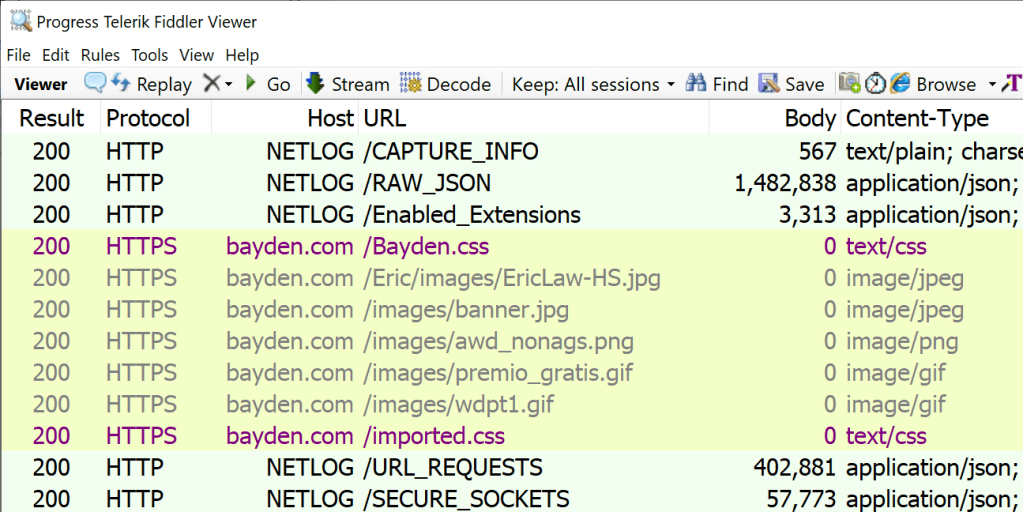
These pseudo-sessions include:

  • RAW_JSON contains the raw constants and event data. You probably will never want to examine this view.
  • CAPTURE_INFO contains basic data about the date/time of the capture, what browser and OS version were used, and the command line arguments to the browser.
  • ENABLED_EXTENSIONS contains the list of extensions that are enabled in this browser instance. This entry will be missing if the log was captured using the –log-net-log command line argument.
  • URL_REQUESTS contains a dictionary mapping every event related to URL_REQUEST back to the URL Requests to which it belongs. This provides a different view of the events that were used in the parsing of the Web Sessions added to the traffic list.
  • SECURE_SOCKETS contains a list of all of the HTTPS sockets that were established for network requests, including the certificates sent by the server and the parameters requested of any client certificates. The Server certificates can be viewed by saving the contents of a –BEGIN CERTIFICATE– entry to a file named something.cer. Alternatively, select the line, hit CTRL+C, click Edit > Paste As Sessions, select the Certificates Inspector and press its Content Certificates button.

You can then use Fiddler’s UI to examine each of the Web Sessions.

Limitations

The NetLog format currently does not store request body bytes, so those will always be missing (e.g. on POST requests).

Unless the Include Raw Bytes option was selected by the user collecting the capture, all of the response bytes will be missing as well. Fiddler will show a “dropped” notice when the body bytes are missing:

If the user did not select the Include Cookies and Credentials option, any Cookie or Authorization headers will be stripped down to help protect private data:

Scenario: Finding URLs

You can use Fiddler’s full text search feature to look for URLs of interest if the traffic capture includes raw bytes. Otherwise, you can search the Request URLs and headers alone.

On any session, you can use Fiddler’s “P” keystroke (or the Select > Parent Request context menu command) to attempt to walk back to the request’s creator (e.g. referring HTML page).

You can look for the traffic_annotation value that reflects why a resource was requested by looking for the X-Netlog-Traffic_Annotation Session Flag.

Scenario: Cookie Issues

If Fiddler sees that cookies were not set or sent due to features like SameSiteByDefault cookies, it will make a note of that in the Session using a psuedo $NETLOG-CookieNotSent or $NETLOG-CookieNotSet header on the request or response:

Closing Notes

If you’re interested in learning more about this extension, see announcement blog post and the open-source code.

While the Fiddler Importer is very convenient for analyzing many types of problems, for others, you need to go deeper and look at the raw events in the log using the Catapult Viewer.


Viewing NetLogs with the Catapult Viewer

Opening NetLogs with the Catapult NetLog Viewer is even simpler:

  1. Navigate to the web viewer
  2. Select the JSON file to view

If you find yourself opening NetLogs routinely, you might consider using a shortcut to launch the Viewer in an “App Mode” browser instance: msedge.exe --app=https://netlog-viewer.appspot.com/#import

The App Mode instance is a standalone window which doesn’t contain tabs or other UI:

Note that the Catapult Viewer is a standalone HTML application. If you like, you can save it as a .HTML file on your local computer and use it even when completely disconnected from the Internet. The only advantage to loading it from appspot.com is that the version hosted there is updated from time to time.

Along the left side of the window are tabs that offer different views of the data– most of the action takes place on the Events tab.

Start Here: The Chromium Project wrote a Crash Course for examining NetLog Events.

Tips

If the problem only exists on one browser instance, check the Command Line parameters and Active Field trials sections on the Import tab to see if there’s an experimental flag that may have caused the breakage. Similarly, check the Modules tab to see if there are any browser extensions that might explain the problem.

Entries with IDs below 0 (e.g. -214747…) are recorded by the browser process (e.g. CERT_VERIFIER_TASK); the other entries are recorded by the Network Process. By partitioning the ID space, the log avoids the problem of duplicated values without complex cross-process communication. The default sort order of the netlog viewer is the Start Time of the source.

Each URL Request has a traffic_annotation value which is a hash you can look up in a list generated from annotations.xml (which no longer directly contains the hash code). That annotation will help you find what part of Chromium generated the network request:

Most requests generated by web content will be generated by the blink_resource_loader, navigations will have navigation_url_loader and requests from features running in the browser process are likely to have other sources.

Scenario: Certificate Problems

If page loads are failing and showing errors like ERR_CERT_INVALID, a NetLog may provide additional information. Search for type:CERT_VERIFIER to see the events related to validating certificates. In particular, the CERT_VERIFIER_TASK will show errors when a certificate chain is built. For example, this entry notes that the certificate chain was deemed invalid because the Intermediate CA violated Name Constraints requirements specified in the root certificate:

Within a CERT_VERIFIER_JOB, you can see the hashes of the certificates that make up the trust chain that the browser built:

You can copy any of the sha256/... strings into the query box on https://crt.sh/ to look up information about that certificate.

Scenario: DNS Issues

Look at the DNS tab on the left, and HOST_RESOLVER_IMPL_JOB entries in the Events tab.

One interesting fact: The DNS Error page performs an asynchronous probe to see whether the configured DNS provider is working generally. The Error page also has automatic retry logic; you’ll see a duplicate URL_REQUEST sent shortly after the failed one, with the VALIDATE_CACHE load flag added to it. In this way, you might see a DNS_PROBE_FINISHED_NXDOMAIN error magically disappear if the user’s router’s DNS flakes.

You may see a UDP_SOCKET for the address fd3e:4f5a:5b81::1 and wonder why there is a connection to a server with the hostname dns.msftncsi.com. This is a red-herring; this UDP socket is meant to be used only to determine information about the local network configuration (to find out the default local address on a multi-homed endpoint). No packets should be sent for this socket. Upstream in Chrome/Chromium, Google uses an address it controls for the same purpose.

Scenario: Cookie Issues

Look for COOKIE_INCLUSION_STATUS events for details about each candidate cookie that was considered for sending (send) or setting (store) on a given URL Request. In particular, watch for cookies that were excluded due to SameSite or similar problems. Also check for cookies that failed to store (e.g. EXCLUDE_FAILURE_TO_STORE) because they failed to parse (e.g. the Set-Cookie string was longer than 4096 characters).

A corner case is if the cookie is received already expired (e.g. with an expires date in the past of the client’s time or the server’s Date header), in which case the store operation will be marked as expire:

Scenario: HTTPS Handshaking Issues

Look for SSL_CONNECT_JOB entries. Look at the raw TLS messages on the SOCKET entries. Read the HTTPS Certificate Issues section next.

Scenario: HTTPS Certificate Issues

Note: While NetLogs are great for capturing certs, you can also get the site’s certificate from the browser’s certificate error page.

When a HTTPS connection is established, the server sends one or more certificates representing the “end-entity” (web server) and (optionally) intermediate certificates that chain back to a trusted CA. The browser must use these certificates to try to build a “chain” back to a certificate “root” in the browser/OS trust store. This process of chain building is very complicated.

NetLogs include both the certificates explicitly sent by the server as well as the full chain of certificates it selected when building a chain back to the trusted root (if any).

The NetLog includes the certificates received for each HTTPS connection in the base64-encoded SSL_CERTIFICATES_RECEIVED events, and you can look at CERT_VERIFIER_JOB entries to see Chromium’s analysis of the trust chain. If you see ocsp_response entries, it means that the server stapled OCSP responses on the connection. is_issued_by_known_root indicates whether the chain terminates in a “public” PKI root (e.g. a public CA); if it’s false it means the trust root was a private CA installed on the PC. A verification result of Invalid means that the platform certificate verifier (on Windows, CAPI2) returned an error that didn’t map to one of the Chromium error statuses.

To view the certificates, just copy paste each certificate (including ---BEGIN to END---) out to a text file, name it log.cer, and use the OS certificate viewer to view it. Or you can copy the certificate blocks to your clipboard, and in Fiddler, click Edit > Paste As Sessions, select the Certificates Inspector and press its Content Certificates button.

If you’ve got Chromium’s repo, you can instead use the script at \src\net\tools\print_certificates.py to decode the certificates. There’s also a cert_verify_tool in the Chromium source you might build and try. For Mac, using verify-cert to check the cert and dump-trust-settings to check the state of the Root Trust Store might be useful.

In some cases, running the certificate through an analyzer like https://crt.sh/lintcert can flag relevant problems.

Scenario: Authentication Issues

Look for HTTP_AUTH_CONTROLLER events, and responses with the status codes 401, 403, and 407.

  • If the HTTP_AUTH_CONTROLLER does not show AUTH_HANDLER_INIT, it indicates that the handler did not initialize, for instance because the scheme was unknown or disabled.
  • You can look at the parameters on the AUTH_LIBRARY_ACQUIRE_CREDS event to understand whether ambient credentials were tried, or whether an explicit username and domain were provided via the credential prompt.
  • If a SSL_CONNECT_JOB or SOCKET events’ Description field starts with pm/, it means that the connection is in ‘privacy mode’ to be used for CORS no-credentials requests, as is used for link fetches that specify the crossorigin attribute.
  • You might find that the authentication fails with ERR_INVALID_AUTH_CREDENTIALS unless you enable the browser’s DisableAuthNegotiateCnameLookup policy (Kerberos has long been very tricky). Similarly, the EnableAuthNegotiatePort policy concerns whether a (non-standard) target port is used in computing the Service Principal Name spn used in Kerberos tickets, some services are configured to require this although they probably shouldn’t be.
  • When you’re debugging whether a Kerberos authentication can be delegated, the log may be a bit misleading. The dictionary of attributes for the AUTH_LIBRARY_INIT_SEC_CTX event is written here, and the delegated/mutual indicates that the value at that time is either kByKdcPolicy or kUnconstrained.

    At the end AUTH_LIBRARY_INIT_SEC_CTX the pfContextAttr out value from the InitializeSecurityContext call is recorded in the log here. Note that if the security_status value is SEC_I_CONTINUE_NEEDED (590610), the other attributes recorded may not be accurate; the docs for ISC’s pfContextAttr note:
    Do not check for security-related attributes until the final function call returns successfully. Particular context attributes can change during negotiation with a remote peer.

Scenario: Debugging Proxy Configuration Issues

See Debugging the behavior of Proxy Configuration Scripts and Debugging Proxy Issues with NetLogs.

Scenario: Request Priorities

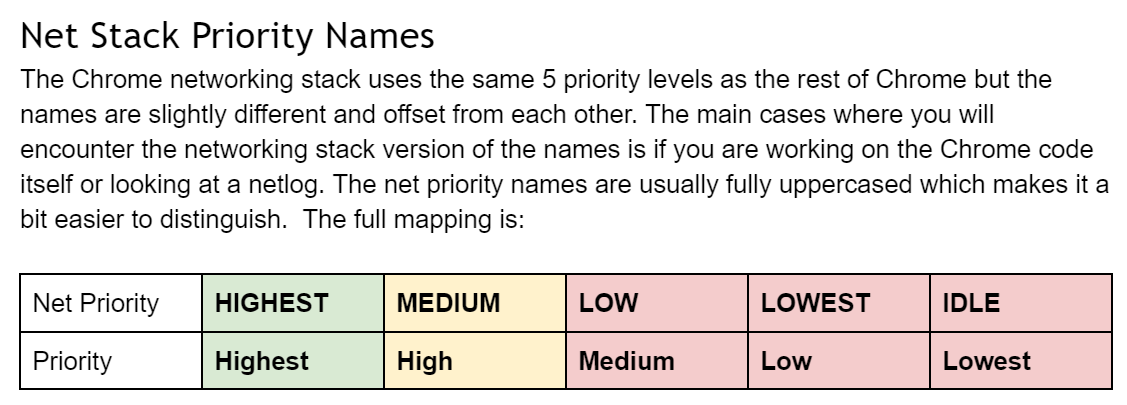
There are many different levels of prioritization of requests inside the web platform. The URL_REQUEST has a priority value that (confusingly) does not match the Priority column in the Developer Tools’ Net tab.

Got a great NetLog debugging tip I should include here? Please leave a comment and teach me!

-Eric

Debugging Proxy Configuration Scripts in the new Edge

I’ve written about Browser Proxy Configuration a few times over the years, and I’m delighted that Chromium has accurate & up-to-date documentation for its proxy support. Chromium’s PAC fetching code (and the code that calls it) is also quite readable with many comments.

One thing I’d like to call out is that Microsoft Edge’s new Chromium foundation introduces a convenient new debugging feature for debugging the behavior of Proxy AutoConfiguration (PAC) scripts.

To use it, simply add alert() calls to your PAC script, like so:

alert("!!!!!!!!! PAC script start parse !!!!!!!!");
function FindProxyForURL(url, host) {
alert("Got request for (" + url+ " with host: " + host + ")");
return "PROXY 127.0.0.1:8888";
}
alert("!!!!!!!!! PAC script done parse !!!!!!!!");

Then, collect a NetLog trace from the browser:

msedge.exe --log-net-log=C:\temp\logFull.json --net-log-capture-mode=IncludeSocketBytes

…and reproduce the problem.

Save the NetLog JSON file and reload it into the NetLog viewer. Search in the Events tab for PAC_JAVASCRIPT_ALERT events:

Even without adding new alert() calls, you can also look for HTTP_STREAM_JOB_CONTROLLER_PROXY_SERVER_RESOLVED events to see what proxy the proxy resolution process determined should be used.

One current limitation of the current logging is that if the V8 Proxy Resolver process…

… crashes (e.g. because Citrix injected a DLL into it), there’s no mention of that crash in the NetLog; it will just show DIRECT. Until the logging is enhanced, users can hit SHIFT+ESC to launch the browser’s task manager and check to see whether the utility process is alive.

Try using the System Resolver

In some cases (e.g. when using DirectAccess), you might want to try using Windows’ proxy resolution code rather than the code within Chromium.

The --winhttp-proxy-resolver command line argument will direct Chrome/Edge to call out to Windows’ WinHTTP Proxy Service for PAC processing.

Differences in WPAD/PAC Processing

  • The WinHTTP Proxy Service caches proxy authentication credentials (in CredMan) and automatically reuses them across apps and browser launches; Chromium does not.
  • The WinHTTP Proxy Service caches WPAD determination across process launches. Chromium does not and will need to redetect the proxy each time the browser reopens.
  • Internet Explorer/WinINET/Edge Legacy call the PAC script’s FindProxyForURLEx function (introduced to unlock IPv6 support), if present, and FindProxyForURL if not.
  • Chrome/Edge/Firefox only call the FindProxyForURL function and do not call the Ex version.
  • Internet Explorer/WinINET/Edge Legacy expose a getClientVersion API that is not defined in other PAC environments.
  • Chrome/Edge may return different results than IE/WinINET/EdgeLegacy from the myIpAddress function when connected to a VPN.
  • Edge 79+/Chrome do not allow loading a PAC script from a file:// URI. (IE allowed this long ago, but it hasn’t been supported in a long time). If you want to try testing a PAC script locally in Chromium-based browsers, you can encode the whole script into a DATA URL and use that. IE/Edge Legacy do not support this mechanism.
  • You should save your PAC file in ASCII or UTF-8 text encoding. Problems have been reported when the script is stored in Unicode’s UTF-16.

Notes for Other Browsers

  • Prior to Windows 8, IE showed PAC alert() notices in a modal dialog box. It no longer does so and alert() is a no-op.
  • Firefox shows alert() messages in the Browser Console (hit Ctrl+Shift+J). Note that Firefox’s Browser Console is not the same as the Web Console where web pages’ console.log statements are shown.

-Eric

Celebrating Fifteen Years

While lately I’ve been endlessly streaming the latest news with horrified fascination, this morning my calendar unexpectedly popped up a reminder set over a year ago… Today is the fifteenth anniversary of my big-league blogging debut on the Internet Explorer Team’s blog.

My first post there, “A HTTP Detective Story” remains one of my favorites. Sadly, its topic feels all too familiar: a website took a dependency upon a browser quirk, the Referer and User-Agent headers were critical elements of the repro, and I used Fiddler to root-cause the problem. I’ve learned (and shared) so much more about these topics over the last fifteen years, and I appreciate the readers who’ve followed me from the IEBlog to IEInternals (237 posts) to Telerik’s Fiddler blog (41 posts) to my book, to this, my newest blog, TextSlashPlain (189 posts and counting!).

Here’s to learning and sharing for the next 15 years!

With gratitude,

-Eric

Enigma Conference 2020 – Browser Privacy Panel

Brave, Mozilla Firefox, Google Chrome and Microsoft Edge presented on our current privacy work at the Enigma 2020 conference in late January. The talks were mostly high-level, but there were a few feature-level slides for each browser.

My ~10 minute presentation on Microsoft Edge was first, followed by Firefox, Chrome, and Brave.

At 40 minutes in a 35min Q&A session starts, first with questions from the panel moderator, followed by questions from the audience.

“Can I… in the new Edge?” (Un-FAQ)

This post is intended to collect a random set of questions I’ve been asked multiple times about the new Chromium-based Edge. I’ll add to it over time. I wouldn’t call this a FAQ because these questions, while repeated, are not frequently asked.

Last Update: Sept 25, 2024

Can I get a list of all supported command-line arguments for msedge.exe?

Unfortunately, not easily. See my post on Edge Command Line Arguments.

Why does Edge ignore the command-line argument I passed it?

Why does Edge ignore the command-line arguments I passed it?

Usually, this happens because Edge was already running and your new invocation simply activated/showed the existing running instance (even if it was a hidden instance using Startup Boost). See my post on Edge Command Line Arguments.

Can an Enterprise Administrator use Group Policy to specify specific flags or command line arguments for all users?

No, this isn’t possible. Such a feature would be relatively easy for the Edge team to build, but would be impossible to support. Most Edge flags and many command-line arguments are basically “experimental”, existing only for troubleshooting purposes, not for use in production.

Flags and command-line arguments can be changed or removed at any time, and an Enterprise relying upon them is almost guaranteeing themselves an unpleasant surprise in the future.

If an enterprise finds that they have a strong need to control a given flag in their environment, they should file a support case with Microsoft requesting that the flag be promoted to a Group Policy controlled setting.

Why do I see msedge.exe in Task Manager when Edge isn’t visible?

Startup Boost enables the browser to launch more quickly. You can disable it if you like.

Can I block my employees from using the edge://flags page?

Update: Edge 93 introduces a new FeatureFlagsOverrideControl policy.

You can add edge://flags to the URLBlocklist if desired. Generally, we don’t recommend using this policy to block edge://* pages as doing so could have unexpected consequences.

Note that, even if you block access to edge://flags, a user is still able to modify the JSON data storage file backing that page: %LocalAppData%\Microsoft\Edge\User Data\Local State using Notepad or any other text editor.

Similarly, a user might specify command-line arguments when launching msedge.exe to change a wide variety of settings.

Can I block resources from a specific site without using an extension?

The URLBlocklist policy allows blocking navigation to specified URL patterns in either the top-level page or in subframes. It does not, however, prevent the specified resources from being loaded as assets in the page via <img>, <video>, <script>, fetch(), etc.

This policy also does not block URL changes via the JavaScript pushState API. This can have some surprising implications. This limitation, which applies to many URL-controlling features, means e.g. if you allow any chrome://settings link, a user can load that page and use the hyperlinks in the page to access other settings inside chrome://settings because clicking those links calls pushState rather than performing a normal navigation subject that would be subject to the policy.

Can I disable certain HTTPS ciphers?

The new Edge, like all Chromium-based browsers, uses BoringSSL for HTTPS connections. Because the new Edge no longer uses Windows’ SChannel (except for IEMode tabs), none of the prior SChannel cipher configuration policies or settings have any effect on the new Edge.

For administrators who wish to disable one or more ciphers, Edge offers a TLSCipherSuiteDenyList Group Policy. In contrast, Chrome explicitly made a design/philosophical choice (see this and this) not to support disablement of individual cipher suites via policy.

Ciphersuites in Edge may also be disabled using a command-line flag:

msedge.exe --cipher-suite-denylist=0x000a https://ssllabs.com

A few other notes:

  • You can easily see what cipher suites your browser offers by visiting this page.
  • The cipher suite in use is selected by the server from the list offered by the client. If an organization is worried about ciphers used within their organization, they can simply direct their servers to only negotiate cipher suites acceptable to them.
  • The Chrome team has begun experimenting with disabling some weaker/older ciphersuites; see crbug.com/658905. For instance, 3DES is no longer available as of version 93.
  • If an Enterprise has configured IE Mode, the IE Mode tab’s HTTPS implementation is still controlled by Internet Explorer / Windows / SChannel policy, not the new Edge Chromium policies.
  • If TLS/1.3 is enabled, you cannot use the cipher-suite-denylist to disable ciphers 0x1301, 0x1302, and 0x1303. TLS1.3 spec: “A TLS-compliant application MUST implement the TLS_AES_128_GCM_SHA256 [GCM] cipher suite and SHOULD implement the TLS_AES_256_GCM_SHA384 [GCM] and TLS_CHACHA20_POLY1305_SHA256 [RFC8439] cipher suites (see Appendix B.4).”
  • Edge on iOS uses TLS cipher implementations provided by Apple because the Edge browser (like all popular browsers) is just a wrapper around Safari’s WKWebView control.
  • From time-to-time, browsers experiment with new ciphersuites. For instance, Chrome and Edge are interested in post-quantum key exchanges (where the key is exchanged in a way that is believed to be robust against quantum computers) and have experimented with new ciphersuites that offer such protections.

Can I use TLS/1.3?

TLS/1.3 is supported natively within the new Chromium-based Edge on all platforms.

Chromium-based Edge does not rely upon OS support for TLS. Windows’ IE 11 and Legacy Edge did not support TLS/1.3 in Windows 10 until recently, and now support TLS/1.3 in Windows 11.

For the time being, enabling both TLS/1.3 and TLS/1.2 is a best practice for servers.

Can I turn off TLS/1.3?

For testing purposes, you can set the SSLVersionMax command line argument to disable TLS/1.3, but the associated Group Policy was removed in Chromium 75 because there should be no need to do this in general.

msedge.exe --ssl-version-max=tls1.2 https://ssllabs.com

Can Extensions be installed automatically?

Enterprises can make extension install automatically and prevent disabling them using the ExtensionInstallForcelist Policy. Admins can also install extensions (but allow users to disable them) using the ExtensionSettings policy with the installation_mode set to normal_installed.

Here are the details to install extensions directly via the Windows Registry. Please note that if you want to install extensions from the Chrome WebStore, then you must provide the Chrome store id and update url: https://clients2.google.com/service/update2/crx.

Can specific file types be set to auto-open? Can I change my mind?

After downloading a file, you can click the “…” menu next to the download item and choose “Always open files of this type” from the context menu:

This option is not available for all file types (e.g. file types deemed dangerous cannot be auto-opened).

One challenge with this UI is that after you set this option, the download bar will not be shown for this file type any longer, leaving you no way to untick the “Always open files of this type” menu item.

The secret to changing your mind is to visit edge://settings/downloads and click the Clear all button next to the File types which are opened automatically after downloading list. There is no way to clear just one file type from the list short of editing the profile’s PREFERENCES json directly.

Presently, no Group Policy is available to force file types (except PDF) to open automatically, but this is a common enterprise request. The Master Preferences file can be configured with this option, but those defaults are only used when creating new browser profiles, and users may change them.

Can I go directly to single-word (Intranet) sites without doing a search first?

Can I avoid doing a search with a notification bar saying “Did you mean to go to <http://payroll&gt;?” In Internet Explorer, there was a “Go to an intranet site for a single word entry in the Address bar” checkbox in the Advanced Settings.

Use the GoToIntranetSiteForSingleWordEntryInAddressBar policy to change the default behavior.

How can I get PDFs to open outside of Edge?

By default, Edge will attempt to render any PDF (navigating to a PDF will not be considered a “Download”) unless you tell Edge not to. To make this change, set your Windows settings so that you have a non-Edge app selected as your PDF reader. Then, inside edge://settings, tick this option:

The setting’s title is Always download PDF files but a more informative title would be Open PDF files using the Windows-default handler for PDF files. If your Windows-default handler for PDF files is Edge, then the file will not be "downloaded" and will instead render inline inside Edge. But if your Windows-default handler for PDF files is not Edge, then navigations to a PDF file will be treated as Downloads and clicking the "Open" link for a PDF in the Download Manager will open the PDF in the Windows-default handler application. But that’s obviously too long for a title. :)

Why does Edge Dev/Canary sometimes show red in unexpected places?

Chromium uses bright red as its “color not found” fallback; this has the upside and downside of quickly drawing a lot of attention to this class of bug.

When upstream Chromium makes a change in the color tables that Edge fails to fix up in our pump before the next build is released, it results in elements taking on a red color until we fix the oversight.

Can I use URLs of unlimited size?

Within Chromium, URLs of up to 2mb can be used in general, although some UI surfaces will truncate URLs at 32kb. For performance and reliability reasons, I would not recommend using URLs over 8k in length.

Can I use configure Edge to use more than 6 HTTP/1.1 connections per host?

No. Using parallel connections as was common in HTTP/1.1 suffers from lower performance and increased load on the server. As a hacky workaround to exceed the typical 6 connections-per-host limit, some sites use “sharding” which assigns multiple DNS names to a single server. Because browser connection limits are based on the hostname, this allows the client to make 6*NumShards parallel connections.

Chromium exposes only a policy to control the maximum connections per proxy server, but there is no policy to control the maximum connections per web server. This sometimes leads to problems in niche scenarios, but we have not, as yet, heard a non-trivial number of complaints.

Note that things will get a bit more complex in the future due to security/privacy partitioning; when PartitionConnectionsByNetworkIsolationKey is enabled, the connections-per-host limit is enforced against each partitioned socket pool. If pages from a.example and b.example both use resources from example.net, each page can use six connections to example.net due to the partitioning of the connection pool by the Network Isolation Key.

In the ideal case, the site would deploy HTTP/2 or HTTP/3, which multiplex many (Chromium default 100, server configurable to up to 256) requests over a single TCP/IP connection, eliminating head-of-line blocking and providing much better performance vs. legacy HTTP/1.1. Chrome’s WebSocketsPerHost limit is 255.

Can I use Group Policy to turn off HSTS for specific sites?

No. There is no policy that turns of HSTS for a host that had requested it.

The HSTSPolicyBypassList policy description led users to believe it does something it does not. I fixed a bug to get the text clarified. The policy should read something like:

Setting the policy specifies a list of hostnames that bypass preloaded HSTS upgrades from http to https. Only single-label hostnames are allowed in this policy, and the policy applies only to HSTS-preloaded “static” entries (“app”, “new”, “search”, “play”, etc”). This policy does not prevent HSTS upgrades for servers that have explicitly requested HSTS upgrades using the Strict-Transport-Security response headers. Supplied hostnames must be canonicalized: Any IDNs must be converted to their A-label format, and all ASCII letters must be lowercase. This policy only applies to the specific single-label hostnames specified, not to subdomains of those names.

Some users complain that they’re getting HSTS for localhost sites and try to use this policy to prevent that. localhost is not on the HSTS Preload list. If your browser is HSTS-upgrading localhost, it’s because it received a Strict-Transport-Security response header from localhost that turned on HSTS. To fix that:

  1. Stop sending the header
  2. On edge://net-internals/#hsts, use the Delete domain security policies section to remove Localhost
  3. Or you can hit Ctrl+Shift+Delete to open the Clear Browsing Data dialog and choose Cached Images and Files. This will delete ALL dynamic HSTS rules.

Update: I wrote an extension that will disable HSTS on all https://localhost responses.

Can I control Permissions (like Allow Popups) based on the Site’s IP address?

The Permissions system’s “Site Lists” feature does not support specifying an IP-range for allow and block lists.

It does support specification of individual IP literals, but such rules are only respected if the user navigates to the site using said literal (e.g. http://127.0.0.1/). If a hostname is used (http://localhost), the IP Literal rule will not be respected.

How does visiting a site in Internet Explorer open Edge automagically?

Edge installs a Browser Helper Object into Internet Explorer with a pre-provisioned site list.

Other than that, a site can try to launch a link using the microsoft-edge: URL protocol.

How does Edge render Office documents directly in the browser?

The OpenInOfficeViewerIfApplicable feature watches navigations to detect when Office-related file extensions (.xls, .docx, pptx, etc) or Content-Types (application/msword, application/vnd.ms-excel, etc) are observed, indicating that a navigation led directly to an Office document that would otherwise be deemed as having a non-webby MIME type and thus normally be converted into a download.

The feature is bypassed if:

  1. The Open Office files in the browser checkbox is turned off in edge://settings
  2. The response contains a Content-Disposition: attachment header
  3. The request contains an Authorization or Proxy-Authorization header.
  4. The user initiated the download from the “Save As” item on the browser’s context menu
  5. The referring URL is on a limited set of exempted domains (Office, SharePoint, OneDrive, Blackboard, etc)
  6. The request method is not GET
  7. The file size is not known (e.g. Transfer-Encoding: chunked)
  8. The file size is over 100mb
  9. The browser is running in Incognito mode
  10. The file was served from an IP address that is not publicly routable

Can I turn off cross-origin security in Edge?

You shouldn’t.

The flag --disable-web-security command line flag is not supported (that is to say, we won’t guarantee what it does or does not allow, and it could disappear at any time), and hasn’t been updated to account for all of the various security features added to the browser over the last few years (see https://crbug.com/1150447). Launching the browser with this flag makes that browser instance inherently unsafe to use. That was also true of the old “Access data sources” flag in IE, although the IE-flag was at least Zone-limited.

The command must be paired with a user-data-dir argument:

msedge.exe --disable-web-security --user-data-dir=C:\temp example.com

Developers should fix the dependent target sites to emit proper Access-Control-Allow-Origin headers so that the web’s same-origin-policy is respected.

If they do not control the target site, they will need to build a server proxy (browser->their-server->remote-server) that sets the correct ACAO headers.

Can I change the browser’s User-Agent string?

Edge allows configuration of a UA string via the Developer Tools or the --user-agent command line argument. It does not support customization of the UA string via a plain setting or Group Policy.

Browser extensions can be installed to spoof the UA string.

Generally, we do not believe that changing the UA string for day-to-day browsing is a good idea—it typically ends up causing more problems than it solves.

How do I ensure WebDriver is up-to-date?

Some folks use a third-party solution such as WebDriverManager which automatically maintains browser drivers for every major browser including Edge. Some prefer to write their own scripts that check the Edge browser version before running tests, downloading the matching driver from the Edge WebDriver Directory. An example script written in Python can be found here.

Does Edge support Chrome Apps?

Edge has never supported the non-standard Chrome Apps platform, because this platform was originally slated for deprecation back in 2019. The Microsoft Web Store does not allow Chrome Apps, and Chrome Apps were never installable into Edge from the Chrome Web Store.

We recently learned that some users were side-loading Chrome Apps into Edge; these will stop working soon when Chrome disables the Apps platform. Developers of Chrome Apps should migrate to modern standards-based code now.

Can I sync/transfer my Automatic Profile Switch settings?

As of Edge 109, not yet, no, settings for automatic switching are not synced or exportable.

Will Chromium certificate-verification changes impact Edge?

Chromium is changing the way that Certificate Verification works; in the old days (on Windows at least), Chromium would ask the underlying operating system to validate that the certificate presented by a website is valid.

That’s changing in early 2023. You can read the details here, but the tl;dr is that there’s new certificate verification code (you shouldn’t notice any difference vs the old CAPI), and the same Windows trusted root list is used, but, carried within the browser itself.

Edge, regardless of bitness, installs to the Program Files (x86) folder. Why?

On 64-bit versions of Windows, 32-bit applications are meant to be placed into a C:\Program Files (x86)\ folder while native 64-bit applications are meant to be placed within the C:\Program Files\ folder. This enables side-by-side installation of applications that are available in both bitnesses (e.g. Internet Explorer 9 could run as either 32bit or 64bit). Windows folder names reflect this convention but have no actual impact on the bitness of the executables within.

Originally, Chromium was only available as a 32bit Windows executable installed to the X86 version of the folder. Even after 64bit versions became available and later became the default, the installation folder path was not updated for many years because there was no compelling reason to bother.

Relatively recently, Chrome changed to start installing to the “correct” folder, but for obscure reasons, Edge didn’t take this change.

Can I load legacy content designed for Internet Explorer?

In some cases, you may need to load content that only runs correctly in the crufty old Internet Explorer engine (e.g. a page that uses an ActiveX control).

The supported way to do this is IEMode in Edge. You should be very careful when loading content in IEMode because Internet Explorer code is old and considerably less secure than Edge mode; an attacker will find it much easier to attack your computer if you load their page in IEMode. IEMode runs with the comparatively weak Protected Mode sandbox, vs. the much stronger Chromium sandbox.

Standalone IE was deprecated in early 2023 and attempts to launch iexplore.exe are redirected to launch Edge instead. In most cases, this is a major improvement, but if you’re doing something exotic (like answering legacy browser UX trivia questions like me) you might need to occasionally run the old standalone UI. For the time being, at least, you can use this (afaik, unsupported) workaround. Save the following as IE.vbs:

Set IE = CreateObject("InternetExplorer.Application")
IE.Navigate "https://example.com"
IE.Visible = true

Run the script to get a standalone IE window. Be very careful as all of the security concerns noted above apply.

Is there any sort of “changelist”? Can I get advance notice of changes?

Generally, your best bet is to use a practical time machine and test your site in a pre-Stable channel like Dev or Canary.

That said, platform breaking changes of the most interest are noted on the site-impacting-changes page. Edge inherits nearly all of Chromium’s web platform changes, which they document more comprehensively on Chrome Status.

-Eric

