Client Certificate Authentication

While most HTTPS sites only authenticate the server (using a certificate sent by the website), HTTPS also supports a mutual authentication mode, whereby the client supplies a certificate that authenticates the visiting user’s identity. Such a certificate might be stored on a SmartCard, or used as a part of an OS identity feature like Windows Hello.

To request mutual authentication, servers send a CertificateRequest message to the client during the HTTPS handshake, specifying a criteria filter that the browser will use to find a client certificate to satisfy the server’s request.

If a client certificate is supplied in the browser’s Certificate response to the server’s challenge, the browser proves the user’s possession of that certificate using the private key that matches that client certificate’s public key.

A client may choose not to send a certificate (either because no matching certificate is available, or because the user declined to supply a certificate that it had)—in such cases, the server may terminate the handshake (showing a Client Certificate Required error message) or it may continue the handshake and attempt to authenticate the user via other means.

Certificate Selection

The CertificateRequest message allows the server to specify criteria for the certificates it is willing to accept from the client, including details such as the certificate’s issuer, and key/signature/hash types.

The browser consults the Operating System’s trust store (Keychain on Mac OS X, certmgr.msc on Windows) to find any candidate certificates (unexpired certificates with the Client Authentication purpose set and a private key available) that match the server-supplied filtering criteria:
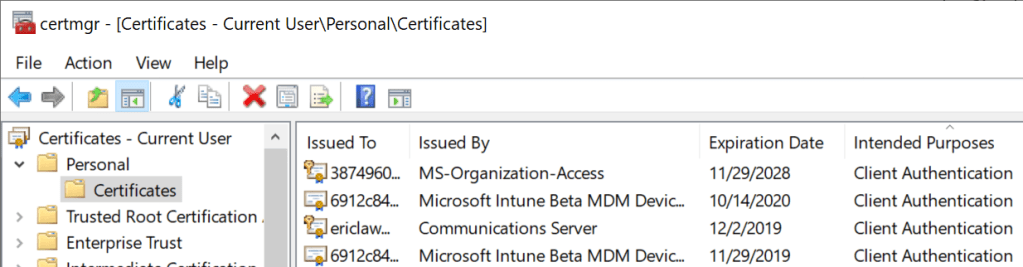
The private key for a given certificate might be stored on a SmartCard — when a SmartCard is inserted, the certificate(s) on it are “virtually” propagated to the OS trust store for use by browsers and other applications.

Certificates that meet the server’s filtering criteria are shown in a prompt:

If the user hits “Cancel”, the handshake is completed without sending a certificate. However, if the user selects a certificate, the browser caches that decision for the lifetime of the browser instance. The selected certificate will be resent on all new connections to the target origin and the prompt will not be shown again.

There used to be no good way to clear the selection decision, short of restarting the browser entirely. In contrast, legacy IE offered two very awkward mechanisms, the Clear SSLState button in the Internet Control Panel, and the ClearAuthenticationCache web API. (but keep reading)

Update: “Forget” feature in Edge 102

The Edge team is now testing a feature (which will likely be available by default starting in Edge 102) to allow the user to “forget” which Client Certificate was selected.

Selection UI Change in Edge 93

In Edge 92 and earlier, default focus was set on the Cancel button to help prevent the user from accidentally sending their certificate to a site they didn’t want to get it.

That meant that hitting Enter would thus submit “No Cert” (despite a blue highlight on the first certificate in the list). Sending NoCert to a server that needed it would likely result in an authentication failure that could not be fixed without completely restarting all browser windows, as mentioned previously. This was very bad and very easily hit.

Now, in Edge 93, no certificate is highlighted and the Cancel button is no longer focused. This helps ensure that the user makes an explicit selection.

Sending a certificate now requires two clicks, either:

  1. Click the desired certificate, then click the Accept button, or
  2. Double-click the desired Cert.

Sending NoCert now requires one explicit click, on the Cancel button.

This UX change means users are much less likely to make an difficult-to-recover mistake. All in all, the new UX seems MUCH better.

Automatic Selection of Client Certificate

Internet Explorer and Edge Legacy offered a URLAction setting (Don’t prompt for client certificate selection when only one certificate exists, aka URLACTION_CLIENT_CERT_PROMPT), on-by-default for the Local Intranet Zone:
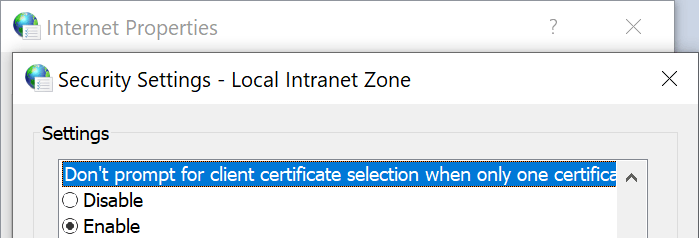
…whereby the browser would not prompt the user to select a certificate if the user only has one certificate that matches the server’s request. In such cases, the client would automatically send the matching certificate without showing a prompt.

For other zones, IE and Edge Legacy will prompt the user to select a certificate before any certificate is sent. This is a privacy measure, because if the browser silently sends the user’s identity to any website that asks for it, this is a “super-cookie” that would allow tracking that user’s identity across sites. Also, the client’s certificate might directly contain personally identifiable information about the user (e.g. their email address, office phone number, home address, etc).

Chromium (and thus Chrome, Edge, Brave, Opera, Vivaldi) largely does not use the concept of Zones, so instead the AutoSelectCertificateForUrls policy exists. This policy allows an IT administrator to configure clients to automatically send certificates to specified websites that request them, which can be used to satisfy the need to have, say, the user’s Windows Hello certificate sent to *.login.microsoft.com sites.

Here are two examples of policies: the first selects the first certificate issued byWindows Hello PIN – MSIT1” and the second rule selects the certificate with a SubjectCN=”RSACSP”.

If you’re trying to set a rule whereby multiple client certificates are valid candidates and the client should just return the first match found, just add another rule with the same pattern and a different filter.

A screenshot of a cell phone

Description automatically generated

If you want to use a wildcard in the pattern, you must use the Content Settings Pattern syntax; e.g. https://[*.]example.com will match https://example.com and all of its subdomains. Chromium’s source documents the syntax as follows:

//   - [*.]domain.tld (matches domain.tld and all sub-domains)
//   - host (matches an exact hostname)
//   - a.b.c.d (matches an exact IPv4 ip)
//   - [a:b:c:d:e:f:g:h] (matches an exact IPv6 ip)
//   - file:///tmp/test.html (a complete URL without a host)

You may have noticed that the AutoSelectCertificateForUrls policy has one major limitation, which is that it always sends the user’s first matching certificate to the selected site. Some users might have more than one certificate that matches the policy (for instance, some enterprises have both “test” and “production” certificates.

For instance, this set of rules will use SubjectCN=”RSACP” if a matching certificate found, or a certificate with IssuerCN=”Windows Hello PIN – MSIT1” if not:

To address this shortcoming, the Edge team introduced a new policy in Edge 81. The new ForceCertificatePromptsOnMultipleMatches policy which does as it says: If the client has multiple certificates that could be used to satisfy the {OriginFilter->CertificateFilter} policy specified by a AutoSelectCertificateForUrls policy, instead of simply sending the first matching certificate, the browser will instead show a certificate selection prompt filtered to the certificates that match the policy.

Sidebar: Automatic Selection in WebView2

The WebView2 Control does not respect most Group Policies. Instead, WebView2 has added a ClientCertificateRequested API that allows apps to select the certificate rather than showing the dialog.

Debugging

If you find that Microsoft Edge shows a client certificate selection prompt in one scenario where other browsers do not, one possibility is that the site in question is not actually requesting a client certificate from those other browsers for some reason. For instance, some web authentication flows, including Microsoft’s AAD login, take the browser’s User-Agent into account when deciding what authentication mechanisms to use with the client.

In order to understand exactly what’s going on with Client Authentication, collect Network Traffic logs. SSL_HANDSHAKE_MESSAGE_RECEIVED messages of type 13 represent the client certificate request.

-Eric

Bonus trivia

  1. Some smart people persuasively argue that mutually-authenticated TLS is a misfeature.
  2. Registry-specified certificate selection policies apply across browser profiles, meaning that they are in force even when the user is in an Incognito browser session (!!)
  3. A user’s certificate selection apply for the entire browser session, making logout for ClientCert-authenticated sites a challenge (addressed in Edge 102).
  4. Client Certificate prompting behavior on Android is weird. Unfortunately, for platform reasons, the AutoselectCertificateForUrls policy cannot be implemented there.
  5. Client Certificate authentication is generally not available in 3rd-party browsers on iOS (Safari has access to the keychain).
  6. There are some test servers available.

The general notion of “how Client Certificates were supposed to work” was that each user would have one certificate for each organization to which they belong, issued by that organization’s root certificate. When visiting that organization’s servers, the server would send in the CertificateRequest message the identifier(s) of the root certificate(s) to which acceptable client certificates chain (using the certificate_authorities structure). The visiting client would then filter the certificates available for selection to only those that chain to that root (hopefully one certificate).

So, say I have two certificates, e.g. USA-NationalID and Microsoft-EmployeeID. When I visit https://portal.microsoft.com, Microsoft sends a CertificateRequest with MicrosoftRootCA in the certificate_authorities field. My browser automatically filters my client certificates list to just the Microsoft-EmployeeID certificate and then sends that. In contrast, when I visit https://irs.gov, the government site sends a CertificateRequest with a USGovernmentRootCA in the certificate_authorities field. My browser automatically filters my client certificates list to just the USA-NationalID certificate and sends that.

In practice, unfortunately, things haven’t worked out that way. Most organizations have not had the infrastructure or discipline to configure things to work like that, and as a consequence you end up with varying client behavior.

Firefox doesn’t seem to filter the certificate list, but it does offer a “Remember this decision” checkbox which presumably reduces user annoyance.

Firefox does not respect the Windows Trust Store, so each client certificate must be manually loaded into Firefox’s configuration (unless you set the security.osclientcerts.autoload preference to true). This is a hassle, but it tends to result in a somewhat “cleaner” experience where the user isn’t distracted by random certificates that might be cluttering Windows’ cert store.

Selection UI (as of June 2021)

Edge’s UI shows the certificate’s Friendly Name and includes an icon to try to help convey the type of client certificate (SmartCard, Windows Hello, Traditional).

In some cases, organizations are generating invalid client certificates but expecting them to work, leading to compat accommodations like the FEATURE_CLIENTAUTHCERTFILTER Feature Control Key.

In the browser, SmartCards can be used for two ways: HTTPS Client Certificate Authentication, and Windows Integrated Authentication.

  • Straight TLS mutual authentication, as described above.
  • Windows Integrated Authentication that occurs when visiting a website that sends a WWW-Authenticate: Negotiate header. The client may automatically send the user’s login credentials (Intranet Zone). Or, if those creds do not work or the Zone is not configured for automatic credential release (Non-intranet), the user will be prompted for credentials to use. In Edge 79, the user would get a prompt with two blank fields (“Username” and “Password”). In Edge 80 or later, upon noticing that the user has configured Windows Hello, the user will be shown the Windows Hello auth dialog that allows the user to use their face, type a PIN, use a SmartCard, etc. So, now Edge 80 matches Edge Legacy (v18 and lower).

Low Level Details 1
Low Level Details 2

Nice discussion (with pictures) of setting up client cert auth on IIS.

In Windows 10 Apps, the AppContainer must have the sharedUserCertificates capability to use certificates from the trust store.

This is the first message the client can send after receiving a ServerHelloDone message. This message is only sent if the server requests a certificate. If no suitable certificate is available, the client MUST send a certificate message containing no certificates. That is, the certificate_list structure has a length of zero. If the client does not send any certificates, the server MAY at its discretion either continue the handshake without client authentication, or respond with a fatal handshake_failure alert. Also, if some aspect of the certificate chain was unacceptable (e.g., it was not signed by a known, trusted CA), the server MAY at its discretion either continue the handshake (considering the client unauthenticated) or send a fatal alert.

CertificateVerify signs a message using the client certificate’s private key, proving possession.

CertOpenStore “my” store

https://docs.microsoft.com/en-us/windows/desktop/api/wincrypt/nf-wincrypt-certopenstore

ClientAuthIssuer trust store.

Hard Problems: Fetch in Serviceworker scenario — how can the user select a certificate when no UI is allowed?
Analyzing Network Traffic Logs (NetLog json)

Previously, I’ve described how to capture a network traffic log from Microsoft Edge, Google Chrome, and applications based on Chromium or Electron.

In this post, I aim to catalog some guidance for looking at these logs to help find the root cause of captured problems and otherwise make sense of the data collected.

Last Update: Jan 27, 2025I expect to update this post over time as I continue to gain experience in analyzing network logs.

Choose A Viewer – Fiddler or Catapult

After you’ve collected the net-export-log.json file using the about:net-export page in the browser, you’ll need to decide how to analyze it.

The NetLog file format consists of a JSON-encoded stream of event objects that are logged as interesting things happen in the network layer. At the start of the file there are dictionaries mapping integer IDs to symbolic constants, followed by event objects that make use of those IDs. As a consequence, it’s very rare that a human will be able to read anything interesting from a NetLog.json file using just a plaintext editor or even a JSON parser.

The most common (by far) approach to reading NetLogs is to use the Catapult NetLog Viewer, a HTML/JavaScript application which loads the JSON file and parses it into a much more readable set of events.

An alternative approach is to use the NetLog Importer for Telerik Fiddler.

Importing NetLogs to Fiddler

For Windows users who are familiar with Fiddler, the NetLog Importer extension for Fiddler is easy-to-use and it enables you to quickly visualize HTTP/HTTPS requests and responses. The steps are easy:

  1. Install the NetLog Importer,
  2. Open Fiddler, ideally in Viewer mode fiddler.exe -viewer
  3. Click File > Import > NetLog JSON
  4. Select the JSON file to import

In seconds, all of the HTTP/HTTPS traffic found in the capture will be presented for your review. If the log was compressed before it was sent to you, the importer will automatically extract the first JSON file from a chosen .ZIP or .GZ file, saving you a step.

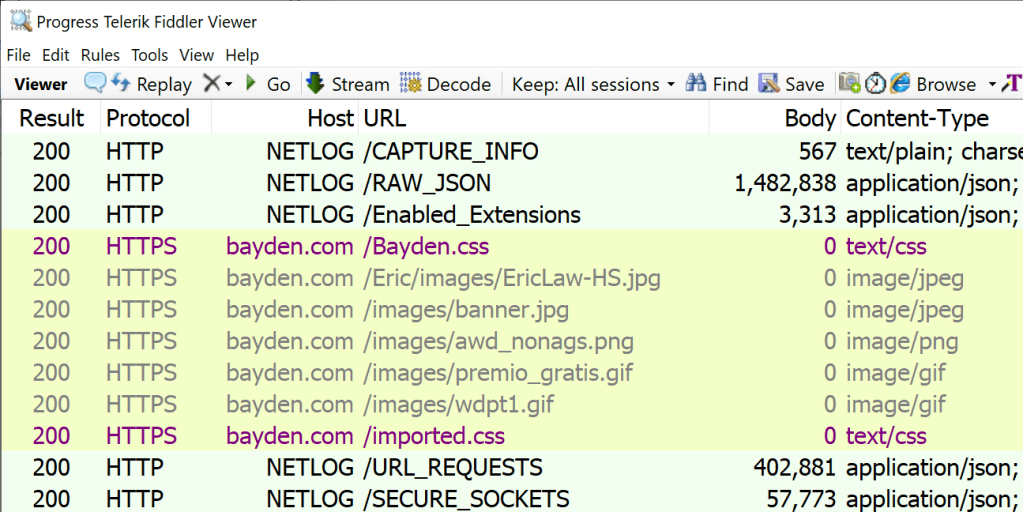
In addition to the requests and responses parsed from the log, there are a number of pseudo-Sessions with a fake host of NETLOG that represent metadata extracted from the log:

These pseudo-sessions include:

  • RAW_JSON contains the raw constants and event data. You probably will never want to examine this view.
  • CAPTURE_INFO contains basic data about the date/time of the capture, what browser and OS version were used, and the command line arguments to the browser.
  • ENABLED_EXTENSIONS contains the list of extensions that are enabled in this browser instance. This entry will be missing if the log was captured using the –log-net-log command line argument.
  • URL_REQUESTS contains a dictionary mapping every event related to URL_REQUEST back to the URL Requests to which it belongs. This provides a different view of the events that were used in the parsing of the Web Sessions added to the traffic list.
  • SECURE_SOCKETS contains a list of all of the HTTPS sockets that were established for network requests, including the certificates sent by the server and the parameters requested of any client certificates. The Server certificates can be viewed by saving the contents of a –BEGIN CERTIFICATE– entry to a file named something.cer. Alternatively, select the line, hit CTRL+C, click Edit > Paste As Sessions, select the Certificates Inspector and press its Content Certificates button.

You can then use Fiddler’s UI to examine each of the Web Sessions.

Limitations

The NetLog format currently does not store request body bytes, so those will always be missing (e.g. on POST requests).

Unless the Include Raw Bytes option was selected by the user collecting the capture, all of the response bytes will be missing as well. Fiddler will show a “dropped” notice when the body bytes are missing:

If the user did not select the Include Cookies and Credentials option, any Cookie or Authorization headers will be stripped down to help protect private data:

Scenario: Finding URLs

You can use Fiddler’s full text search feature to look for URLs of interest if the traffic capture includes raw bytes. Otherwise, you can search the Request URLs and headers alone.

On any session, you can use Fiddler’s “P” keystroke (or the Select > Parent Request context menu command) to attempt to walk back to the request’s creator (e.g. referring HTML page).

You can look for the traffic_annotation value that reflects why a resource was requested by looking for the X-Netlog-Traffic_Annotation Session Flag.

Scenario: Cookie Issues

If Fiddler sees that cookies were not set or sent due to features like SameSiteByDefault cookies, it will make a note of that in the Session using a psuedo $NETLOG-CookieNotSent or $NETLOG-CookieNotSet header on the request or response:

Closing Notes

If you’re interested in learning more about this extension, see announcement blog post and the open-source code.

While the Fiddler Importer is very convenient for analyzing many types of problems, for others, you need to go deeper and look at the raw events in the log using the Catapult Viewer.


Viewing NetLogs with the Catapult Viewer

Opening NetLogs with the Catapult NetLog Viewer is even simpler:

  1. Navigate to the web viewer
  2. Select the JSON file to view

If you find yourself opening NetLogs routinely, you might consider using a shortcut to launch the Viewer in an “App Mode” browser instance: msedge.exe --app=https://netlog-viewer.appspot.com/#import

The App Mode instance is a standalone window which doesn’t contain tabs or other UI:

Note that the Catapult Viewer is a standalone HTML application. If you like, you can save it as a .HTML file on your local computer and use it even when completely disconnected from the Internet. The only advantage to loading it from appspot.com is that the version hosted there is updated from time to time.

Along the left side of the window are tabs that offer different views of the data– most of the action takes place on the Events tab.

Start Here: The Chromium Project wrote a Crash Course for examining NetLog Events.

Tips

If the problem only exists on one browser instance, check the Command Line parameters and Active Field trials sections on the Import tab to see if there’s an experimental flag that may have caused the breakage. Similarly, check the Modules tab to see if there are any browser extensions that might explain the problem.

Entries with IDs below 0 (e.g. -214747…) are recorded by the browser process (e.g. CERT_VERIFIER_TASK); the other entries are recorded by the Network Process. By partitioning the ID space, the log avoids the problem of duplicated values without complex cross-process communication. The default sort order of the netlog viewer is the Start Time of the source.

Each URL Request has a traffic_annotation value which is a hash you can look up in a list generated from annotations.xml (which no longer directly contains the hash code). That annotation will help you find what part of Chromium generated the network request:

Most requests generated by web content will be generated by the blink_resource_loader, navigations will have navigation_url_loader and requests from features running in the browser process are likely to have other sources.

Scenario: Certificate Problems

If page loads are failing and showing errors like ERR_CERT_INVALID, a NetLog may provide additional information. Search for type:CERT_VERIFIER to see the events related to validating certificates. In particular, the CERT_VERIFIER_TASK will show errors when a certificate chain is built. For example, this entry notes that the certificate chain was deemed invalid because the Intermediate CA violated Name Constraints requirements specified in the root certificate:

Within a CERT_VERIFIER_JOB, you can see the hashes of the certificates that make up the trust chain that the browser built:

You can copy any of the sha256/... strings into the query box on https://crt.sh/ to look up information about that certificate.

Scenario: DNS Issues

Look at the DNS tab on the left, and HOST_RESOLVER_IMPL_JOB entries in the Events tab.

One interesting fact: The DNS Error page performs an asynchronous probe to see whether the configured DNS provider is working generally. The Error page also has automatic retry logic; you’ll see a duplicate URL_REQUEST sent shortly after the failed one, with the VALIDATE_CACHE load flag added to it. In this way, you might see a DNS_PROBE_FINISHED_NXDOMAIN error magically disappear if the user’s router’s DNS flakes.

You may see a UDP_SOCKET for the address fd3e:4f5a:5b81::1 and wonder why there is a connection to a server with the hostname dns.msftncsi.com. This is a red-herring; this UDP socket is meant to be used only to determine information about the local network configuration (to find out the default local address on a multi-homed endpoint). No packets should be sent for this socket. Upstream in Chrome/Chromium, Google uses an address it controls for the same purpose.

Scenario: Cookie Issues

Look for COOKIE_INCLUSION_STATUS events for details about each candidate cookie that was considered for sending (send) or setting (store) on a given URL Request. In particular, watch for cookies that were excluded due to SameSite or similar problems. Also check for cookies that failed to store (e.g. EXCLUDE_FAILURE_TO_STORE) because they failed to parse (e.g. the Set-Cookie string was longer than 4096 characters).

A corner case is if the cookie is received already expired (e.g. with an expires date in the past of the client’s time or the server’s Date header), in which case the store operation will be marked as expire:

Scenario: HTTPS Handshaking Issues

Look for SSL_CONNECT_JOB entries. Look at the raw TLS messages on the SOCKET entries. Read the HTTPS Certificate Issues section next.

Scenario: HTTPS Certificate Issues

Note: While NetLogs are great for capturing certs, you can also get the site’s certificate from the browser’s certificate error page.

When a HTTPS connection is established, the server sends one or more certificates representing the “end-entity” (web server) and (optionally) intermediate certificates that chain back to a trusted CA. The browser must use these certificates to try to build a “chain” back to a certificate “root” in the browser/OS trust store. This process of chain building is very complicated.

NetLogs include both the certificates explicitly sent by the server as well as the full chain of certificates it selected when building a chain back to the trusted root (if any).

The NetLog includes the certificates received for each HTTPS connection in the base64-encoded SSL_CERTIFICATES_RECEIVED events, and you can look at CERT_VERIFIER_JOB entries to see Chromium’s analysis of the trust chain. If you see ocsp_response entries, it means that the server stapled OCSP responses on the connection. is_issued_by_known_root indicates whether the chain terminates in a “public” PKI root (e.g. a public CA); if it’s false it means the trust root was a private CA installed on the PC. A verification result of Invalid means that the platform certificate verifier (on Windows, CAPI2) returned an error that didn’t map to one of the Chromium error statuses.

To view the certificates, just copy paste each certificate (including ---BEGIN to END---) out to a text file, name it log.cer, and use the OS certificate viewer to view it. Or you can copy the certificate blocks to your clipboard, and in Fiddler, click Edit > Paste As Sessions, select the Certificates Inspector and press its Content Certificates button.

If you’ve got Chromium’s repo, you can instead use the script at \src\net\tools\print_certificates.py to decode the certificates. There’s also a cert_verify_tool in the Chromium source you might build and try. For Mac, using verify-cert to check the cert and dump-trust-settings to check the state of the Root Trust Store might be useful.

In some cases, running the certificate through an analyzer like https://crt.sh/lintcert can flag relevant problems.

Scenario: Authentication Issues

Look for HTTP_AUTH_CONTROLLER events, and responses with the status codes 401, 403, and 407.

  • If the HTTP_AUTH_CONTROLLER does not show AUTH_HANDLER_INIT, it indicates that the handler did not initialize, for instance because the scheme was unknown or disabled.
  • You can look at the parameters on the AUTH_LIBRARY_ACQUIRE_CREDS event to understand whether ambient credentials were tried, or whether an explicit username and domain were provided via the credential prompt.
  • If a SSL_CONNECT_JOB or SOCKET events’ Description field starts with pm/, it means that the connection is in ‘privacy mode’ to be used for CORS no-credentials requests, as is used for link fetches that specify the crossorigin attribute.
  • You might find that the authentication fails with ERR_INVALID_AUTH_CREDENTIALS unless you enable the browser’s DisableAuthNegotiateCnameLookup policy (Kerberos has long been very tricky). Similarly, the EnableAuthNegotiatePort policy concerns whether a (non-standard) target port is used in computing the Service Principal Name spn used in Kerberos tickets, some services are configured to require this although they probably shouldn’t be.
  • When you’re debugging whether a Kerberos authentication can be delegated, the log may be a bit misleading. The dictionary of attributes for the AUTH_LIBRARY_INIT_SEC_CTX event is written here, and the delegated/mutual indicates that the value at that time is either kByKdcPolicy or kUnconstrained.

    At the end AUTH_LIBRARY_INIT_SEC_CTX the pfContextAttr out value from the InitializeSecurityContext call is recorded in the log here. Note that if the security_status value is SEC_I_CONTINUE_NEEDED (590610), the other attributes recorded may not be accurate; the docs for ISC’s pfContextAttr note:
    Do not check for security-related attributes until the final function call returns successfully. Particular context attributes can change during negotiation with a remote peer.

Scenario: Debugging Proxy Configuration Issues

See Debugging the behavior of Proxy Configuration Scripts and Debugging Proxy Issues with NetLogs.

Scenario: Request Priorities

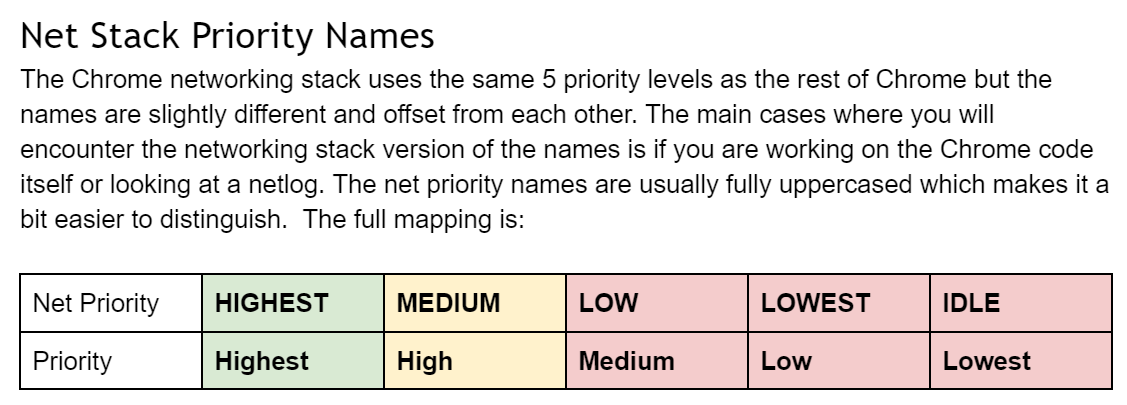
There are many different levels of prioritization of requests inside the web platform. The URL_REQUEST has a priority value that (confusingly) does not match the Priority column in the Developer Tools’ Net tab.


Got a great NetLog debugging tip I should include here? Please leave a comment and teach me!

-Eric

Debugging Proxy Configuration Scripts in the new Edge

I’ve written about Browser Proxy Configuration a few times over the years, and I’m delighted that Chromium has accurate & up-to-date documentation for its proxy support. Chromium’s PAC fetching code (and the code that calls it) is also quite readable with many comments.

One thing I’d like to call out is that Microsoft Edge’s new Chromium foundation introduces a convenient new debugging feature for debugging the behavior of Proxy AutoConfiguration (PAC) scripts.

To use it, simply add alert() calls to your PAC script, like so:

alert("!!!!!!!!! PAC script start parse !!!!!!!!");
function FindProxyForURL(url, host) {
alert("Got request for (" + url+ " with host: " + host + ")");
return "PROXY 127.0.0.1:8888";
}
alert("!!!!!!!!! PAC script done parse !!!!!!!!");

Then, collect a NetLog trace from the browser:

msedge.exe --log-net-log=C:\temp\logFull.json --net-log-capture-mode=IncludeSocketBytes

…and reproduce the problem.

Save the NetLog JSON file and reload it into the NetLog viewer. Search in the Events tab for PAC_JAVASCRIPT_ALERT events:

Even without adding new alert() calls, you can also look for HTTP_STREAM_JOB_CONTROLLER_PROXY_SERVER_RESOLVED events to see what proxy the proxy resolution process determined should be used.

One current limitation of the current logging is that if the V8 Proxy Resolver process…

… crashes (e.g. because Citrix injected a DLL into it), there’s no mention of that crash in the NetLog; it will just show DIRECT. Until the logging is enhanced, users can hit SHIFT+ESC to launch the browser’s task manager and check to see whether the utility process is alive.

Try using the System Resolver

In some cases (e.g. when using DirectAccess), you might want to try using Windows’ proxy resolution code rather than the code within Chromium.

The --winhttp-proxy-resolver command line argument will direct Chrome/Edge to call out to Windows’ WinHTTP Proxy Service for PAC processing.

Differences in WPAD/PAC Processing

  • The WinHTTP Proxy Service caches proxy authentication credentials (in CredMan) and automatically reuses them across apps and browser launches; Chromium does not.
  • The WinHTTP Proxy Service caches WPAD determination across process launches. Chromium does not and will need to redetect the proxy each time the browser reopens.
  • Internet Explorer/WinINET/Edge Legacy call the PAC script’s FindProxyForURLEx function (introduced to unlock IPv6 support), if present, and FindProxyForURL if not.
  • Chrome/Edge/Firefox only call the FindProxyForURL function and do not call the Ex version.
  • Internet Explorer/WinINET/Edge Legacy expose a getClientVersion API that is not defined in other PAC environments.
  • Chrome/Edge may return different results than IE/WinINET/EdgeLegacy from the myIpAddress function when connected to a VPN.
  • Edge 79+/Chrome do not allow loading a PAC script from a file:// URI. (IE allowed this long ago, but it hasn’t been supported in a long time). If you want to try testing a PAC script locally in Chromium-based browsers, you can encode the whole script into a DATA URL and use that. IE/Edge Legacy do not support this mechanism.
  • You should save your PAC file in ASCII or UTF-8 text encoding. Problems have been reported when the script is stored in Unicode’s UTF-16.

Notes for Other Browsers

  • Prior to Windows 8, IE showed PAC alert() notices in a modal dialog box. It no longer does so and alert() is a no-op.
  • Firefox shows alert() messages in the Browser Console (hit Ctrl+Shift+J). Note that Firefox’s Browser Console is not the same as the Web Console where web pages’ console.log statements are shown.

-Eric

Celebrating Fifteen Years

While lately I’ve been endlessly streaming the latest news with horrified fascination, this morning my calendar unexpectedly popped up a reminder set over a year ago… Today is the fifteenth anniversary of my big-league blogging debut on the Internet Explorer Team’s blog.

My first post there, “A HTTP Detective Story” remains one of my favorites. Sadly, its topic feels all too familiar: a website took a dependency upon a browser quirk, the Referer and User-Agent headers were critical elements of the repro, and I used Fiddler to root-cause the problem. I’ve learned (and shared) so much more about these topics over the last fifteen years, and I appreciate the readers who’ve followed me from the IEBlog to IEInternals (237 posts) to Telerik’s Fiddler blog (41 posts) to my book, to this, my newest blog, TextSlashPlain (189 posts and counting!).

Here’s to learning and sharing for the next 15 years!

With gratitude,

-Eric

Enigma Conference 2020 – Browser Privacy Panel

Brave, Mozilla Firefox, Google Chrome and Microsoft Edge presented on our current privacy work at the Enigma 2020 conference in late January. The talks were mostly high-level, but there were a few feature-level slides for each browser.

My ~10 minute presentation on Microsoft Edge was first, followed by Firefox, Chrome, and Brave.

At 40 minutes in a 35min Q&A session starts, first with questions from the panel moderator, followed by questions from the audience.