“Can I… in the new Edge?” (Un-FAQ)

This post is intended to collect a random set of questions I’ve been asked multiple times about the new Chromium-based Edge. I’ll add to it over time. I wouldn’t call this a FAQ because these questions, while repeated, are not frequently asked.

Last Update: Sept 25, 2024

Can I get a list of all supported command-line arguments for msedge.exe?

Unfortunately, not easily. See my post on Edge Command Line Arguments.

Why does Edge ignore the command-line argument I passed it?

Why does Edge ignore the command-line arguments I passed it?

Usually, this happens because Edge was already running and your new invocation simply activated/showed the existing running instance (even if it was a hidden instance using Startup Boost). See my post on Edge Command Line Arguments.

Can an Enterprise Administrator use Group Policy to specify specific flags or command line arguments for all users?

No, this isn’t possible. Such a feature would be relatively easy for the Edge team to build, but would be impossible to support. Most Edge flags and many command-line arguments are basically “experimental”, existing only for troubleshooting purposes, not for use in production.

Flags and command-line arguments can be changed or removed at any time, and an Enterprise relying upon them is almost guaranteeing themselves an unpleasant surprise in the future.

If an enterprise finds that they have a strong need to control a given flag in their environment, they should file a support case with Microsoft requesting that the flag be promoted to a Group Policy controlled setting.

Why do I see msedge.exe in Task Manager when Edge isn’t visible?

Startup Boost enables the browser to launch more quickly. You can disable it if you like.

Can I block my employees from using the edge://flags page?

Update: Edge 93 introduces a new FeatureFlagsOverrideControl policy.

You can add edge://flags to the URLBlocklist if desired. Generally, we don’t recommend using this policy to block edge://* pages as doing so could have unexpected consequences.

Note that, even if you block access to edge://flags, a user is still able to modify the JSON data storage file backing that page: %LocalAppData%\Microsoft\Edge\User Data\Local State using Notepad or any other text editor.

Similarly, a user might specify command-line arguments when launching msedge.exe to change a wide variety of settings.

Can I block resources from a specific site without using an extension?

The URLBlocklist policy allows blocking navigation to specified URL patterns in either the top-level page or in subframes. It does not, however, prevent the specified resources from being loaded as assets in the page via <img>, <video>, <script>, fetch(), etc.

This policy also does not block URL changes via the JavaScript pushState API. This can have some surprising implications. This limitation, which applies to many URL-controlling features, means e.g. if you allow any chrome://settings link, a user can load that page and use the hyperlinks in the page to access other settings inside chrome://settings because clicking those links calls pushState rather than performing a normal navigation subject that would be subject to the policy.

Can I disable certain HTTPS ciphers?

The new Edge, like all Chromium-based browsers, uses BoringSSL for HTTPS connections. Because the new Edge no longer uses Windows’ SChannel (except for IEMode tabs), none of the prior SChannel cipher configuration policies or settings have any effect on the new Edge.

For administrators who wish to disable one or more ciphers, Edge offers a TLSCipherSuiteDenyList Group Policy. In contrast, Chrome explicitly made a design/philosophical choice (see this and this) not to support disablement of individual cipher suites via policy.

Ciphersuites in Edge may also be disabled using a command-line flag:

msedge.exe --cipher-suite-denylist=0x000a https://ssllabs.com

A few other notes:

  • You can easily see what cipher suites your browser offers by visiting this page.
  • The cipher suite in use is selected by the server from the list offered by the client. If an organization is worried about ciphers used within their organization, they can simply direct their servers to only negotiate cipher suites acceptable to them.
  • The Chrome team has begun experimenting with disabling some weaker/older ciphersuites; see crbug.com/658905. For instance, 3DES is no longer available as of version 93.
  • If an Enterprise has configured IE Mode, the IE Mode tab’s HTTPS implementation is still controlled by Internet Explorer / Windows / SChannel policy, not the new Edge Chromium policies.
  • If TLS/1.3 is enabled, you cannot use the cipher-suite-denylist to disable ciphers 0x1301, 0x1302, and 0x1303. TLS1.3 spec: “A TLS-compliant application MUST implement the TLS_AES_128_GCM_SHA256 [GCM] cipher suite and SHOULD implement the TLS_AES_256_GCM_SHA384 [GCM] and TLS_CHACHA20_POLY1305_SHA256 [RFC8439] cipher suites (see Appendix B.4).”
  • Edge on iOS uses TLS cipher implementations provided by Apple because the Edge browser (like all popular browsers) is just a wrapper around Safari’s WKWebView control.
  • From time-to-time, browsers experiment with new ciphersuites. For instance, Chrome and Edge are interested in post-quantum key exchanges (where the key is exchanged in a way that is believed to be robust against quantum computers) and have experimented with new ciphersuites that offer such protections.

Can I use TLS/1.3?

TLS/1.3 is supported natively within the new Chromium-based Edge on all platforms.

Chromium-based Edge does not rely upon OS support for TLS. Windows’ IE 11 and Legacy Edge did not support TLS/1.3 in Windows 10 until recently, and now support TLS/1.3 in Windows 11.

For the time being, enabling both TLS/1.3 and TLS/1.2 is a best practice for servers.

Can I turn off TLS/1.3?

For testing purposes, you can set the SSLVersionMax command line argument to disable TLS/1.3, but the associated Group Policy was removed in Chromium 75 because there should be no need to do this in general.

msedge.exe --ssl-version-max=tls1.2 https://ssllabs.com

Can Extensions be installed automatically?

Enterprises can make extension install automatically and prevent disabling them using the ExtensionInstallForcelist Policy. Admins can also install extensions (but allow users to disable them) using the ExtensionSettings policy with the installation_mode set to normal_installed.

Here are the details to install extensions directly via the Windows Registry. Please note that if you want to install extensions from the Chrome WebStore, then you must provide the Chrome store id and update url: https://clients2.google.com/service/update2/crx.

Can specific file types be set to auto-open? Can I change my mind?

After downloading a file, you can click the “…” menu next to the download item and choose “Always open files of this type” from the context menu:

This option is not available for all file types (e.g. file types deemed dangerous cannot be auto-opened).

One challenge with this UI is that after you set this option, the download bar will not be shown for this file type any longer, leaving you no way to untick the “Always open files of this type” menu item.

The secret to changing your mind is to visit edge://settings/downloads and click the Clear all button next to the File types which are opened automatically after downloading list. There is no way to clear just one file type from the list short of editing the profile’s PREFERENCES json directly.

Presently, no Group Policy is available to force file types (except PDF) to open automatically, but this is a common enterprise request. The Master Preferences file can be configured with this option, but those defaults are only used when creating new browser profiles, and users may change them.

Can I go directly to single-word (Intranet) sites without doing a search first?

Can I avoid doing a search with a notification bar saying “Did you mean to go to <http://payroll&gt;?” In Internet Explorer, there was a “Go to an intranet site for a single word entry in the Address bar” checkbox in the Advanced Settings.

Use the GoToIntranetSiteForSingleWordEntryInAddressBar policy to change the default behavior.

How can I get PDFs to open outside of Edge?

By default, Edge will attempt to render any PDF (navigating to a PDF will not be considered a “Download”) unless you tell Edge not to. To make this change, set your Windows settings so that you have a non-Edge app selected as your PDF reader. Then, inside edge://settings, tick this option:

The setting’s title is Always download PDF files but a more informative title would be Open PDF files using the Windows-default handler for PDF files. If your Windows-default handler for PDF files is Edge, then the file will not be "downloaded" and will instead render inline inside Edge. But if your Windows-default handler for PDF files is not Edge, then navigations to a PDF file will be treated as Downloads and clicking the "Open" link for a PDF in the Download Manager will open the PDF in the Windows-default handler application. But that’s obviously too long for a title. :)

Why does Edge Dev/Canary sometimes show red in unexpected places?

Chromium uses bright red as its “color not found” fallback; this has the upside and downside of quickly drawing a lot of attention to this class of bug.

When upstream Chromium makes a change in the color tables that Edge fails to fix up in our pump before the next build is released, it results in elements taking on a red color until we fix the oversight.

Can I use URLs of unlimited size?

Within Chromium, URLs of up to 2mb can be used in general, although some UI surfaces will truncate URLs at 32kb. For performance and reliability reasons, I would not recommend using URLs over 8k in length.

Can I use configure Edge to use more than 6 HTTP/1.1 connections per host?

No. Using parallel connections as was common in HTTP/1.1 suffers from lower performance and increased load on the server. As a hacky workaround to exceed the typical 6 connections-per-host limit, some sites use “sharding” which assigns multiple DNS names to a single server. Because browser connection limits are based on the hostname, this allows the client to make 6*NumShards parallel connections.

Chromium exposes only a policy to control the maximum connections per proxy server, but there is no policy to control the maximum connections per web server. This sometimes leads to problems in niche scenarios, but we have not, as yet, heard a non-trivial number of complaints.

Note that things will get a bit more complex in the future due to security/privacy partitioning; when PartitionConnectionsByNetworkIsolationKey is enabled, the connections-per-host limit is enforced against each partitioned socket pool. If pages from a.example and b.example both use resources from example.net, each page can use six connections to example.net due to the partitioning of the connection pool by the Network Isolation Key.

In the ideal case, the site would deploy HTTP/2 or HTTP/3, which multiplex many (Chromium default 100, server configurable to up to 256) requests over a single TCP/IP connection, eliminating head-of-line blocking and providing much better performance vs. legacy HTTP/1.1. Chrome’s WebSocketsPerHost limit is 255.

Can I use Group Policy to turn off HSTS for specific sites?

No. There is no policy that turns of HSTS for a host that had requested it.

The HSTSPolicyBypassList policy description led users to believe it does something it does not. I fixed a bug to get the text clarified. The policy should read something like:

Setting the policy specifies a list of hostnames that bypass preloaded HSTS upgrades from http to https. Only single-label hostnames are allowed in this policy, and the policy applies only to HSTS-preloaded “static” entries (“app”, “new”, “search”, “play”, etc”). This policy does not prevent HSTS upgrades for servers that have explicitly requested HSTS upgrades using the Strict-Transport-Security response headers. Supplied hostnames must be canonicalized: Any IDNs must be converted to their A-label format, and all ASCII letters must be lowercase. This policy only applies to the specific single-label hostnames specified, not to subdomains of those names.

Some users complain that they’re getting HSTS for localhost sites and try to use this policy to prevent that. localhost is not on the HSTS Preload list. If your browser is HSTS-upgrading localhost, it’s because it received a Strict-Transport-Security response header from localhost that turned on HSTS. To fix that:

  1. Stop sending the header
  2. On edge://net-internals/#hsts, use the Delete domain security policies section to remove Localhost
  3. Or you can hit Ctrl+Shift+Delete to open the Clear Browsing Data dialog and choose Cached Images and Files. This will delete ALL dynamic HSTS rules.

Update: I wrote an extension that will disable HSTS on all https://localhost responses.

Can I control Permissions (like Allow Popups) based on the Site’s IP address?

The Permissions system’s “Site Lists” feature does not support specifying an IP-range for allow and block lists.

It does support specification of individual IP literals, but such rules are only respected if the user navigates to the site using said literal (e.g. http://127.0.0.1/). If a hostname is used (http://localhost), the IP Literal rule will not be respected.

How does visiting a site in Internet Explorer open Edge automagically?

Edge installs a Browser Helper Object into Internet Explorer with a pre-provisioned site list.

Other than that, a site can try to launch a link using the microsoft-edge: URL protocol.

How does Edge render Office documents directly in the browser?

The OpenInOfficeViewerIfApplicable feature watches navigations to detect when Office-related file extensions (.xls, .docx, pptx, etc) or Content-Types (application/msword, application/vnd.ms-excel, etc) are observed, indicating that a navigation led directly to an Office document that would otherwise be deemed as having a non-webby MIME type and thus normally be converted into a download.

The feature is bypassed if:

  1. The Open Office files in the browser checkbox is turned off in edge://settings
  2. The response contains a Content-Disposition: attachment header
  3. The request contains an Authorization or Proxy-Authorization header.
  4. The user initiated the download from the “Save As” item on the browser’s context menu
  5. The referring URL is on a limited set of exempted domains (Office, SharePoint, OneDrive, Blackboard, etc)
  6. The request method is not GET
  7. The file size is not known (e.g. Transfer-Encoding: chunked)
  8. The file size is over 100mb
  9. The browser is running in Incognito mode
  10. The file was served from an IP address that is not publicly routable

Can I turn off cross-origin security in Edge?

You shouldn’t.

The flag --disable-web-security command line flag is not supported (that is to say, we won’t guarantee what it does or does not allow, and it could disappear at any time), and hasn’t been updated to account for all of the various security features added to the browser over the last few years (see https://crbug.com/1150447). Launching the browser with this flag makes that browser instance inherently unsafe to use. That was also true of the old “Access data sources” flag in IE, although the IE-flag was at least Zone-limited.

The command must be paired with a user-data-dir argument:

msedge.exe --disable-web-security --user-data-dir=C:\temp example.com

Developers should fix the dependent target sites to emit proper Access-Control-Allow-Origin headers so that the web’s same-origin-policy is respected.

If they do not control the target site, they will need to build a server proxy (browser->their-server->remote-server) that sets the correct ACAO headers.

Can I change the browser’s User-Agent string?

Edge allows configuration of a UA string via the Developer Tools or the --user-agent command line argument. It does not support customization of the UA string via a plain setting or Group Policy.

Browser extensions can be installed to spoof the UA string.

Generally, we do not believe that changing the UA string for day-to-day browsing is a good idea—it typically ends up causing more problems than it solves.

How do I ensure WebDriver is up-to-date?

Some folks use a third-party solution such as WebDriverManager which automatically maintains browser drivers for every major browser including Edge. Some prefer to write their own scripts that check the Edge browser version before running tests, downloading the matching driver from the Edge WebDriver Directory. An example script written in Python can be found here.

Does Edge support Chrome Apps?

Edge has never supported the non-standard Chrome Apps platform, because this platform was originally slated for deprecation back in 2019. The Microsoft Web Store does not allow Chrome Apps, and Chrome Apps were never installable into Edge from the Chrome Web Store.

We recently learned that some users were side-loading Chrome Apps into Edge; these will stop working soon when Chrome disables the Apps platform. Developers of Chrome Apps should migrate to modern standards-based code now.

Can I sync/transfer my Automatic Profile Switch settings?

As of Edge 109, not yet, no, settings for automatic switching are not synced or exportable.

Will Chromium certificate-verification changes impact Edge?

Chromium is changing the way that Certificate Verification works; in the old days (on Windows at least), Chromium would ask the underlying operating system to validate that the certificate presented by a website is valid.

That’s changing in early 2023. You can read the details here, but the tl;dr is that there’s new certificate verification code (you shouldn’t notice any difference vs the old CAPI), and the same Windows trusted root list is used, but, carried within the browser itself.

Edge, regardless of bitness, installs to the Program Files (x86) folder. Why?

On 64-bit versions of Windows, 32-bit applications are meant to be placed into a C:\Program Files (x86)\ folder while native 64-bit applications are meant to be placed within the C:\Program Files\ folder. This enables side-by-side installation of applications that are available in both bitnesses (e.g. Internet Explorer 9 could run as either 32bit or 64bit). Windows folder names reflect this convention but have no actual impact on the bitness of the executables within.

Originally, Chromium was only available as a 32bit Windows executable installed to the X86 version of the folder. Even after 64bit versions became available and later became the default, the installation folder path was not updated for many years because there was no compelling reason to bother.

Relatively recently, Chrome changed to start installing to the “correct” folder, but for obscure reasons, Edge didn’t take this change.

Can I load legacy content designed for Internet Explorer?

In some cases, you may need to load content that only runs correctly in the crufty old Internet Explorer engine (e.g. a page that uses an ActiveX control).

The supported way to do this is IEMode in Edge. You should be very careful when loading content in IEMode because Internet Explorer code is old and considerably less secure than Edge mode; an attacker will find it much easier to attack your computer if you load their page in IEMode. IEMode runs with the comparatively weak Protected Mode sandbox, vs. the much stronger Chromium sandbox.

Standalone IE was deprecated in early 2023 and attempts to launch iexplore.exe are redirected to launch Edge instead. In most cases, this is a major improvement, but if you’re doing something exotic (like answering legacy browser UX trivia questions like me) you might need to occasionally run the old standalone UI. For the time being, at least, you can use this (afaik, unsupported) workaround. Save the following as IE.vbs:

Set IE = CreateObject("InternetExplorer.Application")
IE.Navigate "https://example.com"
IE.Visible = true

Run the script to get a standalone IE window. Be very careful as all of the security concerns noted above apply.

Is there any sort of “changelist”? Can I get advance notice of changes?

Generally, your best bet is to use a practical time machine and test your site in a pre-Stable channel like Dev or Canary.

That said, platform breaking changes of the most interest are noted on the site-impacting-changes page. Edge inherits nearly all of Chromium’s web platform changes, which they document more comprehensively on Chrome Status.

-Eric
Bypassing AppProtocol Prompts

Starting in Microsoft Edge 77 (and Chrome 77), the prompt shown when launching an AppProtocol from the browser was changed to remove the “Always allow” checkbox. That change was made, in large part, because this prompt is the only thing standing between every arbitrary site on the Internet (loaded inside your browser’s sandbox) and a full-trust application on your computer (running outside of the browser’s sandbox). See the blog post for more details on why AppProtocols are so scary.

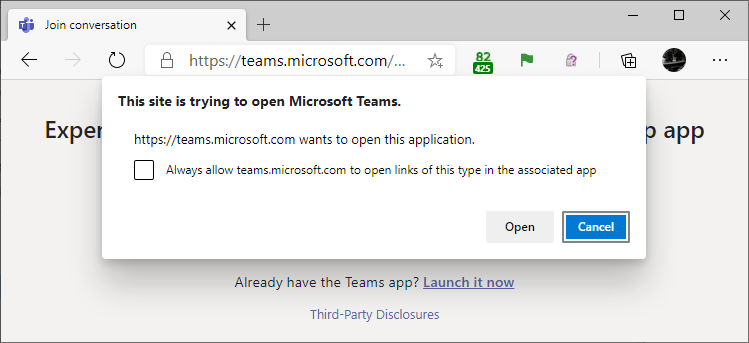
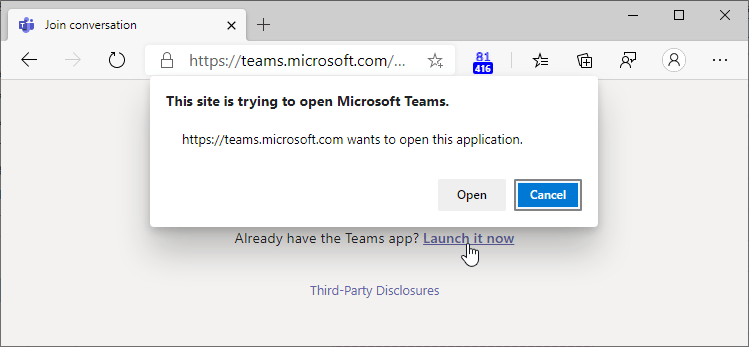
After Edge 77, when you try to launch a Microsoft Teams meeting, for instance, you’ll see a UI like this:

Unfortunately, there’s a downside to this security improvement.

The same prompt that protects users from malicious content on https://BadGuy.example also shows every single time the legitimate Microsoft Teams website tries to open its related application. Users complain that the security prompt feels redundant, and IT departments have howled that they’ll have to retrain users and field helpdesk calls.

In Edge 82.0.425.0 Canary, a new flag was added:

…and in Edge 84 it was enabled by default.

The prompt now includes a new checkbox: “Always allow <hostname> to open links of this type in the associated app”:

By storing exemptions on a per-site, per-scheme basis, attack surface is significantly reduced, because only sites you’ve specifically allowed in the past are permitted to bypass the prompt.

This change is also available in other browsers based on Chromium 84+.

Some notes on this change:

  • Exemptions are stored on a per-scheme, per-origin basis (e.g. “Allow teams: from https://teams.microsoft.com“, so if multiple origins use the same scheme, you’ll need to exempt each one.
  • Stored exemptions are origin specific: https://site.example and https://www.site.example and http://site.example are all different origins.
  • Stored exemptions are only available for secure origins (basically: HTTPS, HTTP-to-Localhost, and FILE).
  • This checkbox can be disabled using Group Policy.
  • This checkbox does not appear if there’s no “Context URL” (e.g. the user pasted the protocol URL directly into the address bar without clicking a link).
  • Starting in Edge 85, the new AutoLaunchProtocolsFromOrigins Group Policy allows an admin to preapprove exemption pairs (including non-secure origins) on behalf of their users. The policy allows admins to specify, for each protocol scheme, a list of sites (potentially including wildcards) that should be allowed to invoke the scheme without a prompt. The scheme itself cannot be wildcarded–there is no way to specify that a given site may invoke every protocol. Bug: As of Edge 109 and earlier, a * wildcard rule does not work if there’s no context URL (e.g. the user pasted the protocol URL directly into the address bar)[1].
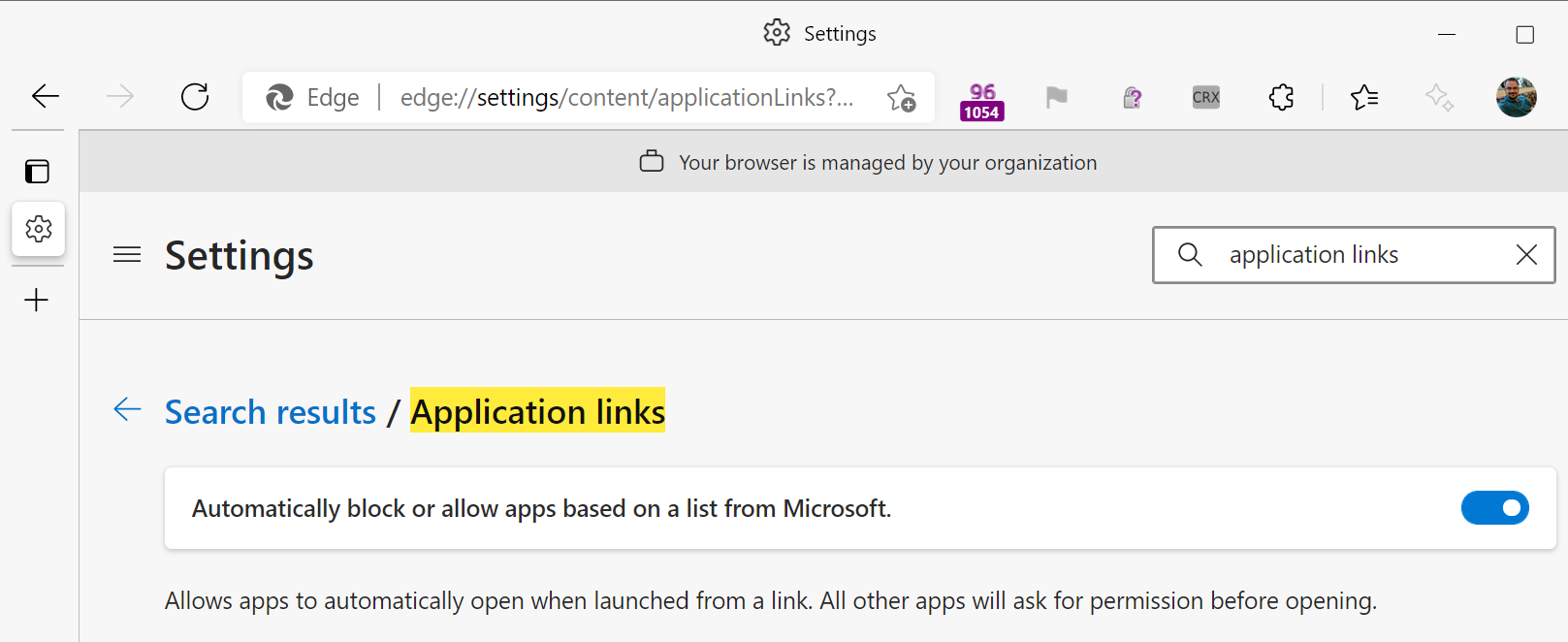
  • In Edge 86 and later, you can see user-granted and Group Policy pushed exemptions by navigating to edge://settings/content/applicationLinks in the browser. You can also remove user-granted exemptions in this page.
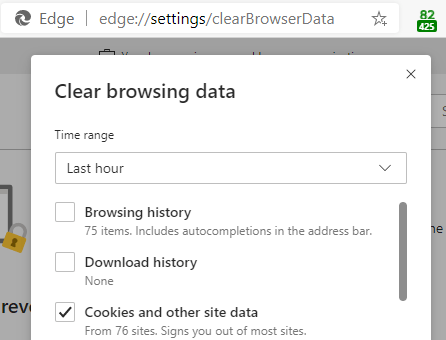
  • To clear all user-granted exemptions (in any version), you may use the “Cookies and other site data” checkbox in the Clear Browsing Data dialog box. Note that you can set the time range to anything you like– all Origin+Scheme exemptions will be cleared.

You can experiment with this feature using the AppProtocol test page.

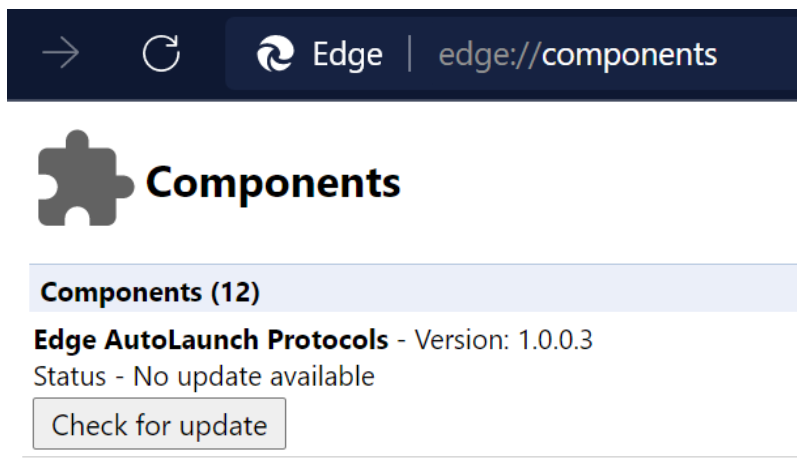
Update: Microsoft Edge 96 introduces a new feature whereby Microsoft delivers an Edge AutoLaunch Protocols Component containing lists of scheme-origin dictionaries to automatically allow or block. This allows us to protect customers from dangerous schemes (e.g. a protocol handler with a 0-day) while reducing the annoyance of a prompt from known-safe pairings (e.g. the Teams website can open the Teams client app).

If for some reason you don’t want Microsoft Edge to block vulnerable protocol handlers and allow known-safe pairings, use the toggle inside edge://settings/content/applicationLinks, or set the policy AutoLaunchProtocolsComponentEnabled to false.

There’s no built-in viewer for the component, but all Components are basically just files in the profile. %userprofile%\AppData\local\microsoft\edge beta\user data\AutoLaunchProtocolsComponent\ contains a simple JSON file with the current rules.

-Eric

[1] Bug: The prompt, sans checkbox, is shown when there’s no context URL, even when a wildcard rule of * is specified.

Browser Password Managers: Threat Models

All major browsers have a built-in password manager. So we should use them, right?

I Do

  • I use my browser’s password manager because it’s convenient: with sync, I get all of my passwords on all of my devices.
  • This convenience means that I can use a different password for every website, improving my security.
  • This convenience means that my passwords can be long and hard to type, because I never have to do so.
  • This means that I don’t even know my own passwords for many sites, and because I can rely on my password manager to only fill my passwords on the sites to which they belong, I cannot succumb to a phishing attack.
  • Enabling the Microsoft Edge Password Manager enables security-improving features like Password Monitor (breach detection) and Password Generation (effortless strong passwords)

Should You?

The easy answer is “Yes, use your browser’s password manager!

The more nuanced answer begins: “Tell me about your threat model?

As when evaluating almost any security feature, my threat model might not match your threat model, and as a consequence, our security choices might be different.

Here are the most relevant questions to consider when thinking about whether you should use a password manager:

  • Is a password manager available for your platform(s)?
  • What sort of attackers are you worried about?
  • What sort of websites do you log into?
  • Do you select strong, unique passwords?
  • Are your accounts protected with 2FA?
  • What sort of attacks are most likely?
  • What sort of attacks are possible?
  • How do you protect your devices?
  • What’s your personal tolerance for inconvenience?
  • Are you confident in the security of your password manager’s vendor?
  • If you sync passwords, are you confident in the security of the design of the sync system?
  • Does the password manager offer advanced features like breach detection and automatic password generation?

The answers to these questions might change your decisions about whether to use a password manager, and if so, whether you want to use the built-in password manager or use a password manager provided by a third-party.

For instance, if you’re sharing a Windows/Mac OS login account with someone you don’t trust, you should stop. If you cannot or don’t want to, you should not use a password manager, because there are trivial ways for a local user steal your passwords one-at-a-time and simple mechanisms and tools to steal them all at once. Of course, even if you’re not using a password manager, a co-user can simply use a keylogger to steal your passwords one-by-one as you type them.

Lock (WinKey+L) your computer when you’re not using it.

Attacks

While browser passwords are encrypted on disk, they’re encrypted using a key available to any process on your PC, including any locally-running malware. Even if passwords are encrypted in a “vault” by a “Primary Password”, they’ll be decrypted when loaded in the browser’s memory space and can be harvested after you unlock the vault. Even keeping the Primary Password itself safe from locally-running malware is basically impossible.

Locally-running malware is particularly dire if your threat model includes the possibility of a worm running rampant within your enterprise– it could infect all of your employees’ machines and steal all of their passwords in bulk in seconds. (Yes, dear reader, I know that you’re thinking of clever mechanisms to mitigate these sorts of attacks. I assure you I can defeat every practical idea you have. It’s a fundamental law of computing.)

Password storage sync introduces another vector for theft– if an attacker can phish your sync service’s credentials, they could steal all of your passwords. If your password manager contains corporate creds, they could be stolen from your “personal” profile.

Primary Passwords: No Silver Bullet

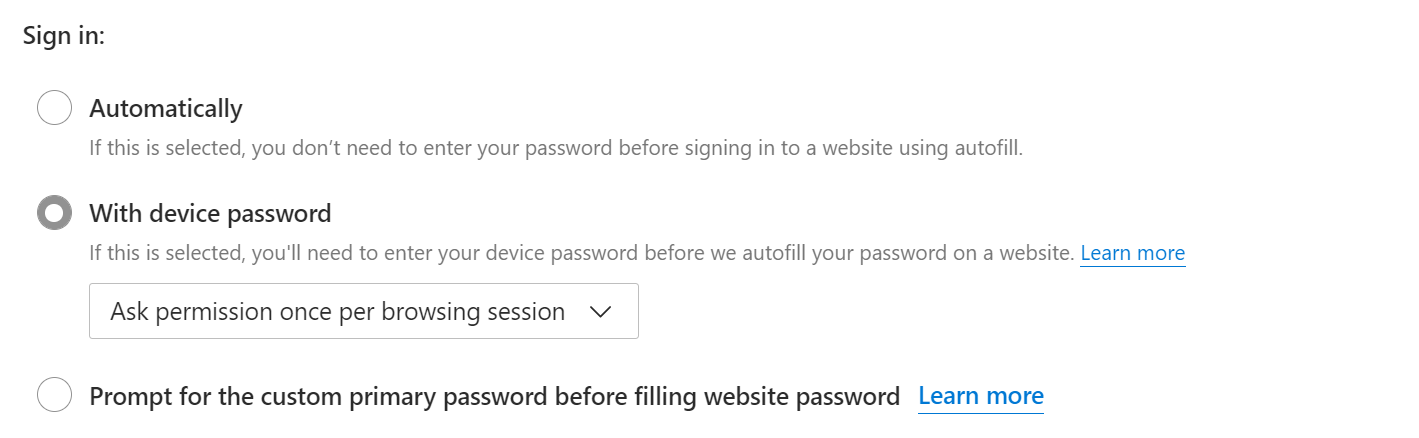
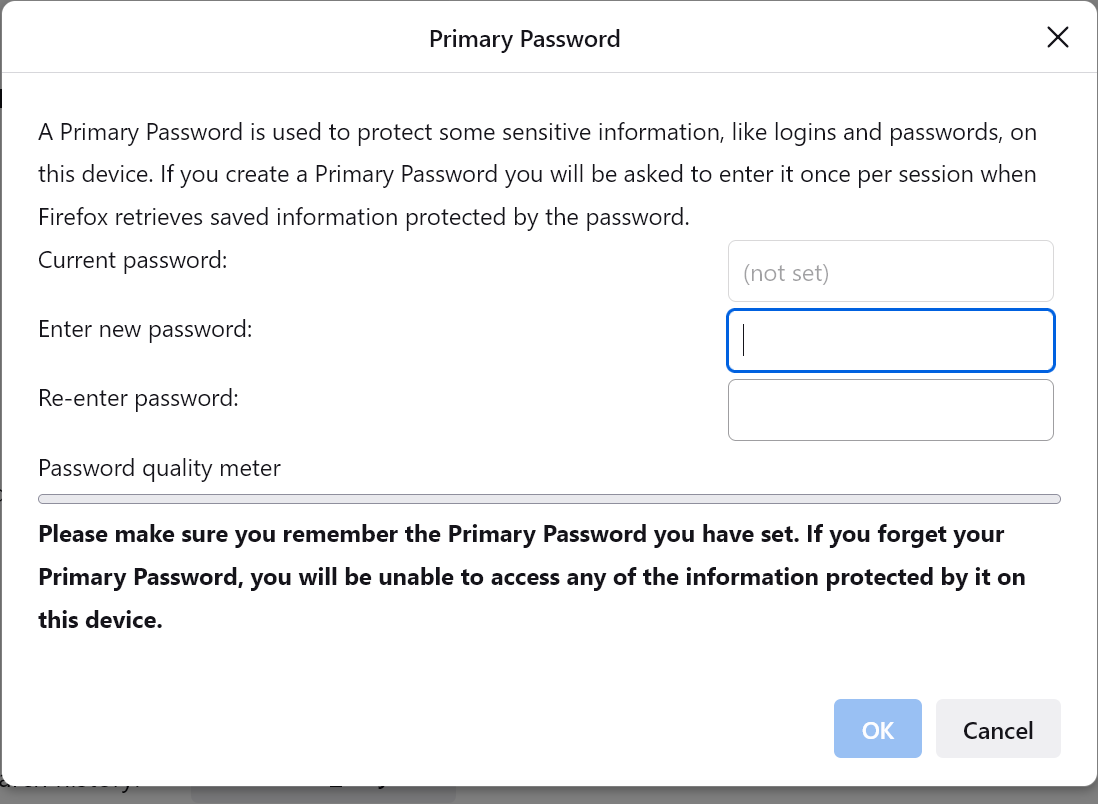
Edge and Firefox offer a “Primary Password” mechanism to restrict autofill until you authenticate with Windows Hello (PIN/Fingerprint/etc) or supply a custom primary password.

Edge UI
Firefox UI

It is critical to understand that these mechanisms are a useful hurdle against opportunistic theft by an attacker without tools (e.g. your eight year old), not a security boundary.

Locally-running malware or a motivated malicious co-user can circumvent the protection using the mechanisms described in the previous section. The documentation contains similar caveats.

History

In the original incarnation of Chrome’s password manager, a local user could go to a page inside Chrome and freely see all of the passwords. Many users loudly demanded that this operation require some form of user proof, so the Chrome team very reluctantly added a “Users must provide their OS creds to see all the passwords at once” check, knowing that this was not a true security boundary and that some users might be misled into thinking that it was. Sure enough, they got more reports saying “Oooh, look at this, I can still steal passwords without knowing the Windows password”, which is entirely expected because of how the feature works: Passwords can still be stolen individually, or in bulk via Sync, or in bulk via reading the database directly.

For many years, the Chrome team declined to do anything to satisfy many users’ loud demands that the browser go further and prompt for some sort of user proof before filling an individual password in the page. The justification was largely the same—it could never be a security boundary and users might mistakenly think it was. Users howled “Look, I’m trying to keep my little sister out of my accounts, not defeat Kevin Mitnick!” but the Chrome team was unmoved. On the Edge side, we said “Hey, the little sister scenario is entirely reasonable, and we should offer users the option to require user proof on fill” so we did via the “Primary Password” feature. The immediate reason was to accommodate the “unmotivated attacker” user scenario, but the long-term reason was that if we, in the future, want to invest in building a real security boundary here, that real boundary will require the same UX flow, and we were curious to learn whether or not users would actually like/enable such a flow.

Security Baseline Recommendations

Concern about instantaneous bulk theft and egress of credentials has led the authors of security configuration guidance to recommend disabling browser password managers. For instance, the Edge Security Baselines (before version 114) and the Chrome STIG have historically suggested preventing users from using the password manager. I personally think this is a poor tradeoff that increases the higher risk of individual users getting phished, but I don’t write the configuration guidance, although I did advocate for the baseline change made in Edge 114.

Some tech elites advocate for using a 3rd-party password manager, and some users really like them. Most 3rd-party password managers are designed with broader feature sets to help satisfy alternative threat models, including using a “primary password” to help protect against limited local attackers. Importantly, however, no password manager is able to operate securely on a PC compromised by malware (as explored here). Many password managers include additional conveniences like automatic generation of strong passwords and roaming of passwords to mobile platforms and apps.

On the other hand, many external password manager applications are themselves a source of security vulnerabilities, and these products often end up growing extremely complicated due to the “Checkbox Wars” endemic to the security products industry.

Hacking expert Tavis Ormandy recommends using the Password Manager built into your browser, and he explains why, in depth.

Parting Advice

Passwords are a poor security mechanism, and should be phased out wherever possible. In particular, have a lot of optimism about the upcoming PassKeys feature.

When that’s not yet possible (because you don’t control the website): choose strong passwords, use a password manager if it satisfies your threat model, and enable 2FA if available — especially on your email accounts used for Password Sync and to which password recovery emails are sent. If a site offers a choice of 2FA methods, prefer FIDO over HOTP/Authenticator and HOTP/Authenticator over SMS Text messages.

-Eric

PS: Back in 2017, there was a bunch of press excitement about a privacy threat whereby autofilled credentials from the password manager might allow a website to identify a visitor before the user clicks the Login button. See this post for an exploration of this threat and its mitigations.

Demystifying Browsers

Last update: October 29, 2024

Web browsers are conceptually pretty simple, but their code and the ecosystems that arise around the platforms they expose are immensely complicated.

Web Browsers are conceptually pretty simple.

I started building browser extensions more than 22 years ago, and I started building browsers directly just over 16 years ago. At this point, I think it’s fair to say that I’m entering the grizzled veteran phase of my career.

With the Edge team continuing to grow with bright young minds from college and industry, I’m increasingly often asked “Where do I learn about browsers?” and I haven’t had a ready answer for that question.

This post aims to answer it. (Prefer hearing me talk?)

First, a few prerequisites for developing expertise in browsers:

  1. Curiosity. While browsers are more complicated than ever, there are also better resources than ever to learn how they work. All major browsers are now based on open-source code, and if you’re curious, you no longer need to join a secret priesthood to discover how they operate under the hood.
  2. Willingness to Experiment. Considering how complex browsers are (and because they’re so diverse, across platforms, maker, and version), it’s often easiest to definitively answer questions about how browsers work by trying things, rather than reading an explainer (possibly outdated or a map that doesn’t match the terrain) or reading the code (often complex and potentially misleading). Build test cases and try them in each browser to see what happens. When you encounter surprising behavior, let your curiosity guide you into figuring it out. Browsers contain no magic, but plenty of butterfly effects.
  3. Doggedness. I’ve been doing this for over half of my life, and I’m still learning daily. While historical knowledge will serve you well, things are changing in this space every day, and keeping up is an endless challenge. And it’s often fun.

Now, how do you apply these prerequisites and grow to become a master of browsers? Read on.

Fundamental Understanding

Over the years, a variety of broad resources have been developed that will give you a good foundation in the fundamentals of how browsers work. Taking advantage of these will help you more effectively explore and learn on your own.

  • First, I recommend reading the Chrome Comic Book. This short, 38 page comic book from comics legend Scott McCloud was published alongside the first version of Google Chrome back in 2008. It clearly and simply explains many of the core concepts behind modern browsers as application platforms.
  • HTML5Rocks has a great introduction into How Browsers Work. This is a lengthy and detailed introduction into how browsers turn HTML and CSS into what you see on the screen. Read this article and you’ll understand more about this topic than 90% of web developers.
  • The folks at Google have created a fantastic four-part illustrated series about how modern browsers work: Inside look at modern web browsers. Navigation, the Rendering Engine and Input and Compositing as a part of their Web Fundamentals site.
  • Mozilla wrote a fantastic cartoon introduction to WebAssembly, explaining the basics behind this new technology; there’s tons of other invaluable content on Mozilla Hacks.
  • The Chromium Chronicle is a monthly series geared specifically to the Chromium developers who build the browser.
  • Web Developers should check out Web.Dev, a great source of articles on building fast and secure websites.

Books

If you prefer to learn from books, I can only recommend a few. Sadly, there are few on browsers themselves (largely because they tend to evolve too quickly), but there are good books on web technologies.

Tools

One of the best ways to examine what’s going on with browsers is to just use tools to watch what’s going on as you use your favorite websites.

Update: I’ve written a whole post on Browser-Debugging Tools.

Use the Source, Leia

The fact that all of the major browsers are built atop open-source projects is a wonderful thing. No longer do you need to be a reverse-engineering ninja with a low-level debugger to figure out how things are meant to work (although sometimes such approaches can still be super-valuable).

Source code locations:

While simply perusing a browser’s source code might give you a good feel for the project, browsers tend to be enormous. Chromium is over 10 million lines of code, for example.

If you need to find something in particular, one often effective way to find it easily is to search for a string shown in the browser UI near the feature of interest. (Or, if you’re searching for a DOM function name or HTML attribute name, try searching for that.) We might call this method string chasing.

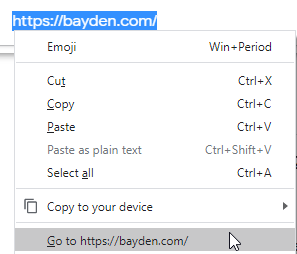
By way of example, today I encountered an unexpected behavior in the handling of the “Go to <url>” command on Chromium’s context menu:

So, to find the code that implements this feature, I first try searching for that string:

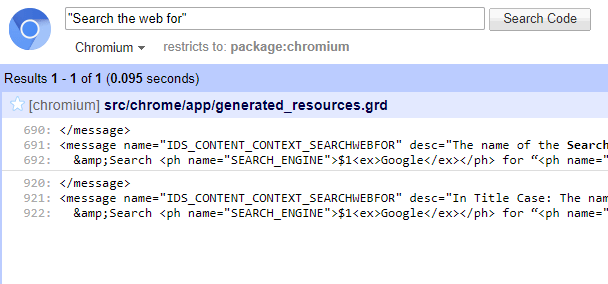
…but there are a gazillion hits, which makes it hard to find what I need. So I instead search for a string that’s elsewhere in the context menu, and find only one hit in the Chromium “grd” (resources) file:

When I go look at that grd file, I quickly find the identifier I’m really looking for just below my search result:

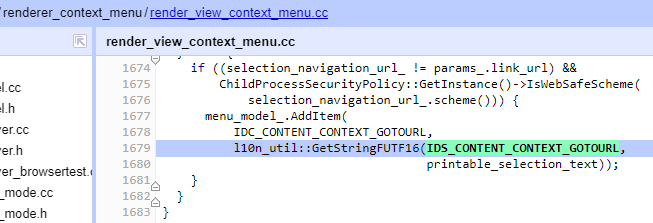
So, we now know that we’re looking for usages of IDS_CONTENT_CONTEXT_GOTOURL, probably in a .CC file, and we find that almost immediately:

(Note that, on Android, it’s a little more complicated. You drop the IDS_ prefix and change the rest to lowercase. Then search the source for e.g. R.string.content_context_gotourl).

From here, we see that the menu item has the command identifier IDC_CONTENT_CONTEXT_GOTOURL, which we can then continue to chase down through the source until we find the code that handles the command. That command makes use of a variable selection_navigation_url_, which is filled elsewhere by some pretty complicated logic.

After you gain experience in the Chromium code, you might learn “Oh, yeah, all of the context menu stuff is easy to find, it’s in the renderer_context_menu directory” and limit your searches to that area, but after four years of working on Chrome, I still usually start my searches broadly.

Optional: Compile the code

If you’d actually like to compile the code of a major browser, things are a bit more involved, but if you follow the configuration instructions to the letter— your first build will succeed. Back in 2015, Monica Dinculescu created an amazing illustrated guide for contributing to Chromium, and in 2020, Marcos Cáceres wrote a thorough explainer about building a feature in Firefox. In 2021, the WebKit team released a guide for contributing to WebKit.

You can compile Chromium or Firefox on a mid-range machine from 2016, but it will take quite a long time. A beefy PC will speed things up a bunch, but until we have cloud compilers available to the public, it’s always going to be pretty slow. Update October 2020: Note that there’s now a simple way to make simple changes to Chromium using just your web browser.

This guide on compiling WebKit suggests that a web platform-only build on a MacBook takes only about 20 minutes; you can run the resulting platform in a minibrowser or instruct Safari to use it.

Look at their Bugs

All browsers except Microsoft Edge have a public bug tracker where you can search for known issues and file new bugs if you encounter them.

  • FirefoxFirefox Bugzilla
  • WebKitWebKit Bugzilla
  • ChromiumCRBug
  • Microsoft Edge‘s – Platform bugs that are inherited from Chromium are tracked using CRBug. Sadly, at present there is no public tracker for bugs that reproduce only in Edge. Bugs reported by the “Feedback” button are tracked internally by Microsoft.
  • Braveon GitHub
  • Cross-browser compat issues webcompat.com
  • HTML5 Specification – on GitHub

Here are instructions for filing a great browser bug.

Binge on Online Video

The Chrome team has an excellent set of educational content used to train new and long-time Chrome engineers. Titled Chrome University, it is periodically updated. Here’s the Chrome Security 101 course, for instance.

Here’s a cool 51 minute talk on building a browser (“Ladybird”) from scratch.

Blogs to Read

  • This One – I write mostly about browsers.
  • My (archived) IEInternals – I started writing this blog because it was the only reliable way for me to find my notes from investigations and troubleshooting years later.
  • Cloudflare’s – Cloudflare is a $20B+ company whose primary product is their amazing blog. I understand they also run a CDN on the side to generate interesting topics for their blog to talk about.
  • April King‘s blog covers security and networking.
  • Nasko Oskov’s – Nasko is an engineer on the Chrome Security team and writes mostly about security topics.
  • Chris Palmer’s – Chris is an engineer on the Chrome Security team and writes about secure design.
  • Adam Langley’s – Google’s expert cryptographer
  • Bruce Dawson’s – Bruce is a Chrome Engineer who posts lots of interesting information about debugging and performance troubleshooting, especially on Windows.
  • Anne van Kesteren’s – Anne works on the HTML5 spec.
  • Mark Nottingham’s – Mark co-chairs the HTTP and QUIC working groups.
  • Alex Russell’s – Alex is a deep thinker about the browser ecosystem and has written many very thoughtful posts about the competitive landscape for browsers.
  • Emily Stark – Emily from Chrome Security is one of the smartest folks I know.

Specific Posts of Interest

People to Follow

I’ve doubtless forgotten some, see who I follow.

The Business of Browsers

Public data reveals each point of marketshare in the browser market is worth at least $100,000,000 USD annually, most directly in the form of payments from the browser’s configured search engine. Apple reportedly gets $9-$12Billion per year for sending search traffic to Google, and Mozilla has yielded ~$400M per year from the same sort of deal.

Remembering this fact will help you understand many other things, from how browsers pay their large teams of expensive software engineers, to how they manage to give browsers away for free, to why certain features behave the way that they do.

Expert Alex Russell has some notes about money on his blog.

Extra Resources

Browsers are hugely complicated beasts, and tons of fun. If the resources above leave you feeling both overwhelmed and excited, maybe you should become a browser builder.

Want to change the world? Come join the new Microsoft Edge team today!

-Eric

App-to-Web Communication: Launching Web Apps

In recent posts, I’ve explored mechanisms to communicate from web content to local (native) apps, and I explained how web apps can use the HTML5 registerProtocolHandler API to allow launching them from either local apps or other websites.

In today’s post, we’ll explore how local apps can launch web apps in the browser.

It’s Simple…

In most cases, it’s trivial for an app to launch a web app and send data to it. The app simply invokes the operating system’s “launch” API and passes it the desired URL for the web app.

Any data to be communicated to the web app is passed in the URL query string or the fragment component of the URL.

On Windows, such an invocation might look like this:

ShellExecute(hwnd, "open", "https://bayden.com/echo.aspx?DataTo=Pass#GoesHere", 0, 0, SW_SHOW);

Calling this API results in the user’s default browser being opened and a new tab navigated to the target URL.

This same simple approach works great on most operating systems and with virtually any browser a user might have configured as their default.

…Unless It’s Not

Unfortunately, this well-lit path adjoins a complexity cliff— if your scenario has requirements beyond the basic [Launch the default browser to this URL], things get much more challenging. The problem is that there is no API contract that provides a richer feature set and works across different browsers.

For instance, consider the case where you’d like your app to direct the browser to POST a form to a target server. Today, popular operating systems have no such concept– they know how to open a browser by passing it a URL, but they expose no API that says “Open the User’s browser to the following URL, sending the navigation request via the HTTP POST method and containing the following POST body data.

Over the years, a few workarounds have been used (e.g. see StackOverflow1 and StackOverflow2).

For instance, if the target webservice simply requires a HTTP POST and you cannot change it, your app could launch the browser to a webpage you control, passing the required data in the querystring component of a HTTP GET. Your web server could then reformat the data into the required POST body format and either proxy that request (server-side) to the target webservice, or it could return a web page with an auto-submitting form element with a method of POST and and action attribute pointed at the target webservice. The user’s browser will submit the form, posting the data to the target server.

Similarly, a more common approach involves having the app write a local HTML file in a temporary folder, then direct the Operating System to open that file using the appropriate API (again ShellExecute, in the case of Windows). Presuming that the user’s default HTML handler is also their default HTTPS protocol handler, opening the file will result in the default browser opening, and the HTML/script in the file will automatically submit the included form element to the target server. This “bounce through a local temporary form” approach has the advantage of making it possible to submit sizable of data to the server (e.g. the contents of a local file), unlike using a GET request’s size-limited querystring.

Caveats:

  • Unfortunately it is generally not possible to construct a HTML form that will submit a data field that exactly matches what you would get when sending an <input type=file> control. If the web service demands a format that was generated by a file upload control, you may not be able to emulate that.
  • Some browsers will not run JavaScript in local files by default.
  • Don’t forget to delete the temporary file!

If your scenario requires uploading files, an alternative approach is to:

  1. Upload the files directly from your app to a web service
  2. Have that web service return a secret token associated with the upload
  3. Have your app spawn a browser with a GET request whose querystring contains that secret token

Browser-Specific Approaches

Back in the Windows 7 days, the IE8 team created a very cool feature called Accelerators that would allow users to invoke web services in their browser from any other application. Interestingly, the API contract supported web services that required POST requests.

Because there was no API in Windows that supported launching the default browser with anything other than a URL, a different approach was needed. A browser that wished to participate as a handler for accelerators could implement a IOpenServiceActivityOutputContext::Navigate function which was expected to launch the browser and pass the data. The example implementation provided by our documentation called into Internet Explorer’s Navigate2() COM API, which accepted as a parameter the POST body to be sent in the navigation. As far as I know, no other browser ever implemented IOpenServiceActivityOutputContext.

These days, Accelerators are long dead, and no one should be using Internet Explorer anymore. In the intervening years, no browser-agnostic mechanism to transfer a POST request from an app to a browser has been created.

Perhaps the closest we’ve come is the W3C’s WebDriver Standard, designed for automated testing of websites across arbitrary browsers. Unfortunately, at present, there’s still no way for mainstream apps to take a dependency on WebDriver to deliver a reliable browser-agnostic solution enabling rich transfers from a local app to a web app. Similarly, Puppeteer can be used for some web automation scenarios in Chrome or Edge, and the new Microsoft Playwright enables automated testing in Chromium, WebKit, and Firefox.

File Handling API

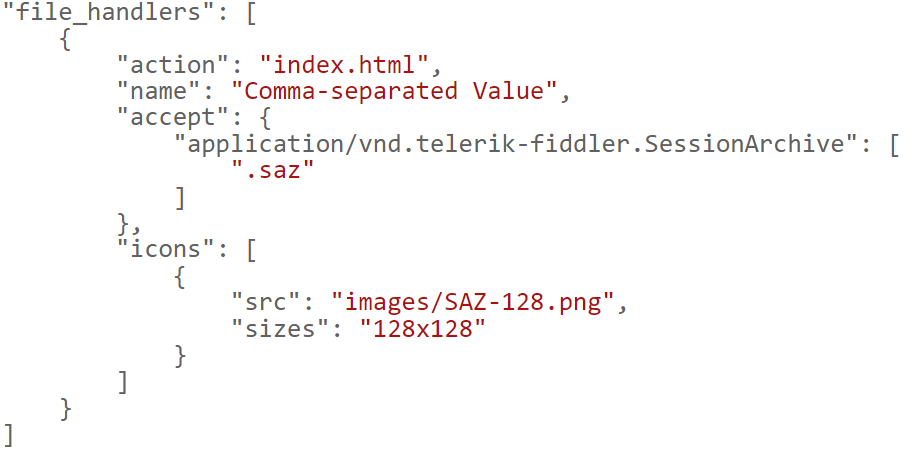
The future is a bit brighter. That’s because a major goal of browsers’ investment in Progressive Web Apps is to make them rich enough to take the place of native apps. Today’s native apps have very rich mechanisms for passing data and files to one another, and the File Handling API is a mechanism that allows a (presently only Chromium-based) PWA to launch and open a file of a specified type from the Operating System. My demo SAZView PWA registers to handle .saz file types, for example:

Perhaps one day, not too far in the future, your OS and your browser (regardless of vendor) will better interoperate.

-Eric

Appendix: Related Problems

The problem described in this post (“How do I POST data to a URL from my App?”) has a cousin (“How do I send an email from my website or App using user’s email client with an attachment?“). The problem is similar: While you can trivially use a mailto: link to launch the mail client and set the recipient, subject, and body, there’s no standard that would allow you to specify any file attachments. So you’d have to use something like MAPI instead, but 1) few email clients support it, and 2) you can’t directly invoke MAPI from your webpage.