Browser Password Managers: Threat Models

All major browsers have a built-in password manager. So we should use them, right?

I Do

  • I use my browser’s password manager because it’s convenient: with sync, I get all of my passwords on all of my devices.
  • This convenience means that I can use a different password for every website, improving my security.
  • This convenience means that my passwords can be long and hard to type, because I never have to do so.
  • This means that I don’t even know my own passwords for many sites, and because I can rely on my password manager to only fill my passwords on the sites to which they belong, I cannot succumb to a phishing attack.
  • Enabling the Microsoft Edge Password Manager enables security-improving features like Password Monitor (breach detection) and Password Generation (effortless strong passwords)

Should You?

The easy answer is “Yes, use your browser’s password manager!

The more nuanced answer begins: “Tell me about your threat model?

As when evaluating almost any security feature, my threat model might not match your threat model, and as a consequence, our security choices might be different.

Here are the most relevant questions to consider when thinking about whether you should use a password manager:

  • Is a password manager available for your platform(s)?
  • What sort of attackers are you worried about?
  • What sort of websites do you log into?
  • Do you select strong, unique passwords?
  • Are your accounts protected with 2FA?
  • What sort of attacks are most likely?
  • What sort of attacks are possible?
  • How do you protect your devices?
  • What’s your personal tolerance for inconvenience?
  • Are you confident in the security of your password manager’s vendor?
  • If you sync passwords, are you confident in the security of the design of the sync system?
  • Does the password manager offer advanced features like breach detection and automatic password generation?

The answers to these questions might change your decisions about whether to use a password manager, and if so, whether you want to use the built-in password manager or use a password manager provided by a third-party.

For instance, if you’re sharing a Windows/Mac OS login account with someone you don’t trust, you should stop. If you cannot or don’t want to, you should not use a password manager, because there are trivial ways for a local user steal your passwords one-at-a-time and simple mechanisms and tools to steal them all at once. Of course, even if you’re not using a password manager, a co-user can simply use a keylogger to steal your passwords one-by-one as you type them.

Lock (WinKey+L) your computer when you’re not using it.

Attacks

While browser passwords are encrypted on disk, they’re encrypted using a key available to any process on your PC, including any locally-running malware. Even if passwords are encrypted in a “vault” by a “Primary Password”, they’ll be decrypted when loaded in the browser’s memory space and can be harvested after you unlock the vault. Even keeping the Primary Password itself safe from locally-running malware is basically impossible.

Locally-running malware is particularly dire if your threat model includes the possibility of a worm running rampant within your enterprise– it could infect all of your employees’ machines and steal all of their passwords in bulk in seconds. (Yes, dear reader, I know that you’re thinking of clever mechanisms to mitigate these sorts of attacks. I assure you I can defeat every practical idea you have. It’s a fundamental law of computing.)

Password storage sync introduces another vector for theft– if an attacker can phish your sync service’s credentials, they could steal all of your passwords. If your password manager contains corporate creds, they could be stolen from your “personal” profile.

Primary Passwords: No Silver Bullet

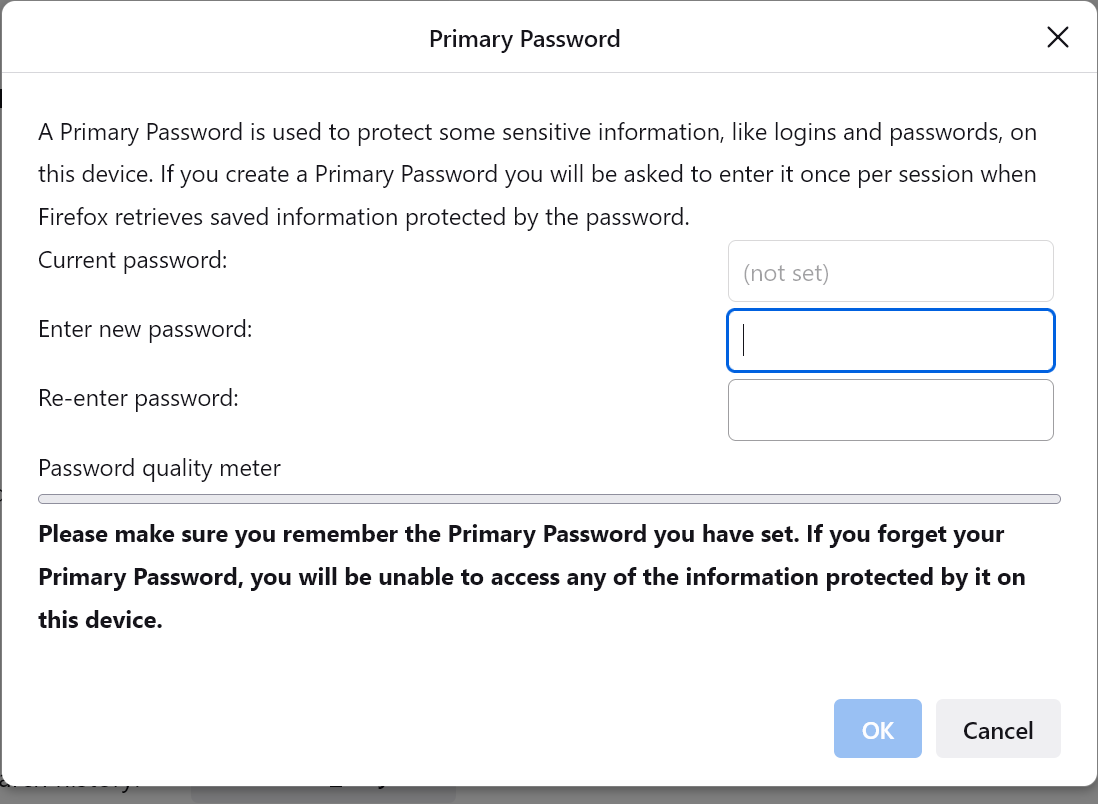
Edge and Firefox offer a “Primary Password” mechanism to restrict autofill until you authenticate with Windows Hello (PIN/Fingerprint/etc) or supply a custom primary password.
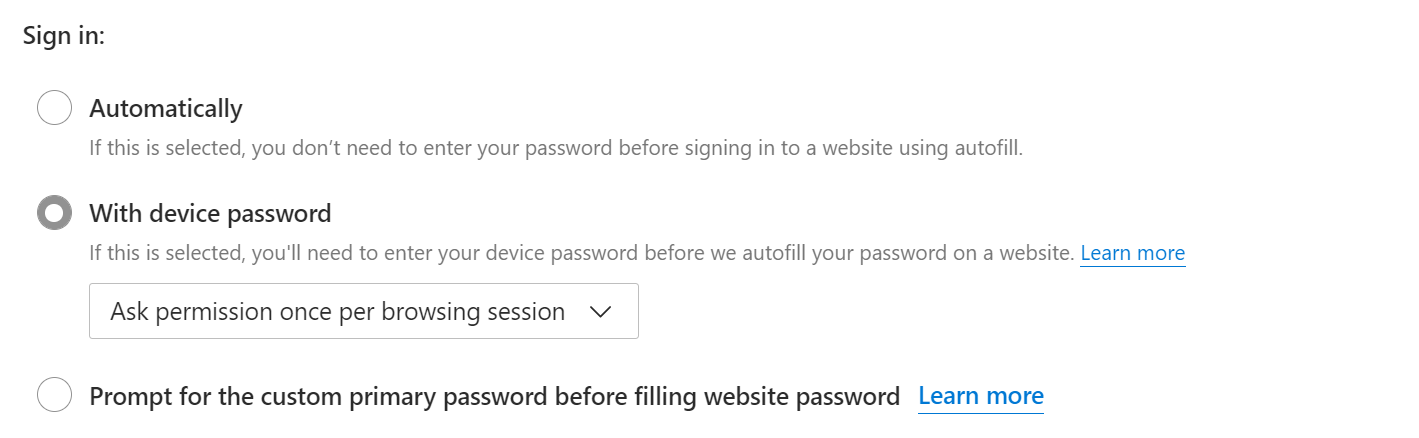
Edge UI
Firefox UI

It is critical to understand that these mechanisms are a useful hurdle against opportunistic theft by an attacker without tools (e.g. your eight year old), not a security boundary.

Locally-running malware or a motivated malicious co-user can circumvent the protection using the mechanisms described in the previous section. The documentation contains similar caveats.

History

In the original incarnation of Chrome’s password manager, a local user could go to a page inside Chrome and freely see all of the passwords. Many users loudly demanded that this operation require some form of user proof, so the Chrome team very reluctantly added a “Users must provide their OS creds to see all the passwords at once” check, knowing that this was not a true security boundary and that some users might be misled into thinking that it was. Sure enough, they got more reports saying “Oooh, look at this, I can still steal passwords without knowing the Windows password”, which is entirely expected because of how the feature works: Passwords can still be stolen individually, or in bulk via Sync, or in bulk via reading the database directly.

For many years, the Chrome team declined to do anything to satisfy many users’ loud demands that the browser go further and prompt for some sort of user proof before filling an individual password in the page. The justification was largely the same—it could never be a security boundary and users might mistakenly think it was. Users howled “Look, I’m trying to keep my little sister out of my accounts, not defeat Kevin Mitnick!” but the Chrome team was unmoved. On the Edge side, we said “Hey, the little sister scenario is entirely reasonable, and we should offer users the option to require user proof on fill” so we did via the “Primary Password” feature. The immediate reason was to accommodate the “unmotivated attacker” user scenario, but the long-term reason was that if we, in the future, want to invest in building a real security boundary here, that real boundary will require the same UX flow, and we were curious to learn whether or not users would actually like/enable such a flow.

Security Baseline Recommendations

Concern about instantaneous bulk theft and egress of credentials has led the authors of security configuration guidance to recommend disabling browser password managers. For instance, the Edge Security Baselines (before version 114) and the Chrome STIG have historically suggested preventing users from using the password manager. I personally think this is a poor tradeoff that increases the higher risk of individual users getting phished, but I don’t write the configuration guidance, although I did advocate for the baseline change made in Edge 114.

Some tech elites advocate for using a 3rd-party password manager, and some users really like them. Most 3rd-party password managers are designed with broader feature sets to help satisfy alternative threat models, including using a “primary password” to help protect against limited local attackers. Importantly, however, no password manager is able to operate securely on a PC compromised by malware (as explored here). Many password managers include additional conveniences like automatic generation of strong passwords and roaming of passwords to mobile platforms and apps.

On the other hand, many external password manager applications are themselves a source of security vulnerabilities, and these products often end up growing extremely complicated due to the “Checkbox Wars” endemic to the security products industry.

Hacking expert Tavis Ormandy recommends using the Password Manager built into your browser, and he explains why, in depth.

Parting Advice

Passwords are a poor security mechanism, and should be phased out wherever possible. In particular, have a lot of optimism about the upcoming PassKeys feature.

When that’s not yet possible (because you don’t control the website): choose strong passwords, use a password manager if it satisfies your threat model, and enable 2FA if available — especially on your email accounts used for Password Sync and to which password recovery emails are sent. If a site offers a choice of 2FA methods, prefer FIDO over HOTP/Authenticator and HOTP/Authenticator over SMS Text messages.

-Eric

PS: Back in 2017, there was a bunch of press excitement about a privacy threat whereby autofilled credentials from the password manager might allow a website to identify a visitor before the user clicks the Login button. See this post for an exploration of this threat and its mitigations.

Demystifying Browsers

Last update: October 29, 2024

Web browsers are conceptually pretty simple, but their code and the ecosystems that arise around the platforms they expose are immensely complicated.

Web Browsers are conceptually pretty simple.

I started building browser extensions more than 22 years ago, and I started building browsers directly just over 16 years ago. At this point, I think it’s fair to say that I’m entering the grizzled veteran phase of my career.

With the Edge team continuing to grow with bright young minds from college and industry, I’m increasingly often asked “Where do I learn about browsers?” and I haven’t had a ready answer for that question.

This post aims to answer it. (Prefer hearing me talk?)

First, a few prerequisites for developing expertise in browsers:

  1. Curiosity. While browsers are more complicated than ever, there are also better resources than ever to learn how they work. All major browsers are now based on open-source code, and if you’re curious, you no longer need to join a secret priesthood to discover how they operate under the hood.
  2. Willingness to Experiment. Considering how complex browsers are (and because they’re so diverse, across platforms, maker, and version), it’s often easiest to definitively answer questions about how browsers work by trying things, rather than reading an explainer (possibly outdated or a map that doesn’t match the terrain) or reading the code (often complex and potentially misleading). Build test cases and try them in each browser to see what happens. When you encounter surprising behavior, let your curiosity guide you into figuring it out. Browsers contain no magic, but plenty of butterfly effects.
  3. Doggedness. I’ve been doing this for over half of my life, and I’m still learning daily. While historical knowledge will serve you well, things are changing in this space every day, and keeping up is an endless challenge. And it’s often fun.

Now, how do you apply these prerequisites and grow to become a master of browsers? Read on.

Fundamental Understanding

Over the years, a variety of broad resources have been developed that will give you a good foundation in the fundamentals of how browsers work. Taking advantage of these will help you more effectively explore and learn on your own.

  • First, I recommend reading the Chrome Comic Book. This short, 38 page comic book from comics legend Scott McCloud was published alongside the first version of Google Chrome back in 2008. It clearly and simply explains many of the core concepts behind modern browsers as application platforms.
  • HTML5Rocks has a great introduction into How Browsers Work. This is a lengthy and detailed introduction into how browsers turn HTML and CSS into what you see on the screen. Read this article and you’ll understand more about this topic than 90% of web developers.
  • The folks at Google have created a fantastic four-part illustrated series about how modern browsers work: Inside look at modern web browsers. Navigation, the Rendering Engine and Input and Compositing as a part of their Web Fundamentals site.
  • Mozilla wrote a fantastic cartoon introduction to WebAssembly, explaining the basics behind this new technology; there’s tons of other invaluable content on Mozilla Hacks.
  • The Chromium Chronicle is a monthly series geared specifically to the Chromium developers who build the browser.
  • Web Developers should check out Web.Dev, a great source of articles on building fast and secure websites.

Books

If you prefer to learn from books, I can only recommend a few. Sadly, there are few on browsers themselves (largely because they tend to evolve too quickly), but there are good books on web technologies.

Tools

One of the best ways to examine what’s going on with browsers is to just use tools to watch what’s going on as you use your favorite websites.

Update: I’ve written a whole post on Browser-Debugging Tools.

Use the Source, Leia

The fact that all of the major browsers are built atop open-source projects is a wonderful thing. No longer do you need to be a reverse-engineering ninja with a low-level debugger to figure out how things are meant to work (although sometimes such approaches can still be super-valuable).

Source code locations:

While simply perusing a browser’s source code might give you a good feel for the project, browsers tend to be enormous. Chromium is over 10 million lines of code, for example.

If you need to find something in particular, one often effective way to find it easily is to search for a string shown in the browser UI near the feature of interest. (Or, if you’re searching for a DOM function name or HTML attribute name, try searching for that.) We might call this method string chasing.

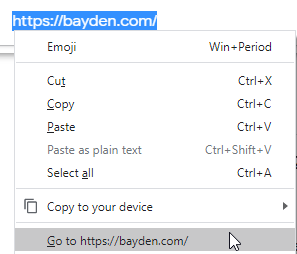
By way of example, today I encountered an unexpected behavior in the handling of the “Go to <url>” command on Chromium’s context menu:

So, to find the code that implements this feature, I first try searching for that string:

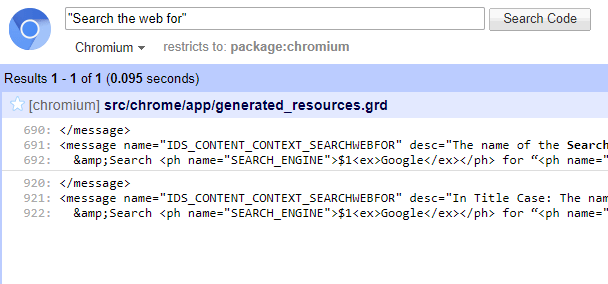
…but there are a gazillion hits, which makes it hard to find what I need. So I instead search for a string that’s elsewhere in the context menu, and find only one hit in the Chromium “grd” (resources) file:

When I go look at that grd file, I quickly find the identifier I’m really looking for just below my search result:

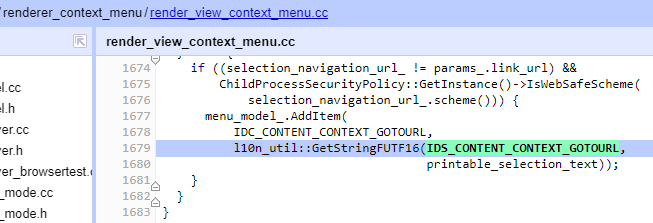
So, we now know that we’re looking for usages of IDS_CONTENT_CONTEXT_GOTOURL, probably in a .CC file, and we find that almost immediately:

(Note that, on Android, it’s a little more complicated. You drop the IDS_ prefix and change the rest to lowercase. Then search the source for e.g. R.string.content_context_gotourl).

From here, we see that the menu item has the command identifier IDC_CONTENT_CONTEXT_GOTOURL, which we can then continue to chase down through the source until we find the code that handles the command. That command makes use of a variable selection_navigation_url_, which is filled elsewhere by some pretty complicated logic.

After you gain experience in the Chromium code, you might learn “Oh, yeah, all of the context menu stuff is easy to find, it’s in the renderer_context_menu directory” and limit your searches to that area, but after four years of working on Chrome, I still usually start my searches broadly.

Optional: Compile the code

If you’d actually like to compile the code of a major browser, things are a bit more involved, but if you follow the configuration instructions to the letter— your first build will succeed. Back in 2015, Monica Dinculescu created an amazing illustrated guide for contributing to Chromium, and in 2020, Marcos Cáceres wrote a thorough explainer about building a feature in Firefox. In 2021, the WebKit team released a guide for contributing to WebKit.

You can compile Chromium or Firefox on a mid-range machine from 2016, but it will take quite a long time. A beefy PC will speed things up a bunch, but until we have cloud compilers available to the public, it’s always going to be pretty slow. Update October 2020: Note that there’s now a simple way to make simple changes to Chromium using just your web browser.

This guide on compiling WebKit suggests that a web platform-only build on a MacBook takes only about 20 minutes; you can run the resulting platform in a minibrowser or instruct Safari to use it.

Look at their Bugs

All browsers except Microsoft Edge have a public bug tracker where you can search for known issues and file new bugs if you encounter them.

  • FirefoxFirefox Bugzilla
  • WebKitWebKit Bugzilla
  • ChromiumCRBug
  • Microsoft Edge‘s – Platform bugs that are inherited from Chromium are tracked using CRBug. Sadly, at present there is no public tracker for bugs that reproduce only in Edge. Bugs reported by the “Feedback” button are tracked internally by Microsoft.
  • Braveon GitHub
  • Cross-browser compat issues webcompat.com
  • HTML5 Specification – on GitHub

Here are instructions for filing a great browser bug.

Binge on Online Video

The Chrome team has an excellent set of educational content used to train new and long-time Chrome engineers. Titled Chrome University, it is periodically updated. Here’s the Chrome Security 101 course, for instance.

Here’s a cool 51 minute talk on building a browser (“Ladybird”) from scratch.

Blogs to Read

  • This One – I write mostly about browsers.
  • My (archived) IEInternals – I started writing this blog because it was the only reliable way for me to find my notes from investigations and troubleshooting years later.
  • Cloudflare’s – Cloudflare is a $20B+ company whose primary product is their amazing blog. I understand they also run a CDN on the side to generate interesting topics for their blog to talk about.
  • April King‘s blog covers security and networking.
  • Nasko Oskov’s – Nasko is an engineer on the Chrome Security team and writes mostly about security topics.
  • Chris Palmer’s – Chris is an engineer on the Chrome Security team and writes about secure design.
  • Adam Langley’s – Google’s expert cryptographer
  • Bruce Dawson’s – Bruce is a Chrome Engineer who posts lots of interesting information about debugging and performance troubleshooting, especially on Windows.
  • Anne van Kesteren’s – Anne works on the HTML5 spec.
  • Mark Nottingham’s – Mark co-chairs the HTTP and QUIC working groups.
  • Alex Russell’s – Alex is a deep thinker about the browser ecosystem and has written many very thoughtful posts about the competitive landscape for browsers.
  • Emily Stark – Emily from Chrome Security is one of the smartest folks I know.

Specific Posts of Interest

People to Follow

I’ve doubtless forgotten some, see who I follow.

The Business of Browsers

Public data reveals each point of marketshare in the browser market is worth at least $100,000,000 USD annually, most directly in the form of payments from the browser’s configured search engine. Apple reportedly gets $9-$12Billion per year for sending search traffic to Google, and Mozilla has yielded ~$400M per year from the same sort of deal.

Remembering this fact will help you understand many other things, from how browsers pay their large teams of expensive software engineers, to how they manage to give browsers away for free, to why certain features behave the way that they do.

Expert Alex Russell has some notes about money on his blog.

Extra Resources

Browsers are hugely complicated beasts, and tons of fun. If the resources above leave you feeling both overwhelmed and excited, maybe you should become a browser builder.

Want to change the world? Come join the new Microsoft Edge team today!

-Eric

App-to-Web Communication: Launching Web Apps

In recent posts, I’ve explored mechanisms to communicate from web content to local (native) apps, and I explained how web apps can use the HTML5 registerProtocolHandler API to allow launching them from either local apps or other websites.

In today’s post, we’ll explore how local apps can launch web apps in the browser.

It’s Simple…

In most cases, it’s trivial for an app to launch a web app and send data to it. The app simply invokes the operating system’s “launch” API and passes it the desired URL for the web app.

Any data to be communicated to the web app is passed in the URL query string or the fragment component of the URL.

On Windows, such an invocation might look like this:

ShellExecute(hwnd, "open", "https://bayden.com/echo.aspx?DataTo=Pass#GoesHere", 0, 0, SW_SHOW);

Calling this API results in the user’s default browser being opened and a new tab navigated to the target URL.

This same simple approach works great on most operating systems and with virtually any browser a user might have configured as their default.

…Unless It’s Not

Unfortunately, this well-lit path adjoins a complexity cliff— if your scenario has requirements beyond the basic [Launch the default browser to this URL], things get much more challenging. The problem is that there is no API contract that provides a richer feature set and works across different browsers.

For instance, consider the case where you’d like your app to direct the browser to POST a form to a target server. Today, popular operating systems have no such concept– they know how to open a browser by passing it a URL, but they expose no API that says “Open the User’s browser to the following URL, sending the navigation request via the HTTP POST method and containing the following POST body data.

Over the years, a few workarounds have been used (e.g. see StackOverflow1 and StackOverflow2).

For instance, if the target webservice simply requires a HTTP POST and you cannot change it, your app could launch the browser to a webpage you control, passing the required data in the querystring component of a HTTP GET. Your web server could then reformat the data into the required POST body format and either proxy that request (server-side) to the target webservice, or it could return a web page with an auto-submitting form element with a method of POST and and action attribute pointed at the target webservice. The user’s browser will submit the form, posting the data to the target server.

Similarly, a more common approach involves having the app write a local HTML file in a temporary folder, then direct the Operating System to open that file using the appropriate API (again ShellExecute, in the case of Windows). Presuming that the user’s default HTML handler is also their default HTTPS protocol handler, opening the file will result in the default browser opening, and the HTML/script in the file will automatically submit the included form element to the target server. This “bounce through a local temporary form” approach has the advantage of making it possible to submit sizable of data to the server (e.g. the contents of a local file), unlike using a GET request’s size-limited querystring.

Caveats:

  • Unfortunately it is generally not possible to construct a HTML form that will submit a data field that exactly matches what you would get when sending an <input type=file> control. If the web service demands a format that was generated by a file upload control, you may not be able to emulate that.
  • Some browsers will not run JavaScript in local files by default.
  • Don’t forget to delete the temporary file!

If your scenario requires uploading files, an alternative approach is to:

  1. Upload the files directly from your app to a web service
  2. Have that web service return a secret token associated with the upload
  3. Have your app spawn a browser with a GET request whose querystring contains that secret token

Browser-Specific Approaches

Back in the Windows 7 days, the IE8 team created a very cool feature called Accelerators that would allow users to invoke web services in their browser from any other application. Interestingly, the API contract supported web services that required POST requests.

Because there was no API in Windows that supported launching the default browser with anything other than a URL, a different approach was needed. A browser that wished to participate as a handler for accelerators could implement a IOpenServiceActivityOutputContext::Navigate function which was expected to launch the browser and pass the data. The example implementation provided by our documentation called into Internet Explorer’s Navigate2() COM API, which accepted as a parameter the POST body to be sent in the navigation. As far as I know, no other browser ever implemented IOpenServiceActivityOutputContext.

These days, Accelerators are long dead, and no one should be using Internet Explorer anymore. In the intervening years, no browser-agnostic mechanism to transfer a POST request from an app to a browser has been created.

Perhaps the closest we’ve come is the W3C’s WebDriver Standard, designed for automated testing of websites across arbitrary browsers. Unfortunately, at present, there’s still no way for mainstream apps to take a dependency on WebDriver to deliver a reliable browser-agnostic solution enabling rich transfers from a local app to a web app. Similarly, Puppeteer can be used for some web automation scenarios in Chrome or Edge, and the new Microsoft Playwright enables automated testing in Chromium, WebKit, and Firefox.

File Handling API

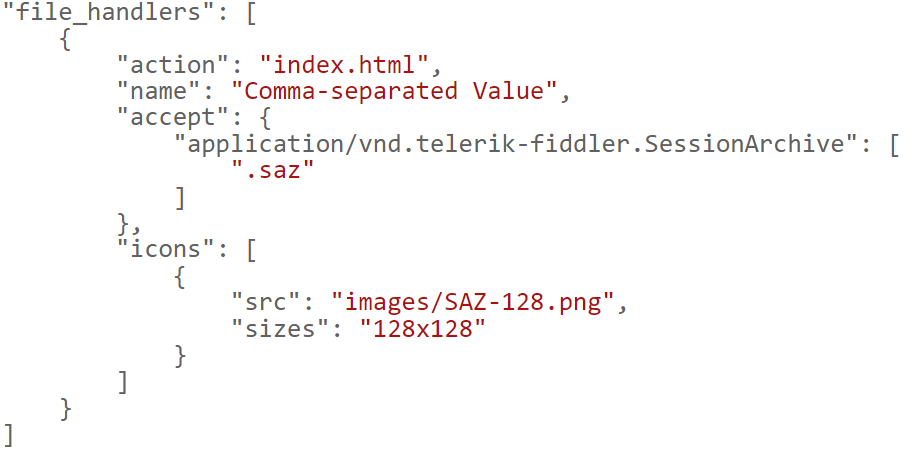
The future is a bit brighter. That’s because a major goal of browsers’ investment in Progressive Web Apps is to make them rich enough to take the place of native apps. Today’s native apps have very rich mechanisms for passing data and files to one another, and the File Handling API is a mechanism that allows a (presently only Chromium-based) PWA to launch and open a file of a specified type from the Operating System. My demo SAZView PWA registers to handle .saz file types, for example:

Perhaps one day, not too far in the future, your OS and your browser (regardless of vendor) will better interoperate.

-Eric

Appendix: Related Problems

The problem described in this post (“How do I POST data to a URL from my App?”) has a cousin (“How do I send an email from my website or App using user’s email client with an attachment?“). The problem is similar: While you can trivially use a mailto: link to launch the mail client and set the recipient, subject, and body, there’s no standard that would allow you to specify any file attachments. So you’d have to use something like MAPI instead, but 1) few email clients support it, and 2) you can’t directly invoke MAPI from your webpage.

Microsoft’s Three Browsers

It’s an interesting time. Microsoft now maintains three different web browsers:

  • Internet Explorer 11
  • Microsoft Edge Legacy (Spartan, v18 and below)
  • Chromium-based Microsoft Edge (v79+)

If you’re using Internet Explorer 11, you should stop; sometimes, this is easier said than done.

If you’re using Legacy Microsoft Edge, you should upgrade to the new Microsoft Edge which is better in almost every way. When you install the Stable version of the new Microsoft Edge (either by downloading it or eventually by using WindowsUpdate), it will replace your existing Legacy Edge with the new version.

Update: Microsoft has announced that Edge Legacy will fall out of support on March 9th, 2021.

What if I still need to test in Edge Legacy?

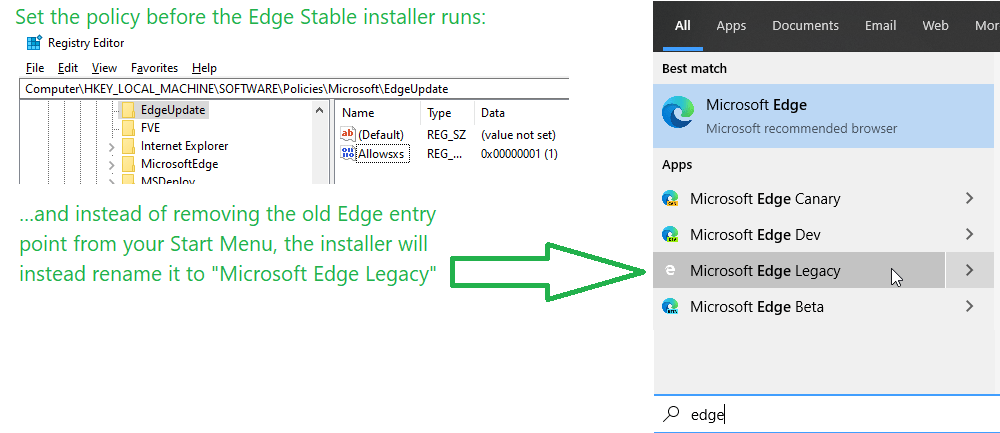
If you’re a web developer and need to keep testing your sites and services in the legacy Microsoft Edge, you’ll need to set a registry key to prevent the Edge installer from removing the entry points to the old Edge.

Simply import this registry script before the new Edge is installed. When the AllowSxS key is set to 1, the new Edge installer will keep the old entry point, renaming it to “Microsoft Edge Legacy”:

Thereafter, you can use both versions of Edge on the same PC.

If you didn’t have this registry key set and your legacy Edge entry points have disappeared when you installed the new Edge, you can use the Add or Remove Programs applet in the system control panel to uninstall the new Edge, then set the registry key, then reinstall the new Edge.

Note: If you’re a Web Developer, you should also be testing in the Edge Beta or Edge Dev builds because these will allow you to see the changes coming to Edge before your users do. These builds install side-by-side (replacing no browser) and can be installed from https://MicrosoftEdgeInsider.com.

What if my company has sites that only work in Internet Explorer?

In order to help speed migration to the new Microsoft Edge, it offers an Internet Explorer Mode feature when running on Windows. IE Mode allows IT administrators to configure PCs running Windows 7, 8.1, and 10 such that specified sites will load inside a browser tab that uses the Internet Explorer 11 rendering engine.

  • IE Mode is not designed for or available to consumers.
  • Because IE Mode relies upon the IE11 binaries on the current machine, it is not available in Edge for MacOS, iOS, or Android.
  • IE Mode tabs run inside the legacy security sandbox (weaker than the regular Edge sandbox) and ActiveX controls like Silverlight are available to web pages.
  • IE Mode does not share a cache, cookies, or web storage with Microsoft Edge, so scenarios that depend upon using these storage mechanisms in a cross-site+cross-engine context will not work correctly. IT administrators should carefully set their policies such that user flows occur within a single engine.
  • Most Edge browser extensions will not work on IE Mode tabs–extensions which only look at the tab’s URL should work, but extensions which try to view or modify the page content will not function correctly.

In an ideal world, users will migrate to the latest version of Microsoft Edge as quickly as possible, and enjoy a faster, more compatible, more reliable browser. Nevertheless, Microsoft will continue to patch both Legacy Edge and Internet Explorer 11 according to their existing support lifecycle.

-Eric

My New Chromium Build PC

While I do most of my work in an office, from time to time I work on code changes to Chromium at home. With the recent deprecation of Jumbo Builds, building the browser on my cheap 2016-era Dell XPS 8900 (i7-6700K) went from unpleasant to impractical. While I pondered buying a high-end Threadripper, I couldn’t justify the high cost, especially given the limited performance characteristics for low-thread workloads (basically, everything other than compilation).

The introduction of the moderately-priced (nominally $750), 16 Core Ryzen 3950X hit the sweet spot, so I plunked down my credit card and got a new machine from a system builder. Disappointingly, it took almost two months to arrive in a working state, but things seem to be good now.

The AMD Ryzen 3950X has 16 cores with two threads each, and runs around 3.95ghz when they’re all fully-loaded; it’s cooled by a CyberPowerPC DeepCool Castle 360EX liquid cooler. An Intel Optane 905P 480GB system drive holds the OS, compilers, and Chromium code. The key advantage of the Optane over more affordable SSDs is that it has a much higher random read rate (~400% as fast as the Samsung 970 Pro I originally planned to use):

Following the Chromium build instructions, I configured my environment and set up a 32bit component build with reduced symbols:

is_component_build = true
enable_nacl = false
target_cpu = "x86"
blink_symbol_level = 0
symbol_level = 1

Atop Windows 10 1909, I disabled Windows Defender entirely, and didn’t do anything too taxing with the PC while the build was underway.

Ultimately, a clean build of the “chrome” target took just under 53 minutes, achieving 33.3x parallelism.

While this isn’t a fast result by any stretch of the definition, it’s still faster than my non-jumbo local build times back when I worked at Google in 2016/2017 and used a $6000 Xeon 48 thread workstation to build Chrome, at somewhere around half of the cost.

Cloud Compilation

When I first joined Google, I learned about the seemingly magical engineering systems available to Googlers, quickly followed by the crushing revelation that most of those magic tools were not available to those of us working on the Chromium open-source project.

The one significant exception was that Google Chrome engineers had access to a distributed build system called “Goma” which would allow compiling Chrome using servers in the Google cloud. My queries around the team suggested that only a minority of engineers took advantage of it, partly because (at the time) it didn’t generate very debuggable Windows builds. Nevertheless, I eventually gave it a shot and found that it cut perhaps five minutes off my forty-five minute jumbo build times on my Xeon workstation. I rationalized this by concluding that the build must not be very parallelizable, and the fact that I worked remotely from Austin, so any build-artifacts from the Goma cloud would be much further away than from my colleagues in Mountain View.

Given the complexity of the configuration, I stopped using Goma, and spent perhaps half of my tenure on Chrome with forty-five minute build times[1]. Then, one day I needed to do some development on my Macbook, and I figured its puny specs would benefit from Goma in a way my Xeon workstation never would. So I went back to read the Goma documentation and found a different reference than I saw originally. This one mentioned a then unknown to me “-j” command line argument that tells the build system how many cloud cores to use.

This new, better, documentation noted that by default the build system would just match your local core count, but when using Goma you should instead demand ~20x your local core count– so -j 960 for my workstation. With one command line argument, my typical compiles dropped from 45 minutes to around 6.

::suitable_meme_of_wonder_and_fury::

Returning to Edge

I returned to Microsoft as a Program Manager on the Edge team in mid-2018, unaware that replatforming atop Chromium was even a possibility until the day before I started. Just before I began, a lead sent me a 27 page PDF file containing the Edge-on-Chromium proposal. “What do you think?” he asked. I had a lot of thoughts (most of the form “OMG, yes!“) but one thing I told everyone who would listen is that we would never be able to keep up without having a cloud-compilation system akin to Goma. The Google team had recently open-sourced the Goma client, but hadn’t yet open-sourced the cloud server component. I figured the Edge team had engineering years worth of work ahead of us to replicate that piece.

When an engineer on the team announced two weeks later that he had “MSGoma” building Chromium using an Azure cloud backend, it was the first strong sign that this crazy bet could actually pay off.

And pay off it has. While I still build locally from time to time, I typically build Chromium using MSGoma from my late 2018 Lenovo X1 Extreme laptop, with build times hovering just over ten minutes. Cloud compilation is a game changer.

The Chrome team has since released a Goma Server implementation, and several other major Chromium contributors are using distributed build systems of their own design.

I haven’t yet tried using MSGoma from my new Ryzen workstation, but I’ve been told that the Optane drive is especially helpful when performing distributed builds, due to the high incidence of small random reads.

-Eric

[1] This experience recalled a much earlier one: my family moving to Michigan shortly after I turned 11. Our new house featured a huge yard. My dad bought a self-propelled lawn mower and my brother and I took turns mowing the yard weekly. The self-propelled mower was perhaps fifteen pounds heavier than our last mower, and the self-propelling system didn’t really seem to do much of anything.

After two years of weekly mows from my brother and I, my dad took a turn mowing. He pushed the lawn mower perhaps five feet before he said “That isn’t right,” reached under the control panel and flipped a switch. My brother and I watched in amazement and dismay as the mower began pulling him across the yard.

Moral of the story: Knowledge is power.