Spring break is one of the best times to be in Texas. The weather’s usually nice, and outdoor fun things to do aren’t miserably hot. This year, the kids are obsessed with roller coasters, so we bought Season Passes to Six Flags (which also includes a variety of other theme parks and water parks). Thus far, we’ve spent two days at Six Flags in San Antonio, and two days at Six Flags in Dallas.
The excellent “Dr. Diabolical” drop at Six Flags. The kids are in the back row. We all rode it a dozen times.
The kids spent the actual days of spring break on an adventure trip with their mom to Costa Rica:
While they were out of town, I took a quick four day cruise out of Galveston on the Mariner of the Seas.
To keep costs down, this time I took a Deck 7 “interior view” cabin that overlooked the Promenade:
… but I didn’t spend much time in the room. I spent a lot of time at shows, walking the top deck, enjoying music (“Ed”, a Brazilian singer/guitarist) in the pub, and generally relaxing. I passed some time reading Ken Williams’ history of Sierra On-line, a pleasant and nostalgic read that made little impression on me. The weather was imperfect (very windy with intermittent drizzles) but it was quite nice overall.
Most importantly, I achieved my secret goal for the trip, making some crucial progress in writing my long-overdue book which I’ve resolved to publish later this year.
The comedian (Rodney Johnson) was selling a copy of his book, and he autographed my copy with an inscription (coincidentally) perfect for my goals on the cruise:
Apparently, I was the only person to buy the book on the first day, and at the show on the last day, he asked if I was in the audience (“I am!”), had read it (“I did! Cover to cover!”) and what I thought of it (On the spot, I said “Pretty good”, and emailed him a funnier response later).
I often sit in the front row at shows, and I was called on stage to help Michael Holly with a magic trick (We held a chain and he walked through it.).
My original shore excursion (an adventure park) was canceled, I made the best of it with a short speedboat and snorkeling trip.
30 horsepower isn’t a lot, but it was plenty to jump the wavesAfter returning the boat, I killed an hour at a pretty swim-up bar.
With just one day at a destination and two sea days, I also booked a “Behind the Scenes” tour of the boat, getting the chance to see a galley, the provisions storerooms, the laundry, the bridge, the engine control room, and backstage in the theater.
The Engine Control Room
The crew work incredibly long hours: 10 hours a day, 7 days a week, on 7 month contracts. I resolved to think of this guy any time I’m feeling overwhelmed with work– He’s working in a windowless (underwater) room, hand-folding thousands of towels per day from a room-sized pile almost as tall as he is.
All in all, it was a busy but great spring break. Now, buckling down to get back in shape (two 10Ks coming up), finish booking various trips (including Kilimanjaro!), and otherwise get back to some semblance of a routine.
A customer recently complained that after changing the Windows Security Zone Zone configuration to Disable launching apps and unsafe files:
The default is “Prompt”
… trying to right-click and “Save As” on a Text file loaded in Chrome fails in a weird way. Specifically, Chrome’s download manager claims it saved the file (with an incorrect “size” that’s actually the count of files “saved”):
However, if you click on the entry, Chrome notices that the file doesn’t exist:
if you’ve configured the setting Launching applications and unsafe files to Disable in your Internet Control Panel’s Security tab, Chromium will block executable file downloads with a note: Couldn't download - Blocked.
…but this case here is somewhat different than that.
The customer claims that it is a regression, so let’s bisect.
Bisecting, we find that it is indeed a behavior change. Chrome 130 didn’t have this problem. The bisect process tells us:
You are probably looking for a change made after 1366085 (known good), but no later than 1366127 (first known bad)
CHANGELOG URL:
https://chromium.googlesource.com/chromium/src/+log/8c10e43000483bdc4a1b5bf092b39266597d3fc8..ac84b1ec75f49a771ad490760cdaf8872aae8a29
42 changelists is a pretty wide range, so let’s try the Win64 version to see if we can narrow either side:
You are probably looking for a change made after 1366107 (known good), but no later than 1366146 (first known bad).

CHANGELOG URL:
https://chromium.googlesource.com/chromium/src/+log/f3063c6a843ccf316d31f9169972b1ae546945b2..5f8917fb6721c1fd070cfccf45fa2ba44a8d0253
Okay, so if we take the tightest constraints, we end up with a narrower range of 1366107 to 1366127, which is only 20 CLs.
Within that range, only one CL (1366109) appears to have anything to do with downloads. I quickly clicked through the others just to be sure.
Looking at the code of the 1366109 change, we don’t see anything directly related to the Save As scenario.
Neat. I like mysteries. If we follow Sherlock Holmes’ quote: “When you have eliminated the impossible, whatever remains, however improbable, must be the truth” we conclude that the CL in question must be responsible. But how could it be?
Well, this looks mildly interesting:
The code was changed to allow a parallel process to delete the file where that would not have been allowed previously. But still, what would delete the temp file in the middle of the overall download process?
Spoiler Alert: The answer turns out to be the Windows code called to apply the Mark-of-the-Web by the Chromium quarantine code!
If we fire up SysInternals’ Process Monitor against the current version of Chrome, we see that what’s happening is that the downloaded file created in the temp folder (before moved/renamed to its final name) is deleted by CAttachmentServices code when it is called by Chrome’s QuarantineFile function:
In contrast, in the older build of Chrome, we see that the temporary file cannot be deleted because the code that tries to delete it hits a SHARING_VIOLATION, since Chrome’s handle to the file didn’t offer SHARE_DELETE:
So… neat. It was basically an accident that this file could be saved in older Chrome.
Now, with all that said, we’re left with even more questions. For example, you’ll see that if you try to download a dangerous file type via a normal download when the Zone settings are configured as above, the download is blocked:
… but if you try to download our text file via the regular file download flow, it’s allowed:
So how can it be that if you try to perform a Save As on that same text file, it’s somehow blocked? What’s up with that? Chrome’s quarantine code runs on both files!
The secret is how the Windows Attachment Manager code decides whether a file is dangerous during the CAttachmentServices::Save call. Windows’ attachment manager has to rely on the file’s extension to decide whether the type is dangerous. In the “Save As” case, the file’s extension is .tmp, whereas in the regular download manager case, the file has the correct and final extension (.txt).
However, if you look at the SaveFileManager code, the quarantine (MotW annotation) step happens inside OnURLLoaderComplete just after the file is downloaded but before that temporary file gets renamed to its final name (inside RenameAllFiles).
You can confirm that the .tmp filename extension is indeed causing the problem by using the registry to temporarily declare that .tmp is a low-risk file extension:
After you make this change, the Save As scenario works correctly.
I’ve filed a bug on Chrome’s SaveAs code to ensure that the file has the correct filename before the quarantine logic runs.
Recently, Azure opened their Trusted Signing Service preview program up for individual users and I decided to try it out. The documentation and features are still a bit rough, but I managed to get a binary cloud-signed in less than a day of futzing about.
For many individual developers Azure Trusted Signing will be the simplest and cheapest option, at $10/month. (Microsoft Employees get a $150/month Azure credit for their personal use, so trying it out cost me nothing.)
Note that I’ve never done anything with Azure or any other cloud computing service before– I’m a purely old-school client developer.
First, I visited my.visualstudio.com to activate my Microsoft Employee Azure Subscription credit for my personal Hotmail account. I then visited Azure.com in my Edge Personal Profile and created a new account. There is a bit of weirdness about adding 2FA using Microsoft Authenticator to the account, which I already had enabled– what appears to actually be happening is you’re actually creating a new .onmicrosoft.com “shadow” account for your personal account.
With my account set up, in Azure Portal’s search box, I search for “Trusted Signing”:
and I click Create:
I fill out a simple form, inventing a new resource group (SigningGroup, no idea what this is for), and a new Account Name (EriclawSignerAccount, you’ll need this later), and make the important choice of the $9.99/month tier:
My new signing account then appears:
Click it and the side-panel opens:
It’s very tempting to click Identity validation now (since I know I must need to do that before getting the certificate) but instead you must click Access control (IAM) and grant your account permissions to request identity validation:
In the search box, search for Trusted, select the first one (Trusted Signing Certificate Profile Signer, then select Next:
In the Members tab, click Select members and pick yourself from the sidebar.
Click Select and then Review and Assign to grant yourself the role. Then repeat the process for the Trusted Signing Identity Verifier role.
With your roles assigned, it’s time to verify your identity. Click the Identity Validation button change the dropdown from Organization to Individual, and click New Identity > Public:
Fill in the form with your information. Ensure that it matches your legal ID (Driver’s License):
You’ll then be guided through a workflow involving the Microsoft Authenticator app on your phone and a 3rd party identity verification company. You’ll see a Success message once you correctly link your new Verified ID in the Authenticator app to the Azure Service, but confusingly, you’ll still see Action Required in the Azure dashboard for a few minutes:
Just be patient — after about 10 minutes, you’ll get an email saying the process is complete and Action Required will change to Completed:
Next, click Certificate Profile to create a new certificate:
Click Create > Public
Fill out a simple form selecting your verified identity and naming the profile (I used EricLawCertyou’ll need this later):
In short order, your certificate is ready for use:
Now, using the certificate is somewhat complicated than a local certificate, but many folks are now doing fancy things like signing builds in the cloud and as a part of continuous integration processes etc.
I, however, am looking for a drop-in replacement of my old manual local signing process, however, so I follow the guide here to get the latest version of SignTool, as well as the required DLIB file (which you can just unzip rather than using NuGet if you want) that knows how to talk to the cloud. Select the default paths in the installer because otherwise the thing doesn’t work. Run signtool.bat, which will pull the correct dependencies and then tell you where it put the real signtool.exe:
Now, create a file that will point at your cloud certificate profile; I named mine cloudcert.json. Be sure to put in the correct cloud endpoint URL, the account and profile names you selected (all of which were chosen when setting up the certificate):
Then create a .bat file that points at the newly installed signtool.exe file, using the paths you chose to point at the DLIB, JSON, and file to be signed:
Run your batch file. If it doesn’t work and shows a bunch of local certificates that have nothing to do with the cloud, the DLIB isn’t working. Double-check the path you specified in the command line.
Now, at this point, you’ll probably get another failure complaining about DPAPI:
After you do so, run the script again and you’ll get to a browser login prompt. Exciting, but this next part is subtle!
You may see the account you think you want to use already in the login form. Don’t click it: If you do, you’ll get a weird error message saying that “External Users must be invited” or something of that nature. Instead, click Use another account:
Then click Sign-in Options:
Then click Sign in to an organization:
Specify your .onmicrosoft.com tenant name[1] here and click Next:
Only now do you log into your personal email account as normal, and after you do, you’ll get a success message in your browser and the signature will complete:
You can choose Properties on the Explorer context menu for the file to see your newly added signature:
Many years ago, I wrote the first drafts of Chromium’s Guidelines for Secure URL Display. These guidelines were designed to help feature teams avoid security bugs whereby a user might misinterpret a URL when making a security decision.
From a security standpoint, URLs are tricky because they consist of a mix of security-critical information (the Origin) and attacker-chosen content (the rest of the URL). Additionally, while URLs are conceptually simple, there are many uncommon and complicated features that lead to misunderstandings. In many cases, the best approach for safely-rendering a URL is to instead render its Origin, the most security-sensitive component and the one best protected against spoofing.
The challenge of securely displaying filenames is similar, but not identical. A filename consists of two components of varying levels of trustworthiness:
The (red) attacker-chosen “base name” is entirely untrustworthy. However, the (green) file type-declaring extension at the end of the string is security-critical on many platforms because it determines how the file will be handled.
In most cases when opening a file, the file’s extension is parsed and interpreted by the operating system’s shell, meaning that the OS will correctly choose the handler for a given file, no matter what spoofing tricks an attacker may use.
As a part of this file-invocation process, the OS will correctly apply security policy based on the type of the file (e.g. showing a pre-execution warning for executables and no warning before sending a text file to notepad). If attacker sends a dangerous file (e.g. a malicious executable) with an incorrect extension, the result is typically harmless, for example, showing the code as text inside Notepad:
So, if the OS behaves correctly based on a filename’s actual extension, is there any meaningful spoofing threat at all?
Yes. There are two important threats:
Not all dangerous file types are known by the system
Systems will typically allow a user to run/open potentially unsafe files if they first accept a security prompt
Problem #1: Not All Dangerous Types are marked as such
Windows contains a built-in list of potentially-dangerous file type extensions, but third-party handler software can introduce support for new extensions (e.g. Python or Perl) without properly indicating to Windows that files of that type may be dangerous. As such, the OS will allow the user to invoke files of that type from untrusted sources without warning.
If the user installs a handler for one of these dangerous types, the burden is on the user to avoid invoking a file of that type if they do not trust the file.
However, a spoofing vulnerability that obscures the file’s true type could trick a user into (for example) running a Python script when they thought they were going to open a text file.
Problem #2: Security Prompts
One protection against malicious files is the user recognizing that a file is potentially dangerous before they copy or download it to their computer from an untrusted location. A spoofing attack could trick the user into failing to recognize a potentially-dangerous file (e.g. a .hta file) when a safe file (e.g. a .html file) is expected:
Similarly, another protection against malicious files is the OS warning shown before executing a potentially dangerous file. This warning might be the SmartScreen Application Reputation warning:
…or the decades-old Attachment Execution Services warning:
A spoofing attack against these security UIs could render them ineffective: a user who clicks “Run anyway” or “Open” based on spoofed information would be compromised.
Attacks
In most cases, an attacker has significant latitude when choosing the base filename and thus can execute any of many attacks:
An overlong filename might cause UI truncation, such that the user cannot even see the real extension.
A filename containing many embedded whitespaces (spaces, tabs, or any of dozens of Unicode characters) might push the extension so far away from the start of the filename that it’s either truncated or the user simply doesn’t see it.
A filename containing a Unicode right-to-left override character might display with the extension in the middle. For example:
In HTML, this could render as This is safe and not an exe.txt because the RTL-override character has reversed the text direction in the middle of the string.
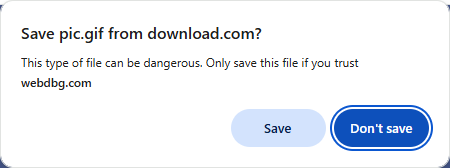
A filename of Pic.gif from Download.com might be mistaken as a GIF from Download.com, when it’s really a .com executable from elsewhere.
Prompt to save a file with a confusing name (“Pic.gif from download.com”); the user thinks it’s an image, but it’s an executable of type COM.
Some notes on Filename Limits
In many scenarios, filenames are limited to MAX_PATH, or 260 characters. While Windows can be configured to increase MAX_PATH to ~32k and apps manifested to declare their support, this feature is not broadly used and thus attackers cannot rely upon its availability.
Characters with special meaning in the filesystem, specifically, \/:*?"<>|are not allowed to appear in names. There’s also small list of filenames that are prohibited on Windows to avoid overlapping with device names (e.g. con,lpt1, etc).
At the low-level there are other forms of abuse as noted in the documentation: The shell and the file system have different requirements. It is possible to create a path with the Windows API that the shell user interface is not able to interpret properly. In most cases, the attacker would’ve already had to have significant access to the system to abuse these.
Best Practices
The most important best practice for security UI is to ensure that users can recognize which information is trustworthy and which information isn’t.
To address a spoofing attack in 2024, the Internet Explorer MIME Handler security dialog was enhanced. First, it now clearly identifies itself as a security warning, and indicates that the file may be harmful. Next, it was updated to ensure that the filename extension is broken out on its own line to mitigate the risk of user confusion:
Ideally, untrustworthy information should be omitted entirely. As you can see in this example, this attacker uses a great deal of whitespace in the filename field to try to trick the user into thinking they’re opening a harmless .pdf file instead of a dangerous .hta file. While breaking out the extension to its own line helps somewhat, a user might still be fooled.
In contrast, the SmartScreen AppRep warning dialog hides attacker-chosen information (like the filename) by default to reduce the success of spoofing:
Safe Security UX shows no attacker-controlled content
If your scenario requires that the user must be able to see an attacker-chosen filename, you should follow as many of these best practices as you can:
Break out the filename extension to its own field/line.
Hide the attacker-controlled filename by default.
Ensure that long filenames are displayed fully.
If you must elide text to fit it within the display area, trim from the untrustworthy base filename, ensuring that the extension is visible. (In CSS, you might use rtl text-overflow:ellipsis)
Sanitize or remove potentially spoofy characters (whitespace, Unicode RTL-overrides, etc)
Guard against injection attacks (e.g. if your UI is written in HTML or powered by JavaScript, ensure that you don’t suffer from HTML-injection or XSS attacks in the filename)
Ensure that the display of the filename field is distinct from all other parts of your security UI, and that words chosen by the attacker cannot be mistaken as text or advice from your app.
Limits to Protection Value
While helping users recognize a file’s true extension provides some security value, that value is very limited– relying on users to understand which file types are dangerous and which are not is a dicey proposition.
While combatting spoofing attacks has merit, ultimately, your security protections should not rely on the user and should instead be based on more robust protections (blocking dangerous file types from untrusted locations or everywhere, performing security scans based on a file’s true type, et cetera).
Scammers often try to convince you that you’ve already been hacked and you must contact them or send them money to prevent something worse from happening. I write about these a bunch:
a tech scammer shows a web page that says your PC has a virus and you need to call them or download their program to “fix” it.
A notification spammer shows fake alerts pretending like they’re from your local security software.
An invoice scammer claims they’ve withdrawn money from your account and you need to call them to cancel the transaction.
Another common “Bad thing already happened” scam is to send the user an email telling them that their devices were hacked some time ago and the attacker has recorded videos of the victim engaged in embarrassing activities.
The attacker usually includes some “phony evidence” to try to make their claims seem more credible. In some such scam emails, they’ll include a password previously associated with the email address, gleaned from a dump from an earlier data breach. For example, I got multiple scam emails citing my account’s password from the 2012 breach of LinkedIn:
In today’s attack, the bad guy simply forges the return address to my own email address, hoping I’ll believe this means that they already have access to my account:
Under the hood, Hotmail knows that this return address was forged:
Authentication-Results: spf=fail (sender IP is 195.225.99.200) smtp.mailfrom=hotmail.com; dkim=none (message not signed) header.d=none;dmarc=fail action=none header.from=hotmail.com; Received-SPF: Fail (protection.outlook.com: domain of hotmail.com does not designate 195.225.99.200 as permitted sender) receiver=protection.outlook.com; client-ip=195.225.99.200; helo=willishenryx.com; Received: from willishenryx.com (195.225.99.200) by BL6PEPF00022575.mail.protection.outlook.com (10.167.249.43)
The attacker typically promises the victim that they’ll delete the incriminating videos if the victim pays a ransom in cryptocurrency:
There are various tools that can be used to look up traffic to crypto-currency addresses, and while the address in today’s scam is idle, I’ve previously encountered scams where the attackers had been sent thousands of dollars by several victims. :(
Tragically, it seems entirely plausible that this scheme has killed panicked teens (similar sextortion schemesdefinitely have) who thought something bad had already happened without recognizing that it was all a lie.
Stay safe out there, and make sure your loved ones know that everyone on the Internet is a liar.




 text/plain