I’ve been working on browsers professionally for 12 of the last 15 years, and in related areas for 20 of the last 20, and over the years I’ve discovered enough surprises in browser behavior that they’re no longer very surprising.
Back in April, I wrote up a quick post explaining how easy it is to delete a single site’s cookies in the new Edge browser. That post was written in response to a compatibility problem with some internal web application that could somehow get in a state where a single “bad” cookie would cause the application to fail to load. The team that owns the application later looked into things further and discovered that the problem was that the application was misbehaving upon receipt of a very old (over a month) session cookie.
Recall that there are two types of cookies:
Persistent cookies, sent to the server until the expiration date supplied when they were set, or until the user clears their cookies, whichever happens first, and
Session cookies, sent to the server until the end of the user’s browser session.
Now, in most cases, developers expect that Persistent cookies will live longer than Session cookies– most users restart their browsers (or computers) every few days, and many modern browsers require restart (to install updates) every few weeks. In contrast, many Persistent cookies are configured to last for a year or more.
So how did this zombie cookie live so long?
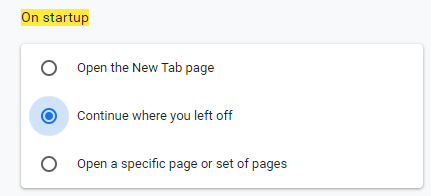
Until last week, I didn’t realize that these browser settings in Chrome/Edge76:
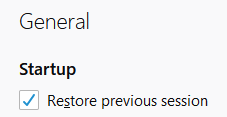
…and Firefox:
…both behave very differently than the old setting from Internet Explorer:
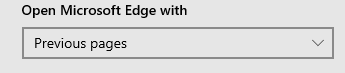
…and the old setting from Edge 18 (Spartan) and earlier:
The Internet Explorer and Edge 18 settings simply open tabs to the URLs of the tabs that were open when you last closed your browser.
In contrast, the Firefox/Chrome/Edge76+ settings restore the browser session itself… which means that closing the browser does not delete your session cookies and doesn’t empty the HTML5 sessionStorage (Update: Chromium broke sessionStorage recovery in Chrome 77, twenty days after this post).
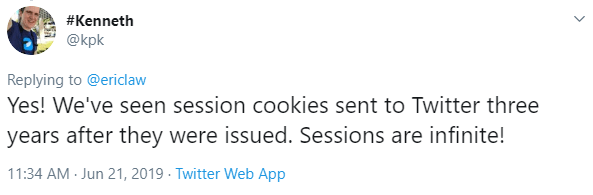
In many ways, preserving session state makes sense– without it, users are likely to find that their restored tabs are immediately navigated to a login page when the browser is restarted. However, a consequence of this session restoration behavior is that browsers with this option configured might keep session cookies alive for a very long time:
If you’d like to play with your browser’s behavior, try setting the option and then play with this simple test page. (The background of the page is generated by the session cookie, and the sessionStorage and localStorage values are shown in the text of the page. Adjust the dropdown to change the color.)
Note: If the Chromium-based browser is restarted by visiting chrome://restart or if it restarts to install an update, it behaves as if “Continue where I left off” is set, even if it isn’t.
Web Developers: Given this session resumption behavior, it’s more important than ever to ensure that your site behaves reasonably upon receipt of an outdated session cookie (e.g. redirect the user to the login page instead of showing an error).
Users: If you enable the session resumption option, keep in mind that you can’t simply close your browser to “log out” of a site– you need to explicitly use the site’s logout option (I’ve written about this before).
-Eric
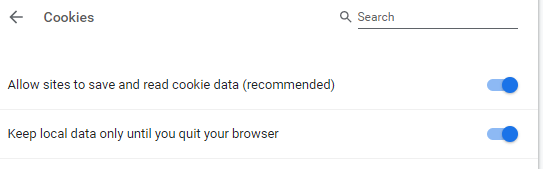
PS: If you’re really concerned about privacy, you can set the Keep local data only until you quit your browser option:
This will clear all Session and Persistent storage areas every time you exit your browser, regardless of whether you’ve set the “On Startup: Continue where you left off”.
PS2: What else is bound to “session lifetime”? Client Hint opt-in, for one thing.
Note: I expect to update this post over time. Last update: Sept 29, 2025.
Compatibility Deltas
As our new Edge Insider builds roll out to the public, we’re starting to triage reports of compatibility issues where Edge79+ (the new Chromium-based Edge, aka Anaheim) behaves differently than the old Edge (Edge18, aka Spartan, aka Edge Legacy) and/or Google Chrome.
In general, Edge79+ will behave very similarly to Chrome. When comparing Edge and Chrome behavior, be sure to compare against the corresponding Chrome Stable, Beta, Dev and Canary channels; Edge 80 vs Chrome 80, etc.
We expect there will be some behavioral deltas between Edge79+ and its Chrome-peer versions, so I’ll note those here too.
For security reasons, Edge79 and Chrome block navigation to file:// URLs from non-file URLs, although Edge 95+ has a policy to somewhat relax that.
In Edge18 and Internet Explorer, attempting to navigate to an App Protocol with no handler installed shows a prompt to visit the Microsoft Store to find a handler. In Chrome/Edge79, the navigation attempt is silently ignored.
Edge 18 and Internet Explorer offer a msLaunchUri API for launching and detecting App Protocols. This API is not available in Edge 79 or Chrome.
Edge 18 and Internet Explorer allow an App Protocol handler to opt-out of warning the user on open using the WarnOnOpen registry key. Edge 79 and Chrome do not support this registry key.
When rendering text/plain files, Chromium wraps the lines of text to the width of the browser window, while Internet Explorer did not. If you need to turn off word-wrapping, you can add a Favorite named NoWrap with the url value:
Clicking the Favorite will disable word-wrapping on the loaded text file.
Formats
Edge/Chrome have better support for image formats vs. Internet Explorer; e.g. Chromium supports WebP and Animated PNGs. Currently, Edge does not support AVIF while Chrome does.
Unlike IE/Edge18, Edge79/Chrome do not support DirectInvoke, a scheme whereby a download is converted into the launch of an application with a URL argument. DirectInvoke is most commonly used when launching Office documents and when running ClickOnce applications. For now, users can workaround the lack of ClickOnce support by installing an extension. Update: In Edge 87+, DirectInvoke is enabled; to enable ClickOnce, see the edge://flags/#edge-click-once setting.
Edge79/Chrome do not support the proprietary msSaveBlob or msSaveOrOpenBlob APIs supported in Edge18. In most cases, you should instead use an A element with a download attribute.
Edge18 did not support navigation to or downloading from data URLs via the download attribute; Edge79/Chrome allow the download of data URLs up to 2mb in length. In most cases, you should prefer blob urls.
Network Proxy
Edge 79+/Chrome adopt the system’s proxy settings by default. If a proxy script is supplied, it is evaluated using the built-in V8 script engine. In contrast, Edge 18 and earlier use the WinHTTP Proxy Service in Windows. Further discussion of the implications of this difference can be found at the end of this post.
Microsoft DirectAccess and similar networking software may not work properly when Chromium performs proxy determination internally. You can instruct Edge 79+ to use the WinHTTP Proxy Service by launching the browser with the –winhttp-proxy-resolver command line argument. This feature can be configured via Group Policy.
If you are behind an authenticating proxy server and choose to save your proxy username/password in Edge 18 or Internet Explorer, the WinHTTP Proxy Service will store those credentials in CredMan and reuse those proxy credentials for subsequent challenges even if you restart the browser. The credentials will also be available for silent use by other applications (e.g. the Windows Store app). Even if you don’t tick the “Remember my credentials” checkbox, the proxy credentials will be remembered for the Windows logon session.
In contrast, if you choose to save your proxy username/password in Edge79+, Chrome, or Firefox, you will be shown an authentication prompt once every time you restart your browser. The username:password will be pre-filled but you must hit “OK” to submit the credentials. Stored credentials will not be available for use by other applications that wish to use the proxy.
The myIpAddress() function allows a proxy to determine (one) IP address for the client. However, this function is inherently broken for multi-homed hosts (which have multiple IPs). To decide which IP address to return, Chromium asks the system for a route to an IP address on the Internet.
Chrome probes the route to 8.8.8.8 / 2001:4860:4860::8888 while Edge 79+ probes the route to 131.107.255.255 / fd3e:4f5a:5b81::1. The probe doesn’t actually send any packets to the target, but if your network is configured to route these addresses differently, your PAC file’s myIpAddress() call could return different results between Chrome and Edge.
Network Protocols & Cache
Chrome/Edge79+ support the HTTP3/QUIC protocol. Edge 18 and earlier do not.
Generally, Chrome/Edge79+ have enhanced support for caching directives, fixing many limitations in the IE/Edge18 cache. However, one delta is that Chrome/Edge79+ do not respect Cache-Control directives specified by META HTTP-EQUIV directives inside a HTML page. Caching directives must instead be specified in the appropriate HTTP Response headers.
Chrome/Edge have removed support for the FTP protocol.
Edge Legacy supports the Cache-Control token immutable; Chromium-based browsers do not (yet).
Chrome/Edge/Safari will fail responses served over HTTP2 with ERR_HTTP2_PROTOCOL_ERROR if a response header name contains a space. Edge Legacy/Firefox will just ignore the header, and IE will allow it.
Chrome/Edge limit granularity of the HTTP Referer header (and the DOM document.referrer property) by default.
Internet Explorer historically had a URL Length limit of 2083 (INTERNET_MAX_URL_LENGTH) characters. Over the years, this was relaxed in many places, but not everywhere. Chromium limits URLs to 2mb (kMaxURLChars) for most scenarios, although the URL bar limits the displayed URL to 32kb, and some components that interact with Windows (e.g. marking of downloaded files) will limit URLs passed to those components to INTERNET_MAX_URL_LENGTH for interoperability.
Chrome will attempt to limit itself to 20 redirects (kMaxRedirects = 20) when fetching from the network before returning ERR_TOO_MANY_REDIRECTS (Demo). Interestingly, as of Chrome 124, the network error page itself contains a NetErrorAutoReloader that will keep chasing redirects in the background based on its own logic, meaning that navigations that require more than 20 redirects may succeed.
Network Timeouts
Receive timeout
Internet Explorer had a default receive timeout of one hour (a read() call on a socket will timeout after one hour), that could be controlled via the registry. In contrast, I don’t see an attempt to set a timeout in the Chromium code, or a requirement in fetch. Experimenting locally, a top-level navigation does not time out in over an hour. Chromium uses non-blocking reads, so SO_RCVTIMEO is not set, and I don’t see any obvious timeouts in higher levels.
CORS preflight responses are cached for 5 seconds by default, but Access-Control-Max-Age may specify a lifetime of up to two hours.
HTTPS – TLS Protocol
Edge 113+ and Chrome (around 112+) changed to use the Chromium certificate verifier by default. This verifier has slightly different behavior than the old Windows verifier; see this post for details.
Edge79 and Chrome enable TLS/1.3 by default; Edge18 does not support TLS/1.3 prior to Windows 10 19H1, and even on that platform it is disabled by default (and known to be buggy).
Edge79 and Chrome send GREASE tokens in HTTPS handshakes; Edge18 does not.
Edge79, Chrome, Firefox, and Safari prohibit connections for HTTP/2 traffic from using banned (weak) ciphers, showing ERR_HTTP2_INADEQUATE_TRANSPORT_SECURITY if the server attempts to use such ciphers. Edge18 did not enforce this requirement. This has primarily impacted intranet websites served by IIS on Windows Server 2012 where the server was either misconfigured or does not have the latest updates installed. Patching the server and/or adjusting its TLS configuration will resolve the problem. End-users should complain to the server operators, and can work around the problem by closing all instances of Edge then restarting with a commandline argument msedge.exe –disable-http2 to disable support for the faster network protocol.
Chrome and Edge use the HSTS Preload list checked into Chromium and generated by HSTSPreload.org. Updates to that list HSTS updates flow through the release channels, so if you get your site added or removed from the HSTS Preload list this week, it’ll be in the Stable release in ~8-12 weeks (0-4 weeks of Canary, 4 weeks of Dev, 4 weeks of beta).
Perhaps surprisingly, Edge/Chrome do not update the HSTS preload list out-of-band (via the component updater). Internet Explorer (WinINET) updates their version of the list (which is based on Mozilla’s list, which is based on Chromium’s list) very irregularly (~twice a year).
HTTPS – Certificates
Edge79 and Chrome require that a site’s certificate contain its domain name in the SubjectAltName (SAN) field. Edge 18 permits the certificate to omit the SAN and if the domain name is in the Subject Common Name (CN) field. (All public CAs use the SAN; certificates that chain to a local/enterprise trusted root may need to be updated).
Firefox, Edge79 and Chromium 41+, reject wildcarded SubjectAltNames where the * is not the entirety of the leftmost label. In contrast, Edge18 and IE will match a SubjectAltName of w*.example.com to the server www.example.com while the modern browsers will not.
Edge79 and Chrome do not allow server certificate chains that contain SHA-1 signatures. Edge Legacy and IE permit SHA-1 in chains that certificates that chain to a local/enterprise root. A policy added Edge 86 temporarily allowed SHA-1 chains but this policy is no longer available.
Edge79 and Chrome require certificates that chain to trusted root CAs to be logged in Certificate Transparency (CT). This generally isn’t a problem because public roots are supposed to log in CT as a part of their baseline requirements. However, certain organizations (including Microsoft and CAs) have hybrid roots which are both publicly trusted and issue privately within the organization. As a result, loading pages may error out with NET::ERR_CERTIFICATE_TRANSPARENCY_REQUIRED. To mitigate this, such organizations must either start logging internal certificates in CT, or set one of three policies under HKLM\SOFTWARE\Policies\Microsoft\Edge. Edge18 does not support CT.
For most (non-EV) certificates, Chrome/Edge79 will not request certificate revocation information from the network (OCSP, CRL download), using revocation information only if it’s cached on the client or stapled in the TLS handshake. Internet Explorer and Legacy Edge would actively hit the network for revocation information by default. See What’s the story with certificate revocation? for discussion.
Edge79 and Chrome use a custom Win32 client certificate picker UI (Edge’s is slightly enhanced vs. Chrome’s), while Edge18 uses the system’s default certificate picker.
Cookies
Edge79 and Chrome support the Leave Secure Cookies Alone spec, which blocks HTTP pages from setting cookies with the Secure attribute and restricts the ways in which HTTP pages may interfere with cookies sent to HTTPS pages. Legacy Edge does not have these restrictions.
Edge79 and Chrome support Cookie prefixes (restrictions on cookies whose names begin with the prefixes __Secure- and __Host-). Legacy Edge does not enforce these restrictions.
Edge79, Chrome, and Firefox ignore Set-Cookie headers with values over 4096 characters in length (including cookie-controlling directives like SameSite). In contrast, IE and Edge18 permit cookies with name-value pairs up to 5118 characters in length.
The number of cookies in the cookie jar (overall and per-site is limited (e.g. kDomainMaxCookies=180). Discussion of the limits and the eviction algorithm can be found in Yoav’s blog post How Chromium Cookies get evicted.
In Edge79, Edge18, and Firefox, running the browser in InPrivate mode disables automatic Integrated Windows Authentication. Chrome (prior to v81) and Internet Explorer do not disable automatic authentication in private mode. You can disable automatic authentication in Chrome by launching it with a command line argument: chrome.exe --auth-server-whitelist="_"
Starting in Edge 82, flags on the edge://flags page allow re-enabling Automatic Authentication for Guest and InPrivate sessions.
Edge18/Edge79 integrates a built-in single-sign-on (SSO) provider, such that configured account credentials are automatically injected into request headers for configured domains; this feature is disabled in InPrivate mode. Chrome does not have this behavior for Microsoft accounts.
Edge18 supports Azure Active Directory’s Conditional Access feature. For Chrome, an extension is required. Edge79 has not yet integrated support for this feature.
Chrome and Edge 79+ choose the strongest HTTP Authentication scheme advertised by the server, regardless of the order of WWW-Authenticate headers provided. In contrast, Edge 18/IE prioritize the first non-BASIC scheme offered. This can lead the new Edge to choose Negotiate in cases where the older Edge might pick NLTM.
By default, Internet Explorer and Edge Legacy would automatically send a client certificate to a server on your Local Intranet if the client only had one certificate available. In Chromium, a Group Policy must be set.
Edge Legacy and IE encode BASIC authentication credentials using iso-8859-1. Chromium, Safari, and Firefox use UTF-8 as suggested by RFC7617.
WebAPIs
Edge18 includes an API window.external.GetHostEnvironmentValue that returns some interesting information about the system, including whether it is running in the “Windows 10 S” lockdown mode. Edge76 and Chrome do not support this API. Update: Edge 78 restored this API with a limited set of tokens:
{“os-architecture”:”AMD64″,”os-build”:”10.0.18362″,”os-sku”:”4″,”os-mode”:”2″}. The os-mode of 2 indicates a Windows 10 S configuration.
The Edge Platform Status site also includes a short list of features that are supported in Edge18 but not Chromium-derived browsers.
The HTML5 SpeechRecognition API fails silently in Edge 76 to 82 because we do not connect to Google Web Services and have not yet done the work to hook this API up to a Microsoft Web Service. Forum thread. Update: This works on Windows as of Edge 100, but appears to be unreliable on Mac. The team is investigating.
The Edge Legacy and IE implementation offer only a limited set of WebCrypto algorithms (Test page) and have some undocumented limits (e.g. you must use a 12byte IV for AES-GCM). The Chromium implementation offers better support for a wider variety of scenarios.
Web APIs – Popups
The HTML5 standard for handling of the third argument (windowfeatures) to window.open() has changed between the time of Internet Explorer’s MSHTML and Chromium’s Blink. You can see the changes tracked on ChromeStatus. Notably, the use of windowfeatures today is largely only to determine whether the new window will be a tab or a popup, and does not control the presence of individual UI elements or resize behavior as it did in the IE3 era.
In Chromium today, the resizablewindowFeature (passed in calls to window.open()) is used as a signal about whether the new window should contain the toolbar and be launched as a popup rather than a new tab; it does not prevent resizing of that popup. Notably, neither Firefox nor Safari allows this windowFeature to prevent the user from resizing the resulting browser window; only IE respects the directive.
Expect IEMode to behave the same way that IE did, and Edge mode to behave the way that Chromium Blink and HTML5 standard calls for. Chromium complies with the current version of the spec, which determines whether to create a popup window vs a new tab thusly:
To check if a popup window is requested, given tokenizedFeatures:

If tokenizedFeatures is empty, then return false.

If tokenizedFeatures["popup"] exists, then return the result of parsing tokenizedFeatures["popup"] as a boolean feature.

Let location be the result of checking if a window feature is set, given tokenizedFeatures, "location", and false.

Let toolbar be the result of checking if a window feature is set, given tokenizedFeatures, "toolbar", and false.

If location and toolbar are both false, then return true.

Let menubar be the result of checking if a window feature is set, given tokenizedFeatures, menubar", and false.

If menubar is false, then return true.

Let resizable be the result of checking if a window feature is set, given tokenizedFeatures, "resizable", and true.

If resizable is false, then return true.

Let scrollbars be the result of checking if a window feature is set, given tokenizedFeatures, "scrollbars", and false.

If scrollbars is false, then return true.

Let status be the result of checking if a window feature is set, given tokenizedFeatures, "status", and false.

If status is false, then return true.

Return false.
If you’re trying to use a Chrome command line argument when launching in the new MSEdge.exe and it’s not working, check whether it has “blacklist” or “whitelist” in the name. If so, we probably renamed it.
Chrome and Edge 79+ make very limited use of the Windows Security Zones architecture. See this post for more information.
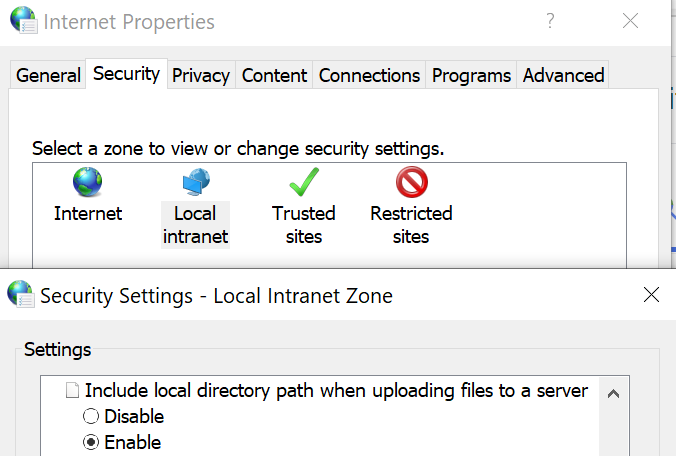
In contrast, Internet Explorer made extensive use of Zones to control security and compatibility changes. By way of example, back in IE8, a change was made to the browser such that the file upload control would no longer send the full path of an uploaded file. For instance, when uploading C:\users\ericlaw\desktop\ThisIsMyFile.jpg to the server, the browser would instead send C:\fakepath\ThisIsMyFile.jpg. The main reason is privacy: we didn’t want the remote website to be able to infer that the user uploading the file was named EricLaw based on the information about their local file system paths. This redaction became a web standard—now ALL browsers send fakepath and doing so is required by the HTML specification. However, for compatibility reasons, Internet Explorer would only apply this protection to sites in the Internet Zone; sites loaded in the Intranet zone would continue to send the unredacted file path. This behavior is controlled by the “Include local directory path when uploading files to a server” setting in the Internet Control Panel:
Modern browsers, including Microsoft Edge, do not have any setting like this one; there’s no way to turn off the redaction of the file path. Available workarounds would be to either 1) Put this site in IE Mode, or to 2) restructure the application such that it does not attempt to get a local file path from the user using a File Upload control.
Extensions
Generally speaking, nearly all Chrome extensions should work inside Edge. Exceptions include:
When the “Extension” is really a Chrome App (these are deprecated by Google, and were never supported by Edge)
The Extension uses Native Client (Edge does not support Native Client, and it’s been deprecated by Google)
The Extension uses one of the Chrome-only APIs: chrome.gcm, chrome.identity.getAccounts, chrome.instanceID, chrome.identity.getAuthToken
User-Agent
Browsers identify themselves to servers using a User-Agent header. A top source of compatibility problems is caused by sites that attempt to behave differently based on the User-Agent header and make incorrect assumptions about feature support, or fail to update their checks over time. Please, for the love of the web, avoid User-Agent Detection at all costs!
Chrome User-Agent string: Mozilla/5.0 (Windows NT 10.0; Win64; x64) AppleWebKit/537.36 (KHTML, like Gecko) Chrome/76.0.3809.100 Safari/537.36
Edge77 Beta (Desktop) User-Agent string: Mozilla/5.0 (Windows NT 10.0; Win64; x64) AppleWebKit/537.36 (KHTML, like Gecko) Chrome/77.0.3865.19 Safari/537.36 Edg/77.0.235.9
Edge18 User-Agent string: Mozilla/5.0 (Windows NT 10.0; Win64; x64) AppleWebKit/537.36 (KHTML, like Gecko) Chrome/70.0.3538.102 Safari/537.36 Edge/18.18362
Edge73 Stable (Android) User-Agent string: Mozilla/5.0 (Linux; Android 10; Pixel 3 XL) AppleWebKit/537.36 (KHTML, like Gecko) Chrome/73.0.3683.90 Mobile Safari/537.36 EdgA/42.0.4.3892
You’ll note that each of the Edge variants uses a different token at the end of the User-Agent string, but the string otherwise matches Chrome versions of the same build. Sites should almost never do anything with the Edge token information– treat Edge like Chrome. Failing to follow this advice almost always leads to bugs.
Sites are so bad about misusing the User-Agent header that Edge was forced to introduce a service-driven override list, which you can find at edge://compat/useragent. Alas, even that feature can cause problems in unusual cases. For testing, you can tell Edge to ignore the list by starting it thusly:
The domain actions overrides originally were only used in Edge Stable and Beta channels but as of September 2025, there now exist User-Agent overrides that apply in all channels and which are not shown in edge://compat.
Upcoming Changes
Perhaps the biggest change with the move to the new Chromium-backed Microsoft Edge is a much faster pace of change in the Web Platform. You can keep an eye out on upstream changes using the ChromeStatus schedule page, and Microsoft’s list of site-impacting-changes.
Google Authenticator is an app that runs on your iOS or Android phone and gives out 6 digit codes that must be entered when you log in on a device. This can’t really prevent phishing (because a phishing page will just ask you for a code from it and if you’re fooled, you’ll give it up) but it does prevent attacks if a bad guy has only your password. Authenticator is free and simple to use, and is supported by many sites, including GitHub. Microsoft offers a nearly identical Authenticator app too. How ToTP works.
YubiKeys (and similar) are small USB keys that you can configure your accounts to require. They are cheapish (~$18) and cannot be phished (even if you tap your key while on a phishing site, the attacker cannot use it due to how the crypto works). These are the best protection for your accounts (Googlers all use them) and are highly recommended for Chrome extension developers, journalists, activists, etc, etc.
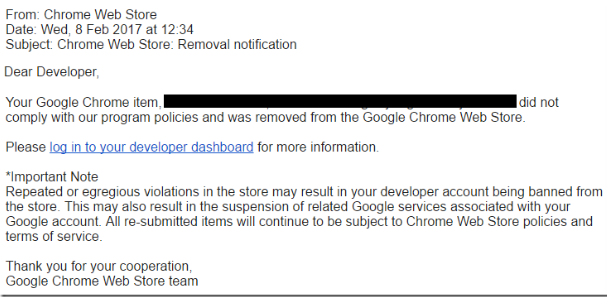
Consider, for instance, this phishing email that this Chrome Extension developer received:
If the developer’s account were protected by a Yubikey, his credentials would be useless to a phisher because they would not have the required second factor necessary to log in and plant their malicious code in the developer’s extensions.
If the developer’s account were protected by a TOTP/Google Authenticator, it would require that the attacker collect the token value and be actively watching for victims such that the ephemeral token did not expire before they had a chance to replay it to the legitimate Google servers.
Sometimes a site will not load by default but it works just fine in InPrivate mode or when loaded in a different browser profile. In many such cases, this means there’s a bug in the website where they’ve set a cookie but fail to load when that cookie is sent back.
This might happen, for instance, if a site set a ton of cookies over time but the server has a request length limit. After the cookies build up through the course of normal browsing, the 16k header limit is exceeded and the server rejects all further requests by dropping the connection or showing a message likeHTTP/431Bad Request – The size of the request headers is too long, Bad Request – Request too long, or ERR_TOO_MANY_REDIRECTS. This problem is unfortunately common for large web properties with many sub-domains, like Microsoft.com.
Fortunately, it’s often easy to fix this problem in the new Edge (and Chrome).
Delete Cookies for the Current Site
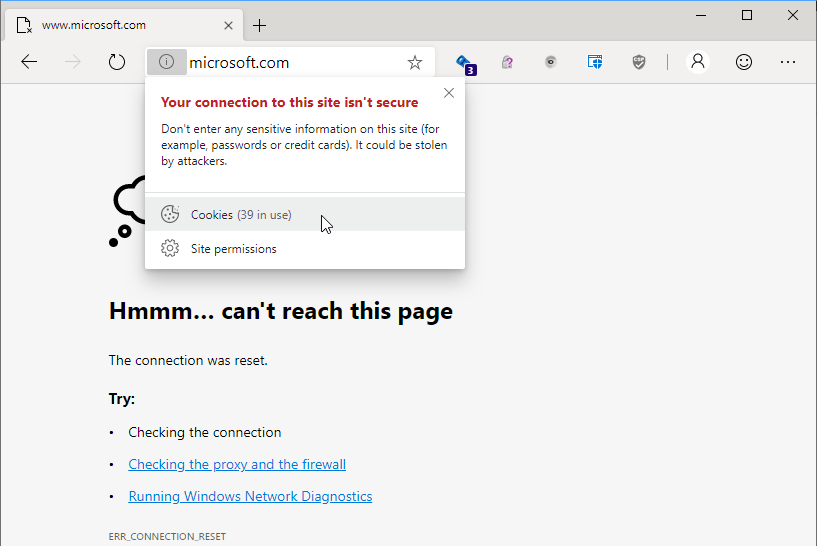
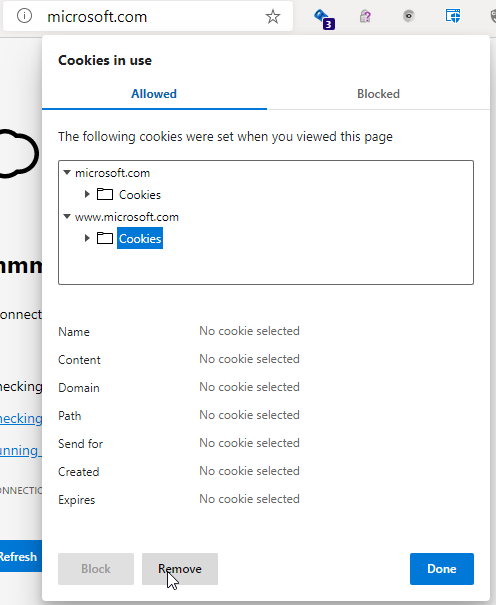
On the error page, click the icon next to the address bar and see whether there are Cookies in use:
If so, click the item to open the Cookies in use screen. In the box that appears, select each server name and click the Remove button at the bottom to remove the cookies set for that server:
After you remove all of the cookies, click the Done button and try reloading the page.
Delete Non-Cookie Storage
If clearing cookies doesn’t improve things, it’s possible that the problematic information is stored somewhere else. Sometimes sites store data using a different technology (e.g. HTML5 Storage, indexedDB, etc). You might try deleting this storage too to see if it improves things.
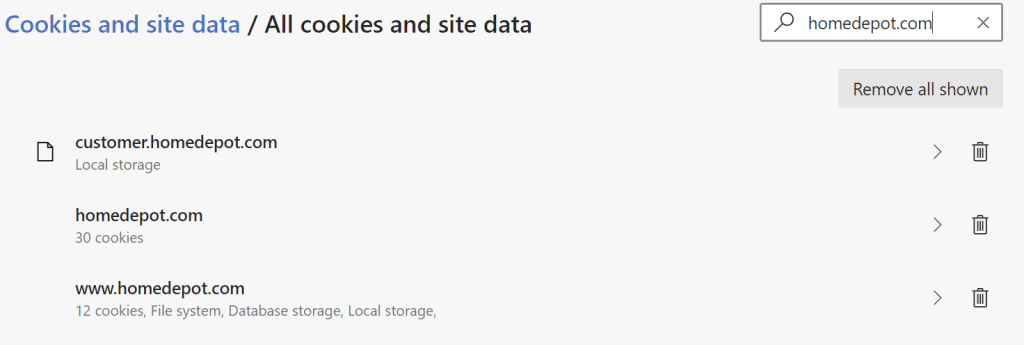
In Chrome or Edge, navigate to chrome://settings/siteData and search for the site. Use the trash can icon next to the entries to clear the site’s data:
Then, try reloading the page.
-Eric
PS: If you have a server hitting this problem, use fewer/smaller cookies, and reconfigure your server to accept larger headers. Reconfiguration might be required to use your server if your server uses Active Directory authentication and your visitors have large AD tokens.
One of my final projects on the Chrome team was writing an internal document outlining Best Practices for Secure URL Display. Yesterday, it got checked into the public Chromium repro, so if this is a topic that interests you, please have a look!
Additionally, at Enigma 2019, the Chrome team released Trickuri (pronounced “trickery”) a tool for manual testing of URL displays against tricky attacks.

 text/plain