A Beautiful 10K

This morning was my second visit to the Austin Capitol 10K race. Last year’s run represented my first real race, then two months into my new fitness regime, and I only met my third goal (“Finish without getting hurt“) while missing the first two (“Run the whole way“, and “Finish in 56 minutes“). Last year, I finished in 1:07:38.

This year, I set out with the same goals and achieved all three: I ran without stopping, finishing in 52:25 (8:27/mile), just over 15 minutes faster than last year. I beat not only my 56 minute goal, but also my unstated “It’d be really nice to beat 54 minutes” goal, and while it wasn’t exactly easy, I think I could’ve gone harder and faster. Last year I beat at 66% of my gender/age group, while this year I beat 88%. I had some advantages: This year, I got six hours’ sleep (awoken early by an errant notification at 05:30), had a productive trip to the bathroom, and benefitted from being 20 pounds lighter and having run ~900 miles over the last year.

The weather was absolutely perfect: in the high 50s, a light breeze with clear skies and dry ground. We left the house at 6:50 or so and managed to snag one of the last five parking spots in my preferred lot in the park near the start of the race. Supposedly there were 17000 registrations, although the scoreboard shows 22058 finishers?

The start of the race was the hardest part, with a few significant hills. But none were as steep or as nearly long as I’d remembered from last year, and I had no trouble running them. Having started with a faster group, I didn’t have to dodge walkers on the hill, and I was inspired by the truly hardcore folks around me (a younger mom next to me was doing everything I was doing, faster, while pushing a stroller).

Still, the start felt slow, and avoided looking at my watch until the halfway point, figuring that I’d wait until then to assess the hole I was in and figure out how to react. I was delighted to discover that I hit the 5K mark at almost exactly 27 minutes (27 minutes on my watch, 26:37 on the “chip time”), exactly on track for my “secret” goal of 54 minutes. But now I was excited– could I run a negative split with the second half faster than the first?

Fortunately, running in the “A” group this time yielded two benefits: first, less weaving and dodging at the start of the race (although there were definitely some folks who were not running at a pace that would qualify for the A group) and second, it gave me a whole group of runners at a solid pace to try to meet and beat. Toward the end of the race, as my enthusiasm started to wane, this was especially important– I’d focus on someone thirty or forty feet away and think “I’ll just catch up and go finish with them.” This repeated a half dozen times over the last two miles.

I had three caffeinated Gu energy blocks throughout the race: One at the start, one somewhere around mile 2, and one at mile 5– the last I hadn’t finished by the sprint at the end and I regretted having put it in my mouth at all. I barely drew on my little water bottle and finished the race with more than half of it left. I brought my Amazon Fire phone for music, but discovered that my “fully charged” cheapo Bluetooth headphone was completely dead. I suspect it’s broken. While I was slightly bummed, I figured running for less than an hour without music wouldn’t be bad, and it wasn’t.

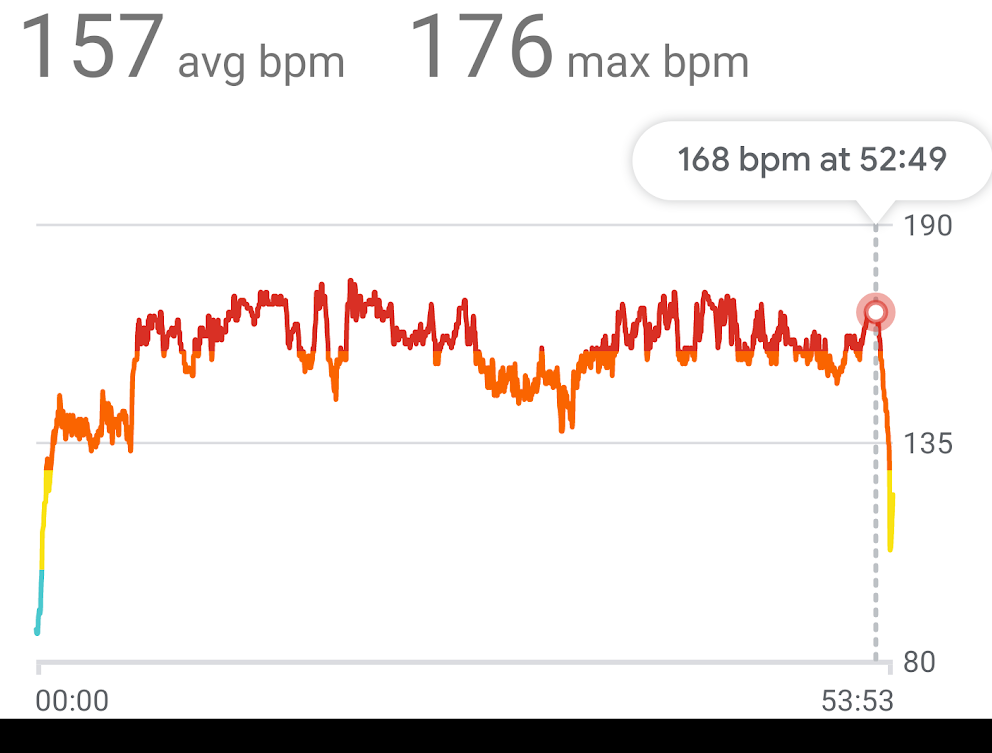
My heart rate was under control for almost the entire race, peaking at 176 beats per minute but mostly hovering comfortably just below 160:

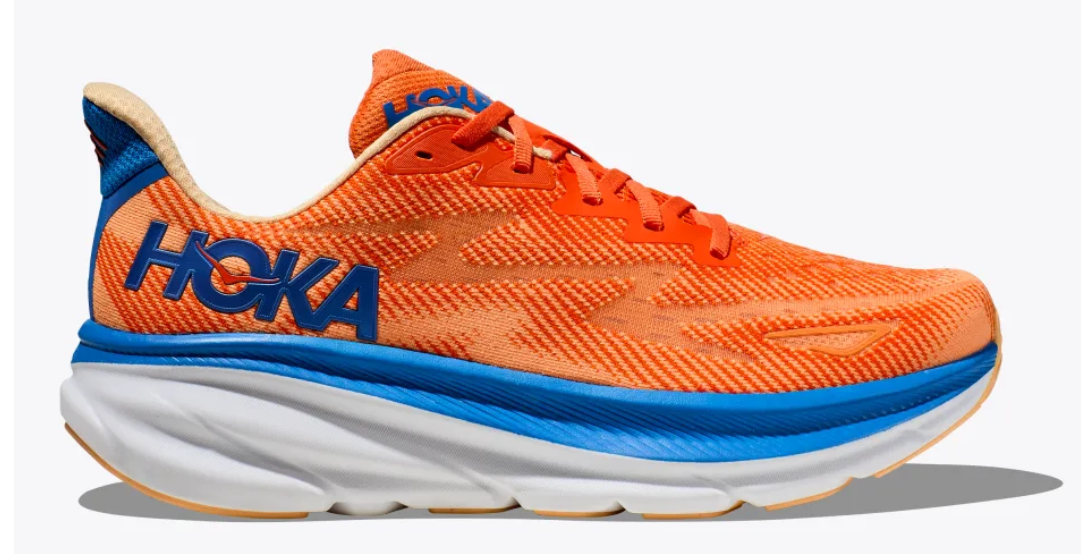
My fancy new Hoka Clifton 9 running shoes were amazing, and provide the right amount of cushion for real-world running (they feel almost too cushy on the treadmill):

I was a bit worried because I had tied them too tight before a 9 mile treadmill run earlier in the week and bruised just below my left ankle, but that tenderness didn’t bother me much on the run. My knees felt great.

Update: It was years before I realized how great this KQ result was.

My first kilometer was my slowest and the last my fastest:

I started running harder as I crossed the bridge near the finish line and poured on even more speed as I turned the last corner with a tenth of a mile left to go. I heard my older son shout out “Go, Dad, Go!” and started looking for him. I then heard my younger son chime in, hollering “Go, Dad!” and I was so happy — he’s usually quiet and it was so motivational to hear that he was so into it.

After cruising through the finish line (pain free, unlike my hobbling sprint at the end of the Galveston half) while thinking “I could’ve gone a bit faster, and a bit sooner,” I collected my finisher’s medal and headed back to where my kids were waiting.

Except, they weren’t there. When we did finally met up, I learned that they never were (due to an ill-timed bathroom break), and I’d hallucinated my whole cheering section. 🤣

We all waited for my housemate to finish his run and I loudly cheered on all of the other runners, (unintentionally) egged on by my 9yo who endlessly whined “Dad, be quiet! You don’t know any of these people! You’re embarrassing me!” 🤣

This is my final race before Kilimanjaro at the end of June. After summers’ end, I’ll again run the “Run for the Water” 10 miler in November, then do my second Austin 3M Half in January 2024. Then, I’ll be doing this race again on April 7, 2024.

-Eric

(The Futility of) Keeping Secrets from Yourself

Many interesting problems in software design boil down to “I need my client application to know a secret, but I don’t want the user of that application (or malware) to be able to learn that secret.

Some examples include:

  • Digital Rights Management encryption keys
  • Passwords stored in a Password Manager
  • API keys to use web services
  • Private keys for local certificate roots
  • Configuration options (e.g. exclusions) for security software

…and likely others.

In general, if your design relies on having a client protect a secret from a local attacker, you’re doomed. As eloquently outlined in the story “Cookies” in 1971’s Frog and Toad Together, anything the client does to try to protect a secret can also be undone by the client:

For example, a user can easily read passwords filled by a password manager out of the browser’s DOM, or malware can read it out of the encrypted storage when it runs inside the user’s account with their encryption key. An attacker can read keys by viewing or debugging a binary that contains them, or it can watch API keys flow by in outbound HTTPS traffic. A “sufficiently/extremely motivated” attacker with physical access to a device can steal hardware-stored encryption keys directly off the hardware. Etc.

However, just because a problem cannot be solved does not mean that developers won’t try.

“Trying” isn’t entirely madness — believing that every would-be attacker is “sufficiently motivated” is as big a mistake as believing that your protection scheme is truly invulnerable. If you can raise the difficulty level enough at a reasonable cost (complexity, performance, etc), it may be entirely rational to do so.

Some approaches include:

  • Move the encryption key off the client. E.g. instead of having your client call the service provider’s web-service directly, have it call a proxy on your own website that adds the key before forwarding along the request. Of course, an attacker might still masquerade as your application (or automate it) to hit the service through your proxy, but at least they will be constrained in what calls they can make, and you can apply rate-limits, IP reputation, etc to mitigate abuse.
  • Replace the key with short-lived tokens that are issued by an authenticated service. E.g. the Microsoft Edge VPN feature requires that the user be logged in with their Microsoft account (MSA) to use the VPN. The feature uses the user’s credentials to obtain tokens that are good for 1GB of VPN traffic quota apiece. An attacker wishing to abuse the VPN service has to generate fake Microsoft accounts, and there are robust investments in making that non-trivially expensive for an attacker.
  • Use hardware to make stealing secrets more difficult. For example, you can store a private key inside a TPM which makes it very difficult to steal and move to a different device. Keep in mind that locally-running malware could still use the key by treating the compromised device as a sock puppet.
  • Similarly, you can use a Secure Enclave/Virtual Secure Mode (available on some devices) to help ensure that a secret cannot be exported and try[1] to establish controls on what processes can request the enclave use the key for some purpose. For example, Windows 11’s Enhanced Phishing Protection stores a hashed version of the user’s Login Password inside a secure enclave so that it can evaluate whether recently typed text contains the user’s password, without exposing that secret hash to arbitrary code running on the PC.
  • Derive protection from other mechanisms. For instance, there’s a Microsoft Web API that demands that every request bear a matching hash of the request parameters. An attacker could easily steal the hash function out of the client code. However, Microsoft holds a patent on the hash function. Any application which contains this code contains prima facie evidence of patent infringement, and Microsoft can pursue remedies in court. (Assuming a functioning legal system in the target jurisdiction, etc, etc).
  • If the threat is from a compromised device but not a malicious user, enlist the user in helping to protect the secret. For example, reencrypt the data with a “main password” known only to the user, require off-device confirmation of credential use, etc. Locally-running malware will then have a limited opportunity to abuse the secret because it’s not always exposed.

-Eric

[1] try is the operative word here. From inside a VTL1 enclave, it’s very difficult to determine the identity of the calling process. Even if you can do so, it’s also non-trivial to ensure that the code running in the expected calling process wasn’t injected by malware. Stated differently, the API exposed by an enclave must be designed in such a way as to assume that it will be called by malicious VTL0 code. Using enclaves properly is tricky.

Auth Flows in a Partitioned World

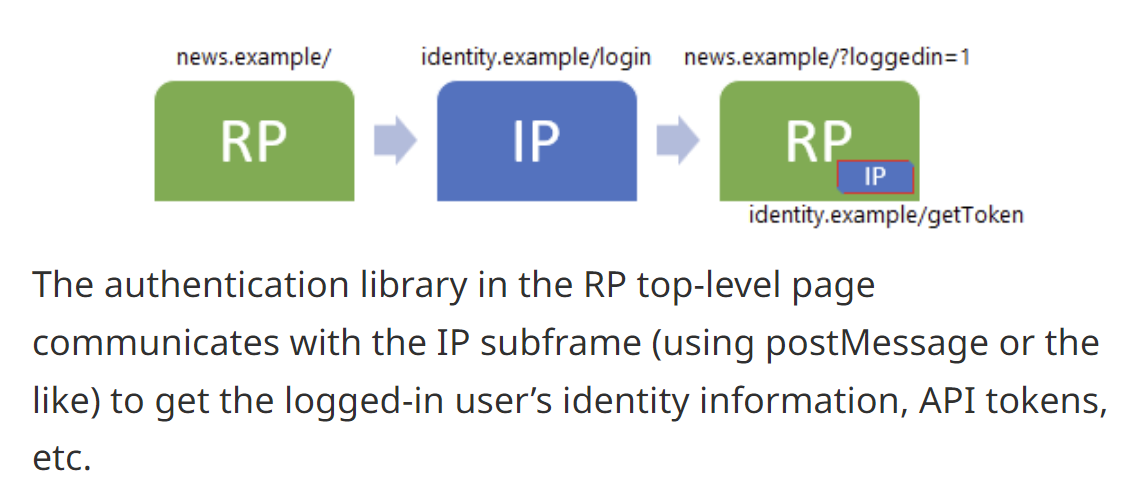
Back in 2019, I explained how browsers’ cookie controls and privacy features present challenges for common longstanding patterns for authentication flows. Such flows often rely upon an Identity Provider (IdP) having access to its own cookies both on top-level pages served by the IdP and when the IdP receives a HTTP request from an XmlHttpRequest/fetch or frame embedded in a Relying Party (RP)‘s website:

These auth flows will fail if the IdP’s cookie is not accessible for any reason:

  1. the cookie wasn’t set at all (blocked by a browser privacy feature), or
  2. the cookie isn’t sent from the embedded context is blocked (e.g. by the browser’s “Block 3rd Party Cookies” option)
  3. the cookie jar is not shared between a top-level IdP page and a request to the IdP from the RP’s page (e.g. Cookie Partitioning)

While Cookie Partitioning is opt-in today, in late 2024, Chromium plans to start blocking all non-partitioned cookies in a 3rd Party context, meaning that authentication flows based on this pattern will no longer work. The IdP’s top-level page will set the cookie, but subframes loaded from that IdP in the RP’s page will use a cookie jar from a different partition and not “see” the cookie from the IdP top-level page’s partition.

What’s a Web Developer to do?

New Patterns

Approach 1: (Re)Authenticate in Subframe

The simplistic approach would be to have the authentication flow happen within the subframe that needs it. That is, the subframe to the IdP within the RP asks the user to log in, and then the auth cookie is available within the partition and can be used freely.

Unfortunately, there are major downsides to this approach:

  1. Every single relying party will have to do the same thing (no “single-sign on”)
  2. If the user has configured their browser to block 3rd party cookies, Chromium will not allow the subframe to automatically/silently send the user’s Windows credentials. (TODO: I don’t remember if clientcert auth is permitted).
  3. Worst of all, the user will have to be accustomed to entering their IdP’s credentials within a page that visually has no relationship to the IdP, because only the RP’s URL is shown in the browser’s address bar. (Many IdP’s use X-Frame-Options or Content-Security-Policy: frame-ancestors rules to deny loading inside subframes).

I would not recommend anyone build a design based on the user entering, for example, their Google.com password within RandomApp.com.

If we take that approach off the table, we need to think of another way to get an authentication token from the IdP to the RP, which factors down to the question of “How can we pass a short string of data between two cross-origin contexts?” And this, fortunately, is a task which the web platform is well-equipped to solve.

Approach 2: URL Parameter

One approach is to simply pass the token as a URL parameter. For example, the RP.com website’s login button does something like:

window.open('https://IdP.com/doAuth?returnURL=https://RP.com/AuthSuccess.aspx?token=$1', 'blank');

In this approach, the Identity Provider conducts its login flow, then navigates its tab back to the caller-provided “return URL”, passing the authentication token back as a URL parameter. The Relying Party’s AuthSuccess.aspx handler collects the token from the URL and does whatever it wants with it (setting it as a cookie in a first-party context, stores it in HTML5 sessionStorage, etc). When the token is needed to call an service requiring authentication, the Relying Party takes the token it stored and adds it to the call (inside an Auth header, as field in a POST body, etc).

One risk with this pattern is that, from the web browser’s perspective, it is nearly indistinguishable from bounce tracking, whereby trackers may try to circumvent the browser’s privacy controls and continue to track a user even when 3rd party cookies are disabled. While it’s not clear that browsers will ever fully or effectively block bounce trackers, it’s certainly an area of active interest for them, so making our auth scheme look less like a bounce tracker seems useful.

Approach 3: postMessage

So, my current recommendation is that developers communicate their tokens using the HTML5 postMessage API. In this approach, the RP opens the IdP and then waits to receive a message containing the token:

// rp.com
window.open('https://idp.com/doAuth?', '_blank');

window.addEventListener("message", (event) => {
    if (event.origin !== "https://idp.com") return;
    finalizeLoginWithToken(event.data.authToken);
    // ...
  },
  false
);

When the authentication completes in the popup, the IdP sends a message to the RP containing the token:

// idp.com
function returnTokenToRelyingParty(sRPOrigin, sToken){
    window.opener.postMessage({'authToken': sToken}, sRPOrigin);
}

Approach 4: Broadcast Channel (Not recommended)

Similar to the postMessage approach, an IdP site can use HTML5’s Broadcast Channel API to send messages between all of its contexts no matter where they appear. Unlike postMessage (which can pass messages beween any origins), a site can only use Broadcast Channel to send messages to its own origin. BroadcastChannel is widely supported in modern browsers, but unlike postMessage, it is not available in Internet Explorer.

While this approach works well today:

  • it doesn’t work in Safari (whether cross-site tracking is enabled or not)
  • it doesn’t work in Firefox 112+ with Enhanced Tracking Protection enabled
  • Chromium plans to break it soon; preview this by Enabling the chrome://flags/#third-party-storage-partitioning flag.

Approach 5: localStorage (Not recommended)

HTML5 localStorage behaves much like a cookie, and is shared between all pages (top-level and subframe) for a given origin. The browser fires a storage event when the contents of localStorage are changed from another context, which allows the IdP subframe to easily detect and respond to such changes.

However, this approach is not recommended. Because localStorage is treated like a cookie when it comes to browser privacy features, if 3P Cookies are disabled or blocked by Tracking Prevention, the storage event never fires, and the subframe cannot access the token in localStorage.

Furthermore, while this approach works okay today, Chromium plans to break it soon. You can preview this by Enabling the chrome://flags/#third-party-storage-partitioning flag.

Approach 6: FedCM

The Federated Credentials Management API (mentioned in 2022) is a mechanism explicitly designed to enable auth flows in a world of privacy-preserving lockdowns. However, it’s not available in every browser or from every IdP.

Demo

You can see approaches #3 to #5 implemented in a simple Demo App.

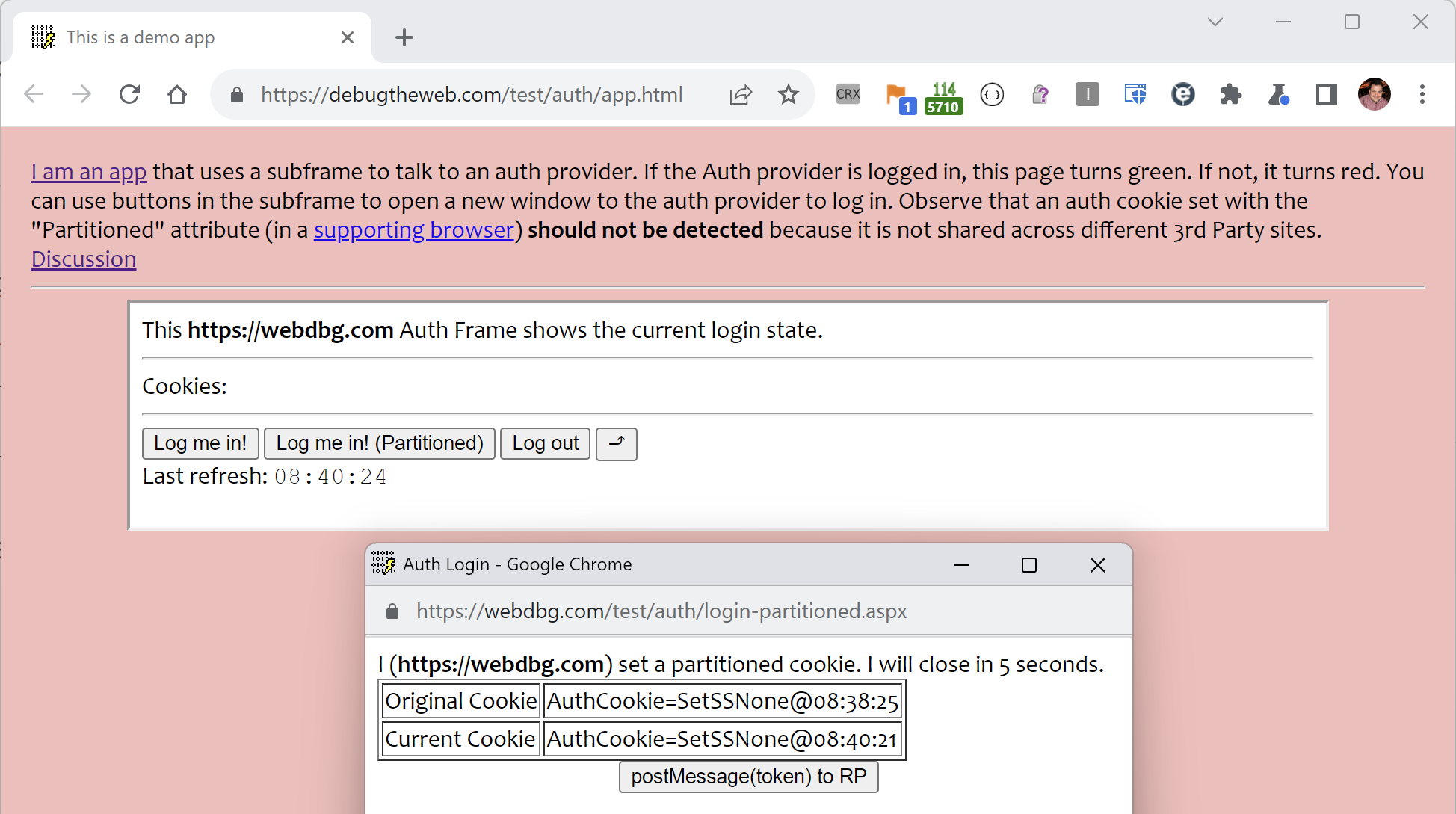
Click the Log me in! (Partitioned) button in Chromium 114+ and you’ll see that the subframe doesn’t “see” the cookie that is present in the WebDbg.com popup:

Now, click the postMessage(token) to RP button in that popup and it will post a message from the popup to the frame that launched it, and that frame will then store the auth token in a cookie inside its own partition:

We’ve now used postMessage to explicitly share the auth token between the two IdP contexts even though they are loaded within different cookie partitions.

Shortcomings

The approaches outlined in this post avoid breakage caused by various current and future browser settings and privacy lockdowns. However, there are some downsides:

  1. Updates require effort on the part of the relying party and identity provider.
  2. By handling auth tokens in JavaScript, you can no longer benefit from the httponly option for cookies that helps mitigate XSS attacks.

-Eric

Explainer: File Types

On all popular computing systems, all files, at their most basic, are a series of bits (0 or 1), organized into a stream of bytes, each of which uses 8 bits to encode any of 256 possible values. Regardless of the type of the file, you can use a hex editor to view (or modify) those underlying bytes:

But, while you certainly could view every file by examining its bytes, that’s not really how humans interact with most files: we want to view images as pictures, listen to MP3s as audio, etc.

When deciding how to handle a file, users and software often need to determine specifically what type the file is. For example, is it a Microsoft Word Document, a PDF, a compressed ZIP archive containing other files, a plaintext file, a WebP image, etc. A file’s type usually determines what handler software will be launched if the user tries to “open or run” the file. Some file types are based on standards (e.g. JPEG or PDF), while others are proprietary to a single software product (e.g. Fiddler SAZ). Some file types are handled directly by the system (e.g. Screensaver files on Windows) while other types require that the user install handler software downloaded from the web or an app store.

Some file types are considered dangerous because opening or running files of that type could result in corrupting other files, infecting a device with malicious code, stealing a victim’s personal information, or causing unwanted transactions to be made using a victim’s identity or assets (e.g. money transfer). Software, like browsers or the operating system’s “shell” (Explorer on Windows, Finder on MacOS), may show warnings or otherwise behave more cautiously when a user interacts with a file type believed to be dangerous.

As a consequence, correctly determining a file’s type has security impact, because if the user or one part of the system believes a given file is benign, but the file is actually dangerous, calamity could ensue.

So, given this context, how can a file’s type be determined?

Type-Sniffing

One approach to determining a file’s type is to have code that opens the file and reads (“sniffs”) some of its bytes in an attempt to identify its internal structure. For some file formats, a magic bytes signature (typically at the very start of the file) conveys the type of the content. As seen above, for example, a Windows Executable starts with the characters MZ, while a PDF document begins with %PDF:

… and a PNG image file starts with the byte sequence 89 50 4E 47 0D 0A 1A 0A:

The Problems with Type-Sniffing

Unfortunately, sometimes a signature may be misleading. For example, both the Microsoft Office Document format and Fiddler’s Session Archive ZIP format are stored as specially-formatted ZIP files, so a file handler looking for a ZIP file’s magic bytes (PK) might get confused and think a Microsoft Word document is a generic archive file:

Alas, the problem is even worse than that, because many file type formats do not demand a magic byte signature at all. For example, a plain text file has no magic bytes, so any text that happens to be at the start of a text file could overlap with another format’s signature. One afternoon decades ago, I was tasked with solving the mystery of why Internet Explorer was renaming a the ZIP specification text file from zip_format.txt to zip_format.zip, but if you look at the bytes, the explanation is pretty obvious:

HTML is another popular format that does not define any magic bytes, and reliably distinguishing between HTML and text is difficult. In the old days, Internet Explorer would scan the first few hundred bytes of the file looking for known HTML tags like <html> and <body>. This worked well enough to be a problem — an author could rely upon this behavior, but then subtly change their document and it would stop working.

Because type-sniffing requires that a file be opened and (some portion of) its contents examined, there are important performance considerations. For example, if you tried to sort a directory listing by the file type, the OS shell would have to open every file to determine its type, and only after opening every file could the list be sorted. This could take a long time, especially if the file is located on a remote network share, or within a compressed archive. Furthermore, this logic would fail if the file could not be opened for some reason (e.g. it was already opened in exclusive mode by some other app, or if reading the file’s content requires additional security permissions).

In a system where type-sniffing is used, a user cannot reliably determine what will happen when a file is opened based solely on the name of the file. They must rely on the OS or browser software to determine the type and expose that information somewhere.

MIME Types

MIME standards describe a system where each type of file is described using a media type, a short, textual string, consisting of a type and subtype separated by a forward slash. Examples include image/jpeg, text/plain (this blog’s namesake), application/vnd.ms-word.document.12 and so on.

If you look at the raw source of an email that has a photo embedded within it, you’ll see the photo’s MIME type mentioned just above the encoded bytes of the image:

And, you’ll see the same if you download an image over HTTPS, listed as the value of the HTTP Content-Type header:

MIME Media types are a great way to represent the type of a file, but there’s a big shortcoming — they only work when there’s a consistent place to store the string, and unfortunately, that isn’t common. For internet-based protocols that offer headers, a Content-Type header is a great place to store the information, but after the file has been downloaded, where do you store the info?

Within some file systems, the data can be stored in an “alternate stream” attached to the file, but not all filesystems support the concept of alternate streams. You could imagine storing the type information in a separate database, but then the system has to be smart enough to keep the information in sync as the file is moved or edited.

Finally, even if you are able to reliably store and recall this information as needed, in a system where MIME types are used, a user cannot reliably determine what will happen when a file is opened based solely on the name of the file. They must rely on the OS or browser software to determine the type and expose that information somewhere.

File Extensions

Finally, we come to file extensions, the system of representing a file’s type using a short identifier at the end of the name, preceded by a dot. This approach is the most common one on popular operating systems, and it’s one I’ve previously described as “The worst approach, except for all of the other ones.”

In terms of disadvantages, there are a few big ones:

  • Users might not know what a file’s extension means
  • Users can accidentally corrupt a file’s type information if they change the extension while changing a filename
  • Some folks think that file extensions are “ugly”
  • Attackers might abuse security prompt UIs to try to confuse the user about which part of the filename is the extension. (A common fix is to show the extension separately)

However, there are numerous advantages to file extensions over other approaches:

  • Every popular OS supports naming of files, meaning that the file’s type isn’t “lost” as the file moves between different types of systems
  • Most UI surfaces are designed to show (at least) a file’s name, which means that the file’s type can be seen by the user
  • Most software operates on file names, which means that the file’s type is immediately available without requiring reading any of the file’s content
  • File extensions are relatively succinct and do not contain characters (e.g. the forward slash in a MIME-type) that have other meanings in file systems

Interoperability, in particular, is a very important consideration, and combined with the long legacy of systems built around file extensions (dating back more than 40 years), file extensions have become the dominant mechanism for representing a file’s type.

In practice, modern systems usually a mapping between file extensions and MIME types; for example, text/plain files have an extension of .txt, and .csv files have a MIME type of text/csv. In Windows, this mapping is maintained in the Windows Registry:

…and these mappings are respected by most programs (although e.g. Chromium also consults an override table built into the browser itself).

In some cases, a misconfigured MIME mapping in the Windows registry can impact browser scenarios like file upload.

File Extensions are associated with MIME types via registrations with the IANA standards body.

File Extension Arcana

On Windows, users can configure the Explorer Shell to hide the file extension from display; the setting applies to many file types, but not all of them.


MSDN contains a good deal of documentation about how Windows deals with file types, including the ability of a developer to indicate that a given file type is inherently dangerous (FTA_AlwaysUnsafe)

On Windows, you can find a path’s file extension using the PathFindExtensionW function. Note that a valid file name extension cannot contain a space. There’s more information within the article on File Type Handlers.

Windows also has the concept of “perceived types“, which are categories of types, like “image”, “video”, “text”, etc, akin to the first portion of the MIME type.


Importantly, file extensions can be “wrong” — if you rename an executable to have a .txt extension, the system will no longer treat it as potentially dangerous. However, from a security point-of-view, this mismatch is generally harmless– so long as everything treats the file as “text”, it will not be able to execute and damage the system. If you double-click on the misnamed file in Explorer, for example, it will simply open in Notepad and display the binary garbage.

However, the Windows console/terminal (cmd.exe) does not care (much) about file extensions when running programs. If you rename an executable to have a different extension, then type the full filename, the program will run[1]:

If you fail to include the extension, however, the program will not run unless the extension happens to be listed in the %PATHEXT% environment variable, which defaults to PATHEXT=.COM;.EXE;.BAT;.CMD;.VBS;.VBE;.JS;.JSE;.WSF;.WSH;.MSC


Some filenames might contain a “double-extension” like (.tar.gz) that conveys that the file is a “Tar file that has been compressed with GZip.” Some software is aware of this multiple-file-extensions concept (and can treat tar.gz files differently than .gz files) but most will simply respect only the so-called final extension.


The std::filesystem::path::extension() function (and Boost) will treat a file that consists of only an extension (e.g. .txt) as having no extension at all. This is an artifact of the fact that such files are considered “dotfiles” on Unix-based systems, where the leading dot suggests that the file should be considered “hidden.” Windows does not really have this concept (the hidden bit is a file attribute instead), and thus you can freely name a text file just .txt and, when invoked from the shell, the system will open Notepad to edit it as it would any other text file.

-Eric

[1] Or, it used to, at least. On my Windows 11 24H2 system, invoking the IAmNotaTextFile.txt file from the terminal opens in Notepad. I’m not sure what changed and when. Maybe there’s a setting?

How Microsoft Edge Updates

By default, Edge will update in the background automatically while you’re not using it. Open Microsoft Edge and you’ll be using the latest version.

However, if Edge is already running and an update becomes available, an update notifier icon will show in the Edge toolbar. When you see the update notifier (a green or red arrow on the … button):

… this means an update is ready for use and you simply need to restart the browser to have it applied.

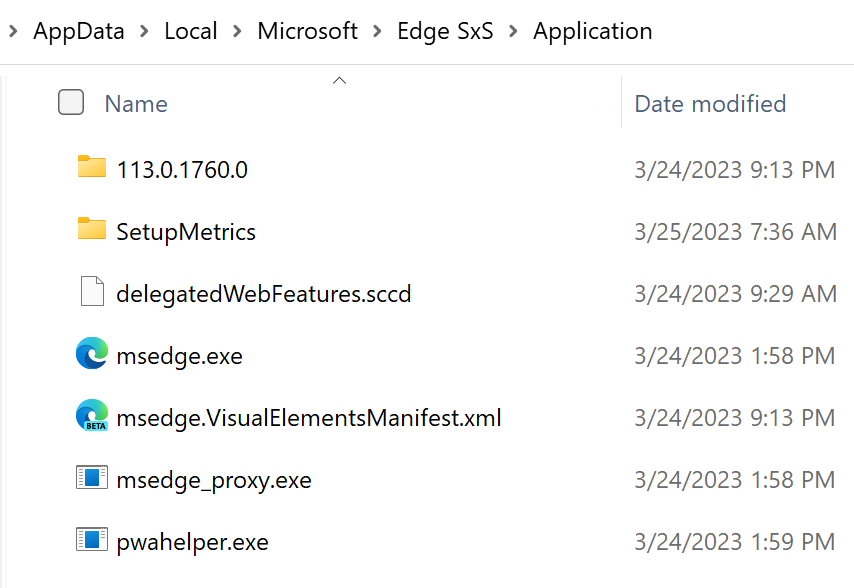
While you’re in this state, if you open Edge’s application folder, you’ll see the new version sitting side-by-side with the currently-running version:

When you choose to restart:

…either via the prompt or manually, Edge will rename and restart with the new binaries and remove the old ones:

In addition to cleaning up the old binaries, the newly-started Edge instance verifies if any data migration needs to take place (e.g. if the user profile database structure has been changed) and performs that migration.

The new instance restarts using Chromium’s session restoration feature, so all of your tabs, windows, cookies, etc, are right where you left them before the update (akin to typing edge://restart in the omnibox).

This design means that the new version is ready to go immediately, without the need to wait for any downloads or other steps that could take a while or go wrong along the way. This is important, because users who don’t restart the browser will continue running the outdated version (even for new tabs or windows) until they restart, and this could expose them to security vulnerabilities. Security Tip: If your see the update notification, you should restart as soon as possible!

Three Group Policies give administrators control of the relaunch process, including the ability to force a restart.

Threat Management / Software Inventory

Unfortunately, this design can cause some confusion for Enterprise Software Inventory / Threat Management products, because they will typically check the version of the current msedge.exe file on disk. That version may be outdated pending the relaunch of the browser, which will perform the replacement process.

For example, if the msedge.exe is on version 119.0.2112.0, but version 119.0.2213.0 is currently staged as new_msedge.exe, your Software Inventory tool might complain that the user has an outdated version of Edge until the user launches the browser.

Manually vs. Automatic Update Check

Users can trigger a check for updates by clicking > Help & Feedback > About Microsoft Edge or navigating to edge://settings/help.

If that doesn’t work (e.g. because Edge crashes before navigating anywhere) fear not — Edge’s Update Service will install a new release within a few hours of it becoming available. If you’d like to speed it along, you can ask the Updater to update Edge Canary thusly:

"C:\Program Files (x86)\Microsoft\EdgeUpdate\MicrosoftEdgeUpdate.exe" "/silent /install appguid={65C35B14-6C1D-4122-AC46-7148CC9D6497}&appname=Microsoft%20Edge%20Canary&needsadmin=False"

If you instead wanted to update Stable, the command line would be

C:\Program Files (x86)\Microsoft\EdgeUpdate\MicrosoftEdgeUpdate.exe" -argumentlist "/silent /install appguid={56EB18F8-B008-4CBD-B6D2-8C97FE7E9062}&appname=Microsoft%20Edge&needsadmin=True"

Beware Fake Updates from websites

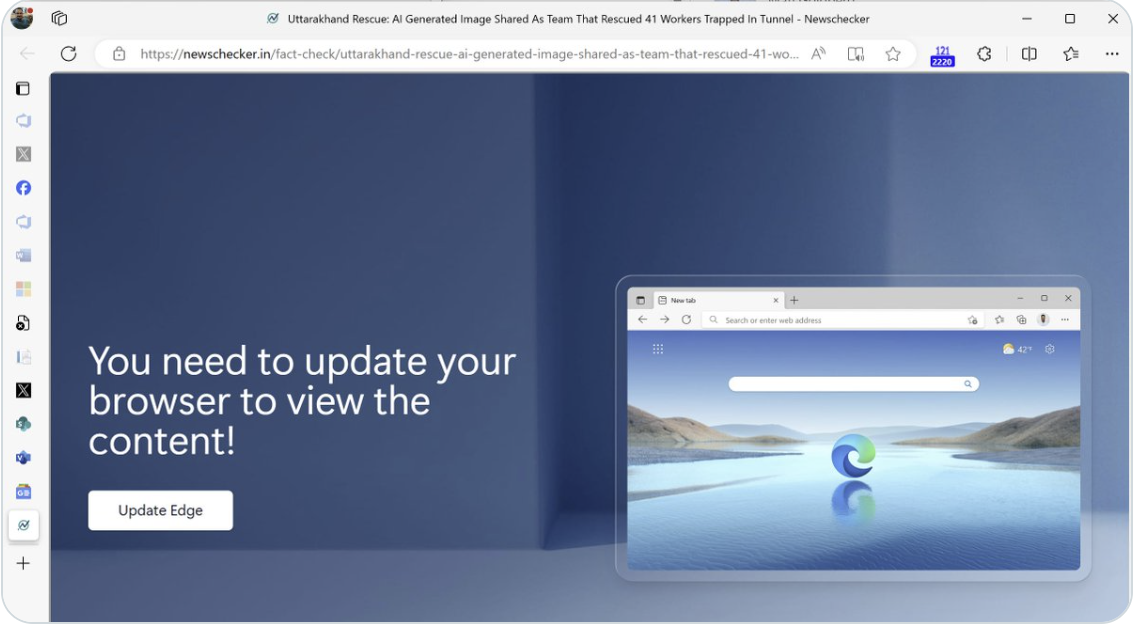
If a website claims that you need to install a browser update to continue, don’t do it, it’s a scam! Websites sometimes are compromised by malicious ads pretending to be a browser update, in the hopes that you’ll download and run their malicious software. Edge (and Chrome) never distribute updates in this way.

Screenshot of a SCAM site that attempts to trick the user into installing malware

-Eric

Technical Appendix

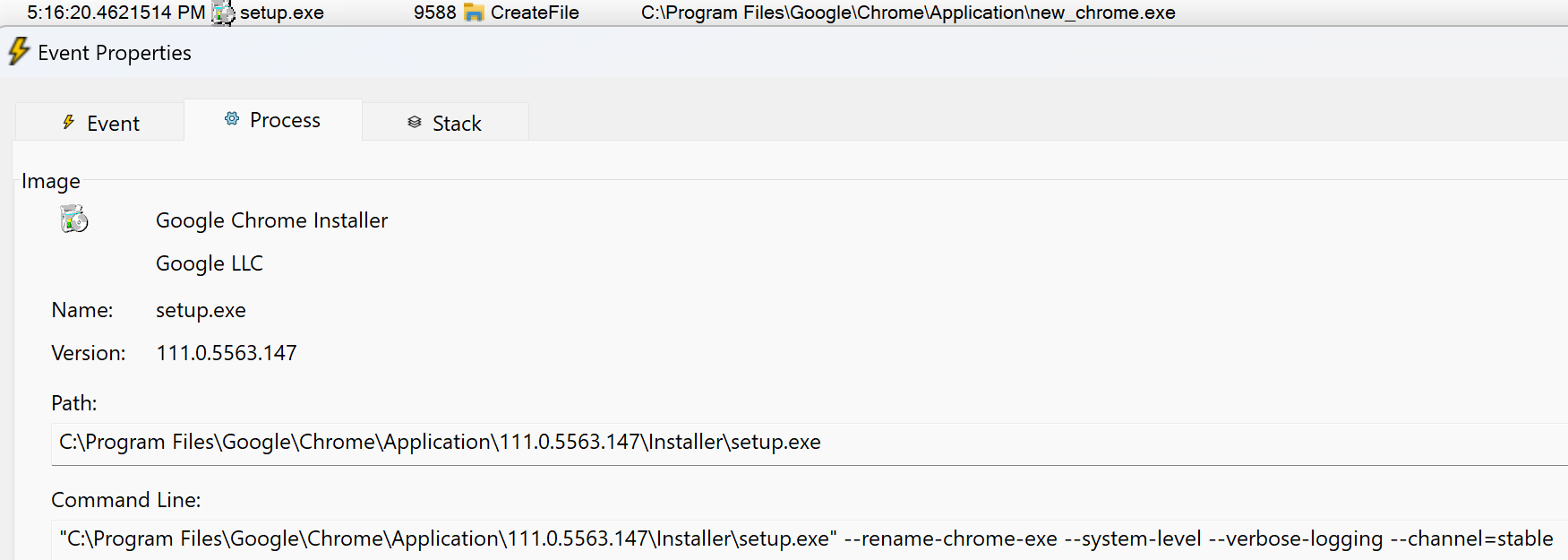
Chromium’s code for renaming the new_browser.exe binary can be seen here. When Chrome is installed at the machine-wide level, Chromium’s setup.exe is passed the --rename-chrome-exe command line switch, and its code performs the actual rename.

Edge’s background updater uses a variety of approaches to ensure that it’s available to install a new version upon release: